Are your AirPods so quiet even at 100% volume? Try these proven fixes from our experts along with advanced troubleshooting tips to restore your AirPods volume instantly in minutes:
Apple’s first-ever AirPods were launched in 2016. The AirPods allow their users to listen to audio files in high sound quality.
They make your experience extraordinary with features like Active Noise Cancellation, heart rate sensing, Smart Sensors, Siri commands, and more. Plus, the latest AirPods are available in awesome colors like blue, purple, and orange.
Why Are My AirPods So Quiet All of a Sudden: Easy Fix
AirPods allow their users to adjust sound volume using the volume buttons on the iPhone or through Siri. In the latest versions, like in AirPods Pro 2, you can adjust the sound volume just by swiping up or down on the AirPod’s stem; and if you are using AirPods Max, you can adjust the volume using the digital crown located on the right earbud.
If you have tried adjusting the volume, but the AirPods are still quiet, then read the article further to learn about the reasons and solutions to fix this issue.
Here is the video guide on how to fix low volume on AirPods:
Why are My AirPods So Quiet at Full Volume
Your AirPods might be quiet at full volume due to these reasons:
- There can be a lot of dust on your earbuds, blocking the sound.
- The charging case may not be clean, which is why the AirPods would not be charging properly.
- The Bluetooth connection might have a problem.
- Your device’s volume settings might be the problem.
- Your device may work in Low Power mode
- The headphone safety features could be the reason for the problem.
- The AirPods may not be a perfect fit for your ears
- There would be some physical damage.
In most of the above cases, the issue can be solved by following some simple steps, which are stated below.
Quick Tips to Fix The AirPods Volume Issue
To fix the issue, try these simple and quick methods first:
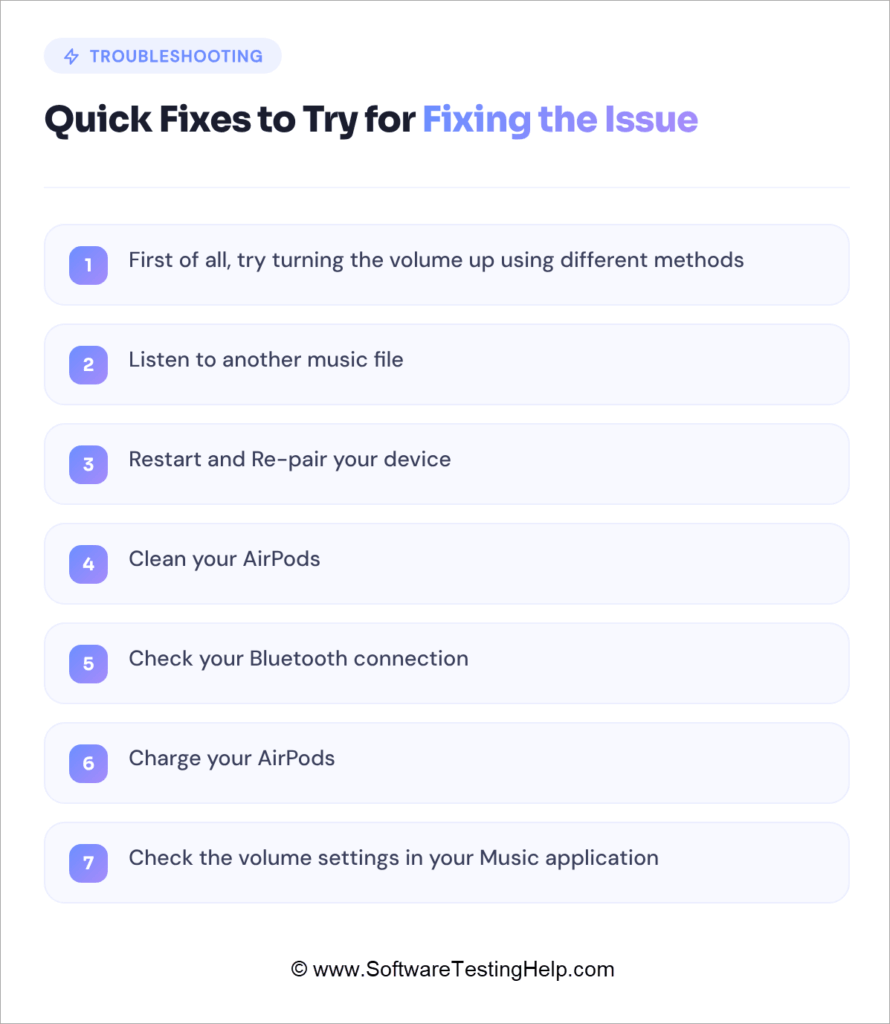
#1) Turn Up The Volume
First, try turning the volume up using different methods. You can try turning the volume up (or down) through different methods, like:
- Use the side buttons on your iPhone.
- Ask Siri to increase (or decrease) the volume.
- Swipe up (or down) on the AirPod’s stem to change the volume if you are using AirPods Pro 2.
- If you are using AirPods Max, then make use of the digital crown on the right earbud to change the volume.
#2) Listen to Another Music File
Some music files have low sound. Even if you listen to them at maximum volume, they will sound quiet. And when you listen to another music file, it sounds louder. In that case, the issue is not with the AirPods, but the audio file would be created with low sound.
So listen to another music file. If all audio files sound quiet, then take further steps, as stated below.
#3) Clean Your AirPods
If there is a layer of dust, either on your earbuds or inside the charging case, then clean it, very gently, using a soft cotton cloth or a soft toothbrush and micellar water. Avoid using any sharp objects or soap for cleaning.
If the AirPods and charging case are clean, then make sure there is no moisture as well. If you find some moisture, then you must also clean it with a soft cotton cloth and leave the AirPods to dry for some time.
To clean your AirPods, follow these steps:
- Take some micellar water (generally used for cleaning makeup and impurities from the face).
- Take a soft toothbrush and dip it into the water.
- Now clean the different parts of your earbuds using a toothbrush. Make sure the dirt does not get inside the small holes on the earbuds.
- After cleaning, leave the earbuds to dry for about 2-3 hours.
- Use a dry, soft cotton cloth or brush to clean the charging case. Avoid using sharp objects for cleaning.
#4) Check Your Bluetooth Connection
If another paired Bluetooth device is present near the iPhone, it may cause trouble with the Bluetooth connection between the iPhone and your AirPods.
The iPhone may have been connected to another device, and you might be wondering why you can’t hear anything in the AirPods. So make sure you have a stable Bluetooth connection between the iPhone and AirPods. Disable other Bluetooth devices present near your iPhone if they are causing issues with the connection.
#5) Restart and Re-pair your device: You can restart your iPhone and then re-pair it with the AirPods. This will fix temporary bugs.
#6) Charge your AirPods: We found a user asking – Why are my AirPods so quiet suddenly?
Let me tell you, it would most probably be because of the iPhone’s low battery. If that’s the case, charge your AirPods for at least 2 hours so that they get fully charged, and you get the best results.
#7) Check the volume settings in your Music application: The specific music application that you are using may have a separate volume adjustment feature. If that’s the case, turn the volume up from the app as well.
AirPods So Quiet: Advanced Troubleshooting Methods
If the issue does not get fixed using these methods, you can try these advanced measures:
#1) Turn off Low Power Mode on Your iPhone
If there is a low battery in your iPhone, the phone will automatically switch to Low Power mode to save the iPhone from excessive battery drainage.
Low Power mode hinders the normal functioning of many apps, like automatic app refresh, low volume of AirPods, etc. And due to this, your AirPods would have become so quiet. You can switch off the Low-Power mode on the iPhone to fix the issue.
- Go to Settings
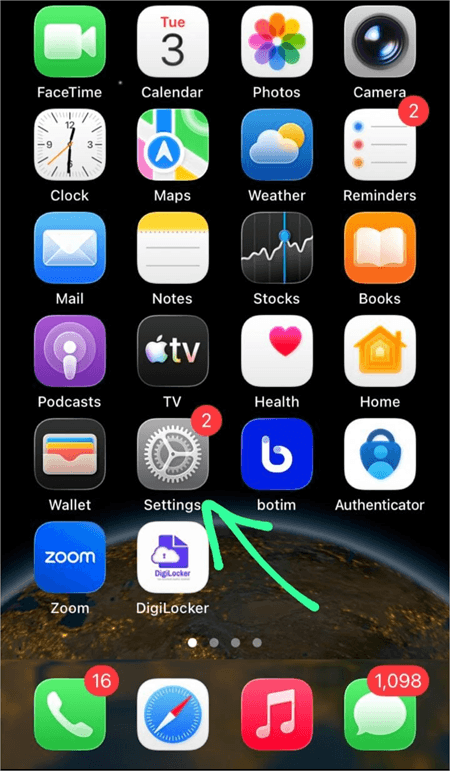
- Select Battery
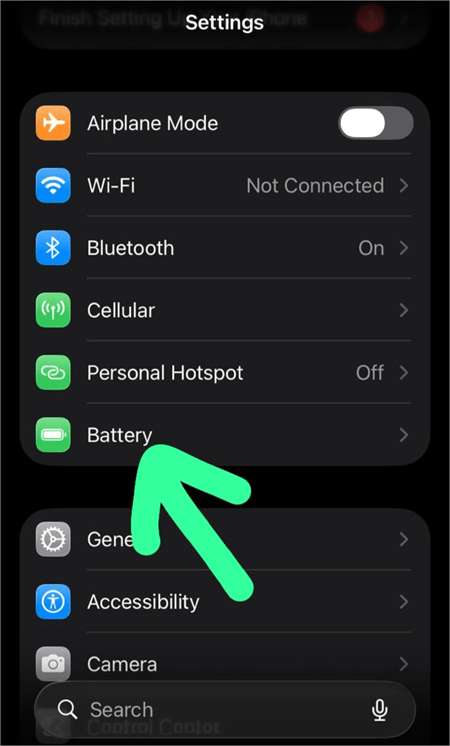
- Now turn Low Power mode OFF as shown below.
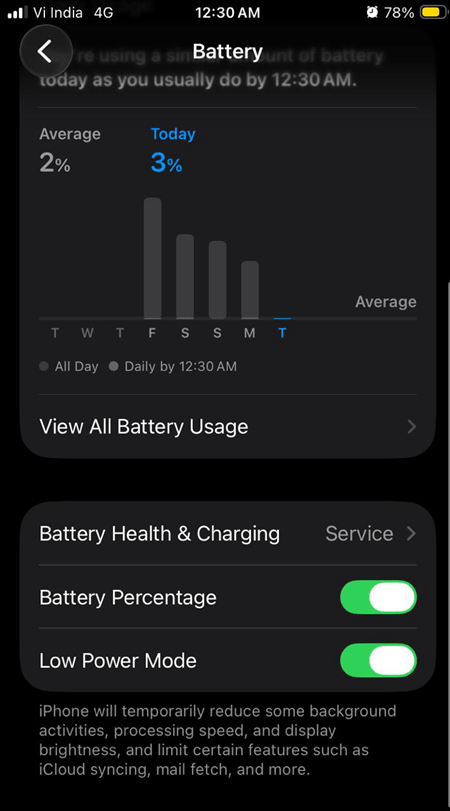
#2) Turn Off Headphone Safety Feature
Listening to audio at high volumes can cause severe hearing damage. That’s why iPhone’s Headphone Safety feature is designed to automatically stop users from increasing the hearing volume above a fixed extent, to safeguard their hearing.
If this feature is turned on, your AirPods’ maximum volume will be reduced to a certain limit, and you will be notified about it every time you try to increase the volume.
Users can turn this feature off by following these steps:
- Go to Settings
- Select Sounds & Haptics as shown in the image below
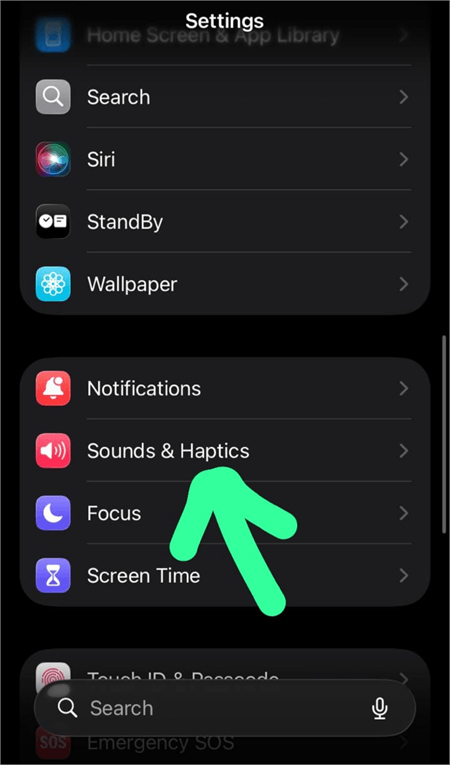
- Choose Headphone Safety
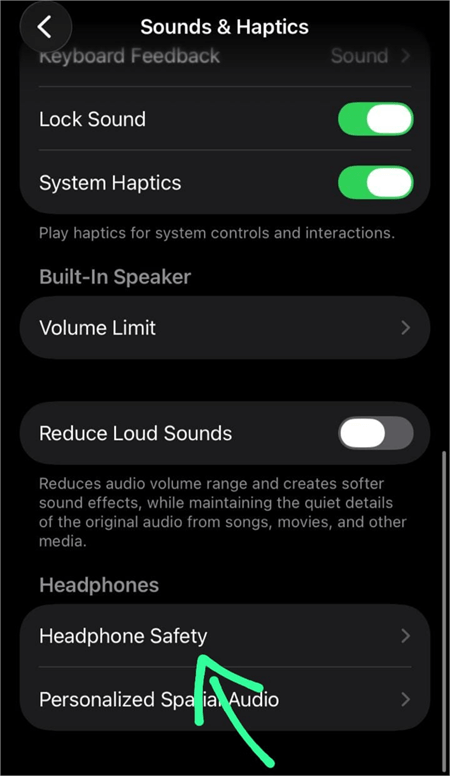
- Turn OFF Headphone Notifications as depicted below.
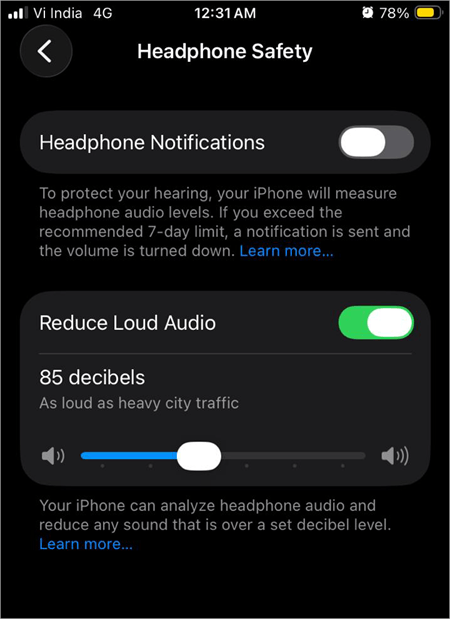
This way, you could listen to your AirPods at maximum volume without being notified about the health hazards of listening to music at high volume.
But since Apple warns about the possibility of hearing damage, users must refrain from listening to audio files at too high a volume.
#3) Change Music EQ in Your iPhone
Music EQ, or Music Equalizer, is the feature that allows users to change the sound of music. If you want loud music, then set Music EQ to Late Night, which offers the loudest sound.
To change this setting, follow these steps:
- Play a song on your iPhone
- Now go to Settings
- Select Apps
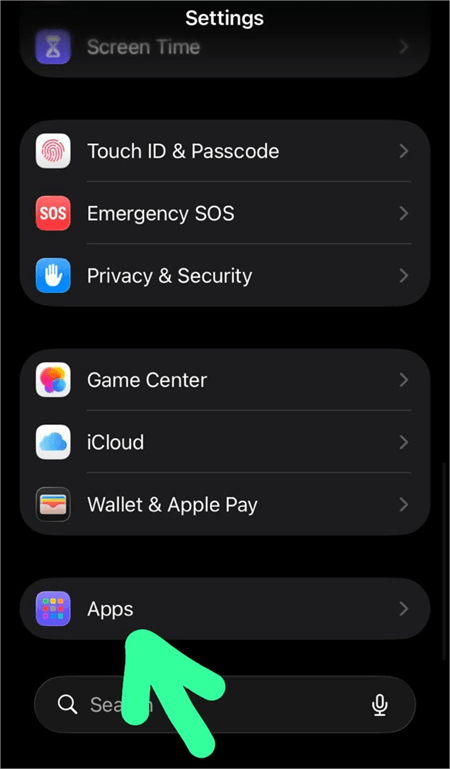
- Select Music as in the image below.
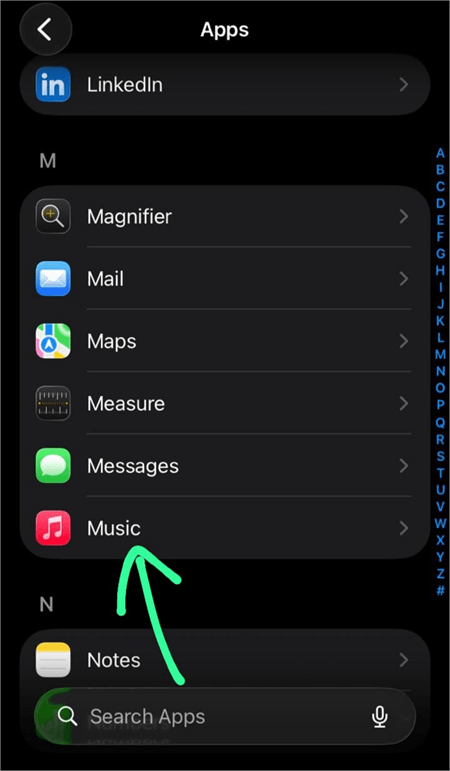
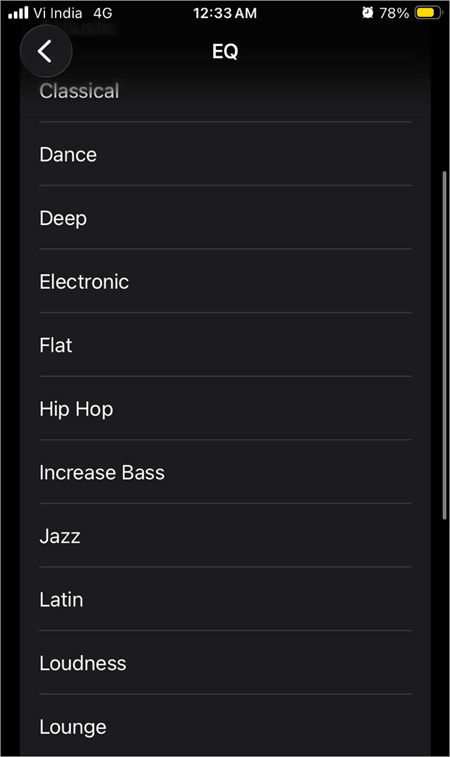
- Choose EQ as depicted below.
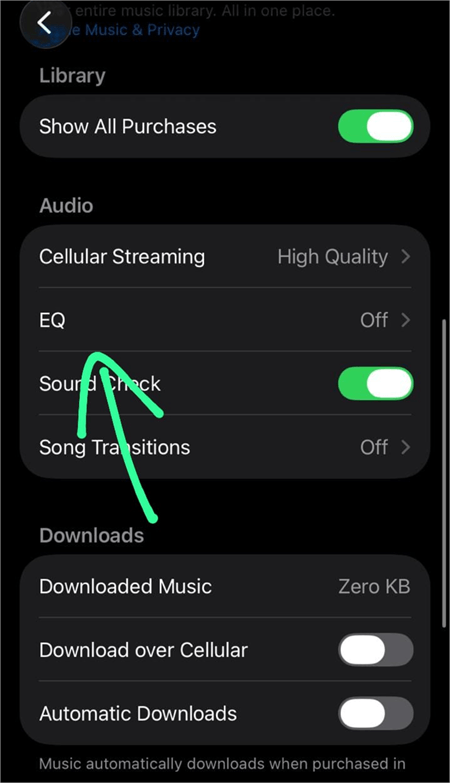
- Now you will see different options here. Tap on each one to see how the sound of music changes, and then choose the one you like.
#4) Ensure the Earbuds Fit you Perfectly
Unfit earbuds can lower the quality of the listening experience. It is best to buy AirPods with a perfect fit. AirPods come in multiple sizes. Buyers must try the AirPods first when buying.
Users can also run an Ear Tip Fit Test by following these steps:
- Connect your AirPods to your iPhone via Bluetooth
- Go to Settings
- Select Bluetooth
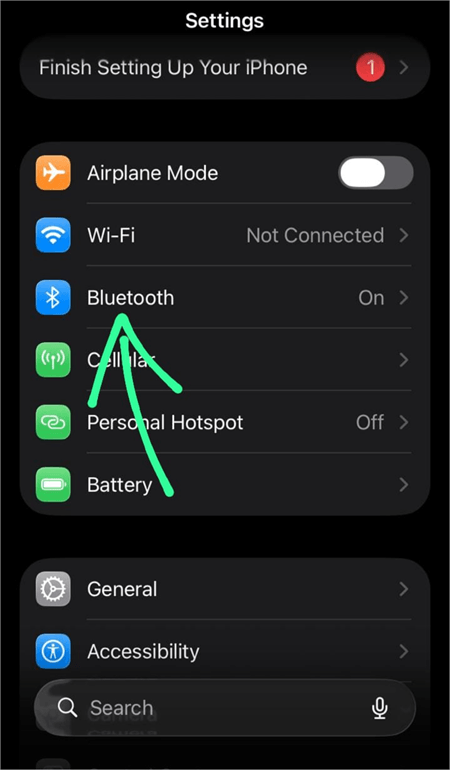
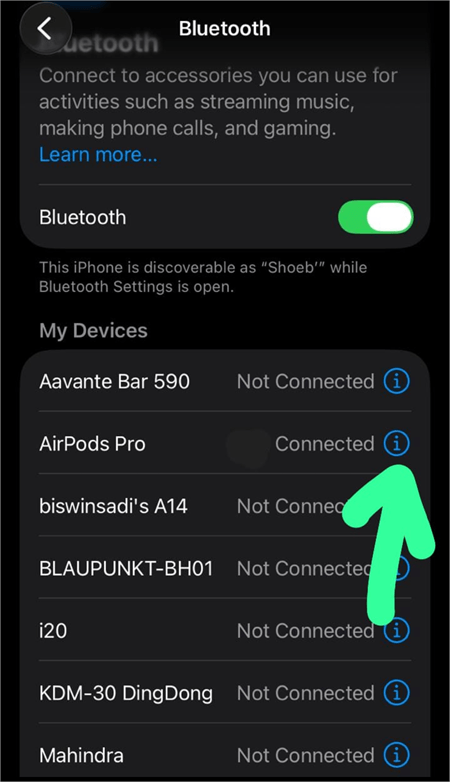
- Find the option AirPods Pro, and then tap on the info (i) icon next to it.
- Now scroll down and tap on Ear Tip Fit Test
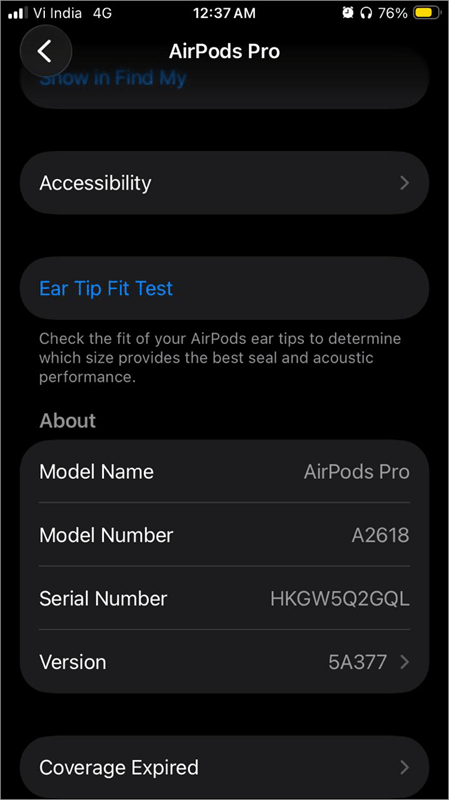
- Now follow the instructions on your screen.
#5) Adjust Audio Balance in Your iPhone
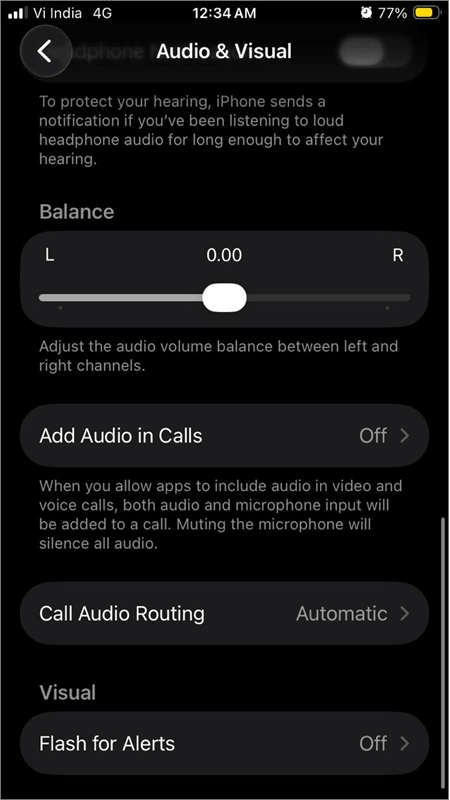
I spotted an AirPod user asking, “Why is one of my AirPods so quiet?” Let me tell you, it would most probably be due to the Audio Balance feature in the iPhone, which can cause one earpiece to be quieter than the other.
You can check this feature on your iPhone by following these steps:
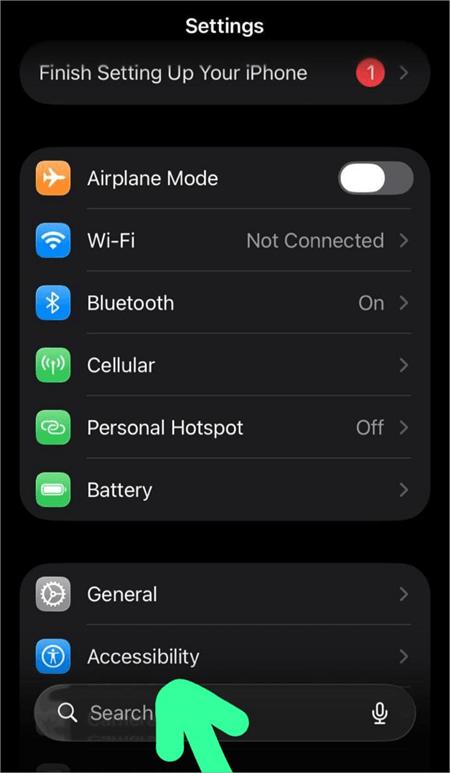
- Go to Settings
- Choose Accessibility
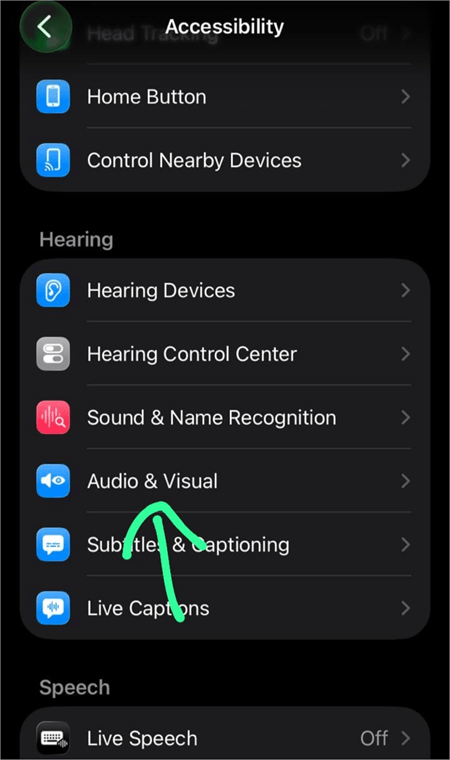
- Now select the Audio & Visual option
- There will be a slider under the heading Balance. If the slider is moved towards one side (left or right), then that side will sound louder than the other side. If you want to listen to equally loud audio in both earpieces, move the slider to the middle.
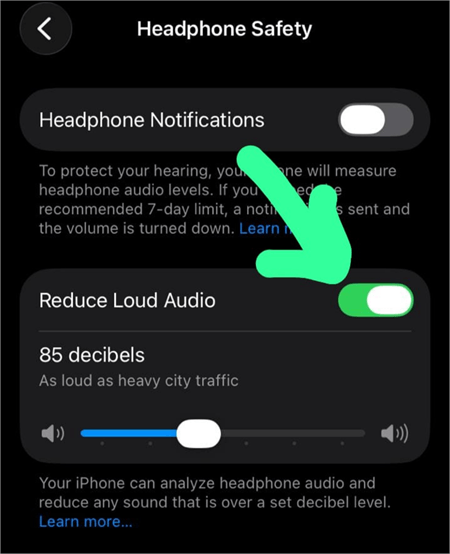
#6) Check if Reduce Loud Sounds Feature is Enabled
You may have enabled the Reduce Loud Sounds feature on your iPhone. This feature allows users to set a maximum volume for audio on their iPhone.
You can turn this feature off by following these steps:
- Go to Settings
- Select Sounds & Haptics
- Now choose Headphones Safety
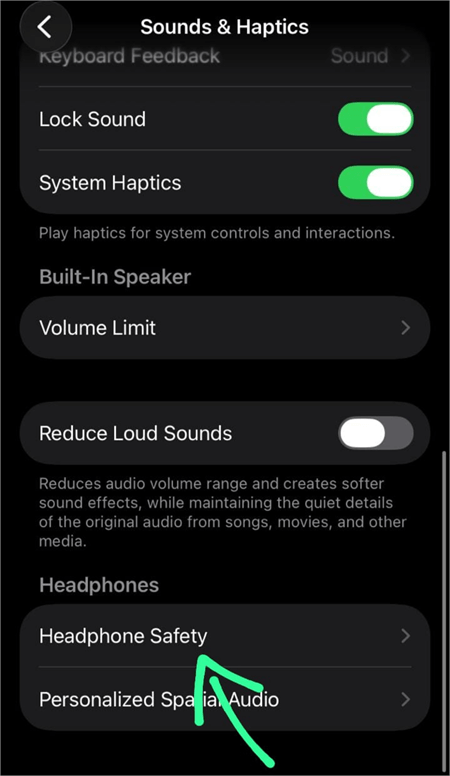
- Turn off Reduce Loud Audio.
AirPods’ Firmware Updates
From time to time, AirPods automatically update to the latest firmware while they are paired to a device that is connected to Wi-Fi. The updates are for bug fixes and the latest features.
As per the reports, the 8B30 firmware for AirPods Pro 3 had Active Noise Cancellation (ANC) issues. Then the 8B34 firmware was released to fix that issue. But many users were spotted reporting that the AirPods went too quiet after the 8B34 update, and now they have to listen to the audio at a higher level to get the specific volume they want.
If we examine this issue deeply, we find that there are mixed reviews from the AirPods Pro 3 users. Some are of the view that the issue has worsened with the firmware update, while some state that the sound quality has improved.
I would say the issue can be due to the EQ setting or Audio Balance feature, or the Reduce Loud Sounds feature. Sometimes (though rarely), the settings may change with an update. So users should adjust these features in order to get the perfect sound.
Why are My AirPods so Quiet Suddenly on Android?
If you face issues while using AirPods with an Android phone, then try these solutions:
- You may have accidentally lowered the volume: Try increasing the volume.
- In AirPods Pro 2, the volume can be altered just by swiping on the stem of your earpiece. If you don’t know about this feature, you may accidentally lower the volume and then wonder how it happened!
- The AirPods’ battery may be low: Charge them for a while and then use them.
- Check the Bluetooth connection between the AirPods and the Android device: You can try re-pairing the devices.
- The phone may be running on Low Power mode: Due to this, the AirPods’ volume may have gone down to a specific limit.
- Check whether your music app has a separate volume adjustment feature: If that’s the case, the volume may be set to a low limit in the music app you are using.
- Check the Multi-Volume feature on your Android phone: Some Android phones have this feature; it automatically mutes certain apps based on your usage pattern. So, if you enable this feature, your phone may automatically mute the music app (or any other app) based on how often you generally mute that app. Check this feature in your Android phone by following these steps:
- Go to Settings
- Select Sounds & vibration
- Tap on Multi-volume
- Now turn it off.
When to Seek Professional Help to Fix AirPods Issues?
If none of the above-stated solutions work, you will need to get professional help from Apple support. Plus, if there is physical damage, you must also consult Apple Support to get the AirPods repaired.
I would recommend getting the AirPods fixed by Apple Support only, because with local repair options, you would most probably not get good results.
Prevention Tips to Protect Your AirPods
AirPod users can take the following measures to prevent issues with the AirPods:
- Keep the AirPods clean. Clean your AirPods with a soft cotton cloth every other day, even when they don’t look unclean. If they get dirty, you can use a cotton cloth or a soft toothbrush and micellar water to clean them.
- Keep the charging case also clean.
- Make sure no moisture gets inside the AirPods. The latest versions of AirPods are water-resistant, so there would not be an issue if they are exposed to a small amount of water, but they can get damaged when submerged in water. If you fear there is some moisture inside the AirPods, clean them with a soft cotton cloth and then leave the AirPods to dry for 2-3 hours. If the issue persists, contact Apple Support for professional help.
- After workouts and whenever the AirPods are exposed to sweat, soap, etc., clean your AirPods and leave them to dry for some time.
- Refrain from cleaning the AirPods with a sharp object.
- For best results, always use the AirPods that fit you well.
Frequently Asked Questions
1. Do AirPods get quieter over time?
The AirPods may get quieter over time, mainly when they are not cleaned regularly. With proper usage and regular cleaning, the AirPods’ quality will remain the same over several years.
Make sure you never use a pointed object to clean the AirPods. Plus, clean them in a way that the dirt does not go inside the small holes on your earpieces.
2. Why are my AirPods so quiet even after cleaning?
If you have cleaned your AirPods well and they still sound quiet, then there could be one of the following reasons:
• The Music EQ may be set to a low volume sound
• The Headphone Safety feature may be turned on
• The earpieces may not be a perfect fit for your ears.
• Your iPhone may be in Low Power mode
• Another nearby Bluetooth device may be hindering the connection between your iPhone and the AirPods.
• The volume setting in your Music app may be set to very low.
3. How to clean AirPods to make them louder again?
To clean your AirPods, follow these steps:
• Take some micellar water (used for cleaning makeup and impurities from the face)
• Take a soft toothbrush and dip it into the water
• Now clean the different parts of your earbuds using the toothbrush. Make sure the dirt does not get inside the small holes on the earbuds.
• After cleaning, leave the earbuds to dry for about 2-3 hours.
• Clean the charging case with a dry, soft cotton cloth or brush. Avoid using a sharp object for cleaning.
4. Is it safe to use a needle to clean AirPods?
No. AirPod users are always recommended to refrain from using a needle or any other sharp object for cleaning them, because it can cause permanent damage to the AirPods.
5. Is there an AirPod volume limiter?
Yes. You can limit the volume for your AirPods using these steps:
• Go to Settings
• Select Sounds & Haptics
• Now choose Headphones Safety
• Turn on Reduce Loud Sounds.
• Now you can set a maximum sound for your headphones.
6. What do 3 taps on AirPods do?
AirPod users can tap on the stem for different purposes. For example:
• One tap on the earbud’s stem can be used for pausing the audio and resuming it. It can also be used for picking up an incoming call.
• Double-tap can play the next file
• A triple tap is used to play the previous track.
Users can change AirPod controls anytime by following these steps:
• Go to Settings on your iPhone while wearing your AirPods.
• Tap on the name of your AirPods
• Adjust controls.
Conclusion
Not being able to listen to your favorite audio/music file at the volume you want can be quite annoying at times. We spotted some users asking ways to make their AirPods louder again. So we did research to enlist the reasons and solutions for this issue.
We found that the most common reason causing this issue is unclean earpieces. Other reasons include Low-Power mode, Music EQ setting, unfit earbuds, Headphone Safety feature, and more.
Listening to music at high volume is quite enthralling, but I would highly recommend users refrain from using AirPods above the recommended volume, as it can be (rarely) dangerous at times.
Moreover, a study by the National Library of Medicine, USA reveals that frequent and continuous usage of Bluetooth headphones can lead to health issues like the development of thyroid nodules, caused by the emission of non-ionizing radiation (NIR) by the headphones.
Research Process: The total time involved to complete and publish this article is approximately 40 hours. This content was created through a structured research approach to ensure accuracy and reliability.
For more-related guides, you can explore our range of tutorials below:
- How To Tell If AirPods Are Fake Or Real
- How to Fix Volume Keeps Going Up Itself on iPhone or Android
- How to Connect AirPods to a Laptop or PC on Windows or Mac
- How to Connect AirPods to PS5
- How to Clean Charging Port on iPhone
- The Top 13 Wireless Earbuds (Best Sellers List)
- The 14 Best Noise-Cancelling Earbuds (Bestsellers)
- The Top 10 Bluetooth Earphones In India (Best Sellers)
- Top 17 Best Over-Ear Headphones (TOP Cheap Headsets)
Was this helpful?
Recommended Reading
-

Planning to upgrade your headphones to listen to the most premium music? Read this review of the top Bose QuietComfort Earbuds: Music without proper earbuds becomes very pale. This is why having the right pair of earbuds is very important! Switch over to Bose QuietComfort Earbuds. The best Bose QuietComfort…
-
This article reviews and compares the top Gaming Earbuds with technical specifications to guide you to select the best earbuds for gaming: Are you facing difficulties talking with your teammates while playing games? Is the background noise becoming too difficult to overcome? With the best Gaming Earbuds, you'll be able…
-
Getting too much background noise while attending calls or listening to your favorite music? Read this review to analyze and find the best Noise Cancelling Earbuds: It is important to have the right set of headphones for an amazing experience. It's time to switch over to the best Noise Cancelling…
-
Read this Wireless Earbuds review with tech specs and comparison among bestsellers to select the best Wireless Earbuds for maximum comfort: Are wired headphones making your daily life full of struggle? Wouldn't it be better if you could go wireless? With the best Wireless Earbuds available to you, you can…