


Wondering how to delete apps on iPhone permanently? This step-by-step guide shows how to uninstall and remove apps from any iPhone model easily.
Is your iPhone running out of space or slowing down? Or maybe you just want to get rid of apps you no longer use? Then this guide will help you delete apps on your iPhone easily.
Whether you are using the latest iOS version or an older iPhone, in this Guide, I’ll take you step by step through three methods, from deleting apps directly on your iPhone to removing hidden or pre-installed ones.
Deleting unwanted apps from your iPhone will help you to keep your iPhone clean, free up storage space and improve your iPhone’s performance.
Uninstall an App on iPhone: Complete App Deletion Guide
A user may need to delete an app from their iPhone for several reasons, like:
- They installed it by mistake.
- They do not need it anymore.
- There is no storage left in the phone.
- The app may be addictive or may cause issues like excessive battery drainage, etc.
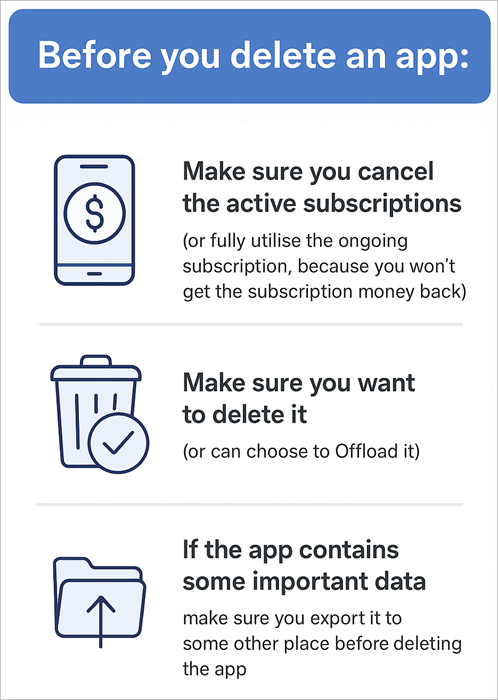
Offload vs. Delete iPhone Apps Difference
If you are facing storage issues, you can choose to offload app (instead of deleting it). This way, you will be able to retrieve your app data when you reinstall the app.
Here is the video guide on how to delete apps on iPhone:
How to Delete Apps Directly from the iPhone Home Screen
To delete an app (for example, Facebook) on your iPhone, follow these steps:
#1) Press somewhere on your home screen (make sure you don’t press on an app’s icon).
#2) A small minus (-) sign will appear in the upper left corner of all apps.
The image below shows how a small minus (-) sign will appear:
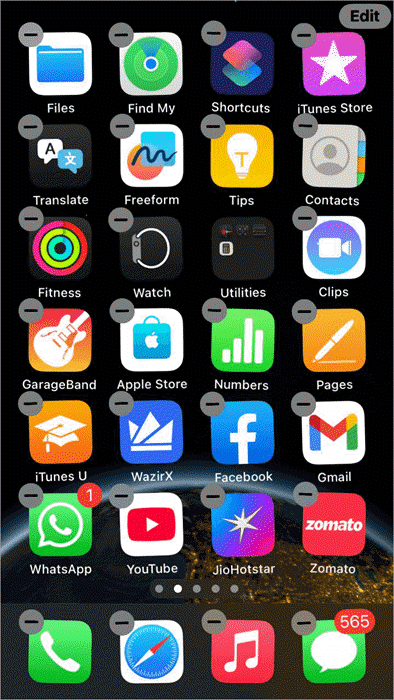
#3) Tap on the – sign of the app you want to remove from the home screen.
#4) A menu box will pop up.
Here is the image of the Menu box:
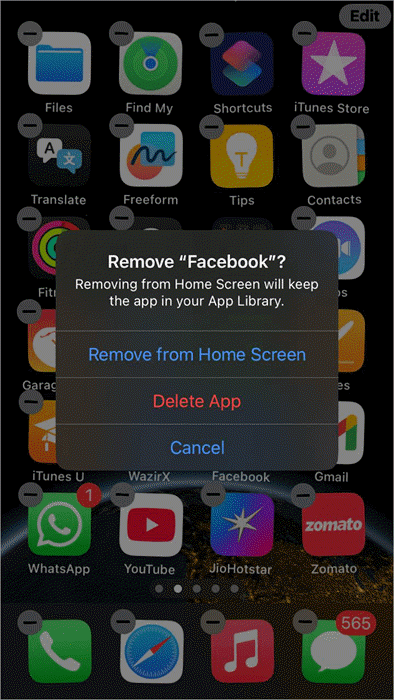
#5) Tap on Delete App
#6) Confirm.
The Facebook app will then be uninstalled from your phone. You can follow the same steps for deleting more applications.
Some users stated they had 2 icons of the same app on their home screen. Even after deleting one of them, the other one stayed there. Plus, they were not able to delete it. This issue happens because of bugs. A simple restart fixes the issue most of the time.
How to Remove an App From iPhone Home Screen
If you want to remove an app from the home screen of your iPhone, but don’t want to uninstall it, then do as stated under:
#1) Press somewhere on your home screen.
#2) A minus (-) sign will appear on the upper left corner of all apps.
See the image below to know how a small minus (-) sign will appear:
#3) Tap on the – sign of the app you want to remove from the home screen.
#4) Select the Remove from Home Screen option.
Here is the image of Remove from Home Screen pop-up:
#5) The app will no longer be visible on your home screen.
Where Will You Find the App Removed From the iPhone Home Screen
Now you can find the app you removed from the home screen by following these steps:
#1) There will be a search bar on your home screen for the App Library.
Here is an image of the Search bar for App Library:
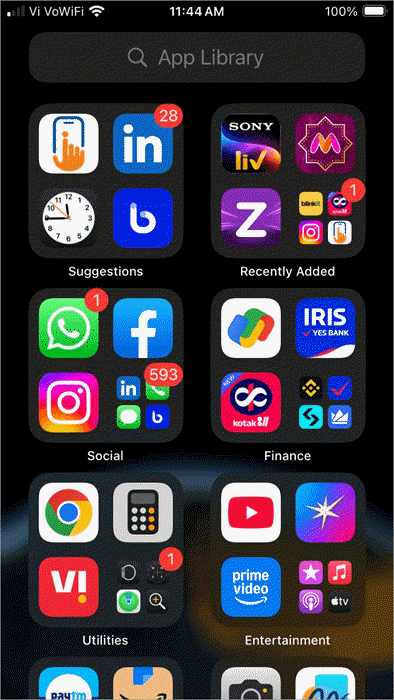
#2) Enter the name of the application you are looking for.
#3) Now you can open the app by tapping on its icon.
#4) If you want to get the app’s icon back on your home screen, then press the icon until a menu pops up, and then tap on Add to Home Screen.
How to Remove Apps From iPhone Settings
If you can’t find the app’s logo on your home screen (since you removed it from the home screen), and you are wondering how to permanently delete it from App Library, then just follow these simple steps:
#1) Go to Settings
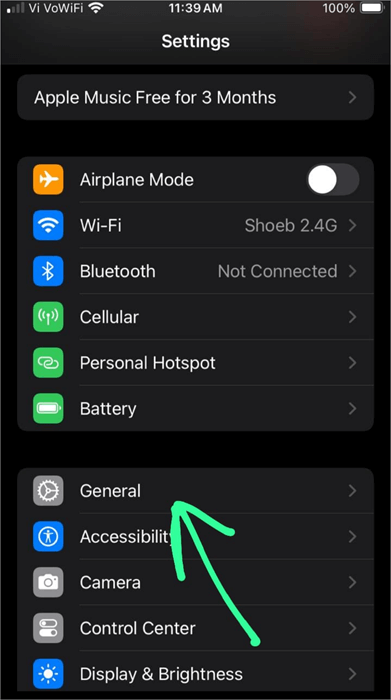
#2) Select General
Given below is the image of General settings:
#3) Choose iPhone Storage or Usage
#4) Now, from the list of apps that appear on your screen, find the app that you have to uninstall and tap on it.
#5) Tap on Delete app.
Here is the image of Delete App option:
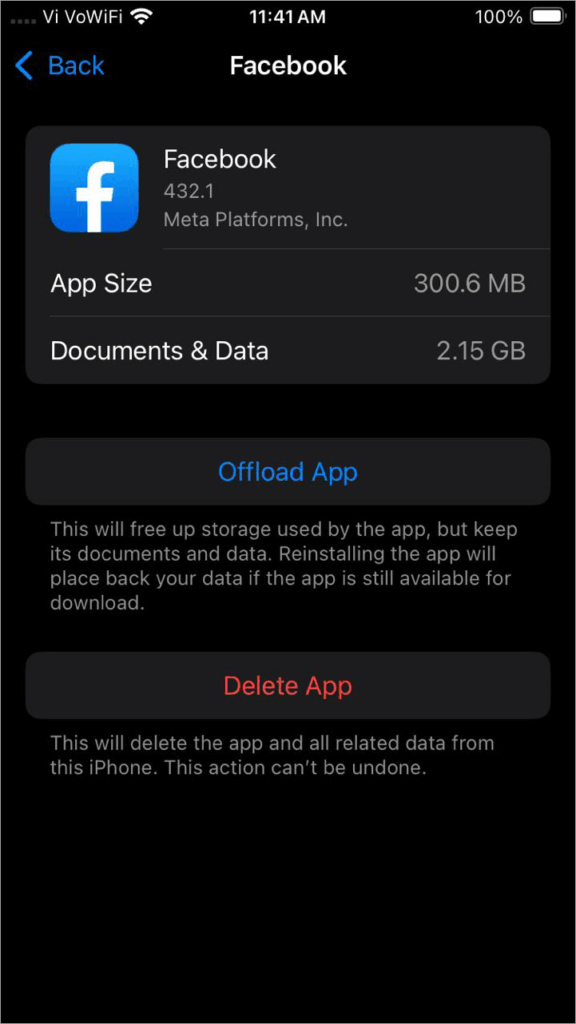
#6) Or, you can choose to offload the app from here.
How to Delete Hidden or Preinstalled Apps from iPhone
Ways to Remove Apps from the iPhone Screen to Hide Them.
You can hide certain apps on your iPhone so that they won’t be visible on the screen, and the user will have to enter a passcode to open them.
To hide an app (for example, Facebook) on an iPhone, follow these steps:
#1) On your home screen, find the app (Facebook) that you want to hide.
#2) Press the app’s icon for 2-3 seconds.
#3) A menu will pop up.
Given below is the image of the Remove App Menu pop-up:
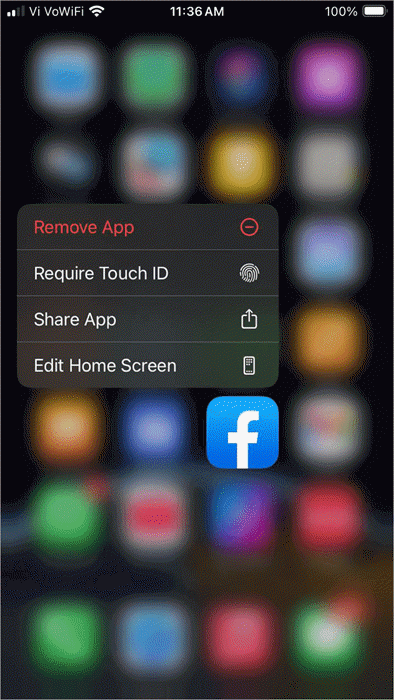
#4) Select Require Touch ID (or Face ID or Password).
#5) Now tap on Hide and Require Face ID (or Touch ID or password).
Here is the image of Hide and Require Face ID option:
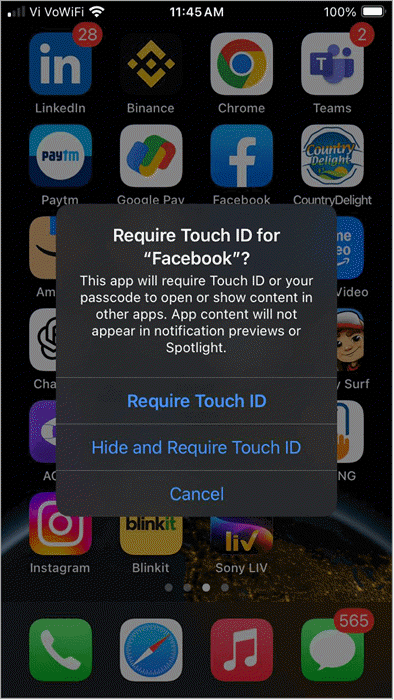
(Or you can choose to Lock the app with a Passcode)
#6) Then you would need to enter the ID (Face ID or Touch ID, or password)
#7) Select the Hide app.
The app will then disappear from your iPhone’s home screen. You can now find it in the Hidden Folder, located at the bottom of the App Library. You will have to enter the Face/Touch ID or Passcode to access the Hidden apps.
Steps to Find the Hidden Apps
Alternatively, to access the list of apps that you have hidden in your iPhone:
- Go to Settings
- Select Apps
Given below is the image of the Apps option under Settings:
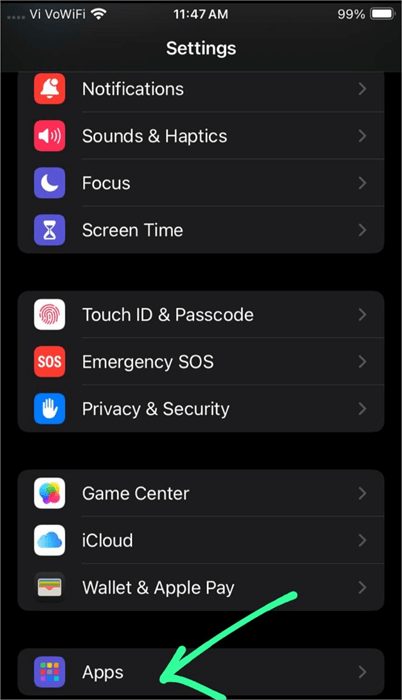
- Now scroll down to find the option Hidden Apps. Tap on it.
Here is the image of Hidden Apps option:
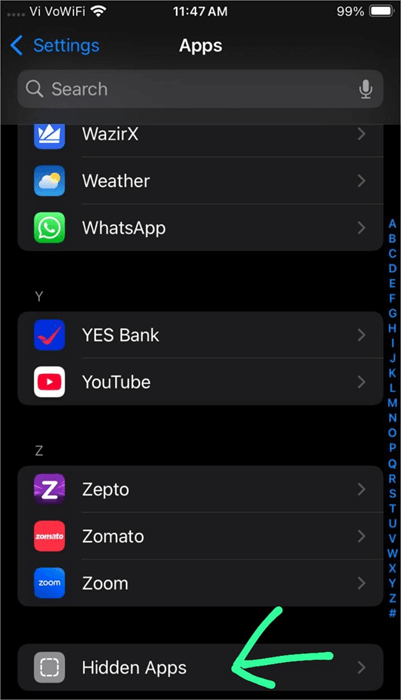
- Enter your ID
- You will see the list of hidden apps.
Ways to Delete Apps From App Library iOS (For Hidden Apps)
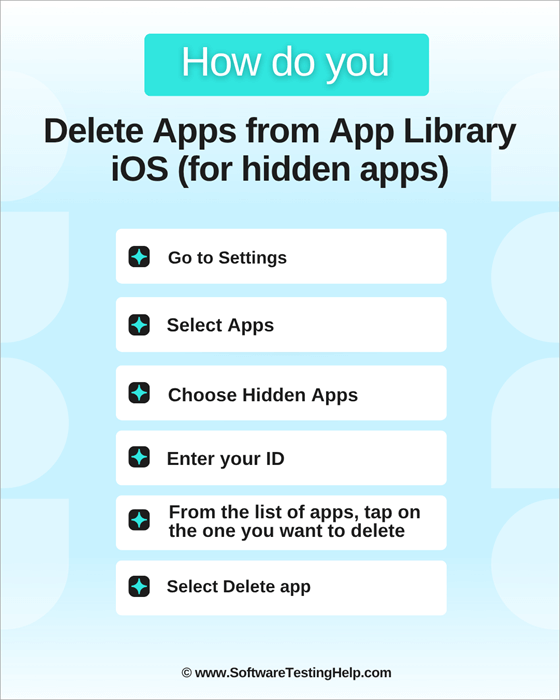
To delete a hidden app on your iPhone, follow these steps:
- Go to Settings
- Select Apps
- Now choose Hidden Apps
- Enter your ID
- From the list of apps, tap on the one you want to delete
- Select the Delete app.
How to Remove Built-in Apple Apps From iPhone
iPhone users can delete many of the built-in apps and reinstall them when needed. Go through this list of built-in apps that can be deleted, and the ones that can’t be.
See the image of built-in apps that can be deleted:
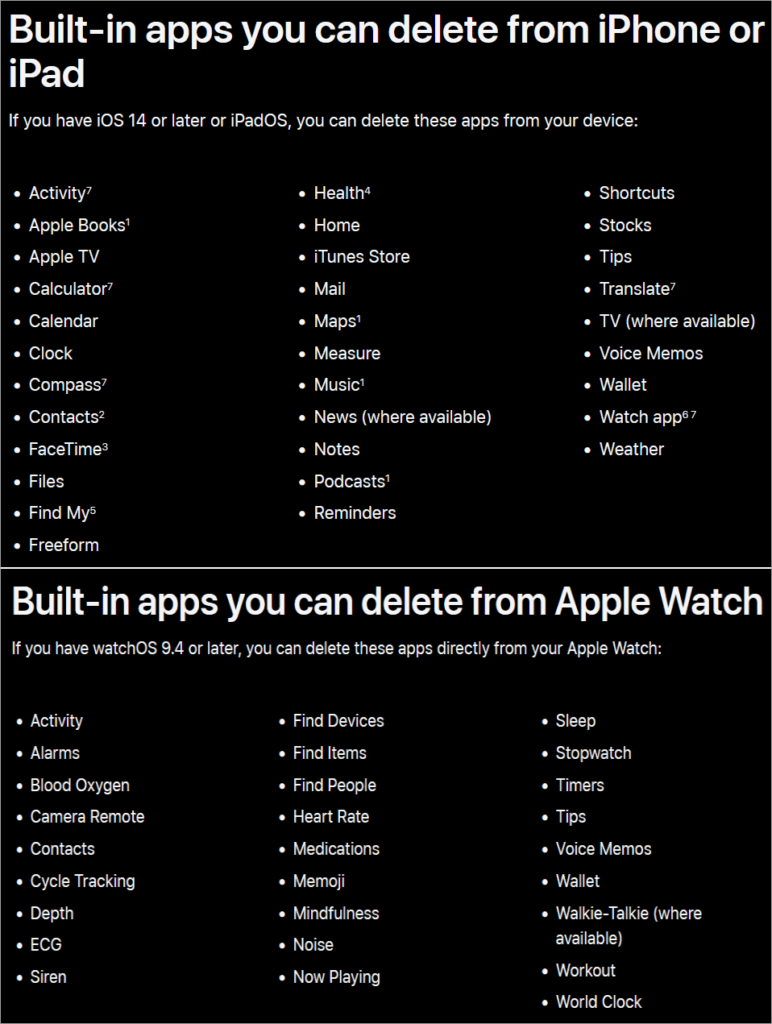
To delete a built-in Apple app, follow these steps:
- Tap and hold the icon of the app
- Now, you will see a list of options. Choose Remove app or Delete app.
- Select Delete
You can restore the deleted built-in app by doing as stated under:
- Go to the App Store.
- In the search bar type in the name of the app that you want on your phone.
- Select Download (or Redownload)
- The app will be reinstalled
Please Note:
- If you delete an in-built app from your iPhone, it will automatically get deleted from your Apple Watch also (if you are using one). If you delete an in-built app from your Apple Watch, it won’t get deleted from your iPhone.
- If you delete an app from an iPhone, it won’t get deleted from another iPhone that uses the same Apple ID.
What to do When You Have Accidentally Deleted an App From Your iPhone
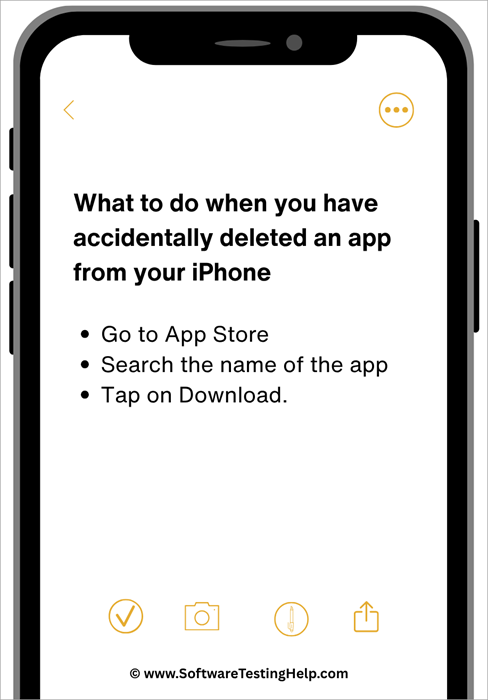
If an app is accidentally deleted, it can always be reinstalled (until it’s available on the App Store) by doing as stated under:
- Go to App Store
- Search the name of the app
- Tap on Download
Read our exclusive tutorial on where to Find Downloads on iPhone
iPhone App Won’t Delete: Troubleshooting Steps
There can be several reasons you cannot delete apps on iPhone. Go through this section to learn about the reasons and solutions for this issue.
Reason 1: You (or someone else) may have set restrictions for deleting apps on your phone.
How to fix the issue?
iPhone allows its users to restrict the deleting apps. If you have accidentally (or intentionally) made this setting on your phone, follow these steps to remove the restriction, so that you can delete the unwanted apps:
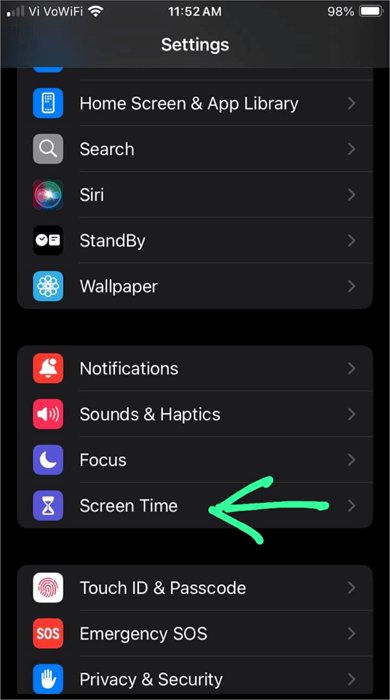
#1) Go to Settings
#2) Choose Screen Time as shown below.
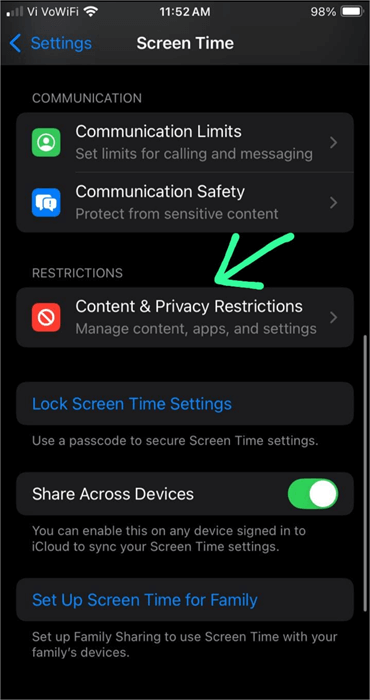
#3) Tap on Content Privacy & Restrictions as shown below.
#4) Go to iTunes & App Store Purchases as shown in the image below.
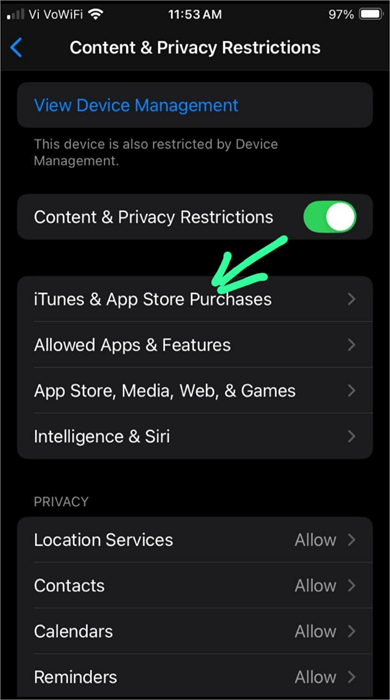
#5) Now you will have to enter a password (that you or your parents have set for restrictions).
#6) Tap on Deleting apps as in the image below.
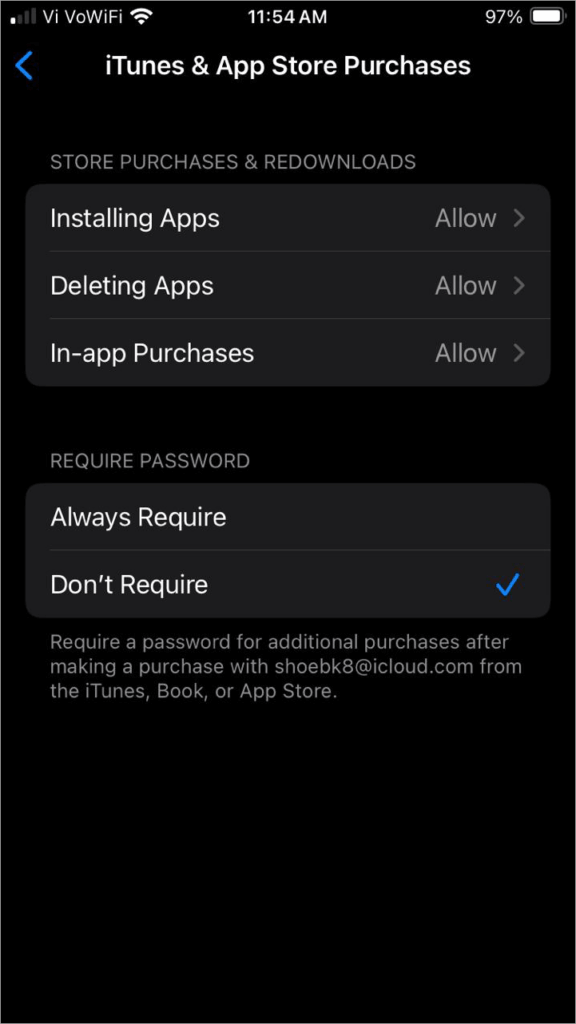
#7) Allow the option.
| Reasons | How to fix the issue |
|---|---|
| You may be using certain profiles in your phone, like your employee ID (like a school profile, company profile, etc.), which is why you are unable to delete certain apps. | You can remove the profile by following these steps: ● Go to Settings ● Select General ● Tap on Profiles ● Remove the profile and then check whether you can delete the unwanted apps now, or not. |
| You may be using a pre-configured device, provided by your school or employer | If this is the case, you would need to contact the technical department of your school or organisation, to fix the issue. |
| You may be trying to delete an in-built app, which can not be deleted. | You can not delete many of the apps that come already in-built in your phone when you buy it. Some of them can be deleted (and can be re-installed when needed). |
FAQs About Removing or Deleting Apps on iPhone Permanently
1. How do I get rid of unremovable apps on my iPhone?
If you cannot get rid of some apps on your iPhone, chances are:
• You may have restricted deleting apps in your iPhone’s settings
• Or you may be deleting an in-built app that can not be removed.
If you want to change your iPhone’s settings to ‘allow’ deleting apps, do as stated under:
• Go to Settings
• Choose Screen Time
• Tap on Content Privacy & Restrictions
• Now select Content Privacy
• Go to iTunes & App Store Purchases
• Now you will have to enter a password (that you have set for restrictions).
• Select Deleting apps
• Allow.
If you still can’t delete the app, then you would most probably be trying to delete an in-built app.
Some of the built-in apps, like Calendar, Clock, Compass, Contacts, Calculator, Maps, Notes, Reminders, and more, can be deleted from the iPhone. But the apps, including Camera, App Store, Messages, Settings, Safari, and Phone, can not be deleted.
2. How do I free up space on my iPhone?
You can free up space on your iPhone by deleting unwanted apps or media files. Follow these steps to do so:
• Go to Settings
• Select General
• Choose iPhone Storage
• Now you can delete the unwanted apps or large media files to free up space on your iPhone.
You can read our step-by-step guide on how to uninstall or Delete Apps on Mac to get a clear idea of deleting apps.
3. How do I clear my iPhone cache?
For clearing the cache of a specific app on your iPhone, follow these steps:
• Go to Settings
• Select General
• Tap on iPhone Storage
• Now tap on an app from the list of all apps on your iPhone
• Select Remove cached data while keeping your documents.
To clear Safari cache, follow these steps:
• Go to Settings
• Select Safari
• Tap on Clear History and Website Data
• Confirm
This way, all the permissions you have given to websites you have visited (including location access or cookies) in the past will be removed.
If you are looking for ways to clear the cache on different browsers, read our exclusive tutorial on how to clear Cache on Chrome, Firefox and other browsers.
4. How long do deleted files stay on an iPhone?
Your deleted files stay in the Recently Deleted for 30 days. Within these 30 days, you can recover any deleted file or delete it permanently from the Recently Deleted.
To recover a file from the recently deleted, follow these steps:
• Go to Files
• Select Browse
• Tap on Recently Deleted
• Tap the 3-dots icon
• Tap on Select
• Now choose the files that you want to recover.
• Select Recover
Read our guide on iPhone Data Recovery Software to recover your data safely on iPhone.
5. What is the difference between iCloud and iPhone storage?
The storage space that you get with your iPhone device is the iPhone storage. While iCloud storage is what you get with your iCloud account. And, if you log in to any iPhone, iPad, Mac, or any other Apple device with your iCloud account, you will automatically get access to all the files saved in your iCloud account.
6. How to remove apps in iOS 18?
In iOS 18, delete apps permanently by following these steps:
• Press somewhere on your home screen
• A minus (-) sign will appear on the upper left corner of all apps.
• Tap on the – sign of the app you want to remove from the home screen
• Select the Remove from Home Screen option.
And if you want to delete an app from your iPhone (iOS 18), then follow these steps:
• Go to Settings
• Select General
• Choose Storage & iCloud Usage or Usage
• Under the heading Storage, there will be an option – Manage Storage. Tap on it.
• Now, from the list of apps that appear on your screen, find the app that you have to uninstall and tap on it.
• Tap on Delete app.
Conclusion
In this article, we have listed the steps for:
- How to delete apps on iPhone permanently, directly from your home screen
- How to remove an app from the iPhone home screen
- How to uninstall an app on iPhone when it is removed from the home screen
- How to hide an app on iPhone
- How do you delete apps on iPhone when they are hidden
The steps may vary slightly with different iPhone models.
Now you know exactly how to remove or delete apps on your iPhone permanently, whether from the home screen, through settings or for hidden apps. Keeping only the apps you use not only saves storage but also keeps your device clean and organized.
For more quick iPhone guides, you can explore our range of iPhone tutorials as follows:
- Quick Steps to Block Apps on iOS
- Easy Methods to Turn Off SOS Mode on iPhone
- Best Apps to Mirror iPhone to iPad
- Simple Ways to Share Location on iPhone
- How to Tell if Someone Blocked You on iMessage
Was this helpful?
Recommended Reading
-

Compare the top Parental Control Apps to discover the Best Parental Control apps for iPhone and Android most suited for your children: The rapid advancement of technology poses a risk to children. Various studies have shown negative physical and mental effects of smartphone usage at earlier ages. Parental control apps…
-
Here we review and compare the top iPhone Data Recovery Software to help you select the best iPhone recovery software as per your requirement: You’re always vulnerable to data loss whether you’re using a computer, smartphone, or another device that can store data. Similarly, it does not matter if you…
-

A simple stepwise guide to Completely Uninstall or Delete Apps on Mac explaining multiple methods. Read through to understand how to uninstall apps on Mac completely: How do I uninstall apps on Mac? This is a common question among macOS users. Understanding how to delete apps on Mac is crucial…
-
Explore the top effective methods to Remove Malware From Android Phones. Here you will also learn about malware types and the top anti-malware tools: Malware is malicious software that can easily get into your phone while you are surfing the internet on your phone or downloading applications from malicious websites…


