Fix connectivity issues on your Samsung phone in minutes with our step-by-step guide. Learn how to reset network settings on Samsung phone safely and instantly without losing your personal data or files:
Struggling to connect your Samsung phone to a Wi-Fi or Bluetooth network? Although rare, this issue is annoying and can occur on any Android or iOS device, not just a Samsung phone. Fortunately, there is an easy fix for your problem.
All you have to do is reset your phone’s network settings. If you’ve faced this issue before or are facing it currently, consider this article your guide to fixing this problem for good every single time.
Table of Contents:
- Samsung Phone: Resetting Your Network Settings
- Troubleshooting Tricks to Try Before You Reset Network Settings on Samsung
- How to Reset Network Settings on Samsung Devices
- Ways to Reset Network Settings on Other Android and iOS Devices
- What Happens When a Device’s Network Settings Are Reset?
- When is a Full Network Setting Reset Warranted?
- Frequently Asked Questions
- Conclusion
Samsung Phone: Resetting Your Network Settings
I’ll walk you through a step-by-step tutorial on how to reset network settings on a Samsung device and offer alternative solutions.
So, without much further ado, let’s dive in.
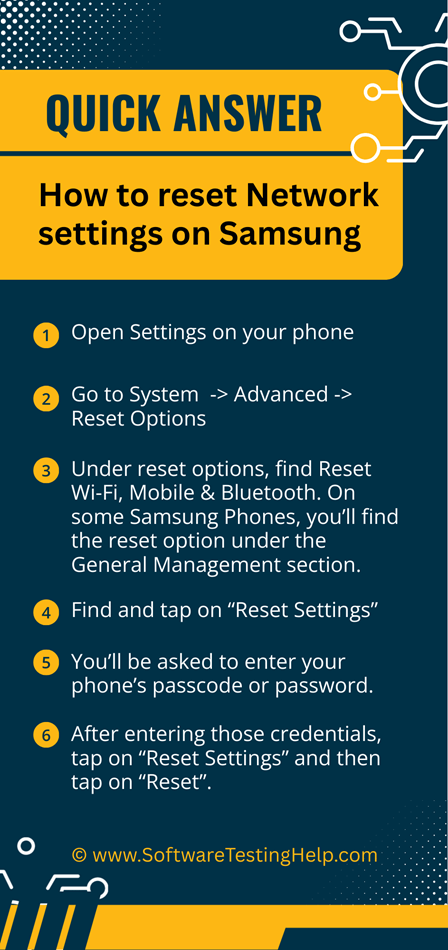
Quick Answer – Steps to Reset Samsung Phone’s Network Settings
Here is the video guide on how to reset network settings on Samsung
Troubleshooting Tricks to Try Before You Reset Network Settings on Samsung
Resetting your phone’s settings is a relatively advanced measure to address the connectivity issues plaguing your device. As such, I would suggest exhausting the options below before finally deciding to hit the network reset button on your phone.
#1) Check Your Wi-Fi Router
Perhaps the connectivity issue isn’t due to your phone but because of a problem with your router. I would suggest checking the condition of your Wi-Fi router. Make sure it is connected to your phone and actually switched on. Also, make sure your device is closer to the router and within range, which will make it easier for the phone to connect to the Wi-Fi.
#2) Reboot Your Phone
I can’t recall how many times I’ve solved a problem on my phone by rebooting it. Restarting your phone could also resolve any network or connectivity issues you’re experiencing. Turn off your Samsung device and wait at least 30 seconds before turning it back on.
#3) Tap on Your Phone’s Airplane Mode
Rebooting a phone can take its sweet time. To save time, try turning Airplane Mode on and off on your phone. With this trick, you are essentially rebooting your phone’s network settings without restarting the entire device.
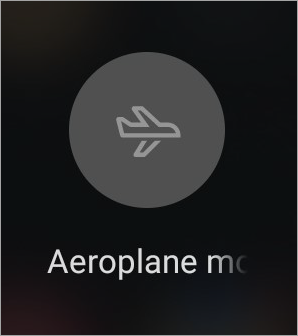
You can access Airplane Mode by swiping down on your phone’s main screen and selecting the Airplane icon from the resulting menu. Tap the icon to turn Airplane mode on and tap again to turn it off.
Use the methods above first if your Samsung mobile network is unavailable.
#4) Manually Configure Your Phone’s Network Providers
Most modern Samsung and Android devices let you manually select a network operator.
Follow the steps below to get this done:
- Navigate to your phone’s settings.
- Select “Connections”
- Tap on Mobile Networks => Network Operators
- You’ll now be presented with a list of network providers. Select yours and see if the connection is established.
If you’ve exhausted the options above and still haven’t resolved the issue, it is time to reset your Samsung’s network settings.
How to Reset Network Settings on Samsung Devices
As I’ve mentioned before, resetting your phone’s network settings is an extreme measure you should take only after you have no other options. Note that resetting network settings will erase all previously saved Wi-Fi networks and Bluetooth pairings from your phone.
I suggest noting the details (passwords and usernames) for these elements before pressing the network reset button.
Here’s how you can reset your Samsung smartphone’s network settings:
1. Open Settings on your phone.
2. Navigate to System => Advanced => Reset Options
3. Under reset options, find the option to Reset Wi-Fi, Mobile & Bluetooth. On some Samsung Phones, you’ll find the reset option under the General Management section.
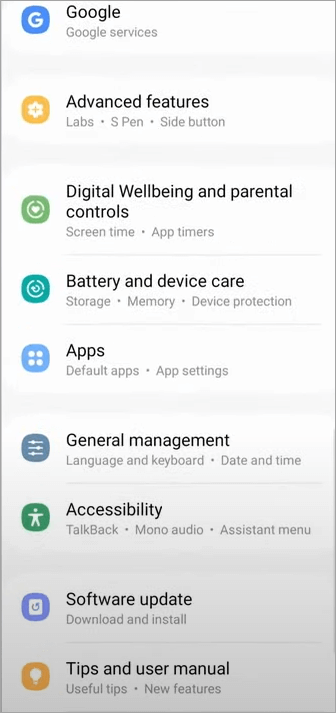
[Via Samsung Care]
4. Find and tap on “Reset Settings”.
5. You’ll be asked to enter your phone’s passcode or password.
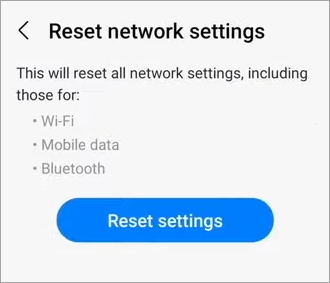
6. After entering those credentials, tap on “Reset Settings” and then tap on “Reset”.
Editor’s Note: Although we used a different Samsung device for this guide, the instructions here apply to almost all Samsung devices out there. You can follow the instructions above to reset network settings on Samsung S22/S23 devices, as well as S21 and S20 devices running on One UI 5.0, built upon Android 13, or later versions.
Connectivity problems aren’t exclusive to Samsung smartphones. This issue can also become a headache for users of Samsung TVs. Like Samsung phones, you can try resetting your Samsung TV’s network settings to fix the problem.
With Samsung TV, reset network settings by doing:
I) On 2021 and Older TV Models
- Press the Home button on your TV’s remote and open Settings.
- Under Settings, select General => Network => Reset Network.
- Select “Reset” again to confirm the network reset.
This will reboot your TV’s network settings.
II) On 2022 and Newer TV Models
1. Use your TV’s remote to open the Settings menu on your TV.
2. Select “All Settings” and select Connection.
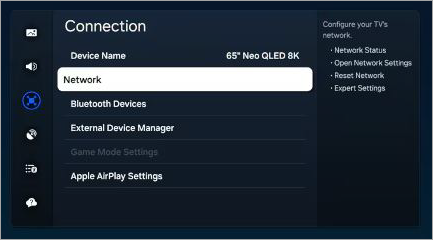
3. Under Connection, select Network => Reset Network.
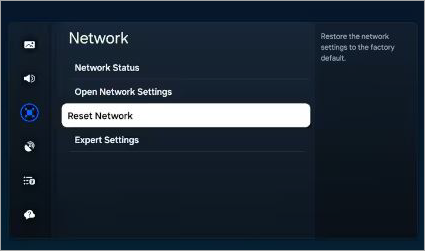
4. Select “Reset” again to confirm the network reset.
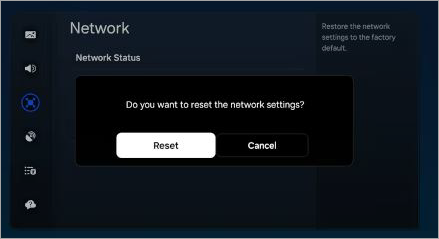
This will refresh your TV’s network settings. Try to reconnect your TV to nearby Bluetooth devices and Wi-Fi networks.
That’s all it takes to reset Samsung network settings.
Note: One UI is the interface Samsung specifically designed for its computers, smartphones, and TVs. As such, this guide technically shows you how to perform a One UI network reset.
Ways to Reset Network Settings on Other Android and iOS Devices
As I said before, connectivity issues aren’t exclusive to Samsung devices. It can happen to any other smartphone out there, whether it is running on Android or iOS. That said, both of these OSs offer their users the privilege of resetting their phone’s network settings. It is simple and only takes a few seconds of your time.
Here’s how you do it on an Android phone:
1. Open Settings on your phone.
2. Scroll down until you find the option – “System”.
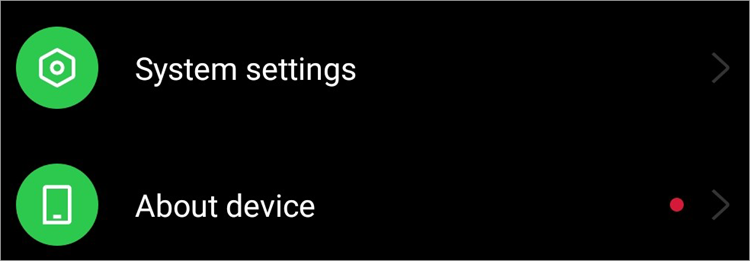
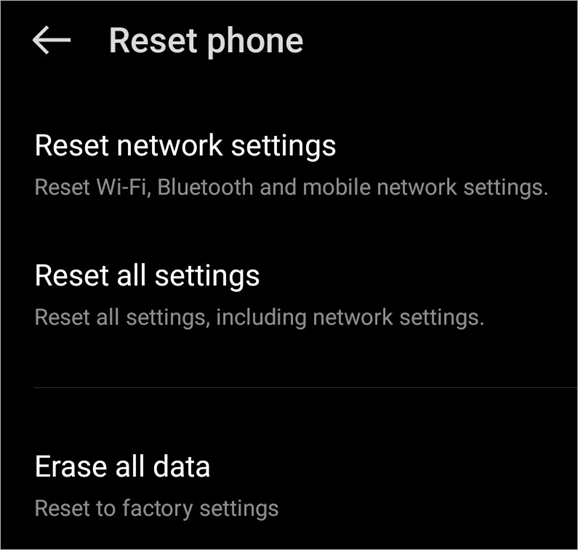
3. Tap on it and select “Reset” from the menu.
4. In the “Reset” section, choose the option you wish to reset.
On even older Android phones, pre-9.0 devices, the path to resetting network settings varied considerably.
The path was as follows:
On Android 6.0
- Open Settings
- Tap on Backup and Reset
- Tap on Reset Network Settings.
On Android 7.0
- Open Settings
- Tap on More => Network Settings Reset
- Tap on Reset Settings
On Android 8.0
- Open Settings
- Tap on Network and Internet
- Tap the three vertical dots to open the Menu
- Tap on Network Settings Reset => Reset Settings.
Here’s how you do it on an iPhone:
1. Open Settings.
2. Scroll down until you find – “General”.
3. Tap on “General” and select the option “Transfer or Reset iPhone”.
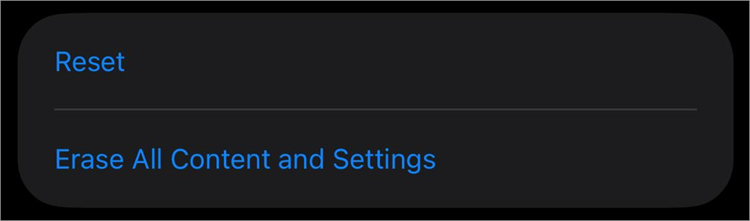
4. Select “Reset”, which will result in a menu popping up as shown below.
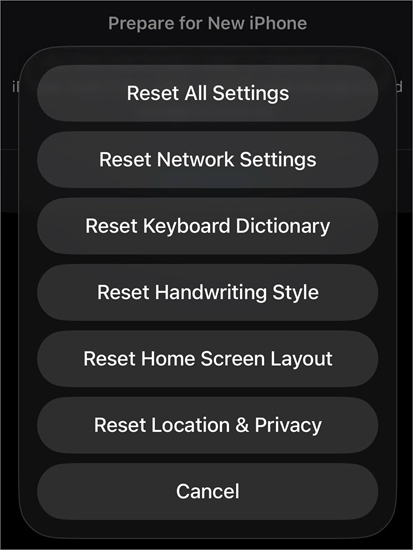
5. Select “Reset Network Settings” from this menu, as shown in the image above.
Enter your device’s passcode or password to proceed with the reset.
What Happens When a Device’s Network Settings Are Reset?
Resetting your phone’s network settings will essentially affect how your phone connects with Bluetooth and Wi-Fi devices.
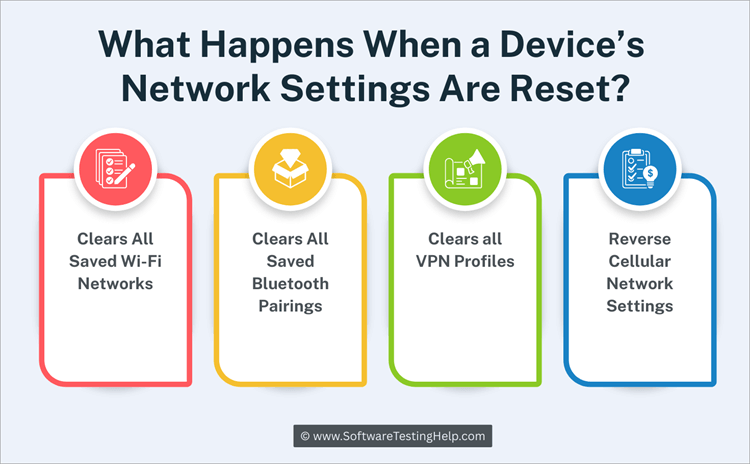
Here’s what you can expect from a network reset:
#1) Clears All Saved Wi-Fi Networks
All saved Wi-Fi networks on your phone will be erased effectively with a single network reset. This is great if your phone is struggling to discover a nearby active Wi-Fi connection or fails to connect with one. All saved Wi-Fi settings along with their passwords are removed, thus allowing you to reconnect the phone to the Wi-Fi and solve any connection problems.
#2) Clears All Saved Bluetooth Pairings
A network reset is also equally effective in dealing with connectivity issues related to your device’s Bluetooth. Resetting network settings will delete all saved Bluetooth pairings from your phone. You’ll need to reconnect or repair your headphones or wireless mouse.
#3) Clears all VPN Profiles
If your phone has saved VPN profiles on it, they too will be erased with a full network reset. You’ll be required to reconnect to a VPN network to mask your device’s IP address afterward.
#4) Reverse Cellular Network Settings
A network reset will also revert your device’s cellular network settings to their default state. Once the reset is done, you’ll be required to select a network operator again to successfully make calls or send SMSs.
It is important to note that a network reset isn’t like a hard factory reset. This reset will affect nothing other than the above settings. This means you can rest assured that your apps, media files, and other settings will remain intact. You also don’t need to perform a data backup before performing a network reset, as your data isn’t going anywhere.
When is a Full Network Setting Reset Warranted?
The following scenarios require a full network reset:
- If your device cannot discover nearby Wi-Fi and Bluetooth devices.
- If your device cannot connect to Wi-Fi and Bluetooth devices.
- If you cannot make any calls or send text messages through your phone.
- If you start experiencing sudden call drops more often.
- If the above problems persist without a visible signal error on your phone.
- Your phone cannot connect to a VPN.
Frequently Asked Questions
1. What does resetting network settings do?
By resetting your phone’s network settings, you are refreshing elements associated with your phone’s Wi-Fi and Bluetooth connections.
Network reset will have the following effect:
• The device deletes all saved Wi-Fi connections
• The device deletes all saved Bluetooth pairings
• All saved VPN profiles are erased
• The mobile cellular network is reconfigured
2. Is it safe to reset network settings?
Yes, it is perfectly safe to reset network settings. A network reset does not harm your phone’s data. This means your apps, files, photos, and videos will remain intact.
Only elements associated with your phone network connections, like Bluetooth and Wi-Fi details, will be erased.
Resetting network settings can also prove immensely beneficial to your phone, as it can inadvertently stop security threats by blocking malware and hacking attempts in their tracks.
3. How long does a network reset take?
Resetting network settings is a simple and quick process that will not take any more than a minute. Follow the steps I’ve mentioned above, and you’ll be done resetting your phone’s network settings in a matter of minutes.
4. What do I do after resetting network settings?
A network reset will revert your phone to its default network configurations.
As such, you’ll need to immediately do the following:
• Reconnect your device to Wi-Fi networks
• Repair your device to Bluetooth devices
• Set up your VPN again
• Select a Cellular network provider
5. What is the difference between a network reset and a factory reset?
A network reset serves a completely different purpose from a factory reset. With a network reset, you are only rebooting your phone’s network configurations. A factory reset is a more extreme measure that will take your phone to its original state.
This means all the apps you’ve installed, the files you’ve saved, your contacts, and your login credentials across apps will be erased. A factory reset is a hard reboot. You should only opt for it when the circumstances are dire, like when your phone isn’t responding or if it is under attack from malware or spyware.
6. Does resetting network settings fix mobile data issues?
Yes, a network reset is one of the most effective ways to fix mobile data issues. This reset will revert your phone’s network settings to their default configuration.
All saved Wi-Fi passwords and Bluetooth pairing will be erased, thus forcing you to reconfigure these elements. In doing so, you’ll inadvertently fix all types of mobile data issues.
7. Why is my Samsung not connecting to 5G after a reset?
Your Samsung could fail to connect to a 5G network after a reset for a number of reasons. Maybe your network settings are incorrect, or perhaps your phone is outside an area with 5G coverage.
The very first thing you need to do is check your phone’s network settings. Make sure that 5G mode is enabled on your phone. If that’s not the issue, try to reset your device or remove and reinsert your SIM.
Also, check with your carrier to make sure you are in an area with 5G coverage. Performing a quick software update could also solve this issue of Samsung’s 5G not working as it should.
8. How to reset APN settings on Samsung?
Resetting APN or Access Point Name settings on a Samsung phone is quite simple.
All you have to do is follow the steps below:
1. Click on the Gear icon on your Samsung phone to open settings
2. Tap on Mobile Network
3. In this section, click on APN (Access Point Name)
4. Select “Reset to Default”
5. Your Samsung’s APN settings will revert to their default position
9. Will I lose WhatsApp messages if I reset network settings?
A network reset is only meant to revert your phone’s network settings to their default configuration and should not be mistaken for a complete factory reset of your device.
Only configurations related to your phone connections, like Wi-Fi passwords and Bluetooth pairings, will be deleted.
Everything else, from your photos and files to your call logs and WhatsApp messages, will remain intact.
Conclusion
Network and connectivity issues are common in modern phones, regardless of what Smartphone you are using. In most cases, this isn’t a serious cause for concern and only warrants a simple network reset on your part.
If your phone fails to connect to a Wi-Fi network or pair with a Bluetooth device, I suggest you follow the steps I’ve outlined above to reset your phone’s network settings. It is a simple and quick way to solve the connectivity issues plaguing your device while also protecting it from potential malware or hacking attacks.
Research Process: The total time involved to complete and publish this article is approximately 38 hours. This content was created through a structured research approach to ensure accuracy and reliability.
For more quick Network and Connectivity-related guides, you can explore our range of tutorials below:
- Basic Network Troubleshooting Steps and Tools
- Computer Networking Tutorial: The Ultimate Guide
- Network Vulnerability Assessment and Management Guide
- Top 9+ Network Diagnostic Tools [Paid and Free]
- The Top 10 Network Discovery Tools In 2026 (Free & Paid Software)
- Top 10+ Network Testing Tools
Was this helpful?
Recommended Reading
-

Here you will find a complete review and comparison of top Network Management Software for network management, administration, and troubleshooting: In the world of LAN (Local Area Network), WAN (Wide Area Network), and WWW (World Wide Web), the biggest challenge for IT professionals or network administrators is keeping the network…
-
This tutorial explains the best Network Security Policy Management NSPM tools that will perfectly cater to your specific requirements: Network Security Policy Management tools are nothing short of a godsend for system administrators. These tools empower admins with the ability to enforce and manage device settings as well as configurations…
-
Select the Best Network Traffic Analyzer based on this review of popular Network Analysis tools to analyze traffic at your home or business: Network Traffic Analyzer is an application to record and analyze the traffic on your network. It can break down the traffic by application, user, or IP address.…
-
An Extensive Study of Network Troubleshooting with the Tools used. We explored all about Network Security along with its types in our previous tutorial. When we run a network or while working in any system there are always chances of failure in the smooth operation owing to technical, physical or…