


In this tutorial, we will learn How To Increase Download Speed and explore various solutions to speed up the Internet on Windows 10:
Your network’s efficiency depends on the number of megabits downloaded/uploaded which is often referred to as the speed of the internet.
If the network has slow internet speed, then possibly ISP (Internet Service provider) is responsible for the issue. But there can be other reasons too and one of them is bugs in the system, which can slow down the download speed in Windows.
Table of Contents:
How To Increase Download Speed

In this tutorial, we will discuss multiple ways how to speed up downloads on your system. The increased download speed serves as a boon for the user as he/she is able to save the extra time that is wasted due to slow download speed.
Windows Version used in this tutorial is Windows 10 Enterprise.
Megabytes Vs Megabits
Megabytes and Megabits are mostly misinterpreted, as people refer to MBps and Mbps as the same but actually they are not.
MBps – MegaBytes per second
Mbps – Mega Bits per second
1 MBps = 8Mbps
The download speed of the internet is measured in Mbps as the system download data packets which are transmitted in binary codes and are stored in bits. Therefore, if your system has an internet speed of 2Mbps, then it means that it downloads 20,00,000 bits of data per second.
Reasons To Speed Up The Internet On Windows 10
The internet is a hub for tremendous data and it also provides access and services to various software and platforms. So, to access the internet without any interruption or slow loading, preferring a faster download speed is a better choice.
It has various advantages like:
- Enhanced network speed.
- Higher resolution video calls and other streaming videos.
- No buffering issues, which saves time and also keep the task in continuity.
- Smooth performance
- Time-efficient
Recommended Reading =>> How To Speed Up Your System (Best Methods)
How to Improve Download Speed
Attention: Increase download speed and browse securely with a good VPN
VPNs can increase the download speed in some circumstances. For E.g., ISPs can artificially slow down or throttle certain types of traffic. For safety and privacy, VPN provides an encrypted tunnel for your internet traffic. Because of this feature, ISPs are unable to know about the services accessed by you and hence you can get a faster download speed.
#1) NordVPN
NordVPN will give you a fast and stable connection with bulletproof security. There will be no bandwidth limits. It has 5100 servers in 60 countries. With NordVPN, you will get the fastest VPN experience. The price of NordVPN starts at $3.30 per month for a 2-year plan.
#2) IPVanish
IPVanish provides advanced encryption. It has servers in more than 75 locations. It provides unmetered device connections, shared IP addresses, and access to censored media. Its WireGuard VPN protocol will give you a faster and more secure connection. Its price starts at $4.00 per month.
Recommended Tool – System Mechanic Ultimate Defense

System Mechanic Ultimate Defense – Having software in your system that makes sure your system is functioning optimally round the clock is extremely beneficial. System Mechanic Ultimate Defense is definitely one such tool we would recommend to everyone who wants to dramatically improve their system’s internet performance. The software will immediately get to work once installed.
It will automatically increase the speed and availability of your CPU, RAM, and hard drive resources, which is essential for optimal internet performance. It will then proceed to automatically optimize hidden window internet settings. This makes the software extremely effective in boosting your internet speed. It will also find and remove any clutter or junk files that were slowing your system down.
Further Reading => Hard Drive Speed Testing: Top Tools to Explore
With System Mechanic Ultimate Defense functioning at full throttle, you can expect to enjoy faster downloads, reduced buffering, brisk page loads, and improved video quality. Furthermore, System Mechanic is also capable of safely wiping clean any sensitive browsing history. Suffice to say, System Mechanic is the software for you if you wish to improve a PC’s internet speed.
Features:
- Automatic PC Speed Up and Fix
- Remove Junk Files and Clean Clutters
- Defragment Hard Drives
- Optimize Hidden Windows Internet Settings
- Secure Open Routed Ports and Connected Devices
Price: $63.94 annual plan
Get 70% off HERE On SYSTEM MECHANIC ULTIMATE DEFENSE >>
#1) Restart
To increase download speed, it is best suggested that the user should restart the system. Restarting the system auto-fixes some of the bugs and the system resumes with the average downloading speed. The user can quickly restart the system by clicking the power button on the Windows menu and then clicking on the “Restart” option.
#2) Run Troubleshooter
One of the possible ways to increase download speed is by running a troubleshooter. It is possible that the potential reason for the slow download speed maybe some system driver, as it might be causing abnormality in the downloading process. You can run “Network troubleshooter” in such a case to boost the downloading speed.

#3) Test Network Speed
The user must be aware of the system’s regular network speed and then focus on how to increase the network speed. There are various online testers that make this task easier for the user and even Microsoft provides a speed tester. Follow the steps mentioned below to test the network speed.
In this method, we have used the Network Speed Test app. To download and install the Network Speed Test app, click here.
- After downloading and installing the Network Speed Test app on your system, click on the search bar and type “Network Speed Test”. Now, click on the option as shown in the image below.

- A meter will be displayed as shown in the image below.

#4) Upgrade Data Plans
Sometimes, even making the hardware changes and looking for the drivers’ errors doesn’t impact download speed. In such cases, the users need to upgrade the data plans and switch to the data plans offering high internet speed.

[image source]
#5) Disable Background Applications
In the background, many applications use the internet to provide notifications and seek updates, which results in decreased download speed. So it is advisable to disable the background apps while working or downloading.
Follow the steps mentioned below to disable the apps.
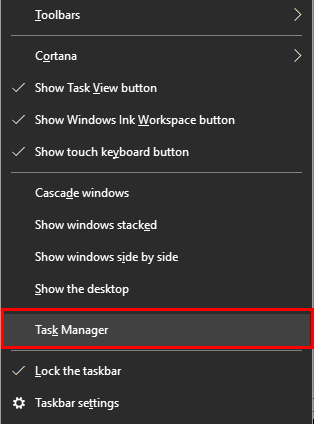
- Right-click on the taskbar and click on the “Task Manager” as shown in the image below.
- Now, click on “Startup” as shown in the image below, and right-click on the application you want to disable. Then, click on “Disable” to disable the application in the background.

#6) Queue Up Downloads
The download manager works on the principle of equal sharing. So, whenever there is more than one download, the download manager shares the network speed among the downloads, by providing each download lesser time. So, the users should pause other downloads and download only one file at a time.

#7) Switch To Another Modem
The modem might contain some error that may be either in the hardware or the modem’s firmware, so switching to a different modem is also a solution to get faster download speeds.

#8) Use Ethernet Cable
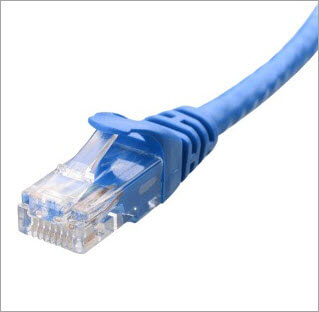
Ethernet cables provide faster transmission of data than the wireless method of communication, so to achieve faster downloading speed, the user must connect the device to the modem via Ethernet cable.
This will facilitate quicker downloading of the file in the system. The Ethernet cables are the perfect solution regarding how to boost download speed.
#9) Check For Areas With Maximum Signal Connectivity
Sometimes, the decreased download speed is due to the low connectivity in the region where you are using the internet. So, it is better to try switching to another area in the house, which may provide good internet connectivity.
#10) Check For Viruses
Many viruses remain hidden in the system, and when the system is connected to the internet, they become active and start exploiting resources. Therefore, it is suited that the user must perform regular antivirus checks on the system to ensure smooth functioning.

#11) Clear Cache And Cookies
Whenever a user visits a website, the website’s temporary image is stored in the cache memory. So, if the user visits various websites and does not clear the cache memory then the browser will have insufficient space to store cache files which may ultimately slow up downloading files.
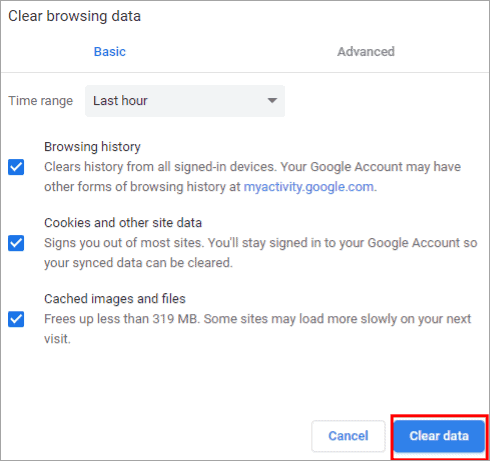
Follow the steps mentioned below to clear cache and cookies in the browser which will be the perfect solution how to make downloads faster.
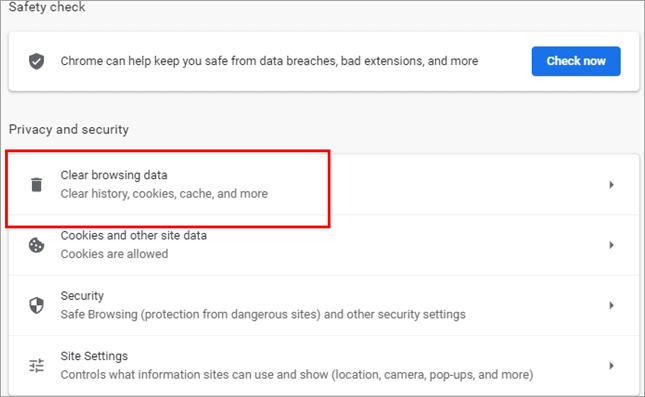
- Open Settings in your browser and click on “Clear browsing data” as shown in the image below.
- A dialog box will appear as shown in the image below, click on “Clear data”.
#12) Update Firmware
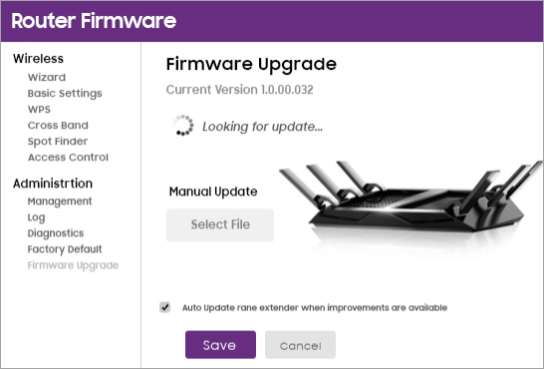
The modem firmware version needs to be checked and updated to the latest version to avoid any technical issue, resulting in a slow downloading speed. So the user must keep the firmware updated and look out for patches for the bugs in the modem’s firmware.
#13) Restart Your Modem
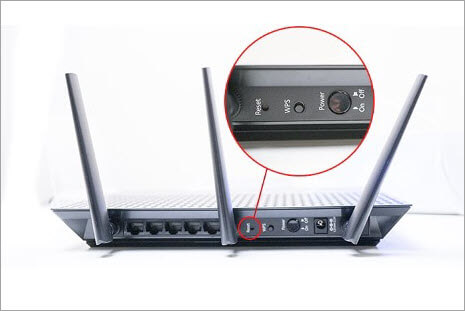
The modem might contain some bugs, which might be the reason for decreased downloading speed. The user must restart the modem once and then try downloading the files again.
#14) Use Fast VPN
Many users use a VPN (Virtual Private Network) which is a secure way of accessing websites. The VPN allows the user to access the websites by masking the IP address.
The VPN creates a virtual tunnel through which a user can search for files. But if the VPN still shows a decrease in the downloading speed, then it is advisable to switch to a comparatively faster VPN.

Further Reading => How To Test VPN Speed: Top 5 Fastest VPNs
#15) Do A Line Test
When it comes to the troubleshooting process, the users are advised to perform various tests, thereby making it easier to point out the problem. One of the checks is the physical mode of test called line test.
Inline test the user has to make sure that all the cables are correctly connected and all the wires are in good condition and aren’t chewed up at any end.
#16) Using A Custom DNS Server
Sometimes there is a lot of data traffic on the DNS server, which decreases the downloading speed. So, it is suggested to switch to public DNS servers to enjoy faster speed. Follow the steps mentioned below to change to public domains. This is the best-suggested solution to speed up downloads.
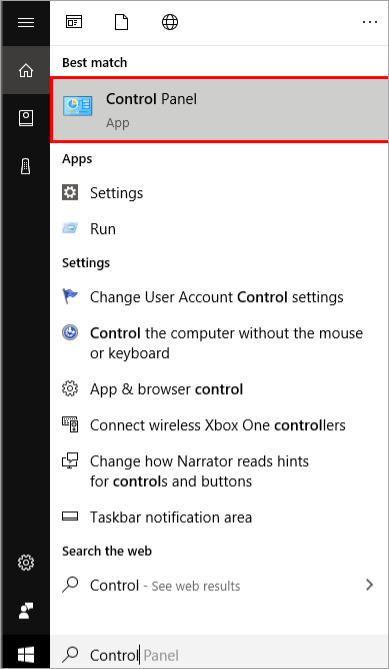
- Click on the Start button search for the ‘’Control Panel’’ and click on it as shown in the image below.
- Now, click on ‘’Network and Internet ‘’ as shown in the image below.

- Click on ‘’Network and Sharing Center’’ as shown below.
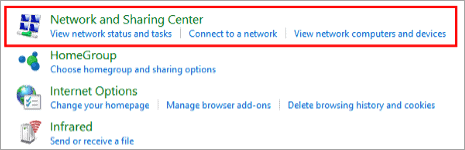
- Click on “Wi-Fi” as shown in the image below.

- Click on the “Properties” option as shown in the image below.

- Locate “Internet Protocol Version 4(IPv4)” and click on “Properties” as shown in the image below.

- Click on “Use the following DNS Server address” and enter the DNS address in the respective columns as “8.8.8.8” and “8.8.4.4” as shown in the image below and click on “OK”.

#17) Close Apps Which Use Excessive Bandwidth
Some apps require excessive data bandwidth which makes the transmission speed slow and thereby slows down the downloading speed. Follow the steps mentioned below to monitor the bandwidth usage.
- Open Settings and click on ‘’Network and Security’’, then click on “Data usage” as shown in the image below.
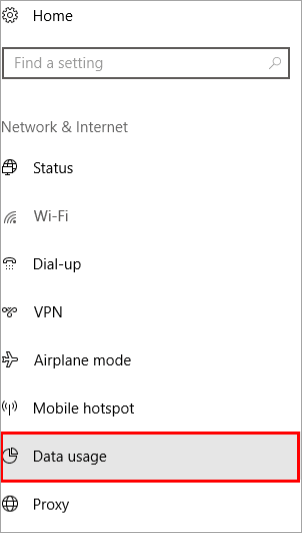
- Now, click on “View usage details” as shown in the image below.

- A window with data usage will be visible as shown in the image below.

#18) Set Metered Connection
A metered connection allows the users to keep track of the data usage by the system, hence disabling metered connection to have faster downloads. Follow the steps mentioned below to disable the metered connection.
- Open settings and click on “Network and Internet” as shown in the image below.

- Click on “Change connection properties” as shown in the image below.

- Toggle the switch to off from on condition as shown in the image below.

#19) Switch Web Browser
If the user is unable to fix the system’s download speed following the above methods, then it is advisable to switch to another web browser. Doing this will provide a better downloading speed and service.
Frequently Asked Questions (FAQs)
1. Why are downloads so slow?
There are various reasons that affect the downloading of files in a system. Some common reasons are slow internet speed, excessive cache memory, hardware issues, and modem firmware errors.
2. How can I increase my Wi-Fi download speed?
There are various fixes that can be used to boost up your Wi-Fi download speed.
Some of them are as follows:
– Put your router in a metal shield as it increases the signal strength.
– Switch channels.
– Position your router in the perfect spot to attain maximum connectivity.
– Use a password to avoid usage by other people.
– Set your router to reboot regularly.
– Keep it away from electronic devices as it may create a signal disturbance.
– Set it apart from wireless signals.
– Get a signal booster.
3. Will using two routers increase my download speed?
Using two routers won’t amplify your download speed. To get increased speed, users must upgrade to higher speed and data plans.
4. Do Wi-Fi boosters increase internet speed?
Wi-Fi boosters do not speed up internet Windows 10 downloading, they just fill up the empty places in your house with connectivity. This could be understood that if your house has some dead spots which have low internet connectivity Wi-Fi boosters help you fix it.
5. Are Wi-Fi boosters safe?
Wi-Fi boosters use the signals with the same strength used in mobile phones, so these are not harmful to people. Using these boosters can be the answer to boost download speed.
Conclusion
The Internet has become a massive part of our lives and downloading/uploading data is a part of our day-to-day activities. We can understand the situation when your downloads are slow, and your browser is responding slowly.
In this tutorial, we have discussed the ways to fix the slow downloading speed problem. We also discussed the various changes that should be made in the settings to come up with a solution on how to get faster download speeds.
Was this helpful?
Recommended Reading
-

This tutorial reviews and compares top WiFi Extenders along with their features and pricing to guide you in selecting the best WiFi Booster: Work from home is normal nowadays, but what if your Wi-Fi network is not reaching everywhere in your home and your work is getting disturbed? We all…
-
Explore the top Wireless Routers with their features, pricing, and comparison to select the Best WiFi Router for your home or business: Today when the new normal for people is to work from home. Well, to work without disturbance and interruption, you need good Internet with high speed. So here…
-
How to Test VPN Speed: List of the Top 5 Fastest VPNs. As threats to online privacy and security continue to escalate around the world, choosing the right VPN has never been more challenging. There are hundreds of VPNs available nowadays and each claim to offer the best service. Although…
-
Here we review the Top USB Wifi Adapter with a detailed comparison to find the Best USB WiFi Adapter for your PC or Laptop: It's fair to say that Internet requirements all over the world are booming. In the US, access to portable Internet has seen a surge over the…
-
This tutorial explores the top WiFi Router in India with their pricing, features, and comparison to help you select the best WiFi Router: A Wi-Fi router is responsible for the access to wireless Internet to your devices. Having equipped with an Internet connection and having seamless streaming options is surely…
-
An Extensive Study of Network Troubleshooting with the Tools used. We explored all about Network Security along with its types in our previous tutorial. When we run a network or while working in any system there are always chances of failure in the smooth operation owing to technical, physical or…
-
Know What is the exact difference between a Modem and a Router: In our last tutorial, we explored all about Network Vulnerability Assessment in detail. In our other tutorials, we have already discussed in detail about the working, configuration, and set-up of routers with the help of different examples in…
-

Explore the Differences between LAN, WAN, And MAN. Layers of the OSI Model were explained in detail in our previous tutorial. In this tutorial, we will take a look at the most common types of network. Various types of computer networking systems are used for communication systems all throughout the…


