Is your iPhone alarm not going off? Quickly resolve this frustrating issue with the proven fixes in our step-by-step guide and never miss an alarm again on any iPhone model:
Missed an important meeting or event because your iPhone alarm didn’t ring? We
understand how frustrating and annoying this can be at times.
In the year 2024, iPhone users widely reported that their alarms weren’t going off. Some of them stated that the alarm doesn’t sound when it goes off. Apple had issued a statement, citing the Attention Aware Features as the reason for the issue.
This feature automatically lowers the alarm volume when the iPhone camera detects that the user is looking at the phone’s screen.
iPhone Alarm Not Working: Instant Fixes to Try Now
iPhone users get several features for setting an alarm, for example:
- You can set the alarm for a specific time and a specific day.
- The alarm can be configured to repeat every day or on a chosen day at a particular time.
- The alarm sound can be modified by you.
- You can choose the alarm volume.
- You can use Siri to set an alarm.
- You can put a customized label with each alarm. For example, you can set an alarm for Monday, 9 a.m., with the label – Dentist Appointment.
- You can customize snooze options to suit your preferences.
Go through this link to find step-by-step guides on how to set an alarm, how to label it, how to choose its sound, how to choose snooze duration, how to change an alarm’s volume, and more, in different versions of iPhone.
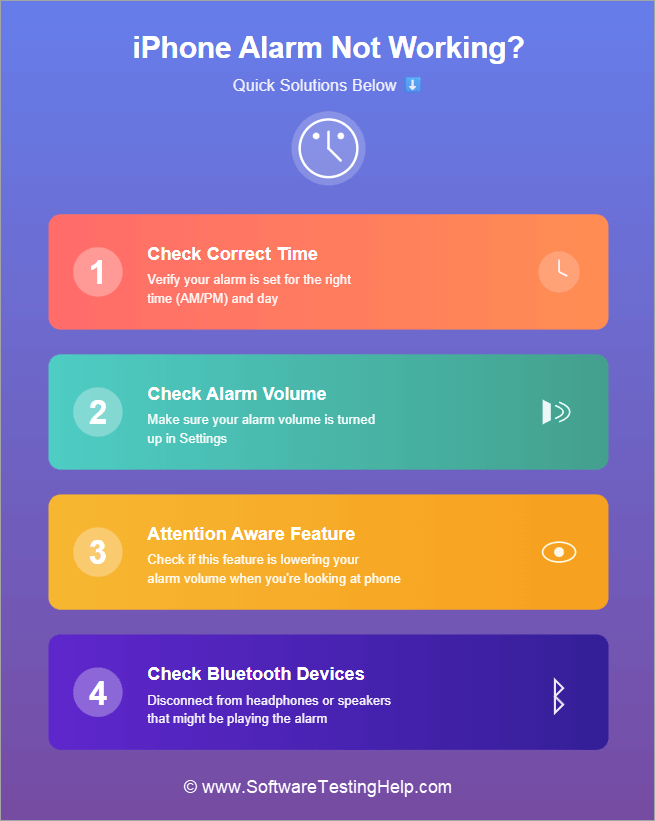
In this article, we have listed reasons that cause the iPhone alarm to not go off or go silent when it rings. We have also provided step-by-step guidance for fixing this issue.
Here is a video on why your iPhone alarm is not going off:
Phone Alarm Not Going Off iPhone
If your iPhone alarm is not going off, it would most probably be because of one of the following reasons:
- You may not have set the alarm for the correct time. People often forget to adjust a.m./p.m while setting an alarm, which causes the alarm to ring at the wrong time.
- The alarm volume may be too low.
- If your alarm went off once and is not repeating every day (as you want), then go to alarm settings and check whether you have set it to repeat every day (or on a specific day every week) or not.
- You may have set a music track as the alarm sound, and the alarm would stop automatically as the track finishes, and the music track would be of a short length.
- You may have enabled the attention-aware features on your phone. When this feature is enabled on an iPhone, all notifications, including alarms, automatically sound low if you are looking at the iPhone’s screen.
- Do Not Disturb or Focus features may cause the issue.
- There can be an issue with iPhone settings.
- Your iPhone may need a software update.
- Your iPhone’s speaker may have some physical damage.
- Your iPhone may have powered off due to a low battery, which is why your alarm couldn’t ring.
- Your iPhone may be connected to another device through Bluetooth, due to which the alarm sound would ring in the connected device.
iPhone alarm not going off is not a big issue. Users can usually troubleshoot the issue on their own.
Try these simple methods for fixing the issue:
1. Go to the Clock settings and check whether or not you have set the alarm correctly.
To do this on iOS, follow these steps:
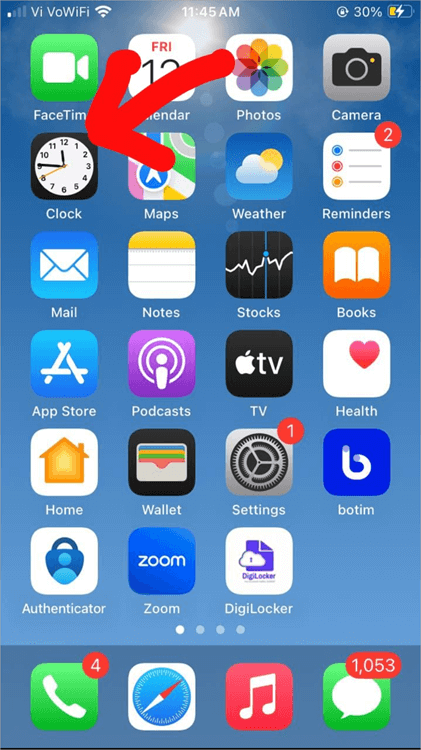
a. Open the Clock app
Given below is the image of the Clock App:
b. Tap on the Alarms tab at the bottom of your iPhone screen.
c. You will see a list of alarms you have set in the past as shown in the image below. Find the one that is causing the issue.
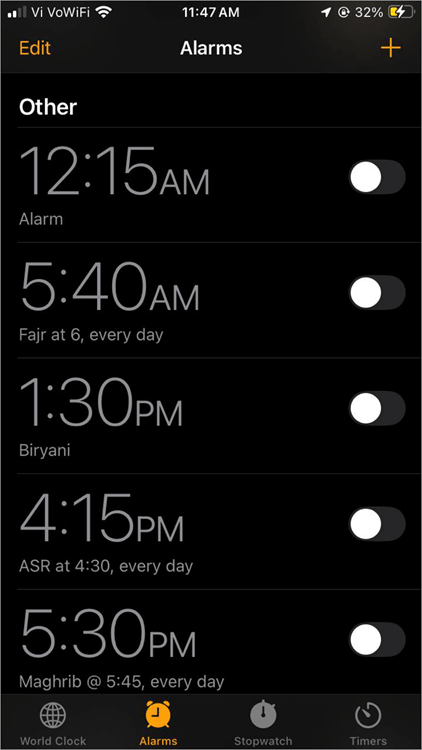
d. Suppose it’s the 1:30 p.m. alarm.
e. Now make sure it is turned on.
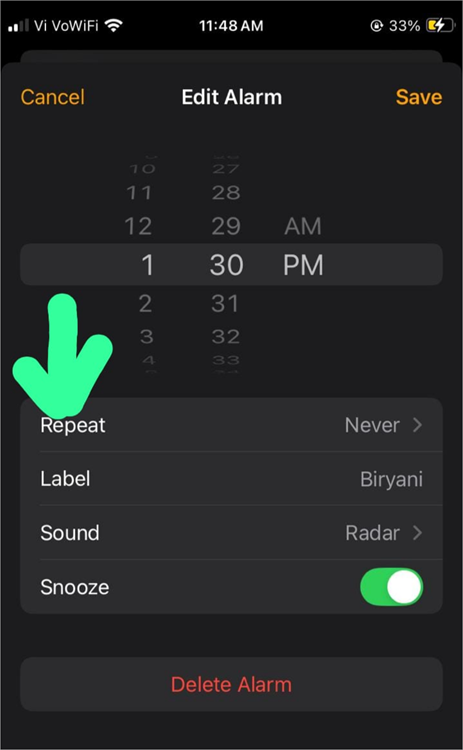
f. Tap on it to make sure it is set to repeat (if you want).
Repeat option is shown in the image below:
2. Check the alarm volume. The volume must be high enough to wake you up from your sleep. To check the alarm volume, you can just press the volume up or down button and then adjust the alarm volume.
You can change the alarm volume using another method as described below:
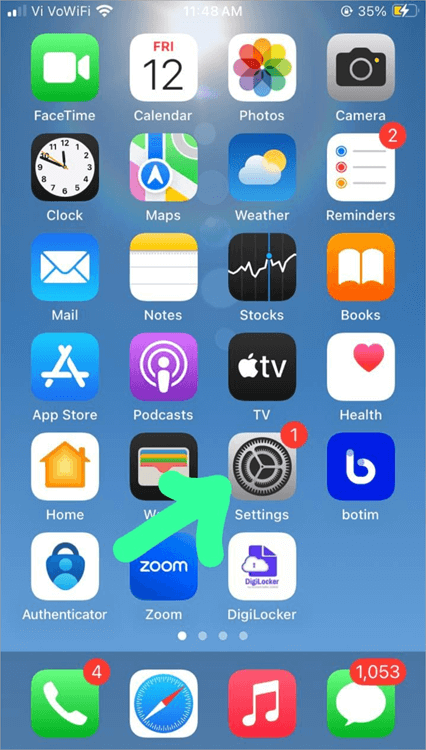
a. Go to Settings
Settings App is shown in the image below:
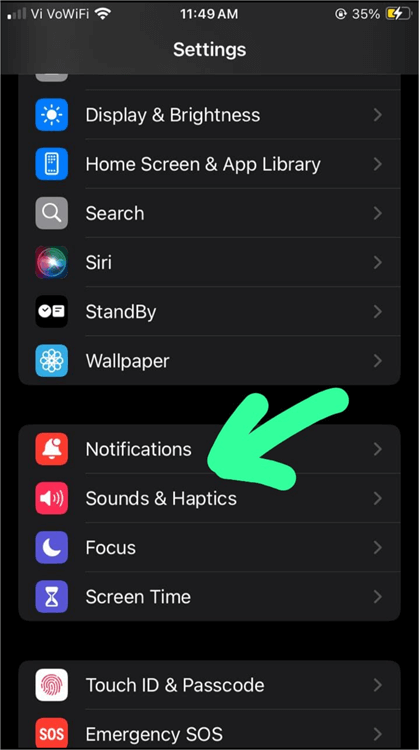
b. Select Sounds & Haptics as shown in the image below.
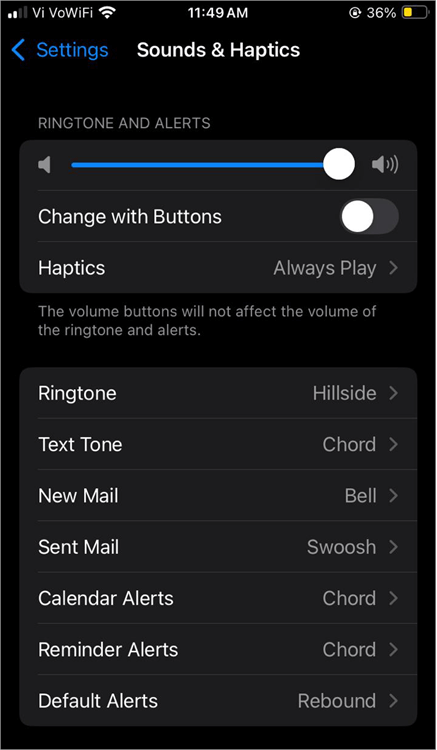
c. Adjust volume for Ringtones and Alerts as depicted in the image below.
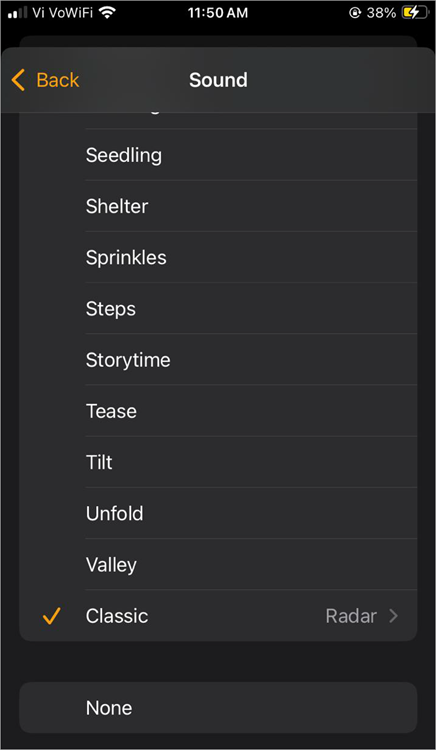
3. Make sure the Alarm sound is not set to None. If that is the case, the iPhone won’t ring but vibrate only when it’s the alarm time.
You can check this setting in the Clock app by doing as stated under:
a. Open the Clock app as shown below.
b. Tap on the Alarms tab at the bottom of your iPhone screen.
c. Now you will see a list of alarms you had set in the past as shown in the image below.
d. Now select an alarm.
e. Tap on the Sound option as shown below.
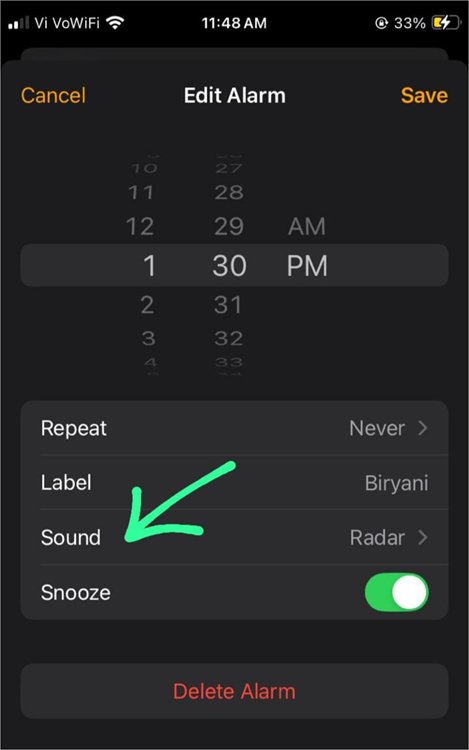
f. Choose a sound for the alarm as depicted in the image below.
4. Try not to choose a music track as the sound of your alarm. The alarm will automatically stop ringing as the music track finishes. If the music track is short, you may not wake up from sleep.
5. If you ever choose a music track as your alarm or change the alarm settings, try setting an alarm for one minute later to check whether or not it is working well.
6. Always make sure your iPhone has enough battery before you set an alarm for the morning. If the phone has 1% or 2% battery, the phone may power off before the alarm time, and the alarm won’t ring.
7. Try restarting your iPhone so that if there is a bug, it will get fixed.
8. Check for software updates. Outdated software usually causes issues with the phone. Make sure you keep your iPhone’s software up-to-date always, unless you want to keep the previous software to use the old features.
Perform the steps below to see if there are software updates available on iOS 26:
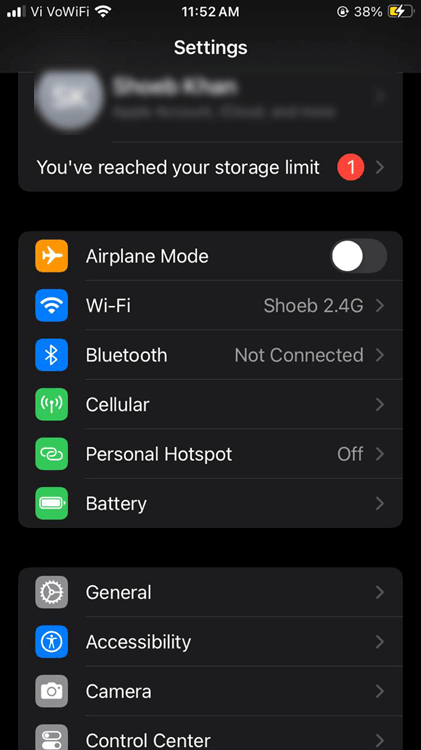
a. Go to the Settings app as shown in the image below.
b. Select the General option as depicted below.
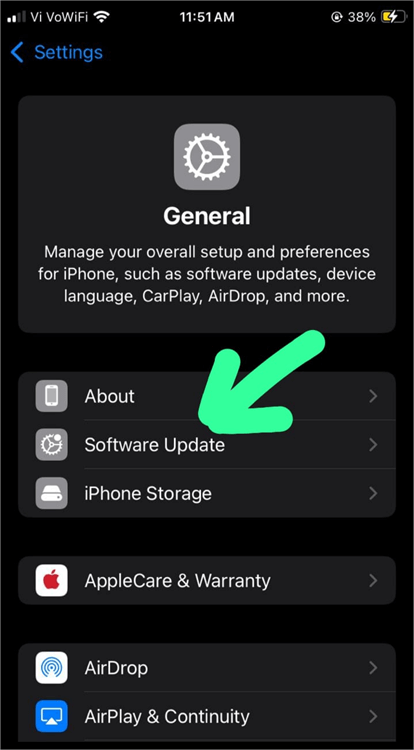
c. Tap on the Software Update option as shown below.
d. If an update is available, follow the instructions on the screen to install it.
You can also turn on Automatic Updates so that your iPhone will automatically install the updates whenever it gets connected to WiFi.
9. Turn off the Bluetooth on your iPhone. This way, the alarm sound will play through your iPhone’s speaker only, and not from another connected device.
To turn off the Bluetooth in your iPhone, follow these steps:
a. Go to Settings
b. Select Bluetooth
c. Turn it off.
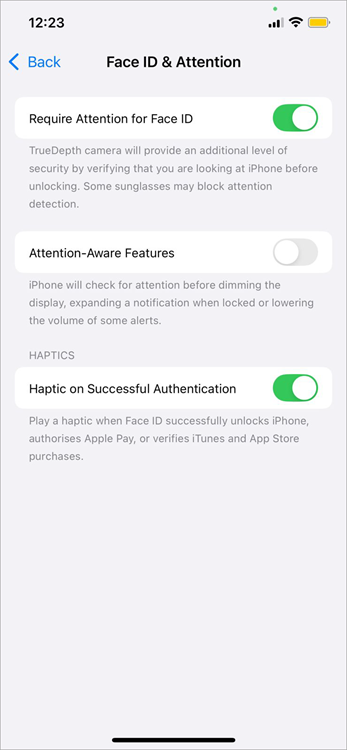
10. Turn off the Attention Aware Features. This will ensure that the iPhone does not automatically lower the sound of alarms or notifications.
You can turn the feature off by following these steps:
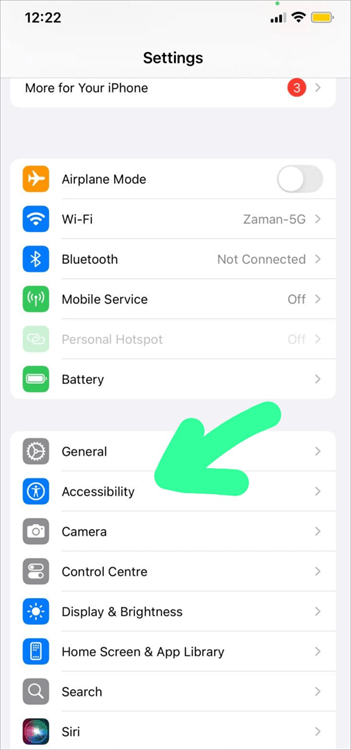
a. Go to the Settings app as depicted in the image below.
b. Select Accessibility option as shown below.
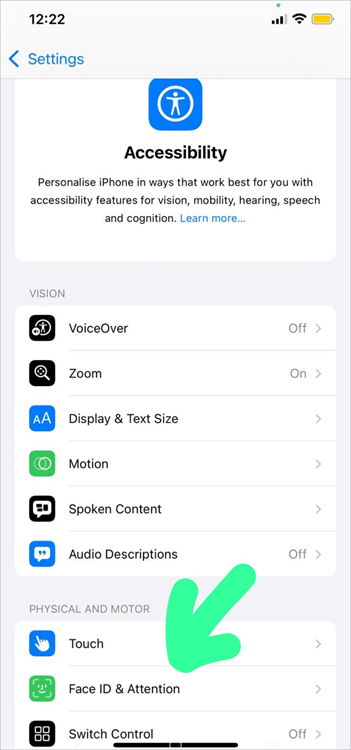
c. Choose Face ID and Attention option as depicted below.
d. Turn Attention Aware Features off as shown in the image below.
11. If the Focus mode is turned on, make sure you allow time-sensitive alerts.
You can do this by following these instructions:
a. Go to the Settings option as shown below.
b. Select the Focus option as shown below.
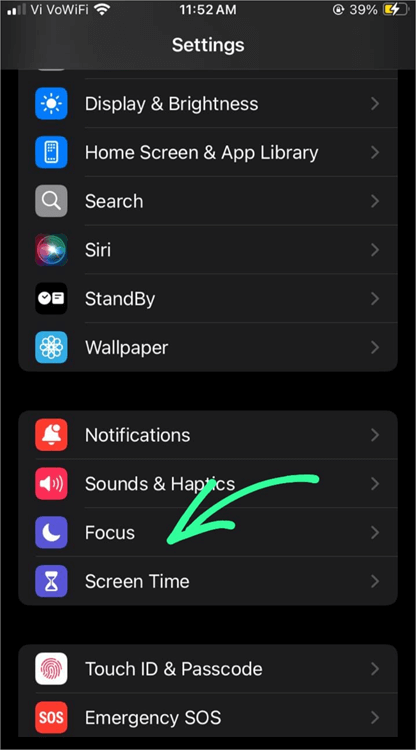
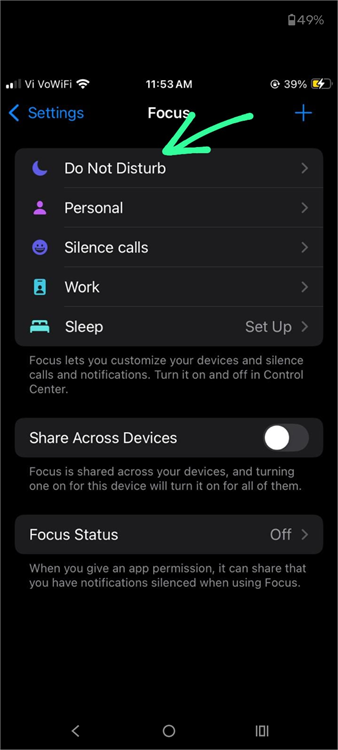
c. Choose Do Not Disturb option as shown below.
d. Select the Apps section as shown below.
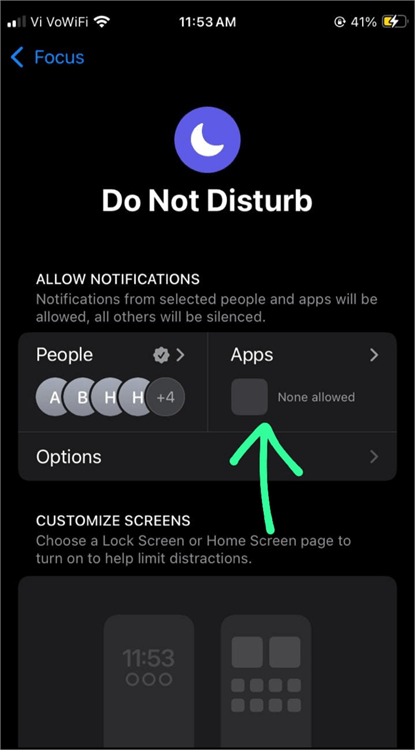
e. Turn on Time Sensitive Notifications option as shown below.
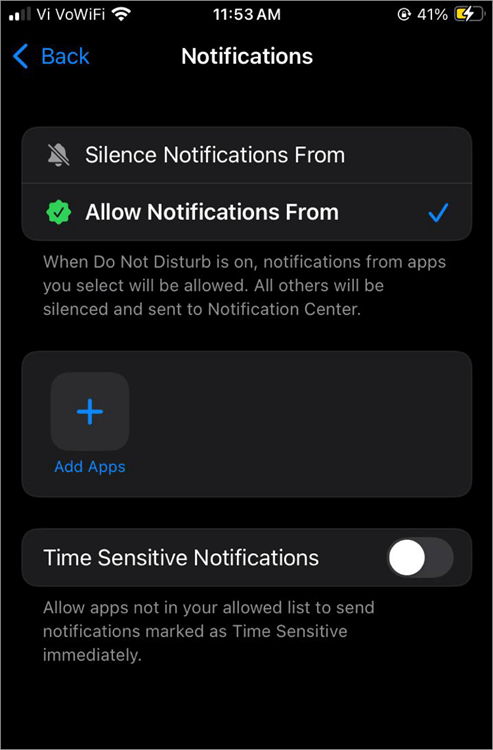
12. You can try recreating the alarm in the Clock app and see if it works now.
13. Try resetting iPhone settings. If none of the above solutions work, try this.
Here are the steps:
a. Go to Settings.
b. Select General.
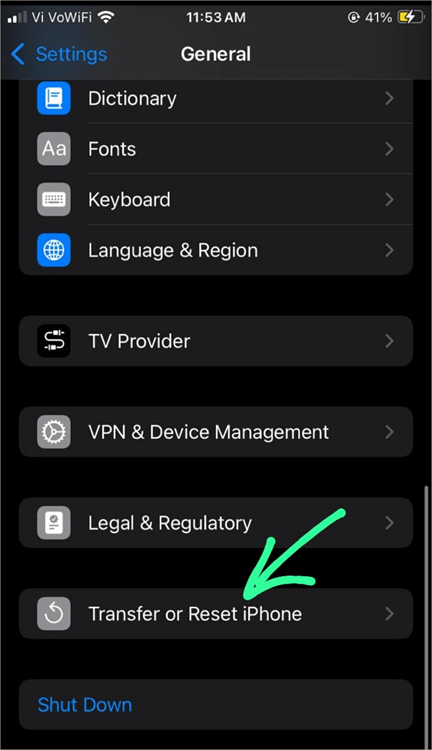
c. Tap on the Transfer or Reset iPhone option as shown in the image below.
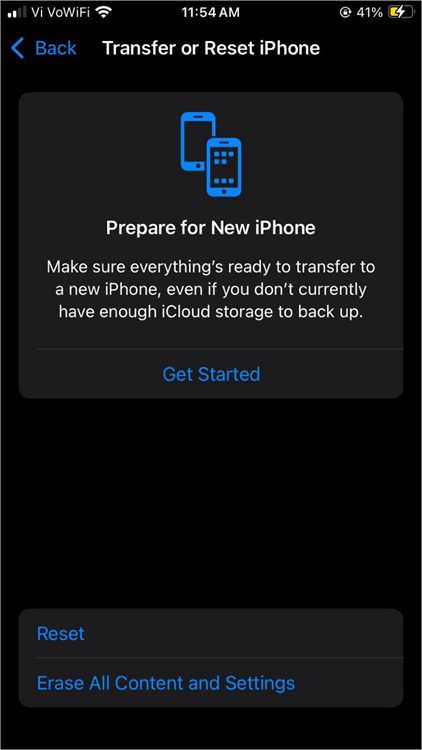
d. Select Reset as shown below.
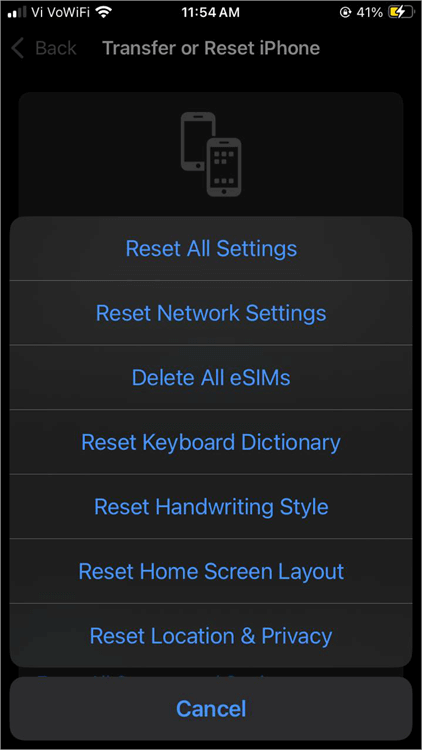
e. Choose Reset All Settings as shown below.
f. Enter your passcode and confirm.
14. If, along with the alarm issue, your iPhone is facing other issues as well, you can try doing a factory reset on the iPhone. But make sure you back up your data before doing so.
To erase all data on your iPhone, follow these steps:
a. Go to Settings
b. Select General
c. Select Transfer or Reset iPhone
d. Tap on Erase All Content and Settings
e. Enter your passcode and confirm.
Then you can restore your content from the backup.
If none of the above methods have worked, you can troubleshoot the issue with these measures:
- If the issue persists, contact Apple Support.
- Get a Genius Bar reservation in case there is a hardware issue with your iPhone’s speakers.
iPhone Alarm Not Going Off When Charging
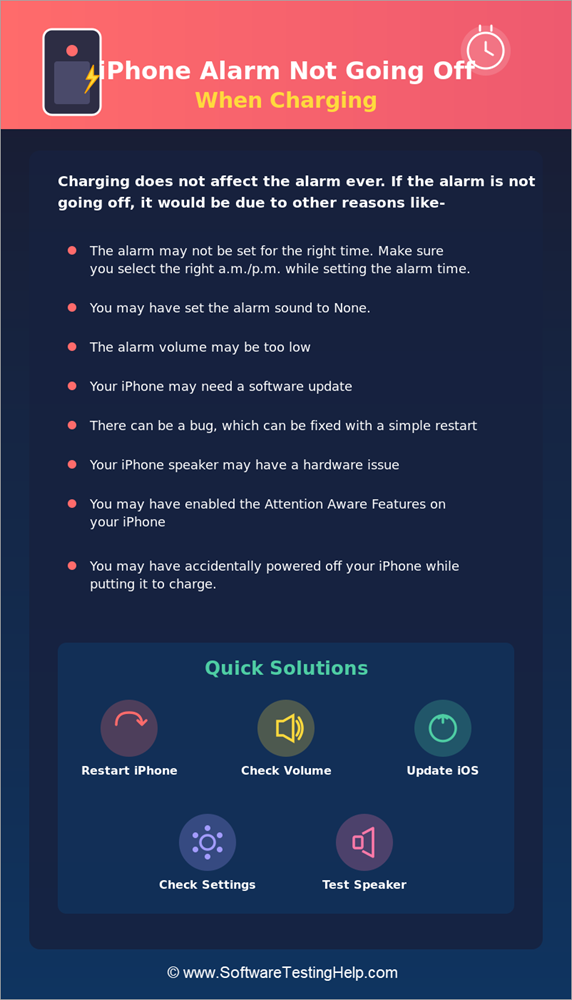
Charging does not affect the alarm ever. If the alarm is not going off, it would be due to other reasons, like:
- The alarm may not be set for the right time. Make sure you select the right a.m./p.m while setting the alarm time.
- You may have set the alarm sound to None.
- The alarm volume may be too low
- Your iPhone may need a software update
- There can be a bug, which can be fixed with a simple restart
- Your iPhone speaker may have a hardware issue
- You may have enabled the Attention Aware Features on your iPhone
- You may have accidentally powered off your iPhone while putting it to charge.
iPhone Alarm Not Working After iOS Update
iPhone users are often spotted stating issues they faced after an update. If this is the case with you, try these methods to troubleshoot the issue.
- Restart your iPhone so that if there is a bug, it will get fixed.
- Check whether the alarm is set for the correct time or not.
- Check alarm volume and sound.
- Disable Focus mode
- Disable Attention Aware Features
- Turn the Bluetooth mode off
- Reset phone settings
Conflict Between iPhone and Apple Watch
Some iPhone users report that their alarm didn’t ring when they were wearing the Watch. A user having a Series 7 watch and an iPhone 14 Pro reported that his alarm was only vibrating, not ringing.
If that’s the case, you can try this: Go to the My Watch app on your iPhone, tap on Sound & Haptics, then in the Haptics category select Prominent.
Here are some points you must know if you are facing alarm issues while using an iPhone and an Apple Watch at the same time.
If you are expecting the alarm you have set on your iPhone to ring on your Apple Watch, then you must ‘Push’ the alarm to the Watch first. Otherwise, it will only ring on the iPhone.
To push the alarm, follow these steps:
a. First of all, set an alarm on your iPhone
b. Open the Apple Watch app on the iPhone
c. Tap on My Watch
d. Now select Clock
e. There will be an option – Push Alerts from iPhone. Turn it ON.
- The Health App alarms automatically ring on the Apple Watch.
- If you have set an alarm directly on the Apple Watch, it will ring only on the Apple Watch.
Health App Sleep Schedule
The iPhone Health app allows users to set alarms according to their sleep schedule. Users can set different schedules for weekends and weekdays. An iPhone user can even set up a ‘Sleep Focus’- which automatically reduces distractions (like calls, messages, and notifications) when it’s their sleep time.
Some users who use these features may wonder if the Health App Sleep Schedule can override regular alarms. The answer is no. The Health App Sleep Schedule and the regular alarms from the Clock app are two different types of alarms.
They differ in terms of features; for example, the Sleep Schedule alarm will ring slowly at first and gradually increase its volume, unlike the regular alarm. However, this does not mean that one will not ring because of the other.
‘Sleep Focus’ may hinder regular alarms if you haven’t allowed the alarms to override Sleep Focus. Some iPhone users have reported that their alarms are being silenced due to Sleep Focus, mostly when they are using a third-party app for alarms.
In order to avoid such issues, users must go to the Settings app, open Focus, then Sleep Focus, then allow their alarm app to override Sleep Focus.
FAQs on Why is my iPhone Alarm Not Going Off
1. Why isn’t my alarm making a noise when it goes off on my iPhone?
The alarm in your iPhone does not make any noise when it goes off if:
• The alarm volume is too low
• You have selected alarm sound as ‘None’
• Your iPhone speaker may have a hardware issue
• You may have enabled Attention Aware Features in your iPhone
• Your iPhone may need a software update
• Your iPhone may have a bug.
2. Do iOS updates mess with alarms?
Updates do not usually mess with the alarms; the Clock’s features may get slightly updated, though.
If you are facing issues with your alarm settings after an update, then you can reschedule the alarms, disable Attention Aware Features, turn off Bluetooth, disable Focus and Do Not Disturb, and restart the device to fix the issue.
3. Where is the alarm on iOS 18?
You can access the alarms on your iOS 18 by following these steps:
• Go to the Clock app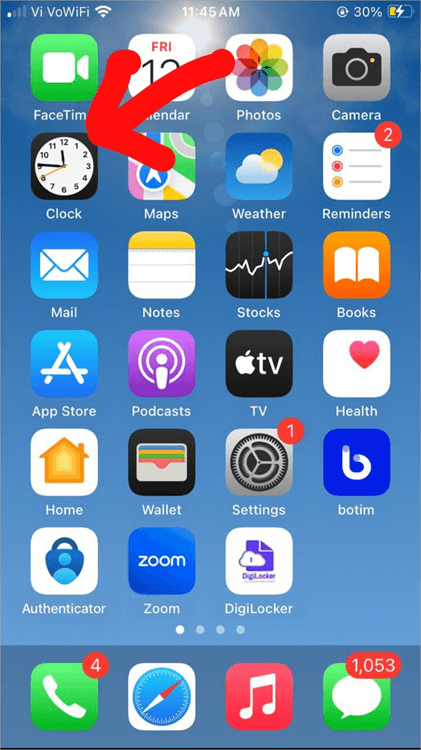
• Tap on the Alarms tab at the bottom of your screen
• Now you will see the list of Alarms you have set.
• You can create a new alarm by tapping on the + icon located in the top right corner of your screen.
4. How to set a custom alarm in iOS 18?
To set a custom alarm in iOS 18, follow these steps:
• Open the Clock app
• Tap on the + icon located in the top right corner of your screen
• Now set the alarm time
• You can add a label, set an alarm sound, and set it to repeat on specific days.
5. What if my iPhone alarm vibrates, but no sound?
If this is happening with you, you would most probably have set the Alarm Sound to None.
You can change the setting by following these steps:
• Go to the Clock app
• Tap on the Alarms tab
• Tap on the alarm that’s causing the issue
• Now tap on Sound.
• Choose a Sound for the alarm.
6. Is there an iPhone alarm limit?
There is no limit to iPhone alarms. iPhone users can set as many alarms as they want. Plus, they can customize them by adding labels and setting different sounds for each alarm, and they will work accordingly.
Conclusion
Alarm is one of the top-used features offered by smartphones. The feature allows you to set different alarms at a time, choose their sound and volume, and much more. Plus, all these features are very easy to use, and there is no limit to the number of alarms you can set.
But when the alarm doesn’t go off on its own time, it can create quite a bit of trouble for the user. In recent years, iPhone users are often spotted talking about issues like ‘iPhone alarm not going off’ or ‘iPhone alarm going silent automatically’.
So we did a study and came up with the reasons and solutions for this issue. Please note that the steps we have provided may slightly differ for different iOS versions.
Research Process: Approximately 48 hours were spent on comprehensive research, evaluation, verification, and final preparation to ensure accurate and reliable information.
For more quick iPhone-related guides, you can explore our range of tutorials below:
- How to Turn Off SOS Mode on an iPhone Quickly
- How to Use Your Phone as a Webcam (iPhone or Android)
- How to Remove or Delete Apps on iPhone Permanently
- Why is my Face ID not working on iPhone or iPad
- How to Request Desktop Site on iPhone
- How to Create and Send a Poll in iMessage on iPhone and iPad
- How to Set Timer on Your iPhone Camera (Easy Ways)
- How to Fix Find My iPhone Not Updating Location
- How to Share Your Location on iPhone with Others
- How Do Apple AirTags Work: Pricing, Range & Setup Process
Was this helpful?
Recommended Reading
-

Here we will explore multiple ways to understand how to Share Your Location on iPhone with others: Sharing live locations is a useful thing today. It is especially useful when you don’t know the exact address and you would like to tell someone where you are. Be it an Android…
-
Explore all possible solutions to fix the iPhone not charging issue. Discover the typical reasons for iPhone charging port issues along with some expert tips to maintain it in good condition: Smartphones are a part of almost everyone's life today. They are not just used for calling and texting but…
-
Deeply understand how to pin a location on Apple Maps instantly. Acquire knowledge on how to drop Pin on iPhone to save your favorite spot & share the exact location with friends and family: I must say, Apple Maps is a great deal that users get with an iPhone while…
-
Discover how to request desktop site on iPhone in any browser. Improve your viewing experience on iPhone with this step-by-step guide on how to switch to Desktop mode on iPhone: To request the desktop view on your iPhone, consider that you have the desired browsers readily available on your iPhone,…