Our step-by-step guide will help to find the common reasons and fixes for why you are not receiving text messages on your iPhone and Android.
It can be annoying when you stop getting text messages, while your calls and internet function normally.
The good news is, in almost all cases, it is easily fixable within a matter of minutes.
In this guide, you’ll learn:
• The reasons why your mobile is not receiving Text messages (SMS)
• Fixing text message no receiving problems on iPhones and Androids
• Common carrier issues that people often overlook
• More advanced solutions for more complicated cases
So let’s get started!
Why am I not receiving text messages?
If you are not able to receive the text message (SMS) on your phone then the following are top causes:
- Network Connectivity Problems: Lack of connectivity to cell towers or having Airplane mode enabled.
- Cross-Platform Configuration Issues: Having iMessage or RCS profile enabled in your previous gadget.
- Spam & Filtering Issues: Recipient being blocked as part of a Spam contact list.
- Carrier Status & Downtime: Old software configuration issues with the carrier, or network provisioning downtime.
- Insufficient Storage: System cache is full and cannot download packets of incoming information.
Not receiving text messages on iPhone or Android: Troubleshooting video
According to a SAP report, around 51% of consumers consider SMS messages a good way to receive promotional and informational messages from businesses. Plus, text messages (SMS) have a whopping 98% open rate, which is much higher than that of emails, which is only 20%.
Text messaging is a very easy-to-use feature of mobile phones, and people rarely face issues with it. But we spotted some users looking for solutions for issues like ‘Why is my Samsung phone not receiving text messages?’, ‘Why am I not receiving text messages from iPhone users on my Android?’ ‘Why am I not receiving text messages from one person? and so on.
In this article, you will find solutions for almost all issues users face regarding text messaging.
Check the video guide below to understand why you are not receiving text messages on iPhones:
How to Fix Not Getting Text Messages on iPhone & Android
If you are unable to receive text messages on your iPhone, there are most probably one of the following reasons:
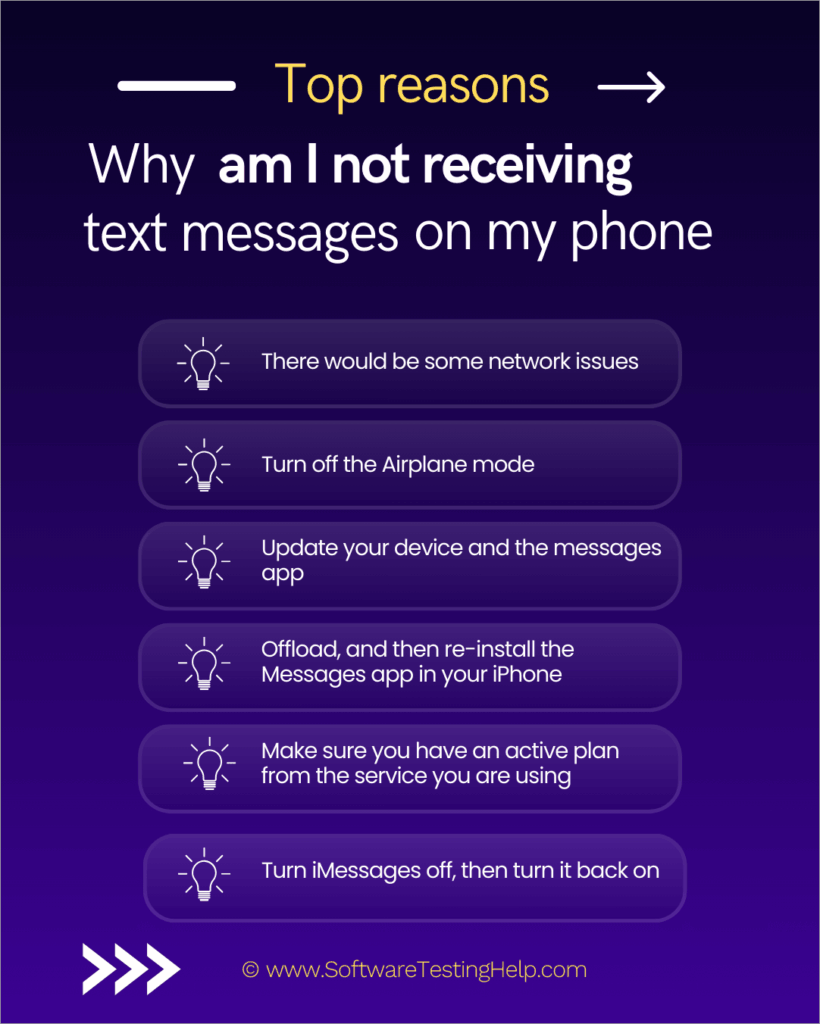
#1) Some Network Issues
Sending and receiving SMS messages do not require an internet connection. But you must have a signal on your phone. If you’re experiencing network issues, try moving to a location with better signal strength and see if that resolves the problem for you. You can also try using a signal booster for better network strength.
#2) Turn off Airplane Mode
Make sure your Airplane mode is turned off. It’s possible that you turned airplane mode on and forgot to turn it back off; that’s why you are now unable to make calls or send/receive messages.
You can also try turning the Airplane mode on for a while and then turning it off. This fixes network issues many times.
#3) Update Your Device and Messages App
Check for system updates and message app updates.
Follow the instructions to check for system updates on your iPhone.
- Go to Settings
- Select General
- Choose Software Update
- If an update is available, select ‘Download and Install’ and follow the on-screen instructions.
#4) Offload and Re-install the Messages App on iPhone
Doing this will fix bugs.
To offload the Messages app, follow these steps:
- Go to Settings
- Select General
- Choose an iPhone Storage
- Now, select the Messages app
- Select the Offload app and confirm.
After this, you can re-install the app from the App Store.
#5) Active Plan From Service Provider
Make sure you have an active plan with the service you are using. Some network service providers allow their users to receive SMS messages when they do not have a plan, while most of them don’t allow you even to receive text messages unless you buy a subscription. So, check the validity of your subscription plan if you are not receiving texts.
#6) Update Your Message App
You can turn on automatic app updates on your iPhone by following these steps:
- Go to Settings
- Select Apps
- Tap on App Store
- Turn ON App updates
#7) Clear the Cache
To delete or clear the cache of a specific app on your Android phone, do as stated under:
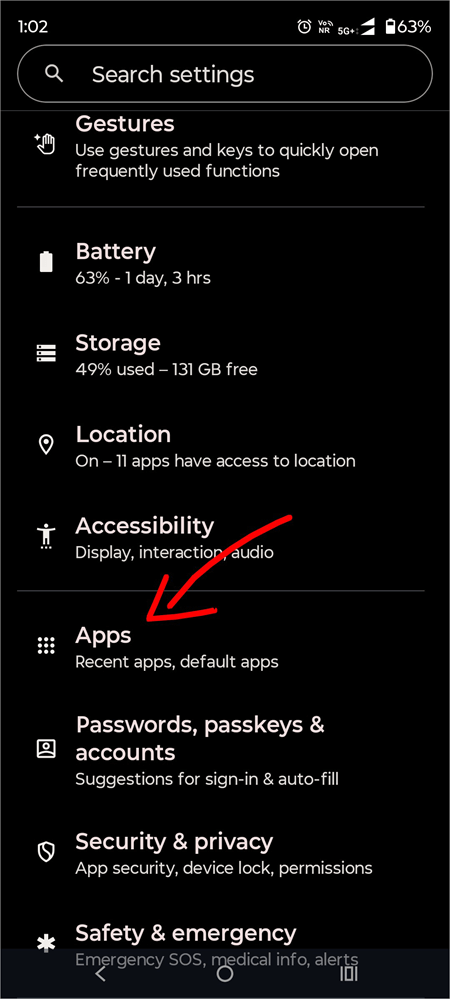
- Go to Settings
- Select Apps
Apps option is shown in the image below:
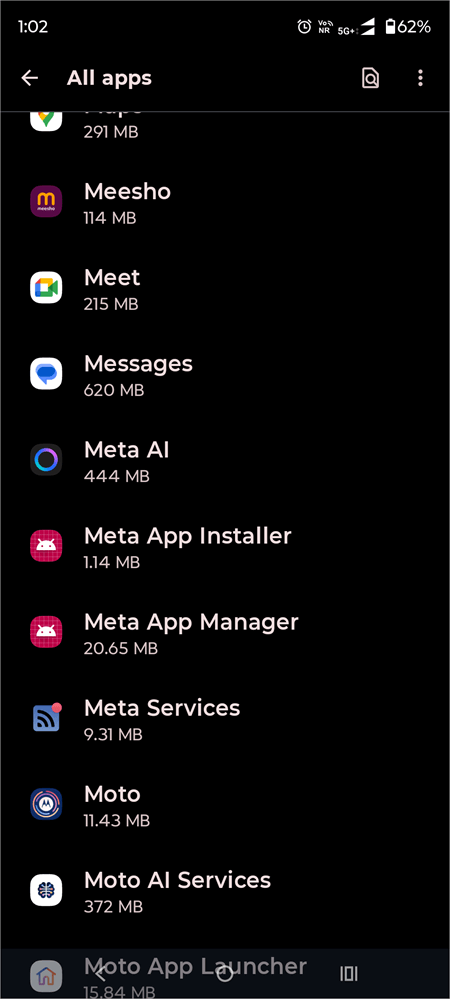
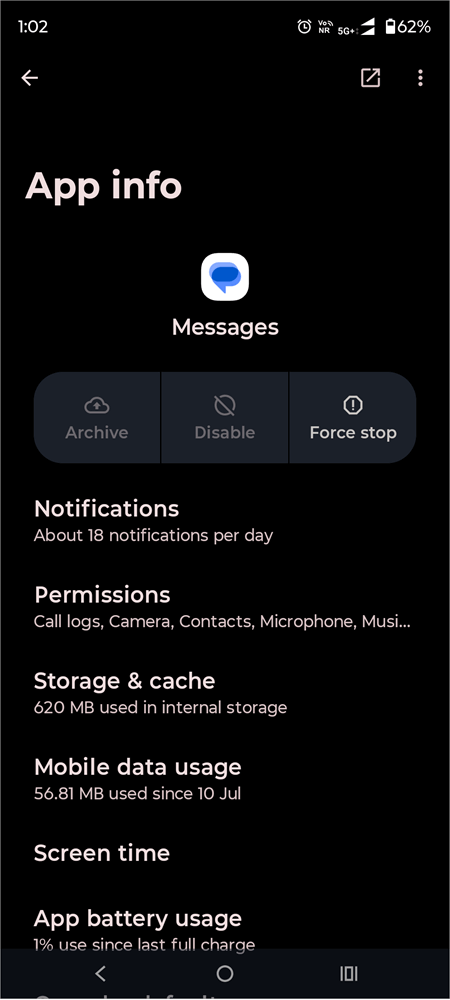
- Choose the app that you want to clear the cache for.
List of Apps is shown in the screenshot below:
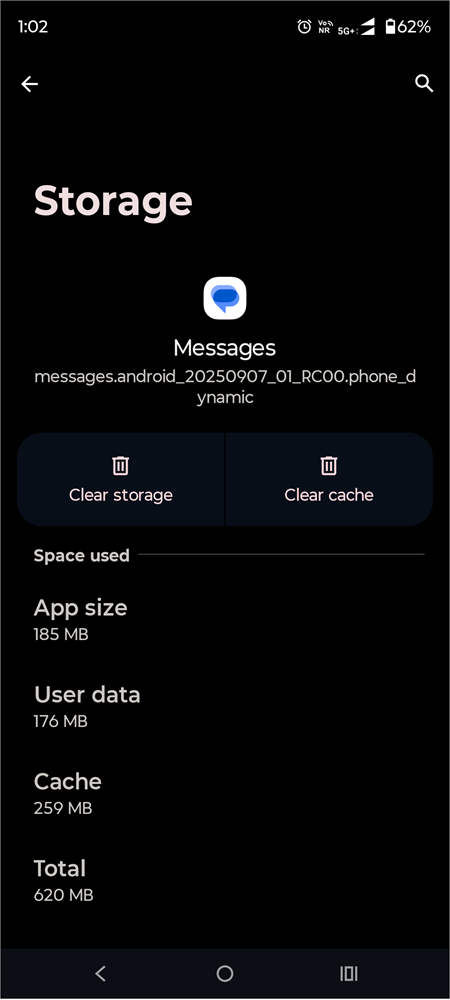
- Now select the Storage & cache option as shown below.
- Select Clear cache option as shown below.
To delete the cache of all apps at once, follow these steps:
- Go to Device care
- Select Storage (or select Settings, then choose Storage)
- Tap on Cached data.
You may check the Apple site to learn how to clear the cache in different iOS versions.
#8) Reset Network Settings
Some issues with the network settings can also cause problems with sending and receiving text messages. You can try resetting the network settings to fix the issue.
How to reset network settings on an iPhone:
- Go to Settings
- Select General
- Go to Transfer or Reset iPhone
- Tap on Reset
- Now, select Reset Network Settings
#9) Turn iMessages off, then turn them back on: On your iPhone, go to Settings, then select Apps, choose Messages, now turn iMessages off, then turn it on.
#10) Dual SIM Phone: If you are using a Dual SIM phone, make sure the number you want to receive messages on is turned ON.
#11) Check the list of Blocked numbers on your phone: There are chances that you blocked a contact some time ago, and now you are wondering why you are unable to receive calls or texts from them.
Check the blocked numbers list to see if this is the case for you.
#12) Check for Service Outages: Check your network service provider’s website for information about service outages. In such a case, users won’t be able to make calls, send/receive text messages, or use mobile data.
#13) Try Sending the Message in a New Thread: If the sender is using iMessage, tell them to send the text in a new thread, instead of the previous one.
#14) Your Phone Model may have a Storage limit in the Messages App: Try deleting unwanted text messages from the app.
#15) Contact your Network Service Provider: If no solution helps, you must contact the network service provider for help. If they can’t figure out the issue, you can contact your mobile brand’s customer support as well.
Why Your iPhone or Android are Not Receiving Texts Messages: 11 Top Reasons
Enlisted below are some of the cases where you may not receive Text messages on your iPhone or Android.
#1) Not Receiving Some Text Messages on iPhone
If you are not receiving text messages on your iPhone from anyone, or from some specific contacts, then there would be one of the following reasons:
- iMessage needs the internet: Your phone may not have an internet connection. If you are a new iPhone user, then let me tell you that to send or receive messages through iMessage, you must have an internet connection. It does not work merely with mobile networks.
- You can’t send text messages from Android to iMessage: If someone with an Android phone sends a text message to someone with an iPhone, it won’t be sent as an iMessage, but as a standard SMS.
- You may have blocked messages from unknown senders: If that’s the case, you won’t be able to receive messages from numbers not saved in your contact list. To change in settings on your iPhone, follow these steps:
- Go to the Messages app
- Tap on the 3-line menu icon located at the top-right corner of your screen
- Select Manage Filtering
- Turn Off (or on) Screen Unknown Senders.
#2) Not Receiving Text Messages From One Specific Person
This can be because of reasons like:
- You may have blocked that contact.
- You may have blocked incoming messages from unknown numbers, and their number won’t be saved in your phone.
- The person sending the messages may not have a good network on their phone, which is why the message is not sent in the first place.
#3) Not Receiving Some Text Messages on Android
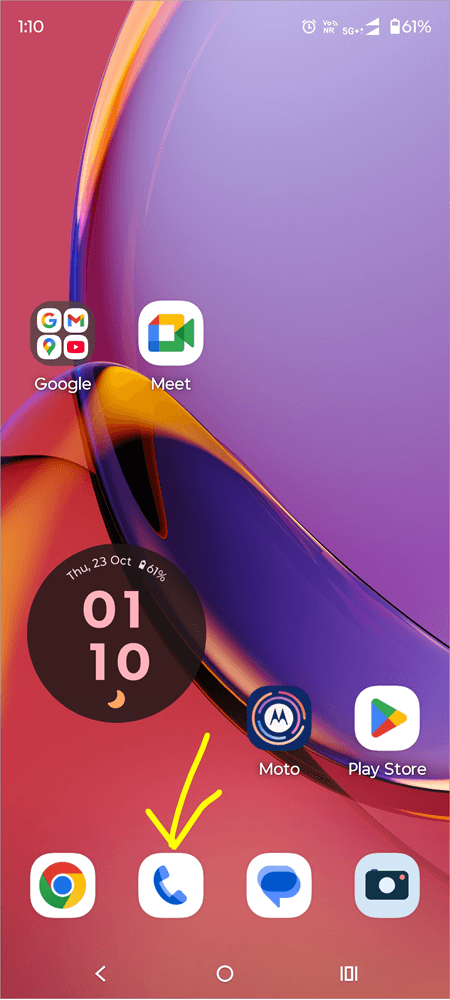
- Check the list of blocked numbers in your phone: If you have blocked certain numbers, you won’t be able to receive messages from them. To unblock them in your Android, do as stated below.
1. Go to the Phone app as depicted in the image below.
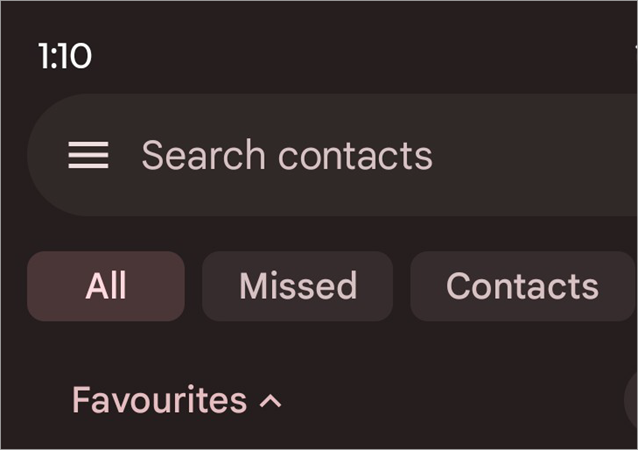
2. Tap on the menu icon as shown in the screenshot below.
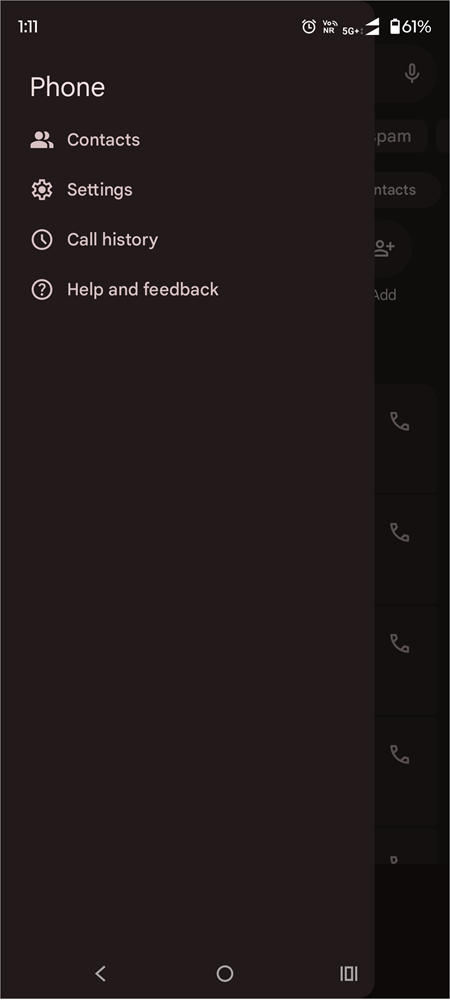
3. Select the Settings option as shown below.
4. Tap on Blocked numbers option as shown below.
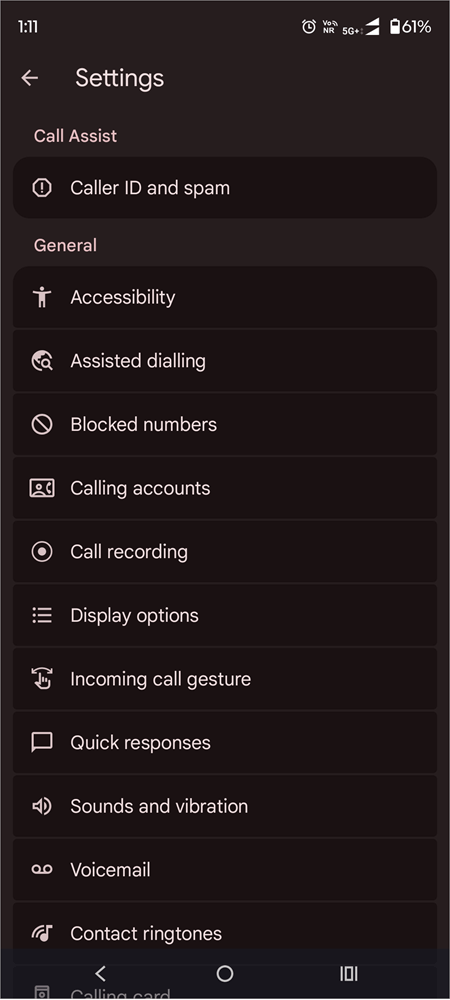
Now you will see the list of blocked contacts. You can add more from here or remove some contacts from the Blocked list.
- If there is a ‘Filter unknown numbers’ setting in your Android phone, make sure it’s turned off if you want to receive messages from everyone.
- If you have recently shifted from an iPhone to Android, then make sure you deregister from iMessage. If you have recently shifted from an iPhone to Android, then you would need to deregister from iMessage to receive text messages on your Android device.
- If you are unable to receive messages from a specific contact, chances are that they may not have network access at the moment.
- If you are using a dual-SIM Android phone and you are unable to receive messages on one of your SIMs, then chances are that:
- That SIM won’t have network access.
- You may have switched off that SIM in the settings. Ensure that both SIMs are turned on so that you can keep sending and receiving messages. Check this setting on your Android by following these steps:
- Go to Settings
- Tap on Network & Internet
- Select SIMs & Mobile Network
- Make sure both SIMs are turned ON.
#4) No Text Messages from iPhone Users on Android
If you are not receiving text messages from iPhone users on my Android. This can be due to the following reasons:
- Deregister from iMessage: If you were previously an iPhone user and had registered on iMessage, then make sure you deregister from there, because your contacts may still send you messages there, and Android phones can not receive messages sent on iMessage.
- Make sure you haven’t blocked their number or filtered messages from unknown numbers.
- The iPhone user must have a mobile network to send an SMS to the Android phone. To send an SMS, you need a mobile network. A Wi-Fi connection does not work for sending a text message. So if the signal strength is zero or very weak, the SMS won’t be sent.
#5) Texts Not Received on Samsung Phone
If your Samsung or any other brand’s phone is not receiving text messages, then it would be because:
- There would be no networks or very weak signal strength.
- The phone may be in airplane mode.
- You may have enabled DND mode.
- There can be an issue with the network settings.
- Your phone may need a software update.
- Your message app may need a software update.
- There can be some storage issues. Try deleting unwanted messages.
- There can be a temporary glitch. Try restarting your phone.
#6) Messages Received on One iOS Device Only
When you receive messages on one of your iOS devices but not on the other, then it can be because you have set your email ID to send and receive text messages.
In your iPhone, check whether you have allowed your phone number to receive messages or not, by following these steps:
- Go to Settings
- Select Apps
- Tap on Messages
- Select Send & Receive
- Now, select your phone number for sending and receiving text messages.
#7) No Messages on iPhone in Group Chat
Are you not receiving text messages on iPhone in a group chat?
If you can’t receive or send messages in a group chat, it would most probably be because you are removed from the group chat. Now you can only chat in that group when you are re-added by one of the group members.
#8) No OTP/Verification Texts Received
Not receiving OTP/Verification texts from banks, 2FA messages, Amazon notifications, etc.
This happens due to one of the following reasons:
- Network issues: You may be in a region with very low or no signals
- Your network service provider’s servers may be down. You can check their website for information about this.
- Your subscription plan may have expired. Check the validity of your plan.
- You may have turned your SIM off. Go to the settings and make sure your SIM card is turned on.
- Make sure the Airplane mode is turned off.
#9) Not Receiving Texts After Switching Carriers
If this is the case with you, it would be because of the following reasons:
- When you switch carriers, it takes about 24 hours for your SIM to activate and work properly.
- If you’re still facing issues after activation, contact the network service provider.
- Check whether you have network strength or not.
- Make sure Airplane mode is turned off.
#10) Problems Receiving Texts From Specific Carriers
Cross-network delivery failures happen due to technical glitches; you will have to contact the customer support service of your carrier in this situation.
Plus, you can try these methods to solve the issue on your own:
- Make sure you haven’t blocked the number of those whose messages are not getting delivered to you.
- Restart your phone
- Reset your network settings
- Update your phone.
#11) International/Roaming Issue
After returning from international travel, texts stop, and the US roaming pack expiration is causing issues.
If you are facing issues with texting or calling after international travel, then:
- Make sure you have an active subscription plan for sending and receiving texts.
- Your international/roaming plan may not allow you to send/receive texts in your own country.
- There can be a network glitch. Try restarting the phone.
- Reset network settings to fix bugs
- Check for software updates on your phone.
- Clear the Message app’s cache.
Frequently Asked Questions
1. How to fix not receiving text messages on my phone?
You can fix this issue by taking these steps:
• Check your mobile networks
• If you are using iMessages, make sure you have a strong internet connection
• Make sure the Airplane mode is off on your phone
• Check for network outages
• Make sure there is storage in your device to receive text messages
• Update system software
• Clear cache
• Restart your device to fix bugs and other temporary issues.
2. Will I lose messages if I clear the cache?
No. Clearing the cache doesn’t delete any of your text messages.
To clear the cache in your Android phone, do as stated under:
1. Go to Settings
2. Select Apps
3. Choose the app for which you want to clear the cache
4. Now select Storage & cache
5. Select Clear cache
3. How do I reset my text message settings?
To fix text message issues, you can reset the network settings in your phone, clear data, or offload the Messages app.
To reset network settings on your iPhone:
• Go to Settings
• Select General
• Go to Transfer or Reset iPhone
• Tap on Reset
• Now select Reset Network Settings
To clear Messages data:
• Go to Settings
• Select Apps
• Tap on Messages
• Choose Storage
• Select Clear data
If you choose to offload the Messages app, follow these steps:
• Go to Settings
• Select General
• Choose iPhone Storage
• Now select the Messages app
• Select the Offload app and Confirm.
• Then re-install the Messages app from the App Store.
4. Can people still text me if I turn off iMessage?
If you turn off iMessages, you can still receive standard SMS on your iPhone. Make sure you have a mobile network on your phone to receive SMS messages.
5. Is it possible for text messages not to be received?
If you don’t want to receive text messages on your phone, you can:
• Put your phone on DND or Airplane mode
• Filter unknown numbers
• Block some specific numbers to stop receiving calls and messages from them.
Conclusion
Text messaging is a widely used method of communication, and people receive important messages through it. Any issue with them can be quite troublesome. In this article, we have provided solutions for various issues related to text messaging.
I must say, the issues can be easily tackled with simple measures. But if they persist, then you will have to contact your network service provider and your phone brand’s customer support for technical help.
Research Process: The total time involved to complete and publish this article is approximately 37 hours. This content was created through a structured research approach to ensure accuracy and reliability.
For more related guides, you can explore our range of tutorials below:
- Top 12 Affordable Bulk/Mass Text Messaging Services
- How to Block Text Messages: Stop Spam Texts Android & iOS
- How to Create and Send a Poll in iMessage on iPhone and iPad
- Top 11 SMS Marketing Software (Updated Review)
- Best Websites to Send Free Text Message (SMS) Online
- How to Retrieve Deleted Text Messages on Android (Solved)
- How to Schedule a Text Message on iPhone
- BEST FREE Text SMS Tracking Apps Without Target Phone (Spy)
Was this helpful?
Recommended Reading
-

Through this tutorial, understand the reasons behind and explore the top effective methods to fix Message+ Keeps Stopping issue: Nowadays, almost everybody uses social media to interact and share information with their near and dear ones. Also, social media has helped people to connect with different social media users worldwide…
-
Best sites reviewed to Send Free SMS (Text Message) online to Mobile free of cost. Sending free text messages online has become easier than ever, due to a growing list of websites that let you send SMS without needing a phone or mobile plan. Whether your phone is switched off,…
-
Are you worried about blocking spam messages on your Android phone? This tutorial explains methods for How to Block Text Messages: SMS is hardly ever used anymore for communication. Traditional text messages have been surpassed by instant messaging apps. SMS is still useful for receiving alerts and information, though. When…
-
Do you think it is really possible to see deleted messages on WhatsApp? Discover the expert ways to see WhatsApp deleted messages without using any third-party apps on Android & iPhone: WhatsApp has come a long way since its inception way back in 2009. Today, it is a household name…