


Quickly learn how to find broken links using Selenium tool with our complete step-by-step guide. Discover all major reasons for broken links and improve your website’s health to keep it error-free:
In this fast-paced era of web automation testing, one of the crucial aspects of web applications’ functionality checks is to verify that all the expected links and images present on the web pages are working properly and correctly.
In web-based applications, links are nothing but ‘hyperlinks’, which are used to navigate from one page to another.
Broken links are simply nothing but hyperlinks that are not working as expected and navigate to an error page and/or sometimes a no-response page.
Selenium Broken Link Checker: Expert Guide to Find & Fix Broken Hyperlinks
These broken links respond or return HTTP error status codes such as 500 (server error), 403 (forbidden), 404 (Not found), etc.
Broken hyperlinks are directly impacting negatively on the user experience on the front end of a web application and the reliability of an application, as well as application credibility and SEO rankings.
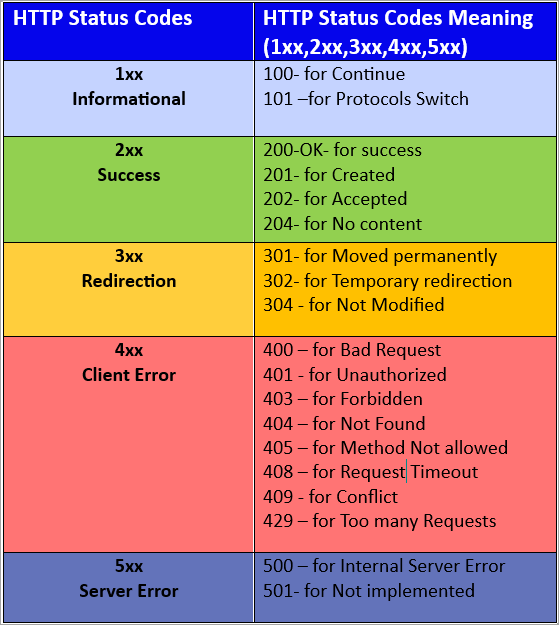
Various HTTP Status Codes and their meanings are explained below:
What is a Broken Link – Quick Understanding
A link is an HTML object that directs users to navigate from one web page to another page on a web application.
A broken link is nothing but a hyperlink in web applications that no longer exists, or the resource pointed to by the hyperlink is not available to redirect to the expected web page when the hyperlink is clicked. Instead, the error page is displayed, which could be a 500 server error or a 404 not found (client error).
These kinds of broken hyperlinks on web pages will directly hamper the SEO rankings, drastically decrease website traffic, and the trust and credibility of the web application will be lost.
Hence, for user-friendly navigation throughout the web application, identifying these broken hyperlinks is essential during web application testing and is crucial to include in the web automation testing scripts/scenarios.
HTTP Status Codes Related to Broken Links
Broken Links may exist due to server errors, and because of this, the underlying corresponding links will also stop working as expected. Any valid URL/link will have a 2xx HTTP status code, whereas Broken Links are invalid and will have invalid HTTP requests with 4xx and 5xx status codes.
When looking for broken links, it is essential to understand the HTTP Status Codes to conclude that the hyperlink is broken.
Different HTTP status codes specific to broken links
| Status Codes | Indication |
| 400 | Bad Request |
| 401 | Unauthorized |
| 403 | Forbidden |
| 404 | Not Found |
| 405 | Method Not allowed |
| 408 | Request Timeout |
| 409 | Conflict |
| 429 | Too many Requests |
| 500 | Internal Server Error |
| 501 | Not implemented |
| 503 | Service is unavailable and cannot process the request |
Necessity to Find Broken Links in Web Applications
This section explains what is the need or importance of finding broken links in the Selenium Tool.
Say if any user clicks on any of the broken links provided on your website or web application, the user is navigated to an error page with no information or any other resources (image, audio, video, or clips) they are after.
This makes for a not-at-all-friendly user experience on that website and is not a good impression of that web application.
This kind of behaviour on a website may lead to a poor user experience and search engine optimization penalties if the website has a greater number of broken links, which will, in turn, affect the visibility ranking of the website.
It is also likely that the website’s reputation may be damaged, giving the impression that the website is more outdated and/or it is poorly maintained.
Hence, in order to avoid the above-mentioned issues, by integrating broken link checks in the Selenium scripts/tests, we can proactively make sure that all the links provided on the web application/website are working correctly and are all valid.
This results in improved SEO, along with moderate to higher rankings of the website with a reputation for a user-friendly experience.
Main Reasons for Broken Links on Web Pages (Selenium Automation)
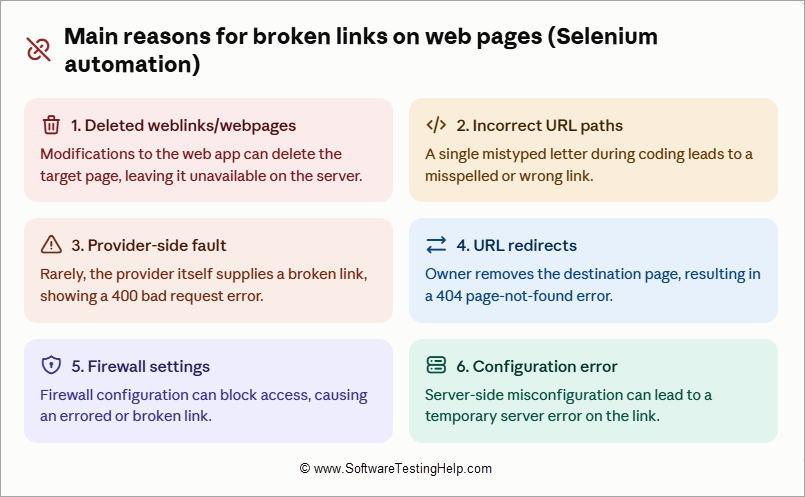
There could be several reasons for broken links appearing on web pages or web applications.
Some of the common reasons are listed below:
- Deleted Weblinks/Webpages: If any modifications are made to the web application, there is a likelihood that the target weblink might be deleted and no longer be available on the server, leading to an error page/broken link for the deleted webpage.
- Incorrect Paths of URL: During programming, developers might miss a single letter in the weblink, which leads to a broken link; hence, it is necessary to make sure the programmers/developers paste the website link in the program whenever there is connectivity between to 2 web pages to avoid the misspelled link/wrong link.
- Faulty Links: This may also occur in rare conditions where the provider itself may give a broken link accidentally. The system shows a 400 Bad Request error page.
- URL Redirects: Sometimes the destination page might have been removed by the website owner, which will lead to a 404 – Page Not Found error page.
- Firewall Settings Issue: This can also lead to an error or a broken link.
- Configuration errors can lead to a temporary Server Error on the website links.
How To Find Broken Links Using Selenium Tool on Web Page
Detecting broken links earlier during the automation testing phase will be more beneficial for having user-friendly interactions on the web application without any broken links and/or images.
By making use of Selenium WebDriver, all the broken images and links can be found earlier during the web application testing process through automation.
Selenium can interact with all web pages and can detect every link and its HTTP response via the response status.
Identify Broken Links
We can identify broken links using Selenium WebDriver test scripts in the following ways:
- Fetch all the links on the web pages using Selenium test scripts.
- Via HTTP requests to each link to check their Status code
- Log the errored-out links that are returning the HTTP status code as 404, 403, etc
- Find all <a> tags on the web page, then HTTP request to check the response code for each link. If the response code is greater than status code 400 or equal to 400 status code, then that link is broken.
Broken images can also be detected by making use of Selenium. Due to server issues, wrong paths, and other reasons, the broken images might be missing and cannot load properly on the web applications.
Here, actually, the placeholder is shown on the website instead of the actual image. Likewise, broken links and broken images also hamper/impact the user experience of the website.
Similar to broken links, broken images are detected using Selenium, ie, to check whether the images are loaded properly or not by having checks on the ‘src’ attribute and the HTTP status codes.
Identify Broken Images
We can identify the broken images using Selenium WebDriver test scripts in the following ways:
- Fetch all the images on the web pages using Selenium test scripts.
- Ensure that actual images exist on the web page and have checks on the ‘src attribute’ of each image.
- Image URLs are to be validated via HTTP requests to check whether they are broken.
- The broken images of the web application are obtained by the HTTP HEAD request and then verified for their availability accordingly.
Below is the sample code snippet to find broken links:
<<import required org.openqa.selenium packages + HTTP URL Connect, java.net.URL, Java.util.List ,By>>// org.openqa.selenium.WebDriver;
// org..chrome.ChromeDriver;
// org.openqa.selenium.;
//org.openqa.selenium.WebElement;
//HttpURLConnection;
// net.URL;
// java.util.List;

public class FindBrokenLinksTest {
    public static void main(String[]) {
        System.setProperty("webdriver.chrome.driver", "<provide path-to-chromedriver here>");
        WebDriver driver = new ChromeDriver();

        //provide your website URL to test
        driver.get("http://www.examplesite.com");
        List<WebElement> links = driver.findElements(By.tagName("a"));

        for (WebElement link1: brokenlinks) {
            String url1 = link1.getAttribute(href);
            verifyLink(url1);
        }
        driver.quit();
    }
    public static void verifyLink(String linkUrl) {
        try {
            HttpURLConnection connection = (HttpURLConnection) new URL(linkUrl).openConnection();
            connection.setRequestMethod("GET");
            connection.connect();
            int statusCode = connection.getResponseCode();
            if (statusCode >= 400) {
                System.out.println( linkUrl);
            } else {
                System.out.println( linkUrl);
            }
        } catch (Exception e) {
            System.out.println(linkUrl);
        }
    }
}
Frequently Asked Questions
1. What are broken links?
Links that are not working are broken links. For example, a valid URL navigates to the desired page, whereas a broken URL navigates to an unwanted web page/errored-out pages like 400- bad request, 500-server error, or 404-page not found.
2. What are the links on web applications?
When a user takes any click actions on a web page containing links/ Hyperlinks, it will navigate to the target link/target URL of the web page. This target link should be in working status and be a valid link containing the desired information.
These Hyperlinks are nothing but HTML elements on web applications/pages that try to redirect to another web page upon user actions.
2(a) How to locate links in Selenium WebDriver?
Links in Selenium Web driver can be located by using CSS Selectors, Xpath, Name, Class Name and by ID.
Along with those, Selenium provides specific locators for hyperlinks ie, ‘partialLinkText() and linkText()’.
Ex: drvr.findElement(By.linkText(“SignIn”)).click();
drvr.findElement(By.partialLinkText(“Sign”)).click();
for example HTML using anchor tag <a> :
<a href=”SignIn.html”>SignIn</a>
2(b) Examples in Java, to locate link using exact visible text Name, by ID, ClassName , Xpath and CSSslector are shown below:
WebDriver driver1 = new ChromeDriver();
driver1.findElement(By.linkText(“SignIn”)).click();
driver1.findElement(By.id(“signinLink”)).click();
driver1.findElement(By.className(“menu-link”).click();
driver1.findElement(By.xpath(“//a[text()=’SignIn’]”).click();
driver1.findElement(By.cssSelector(“a[href=’signin.html’]”)).click();
3. What are the broken images on web applications?
When the images on the web application don’t open up/shown up properly and show an error message like failed to load the desired image,” it means that the image file uploaded is corrupt or that the image could be missing on the specified path, and other reason for a broken image could be that its not compatible with the browser specified and is corrupt at the file location itself.
A ‘Broken Image’ is provided as a link on a web page and is not working.
3(a) How to find a broken image in Selenium?
In Selenium, to find all of the broken images, Selenium cannot directly find them as broken image. Hence, the following approaches are helpful:
i) Get the URLs source- ‘src’ attribute
ii) By sending HTTTP requests
iii) Get all image elements by using ‘<image>’
iv) Verifying the status codes in responses
i.e. Firstly locate all the <img> elements then retrieve all image URLs from src attribute, then send HTTP request by using ‘HttpURLConnection’ class and lastly validate that the response code is 4XX or 5XX i.e 404. 500 gives the broken images or confirms that the image is broken.
An illustration sample is shown in the code snippet.
For Example: (in Java)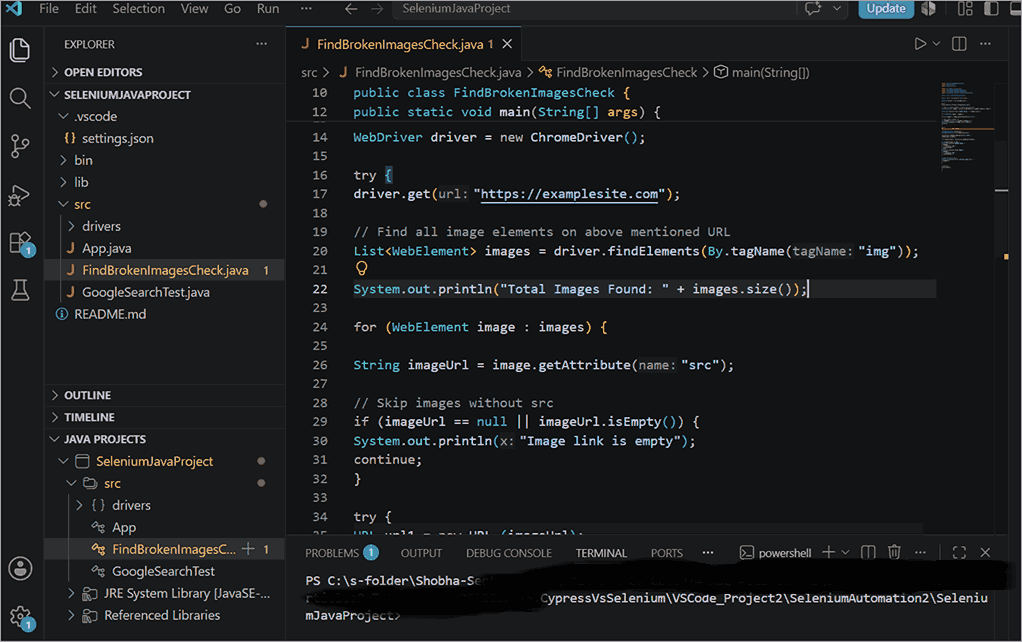
<<import required org.openqa.selenium packages + HTTP URL Connect, java.net.URL, Java.util.List >>
//org.openqa.selenium.;
//org.openqa.selenium.WebDriver;
//org.openqa.selenium.WebElement;
//.ChromeDriver;
//.HttpURLConnection;
//.URL;
//java.util.List;
public class FindBrokenImagesCheck {
public static void main(String) {
WebDriver drv1 = new ChromeDriver();
try {
drv1.get(“https://examplesite.com”);
// Finding out all of the image elements
List<WebElement> images1 = drv1.findElements(By.tagName(“imge”));
System.out.println(“Total size of images is = ” + images1.size());
for (WebElement image : images)
{
String imglink = image.getAttribute( src);
try {
URL url1 = new URL(imglink;
HttpURLConnection connection = (HttpURLConnection) url1.openConnection();
connection.setRequestMethod(“GET”);
connection.connect();
int statusCode = connection.getResponseCode();
if (statusCode >= 400) {
System.out.println(imglink );
} else {
System.out.println(imglink);
}
} catch (Exception) {
System.out.println(imglink);
}
}
}
drv1.quit();
}
}
4. What are the 4 types of links in a web application?
In Web application page testing, the links are categorised in 4 types, such as Internal links, external links, broken links, and image links. These links are to be validated during web application testing.
Each of the link’s Examples goes like this:
Internal Links: To navigate within the same website, https://www.examplesite.com /Home
External Links: Will navigate to another link, for example, https://accounts.google.com/
Broken Links: Points to pages that do not exist. https://sampleurl.com/pagenotfound
Image links: Actionable/ can click hyperlink is img source.
<a href=”sitehome.html”>
<img src=”logofile.png”>
5. How is the list of all links in Selenium retrieved?
Usage of the <a> tag and the findElements() method, we can retrieve all the hyperlinks on the webpages.
For Example:
List<WebElement> links1 = dvr1.findElements(By.tagName(“a”));
System.out.println(“Total Links size is= ” + links1.size());
6. Why use linkText () and partialLinkText () locators in Selenium?
These 2 links are specifically used for identifying hyperlinks on the webpage in Selenium, called Selenium Locators.
linkText() – Is for identifying the links by exact match of text/visible text, which is more precise and is faster when an exact match of text is known, while
partialLinkText () – Is for identifying the links by partial/portion of text/visible text, which can be flexible and is beneficial when lengthy text is involved.
7. How to inspect a link in Selenium?
By using the ‘DevTools’ on the web page/browser, you need to inspect first before automating the hyperlinks. Ie, to inspect a link:
i) Go to the web application page and right-click on the desired link
ii) Choose Inspect
iii) Look for the HTML elements
iv) Examine the attributes like ID, Name, Href, XPath/CSS locator, LinkText, Class.
Examples are shown in the above FAQs-2(a)’s section.
8. How to find the number of links in Selenium?
Hyperlinks are denoted using <a>=anchor tag in Selenium. So, locate <a> tag elements by making use of ‘findElements()’ method, then use the ‘size()’ method.
// org.openqa.selenium.;
// org.openqa.selenium.WebDriver;
// org.openqa.selenium.WebElement;
// ChromeDriver;
// java.util.List;
<<import required org.openqa.selenium packages + HTTP URL Connect, java.net.URL, Java.util.List >>
public class CountAllLinks {
public static void main (String[]) {
WebDriver drivr1 = new ChromeDriver();
drivr1.get(“https://www.examplesite.com”);
// Finding all links on the web application page
//findElements() is for returning back a List of WebElements and it is assigned to the variable “values” whose type is List<WebElement>
List<WebElement> links1 = drivr1.findElements(By.tagName(“a”));
// To Print link’s total number of links
System.out.println(links1.size());
drivr1.quit();
}
}
Sample Practice code snippet or example can be referred in this video to find the total number of links present on the web page application
9. How to find out all broken links & broken images on webpage in Selenium Java?
Links that are navigating to errored out page could be a server error, a corrupted file uploaded, or its location path, or it might have been deleted, incorrect target url in the main URL. All of these reasons will lead to a bad user experience, and SEO ratings go down, making the overall reputation of the web application look not so great.
Hence, it is very much essential to catch/ identify these types of errors during Selenium Automation testing.
Selenium WebDriver (using Java language) has the capability to handle incorrect URLs and Image URLs, modified image files, any typos, and network errors if any, during the automation test creation. For example, an HTTP Request (using the HTTP GET request method) can be sent using ‘HttpURLConnection’, check for the server response code returned, whether its 200(OK). Anything else apart from this status code can be considered broken link.
For broken image elements in Selenium, you need to extract the ‘src’ attribute of the image by looping through each image for that target URL.
10. Provide the main reasons for the broken links.
There may be a couple of main reasons for broken links occurrences, such as:
1. Typing mistakes may happen by the developers/ programmers whenever 2 linked web pages are connected.
2. Sometimes, it is likely that the target webpage may get deleted during some modifications to the website.
3. It can also happen that the main reason is an error in the main code itself. Say, for example, whenever developers try to copy the same links to certain webpages, there is likely a mistake here.
4. The file format may get modified during clicks on the links, ie user can download specific files upon clicks, which may require modification; hence, during these modifications, the format of the files may be changed, creating a disconnect with the code.
5. There can also be modifications to websites or linked webpages during the renaming of the webpages, which can also lead to breaking the connectivity with the existing webpage and land on a broken linked page.
6. In rare cases, broken link issues can happen with the faulty website link received from the provider, and are not necessarily the mistake of the developer nor the company.
Conclusion
Selenium WebDriver provides powerful and easy solutions for automating your web application or website, especially in identifying broken links and broken images.
In order to ensure the smooth flow/functionality of the website and SEO performance along with happy user experiences, it is essential to identify the broken images and broken links of the web applications using Selenium WebDriver with Java capabilities.
Obtaining broken images and broken links sooner in the Selenium automation suite will significantly increase the reliability and efficiency of the testing phase process.
There are also options to make use of cloud-based platforms to further increase Selenium tests running across various real devices, and cross-browser testing combinations to make sure web applications work the same as in real-world environments and work flawlessly.
Example platforms that provide this process to run efficiently are the Selenium platform and BrowserStack’s Test Automation infrastructure.
For more broken link-related guides, you can explore our range of tutorials below:
- The Top 10 Broken Link Checker Tools
- Best Selenium Tutorial for Beginners
- 30 Top Website Link Verification Testing Tools
- 18 Best Website Checker Tools
- Top 16 Accessibility Testing Tools for Web Applications
- Top 30 Web Application Testing Tools
Was this helpful?
Recommended Reading
-

This Selenium Tutorial on Assertions Explains What Are Assertions in Selenium And Different Types of Assertions And Assertion Methods Using Junit and TestNG Frameworks: Assertions are used for validating a test case and helps us understand if a test case has passed or failed. The assertion is considered to be…
-
Get equipped with the necessary knowledge and skills to implement automated tests effectively with this step-by-step guide on Automating TestNG in Selenium: The TestNG framework is an open-source advanced automation testing framework for the Java programming language. JUnit and NUnit inspire it, and it has some new functionality that makes…
-

Welcome to our free Selenium Tutorial Series! This tutorial series was created in response to the requests of our readers. Starting from the very basics of web automation, you will reach advanced topics through practical examples. This tutorial series includes all you need to know about test automation with Selenium,…
-
In the previous tutorial, we discussed the technical implications of implementing logging in a framework. We discussed log4j utility at length. We discussed the basic components that constitute log4j from a usability perspective. With the Appenders and layouts, a user is leveraged to choose the desired logging format/pattern and the…


