Learn how to record YouTube Live Stream in full HD with our step-by-step guide. Explore the top YouTube Screen Recorder Apps for Windows, Mac, iPhone, and Android to capture any Live Stream without missing even a moment:
Let’s say your favorite YouTuber is streaming live when you are busy. Surely, you don’t want to miss out on it, but you can’t skip your work either. Is there a way to somehow catch the livestream later when you are free? Indeed, there is.
All you have to do is record the livestream. If you are wondering how, well, you’ve come to the right place. I’ve been recording YouTube live-streams even before it was a popular practice.
Record YouTube Live Stream From Anywhere: Ultimate Guide
I know a few effective methods to record a live stream with ease, regardless of the device you are streaming on.
I’ll gladly share those methods with you in this article.
So, without much further ado, let’s learn how to record YouTube live streams.
Quick Answer – Can You Record a YouTube Live Stream
Most of them don’t realize that it’s not difficult to record live streams on YouTube. You can either record your broadcasting of the stream or use a tool to grab an older live stream broadcast you want to save, but there are many options available, and they are all extremely dependable.
YouTube has a built-in archive feature, which records an automatically saved copy of your stream as soon as the live stream finishes. For the people watching the stream, it’s as easy as using a third-party tool such as OBS Studio, Bandicam, or a screen recording software program that’s native to both Windows and macOS.
If you have missed the stream, a good way to obtain it is to download it while it is still publicly available from one of many third-party programs and make that download.
As always, before recording or re-distributing content, you must respect the copyright (and the usage agreements) of the copyright holder and creator. Armed with the right utility, you’ll never miss another critical live event!
What’s Needed Before You Start Recording
The only thing you’ll need to record a YouTube live stream is a good, reliable, user-friendly screen-recording software. If you are using a Mac, an iPhone, a Windows 10/11 PC, or an Android 11 smartphone, you don’t need to download additional software as they all feature a built-in screen recorder.
These built-in screen recorders are easy to use, and you can start recording with them in just a few clicks or steps. You should use a third-party screen recorder if you are using a Windows system or an older Android smartphone.
Third-party screen recorders also feature other advanced capabilities, like editing tools or the ability to upscale a recorded video’s quality.
If you need these additional features, it would be best to opt for a specialized screen recording solution instead of relying on the built-in software. Later in this article, I’ll be recommending some of the best screen-recording solutions you can get your hands on.
Legality of Recording YouTube Live-Streams
I think it would be wise to first discuss the legality of recording YouTube live-streams or any other video on the platform, for that matter. It is legal to record YouTube livestreams. That said, there are a few caveats.
You cannot reproduce the recorded livestream for commercial reasons, as doing so would clearly violate copyright laws. If you must reproduce the recorded live-stream, the result must be transformative with heavy edits and your own commentary added to be considered fair-use.
Although YouTube may not take an action, the content creator to whom the live-stream belongs might. They are well within their rights to claim the money your reposted video made or have the video completely removed. You could also receive a copyright strike. Getting three strikes in quick succession could result in your YouTube channel being terminated.
My advice would be only to record YouTube live-streams for personal consumption. You can use a few clips from the live stream in your video to critique the content or add commentary. Such content would come under fair use. Refrain from reproducing or republishing the entire live-stream, and you’ll be fine.
With that out of the way, let’s jump straight into the meat of our article.
How to Record YouTube Live Streams
Here is a quick guide for you to record YouTube Live Streams on Mac, PC, iPhone, and Android.
#1) On Mac
This section is a Mac user’s guide for recording YouTube Live Streams.
You have two options when recording a YouTube Live Stream on a Mac. You can use a third-party screen recorder or simply rely on the built-in software.
Here’s how you record a YouTube Live Stream using Mac’s built-in screen recorder:
1. In your Applications, select QuickTime
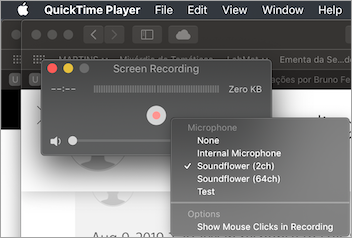
2. Open QuickTime > File > New Screen Recording as shown below.
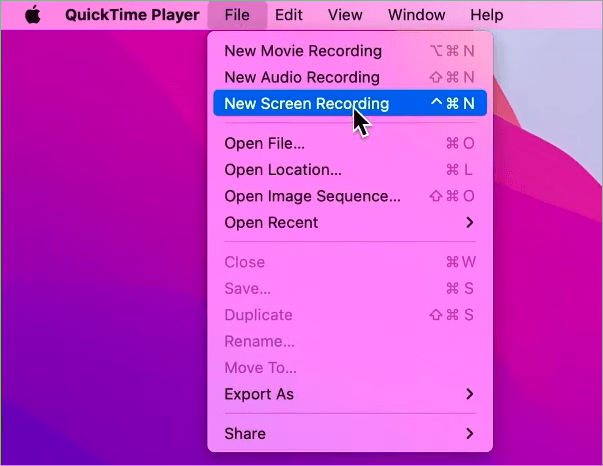
[Via Howinfinity]
3. Select “Record Entire Screen” option as depicted in the image below.
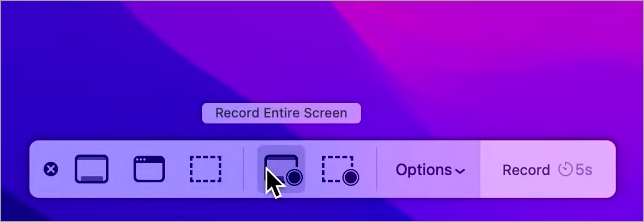
4. Select “Options” and click on “Desktop” from the drop-down menu.
5. Now, open your browser, go to YouTube, and play the live-stream you wish to record.
6. This is when you need to hit the “Record” button on QuickTime.
7. Hit the “Stop” button once you are done recording.
8. The recorded video can be exported as HEVC .mp4 file.
QuickTime offers you an easy and efficient way to record your Mac’s entire screen. However, if you need advanced features in your screen recorder, it’s best to use a third-party app. I’ll be discussing those later in the article.
#2) PC (Windows 10/11)
Here are the quick steps to record a YouTube Live Stream on PC (Windows 10/11).
Windows 10 and 11 PCs feature two built-in applications, and both do a decent job of recording your live stream on YouTube.
(i) Using the Xbox Game Bar
1. You can open the Xbox Game Bar with the shortcut command – Windows Key + G.

2. Hit the Camera icon (capture button) to open the recording menu.
3. Now open the live-stream on YouTube that you wish to record.
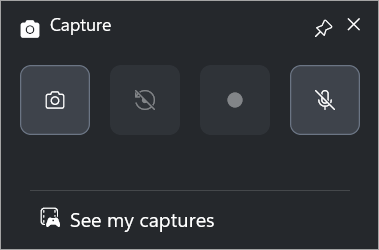
4. With the live-stream open, go back to Xbox Game Bar and click on the “Record” button.
The system stores the recorded file in MP4 format.
(ii) Using the Snipping Tool
1. You can open the Snipping Tool from your search bar or enter the shortcut command – Windows Key + Shift + R.
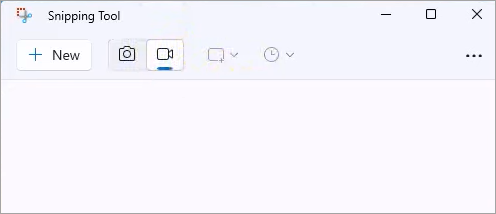
2. Select the area that you wish to record and hit the Start button, as in the image below.
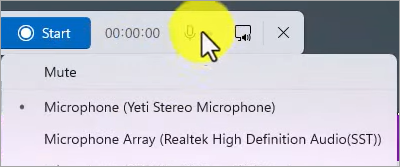
3. Open the YouTube livestream you want to record.
4. Hit the Stop button once you are done recording.
It is that simple. Similar to Mac, you can also record your YouTube live stream on a Windows PC using third-party software.
#3) On iPhone
Explore the simple steps to record a YouTube Live Stream on an iPhone.
Your iPhone already has a built-in screen recorder. Here’s how you can use it to record your YouTube live stream.
1. On your iPhone, go to Quick Settings > Control Center > Customize.
2. Find the Screen Recording option and tap on the green plus sign next to it, as in the image below. This will add the option to your iPhone’s controls.
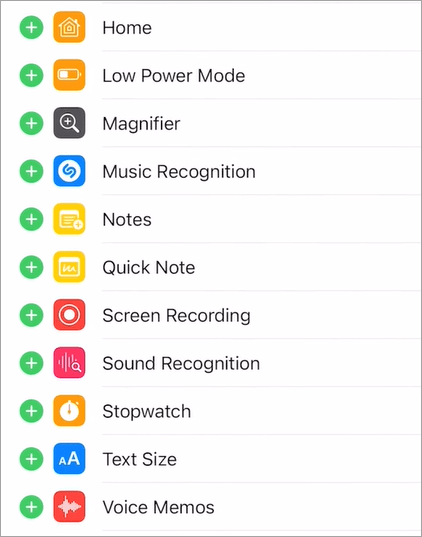
[Via Justin Brown]
3. Now swipe down on your iPhone to open the Control Center and tap on the “Record” button. You’ll see a red timer on the top of your screen. This means your iPhone is recording.
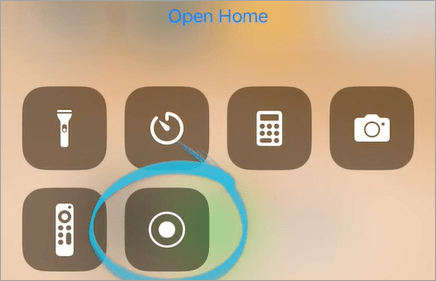
4. With the timer on display, just play the YouTube live stream you wish to record.
The system automatically saves the recorded video in MP4 format.
#4) On Android
Enlisted below are the steps to be followed to record a YouTube Live Stream on Android.
Just like the iPhone, all Android 11 and above devices come equipped with a screen recorder.
1. Swipe down on your Android phone to open Quick Settings.
2. Select Screen Recording as shown below.
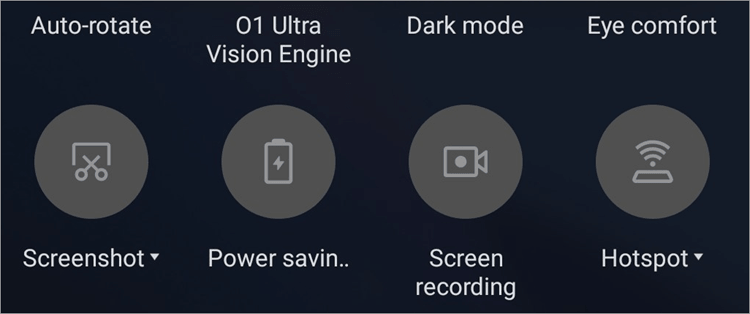
3. This will result in a tiny menu opening on your screen.
4. Hit the Record button on it to start recording and the Stop button when you are done.
By default, the recorded video is saved as an MP4 file.
The recorded file will be saved in your device’s media storage section. The screen recorder is only available on devices running Android 11 or newer versions. If you are using an older device, you’ll need to rely on a third-party screen recorder.
Best Applications to Record YouTube Live Streams
Although the built-in solutions on your system may be good, there are situations where they may not be enough. I believe it is always wise to keep your options open.
As such, I would like to recommend a few apps that could also come to your aid when recording a YouTube live stream.
Apps for PC (Mac and Windows)
#1) DemoCreator by Wondershare
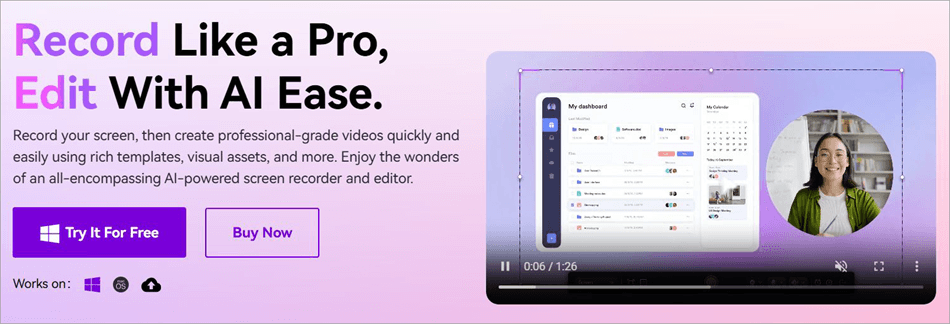
Wondershare has an interesting lineup of software solutions to boast, and DemoCreator is easily one of its best offerings, at least. DemoCreator can automate screen recordings and even create live YouTube videos from scratch. You can schedule a recording to record automatically when a live stream begins.
All you have to do is select the timer icon within DemoCreator, select the date, start time, and end time, and set the recording task.
You can record live-streams in resolutions as high as 4K. The platform also comes loaded with editing tools to help you personalize a recorded video.
Here is the video on how to record live streams automatically using Wondershare DemoCreator:
Check our Wondershare DemoCreator Review
#2) VLC
VLC Media Player, a staple of personal computers across the globe, can also help you record your desktop or laptop’s screen. This is an open-source, free-to-use software that can help with streaming and video recording on all devices. This includes both PC and mobile devices, as well.
Here’s how you can record a YouTube live stream via URL in VLC:
- Open the YouTube live stream you wish to record and copy its URL.
- Open VLC on your system and from the top menu bar, select “Media”.
- From the drop-down menu, select “Open Network Stream”.
- Now paste the copied URL into the designated box.
- Click on “Play”.
It is that simple.
Website: https://www.videolan.org/vlc/
#3) OBS Studio
OBS Studio is another open-source screen recorder that’s popular among live-streamers and gaming YouTubers alike. You can rely on it to easily record long streams in pristine high definition. The platform is especially ideal if you are a streamer or independent creator on YouTube, as you get remarkable control over your recording capabilities.
You can schedule YouTube live stream recordings as well by using a plugin called Advanced Scene Switcher. This tool can be downloaded and installed directly from within your OBS interface.
Website: https://obsproject.com/
Comparing the Best Screen Recorders for PC
| Name | Top Feature | Limitations | Output Format | Price |
|---|---|---|---|---|
| DemoCreator | AI-Powered video recording and editing | The platform is expensive. | MP4, AVI, MOV, MKV, FLV, TS, GIF, M4A, WEBM | Free to use, Premium plan starts at $9.99/month |
| VLC | Free without ads. Basic editing tools | The process to record live-streams is tedious | MP4, MKV, AVI, WEBM, and TS. | Free |
| OBS | High configuration. Audio mixer | Resource-intensive. | MKV, MP4. | Free |
Top Apps for Smartphones (iPhone and Android)
#1) GREC
Here’s a software that automatically records live-streams on a remote server. You just add a channel to GREC, and it will automatically start recording any live stream on that channel.
You can have multiple live-streams recorded automatically at the same time with this platform. The recordings are of top-notch quality with no compromise in resolution.
Website: https://www.grecrecorder.com/
#2) AZ Screen Recorder
AZ Screen Recorder is perhaps the oldest screen recorder I’ve mentioned in this article. It has been around for decades and has only improved since its inception.
Besides recording, the tool also features editing capabilities and a very intriguing GIF maker. It is free to use, if you can tolerate the ads.
Website: https://azrecorder.com/
#3) Record It
Another screen recorder that I am recommending because of the complementary editing features.
It stands out for its clean UI, which makes the actual task of recording and managing files very simple. It also features a face cam overlay, which you can use to publish a live reaction to an ongoing stream.
Website: https://apps.apple.com/us/app/record-it-screen-recorder/id1245356545
Comparing Best Smartphone Screen Recording Solutions
| Name | Top Features | Limitations | Output Format | Price |
|---|---|---|---|---|
| GREC | Automatic Live-Stream Recording | Legal and ethical risk is associated with it, as it can bypass DRM protections. | MP4 | Free to use. Premium plan starts at $3.99/Week |
| AZ Screen Recorder | Unlimited Recordings | Ads | MP4 | Free with ads. Premium plan starts at $4.49/month |
| Record It | Built-In Editor and facecame overlay | Lag and occasional audio issues. | MP4, MP3 for audio-only results | Free to use. Premium plan starts at $5.99/month |
Best Browser-Based Tools
If you don’t want the hassle of downloading and installing an app on your device, perhaps you may prefer the following tools:
#1) ScreenApp
This is a free-to-use, browser-based screen recorder that lets you capture a live stream with a single click. It works with almost all browsers out there.
The tool also features some built-in AI features to help you transcribe or summarize a recorded video. You can record up to 3 videos for free. At just $19/month, there are no limits.
Website: https://screenapp.io/features/youtube-stream-recorder
#2) StreamYard
Think of StreamYard as the browser-based alternative to OBS, albeit much simpler and more advanced in its functionality. Just like OBS, you can record your camera and the live-stream you are watching together and then customize its layout.
Stream Yard also features an AI that will cut clips from your video and repurpose them for publishing on TikTok and YouTube Shorts.
Website: https://streamyard.com/
Comparing the Top Zero-Download Browser-Based Solutions
| Name | Top Features | Limitations | Output Format | Price |
|---|---|---|---|---|
| ScreenApp | AI Assistance | The free plan is very limited in its capabilities | MP4 | Free to use. Premium plan starts at $19/month |
| StreamYard | AI-Based Video Repurposing | Customer Support is not that responsive | MP4 | Free to use. Premium plan starts at $20/month |
Common Issues While Recording: Quick Ways to Fix
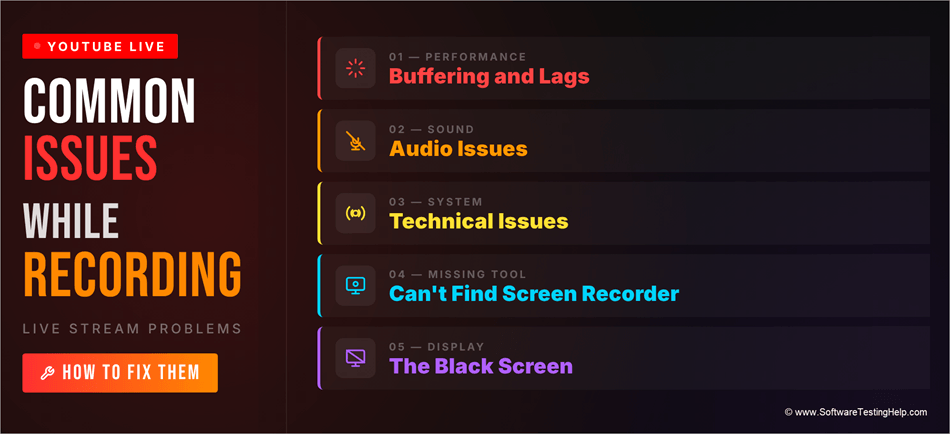
While recording a YouTube live stream is simple, you may run into a few issues. Thankfully, most of these problems can be fixed with the troubleshooting tips I am about to share here:
#1) Buffering and Lags
Live-streams demand high bandwidth with a stable internet connection. If these conditions aren’t met, your live-stream recordings are bound to be subpar. So, make sure you have a solid internet connection with upload speeds as high as 7 Mbps.
Quick Tips for Ideal Quality Settings:
- YouTube adjusts its video quality automatically. I would suggest manually setting the quality to 1080P or 4K, if the stream supports it.
- If you are recording a gaming stream, then set the frame rate to 60 FPS. Otherwise, a frame rate of 30 FPS would suffice.
- Set the output format to MKV or the universally supported MP4. MKV is often recommended. In case your computer crashes, an MKV file will keep the recording up to the point your computer crashed.
- Employ YouTube’s “Theater Mode” to make sure you only record the video and not your webpage.
- Set a hardware encoder like Apple VT or NVIDIA NVENC via your recording software like OBS to prevent system lags.
#2) Audio Issues
This is a very common issue where the recorded live-stream seems to lack audio. Make sure the microphone-recording is enabled in whatever screen-recorder you are using. Another issue that is very common for audio is off-synchronization. This means the audio does not align with the recorded video.
This can be fixed by adjusting the “Sync Offset” feature on your screen recording software. All the tools I’ve mentioned on this list have this feature. Also, make sure the speakers on your system are disabled. This will prevent any echo-related issues with your audio.
#3) Technical Issues
You may also encounter problems like sudden app or stream crashing on the system. This could be because of the pressure your recording software is putting on the system. Software like OBS, for instance, is known to require high CPU usage.
This can put a load on your PC, resulting in sudden system crashes, black screen of death, battery drainage, and overheating.
You can resolve this issue by shutting down all other active apps on the system. Drop the picture quality of your video from 1080p to 720p, if possible. Finally, use a system with high specs or use a screen recorder that isn’t resource-intensive.
#4) Can’t Find Built-in Screen Recorder
Almost all modern PCs and smartphones feature a built-in screen recorder. If you can’t find them, it is because you are using an older device or your system’s OS is out-of-date. So, make sure you update your Mac, Windows, iPhone, and Android OS to the latest versions.
Keep automatic updates enabled to make sure you aren’t missing out on important software updates.
#5) The Black Screen
A pitch-black screen during a YouTube Live stream is a common issue that typically occurs when you try to record a DRM-protected video. Hardware acceleration, browser issues, or a problem with your system’s GPU could also cause this.
Thankfully, you can resort to some effective measures to resolve or prevent this issue from ever happening.
How to Record YouTube Live-Stream Without Black Screen:
- You can specifically configure certain third-party recorders, like OBS, AZ Screen Recorders, and EaseUS RecExperts, to bypass strict DRM protections, although they might not work all the time.
- Disabling your browser’s hardware acceleration may also prove to be a very effective measure in tackling this issue.
- YouTube automatically archives all live streams. An Ad-blocker can interfere with a recording task. So, make sure you disable them on your browser before hitting the record button.
- If you are using an Android phone to record a YouTube live, my advice would be to switch off screen share protections.
How to Save and Export a Live Stream: Quick Guide
It is possible to export a YouTube live stream if you are its creator and the stream does not exceed 12 hours in duration. All live streams are automatically archived by YouTube in the creator studio.
All you have to do is go to your Studio > Content > Live > Select the live stream you wish to download, click on three dots, and hit the download button.
If you wish to download somebody else’s live stream, you’ll need to first record it via a screen recorder and then export it via the software you’ve used. These live-stream recordings are automatically saved on your system. So, you don’t have to worry about exporting them when using a dedicated screen recorder.
Frequently Asked Questions
1. Is there a way to record YouTube live?
Yes, there are multiple ways at your disposal to record YouTube live without hassle. You can use the built-in screen recorder on your Windows, Mac, iPhone, or Android system.
Alternatively, you can rely on a third-party software like OBS or VLC media player to record a YouTube live stream or your system’s screen.
2. Can I record my livestream on YouTube?
YouTube allows its creators to record and archive their own live-streams, provided those streams are no longer than 12 hours.
Doing this is simple:
• Go to your YouTube Studio
• Select Content > Live
• Click on the three dots on the stream you wish to save and hit the “Download” button.
3. Does YouTube Live save automatically?
YouTube generally archives all of your live-streams automatically. You can access the streams from YouTube Studio. If you want to save somebody else’s live-streams, you’ll need to download a third-party screen recorder. The best screen recorder for automated recording today is GREC, an app that’s available on both iOS and Android.
4. Can you record directly on YouTube?
No, YouTube does not offer a feature that lets you record a video or live-stream directly from within the platform. You’ll need to rely on your system’s built-in recorder or third-party software to get the job done.
5. How do I record live video on my phone?
Both iPhone and Android devices feature built-in screen recorders, which can prove useful when recording a live video on your phone. Alternatively, you can use third-party software like Record It and AZ Screen Recorder.
Conclusion
Recording a YouTube livestream can be tricky, especially when you consider how long an average livestream can be. That said, it isn’t rocket science either, and you have a ton of tools at your disposal for seamless recording. Most of these tools are free to use and require little to no technical prowess.
For simple live-stream recording, the software on your PC or smartphone would suffice. However, if you want to perform extensive audio and video edits to the recording, it would be best to download software like OBS or AZ Screen Recorder.
Just make sure your system is up-to-date, and your internet connection is reliable. With that taken care of, recording live-streams, regardless of the method, will be a breeze.
Research Process: The total time involved to complete and publish this article is approximately 48 hours. This content was created through a structured research approach to ensure accuracy and reliability.
For more-related guides, you can explore our range of tutorials below:
- How to Record on YouTube TV
- Top 10 Screen Capture Software Tools for Better Snapshots
- How to Use YouTube Ambient Mode: Quick Guide
- How to Screen Record on Windows 10 or 11 [4 Simple Methods]
- How to Disable Restricted Mode on YouTube
- How to Fix YouTube Glitching: 10 Fixes That Actually Work
- How to Fix When YouTube is Not Working
- Movavi Screen Recorder Review: Best Feature Details
Was this helpful?
Recommended Reading
-

Are you planning to make use of audio from YouTube for your professional needs? Here is a detailed review of the Best YouTube Audio Ripper with features for you to choose from: YouTube does not allow you to rip audio from the YouTube library to your storage device from its…
-
Review of Top YouTube Video Downloader Apps with Features, Pricing & Comparison. Select the Best Free Online YouTube Ripper for PCs to Download YouTube Videos: YouTube is the most-watched video streaming website. Launched in 2005, the online video platform features a wide variety of content, including TV clips, educational videos,…
-

Select the best YouTube Subtitle Downloader per your requirements to download Subtitles from YouTube from the tools reviewed here: Multimedia has made things easier as now you can easily find a visual explanation for your questions and queries in an instant. Suppose, if any of your assignments or homework is…
-
Review and compare the top YouTube to GIF Maker and select the best YouTube to GIF Converter as per your specification: GIF or Graphics Interchange Formats have become immensely popular these days. It is a lossless format that supports 8 bits per pixel and can display 256 colors. GIF supports…