Master all about YouTube TV Membership settings from our ultimate setup guide. Get educated on how to manage, change, add, or remove channels on YouTube TV, along with expert guidance on billing and payment settings:
Well, your account membership settings have a lot more in store for you, where you can seamlessly manage many of the details connected to your current plan.
From checking your membership and managing available add-ons to updating billing information, you can handle every intricacy through the account settings.
YouTube TV Membership Settings: Ultimate Guide
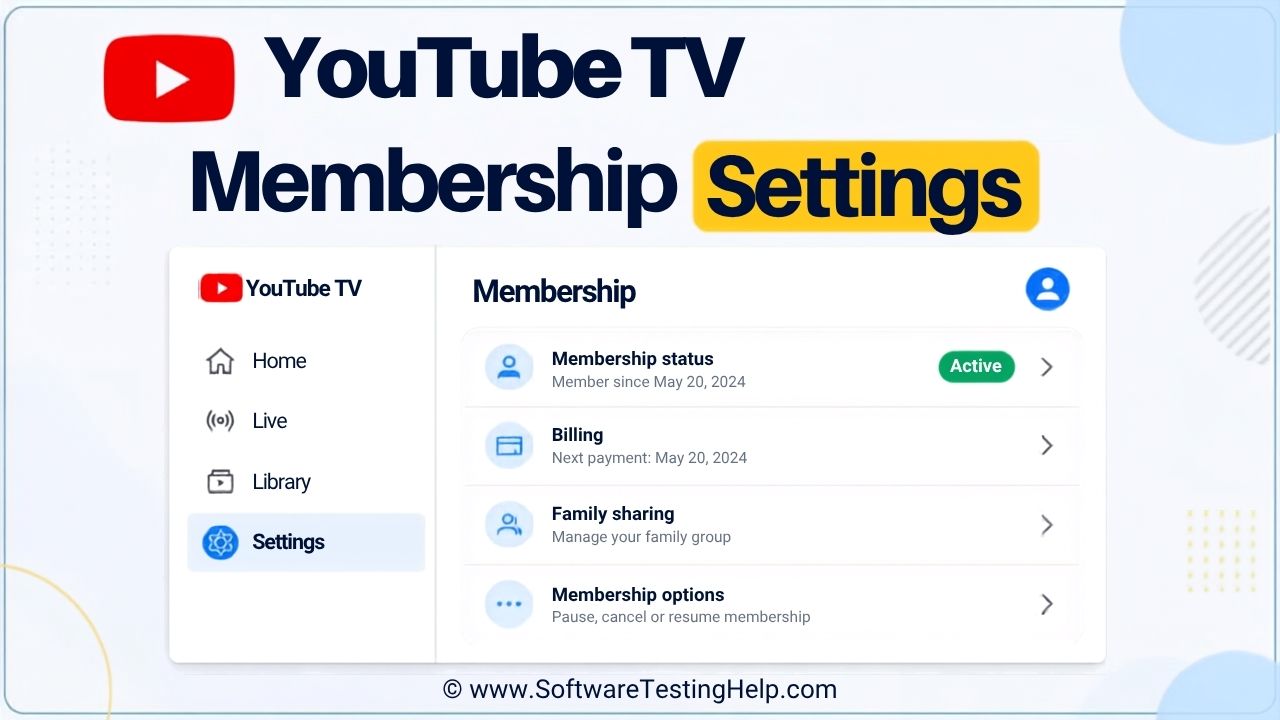
With the right YouTube TV membership settings, you can easily keep your subscription organized and make changes when required. In this blog, we’ll walk you through these settings and explain how you can change them per your needs.
Quick Summary of YouTube TV Membership Settings
Membership Settings in YouTube let the end-user manage their subscription, including the plan, billing details, add-ons, and other membership options.
One can also remove extra channels or networks. While some settings are available in the app, other membership changes may require the user to sign in with the help of a web browser.
Where to Find Membership Settings on YouTube TV?
Locating your membership settings is the first step when making updates to your YouTube membership subscription.
Follow the steps below to find YouTube TV login membership settings to get started:
- On a desktop or mobile web browser, visit the YouTube TV website.
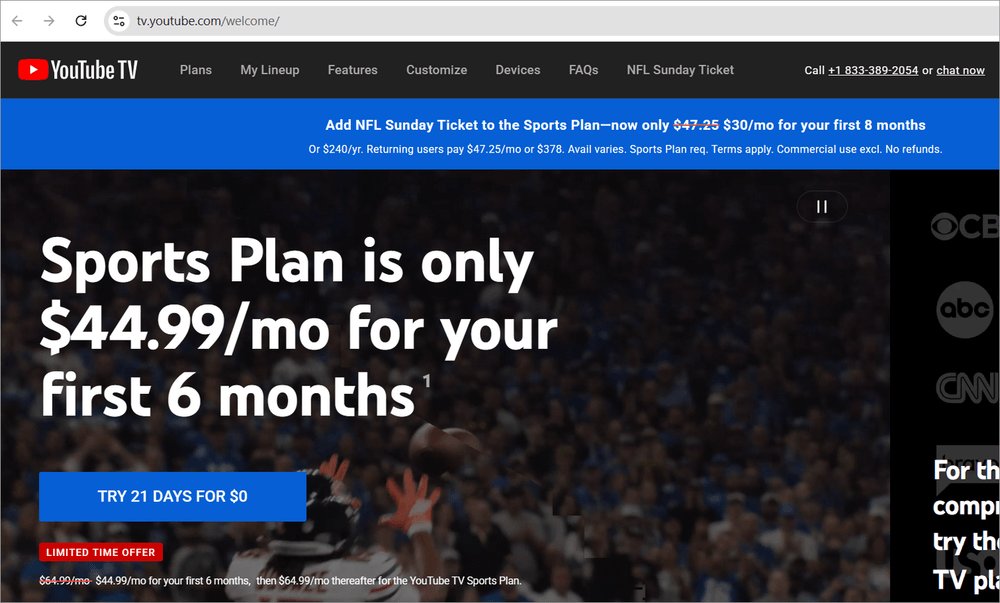
- Sign in with your Google account.
- In the top right corner, find your profile picture and select it.
- From the menu, tap Settings.
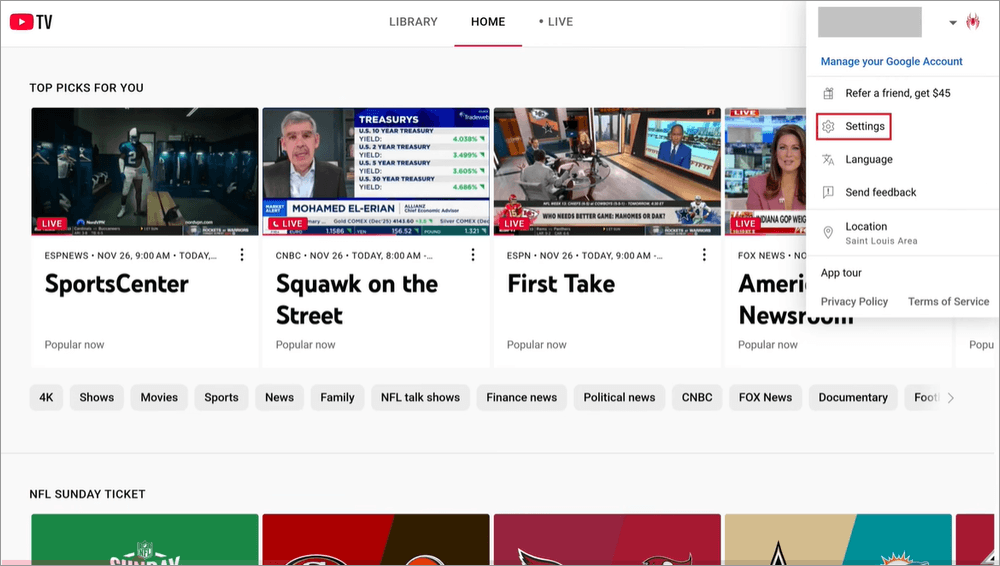
[via YouTube]
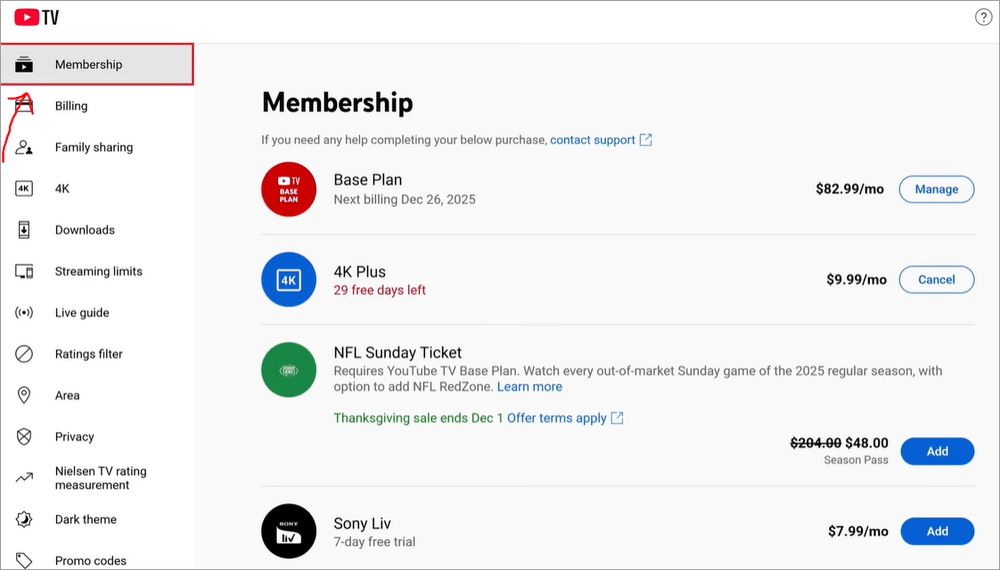
- In the menu, click on the Membership icon and you’re good to go.
How to Change Your YouTube TV Plan?
If you want to change your current YouTube TV plan, you can do so by accessing the YouTube TV membership settings updates tab.
Here is what to do:
- On a web browser, visit tv.youtube.com.
- In the top right corner, you’ll find a Profile icon. Tap on it.
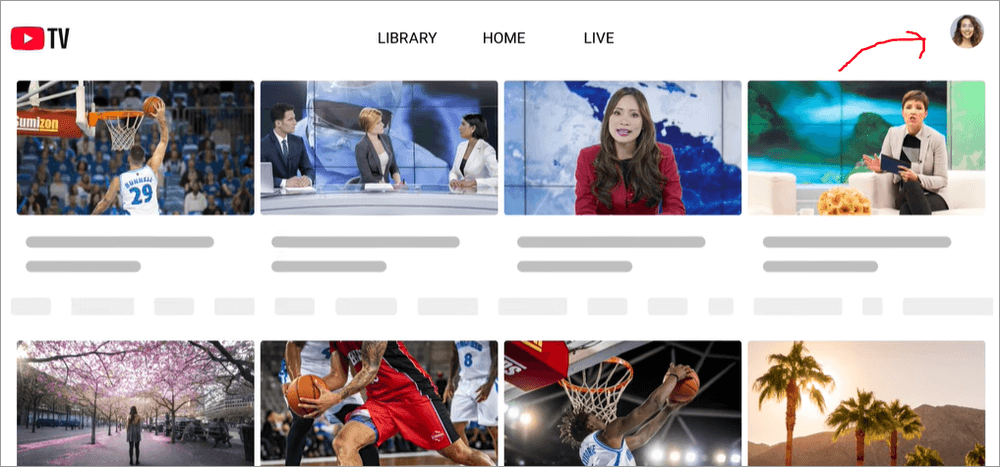
- Choose Settings.
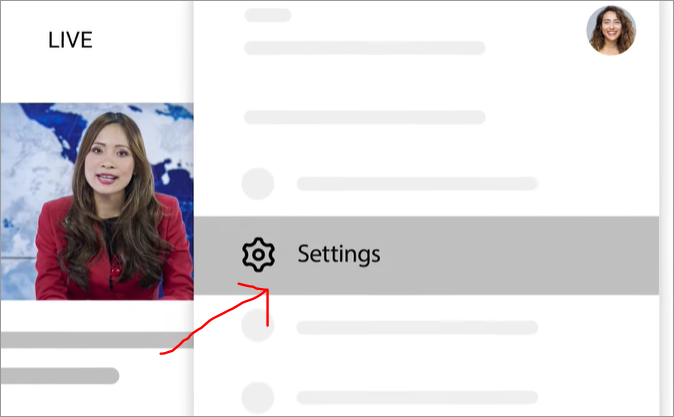
- Click on the Membership option.
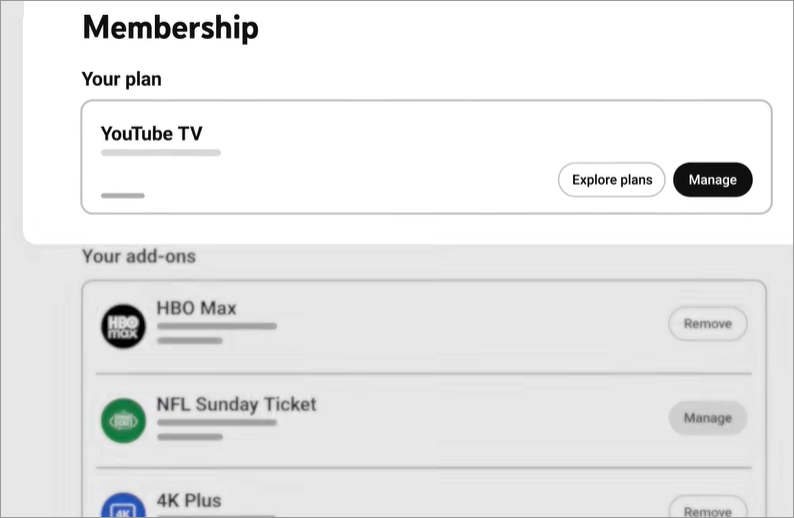
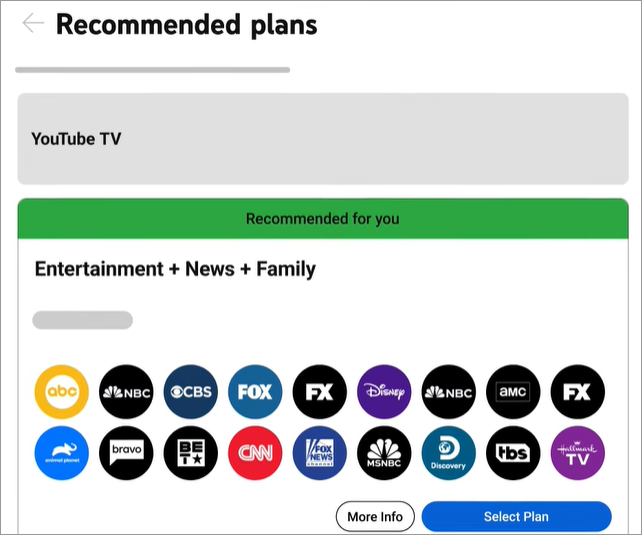
- Tap Explore Plans to view available packages and smaller targeted plans.
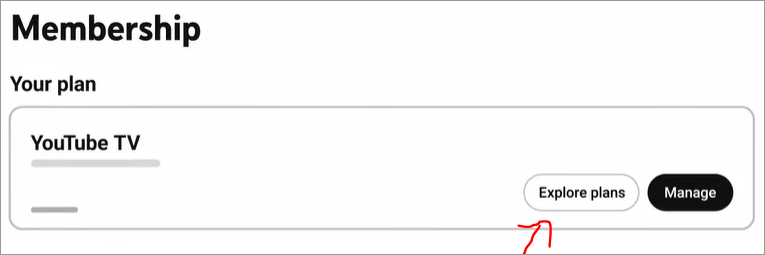
- Select the option you want and click Select Plan.
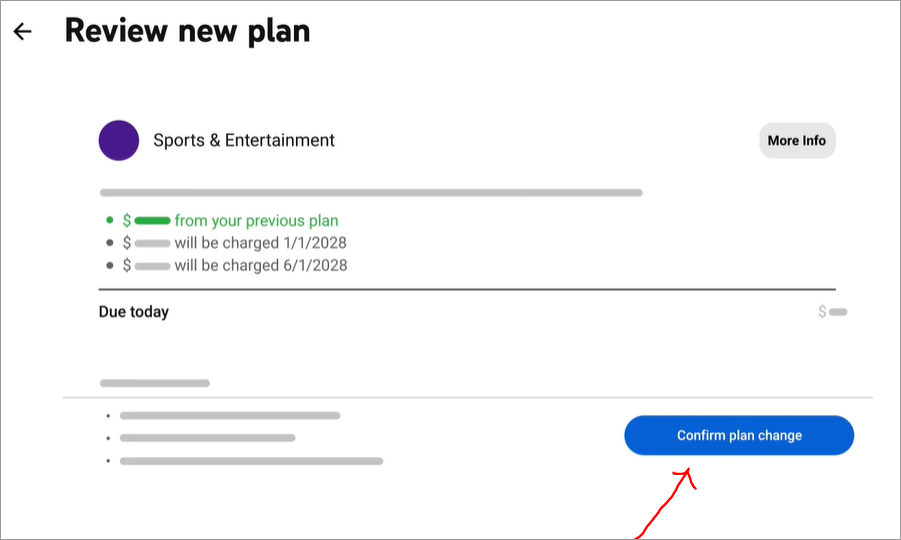
- Go through the price summary and choose Confirm Plan Change, and you’re done.
Activating YouTube TV On a New Device
Here is the video guide to activate YouTube TV on a new Device:
How to Add or Remove Channels on YouTube TV?
Through YouTube TV account settings, you can add or remove channels on YouTube TV.
Here is what you can do:
#1) Adding Channels on YouTube TV
- Go to YouTube TV’s official website on a web browser.
- On the top right corner, tap the Profile picture icon.
- From the menu, choose Settings.
- Tap the Membership option.
- Find the network or the add-ons you wish to opt for.
- Choose Add or click on the price button available next to the channel.
- Confirm the Purchase.
#2) Removing Channels on YouTube TV
- Go to YouTube TV’s official website on a web browser.
- Go to your Profile picture.
- Choose Settings.
- Select Membership.
- Find the network or the add-ons you wish to remove.
- Click Cancel and confirm your choice.
Unbundling YouTube TV To Buy Individual Networks
YouTube allows users to buy certain individual networks or smaller genre-based plans without having to pay the full traditional base package.
Here is what you can do:
- Check Availability: On a desktop browser, visit YouTube TV and check for the networks that can be purchased without the “Requires YouTube TV” label.
- Manage Your Membership: If you already have a YouTube TV base plan, you can go to Settings > Membership to manage the subscription you already have and choose eligible standalone networks.
- Use Smart TVs: On supported TV devices, open the YouTube app, tap the store icon next to the profile picture, and directly add individual unbundled networks.
How to Manage Billing and Payment Settings?
With the YouTube TV login membership settings, you can effectively manage billing and payments.
Here is what you can do:
- Open YouTube TV and sign in with your Google account that is connected to your membership.
- Choose Billing from the menu.
- Tap the billing section to change the payment or membership details.
- Update the payment method or add a new one if required.
- Choose Manage under YouTube TV in order to change your card or add a backup payment method.
How to Set Up and Manage Family Sharing?
You can efficiently use YouTube TV’s membership settings to manage who can access the given subscription through the family group.
It enables family members to use YouTube TV with their Google accounts, wherein the family manager gets overall control of the group, including membership access.
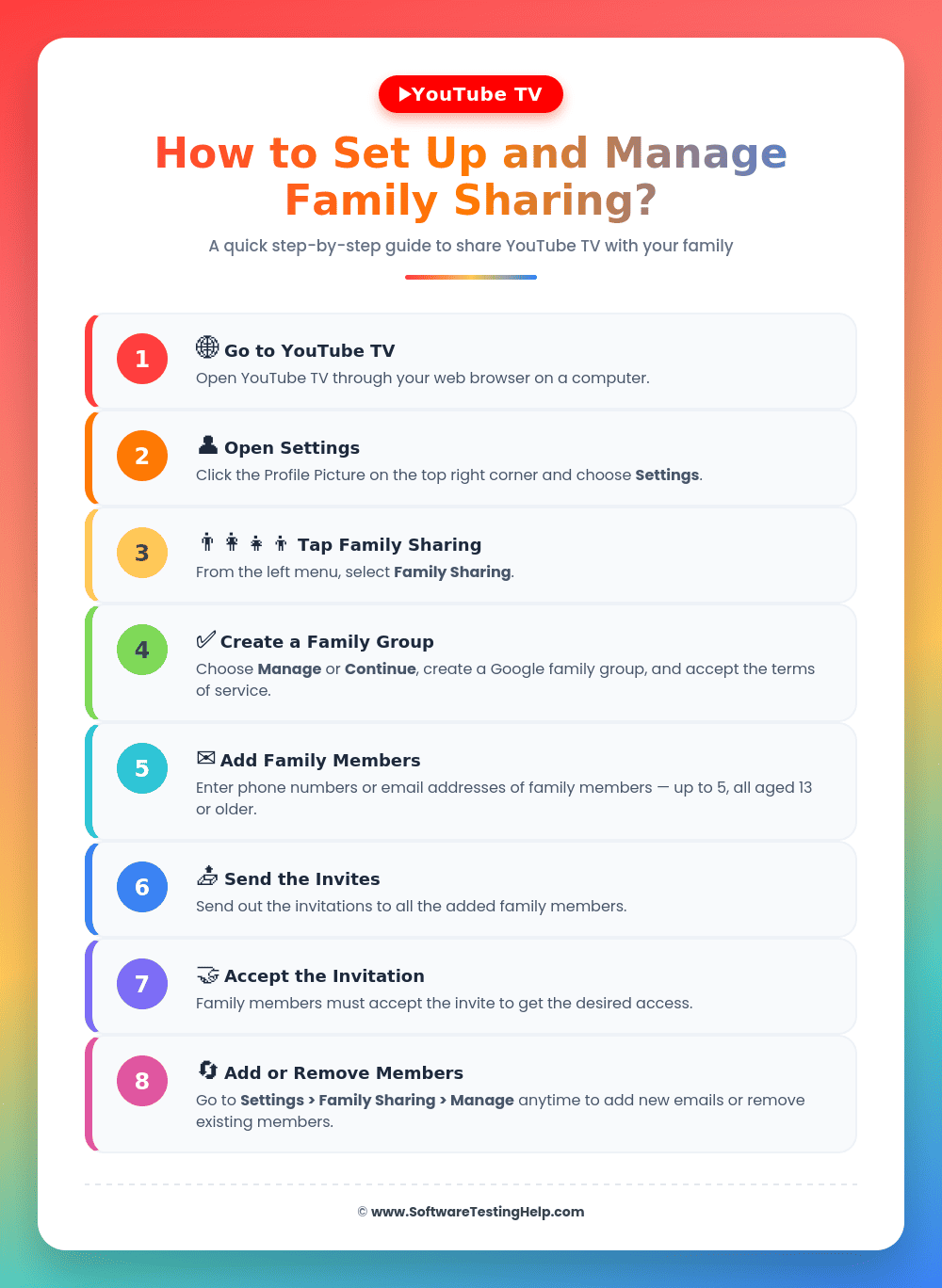
Here is how you can set up and manage family sharing for your YouTube TV:
- Go to YouTube TV through the web browser.
- In the top right corner, you’ll find a Profile Picture. From there, choose Settings.
- From the left menu, tap Family Sharing.
- Choose Manage or Continue, where you can create a Google family group and accept the terms of service.
- Enter the phone numbers or email addresses of the family (up to 5 members, who must be 13 years or older).
- Now, send the invites.
- The family members must accept the invitation to get the desired access.
- To add or remove members on YouTube TV, go to Settings > Family sharing > Manage to add new emails or remove members already existing.
Home Area vs. Current Playback Area: Key Differences
YouTube has two distinct location settings: Home area and Current playback area. The home area is your primary location, where you live, while the current playback area shows where you are watching TV at the moment.
Quick Comparison
| Home Area | Current Playback Area |
|---|---|
| Your primary residential location per your zip code. | Your physical location at the moment. |
| Used to determine your home local networks. | Reflects the local networks of the city you are visiting temporarily. |
| Should only be changed when there is a change in your primary residence. | Changes when you travel. |
| DVR access provided. | No recording permitted. |
| Can only be changed twice in a year. | Unlimited updates |
Frequently Asked Questions
1. Why can’t I unsubscribe from YouTube TV?
If you cannot unsubscribe from YouTube TV, the issue may be related to the way you subscribed or the type of account being used. It may also be that you are using the mobile app that does not offer the cancellation option. Also, subscriptions that are billed through third parties may need to be cancelled by the provider itself.
2. How do I access my YouTube TV billing settings?
To access your billing settings, open YouTube TV and sign in with your Google account that is connected to your membership.
Choose Billing from the menu. Tap the billing section to change the payment or membership details.
Here, you can update the payment method or add a new one if required. Choose Manage under YouTube TV in order to change your card or add a backup payment method.
3. How do I edit memberships on YouTube TV?
If you want to edit memberships on YouTube TV, go to Settings > Family Sharing > Manage to add new emails or remove members already existing.
4. How do I cancel my YouTube TV memberships?
To cancel the YouTube TV membership, you need to go to YouTube TV on a web browser. Sign in to your account and tap on the profile picture icon in the top right corner.
Choose Select, and from the left menu, click on the Membership icon.
Find the current base plan you use and click Manage. Choose Cancel membership or Cancel. You now just need to follow the prompt on the screen and tap Yes, Cancel to confirm.
5. Can You Pause TV Membership?
Yes, YouTube offers a built-in feature for end-users to pause their TV membership. This can be done by going to the official website, tv.youtube.com > Profile Photo > Settings > Membership > Manage > Pause.
Conclusion
Managing the YouTube TV subscription is not complicated if you are aware of the right settings. From updating the payment details to changing the current plan, most of the options can be handled effectively from the concerned account.
Although the YouTube TV membership Settings interface may change as the service updates, knowing where to find the key options can help manage the subscription easily and conveniently.
Research Process: The total time involved to complete and publish this article is approximately 41 hours. This content was created through a structured research approach to ensure accuracy and reliability.
For more-related guides, you can explore our range of tutorials below:
- FIX: How to Disable Restricted Mode on YouTube
- YouTube Private Vs Unlisted: Here is the Exact Difference
- How to Delete a YouTube Account Quickly in a Few Steps
- Why Is My YouTube Not Working Today? How to Fix It Fast
- What Is Ambient Mode On YouTube and How It Works (On/Off)
Was this helpful?
Recommended Reading
-

Are you planning to make use of audio from YouTube for your professional needs? Here is a detailed review of the Best YouTube Audio Ripper with features for you to choose from: YouTube does not allow you to rip audio from the YouTube library to your storage device from its…
-
Review of Top YouTube Video Downloader Apps with Features, Pricing & Comparison. Select the Best Free Online YouTube Ripper for PCs to Download YouTube Videos: YouTube is the most-watched video streaming website. Launched in 2005, the online video platform features a wide variety of content, including TV clips, educational videos,…
-

Select the best YouTube Subtitle Downloader per your requirements to download Subtitles from YouTube from the tools reviewed here: Multimedia has made things easier as now you can easily find a visual explanation for your questions and queries in an instant. Suppose, if any of your assignments or homework is…
-
Read this review to compare and select the best YouTube Ad Blocker for Android, iOS, Windows, Mac, and various web browsers: YouTube is an amazing video streaming site where you will find endless good quality videos on almost any topic on earth. But Ads are its vice. You can take…