Discover the versatile ways to safely Bypass FRP on Android devices with the GSMNeo FRP tool. Explore its efficient features & functionalities along with a list of GSM NEO Alternatives:
GSMNeo is a free tool for bypassing Google FRP (Factory Reset Protection) on Android devices without using a P.C. Factory Reset Protection is an Android mobile security feature.
Whenever a device is factory reset via the bootloader, one will require the original/last email/credentials used to set up the phone (the last account on the device) to complete a data wipe and then set up the device with a new email/credentials.
GSM NEO FRP Bypass Tool: Unlock Android Devices

It kicks in automatically when a new email account is registered on a device. This way, FRP ensures only the owner of the device may use it to access his or her data after a factory reset via the bootloader, and if it is stolen or lost the owner’s personal data and information is safe since another person cannot factory reset and use the phone in its original state. It makes it harder for a stolen device to be used.
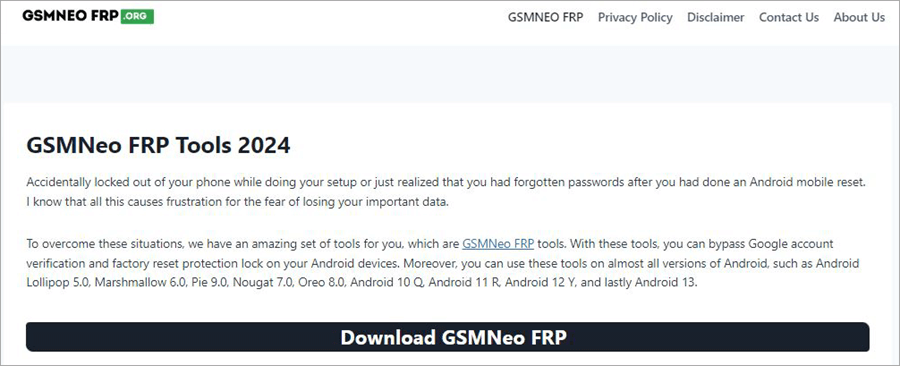
[image source]
FRP does its job when, for instance, the owner forgets the password/pattern and, as a result, the phone is factory reset via the bootloader.
The owner cannot use the phone if they also do not have the recovery email (for instance, they cannot recover the password or username). The owner is unable to set up new credentials without logging into the account on that device.
One way to ensure you can still use the phone after a factory reset via bootloader is to use FRP Reset tools, such as the GSM Neo FRP tool.
Suggested Read => Tried and tested methods to Factory Reset Windows 10
Here is a video on how to use and remove the Android FRP:
Challenges of Using FRP Protection
Here are the challenges:
- Forgetting an email account, for instance, when you set up the device with a new account and stay for a long time without using the email, means you might have challenges and lock yourself out of your device.
- The previous owner of the phone will need to disable FRP before a new user buys a used phone.
- One would need to erase all email accounts from the settings (Accounts section of the phone’s settings) to free the phone of FRP protection.
- You may need to share the password of the account with someone else. For instance, if you ship to them a device on which FRP is enabled. The other option would have to have the phone returned so you can do the factory reset yourself.
- If or when you change or reset your Google account password, you cannot use it to wipe a phone that has been using the account for 72 hours. You would have to wait for more time. Google can lock down the entire account if you do this. Otherwise, you would have to contact Google to perform the wipe before the duration is over.
- Repair complications where FRP can make it hard for phone repair shops to repair it for instance, through resetting it.
Details on GSM Neo and FRP Bypass Tools
GSM Neo is a company that provides a host of mobile repair, reset, and enhancement tools, including the SamFW FRP tool for helping users to unlock their phones for usage after being locked out due to FRP protection. Other tools include mobile flash tools, IMEI check tools, ADB tools, root file explorers, rooting software, etc.
A case in point where the FRP reset tool can be used is when someone who had set up their Android phone with their original Google account, but with time, they forget the password, the username or simply lost their phone number used to regain access to that email account.
In the latter case, it may completely be impossible or very demanding to recover the account’s password or even the entire account.
The fact that GSM Neo FRP by-pass tool can be used directly on Android mobile phones means it makes it easier to unlock your phone compared to conventional methods of doing it. It supports all Android versions. Without a Google account, you can easily unlock a phone after forgetting your original Google account credentials or after buying a used phone.
One of the most important aspects of the GSM Neo FRP unlock tool is that you will not even be required to use a PC to unlock your Android device. FRP protection is enabled by default on Android 5.1 and above and kicks in by default when you add a Google account on the device for use with Google services.
By visiting the GSMneo website, you will find multiple apps for a variety of uses. For instance, you will find apps with which you can root your Android, as well as mobile games.
Recommended Reading => Reasons And Solutions for Slow Phone
How to Bypass FRP With GSM NEO FRP Tool
Please Note: GSM Neo requires an active Internet connection during the unlock period, especially during the initiation of the process to unlock FRP.
Here are the steps for how to use GSMNeo Tool to unlock an Android:
Step #1: Open a browser app on your locked Android device. Depending on your device, there are various ways of doing this. For example, on many Android devices, you can use the Talkback feature to open a browser. You can activate the Talkback feature from the Welcome screen or start-up screen by simultaneously pressing the two Volume buttons.
The other thing is to attempt to open Google Chrome from this screen. This is done by making an upside-down L once the Talkback guidance screen and using voice commands. Touch the microphone icon and when it allows, you can ask to open the Google Assistant by voicing the same word. Touch again the microphone icon, which will revert you to the Talkback guidance page.
Repeat the above process two or three times. After this, when the voice assistant appears on the, say Open YouTube and this takes you to the YouTube website.
Once this is done, you disable Talkback. Tap My Profile ->Settings ->About ->YouTube Terms of Service to enter the Chrome search page.
Search for GSMNeo FRP and visit the official website of GSM Neo FRP Tools. Choose and download the FRP unlock tool on the website. Once downloaded, and on the GSM FRP page, go to Settings shortcut -> Apps -> Special App Access -> Install Unknown Apps and allow installation from external or unknown sources.
Step #2: Download the GSM Neo FRP unlock tool from the official site – https://gsmneofrp.info/
It is also possible to download it from a trusted source, such as the popular APK sources. An example of a website from where you can download APKs is APKPure website. Find the downloaded file from your device download folder and tap it to install it on your device. Allow installation of the APK by enabling the Allow Installation from Unknown Sources if prompted.
Step #3: Launch the GSMneo FRP tool in your app drawer. You will be prompted to download additional files after you open this file.
Step #4: Stay connected to Wi-Fi and continue to follow the instructions to unlock the device. For instance, during unlocking, you may be requested to enter specific codes, use certain browser settings, or follow certain steps to unlock.
When you open the app after installation, it prompts you to retype a password. Do not type anything and leave this field blank.
Locate the three-dot menu, tap it, and select Sign-in. Enter the current email address and password. Once logged in, restart the Android and, after reboot, you will see a notification indicating that a new account has been added to the device.
Step #5: Proceed to set up the device using the new account credentials.
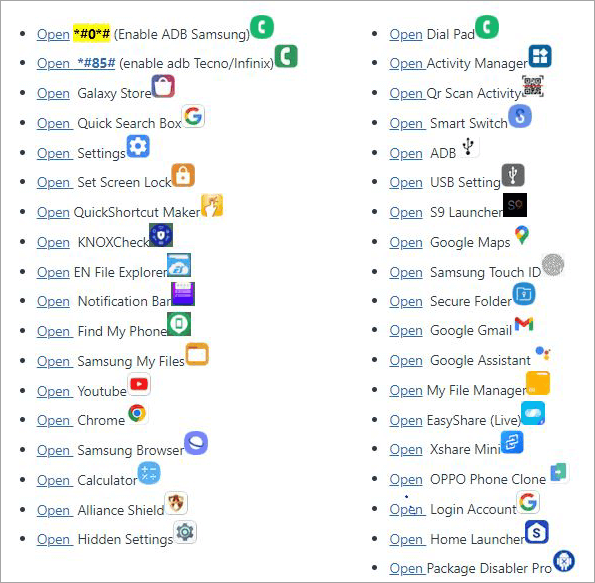
Features of GSMneo FRP Unlock Tool
- It is free to use: Simply download and start unlocking PIN, pattern, and FRP locks.
- It works with major brands such as Samsung, Huawei, Oppo, and many others.
- Compatible with a wide range of Android versions, including Android 13 and earlier versions.
- User guide, including step-by-step instructions to use the tool.
- Useful for regular and technical users.
- It may be possible to unlock a device without being physically near to it. The tool supports several ways of unlocking a device for different situations.
- Live chat with support staff such that users can get immediate support during the process of unlocking devices.
Further Reading => addROM Bypass Download & Installation Guide
Pros & Cons of GsmNeo FRP
| Pros | Cons |
| Unlocks multiple Android device brands and versions. | Does not support Android 14 and latter. |
| Multiple uses, including bypassing FRP and Google verification. | Users report variable success with the tool, which is unable to unlock some devices. |
| It is a very cost-effective method of removing FRP locks. | The tool may be legal or illegal to use depending on the location of the user. |
| Does not support Android 14 and later. | |
| Beginner users may find it hard to use since one needs to download and combine multiple tools downloaded through the GSM Neo tool itself. |
GSM NEO Alternatives
#1) FoneLab Android
FoneLab Android is an alternative for unlocking Google FRP protection and Pin, pattern, password, face, and finder locks. It is used on Windows and Android. It supports multiple phone models, but it is costly at $50.
Website: https://www.fonelab.com/android-unlocker/
Also Read => Top Android Data Recovery Software
#2) iToolab UnlockGo (Android)
UnlockGo removes FRP and security or privacy locks on 6000+ phones across 15 brands, including Samsung, Xiaomi, Redmi, Vivo, OPPO, Motorola, and Realme. For instance, it works on all Samsung and Redmi Android models. One does not need to root their phone to use this GSMNeo FRP Tool alternative.
The tool works on Windows and iOS. iToolab has published multiple articles on how to use this and other tools to bypass FRP and do security and privacy unlocks.
Website: https://itoolab.com/android-phone-unlocker
#3) imobie Droidkit
DroidKit bypasses FRP on Samsung, Xiaomi, Redmi, OPPO, POCO, Motorola, Lenovo, VIVO devices, and it can also be used to recover lost photos, WhatsApp chats, messages, and more without root. The tool is used to fix systems on Samsung, Xiaomi, Redmi, POCO devices; and for transfering backup, and manage data and files.
Website: https://www.imobie.com/droidkit/
Further Reading => List of the BEST Android Phone Cleaner Apps
Frequently Asked Questions
1. How does Factory Reset Protection work?
Factory Reset Protection kicks in when you first register a new user account on an Android device to be used as an owner account on that Android device through Google services. The account is then required to prove ownership of the device in order to complete a data wipe whenever your factory reset the Android device through the bootloader.
An Android device (Android 5.1 and above) implements FRP to protect your phone and data in case it is stolen or lost and someone else gains access to it. They cannot complete a data wipe through the bootloader to then set up a new account, without your Google account credentials.
2. Is FRP enabled by default?
FRP is enabled by default when you register a new Google Account for use with Google services on an Android device. From the device account settings, you can see that the Google account has been added, and the same account is synched for use with Google Play services.
Go to Settings ->Accounts and see the list of accounts added for use with the device. You can choose to retain or remove any.
3. How to turn off secure FRP?
There are three ways to turn off secure FRP protection on an Android.
The first method is to delete all accounts on an Android device from the Settings. Navigate to the Account section of the Settings and tap on the accounts added to the device, one by one. Delete the selected account. This disassociates the device from the account. You may need to log out of other services such as Google Play Store to do achieve this.
The second method is to use the GSM Neo FRP protection tool or other FRP unlock or FRP bypass tools to bypass and delete the FRP protection. These tools can be installed on the locked device once you launch a browser on the same device, and there are methods to do so if you read our review. Once installed, the tool (alongside other tools) will allow to sign in to another Google account and add it to Accounts on the device.
You can then set up the device using the new account.
The third is to use third-party tools like CubiLock device management solution. With such tools, you can sign up and enroll your Android devices. Then sign in to the portal and head over to Devices section and click Device Profiles. Open a profile you wish to work with and click Edit.
Go to Policies ->User Restrictions and scroll down to Disallow Factory Reset. Select the toggle button and save the changes.
For company-owned devices, you can create an Android Factory Reset Protection policy on an Android EMM in which you have to enroll your owned Android devices.
Go to the Device Management section of the EMM and from the policy manager, select a device or group of devices, go to “Factory reset protection” and tap on the right panel. Uncheck the Enable button and tap on Save. This disables the factory reset protection on a device.
4. How to activate the FRP lock?
You automatically activate FRP lock on an Android whenever you add a Google account on that device. Go to Settings ->Accounts -> Add an account and add a new Google account.
Together with this, enable device security by setting up a PIN, pattern, or password to protect the device. Go to Settings -> Security look for Screen lock and set up the PIN or password.
Your device will prompt you to enter the Google account credentials whenever you factory reset it.
5. How to remove the Google account from the phone after a factory reset?
If you have been locked out of your Android device after a factory reset, the only way is to look for the account and password you had set up on the device in order to log in and complete the data wipe, although there are third-party tools that can allow you to by-pass FRP protection if you cannot recover that Google account.
An example of the tools is the GSM Neo FRP reset or FRP by-pass tool, which you can install on the locked device from the set-up screen and proceed to add a new Google account on the Android and then proceed to wipe the data and reset the Android device with the new Google account.
Further Reading => Redmi FRP Bypass: Explore New Tricks
Conclusion
GSMNeo FRP Unlocker tool is one of the best Android FRP bypass tools because you use it on the FRP locked device and do not need a desktop computer or laptop to unlock the FRP protection.
It is simple to use, except that beginners may find it daunting to, for instance, open Chrome or other browser from an already-locked Android device. Plus, it does not work on any Android phone you will meet on Earth.
Nevertheless, it provides a quick way to reset your Android if you have bought a secondhand phone or have forgotten your Google account credentials and are unable to recover your account as happens with many people.
Time taken to review: 2 days
Was this helpful?
Recommended Reading
-

In this guide, you will come across step-by-step solutions to factory reset Windows 10 when your PC won’t start. If your Windows 10 PC is running slowly, experiencing errors, or won’t boot properly, performing a factory reset can help restore it to its original state. A reset removes system issues,…
-
Explore the top methods to understand How to Reset Windows 10 Forgotten Admin Password without resetting your laptop or losing any data: “On my Windows 10 computer, I usually have an Administrator and Local account that has no password. I forgot my Admin password for Windows 10, and whenever I…
-
In this tutorial, you will understand the methods of Bypassing Samsung FRP Lock with Wondershare Dr. Fone Screen Unlock: Initially introduced to the Android 5.1 version, Factory Reset Protection (FRP) is an in-built security feature designed to prevent users from using devices after a factory data reset. This security feature…
-

Find out the latest methods for Xiaomi/Redmi FRP Bypass MIUI 10-14. Learn a step-by-step guide to unlock your Redmi device easily and regain full access. Factory Reset Protection (FRP) has become an important security feature in the Redmi series. FRP feature blocks anyone from accessing your phone after a factory…
-
In this tutorial, you will understand the myths & facts to get the answers to your most common query: Does a Factory Reset Delete Everything on a phone: Most people factory reset their device to make the software work as well as make the device new. Or, you will need…
-
Are you struggling with the "There was a problem resetting your PC Error? Here are the step-by-step methods for repairing system files, fixing WinRE, and completing your windows PC reset. If your computer displays the message "There was a problem resetting your PC. No changes were made," it might be…
-
Go through some impressive methods, explained stepwise in this tutorial to recognize the best way: How to Reset Instagram Password: It takes diligence to maintain security online, especially on social media accounts like Instagram, Facebook, etc. And with having to remember so many passwords, from bank accounts to emails, social…