


What tool should you use for automated testing? Unable to decide between using Cypress or Selenium? Let’s review the key features, performance, Pros, cons, and application cases of each tool to understand which one will be more suitable for your needs.
We tested and reviewed both Cypress and Selenium and checked how they perform in web automated testing scenarios. Both of them are powerful tools but they have different approaches towards browser testing, and the question is – which tool will suit better for your stack in 2026?
In this article, we’ll provide a breakdown of performance benchmarking results. Our Cypress vs Selenium comparison is going to cover performance, architecture, browser compatibility, usability, debugging, CI/CD, parallel testing, and practical use cases.
Cypress vs Selenium: Which Is Better?
Cypress will be more appropriate for testing web applications for quick set up, ease of debugging and an experience that is friendly to developers. Selenium will be more appropriate when there is need for wide range browser and programming languages support, platform independence or testing in multiple browsers and platforms.
Cypress vs Selenium: Which One Should You Choose in 2026?
Cypress and Selenium are the most considered and used automation testing frameworks. Although both Cypress and Selenium serve the automation of web application testing, they differ quite significantly in their architecture, setup, and speed, along with solving different problems.
| Features to compare on | Cypress | Selenium |
|---|---|---|
| Open Source | Yes | Yes |
| Multi-Programming Support | JavaScript and TypeScript only | Java, JavaScript, Ruby, Perl, C#, etc. |
| Multiple Browsers Support | Chrome, Firefox, Edge and WebKit under improvement. | Most of the browsers are supported- Chrome, Safari, Firefox, Internet Explorer (currently deprecated), Edge |
| Community Size | Smaller | Wider community ecosystem support |
| Network Stub | Yes | Yes (proxies) |
| Parallel Execution testing | Yes, via Cloud, CI and dashboard | Yes, via Selenium Grid, CI set up & / Cloud |
| Record or Playback | Cypress Studio is available | Via Selenium IDE |
| Component Testing | Yes, using React, Angular JS | No, not available |
| CI/CD Integration | Is simple and with developer-friendly features | Complex set up required but is Strong |
| Mobile Emulation | Not supported | Supports Mobile device testing using Appium (but limited emulation via browser drivers) |
| Performance | Cypress is generally way faster and user-friendly because of its in-browser, auto wait features capabilities which will reduce the maintenance efforts and flaky tests. | Selenium is bit slower because of the way external web driver configurations need to be set up and applications makes connection outside the browser. |
| Speed | Debugging speed is very fast because of DOM/API screenshots, can interact in real time and also has the time-travel debugging facility/feature. And these features are speeding up the any issues triaging. | Debugging speed is bit slower comparatively. (Moderate), as external reporting tools are required for log files and screenshots to carry out the any issue analysis. |
What are Cypress and Selenium?
Cypress
Cypress is one of the leading modern end-to-end testing frameworks, which is specifically designed for web application automation. Cypress runs directly in the browser, and that’s the unique feature that makes it faster, reliable, and easy to debug too.
Primary Users: Developers and QA engineers are the main users of this tool while they are writing test scripts for front-end web applications.
Examples:
- UI-User Interfaces
- Browser interactions on different pages
- Complete user workflows
- APIs (Application Programming Interfaces)
Cypress’s installation and setup steps are much simpler than Selenium’s because of some of the unique testing capabilities like built-in screenshots, video recordings, and a developer-friendly Test runner.
Selenium:
Selenium is a popularly used, established open-source web automation testing tool that possesses a wide range of testing capabilities, like multi-language support (Java, Python, C#, etc.) and multi-browser testing, along with mobile device application testing.
Selenium performs using external Selenium WebDriver libraries/JAR files to interact with browsers. The Selenium Suite comprises these components: Selenium IDE, Selenium Web Driver, Selenium RC, and Selenium Grid.
Primary Users: QA engineers and QA testers are the main users of this tool, using Selenium WebDriver for writing test scripts for front-end web automation testing.
Examples:
- Used to make sure the web application is stable during their:
Usage is not limited to QA teams alone; even developers also make use of this tool for running UI test cases before any deployments.
DevOps engineers may use this to integrate into their CI/CD pipelines during the deployment process to automate testing, and SDETs (automation engineers) use this tool for building, scaling, and maintenance of complex, robust automation frameworks.
Cypress Vs Selenium – Core Feature Difference
This table’s primary goal is to summarize the main distinctions, commonly found in interviews and exams, in a brief and targeted way.
| Key Features Differences | Cypress | Selenium |
|---|---|---|
| Installations & Set up steps | are easy and needs minimal configurations | More set up steps are required with external drivers , dependencies to include |
| Architecture | Runs within the browser allowing the runtime interactions | Runs on Client-server architecture with external drivers. |
| Built-in features | Has screenshot and video recording built-in feature | There is no built-in screenshot and video capturing feature |
| Community support | Community support team is comparatively smaller | Has a wider community support and is established. |
| Execution of Tests speed | Execution is faster with quite accurate test results due to tests running within browser. | Execution is bit slower, as makes use of the external WebDriver to control the browser. |
| Programming languages support | Supports JavaScript and Typescript only | Supports Multiple languages like Java, Python, C# etc are supported |
| Browsers Support | Supports limited browsers such as Chrome, Firefox and Edge browsers only. | Supports broader range of browsers such as Chrome, Firefox, Edge, Safari and Internet Explorer |
| Best suitable for | Modern e-2-e web applications automation | Enterprise applications automation |
Enlisted below are the prominent features of Cypress and Selenium.
Key Features of Cypress
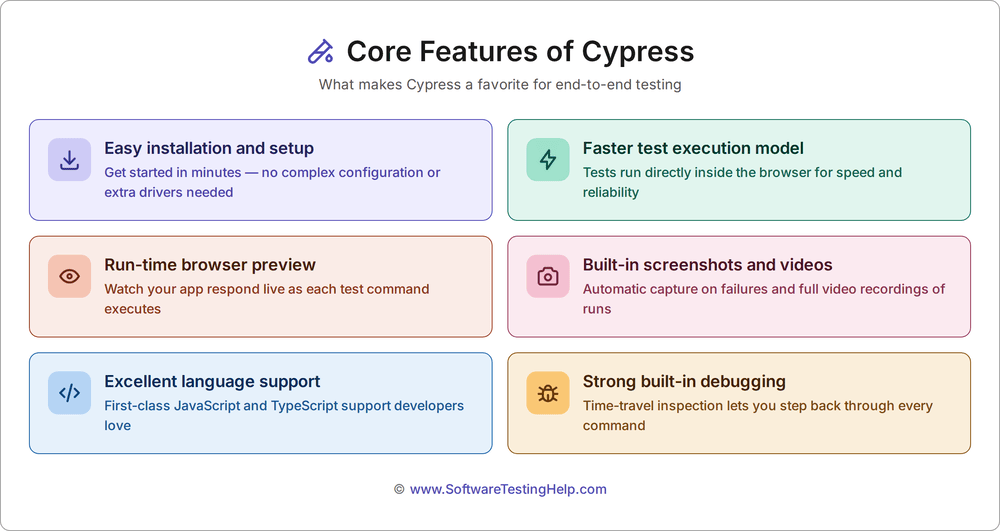
Key features of Cypress are listed below:
- Installation and Setup: Installation and setup steps are simpler, bundled, and require less configuration.
- Test Execution Model is Faster: Tests run in the browser with built-in wait functionality.
- Browser Preview is Available at Runtime: Runtime browser preview is made possible.
- Capturing Screenshots and Video Recordings are Built-in: Screenshots and video recording features are built-in with the tool.
- Programming Language Support is Excellent: Supports JavaScript and TypeScript languages only and is excellent.
- Strong built-in Debugging Feature along with time-travel inspection: Time-travel inspection is a technique to record the program’s execution, which allows it to replay forwards and backwards to find any bugs and is a powerful technique.
Key Features of Selenium
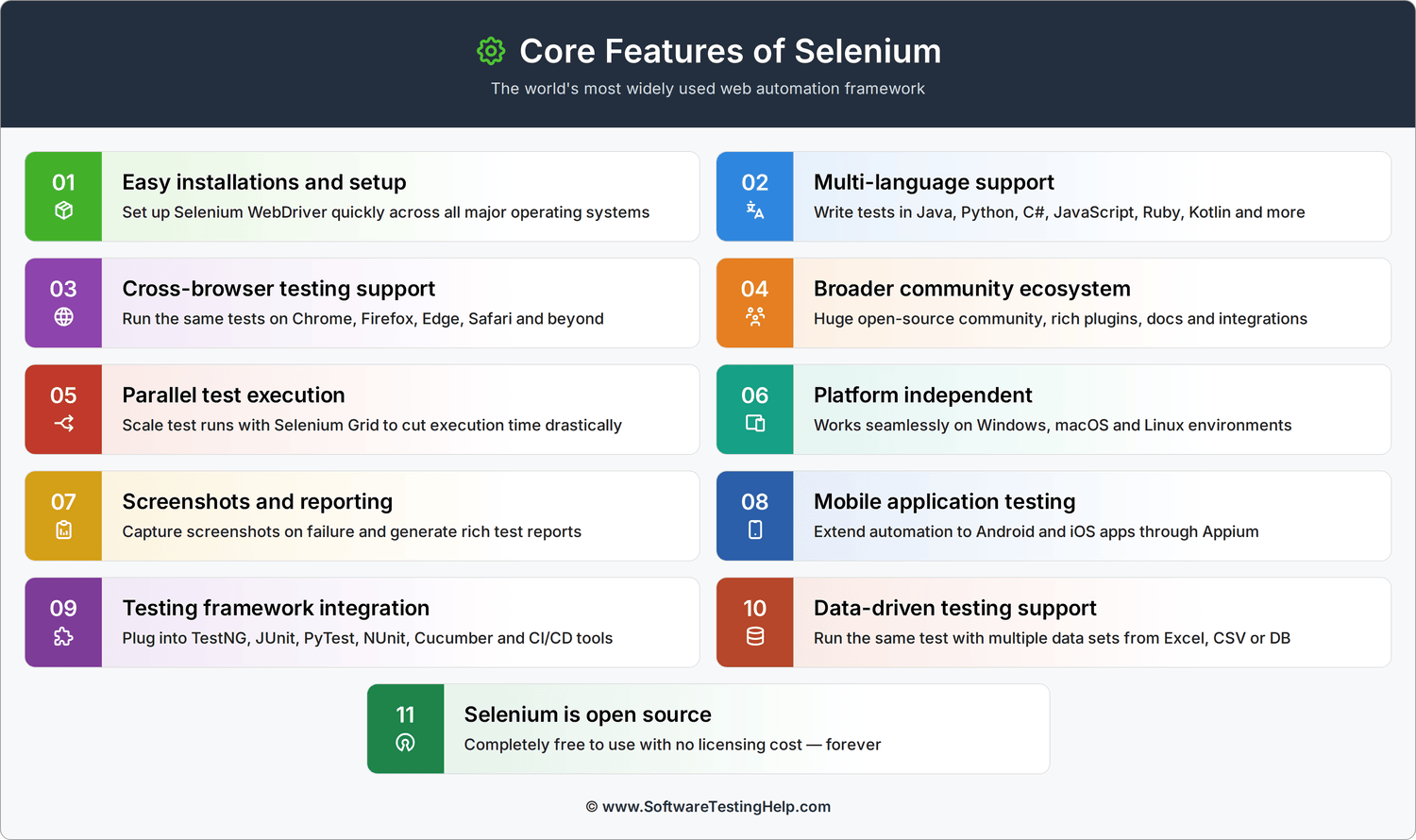
Key features of Selenium are listed below:
- Installations and Setup: Installations and setup are a bit complex compared to Cypress. Selenium makes use of an external WebDriver to communicate with browsers during automation and hence needs to include the external libraries during setup.
- Multi-language Support: Selenium supports cross-languages like Java, Python, C#, JavaScript, Ruby, and Perl.
- Supports Cross-browser Testing: Selenium supports cross-browser testing, such as with Chrome, Safari, Firefox, Internet Explorer, and Edge.
- Broader Community Ecosystem: Community support is well established and has a wider support system.
- Parallel Test Execution: Selenium supports parallel test execution using Selenium Grid and also with cloud services or CI/CD pipelines, namely Jenkins, GitHub Actions, and DevOps(Azure). Ex: With Selenium Grid, multiple test scripts can be run simultaneously on multiple operating systems and multiple browsers too.
- Platform Independent: Selenium works on different operating systems like macOS, Windows, and Linux.
- Screenshots and Reporting: Selenium makes use of external libraries and tools to capture screenshots and to generate reports.
- Mobile Application Testing Support: Selenium can integrate with Appium to carry out mobile app testing.
- Integration of Testing Frameworks: Selenium integrates easily with other testing frameworks for advanced reports and test management, such as TestNG, JUnit, and NUnit
- Data-Driven Testing Supported: To improve test coverage, Selenium allows running tests with different datasets, like Excel files, CSV files, and databases.
- Selenium is Open source: Selenium is free and has wider community support.
Cypress vs Selenium Architecture: How Do They Work?
The architecture of Selenium and Cypress is explained with practical examples in this section.
Cypress Architecture
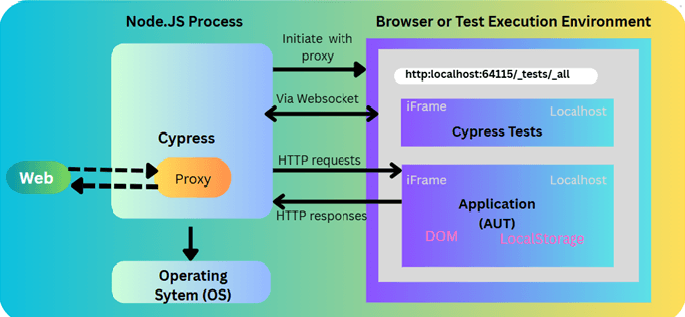
Cypress makes use of two main parts, namely Node.js and the browser in which the application runs, an in-browser test execution model or application under test.
DOM is an acronym for Document Object Model (i.e., API-Application Programming Interface).
AUT is an acronym for “Application Under Test.” Testing code is sent through Cypress’s Node.js model. Cypress makes use of a proxy server and a WebSocket connection to communicate with the browser. The browser will execute the actions of the AUT (Application Under Test).
Cypress is tightly coupled with the browser runtime, due to which Cypress is faster in speed, i.e., Cypress runs directly inside the browser alongside the application’s run loop, and that is the main reason for the faster feedback, interactions at run-time, and high-speed execution with stability.
Also, Cypress architecture provides visibility directly into the DOM and network service behavior, which helps in supporting the auto-wait functionality and strong debugging features.
All the above-mentioned capabilities make Cypress an excellent choice for modern front-end web application automation.
Cypress First Test Example in JavaScript
Below is the sample Cypress First Test written in JavaScript. To run in your local IDE, copy & paste the code below, save as .cy.js file.
Prerequisite: It is mandatory to follow the installation and setup steps for this test to run successfully.
Example:
My File name is screenshot_full_spec.cy.js and is saved in this folder structure:
//cypress/e2e/ screenshot_full_spec.cy.js
Example 1:
describe('Full Page Screenshot Example1', () => {

  beforeEach(() => {

    // Visit the HTML file hosted on localhost
    cy.visit ('http://localhost:8080/ScreenshotExampleFile.html');
  });

  it('To capture a fullpage screenshot test', () => {

    // full-page capture
    cy.screenshot('full-pagescreenshot', { capture: 'fullPageScreenshot' });
  });

});
Example 2: myFirstTest.cy.js
describe ('Cypress Home Page Test', () => {

  it('should load the Cypress home page', () => {
    // To Visit the Cypress home page
    cy.visit('https://www.cypress.io/');

    // To Verify that the page title is correct
    cy.title().should('include', 'Cypress');
  });
});
- To run the above piece of code (Example 2),
- On the command prompt, go to the directory where your ‘cy..js’ file is saved.
- Then run this command if you are opening Cypress for the first time/to start the test runner for execution: npx cypress open
- Standby and the Cypress window will open on localhost
- Select E2E testing /Continue with Chrome/Edge browsers
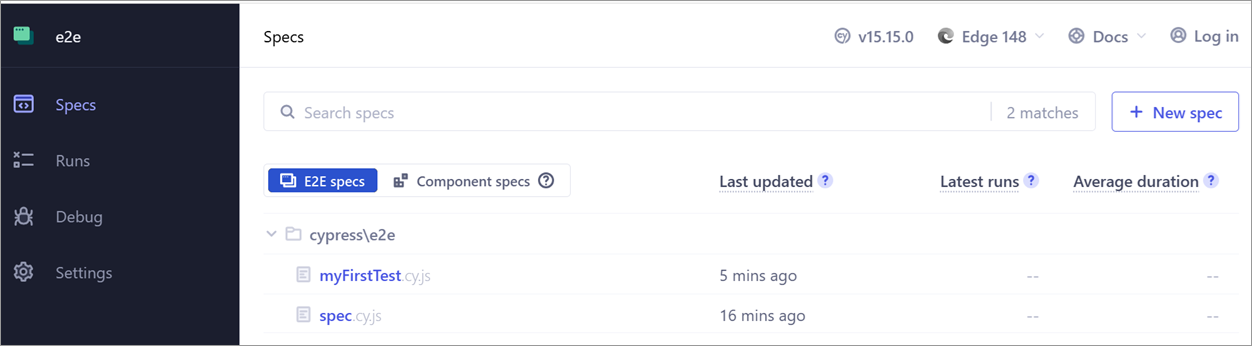
- Select the myFirstTest.cy.js file, and Cypress will run and show the results. ‘https://www.cypress.io/‘ will be launched.
- You may see the results in real-time on the right side, as shown in the screenshot below.
In VS Code Spec created:
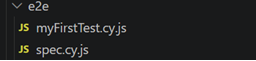
In Cypress:
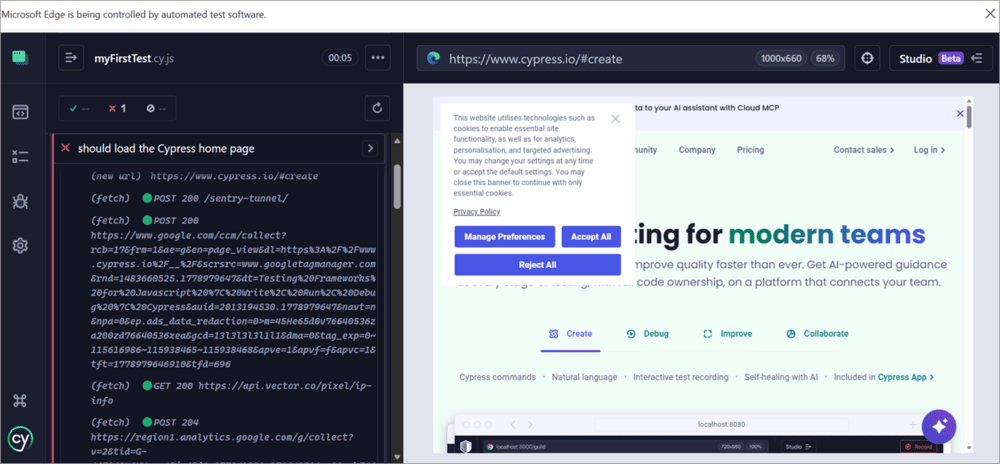
This concludes the first Cypress test in JavaScript using the VS Code IDE.
Try to add more tests of your web applications and play around to get more familiar with the tool and gain hands-on experience.
Please visit the official website and BrowserStack’s samples for more detailed instructions
In the sections below, let’s learn about features, architecture, and test area setup of Selenium WebDriver using VS Code and write the first Selenium test in Java.
Selenium Architecture
Selenium WebDriver architecture is depicted in the image below.
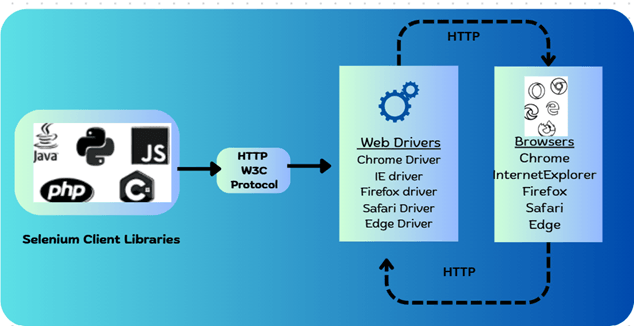
For more than a decade, Selenium has been one of the chosen, open-source, powerful UI/FE web automation tools. The architecture of Selenium has given users more flexibility, speed, and scalability for their automation testing.
Selenium WebDriver works on the client-server model/architecture, which has 4 layers such as client library bindings, protocol communication, browser drivers, and the browsers themselves.
Selenium WebDriver architecture shows how tests or test scripts communicate with browsers via standard protocols.
The core components responsible for this architecture are:
- Client Libraries Bindings (or Test Scripts): Using programming languages like Java, Python, C#, etc., test scripts (code) are written by making use of Selenium APIs
- Selenium API: It helps in translating test commands to executable instructions
- Browser Drivers: They act as a bridge between Selenium and the browsers
- Multiple Browsers: Execution of the actions and sending responses back to WebDriver.
Your test scripts (written in Java, JS, C#, etc. ) call Selenium APIs, and these commands are translated to HTTP protocol requests, which the browser drivers receive to forward them to Browsers further.
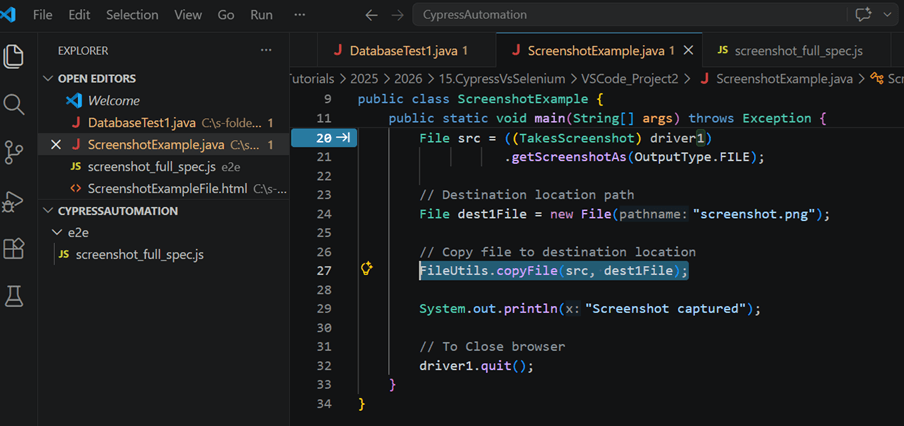
Selenium First Test Example in Java
Below is the sample GoogleSearchTest java file. To run it in your local IDE, copy & paste the code below and save it as a .java file.
Prerequisite: It is mandatory to follow the installation and setup steps; then this test will run successfully.
//Import required package like selenium.By;WebDriver;WebElement;ChromeDriver;

public class GoogleSearchTest {

    public static void main(String [] args) {

          //To  Launch Chrome browser
        WebDriver driver1 = new ChromeDriver();

        // below line of code to  Open website
        driver1.get("https://www.google.com");

   //  ‘Accept All’ Button on google.com:  Find button using ID
        WebElement button1 = driver1.findElement(By.id("L2AGLb"));
  // Click the button
        button1.click();

      // To Find search box
        WebElement searchBox = driver.findElement(By.name("q"));

      // Type in your desired text
         searchBox.sendKeys("Selenium Java Tutorial")

      // tap on Submit button to search your text
        searchBox.submit();

        // for  Printing the page title
        System.out.println("Google’s Page Title is : " + driver1.getTitle());

        // Close browser
        driver1.quit();
    }
}
- The above piece of code
- Will open the Chrome browser and launch the URL: https://www.google.com
- A pop-up window with ‘Accept All and ‘Reject All’ buttons appears. Selecting the ‘Accept All’ button will land on the Google Search page.
- Then enter the search keywords as ‘Selenium Java Tutorial’ and click on the search box’s submit button.
- Captcha page is displayed
- On the terminal, you may see the page title printed as ‘Google’. Like, Page Title: Google
- Last, quits/closes the Chrome browser.
- This concludes the first test of Selenium WebDriver in Java using VS Code.
Cypress vs Selenium performance
Cypress will be comparatively faster for individual tests, but Selenium will be able to provide great results from performance perspectives if tests can be properly parallelized among different browsers and machines.
It is important to note that the difference in performance will depend on several factors including the complexity of tests, browser, synchronization, infrastructure, etc.
The following Cypress vs Selenium performance will provide more insights:
| Performance Area | Cypress | Selenium |
| Individual test execution | Generally fast | Can be fast with optimized tests |
| Local feedback | Excellent | Good |
| Browser communication | Browser-centric architecture | WebDriver-based communication |
| Automatic waiting | Built-in retry and waiting behavior | Requires synchronization strategies |
| Parallel testing | Supported through its ecosystem and CI workflows | Highly flexible with Grid and cloud infrastructure |
| Large test suites | Effective with parallelization | Strong for distributed execution |
| Cross-browser testing | Good modern browser coverage | Broad browser and platform flexibility |
| CI/CD performance | Streamlined for modern web testing | Highly scalable with distributed infrastructure |
| Best performance advantage | Fast development and test feedback | Large-scale, distributed test execution |
Overall Performance Takeaway
There isn’t one clear winner when comparing Cypress and Selenium based on their speeds. While speed can be related to test writing, executing, and debugging being fast, in which case Cypress is faster, speed can also mean how much time it takes to complete a comprehensive test suite through parallel and distributed tests, and in this case Selenium is superior.
When evaluating the two, it is important to use them under the same testing conditions and with the same application and browser.
Cypress vs Selenium: Installation Comparison
One of the most important considerations for deciding on the automation framework is how easy it is to install, set up/configure the requirements, and start using it more comfortably. Hence, although both Cypress and Selenium are web automation tools, because of their underlying architectures, their installations and configurations vary significantly.
Cypress is introduced as an all-in-one framework for automation testing, whereas Selenium, with multi-programming languages and multi-browser support, provides a wider community ecosystem; it requires additional setup at times.
Let us see in the table below how different aspects vary among these two powerful frameworks.
Installations Comparison Table
| Sl.No | Different Aspects to consider | Cypress | Selenium |
|---|---|---|---|
| 1. | Primary requirement is | Node.js | Java Rum time or programming languages runtime(example, Java, C#, Python, PHP etc) |
| 2. | Installation Method to use | Cypress is installed via Node.js and npm | Selenium is installed via programming languages-specific libraries. |
| 3. | Learning Curve | Much easier | Steeper learning curve or bit harder |
| 4. | Initial configurations | Minimal needs required | Moderate to extensive needs required |
| 5. | Browser Driver set up | Browser Drivers automatically managed in many cases | External Browser drivers needs configuration. |
| 6. | Framework core components | Most of them comes with the integrated solutions | Multiple Components required at times |
The main configuration is in the browser.
The major difference between these two frameworks lies in the browser management and its capabilities.
For Cypress:
- Browser integration is highly automated
- Minimal configuration setup steps are required
- The prime target is modern web technology-compliant
For Selenium:
- Needs web communication via external browser-specific drivers
- To ensure compatibility, quite often needs additional configuration
- Wide-range of browsers are supported.
These characteristics make Selenium flexible and, in general, make the process a bit complex to maintain.
- Framework Setup and its Project Folder Structure
Cypress: A standard project structure is generated automatically in Cypress, along with providing support for built-in features such as
- Travel-time debugging
- Videos
- Screenshots
- Assertions
- Test execution
Selenium: Selenium also provides support for browser automation capabilities but relies on external libraries and frameworks for:
- Test Execution management
- Parallel Testing
- Assertions
- Reporting
As an outcome, Selenium projects require more upfront architectural decisions to handle.
Cypress vs Selenium: Setup Comparison Experience
Cypress: Cypress provides the most essential core features like Test Runner, screenshot capture, and reporting capabilities. Assertions are all included with the framework. Since Cypress is built on Node.js, installation is handled via npm. Hence, Cypress offers the most simplified setup configuration experience.
Main characteristics of Cypress include:
- Built-in Test Runner and built-in time travel Debugging tools.
- The installation process is unified (meaning, it’s been consolidated into a single cohesive system or an entity).
- Project setup requirements are minimal.
- Onboarding for new users is pretty straightforward and quicker.
- Most of the browser-specific configurations are handled automatically.
Because of the ease of usage along with the bundled key features mentioned above, QA teams can start writing their test scripts immediately after installation.
Selenium: Selenium is always well-known for its flexibility, but it requires additional configurations. Based on the programming languages chosen and the testing framework opted for, the setup process will vary.
The main Selenium environment setup includes the following:
- Configuring the external browser drivers.
- Installing the Selenium-dependent libraries.
- Selection of the Testing frameworks like TestNG, JUnit, and PyTest.
- Setting up the reporting tools.
- Dependencies and build tool management throughout the testing process.
This approach breaks the complex system process into independent and more manageable units called the modular approach, which will allow the testing teams to customize their automation testing framework, but at times that may lead to an increase in the set-up complexity.
Comparison Table for SetUp Complexity:
| Sl.No | Set-Up Complexity Categories | Cypress | Selenium |
|---|---|---|---|
| 1. | Configuration effort required | Low | High |
| 2. | Ease of installations | High | Moderate to some extent |
| 3. | Framework Customization facility | Moderate | Extensive |
| 4. | Dependency management efforts | Quite Simple | More Complex at times |
| 5. | When its time for First Test script | Much Faster | Bit Slower |
Our Verdict on Installation and Setup
When it comes to installation and set-up configurations, Cypress is considered easier to get started with. The main reason is that Cypress provides an integrated testing environment with fewer or no configuration requirements, along with favouring modern web technologies and being in compliance with modern web standards.
While Selenium offers flexibility over programming languages, browsers, and wider community support ecosystems, it needs additional effort in setting up browser drivers, libraries, additional tools, and framework configurations.
Hence, for those organizations or teams who want to prioritize rapid onboarding sessions with ease of usage, Cypress is the best option and definitely has an added advantage.
For organizations or teams needing extensive customization facilities, enterprise scaling test environments, and multi-language and multi-browser support where legacy systems are involved, i e, for a modular approach, Selenium would be the better fit for such kinds of configurations.
Which Is Better for Your Project: Cypress or Selenium?
While modern web technologies are evolving, catering to projects involving a modern web application needs to be faster, reliable in test execution, along with some developer-friendly features and experience, and it is very well-suited for web frontend application testing and also integrates well with Continuous integration workflows, then Cypress is the best choice to go for.
When projects need extensive browser coverage, are enterprise-level automation capability projects, cross-browser & multi-programming language support is available, and the organizations have complex test automation requirements using diverse technology stacks, then Selenium is the best choice to opt for.
Let us see the key features for web automation testing highlighted in the table, which will help you decide when to choose Cypress over Selenium and vice versa.
| Sl No | When to use Cypress | When to use Selenium |
|---|---|---|
| 1. | For Front-end oriented applications requiring end-to-end and component testing | For enterprise-level applications and to migrate legacy applications with wider automation frameworks |
| 2. | To test modern web applications which are built on mainly Angular JS, React and or Vue | Complex workflows which involve legacy systems, multiple tabs, windows |
| 3. | Those projects which needs easy debugging capability and easy test maintenance efforts. | Where Cross-browser testing of an application is required across multiple platforms and browsers |
| 4. | Applications needing faster feedbacks while development phase and during CI/CD pipelines integrations. | Where an applications requiring Mobile testing via integration with Appium tool, can opt for Selenium tool. |
| 5. | For those teams who are specifically using JavaScript and or TypeScript as their primary programming language. | For those teams who are using and working specifically on Java, C#, Python and any other supported multi-languages can opt for Selenium. |
| Your Priority | Better Choice |
| Faster developer feedback, easy debugging, modern web testing, JavaScript/TypeScript workflow | Cypress |
| Broad browser and platform coverage, multiple programming languages, large-scale distributed testing | Selenium |
Cypress vs Selenium: Pros and Cons
When compared with debugging & developer experience, the various pros of Cypress and Selenium are listed below.
Pros of Cypress
- Cypress is faster in execution and ideal for modern web applications.
- Easy to set up, with developer-friendly features available.
- It is beginner-friendly too.
- Great fit for modern frameworks like Angular, React, and Vue.
- Built-in features for capturing screenshots and video recordings.
- Automatic Wait functionality.
- Time-travelling debugging facility with less flaky tests.
- Auto-wait or built-in wait feature available.
Pros of Selenium
- Has wider community support.
- It has stronger capabilities to handle complex browser interactions.
- It is highly flexible in terms of multi-language support, cross-browser and platform, and integration capabilities.
- Best suited for legacy systems and enterprise system/enterprise QA teams.
- It is often preferred in banking, Insurance, healthcare, government, and telecom domains.
- It is true browser automation, as it handles real-world browser scenarios.
Cons of Cypress and Selenium
Some of the drawbacks of Cypress and Selenium are explained below.
Cons of Cypress
- Supports limited multiple browser tabs or windows.
- Mobile testing capabilities are limited.
- Support for multiple programming languages is limited; supports JavaScript and TypeScript only.
- Internet Explorer & Safari browsers are not supported.
Cons of Selenium
- Initial setup and configuration may seem a bit more complex
- Comparatively slower execution due to external WebDriver usage.
- Needs manual wait function handling.
- Additional setup is required for the reporting and wait functionality (they’re not built in).
- Test development or test case creation time is time-consuming.
Cypress vs Selenium in 2026: Trends and Future Outlook
Cypress is increasingly popular among front-end developers for modern applications, and usage peaked during 2022- 2023; now it seems steadier.
Selenium is still #1 for legacy systems and larger enterprise applications; now it seems new projects are declining.
Pricing and Total Cost of Ownership of Cypress and Selenium
It is not always about which tool is cheaper, but rather which tool saves more time in setting up, speeds up the analysis process, and has maintenance along with scaling. This is the real total cost of ownership.
So when quick comparisons are done, Cypress is gaining the upper hand and is at the top among these 2 giants. This is due to several factors. No doubt both offer open source for initial cost setup.
To name a few cost factors which are lower for Cypress and are a bit higher for Selenium:
- Framework setup
- Maintenance
- Debugging speed
- Cloud services are paid
- Learning curve
- Infrastructure cost
Yet again, when it comes down to which is cheaper among 2 with less maintenance cost & speed, it all burns down to or depends heavily on infrastructure / skilled team sizes with existing automation and their investments, along with C/CD pipeline requirements of the projects.
Frequently Asked Questions About Cypress vs Selenium
1. Which tool provides the best debugging and reporting experience?
Cypress has built-in screenshot-capturing and time-travel debugging capabilities and is the best as of now. Selenium depends on plugins for reporting and debugging.
2. Which tool supports Angular and React component testing the best?
Cypress is quite mature and newer, designed specifically for faster, scalable, and easier testing of modern web applications using modern technology stacks.
3. What is Cypress Test Runner? How to launch it?
Cypress comes with one of the important graphical user interfaces called Cypress Test Runner, which is interactive and helps to initiate test execution and monitor and debug test cases in real-time scenarios. This is the developer-friendly and most powerful feature.
Cypress Test Runner does the following:
• Each test step is shown visually
• Helps debug failures more easily
• Command execution is displayed as and when executed
• Tests are opened inside the browser
The unique features Cypress allows are:
• At every step, the application state is known
• Which commands are executing/running
• What exactly the test is doing.
To launch the Cypress Test Runner: First, you need to install Cypress, and then the Cypress Test Runner can be launched.
#1) Install Cypress by executing this command:
npm install cypress –save-dev
Npm – Node Package Manager for Node.
Node – Is Java script Runtime environment on the server side.
#2) Below is the command to launch Cypress Test Runner. Execute it on cmd prompt or IDE terminal:
npx cypress open
4. Does Cypress support native mobile application testing?
No, Cypress provides only browser testing emulation, not real native mobile devices. Selenium offers support for mobile testing via Appium or WebDriverIO.
5. Is XPath () supported in Cypress?
No, by default Cypress doesn’t support XPath. However, an external plugin called ‘cypress-xpath’ can be added, which then introduces the ‘cy.xpath()’.
Cypress works with CSS selectors via commands like ‘cy. get ()’
XPath () – XPath is XML Path Language, a query language. It is used to navigate and locate the elements from HTML and/or XML documents instead of CSS selectors.
6. Can we automate the Captcha on web applications in Selenium?
Not possible. Selenium doesn’t allow capturing or automating the Captcha. Since Captcha is used to verify that the user is human and not to be verified by a bot to avoid access to any sensitive data.
Is Cypress Better Than Selenium?
Cypress is not necessarily a better tool compared to Selenium – it all depends on your needs. Cypress is usually better suited for testing of modern web applications if the fast execution and debugging are important. However, if you need cross-browser testing across many different browsers, Selenium will be more appropriate. Other areas where Selenium is more preferable are multiple programming languages, mobile testing, distributed testing.
Can I Use XPath in Cypress?
It is possible to use XPath in Cypress but it is not a native feature. It requires installation and configuration of some plugin like cypress-xpath. Also, Cypress recommends using CSS or any other element locator if possible.
Is Cypress an Automation Tool?
Indeed, Cypress is an automation testing tool for end-to-end, integration and component testing of web applications. The Cypress tool helps testers and developers interact with web applications by automating actions such as clicking on buttons and verifying the response of the application.
Is Cypress Still Relevant?
Yes, the Cypress test automation framework is still relevant in web application testing. Due to its developer-friendly nature, fast speed, built-in debugging options, etc., it is still one of the most used web automation testing frameworks. It should be noted that different situations require different automation tools.
Cypress vs Selenium: Which Is Easier to Learn?
The question whether Cypress is easier to learn compared to Selenium is easy to answer: Cypress will be easier to learn for most novices. This is due to simpler setup process, better documentation, and API simplicity. Also, Cypress works with JavaScript or TypeScript and offers a number of built-in functionalities like automatic waiting and debugging tools. Selenium may have more complex API due to its functionality.
Conclusion
Cypress and Selenium are both modern, powerful automation testing tools, but when it comes to which one to choose, they heavily depend on the project requirements, test scaling, infrastructure required, need for browser compatibility checks, and the team’s expertise.
Cypress is no doubt ideal for modern web UI/FE automation applications, only because of its speed, minimal configurations, and other built-in, development-friendly features.
It provides real-time test results with less flakiness in the execution and is considered to possess powerful debugging features, which boosts the productivity of overall testing activities.
Official Cypress site: https://www.cypress.io/#create
Official NodeJS site: https://nodejs.org/
Selenium is ideal for enterprise-oriented application automation testing, where multiple browsers and multilingual support are required. It is an all-time popular automation testing tool for front-end web applications across various platforms and browsers.
It is considered ideal for performing functional, regression, cross-browser and cross-platform, data-driven, and parallel testing, along with any complex scenarios involved in the applications.
Selenium official site: https://www.selenium.dev/
To download Chrome Driver: https://developer.chrome.com/docs/chromedriver/download
Research Process: The total time involved to complete and publish this article is approximately 42 hours. This content was created through a structured research approach to ensure accuracy and reliability.
For more-related guides, you can explore our range of tutorials below:
- Most Popular Test Automation Frameworks with Examples
- Selenium 3 Vs Selenium 4: Key Differences to Explore
- Top 25 Best Java Testing Tools and Frameworks
- How to ByPass CAPTCHA with Selenium
- Developing Test Scripts Using Popular Automation Frameworks
- Keyword Driven Framework In Selenium With Examples
- Top 10 Best Selenium Alternatives You Should Try
- Websites To Learn Automation Testing Courses
- Top Accessibility Testing Tools for Web Applications
- Top 20 Best Automation Testing Tools (Comprehensive List)
Was this helpful?
Recommended Reading
-

This Selenium Tutorial on Assertions Explains What Are Assertions in Selenium And Different Types of Assertions And Assertion Methods Using Junit and TestNG Frameworks: Assertions are used for validating a test case and helps us understand if a test case has passed or failed. The assertion is considered to be…
-

Welcome to our free Selenium Tutorial Series! This tutorial series was created in response to the requests of our readers. Starting from the very basics of web automation, you will reach advanced topics through practical examples. This tutorial series includes all you need to know about test automation with Selenium,…
-
In the previous tutorial, we started with the representation of the sample project hierarchy and various framework components. We also discussed the data source – “excels” used to store the test data and their Excel manipulations. We also discussed the new strategies and resources to mature our framework. Now we…
-

In this tutorial, we have explained how to set up Selenium WebDrivers for the various browsers available in the market: Selenium only supports web-based applications and to open them we need a browser. It is able to support various browsers for test automation. In the current industry, there are only…


