


In this OP Auto Clicker review, I will describe the download process, the features, and how to use the OP Auto Clicker software on Windows and Android platforms safely and effectively.
OP Auto Clicker is a popular automation tool designed to help users perform repetitive mouse-clicking tasks with ease. Whether you’re using it for gaming, testing software, or automating routine actions, this tool offers a simple way to save time and effort.
Here, in this guide, all the things will be discussed which you should know about OP Auto Clicker like whether it is really safe to use or not, its downloading process, installation process, and practical use case scenarios. Alongside, some important aspects of its main functions, compatibility with Windows and Android platforms, and safety will be examined here.
Is OP Auto Clicker Safe?
OP Auto Clicker is generally safe if downloaded from trusted sources, but unofficial versions may contain malware. Always verify before installing.
OP Auto Clicker Software Review – Is It Safe and Worth It?
Auto Clickers have become extremely popular these days. This rising popularity can also be attributed to the rise in auto-clicking software on the market in the past few years. With too many options at your disposal, it can be quite challenging to find the ideal software that best serves your needs.
The quest for the best free auto clicker for PCs online led us to OP Auto Clicker. After digging deep into the tool and fiddling with all of its features for almost a week, it’s the right time to share our honest opinion about the software with you.
Before proceeding, let me mention here that the OP Auto Clicker software is safe to use, provided you download it from its official site.
What Is OP Auto Clicker?
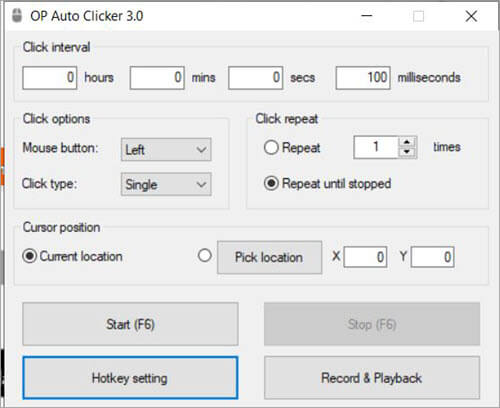
OP Auto Clicker is a Windows-exclusive software that allows you to automate mouse clicks on your Android and Windows devices. The most appealing aspect of this auto mouse clicker is its one-page user-friendly interface and the customizable options you get.
The software is highly customizable, safe, and affords you the privilege of setting custom click rates and cursor location, and establishing a click interval that you desire.
The software’s design emphasizes user convenience. You will not need an instruction guide or any training manual to use the tool efficiently. It is spectacular at saving time by expertly automating redundant tasks. This is one software that benefits gamers a lot, especially those who indulge in games like Minecraft, Cookie Clicker, etc.
How OP Auto Clicker Works (Click Automation Logic)
OP Auto Clicker works by using the OS level Accessibility/ Input APIs (like the user32.dll for Windows and Accessibility services on Android), through which it triggers virtual mouse/tap clicks.
The OP Auto Clicker software follows a simple Trigger-Action loop:
- Hotkey Input: The program waits for a particular global hotkey (default hotkeys include F6 & F8).
- Coordinate Detection: The program locates the click position according to two different methods:
- Dynamic Location: The program tracks your cursor’s current position (X/Y coordinates).
- Fixed Location: You “select” the position (coordinate), and then it locks onto that pixel irrespective of any movement from the mouse.
- Frequency Management: The code uses an accurate timer to run mouse_event commands as infrequently as 1 millisecond apart.
- Action Execution: The code acts out the precise “Click Type” (Single, Double, or Triple) and “Mouse Button” (Left, Right, or Middle) selected by the user.
Supported Platforms (2026 Update)
As of 2026, the OP Auto Clicker program had grown from its initial base of being Windows only to become multi-device capable:
| Platform | Support Level | Key Version Details |
|---|---|---|
| Windows | Native (Primary) | Supports Windows 10 & 11. Available as a portable .exe or via Microsoft Store. |
| Android | Native App | Requires Android 7.0+. Uses "Accessibility Service" for clicks (no root required). |
| macOS | Compatible | Available for Intel and Apple Silicon (M1/M2/M3) chips. |
| iOS / iPadOS | App Store | Requires iOS 15.0+. Features multi-target mode and web-automation scrolling. |
| ChromeOS | Web/Android | Can run via the Android subsystem or through specific Chrome extensions. |
How to Download and Install the OP Auto Clicker Software

If you’ve ever downloaded an application before, then you’ll have no trouble doing the same with OP Auto Clicker. All you need to do is simply follow the guide below:
OP Auto Clicker Download Process:
- Go to OP Auto Clicker’s Official Website
- Hit the download button that is visibly displayed on the page.
- You’ll be redirected to SourceForge, where you will have to hit the green ‘download’ button again.
- Your software will start downloading and be ready to use in seconds.
The best part, however, is that you don’t need to waste time installing the software once the file download concludes. You will be immediately greeted by OP Auto Clicker’s main interface upon clicking on the downloaded file saved on your device.
Once you open the software, just customize the options available to you on the main interface page. You can set click intervals, choose where to position your cursor, set click rate, and configure the hotkey to start and stop auto-clicking.
For a more in-depth look at how to use the software, we’ll need to quickly run down all of its features.
Top Features of OP Auto Clicker
#1) Click Interval

Click Interval is what you’ll find at the very top of the OP Auto Clicker’s interface. This option will allow you to set an interval between two consecutive clicks, thus allowing you to get a certain number of clicks per second.
You can set the interval value in hours, minutes, seconds, or milliseconds as per your wish by simply typing in the values in the empty text box provided to you.
#2) Click Type
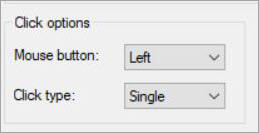
This option allows you to be more specific with your clicks. In other words, you decide whether to automate clicks on your mouse’s right, left, or middle buttons. You also need to select whether to implement single clicks or double clicks.
#3) Click Repeat
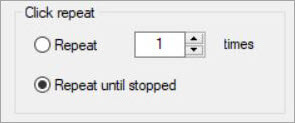
As the name suggests, here you’ll need to determine how many times you want the click to repeat. You can set the clicker to continue clicking for a specified number of times or stop only when you decide to manually intervene.
#4) Cursor Location

This is perhaps OP Auto Clicker’s defining characteristic. You get to choose between two options to determine the location of your cursor on a device’s screen. You have the option of setting a fixed location on the screen for your cursor to rest or picking the location yourself by setting X and Y coordinates.
#5) Hotkey
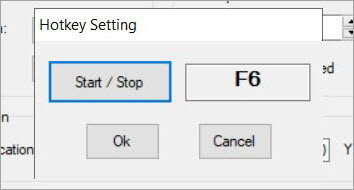
Here, you basically set the hotkey button that will allow you to start and stop the auto-clicker with a single tap of your finger. There is a default Hotkey button – F6, already set when you first launch the software.
You can change this button by going to the hotkey settings and typing in a button that you are comfortable using for the command to stop or start automatically clicking.
#6) Record and Playback

Another very interesting feature that OP Auto-Clicker packs in is the ability it grants you to record the click actions of one session and repeat it for another session with the record and playback feature. This allows you to further save time on configuring settings as you can automatically choose to perform the click actions that you’ve already performed before.
How to Use OP Auto Clicker
Configuring an auto clicker could be tricky, but if you have a clear understanding of the interface, it becomes very easy. Here are some simple steps to configure OP Auto Clicker for both data entry and game purposes.
Step-by-Step Guide to use OP Auto Clicker
Installation and Start-Up: Once the installation is done according to the earlier instructions, then proceed as follows:
1. Download and Launch: After download and installation as explained in the above section, follow below steps:
2. Click Point Selection:
- If you select Current Location, the clicker will perform a click wherever your mouse cursor is at that time.
- If you select Pick Location, the clicker will lock onto a single button/coordinate that you pick.
3. Mouse Button Selection: Choose from Left, Right, or Middle click based on what you need.
4. Click Type Selection: Choose either Single click or Double click.
5. Click Intervals Settings: The “Click Interval” decides the speed of your automation process. This is the most important setting in order to prevent any system lag or get yourself banned in-game.
- High-Speed Clicking: If you require super fast clicks, choose click intervals from 10ms to 50ms.
- Slow/Fake Clicking: For all web applications/gaming with anti-cheat detection, we recommend 100ms or higher to simulate “human” activity.
- Long Duration Tasks: Intervals can be defined for hours, minutes, or seconds for such operations as keeping a server connection alive and refreshing a page.
6. Using Hotkeys: Hotkeys let you pause and unpause the clicker without even needing to return to the program window.
- Default Hotkey: The default hotkey used to pause/unpause the clicker is F6.
- Change the Hotkeys: Press the Hotkey Settings button. A pop-up box will show up, and then press the key which you want to use (for example, F8 or even a button on the side mouse). Then, press Stop.
- Pro Tips: Remember to always test the newly assigned hotkey when outside of any full screen game for compatibility issues.
Is OP Auto Clicker Safe?
Yes, OP Auto Clicker is quite safe if obtained from a reliable site. But problems appear because of the usage of counterfeit versions or incorrect use/download from unreliable sites.
Analysis of Virus and Malware: The program called OP Auto Clicker isn’t a virus by its essence. It’s just an automation app created for imitating mouse clicks according to the established schedule.
Nevertheless:
- Antivirus applications may consider it as “riskware” or even “Potentially Unwanted Program” (PUP)
- The reason lies in its ability to perform some activities automatically, similar to bots
- Versions approved by the developers don’t contain any malware
Permissions & Background Activity: OP Auto Clicker is a small program that does not need any extra permissions, such as file access, camera, or internet access.
- Operates directly on your computer
- Not tracking user’s data
- Low resource consumption
- Only runs background tasks for clicking
Real Risk: Fake Versions: The main danger lies not in OP Auto Clicker but rather in its sources.
- Unreliable copies might contain:
- Malware
- Adware
- Hidden code
Pros and Cons of OP Auto Clicker (2026 Updated)
| Pros | Cons |
|---|---|
| Set how many times to click | Windows-exclusive |
| Free and Open source | |
| Clean and User-friendly UI | |
| Uses less CPU | |
| Lightweight | |
| Virus, adware, and malware free | |
| Conveniently change hotkeys to start or stop click action | |
| Choose whether to dynamically follow a cursor or stay at a fixed coordinate | |
| Android version is also available | |
| Highly customizable |
OP Auto Clicker Use Cases ( Who Can Use OP Auto Clicker)
Though considered as mere “toy” applications, auto clickers have turned into necessary tools to circumvent the monotony involved in performing a digital process. Here are some of the most efficient uses of the tool nowadays.
Gaming (Minecraft, Roblox, & Idle Games): The main purpose of using a clicker is still gaming. In order not to be detected by the game’s anti-cheat, you need to set everything up carefully:
- Minecraft (AFK Farming): For fishing and harvesting crops without draining your character’s hunger bar, the best settings will be Right Click with an interval of 500ms.
- Roblox (Clicker Simulators): All simulations allow for the highest speed. The optimal combination is Left Click at 10ms – 25ms.
- Anti-Cheat Hint: Set the clicker to “Repeat until stopped” but manually turn on/off the hotkey every 15-20 minutes. Today’s anti-cheats detect only perfect 24/7 patterns.
Productivity Automation: OP Auto Clicker helps professionals get rid of “busy work” in information-rich environments:
- Data Entry and Forms Completion: When transferring information from one window to another, activate Pick Location to automatically simulate “Submit” or “Next” clicks, as you manually navigate with your cursor.
- Maintaining an “Active” Status on Communication Platforms: If you work remotely, clicking at an extremely slow pace (once every 4 minutes) on an inconsequential part of the screen will stop the computer from sleeping.
- Processing Multiple Files: Automatically confirm “Yes” or “OK” actions when transferring or deleting thousands of non-system files.
Usage for Testing & QA: OP Auto Clicker allows software testers to conduct tests of basic Stress Testing and UI Resiliency:
- Button Spamming: Assess how well the web/mobile component resists repetitive clicks. Does it make the backend break? Is there UI overlap?
- Load Testing: Simulate several users clicking one element at once to look for potential coding race conditions.
- Memory Leak Detection: Run an autobot against a navigation element for hours to see if the memory consumption grows without bounds.
Common Issues and Fixes of OP Auto Clicker
Despite its user-friendly nature, there are several issues that commonly occur with OP Auto Clicker. Here are ways to address them immediately:
OP Auto Clicker Is Not Working
Issue: The software does not click or react despite being configured
Fix:
- Make sure you have input the right hotkey (default key F6)
- Make sure you run the program in administrator mode
- Shut down the software and start afresh
- Make sure you do not have another macro application interfering
Auto Clicker Not Clicking in Games
Issue: The tool works when on desktop but not when playing games
Solution:
- Run the tool in administrator mode
- Some games prohibit macros through anti-cheating mechanisms
- Experiment with click rates (if too many clicks are made per second, it could be bypassed)
Hotkey Not Working
Issue: Hotkey does not initiate/stops clicking
Solution:
- Modify hotkey in settings (function keys may create problems)
- Verify if another application is utilizing the hotkey
- Test a basic hotkey such as F8 or F9
Click Speed Issues (Too Fast or Too Slow)
Issue: The click speed appears to be wrong
Solution:
- Be meticulous when changing milliseconds (ms)
- Commence from 100-200 ms and modify accordingly
- Prevent using very low milliseconds (won’t recognize accurately)
Auto Clicker Stops Suddenly
Issue: The auto clicker stops suddenly after a while
Solution:
- Since there is a possibility that it could be stopped by a trigger
- Disable energy-saving options and background execution limits
- Restart the tool and readjust settings
Is OP Auto Clicker Legal?
Yes, OP Auto Clicker is legal to use; however, its legality may be subject to conditions and context of your usage.
Legality Conditions: The use of OP Auto Clicker is legal in most circumstances, including the following cases:
- Personal automation and efficiency (productivity applications)
- Testing and quality assurance
- Off-line video games
- Assistive technology
When It Becomes a Problem
The problem does not arise from the software but from its misuse:
1. Terms of Service (ToS) violation: These types of behavior are not allowed in most games:
- Bots
- Macros
- Auto clickers
2. Using Auto Clickers Unethically: For competitive online games:
- Auto clickers could be considered cheats
- It violates the regulations of the game
3. Abuse or Fraudulent Use: Using the software for purposes such as:
- Ticket scalping
- Creating fraudulent ad clicks
- Denial-of-service attacks on servers
Frequently Asked Questions
1. What is OP Auto Clicker famous for?
OP Auto Clicker is famous for automating mouse clicks on Windows and Android-powered devices. It is also popular for offering two modes of setting the cursor’s location.
One that allows you to set a dynamic location and the other that allows you to set a pre-specified fixed location. Other key features include the ability to record and playback click actions.
2. Are auto clickers allowed in Roblox?
No, you are not allowed to use an auto clicker for Roblox and will be banned if caught doing so. Roblox will not accept any excuses for you using it on their platform. So consider yourself warned.
3. Do auto clickers give viruses?
This depends. Most auto clickers online are notorious for carrying viruses, adware, and malware. It is therefore advisable to only opt for reputable software, which OP Auto Clicker is. We didn’t encounter any issues while using this software. It is a perfectly safe software to use.
4. Are 5 clicks per second good?
5 clicks per second is quite good if you wish to compete with players online. The average CPS per player is said to be somewhere around 4-7 clicks per second. So we would say that 5 clicks per second is pretty great, especially for gaming.
5. Are auto clickers free?
Most auto clickers you find online are free. However, one should proceed with caution when opting for free software as they are known to house harmful viruses.
However, it will be okay if you settle for software that garnered a good reputation in the industry. For instance, OP Auto Clicker is free software that comes free of viruses, malware, and adware.
6. How to download OP auto clicker
Download OP Auto Clicker for free from official sources like opautoclicker.com or the Microsoft Store. The software is designed for Windows and Android (requiring 7.0+) to automate mouse clicks, featuring adjustable click intervals, click types, and hotkey support.
7. What are the top Auto Clickers for Windows
Top Windows auto clickers include OP Auto Clicker and GS Auto Clicker, which allow you to automate mouse clicks at specific intervals, locations, or rates (including double/triple clicks). These tools are generally free, lightweight, and used to reduce repetitive tasks in games or applications.
8. Which is the best Auto Clicker for Mac
Murgaa is simple, Easy and Free to try Mouse Automation Utility for Mac to automate Left or Right Mouse Button Clicking. The Auto Clicker provides multiple ways to Start and Stop the Auto Clicking of Mouse Cursor. Depending on your convenience and usage you can use any of the available options to Start and Stop the Clicking of this Auto Clicker for Mac.
9. Which is the Auto Clicker for Android
The OP Auto Clicker – Auto Tap is a powerful tool that provides an automated clicking solution for your Android device. It comes with two modes of auto-clicking, a single target, and multi-target mode. This tutorial will guide you through the steps of getting started with this app and how to use it effectively.
Conclusion
OP Auto Clicker automates mouse clicks to save computer users some valuable time. Unlike most auto clickers, OP Auto Clicker possessed a cleaner interface that did not bombard its users with ads or unnecessary information.
As discussed above, all the features you need are easily accessible to you. The software is highly customizable, allowing you to configure click rate, cursor location, hotkeys, etc. The software is free to use and ready for use within minutes.
OP Auto Clicker is a fantastic tool that we believe serves gamers and data entry professionals really well. As such, it has my highest recommendation.
Research Process:
This review has been written after a scrutiny of the official sources of OP Auto Clickers to test the software on Windows and on Android platforms for analysis of its features, visibility, with a real world scenarios. The safety of the software has also been examined by analyzing its installation process and feedback from the trusted tech community.
Total time taken to research and publish this article: 25 hours (Approx)
Discover more tutorials about the mouse by checking out the options below.
- 9 BEST Wireless Gaming Mouse For Serious Gamers [2026 Rankings]
- The 11 Top Cheap And Budget Gaming Mouse Options of 2026
- Top 11 MMO Mouse For 2026 [Top Rated Best Sellers]
- The 12 Best Gaming Mouse Pad For Skilled Gamers
- How to Turn Off Mouse Acceleration in Windows
- How to Change Mouse DPI in Windows 10: Solution
Was this helpful?
Recommended Reading
-

In this tutorial, we will understand what is Mouse DPI and learn methods to check and change Mouse DPI in Windows 10: A computer is a collection of various devices that are bind together to perform specific tasks. These devices include a keyboard for providing textual commands, a monitor to…
-
Review and Comparison of the Best Gaming Mouse Pad to select the right gaming mouse pad of your choice for an excellent gaming experience: Are you planning to make your aim better while playing games? Apart from a good mouse, you'll also require a good mouse pad. With the best…
-
A Gaming Mouse is an Important Accessory to Consider when Buying a Gaming PC. This Article Offers a list of the BEST Gaming Mice along with Comparison & Pricing: In this digital era, gaming has grown by leaps and bounds both as a hobby and a profession. People worldwide are…
-

Review the top Budget CPUs with features, pricing, and comparison to help you select the best budget CPU for an enhanced gaming experience: Are you willing to assemble your PC? Updating your computer with the latest hardware components will make it perform better. The central processing unit is one of…



thank you