


Are you facing the Android “No Command” error? This guide will help you to learn causes and quick fixes using 4 simple and effective methods.
Most users panic when they see the “No Command” error on Android mobile phone, and can be frustrating, especially when it prevents your phone from starting normally.
But here’s the truth: This is NOT a crash. It’s a hidden recovery screen on an Android phone waiting for input.
In this guide, you’ll learn what the Android “No Command” error actually means and walk you through 5 quick and effective methods to fix it and get your device working again.
How to Fix No Command Android Phone?
In order to fix No Command Android Phone, the only thing you need to do is to make use of some key combinations in order to wake up the hidden Android Recovery Menu.
Follow these steps exactly:
- Press and Hold the Power Button.
- Do it and keep the power button pressed for about 2-3 seconds.
- While the power button is being held, push the Volume Up button once.
- Release Both: Let go of both buttons immediately.
Now you can see the Android Recovery menu–go through it and find the option “Wipe cache partition and press Power to select it.
This often fixes the error without deleting your data. If that fails, you may need to select “Reboot system now.”
There is no error, such a thing as “No Command” on Android – it just tells that your phone is in Recovery Mode, but the menu is not visible.
Android “No Command” Error – Causes and Fixes
The Android “No Command” error usually appears when your device enters recovery mode but fails to load the recovery menu properly. This can happen due to a failed system update, corrupted cache files, or an unexpected system crash.
Fortunately, the issue can often be fixed without visiting a service centre.
Below are four quick and effective methods you can try to resolve the Android “No Command” error and regain access to your device. I have also mentioned the top 5 causes for this “No Command” error below.
What Does “No Command” Mean on Android?
No Command error in recovery mode means that you have made some mistake in resetting the phone, or it might be that your device is trying to prevent you from factory resetting it by mistake. It doesn’t explain the reason or what to do.
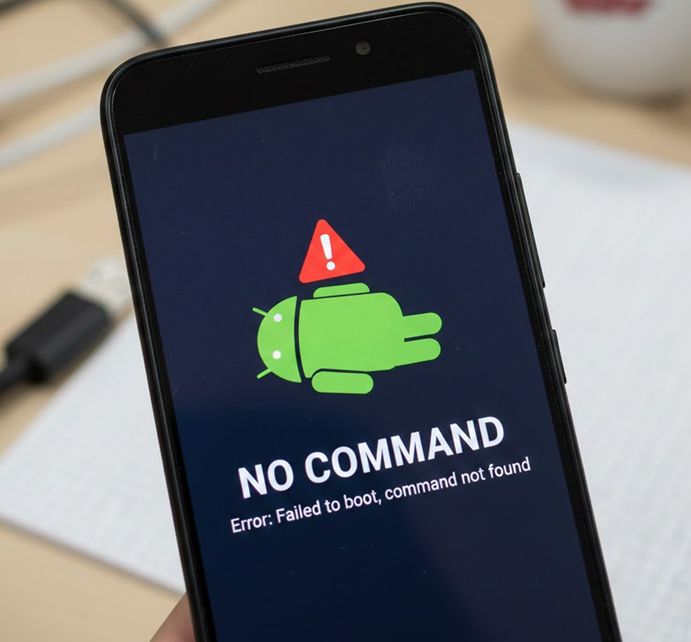
This error usually occurs when you are trying to reset your device. Sometimes, while doing that, you might see the icon of a Resting Android Robot or a triangle with an exclamation mark saying No Command, as shown in the image below.
What Is Android Recovery Mode?
The Android Recovery Mode is a simple, standalone system kept in a separate partition from the actual Android operating system.
The default position of Android keeps the hidden menu under the “No Command” prompt in order to ensure that users do not inadvertently launch a factory reset process that will delete all their information. This is a safeguard that demands a ‘physical handshake’ (key combination).
Why This No Command Error Appears on Android
Is No Command is Error or Normal Behavior?
In most situations, it is nothing to worry about. This is a common gateway screen that ensures your device’s core configurations are secure.
- It is fine if: You were attempting to wipe your phone or erase the cache, and all you have to do is type in the key combination.
- There is a problem if: You did not press any buttons, yet the phone displays the gateway screen. This implies that the operating system cannot be started up and requires assistance from Recovery mode.
How to Fix No Command in an Android Phone Screen
There are several different ways of resolving Android no command errors on your phone. Let’s go through them one by one.
#1) Go into Recovery Mode Again

[Via tektab]
That’s the first thing to do. Try to get back into recovery mode since it can help you fix every issue on your device. If you are not sure how to get into recovery mode on your device, try the following combinations one by one:
- Power +Volume Up buttons
- Power +Home +Volume Up buttons
- Power +Volume Down buttons
- Power +Home+ Volume Down buttons
One of these should work. Once you enter recovery mode, your device will list a number of options. From there, choose wipe cache partition or factory reset. Wiping the cache partition is easy, and it doesn’t delete your data, while a factory reset will.
After choosing an option, reboot your device. Once the phone restarts, the issue should be fixed.
Check out our tutorial on Top Android Data Recovery Software
#2) Remove and Reinsert Battery

Today’s more modern smartphones don’t come with removable batteries. While the devices came with removable batteries, most issues were easy to fix. You just need to remove and reinsert the battery. Voilá, all errors are fixed. So, feel blessed if your phone has a removable battery, and to fix this error, just remove and reinsert your battery.
#3) Update the OS Manually

[Via hp]
If you recently updated your software or tried to flash a custom ROM and then started receiving this error message, then you will need to manually update the OS.
- Enter Android Recovery Mode.
- Use the Volume up and down buttons to navigate through the menu.
- Select Apply to update from the cache.
- Press the power button to open it.
- Select Software update.
- Press the power button to start the installation.
If you are facing a no command error while flashing a custom ROM:
- Select Apply updates from external storage in recovery mode.
- Access the updater.
- Select the software file you have downloaded to install the updates.
This should resolve the Android recovery mode with no command error.
#4) Force Restart Your Device

[Via Samsung]
If nothing works, force restarting your device will. Here are some combinations that can help you force-reboot your device if you don’t exactly know how to for yours.
- Hold down the Volume Down and Power buttons.
- Hold down the Power button for 30 seconds.
One of these two options will force a restart of your device, eliminating the error.
#5) Flash a ROM

[Via Digi Statement]
If nothing works, try installing a ROM on your device. If you have a custom recovery like ClockworkMod or Team Win Recovery installed on your phone. You can download a ROM compatible with your phone and then use recovery mode to install it.
- Download device-compatible ROM to your computer.
- Move the ROM Zip file to the SD card of your phone or its internal storage.
- Launch recovery mode on your Android device.
- Choose the install zip from the SD card option.
- Choose ROM from the memory and install it.
How to Factory Reset From No Command Screen
If you have a problem with your device looping when attempting to boot up or if you cannot get into the device’s settings menu, the best way to solve this issue will be through a factory reset done via the “No Command” screen.
Step-by-Step Reset Guide: The process to perform a factory reset on your device upon encountering the “No Command” screen is as follows:
- The Hidden Menu: Trigger the hidden menu by holding down the power button and tapping the volume up button together.
- Browsing Through Menu Options: Browse through the available options using the volume down button and select the “Wipe data/factory reset.”
- Selection: Press the power button to select the option.
- Last Confirmation: The device will prompt for another confirmation that you want to perform a factory reset. Scroll through using the volume buttons and tap the power button to confirm that you want to continue.
- System Reboot: The process will take several minutes, and once complete, the phone will prompt to reboot.
Risks & Data Loss Warning: Before initiating the reset process, it is important to comprehend the critical implications of performing a factory reset at this point:
- The procedure involves the permanent deletion of all internal data, including media files, applications, and contacts that cannot be restored once the process is initiated.
- The Android Factory Reset Protection (FRP) protocol will be activated, which requires having your Google account credentials handy for re-login after the reset; otherwise, you could become permanently locked out of the device without access to your Gmail login.
- Make sure your device’s battery is charged at over 30 percent or connected to a power source, as the loss of power during the reset procedure can lead to irreversible damage to the device’s software.
Fix No Command Error on Specific Brands
Although the “No Command” screen is common across all Android devices, what is needed to unlock it is unique depending on the device manufacturer. When the Power + Volume Up method fails, try out these device-specific options below.
Further Reading => Volume Keeps Going Up Itself: Quick Fix
Samsung Devices
The move by Samsung from home buttons to Bixby buttons has affected the way Samsung phones can be restored.
- Samsung with Home button: Hold Power+Home+Volume Up together. Stop pressing once the Samsung logo appears.
- Samsung with Bixby Button: Hold Power+Bixby+Volume Up.
- Samsung with no Home/Bixby buttons: Hold Power+Volume Up together. Observation: Most modern Samsung phones running on Android 11 or above require being connected to a computer through a USB cable to enter recovery mode.
Xiaomi / Redmi
MIUI recovery process for Xiaomi devices tends to be simpler, although navigating beyond the first “No Command” or “Main Menu” page may prove difficult.
- The Combo: Hold down both the Power and Volume Up keys.
- The Action: After the logo for Mi flashes on your screen, release the Power key but continue to hold the Volume Up key until the “Mi-Recovery” menu pops up.
- Tip: When the picture of a mobile device with a cable shows up, you are in “Connect with MIAssistant” mode; just press the Power key to reboot your device.
OnePlus / Pixel
Android and near-stock devices such as Google Pixel or OnePlus phones conform most closely to the standard protocol of Android.
- Google Pixel: The moment the “No Command” robot shows up on your phone screen, press the Power button, then press Volume Up one time. Do NOT press Volume Up button again, otherwise, the phone will just reboot.
- OnePlus: Press Power + Volume Down buttons to reach the initial OnePlus bootloader screen. From here, select “Recovery Mode.” Once “No Command” screen comes up, press Power + Volume Up buttons. OnePlus devices usually have touch capability in the recovery mode itself.
Advanced Fixes for No Command Android
When the usual combination of buttons doesn’t work for bringing up the recovery mode menu or when “No Command” appears on rebooting, you are facing more serious damage to your operating system. You need to go past mere hardware intervention and have direct control over the device’s firmware.
Use ADB Commands: In case your buttons aren’t functional, use ADB to escape the “No Command” problem:
- Plug your device into your computer using USB
- Type commands in command prompt after installing the ADB drivers
- Use:
- ADB reboot recovery to enter recovery correctly
- ADB reboot fastboot to access bootloader for further troubleshooting
Flash Stock Firmware: If there is a problem with the OS, a reset will not do any good; you should reinstall Android.
- Find a legitimate firmware for your device (available from the manufacturer)
- Install software such as Odin (for Samsung devices) or Fastboot (for Pixel devices, etc.)
- Apply the firmware by installing it on top of damaged system files
It may bring the phone back to life.
Visit Service Center: If ADB cannot detect your phone and the process of flashing firmware reveals write errors, the reason for that is probably internal:
- Some possible reasons include malfunctioning storage (eMMC / UFS), or motherboard issues
- The phone fails to load boot files, hence getting stuck at the “No Command” message
Unfortunately, in this scenario, you won’t be able to fix the problem yourself.
How to Prevent No Command Error in Future
Although the “No Command” screen acts as an internal safety measure, an unexpected appearance indicates instability within the device’s system. To minimize the risk of receiving such a message, you may undertake the following measures:
- Update Safely: Ensure that your battery is at least 50% charged during the update process, or plug in your device.
- Clean After Major Updates: Wipe your Cache Partition after installing any major software updates.
- Avoid Unreliable APK Files: Only install applications from reliable and secure sites.
- Don’t Overload Storage: Always leave some storage space for your system’s operations.
- Protect Your Buttons: Malfunctioning Volume and Power buttons may launch your device into recovery mode.
Frequently Asking Questions
1. What does it mean when my Android says no command?
This error usually shows up when you try to access the recovery mode or during the installation of new software. This usually means your device is just waiting for a command to access the recovery options.
2. How do I fix the Android recovery mode not working?
Try force restarting your device or get into the recovery mode and wipe the cache partition or factory reset your device. If the no command error occurs after you have installed an update, choose to manually update your OS from the recovery mode.
3. How do I force an Android into recovery mode?
One of the following methods will force your Android device to go into recovery mode:
1. Power +Volume Up buttons
2. Power +Home +Volume Up buttons
3. Power +Volume Down buttons
4. Power +Home+ Volume Down buttons
4. Why is the recovery mode not working?
The most common reason for recovery mode not working is that your device has denied or terminated superuser access during phone resetting or OS update. Force restart your device to fix this issue.
5. What do you do when a factory reset doesn’t work?
If you cannot factory reset from your device’s settings, launch the recovery mode and select factory reset from the menu.
6. What causes No Command error on Android?
This is mostly caused by an unsuccessful update, cache corruption, or system fault. The phone enters Recovery Mode, but the menu doesn’t show up.
7. How do I bypass No Command screen?
Press Power + Volume Up buttons to access the menu and choose ‘Reboot system now’.
If necessary, consider ‘Wipe cache partition’.
8. Will factory reset fix No Command issue?
Yes, it usually works. However, it wipes all the information, so you should only use it when other methods fail.
9. Is No Command screen dangerous?
Not at all. It’s a standard recovery tool, not a technical issue.
10. How do I open the recovery menu from the No Command screen?
Hold Power button, then press Volume Up once, and release.
This reveals the Android Recovery menu.
Conclusion
In this article, I have taken you through what a no-command error in an Android phone is, why it occurs, and different ways to resolve it. Usually, it is a feature of the device and not a problem. It’s more like your phone is waiting for a command before entering recovery mode.
With the right combination of keys, you can easily access the recovery mode. However, if your phone gets stuck in this error, force restarting, factory resetting, or manually updating the OS should work.
Research process
Total time taken to research and publish this article is Approx 30 hours.
This guide is based on testing common Android recovery scenarios, reviewing official Android troubleshooting resources, and analyzing user-reported fixes across multiple devices to ensure the solutions are accurate, safe, and effective.
For more Android fixes-related guides, you can explore our range of tutorials below:
- Why is My Android Phone Not Allowing Me to Make Calls
- Droidkit Review: Unlock and Repair Your Android Phone
- Why am I Not Receiving Text Messages? Fix for iPhone and Android
- Fix for Android Email App Keeps Stopping
- How to Fix Memory Leak in Android Apps Using DDMS Tool
Was this helpful?
Recommended Reading
-

Here you will find a list of Android Smartwatches reviewed and compared for you with features and technical specifications to select wisely: Want to use the next stage of hand wearable that will keep track of your fitness regime? Having a good smartwatch will help you achieve it. The Android…
-

This article reviews the top Antivirus for Android with comparison. Check the details to choose the best Android antivirus app for you: An antivirus software (also known as AV software), is used to detect, block and remove all types of threats to a device. The threats may include viruses, malware,…
-

Are you searching for a music player for your Android device? Go through this review and comparison of the Best Android Music Players to end your search: Music is the art of combining different sounds to produce a unified, continuous sound. Music can express feelings, emotions, and ideas in a charismatic…
-

Review, compare and select among the best Android Tablets for watching videos, checking emails, browsing the web, playing games, etc: Is it getting difficult for you to carry your laptop everywhere? You may be on a journey and planning to watch a movie! Want to make your work portable? A…
no comand