Here is a hands-on review of the cloud-based web scraping tool Octoparse with its interface, features, pricing, customer support system, etc..:
Internet is a vast, endless landscape of information, both trivial and extremely useful. A data extraction tool helps extract useful data from a variety of online websites and present it in a format that a user can easily understand.
Over the years, the process of data extraction or web scraping has helped many businesses make strategic decisions that have benefited them lucratively. Managers can now employ data extraction tools to monitor prices and keep an eye on their competitors. It has helped massively with lead generation and helped businesses build a cohesive sales list.
Robust data extraction tools have powered data-driven research and improved marketing tactics employed by enterprises.
However, data scraping isn’t everybody’s cup of tea. Most tools are not easy to use. Some even require their users to possess a knowledge of coding. So when we heard of the cloud-based web scraping tool ‘Octoparse’ that right off the bat positioned itself as a tool that required no coding, we had to check it out for ourselves.

We took a hands-on approach with ‘Octoparse’, looking into every single feature it offered to find out whether it stood up to the promises made by its developers. In this review, we dive deep into the web-scraping tool – ‘Octoparse’, uncover valuable insight into its interface, features, pricing, customer support system, and ultimately give our honest opinion on whether or not this software is worth it.
Here is the video tutorial:
Octoparse No Code Web Scraping Tool Overview

Octoparse is a very powerful web-scraping software that automates the process of data extraction to a great extent. It presents users with an easy-to-use point-and-click interface that allows them to extract data from any website (static or dynamic) with just a few clicks.
The extracted data is eventually presented to users in a more structured and comprehensive manner with the support of multiple export formats, such as CSV, Excel, HTML, and TXT.
It is compatible with the latest versions of the Windows and Mac operating systems, working especially well with Windows 7, 8, and 10. The tool can scrape web pages and analyze data by users with absolutely no knowledge of coding. This is perhaps a major reason this software clicks with so many users and worked for us as well.
One remarkable way in which this tool makes data extraction simple is by simulating online human behavior to better interact with web pages. It mimics typical human web browsing behavior such as opening a web page, entering text, account login, and more.
The software also comes with a built-in browser that can be employed to perform extraction by simply clicking the information present on the web page you want to scrape.
The extraction projects facilitated by Octoparse can either run on your own device (local extraction) or in the cloud (cloud extraction). It is also incredibly powerful if you want to scrape multiple pages in a very short span of time, thanks to the tool’s cloud-based service.
Also read =>> Web Scraping Software and Tools
Octoparse Specifications
The table below shows the specifications:
| Supported Devices | Windows XP, 7,8, and 10, Mac |
| Popular in Countries | Octoparse can work everywhere in the world. It is popular in Australia, Canada, Mexico, United Kingdom, United States, Germany, Europe, Brazil, China, Japan, and India |
| Supported Languages | English, Japanese (Spanish coming soon) |
| Support | Video Tutorials, Online Support, FAQ, Forum, Knowledge Base |
| Free Trial | 14 days available |
| Pricing | Freemium |
Octoparse Installation Process

Installing Octoparse on your Windows or Mac device is very simple. You’ll be done with the process in no time, provided you have a decent Internet speed.
Follow the steps below to start the installation process:
- Go to the Octoparse website and download the main installer.
- Once downloaded, unzip the downloaded file. Make sure you close any active anti-virus software on your device. Doing so will ensure important files needed to install the software aren’t deleted pre-emptively by the anti-virus tool.
- Find the .exe file and double-click it to initiate the installation process.
- Simply follow the instructions to download.
- Once installed, log in with your Octoparse account. The software is now ready to extract data on your behalf.
How To Scrape Website Data Using Octoparse
Now coming to the core function of this tool, Octoparse offers quite an impressive data extraction experience. It is supported with a visually impressive UI. The software presents users with a visual operation pane that is clean, attractive, and extremely user-friendly.
Important aspects of the tool like creating a new task, accessing the dashboard, quick filters, viewing recent tasks, and contacting support can all be taken care of by clicking on any of the tabs displayed clearly on the left-hand side of this software’s interface.

Additionally, it also provides a similarly appealing visual workflow designer that allows users to extract bulk data in the fastest way possible.
The extraction process itself is very simple and can be executed effectively with absolutely no coding. All you have to do is configure the tool to establish rules that will be followed by the software when extracting data.
The process of extraction can be fulfilled in three easy steps mentioned below. For instance, here is all you need to do to extract product data from an eCommerce website like eBay.
#1) Point- Enter URL
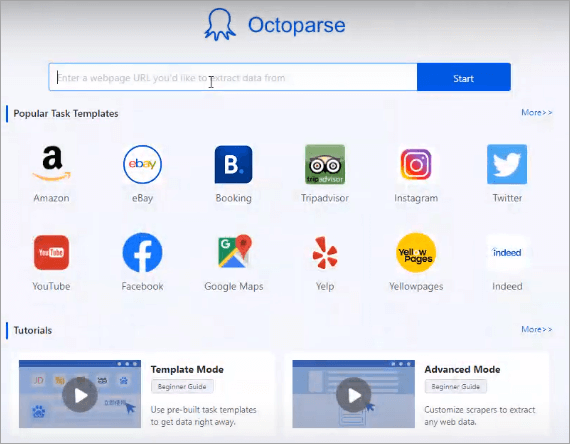
You can start the extraction process by first creating a new task and entering the website URL you intend to scrape for data. Octoparse will automatically detect the website while loading.
Once the auto-detect process is complete, you will notice that the software has already highlighted some key elements from the website on your behalf. We were really impressed by this convenient feature as we didn’t have to waste time manually selecting items to extract ourselves.
#2) Click- Select Information To Extract
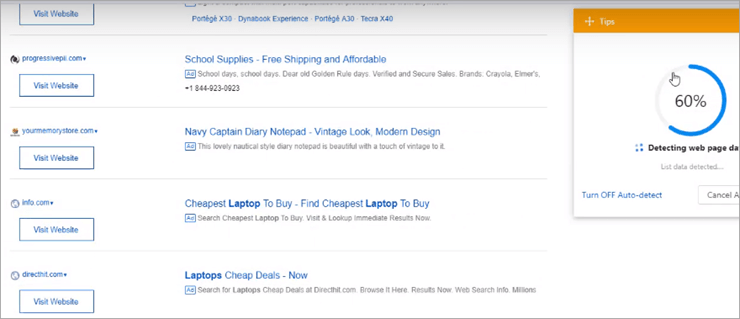
If you agree with the items selected by Octoparse automatically, then proceed to the next step by clicking ‘Save Settings’. On the other hand, if the selected items are not what you seek, then start clicking on the information you want to extract before proceeding any further. Once the detection is complete, you will be greeted with a preview of the data selected for extraction.
Preview of data:

The preview table allows you to delete certain columns you want to exclude from the extraction process by simply clicking on the trash bin. You can also sort the columns with the help of a convenient drag-and-drop system. Once you are okay with the layout, head over to the tips panel to refine the workflow.
Setting scrolling for lengthy pages:

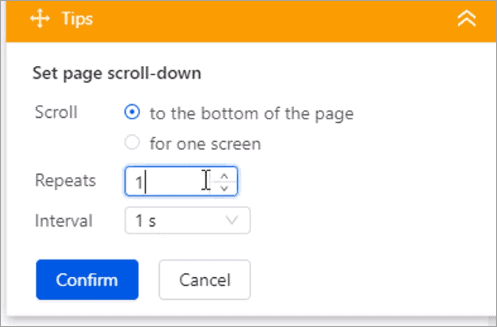
It is advisable to ensure your web page is fully loaded before the bot begins the extraction process. This is a detail you cannot afford to overlook, especially when dealing with web pages that contain an enormous amount of data. So on the tips panel; check the section that demands the tool continues scrolling until the web page is fully loaded with information.
You can easily configure the number of times you wish Octoparse to repeat the scroll and the time interval at which it is supposed to repeat the action.
#3) Run The Extraction
Adjusting the Workflow:

Check the workflow carefully to ensure everything is exactly the way you want it. Once confirmed, click on the ‘Save Settings’ tab to proceed. You will be greeted with a workflow on the left side of your screen. This workflow can be easily edited by the drag-and-drop system whenever to adjust the order of scraping activities.
Finally, if you are satisfied by the crawler settings you just configured, click ‘Save’ and ‘Run’. You will see the scraping process as it is underway in the ensuing pop-up.
The below image shows the Running Task window:
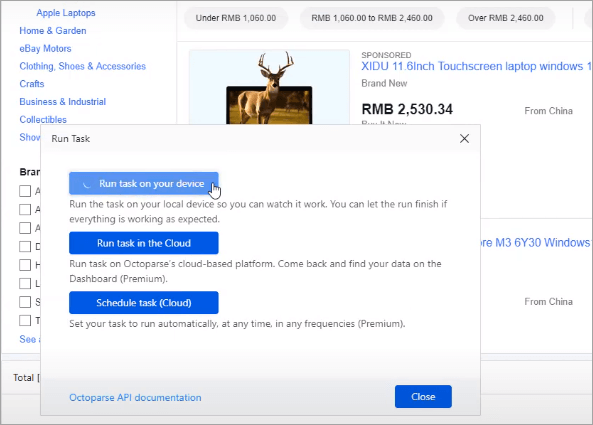
Once the crawling is completed, you can find results on the dashboard of your Octoparse account. From here you can execute or cease the action of scraping whenever needed. You can also export and share the extracted data in a structured manner with your colleagues. If you are handling multiple tasks at once, you can assign the crawlers into different groups to better manage them.
The below image shows the final Dashboard:

Octoparse Features
Apart from the actual extraction process, the many advanced features that Octoparse offers benefit its users in many interesting, and sometimes unique ways.
Here is a list of features that stood out to us when using this tool:
Note: If these terms are unfamiliar to you, you can search and find detailed illustrations in Octoparse’s Help Center.
#1) Anonymous Extraction with Proxies and IP Rotation
Most websites can easily detect any scraping activity taking place on their pages, especially when they identify repetitive or suspicious browsing behavior. This is a problem easily solved by applying different scraping patterns or using a VPN. However, as this tool allows you to scrape data anonymously, you can continue the extraction process without having to worry about your IP being banned by the targeted website.
Octoparse allows its users to scrape web pages by anonymously rotating proxy servers. The software’s cloud platform harbors a rich proxy server, which doesn’t require users to manually connect with different proxies. They do however have an option that allows users to manually add a list of proxy servers and configure them to enable automatic rotation.
#2) Handle complex websites
Octoparse can easily manage to scrape data from dynamic websites, which are built with AJAX and JavaScript. It can also be used with websites that are normally hard to crawl like ASP. It extracts data from complex websites easily by employing methods that include scraping a website using pagination, scraping data from behind a log-in, and scraping data from websites like Facebook and Twitter with infinite scrolling.
#3) Auto-Detect
The new auto-detect feature is one of Octoparse’s most innovative yet. The feature is ideal for extracting web pages that contain tables, load more buttons, listings, and infinite scrolling, such as category pages, search result pages, etc. It typically takes less than a minute to extract data with this feature.
You can initiate this function after pasting the target website’s URL and clicking ‘Start’ to create a new task with ‘Advanced Mode’. Once done, you are simply required to click on ‘Auto-detect web page data’ and the software will start the detection process. You can preview the extracted data after the detection process is complete.
The preview table can remove unwanted data fields, rename data fields or sort them as per your preference. In case the auto-detect feature fails to extract the information you deem important, you can add the data fields manually by selecting the information on a web page and choosing ‘Extract the text of the element.’
Here is the video tutorial:
#4) Cloud Extraction
Octoparse’s cloud extraction capabilities make it one of the most powerful tools being used in business today. By allowing you to run extraction tasks on the cloud, the software allows you to scrape data from multiple web pages concurrently and do so with incredible speed.
You can scrape data from over 10,000 pages in a very brief period of time if you use its cloud-based extraction service. Furthermore, you can expect the extraction speed to be 6-20 times faster than local extraction. The data that is scraped and collected in the cloud is naturally accessible from any device, anytime.
#5) Ad Blocking
Octoparse is a great option to have if you want to get rid of annoying ads, pop-ups, and banners that can interrupt your website scraping process.
The Ad Blocking feature of this tool can be implemented by selecting the ‘Ad Blocking’ option when you are configuring the basic information set up. This blocking feature helps optimize loading times and boosts extraction speed considerably as the number of web requests is reduced by the act.
#6) Scheduled Data Extraction
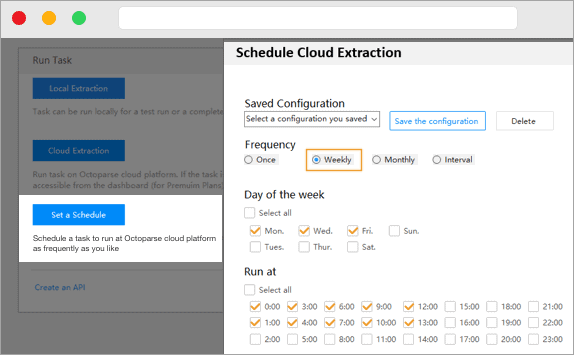
If you want to run an extraction task at a scheduled time, then you can do so with this tool. You can schedule a fixed time for scrapping in the settings option to execute extraction tasks automatically on an hourly, daily, weekly, or monthly basis. This feature adds to the convenience users can experience while using this tool, helping users save oodles of precious time.
#7) API
Octoparse’s API essentially makes the data extraction process automatic. API’s can be created by users to connect a system to scrape data in real-time. To use the API appropriately for this tool, a user must acquire the task ID associated with an extraction task. This task ID can be easily obtained by right-clicking on a task and selecting ‘Create an API’.
#8) Incremental Extraction
This is another impressive feature that considerably simplifies the extraction process. This feature allows users to extract updated data automatically without having to waste any additional time setting up new configuration rules. The updated data is identified by the new URL’s being generated by the new pages.
#9) Task Templates
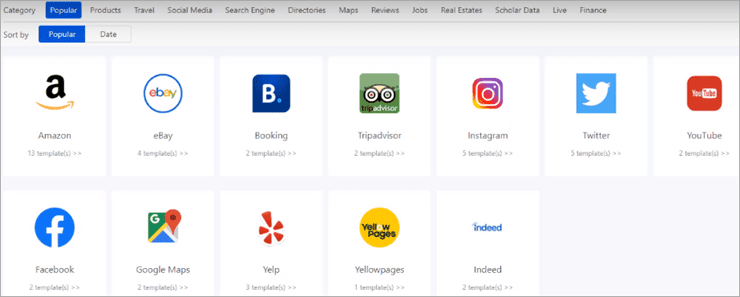
Octoparse comes with tons of pre-built tasks that help users get access to data from web pages instantly. These pre-built tasks are called task templates. This is a very useful feature for users who aren’t technically proficient. All you have to do is select the preferred template, verify the sample data, and extract it. There are more than sixty task templates available in this tool.
#10) Exporting
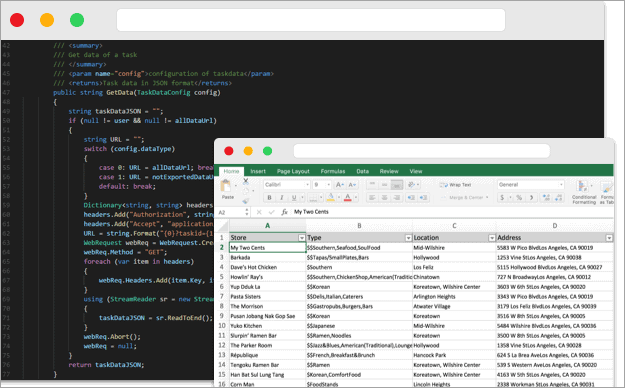
The extracted data can be exported in a variety of formats, mainly Excel, CSV, HTML, and TXT. Moreover, users can opt to export extracted data into different databases such as SQL Server, Oracle, and MySql.
Support
Octoparse is very simple to use. However, the software provides you with a robust and flexible customer support system just in case you ever find yourself lost in the process of extraction. You can refer to their detailed video tutorials and FAQs to get comprehensive guidance throughout the extraction process.
You can also get in touch with their support group directly through email, Skype, or submit a ticket through their website or client. Normally you will get a reply within 2 working days.
Octoparse Pricing
Octoparse provides users with several pricing plans. The prices here vary depending on the features on offer. There are four major plans to choose from.
They are:
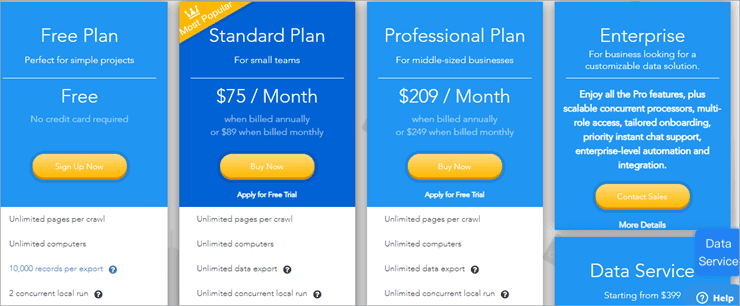
#1) Free Plan
The free plan is ideal for new users who cannot afford the Premium plans. The software can be used on an unlimited number of computer devices, enables an unlimited number of pages per crawl, and allows 10000 records per export, two local concurrent run-ins, and ten crawlers.
#2) Standard Plan
The standard plan is more suited for a small team and available to users at a fixed $75 per month rate. This plan allows the tool to be used on an unlimited number of computer devices, enables unlimited pages per crawl, unlimited record exporting, unlimited concurrent run-ins, and 100 crawlers. Additional features such as scheduled extraction, API access, Task Templates Email support, etc. are also present.
#3) Professional Plan
This plan is ideal for businesses that need large-scale web data and cloud services for faster data extraction and convenient data retrieval. It is available at a fixed price of $209/month. The features you can acquire with this plan include all the features present in the standard plan with the addition of 250 crawlers, Advanced API, scheduled extraction, Auto IP rotation, Task Templates, Free Task Review, and One-on-One Training, etc.
#4) Enterprise Plan
Enterprise Plan is more suited for companies that need instant customer support, an integrated console for team collaboration, and enterprise-level data extraction services and data solutions. To get a custom quote on this plan, you have to reach out to Octoparse’s sales team. There is also a 14-day free trial if you want to take the tool for a test drive before you are confident enough to spend money on it.
Pros And Cons
The table below enlists the Pros and Cons:
| Pros | Cons |
|---|---|
| • Visually impressive and User-friendly Interface • Flexible pricing plan • Anonymous Web scrapping • Extract data in multiple popular output formats • Over 60 pre-built task templates • Extract data in scheduled intervals • Handle both static and dynamic website scrapping efficiently • Auto-detect web page data. • Extract data from multiple pages concurrently at incredible speed | • Customer support only available in English, Spanish, Japanese, French, and German. |
Conclusion
There are a plethora of benefits of using Octoparse, all of which combined make it one of the best data extraction tools in existence today. With no coding required, this software can be used by anyone, irrespective of whether they are technically proficient or not. Its user-friendly interface and simple click-point extract system of scraping make it an easy tool to master.
You can run the extraction process locally or in the cloud for a faster and more powerful user experience. It is a tool that can be used by individuals as well as businesses of all sizes. The scraping features this software offers can be ideally harnessed to track prices, monitor competitors, generate leads, and improve marketing strategies.
Its multiple advanced features combined with flexible pricing, which also includes a very useful free plan, earn Octoparse a very high recommendation from us.
Was this helpful?
Recommended Reading
-

Review of the Most Popular Data Analysis Tools for Your Business: Data analysis is the process of working on data to arrange it correctly, explaining it, making it presentable, and finding a conclusion from that data. It is done to find useful information from data to make rational decisions. As…
-

List of the Best Free Web Scraping Software and Tools for extracting data online without coding: What is Web Scraping? Web scraping is a technique that is used to extract data from websites. It is also called Web harvesting. This extracted data is saved either in a local file to…
-
The List of the Most Popular Data Mapping Tools for Mapping Data Perfectly: What is Data Mapping? Data mapping is the process of associating the source data with the target data. It is the process of mapping atomic data units from two different data units. Data mapping is used in Data…
-
List and comparison of the Best Open Source Free Data Masking Tools Available in the Market: Data Masking is a process that is used to hide data. In Data Masking, actual data is masked by random characters. It protects confidential information from those who don’t have the authorization to sight…
-
Explore the Best open source free and online Data Modeling Tools along with their Features: What is Data Modeling? Data modeling is the process of applying the techniques and methodologies to the data (data requirements) in order to convert it in a useful form. The process converts complex software design…
-
List And Comparison Of The Best Data Governance Tools. What is Data Governance? Data Governance is a centralized control mechanism to manage data availability, security, usability, and integrity. To implement data governance in the organization, a committee, a defined set of procedures, and a plan for executing these procedures are…
-
The list and comparison of the Most Popular Data Migration Tools: When we hear the term "Data Migration", questions like - What is data migration? Why is it needed? How is it done? etc., pop into our mind instantly. This article will address all the basic queries on Data Migration…
-
A Complete Overview of the Most Popular Data Integration Tools: Data integration is the process of combining data from many different sources, typically for analysis, business intelligence, reporting, or loading into an application. A list of the best data integration tools is included for your reference in this article. These include…