Do you getting logged out of Facebook every now and then? Then this updated 2026 guide will help you Find out the most common causes of this issue as well as simple ways to fix it on Android, iPhones, Google Chrome, and any other web browser.
If you are getting the annoying “Session Expired” message or being logged out of Facebook for no reason, you probably have corrupt session tokens on your browser, an outdated app cache on your phone, or an automatic security measure from Meta.
No need to worry as fixing the problem is not too difficult. We will tell you the reasons for getting logged out of Facebook and how to solve the problem step by step in the following section:
Why Does Facebook Keep Logging Me Out?
There are a few factors that may contribute to the constant logout of your Facebook session. They include corrupt cookies or app cache, software update, browser plugins or add-ons, change of network or virtual private network, or even some issues on the Facebook end. What to do about it? Find out Facebook outage status, update your Facebook application, clear cookies/cache on Facebook, look at your browser add-ons, and secure your Facebook profile if there are some suspicious activities.
Why Does Facebook Keep Logging Me Out? Quick Fixes That Work

There is more than one solution to this nature of the problem. This tutorial discusses the causes and solutions to this problem.
[image source]
Suggested Read =>> Comparison of the top Facebook Video Downloader
Common Reasons Why Facebook Keep Logging Me Out”
Why is Facebook Logging me out? Below are several issues that might cause this type of error:
#1) Temporary Bugs or Glitches within the Facebook App
There could be a glitch in your Facebook application, browser, or Facebook itself, which makes you log out unexpectedly from Facebook.
Such bugs can appear after you update your application, change any settings or because of a temporary technical issue on the side of Facebook regarding login process.
If the problem occurs suddenly, and other components of Facebook do not work properly, then it could be a temporary issue, which will be solved either by Facebook itself or by updating your application.
Try this: Update Facebook, reboot your device and see if there is an issue with other devices and/or browsers..
There is a list of known bugs on a platform on this link, but bugs may also happen on the user’s device.
#2) Outdated Facebook App or Device Compatibility Issues
Old Facebook application or incompatibility of Facebook application with your OS can result in problems with login and session.
It happens in the following cases:
• Your Facebook application is old.
• Your Android or iOS is outdated.
• New Facebook update has some compatibility problems.
• Application installation got corrupted.
What to try: Update both Facebook and your device. In case the problem persists, you should reinstall Facebook application.
#3) Your Cookies and Cache Are Getting Deleted
Clearing out of cache and cookies: An automatic logging out of the account also occurs on Facebook if a user’s device is set to clear cookies and cache automatically, as happens when the user’s browser cache clears automatically after the browser is closed.
Clearing the app cache and cookies via device settings or other means will automatically log a user out of the Facebook app.
#4) Expiration of Facebook Login Session
Facebook may request you to log in once more in case of an expired or invalidated login session.
The following are some cases where that may happen:
• Password change
• Security check
• Logging out of other devices
• Invalidation of the login session by Facebook due to security reasons
Where Facebook keeps requesting you to do things such as log in again and messages like “Session Expired” keep appearing, then chances are the problem is with the login session.
#5) Problem with Browser Extensions/Privacy Tools
Sometimes there is the possibility that Facebook cookies and login sessions can clash with the browser extensions/privacy tools such as ad blockers, security products, or any kind of similar application.
This must be determined based on whether:
• Facebook works well in other browsers.
• Facebook works well in Incognito/Private Mode.
• The problem started when a browser extension was added.
Solution: One has to disable browser extensions and try Facebook.
#6) Usage of a VPN/Network Initiated the Security Checks
Sometimes switching IP addresses and location frequently might lead to the additional security checks being performed.
This can apply particularly in cases of usage:
• VPN Services
• Using public Wi-Fi
• Switching networks frequently
• Strange logins locations If one is constantly being asked by Facebook to prove one’s identity every time one switches the network/location, then the account security checks might be performed
#7) Facebook Has a Temporary Technical Issue
Sometimes, it might be Facebook which causes problems with logins and not your device.
Some of the issues that Facebook might encounter causing its users to experience:
- Uncalled for logout
- Failure to log into the account
- Frequent login prompts
- Session errors
- Facebook Server issue or any other technical issues
If this problem arose suddenly and is affecting your multiple devices, try checking whether other Facebook users are having similar problems before making changes to your password or reinstalling the app.
#8) Facebook Has Found Some Suspect Account Activities
In some cases, you may be required to log in or undertake a security check-up because of any suspicious activity on your Facebook account.
Some of these activities may include:
• Login attempt from an unfamiliar location
• An unfamiliar device
• Suspect account activities
• Multiple Log in failures
• Security activities in your account
Many times, frequent logouts do not indicate hacking activities in your account since suspect activities have to be verified. What you should do: Check the recent login activities as well as active sessions. In case you notice unfamiliar devices using your account, ensure that you secure your account immediately.
#9) Your Facebook Account May Be Hacked
In case your Facebook account is breached, you may be logged out of your account without your intent.
You can contact Facebook in such a case and they will email you a temporary link to log back in but there is also the possibility that you will be stuck in endless loops where Facebook keeps on sending the link to you but without successfully logging in or resetting the password.
Determining whether someone hacked your Facebook account is a completely different issue. You can, however, suspect so in case there are misnomers such as failure to receive.
In case the hackers have changed your password and email, you can add your Instagram account as a Facebook logging-in service and log into your Facebook later with the Instagram information. If already added, you can try logging into Facebook with your IG user data.
Further Reading => Why Does Instagram Keep Logging Me Out
To add Instagram as above, open the browser on which your Facebook account is logged in, go to your Profile -> Settings and Privacy -> Settings and you will see Meta Accounts under the left-hand bar. Go to See More in Accounts Center -> Connected Experiences on the left bar->Sharing accounts/Logging in with Accounts. Add the IG account and save.
You can then login and go to Security Settings on Facebook, delete the email added in by the hacker, reset the password, and add a 2FA phone verification procedure to the account.
In the past, 2FA services have also been compromised or DDOS attacked such that users get logged out and are unable to log back in. Here, logging out of all services or clearing your Facebook cache/cookies browser and app can help.
The Session Expired error also logs out users automatically. In this case, refreshing the page on a web browser can help. Also, try clearing the cache and cookies or checking whether it is the Facebook service that is down. For the latter case, use third-party services that can help you see if Facebook service is online or down.
Further Reading => Fix Facebook Dating Not Showing Up Issue
Facebook Keeps Logging You Out? Try These Fixes First
Here are the common ways to end the Facebook auto logout problem. There are as many solutions to the Facebook automatic log-out error as there are causes. Below are some of them.
#1) Update your Facebook app: Updating the version of the app can fix most of the problems related to the version that you are using on your device.
Head over to the Appstore (Apple or Android) app on your device, open it, and search for Facebook. Tap Update to update the app and, once finished, launch the app. If the auto-log-out is happening on the Facebook web app, you will need to update the browser or explore other solutions to fix this problem.
#2) Clear cache and cookies: Cache files which, are temporal app usage files (user and app files), help the app run faster and efficiently. Cache storage contains user files such as images, videos, and login credentials.
Clearing corrupted cache files and re-logging in can solve the Facebook automatic log-out errors, though not in all cases.
Here is the video tutorial:
To clear the Facebook cache on iOS devices
Open Settings->General->iPhone storage and search for the Facebook app on the list that appears. Tap on the app and then tap Offload app to clear the cache.
To clear the Facebook cache on Android devices
- On Android, long-press the Facebook app to clear the cache.
- Tap on I button, scroll to Storage usage, tap on it, and then choose the Clear Cache option.
For some Android devices, go to Settings->Apps->All Apps find Facebook from the list, and tap on it. Choose Storage and Cache and tap on Clear Storage or Clear Cache.
[image source]
To clear the cache on web browsers
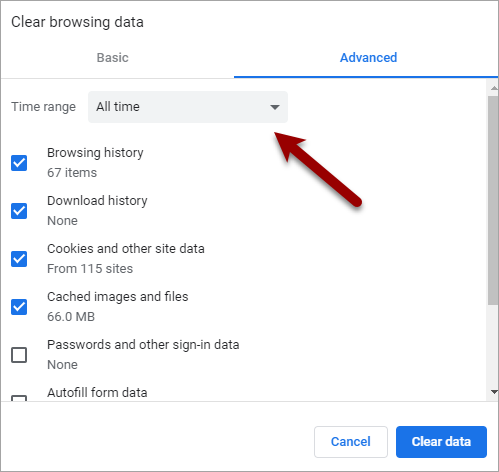
- Press the CTRL+Shift+Delete keys to bring up the Clear browsing data on Edge or Chrome browsers. The same can be accessed through the Settings menu of the browsers.
- Go to Settings->Privacy and Security tick all or the relevant options and click/tap the Clear data button.
Also on Mozilla, tap the three dots on the top right corner, then Settings->Delete browsing data, and tap on the Delete browsing data button if using Mozilla on Android.
#3) Restart the Smartphone: Restarting the phone can cause temporary issues to be solved, for instance, temporary bugs and software glitches from the developer or hosting end.
#4) Uninstall and reinstall Facebook: Uninstalling is done from the settings for most devices. For instance, on Android, go to Settings -> Apps -> All Apps, find Facebook from the list, and tap on it. Tap on Uninstall from the options listed.
Uninstalling can also be done by finding the app on the screen, long-pressing it, and selecting Delete or Uninstall option.
You can reinstall the app in the above case via the Android or iOS app store. Launch the app store search for Facebook, and tap Install.
Further Reading => Does Facebook Notify of Screenshots of Photos
#5) Check Internet connectivity: Confirm that your Wi-Fi or data connection is working by launching another app such as your phone browser. Try on browsing. If it is not working, then it might be an issue with your internet connectivity.
That said, if you are using a system-level VPN or a VPN app, check if the VPN has an Internet connection. You can also try disabling the VPN and re-launching the Facebook app, as some services will block traffic from VPNs.
#6) Remove multiple logged-in sessions on your account: Go to Settings -> Security and login -> Where you’re logged in. Delete the other sessions where it shows you are logged in apart from the current session.
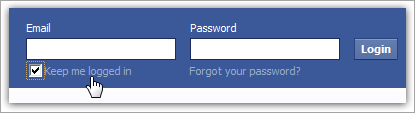
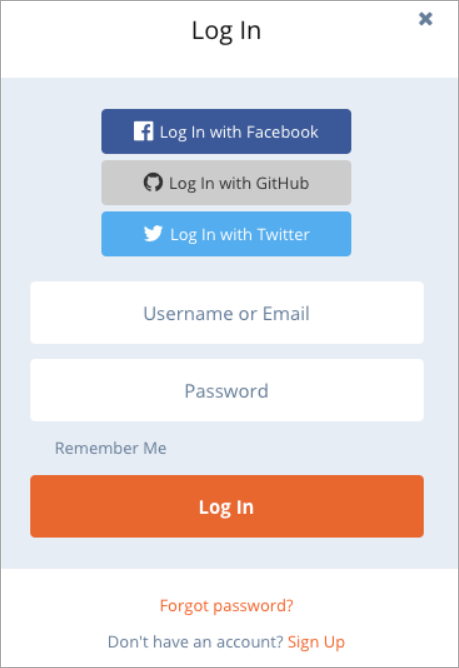
#7) Use the “Keep me logged in” option when you sign in: Facebook has a time limit that makes you log out if you stay for that given time while a logged-in session is inactive. Tap to tick the box against the words “Remember me” or “Keep me logged in” when next logging in. This will remove the time limit.
[image source]
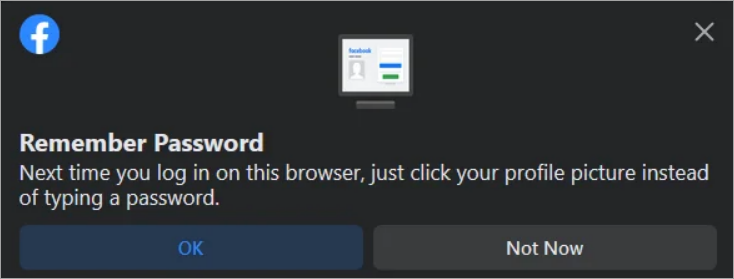
#8) Utilize the Facebook Auto Login Feature: This is activated when logging in to your account. In put the password then click or tap to tick the box against Remember Password when logging in to your account. The device presents the option after you input the password and tap/click Sign In.
[image source]
This means you will not need to type in the password next time you log in even if you are automatically logged out of Facebook. However, this will not solve the problem of you automatically getting logged out, but it is a temporary solution.
Further Reading => Explore the TOP CRM Facebook Integrations in the Market
Still Getting Logged Out of Facebook? Try These Advanced Fixes
#1) Change Facebook Password: Logging in to Facebook on multiple devices can cause automatic logout scenarios on one device if something happens to a different device. An example is if a person using the other devices logs out or clears the cache.
Step 1: Check Logged-In Devices
- The first thing is to confirm the list of devices logged in to a Facebook account.
- Go to: Settings -> Security and Login
Facebook allows removing unwanted devices from this list.
Step 2: Change the Account Password
Second, you can also change the account password on the current device to prevent a scenario of an automatic logout when the Facebook account is logged out from an app on a different device.
The solution also can solve a problem where the account is logging out automatically from the Facebook web if you had logged in on multiple browsers on different devices.
Further Reading => Do You Know Who is Stalking your Facebook Profile
Steps to Change Password in the Facebook App
To change your password on the Facebook app on your current device:
- Open the Facebook app.
- Tap on your profile picture in the upper right corner.
- Scroll down.
- Tap on the Settings and Privacy tab.
- Select Settings.
Scroll to: Security section -> Security and Login -> Change password
Enter the current Facebook password in the first text box. Tap Forgot Password under the Cancel button and enter the security code, then create a new password. Enter a new password and update it.
Further Reading => Top Password Strength Testers of the Year
#2) Remove Third-party Services Used to Log into Your Facebook App:
Third-party services, especially those used to log into Facebook accounts, can misuse your account information and cause technical issues that can lead to the automatic log-out error on your Facebook account. You can try disabling these apps and services in your Facebook account and check if the error will disappear.
Steps to Remove Third-Party Apps and Services
To do the above:
- Open the Facebook app on your smartphone.
- Tap the hamburger menu in the upper right corner.
- Scroll to:
Settings & Privacy -> Settings -> Security -> Apps and Websites - Click on Logged in with Facebook option.
All the apps and services logged into the Facebook account will appear there. They include GitHub, Twitter, and Google sign-in.
To remove access:
- Tap on any item.
- Select Remove.
You can also try disabling outdated or corrupted or malware browser extensions on the browser, as they might also cause this error.
#3) Move the Facebook App to Internal Storage:
If the app is on an external storage device, an automatic logout can occur if the space is exhausted. Hence, moving it to the internal storage can help.
That also means that the solution for a case in which the problem is being experienced on a device with full internal storage is to create more space by deleting some data or apps.
Steps to Move the App to Internal Storage
To move an app from external to internal storage:
- Go to: Settings -> Apps & Notifications -> App info
- Tap on the app.
A Change or Move to Internal Storage button will appear if the app supports changing from external to internal storage.
Tap Move /move to external storage.
#4) Disable Ad Blocker and Other Extensions:
Incompatible ad blockers can cause the Session Expired issue. Hence try disabling the ad blocker or try logging in incognito mode. Type and browse chrome://extensions for Chrome browser, edge://extensions on Edge, or about add-ons on Firefox to find out the extensions that you have recently installed. You can try deactivating them and see if the problem disappears.
#5) Contact Facebook Support
Log into the Facebook app or via the web, tap/click on your profile photo, and scroll down to the Help & Support option to contact the support staff.
#6) Install Antivirus Software:
Such software can deal with malware problems. They can alert when the Facebook app or browser is infected with malware and even delete the malware. This helps in case your device is being interconnected with others, for instance, via the Internet.
Frequently Asked Questions
1. Why is Facebook logging me out? Why do I keep getting logged out of Facebook?
Facebook logging me out error can occur due to expired login session, old app version, damaged cookies/cache files, browser plugins or change in the security measures applied to the account by Facebook. The steps to solve the problem of logging out of Facebook are to update the Facebook application or web browser, clear app cache and web browser cookies, uninstall any browser extension that may be causing the problem, and turn off your virtual private network temporarily. If that does not help solve the problem, you may sign out of all active Facebook sessions and change your password if necessary.
2. How do I stop Facebook from logging me out?
First, try updating the Facebook app or browser, clearing app cache or browser cookies that could be corrupted, disabling suspicious browser extensions and temporarily turning off the Virtual Private Network (VPN). Even after this Facebook still logs you out, try logging in on other devices or browsers and check.
3. Why does Facebook keep logging me out randomly?
The possible reasons for such behavior include an expired login session, problems with the app or browser, cookie clearance, security check, and temporary technical issue. In case you observe any suspicious activity in your Facebook account, including change of password or addition of unknown devices, secure your Facebook account immediately.
4. Why does Facebook keep logging me out after I change my password?
As a security precaution, changing your password means invalidating existing login sessions and requiring to log in from your devices again. In case Facebook logs you out even after you entered your new password, consider checking your active login sessions, updating the app and reviewing security settings in Facebook.
5. Why does Facebook keep logging me out on Chrome or another browser?
This behavior can be explained by automatic deletion of cookies by the browser, interference with Facebook by an extension, corruption of site data and session problem. To solve this issue, check cookie settings in your browser, clear Facebook site data and temporary disable extensions in it.
6. Why does Facebook keep logging me out on Android or iPhone?
It may be due to an outdated Facebook app, corrupted app settings, compatibility issues with your device, or a temporary glitch in the app. Try updating your Facebook app and re-install the app on Android or iPhone. Ensure you update your phones with latest updates.
7. Does Facebook logging me out mean my account has been hacked?
Facebook logout does not always necessarily mean hacking since it usually occurs due to some issues. However, in case you notice anything unusual such as presence of other unknown devices or locations, password change emails that you never sent yourself, modifications of account settings which you do not remember doing, you need to investigate your active sessions.
8. Why does Facebook keep saying my session has expired?
The Session Expired” message shows that your Facebook login session has ended and needs to be re-verified by you again. It happens because of such reasons as password change, security check, change of your account settings, or any other technical problem.
Conclusion
Automatic logouts on Facebook can be frustrating to users who need to keep typing in the password and codes to log back in. This tutorial explained several reasons this can happen.
The most common of all is outdated app versions, in which case, an update can help, and temporal cache/cookies and security issues, which can be solved by clearing the browser and app cache and cookies and logging in.
Time taken to review: 1 day
Was this helpful?
Recommended Reading
-

List and comparison of the top Facebook Video Downloader with features and pricing. Select the FB Video Downloader software from this list per your requirements: You have to be living under a rock to not know what Facebook is. It is after all a behemoth amongst social media platforms. From…
-
Read, review, compare, and select among the list of top platforms available in the market today for Facebook Lead Ads Integrations with your CRM: Introduced in 2015, Facebook Lead Ads is a tool invented to help marketers generate leads while keeping the cost of lead acquisition at bay. This is…
-
List of The Top Social Media Marketing Tools with Features and Comparison. Select the Best Social Media Tool To Harness The Power of Social Media Platforms: When the concept of Social Media Platforms first came to light in the late 2000s, everybody jumped to get a taste of their new…
-
Review and compare top Social Media Content Calendar Tools & Templates with features and pricing to select the best social media calendar per your requirements: Social media websites have become a digital home for several people. Billions of people all over the world have active profiles on at least one…
-
Comprehensive List & Comparison of Top Hootsuite Alternatives With Description, Features, and Pricing to Help you Select the Best Hootsuite Competitor: Hootsuite is an outstanding tool to manage multiple social networking sites and it also helps develop a connection with the customers. Hootsuite is the best way to promote a brand…
-
List & Comparison of the Top Social Media Marketing Companies. Select the Best Agency for Branding Your Products & Increase Inbound Traffic And Visibility: Social media is an essential part of digital marketing for industries of all profiles, sizes, and businesses. This article provides a list of the Top Social…
-
Comprehensive Review & Comparison of Top Social Media Management Tools. Select the Best Social Media Management Software as per your Requirements: Do you want to boost your brand awareness, or substantiate your brand power? Do you dream of heavy traffic on your website? Do you wish for a more loyal…
-

Unlock the key to effective Social Media Management and elevate your digital strategies with the top Social Media Scheduling tools. Make a wise decision to streamline and optimize content timing in one place: In an era where digital visibility is important, how do you ensure your social media updates reach…