Is your Facebook running slowly or freezing up often on your iPhone? Learn how to clear Facebook Cache on iPhone in just a few taps and fix Facebook glitches instantly to boost performance effortlessly:
Launched in 2004, Facebook is a well-known name today, with over 3 billion monthly active users. The platform is used for texting, calling, advertising, socializing, and more.
The popularity of Facebook is due to many reasons, such as its huge network, ease of use, messaging tools, marketing tools, and more.
Clear Facebook Cache on iPhone: Step-by-Step Guide

According to Statista, Facebook is the most popular social media platform in the world, and 138 million reels are being played on Facebook and Instagram per minute!
Importance of Facebook
Facebook allows its users to:
- Text their friends (you’ll have to install Facebook Messenger for texting and calling).
- Make an audio or video call
- Find their long-lost friends just by typing in their name and looking for their photo on the display picture.
- View other people’s posts and stories
- Make announcements
- Advertise and sell products.
The Facebook app is compatible with all platforms and operating systems, such as Android, iOS, Mac, Desktop, web browsers, etc. The Facebook app may sometimes freeze and not run smoothly due to many reasons, such as:
- When the internet is slow.
- Too much cached data may also hinder Facebook’s performance.
- If the app or your phone is not updated, then you can also face issues.
- If there is a storage issue in your phone, then Facebook will also freeze.
Here is a video guide on how to clear Facebook cache on iPhone:
Reasons That Cause Facebook App to Freeze
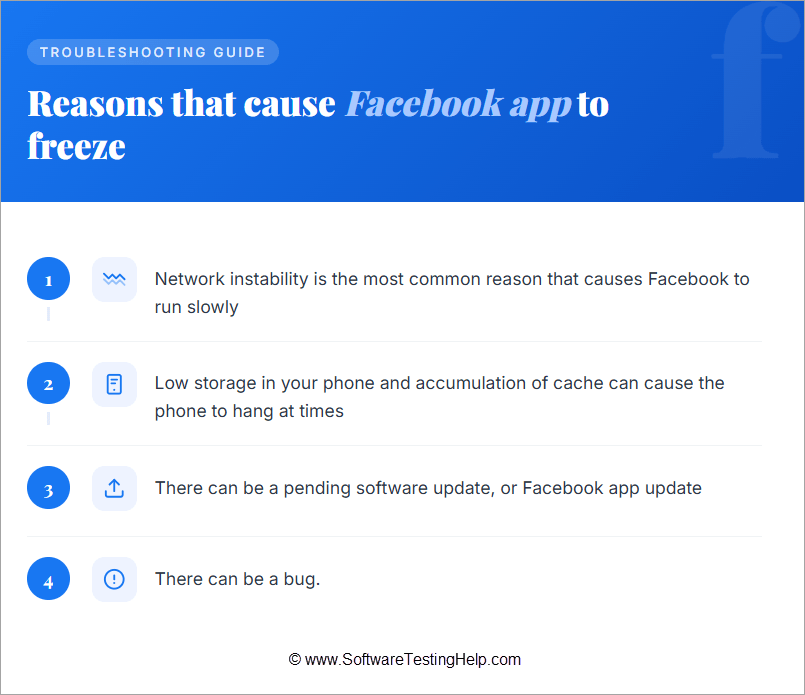
- Network instability is the most common reason that causes Facebook to run slowly
- Low storage on your phone and the accumulation of cache can cause the phone to hang at times
- There can be a pending software update or a Facebook app update
- There might be a bug
What is Facebook Cache?
Your device temporarily stores the data of your recently viewed images, videos, etc. The data stored from Facebook browsing is the Facebook cache. Storing cache (like Display Pictures, images, etc., that you have recently viewed) saves your internet data, which would have been used in downloading those images/files repeatedly when you open them again.
It also improves Facebook performance and speed, as some data remains already stored in the phone’s storage. But if there is some storage issue in your phone (if the storage is full), then the accumulation of cached data can cause issues like Facebook freezing occasionally or running slowly.
Why Should You Clear Facebook Cache
Though Facebook cache helps in improving Facebook performance, too much cached data can cause the Facebook app to slow down at times, especially when your phone does not have enough storage.
In that case, you will need to clear the cache from different apps you use, like Facebook, WhatsApp, etc. Clearing the cache can also fix small glitches that cause issues with the apps.
How Much Data Can Facebook Cache Consume Typically
When you scroll through the posts on the Facebook app, you watch several photos, videos, etc. The Facebook app keeps a record of your recently watched posts, which is called cache.
This cache can sometimes consume over 1 GB of your phone’s storage, leading to issues with the phone’s functioning, which is why it becomes necessary to clear Facebook cache at times.
Further Reading => Can you Clear Discord Cache: Step-by-Step Guide
How to Clear Facebook Cache: Perfect Ways
There are different ways of clearing Facebook cache, based on your phone model and platform (mobile/web/desktop).
Let’s learn more about each method.
#1) Clear Facebook Cache on iPhone While Using Facebook on Web
When you use Facebook on your iPhone browser, to clear the cache, you’ll have to go to Settings, then Safari browser, and then clear its cache.
Here are the steps for clearing Safari’s cache:
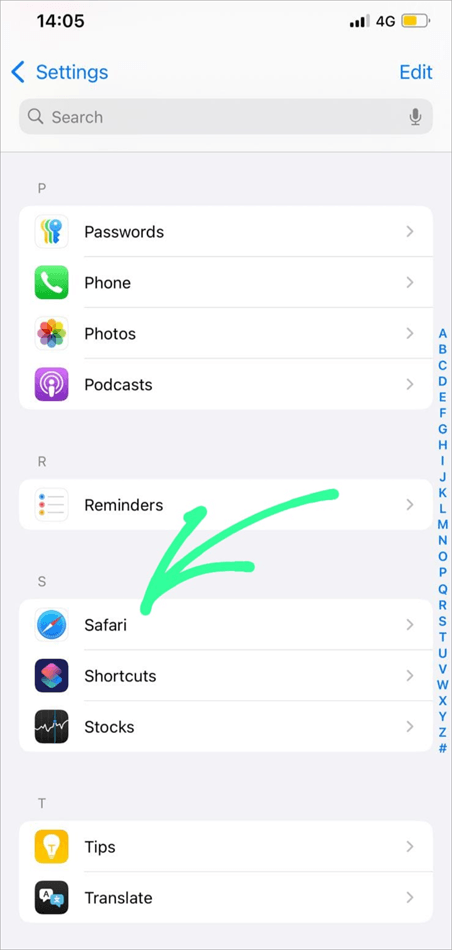
- Go to Settings
- Select Safari as depicted below.
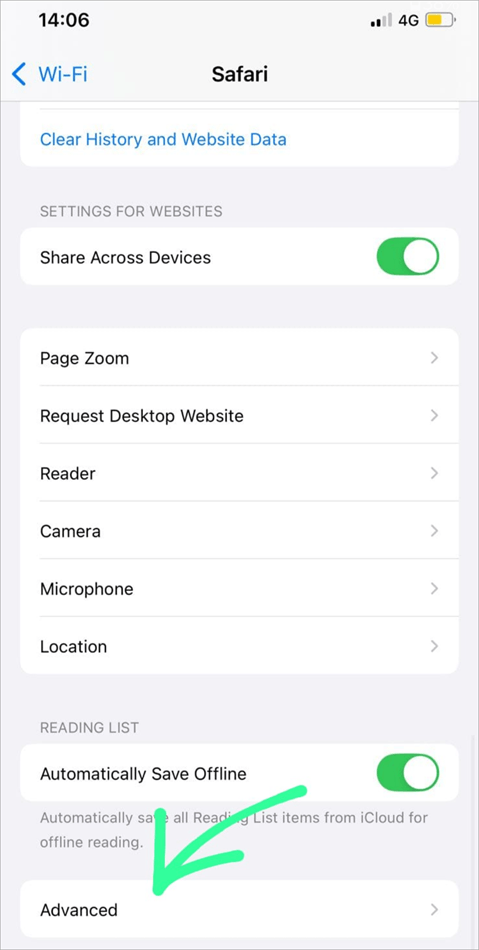
- Choose Advanced as in the image below.
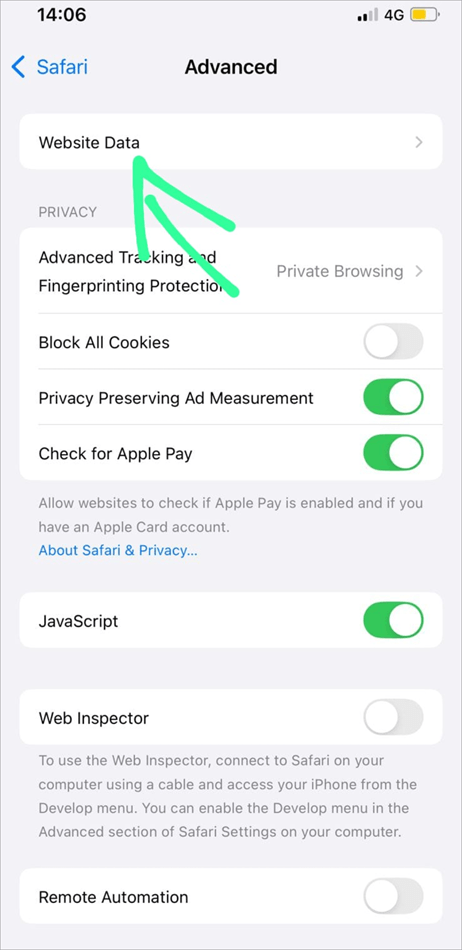
- Tap on Website Data option as shown below.
- Tap on the Remove All Website Data button as shown below.
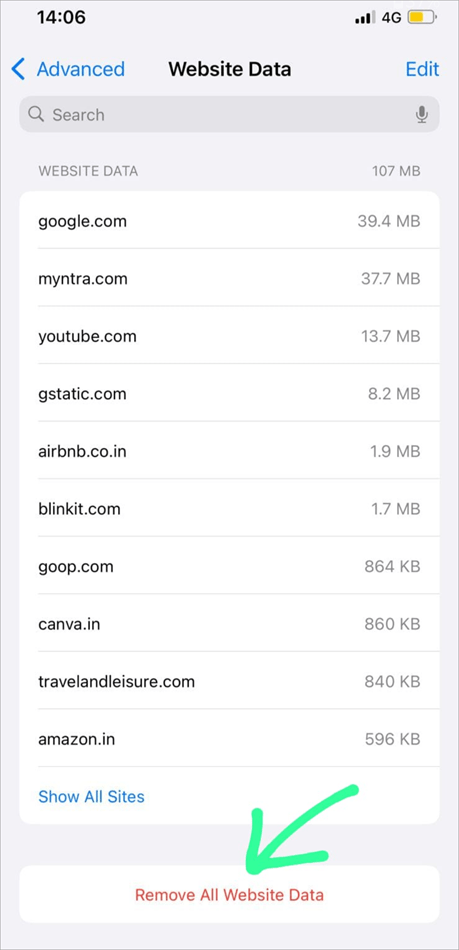
- Now select the Remove Now option.
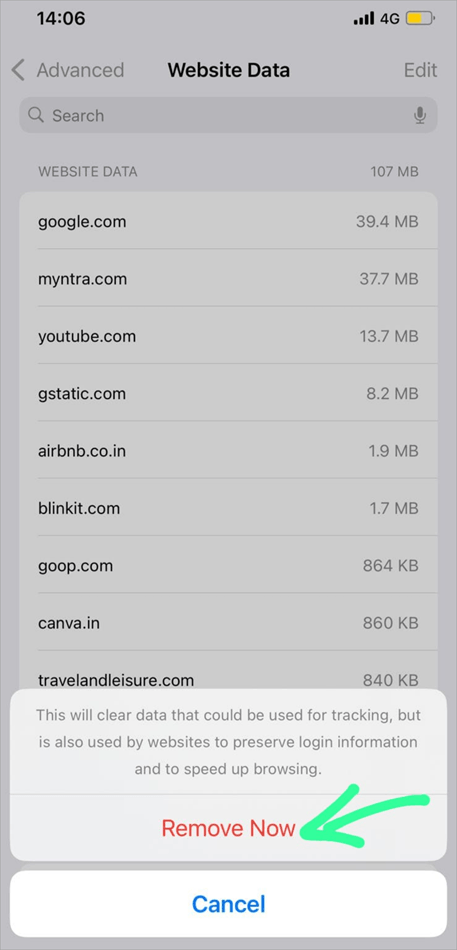
This will delete the cache, cookies, and browsing history, and will clear some storage in your iPhone.
If you want to delete the cache from the Mac, then press Option + Command + E.
To clear the cache on a Windows browser, press Ctrl + Shift + Del.
#2) Clear Facebook App Cache on iPhone
If you want to clear the cache from the Facebook app, follow these steps:
- Open the Facebook app by tapping on its icon.

- Now tap on the 3-line Menu icon located in the lower right corner of your screen.

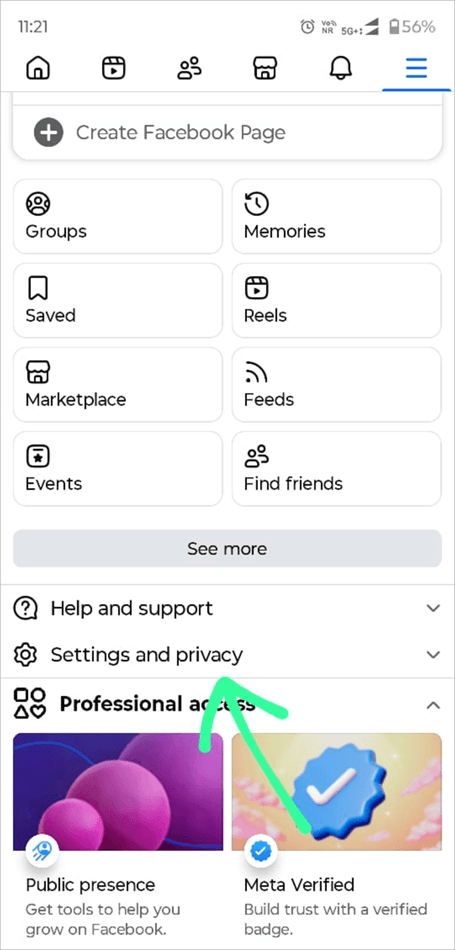
- Go to Settings & Privacy option as in the image below.
- Tap on the Settings option as shown below.
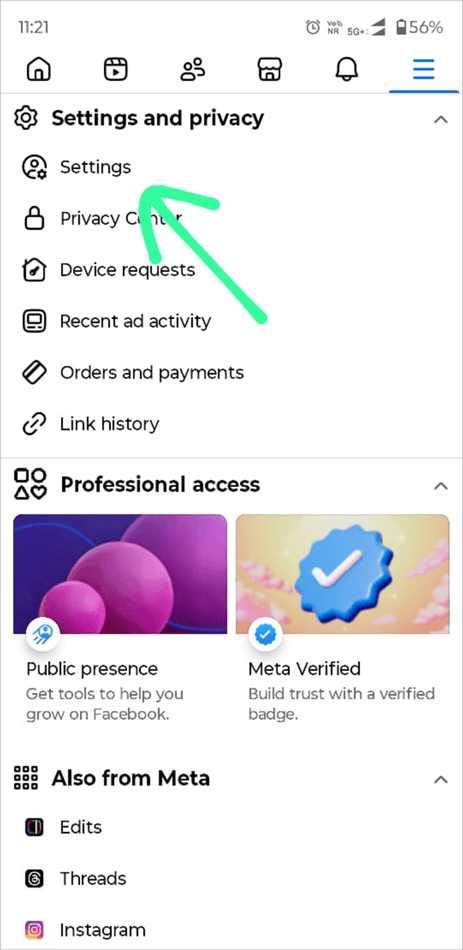
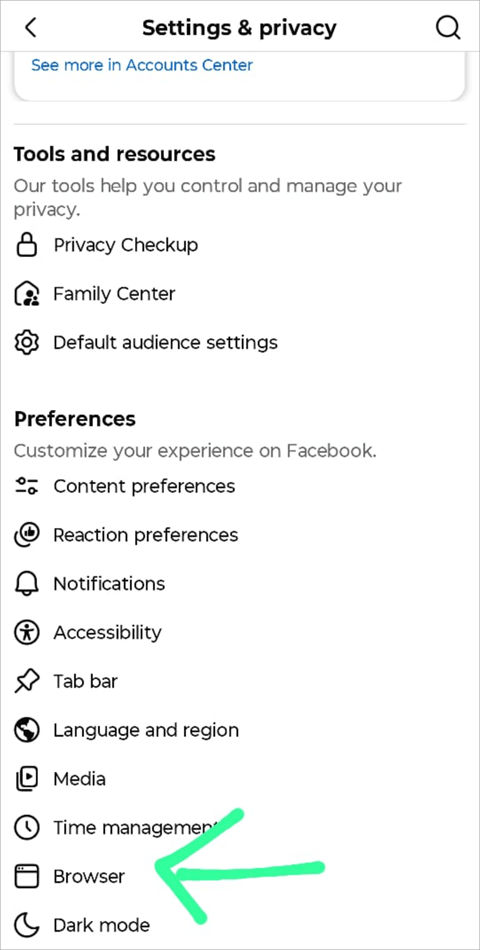
- Now, under the Preferences section, there will be an option: Browser. Tap on it.
- Tap on the Clear option located next to Cookies and Cache.
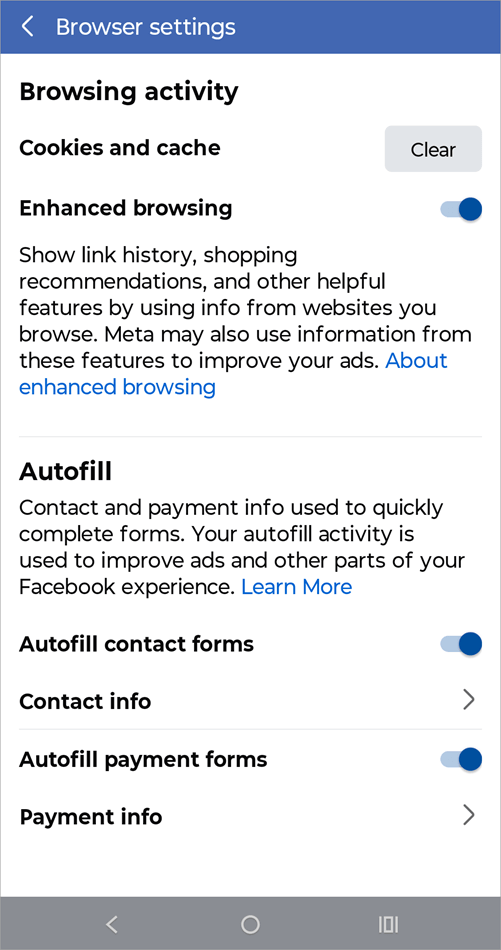
This will clear Facebook cache and will improve speed.
#3) Offload Facebook App
You can also choose to offload Facebook and then reinstall it. This will clear the cache and will also fix small glitches.
To offload Facebook on your iPhone, do as stated below:
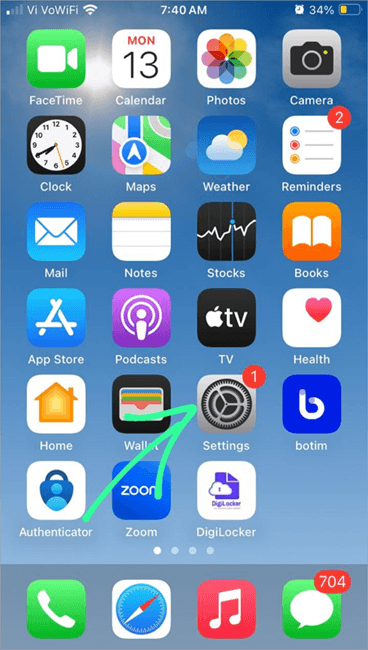
- Go to Settings
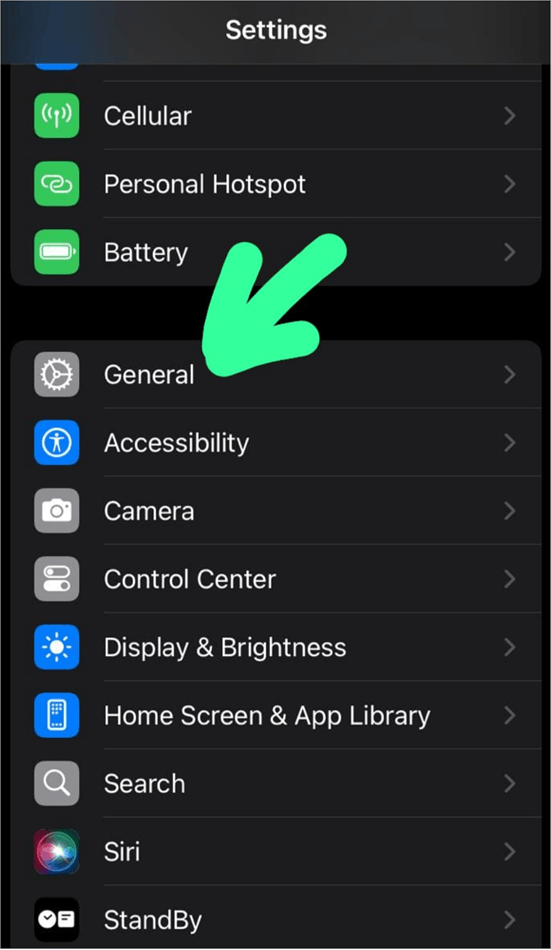
- Select the General option as shown below.
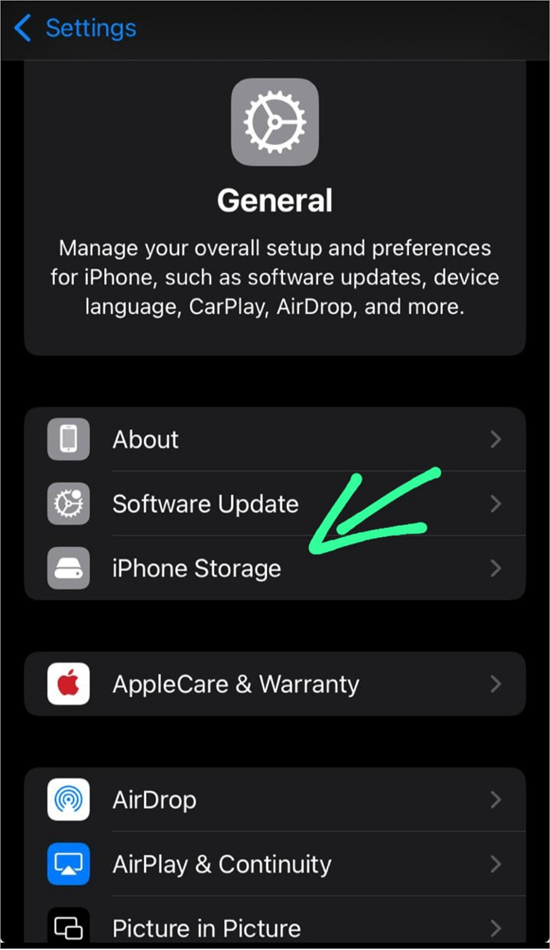
- Choose iPhone Storage as shown below.
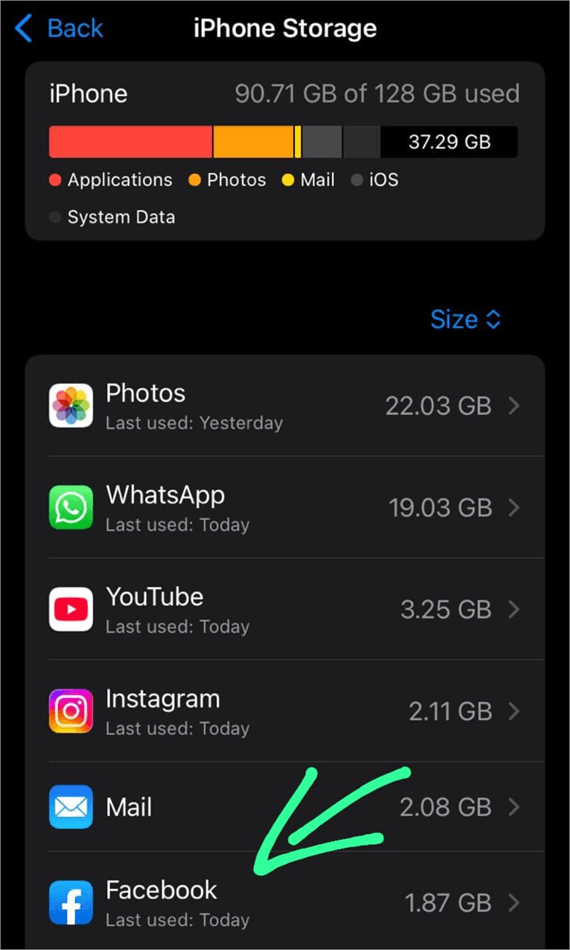
- Select Facebook
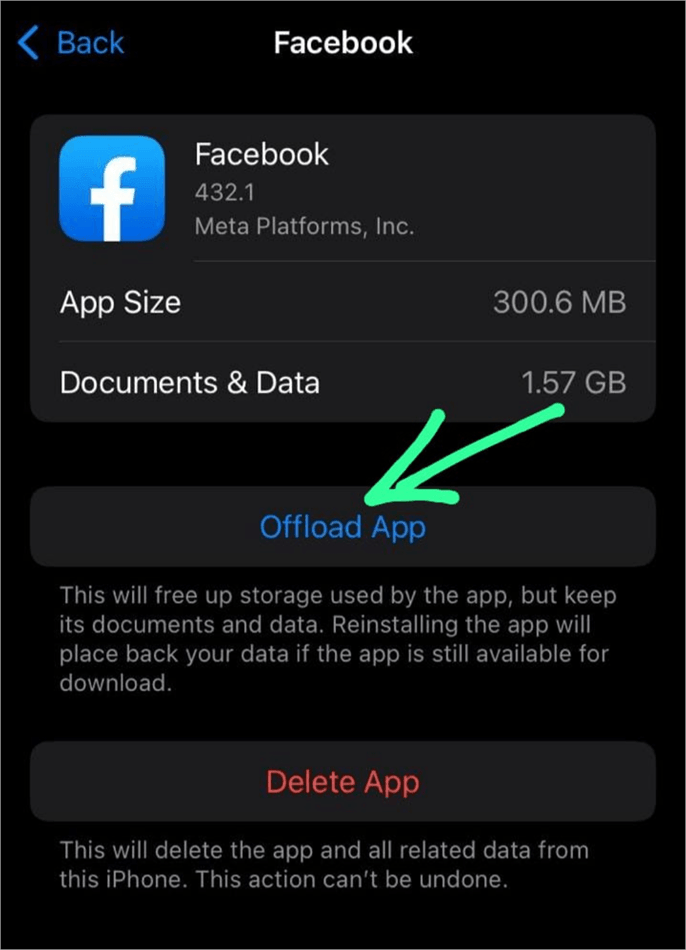
- Now select Offload App
- Tap on Offload App again to confirm.
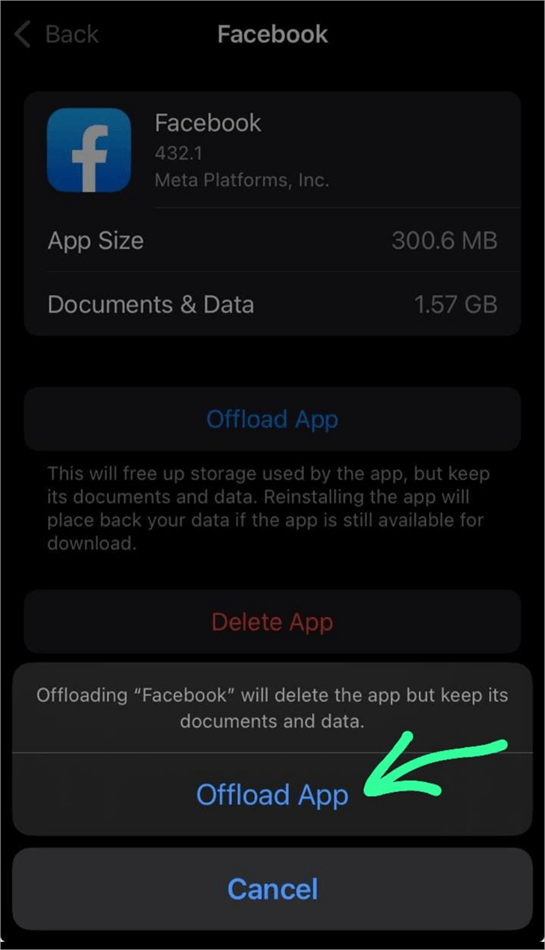
This way, the app will not be entirely deleted. You will still be able to see its icon on your Home screen. You can tap on the small Cloud icon located just below the app’s icon to reinstall it and use it again.
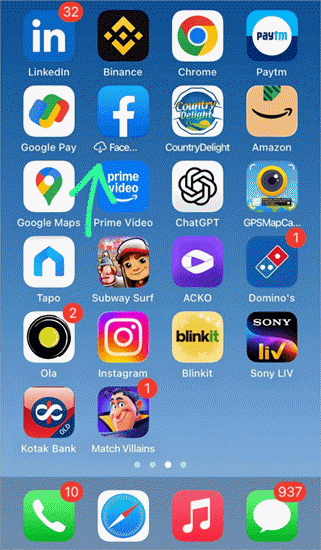
Please note that offloading an app on an iPhone does not delete the app’s data.
This method is useful when there is not enough storage in your iPhone, and you want to make some space. This way, your iPhone will get storage, and you can then reinstall the app later, when needed.
#4) Alternate Way of Clearing Facebook Cache
If the Facebook app is still causing issues, then you can try uninstalling and then reinstalling the app. This will clear the cache, plus it will fix small glitches.
The steps for this process are as follows:
- On your iPhone’s Home Page, find the Facebook icon and press it for 2-3 seconds.
- A menu box will pop up on your phone’s screen.
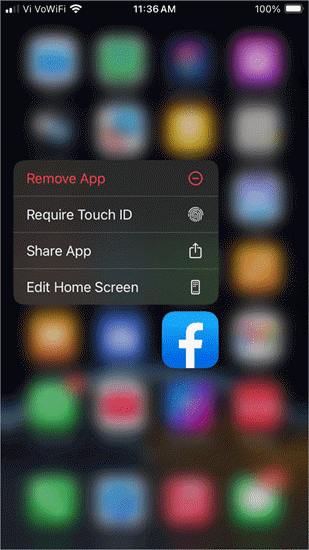
- Tap on Remove App.
- Another box will pop up. Now select the Delete App option.
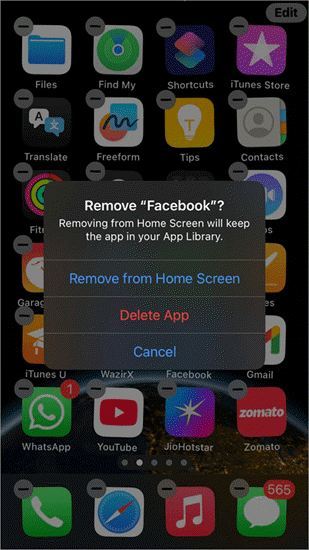
- The Facebook app will no longer be there on your iPhone.
- Now Restart your iPhone
- Go to the App Store, type in Facebook, and download the app.
- Once installed, tap on Open
- Now log in with your Username and Password. If you have forgotten your password, then click on Forgot Password and follow the steps on screen to change the password.
#5) Third-party Apps
Since iPhones do not have a feature to clear all the cache at once, people look for third-party apps for this purpose. Here we have come up with information about some of the most popular apps available for clearing the cache on an iPhone.
- Phone Cleaner: SuperCleaner is used for saving battery, removing temporary files, deleting duplicate photos, videos, and contacts, and more. The app is available in 21 languages. It offers in-app purchases and a free trial for 3 days.
- Clever Cleaner: This is a free, ad-free iPhone cleaner app with features like clearing cache, deleting duplicate photos, compressing large videos, and more.
- Cleaner Kit: Another free app for cleaning your iPhone is Cleaner Kit. It has over 70 million users. The app is available in 12 global languages and offers tools for clearing cache, merging duplicate contacts, compressing videos, and much more.
#6) Reset Your iPhone to Solve Storage Issues
If the issue is with your iPhone and not just the Facebook app, if the iPhone frequently freezes while using, and you have tried all the above-stated methods, then you can go for a Factory Reset. This will most probably fix your issue. But remember to back up your data before you go for a Factory Reset.
To do a Factory Reset on your iPhone, follow these steps:
- Open the Settings app
- Tap on General
- Choose the option- Transfer or Reset iPhone
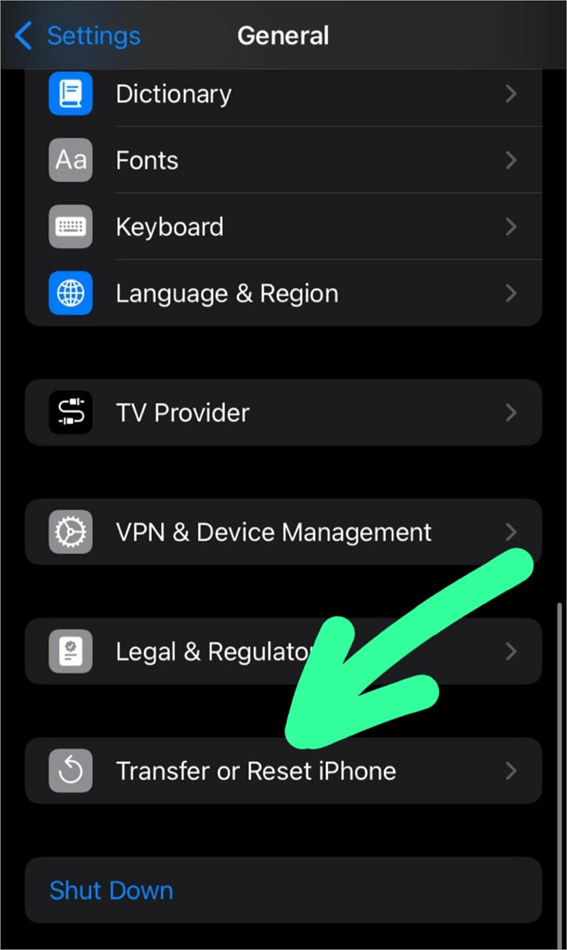
- Select Erase All Content and Settings
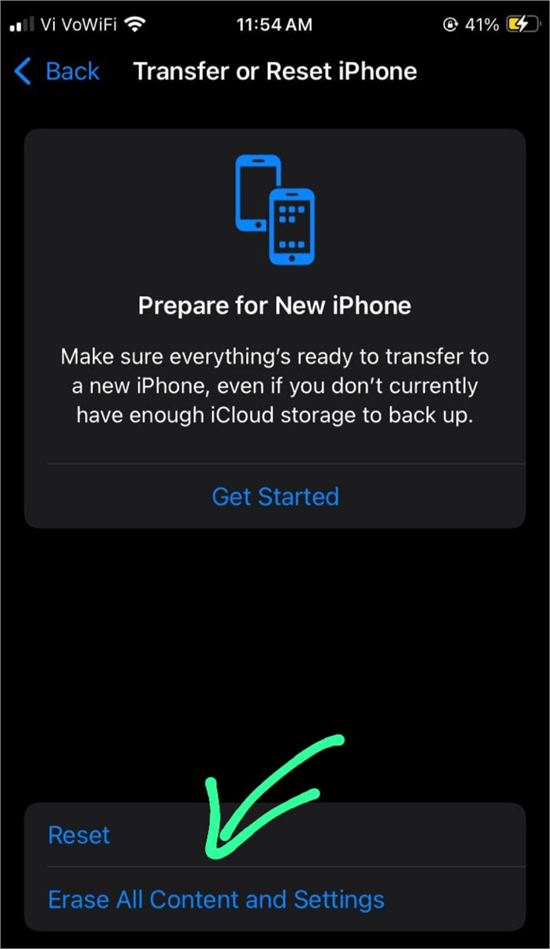
- Now you’ll have to enter your passcode and then confirm.
Then you can restore your content from the backup.
What to do if Facebook Still Runs Slowly
If your Facebook app is still running slowly after taking all the above-stated steps, then there would be one of the following issues with your iPhone:
- The Facebook app may need an update
- Your iPhone may need a software update
- Your internet may be slow. Check your phone’s signals or Wi-Fi connection.
- Storage issues also cause the phone to run slowly. Delete big files to make some space in your iPhone.
- Try using the web version.
How to Clear Facebook Messenger Cache on iPhone
Since Facebook Messenger is a separate app, you would need to offload it too if you want to clear the cache.
For offloading Facebook Messenger, follow these steps:
- Go to Settings
- Select General
- Choose iPhone Storage
- Select Facebook Messenger
- Now select Offload App
- Tap on Offload App again to confirm.
After offloading the app, you will still see its icon on your Home Screen. There will be a small Cloud icon on the Messenger app’s icon. Tap on it to re-install the app.
You can also try uninstalling and reinstalling the Facebook Messenger app to clear the cache.
This can be done by following these steps:
- On your iPhone’s Home Page, find the Messenger icon and press it for 2-3 seconds.
- A menu box will pop up on your phone’s screen.
- Tap on Remove App
- Another box will pop up. Now select Delete App.
- The Messenger app will no longer be there on your iPhone.
- Now Restart your iPhone
- Go to the App Store, type in Facebook Messenger, and download the app.
- Once installed, tap on Open
- Now log in with your Username and Password.
Frequently Asked Questions
1. How do I clear my cache in settings on iPhone?
Phone does not have a feature to clear the app cache. To delete browsing history and data, users must adhere to the steps outlined here.
• Go to Settings
• Select Safari
• Tap on Advanced
• Choose Website Data
Now choose Remove All Website Data.
Or else, you can download a third-party app for cleaning all the cache. Several iPhone applications offer tools for clearing cache, removing duplicate photos and contacts, compressing large videos, and much more.
2. How to clear iPhone cache without deleting apps?
Cache for apps like Facebook and Instagram can be cleared from inside the app’s settings.
To clear Facebook’s cache, follow these steps:
• Open the Facebook app by tapping on its icon.
• Now tap on the 3-line Menu icon located in the lower right corner of your screen.
• Go to Settings & Privacy
• Tap on Settings
• Now under the Preferences section, there will be an option: Browser. Tap on it.
• Now tap on the Clear option located next to Cookies and Cache.
Or, you can offload the app to clear its cache and free up space in your iPhone.
To offload an app, follow these steps:
• Go to Settings
• Select General
• Choose iPhone Storage
• Select the app that you want to Offload.
• Now select Offload App
• Tap on Offload App again to confirm.
The app will not be deleted. You will still be able to see its icon on your Home screen. You can tap on the Cloud icon located below that app’s icon to re-install the app and use it again.
3. Is clearing the cache the same as clearing browsing history?
If you use an application (like Facebook) through your web browser, then clearing the browsing history would clear the cache (or the browsing data stored in the iPhone).
But, clearing the browsing history won’t clear the cache for different apps like Instagram, Facebook, WhatsApp, iMessage, etc. To clear their cache, you will have to offload each app. Some apps have tools for clearing cache from the Settings inside the app.
4. What’s the difference between clearing data and cache?
Clearing the cache means removing the files that are temporarily stored by the phone for quick browsing and to avoid repeated downloading of files.
Clearing the data means deleting files (images, videos, etc.- sent or received in the app), login information, etc. This is done only when you no longer need the app’s data, or when you want to delete the old account and log in with a new account.
5. What are the disadvantages of clearing the cache?
Caches are actually useful for quick browsing.
If you clear them, it will have the following disadvantages:
• If you want to see an image you recently viewed, the image will be downloaded again.
• This consumes more data
• Re-downloading of a file will take a while.
6. Will I lose passwords if I clear cache?
No, clearing the cache doesn’t log you out of any account, and neither does it cause any issues with your account passwords. It just deletes the temporary files saved in your phone, to improve the phone’s performance by clearing some storage.
7. What happens if you never clear your cache?
You don’t actually need to clear the cache in your iPhone. In fact, iPhones do not have an in-built feature for clearing cache, because there is no need. The system automatically removes the files stored in the cache after a while.
It’s just that when any of your apps start running slowly, or when your phone freezes again and again, then you clear the cache, in order to clear some space in your phone. Sometimes, the cache gets built up and causes issues; in that case, users also need to clear the cache.
8. How do I erase search history on Facebook?
To clear the Facebook search history, follow these simple steps:
• Open the Facebook app
• Tap on the 3-line Menu icon in the upper left corner of your screen
• Now tap on your Name
• Now tap on the 3 dots in the upper right corner of your screen.
• Select Activity log
• Choose Logged Information
• Tap on the ‘v’ icon next to Search
• Select Your Search History
• Now select Clear Searches.
Conclusion
Many iPhone users are spotted looking for ways to clear cache because iPhones do not really have an in-built feature of clearing cache, automatically or manually. So we did some research to clear the apps’ cache on iPhones.
The different ways of clearing Facebook cache are:
- Clear Safari history if you are using Facebook on your web browser
- Offload, and then re-install the app
- Delete, and then re-download and re-install the app
- Go to the Facebook app’s Menu to clear Facebook cache
- Use a third-party app like Phone Cleaner, Clever Cleaner, or Cleaner Kit for clearing cache. These apps are quite popular and have good ratings. They can be used for clearing iPhone storage by clearing cache, removing duplicate photos, merging duplicate contacts, and much more.
Some users fear that clearing the cache would erase their important data. Let me clarify that none of your data will be deleted by clearing the cache.
But, if you are using a third-party app that offers many other features along with clearing the cache, then be very cautious, so that you don’t delete an important file while using features like deleting duplicate items.
Research Process: The total time involved to complete and publish this article is approximately 48 hours. This content was created through a structured research approach to ensure accuracy and reliability.
For more quick Facebook-related guides, you can explore our range of tutorials below:
- Why Does Facebook Keep Logging Me Out? Quick Fixes
- How to Find Recently Watched Facebook Videos History
- How to Fix Facebook Dating Not Showing Up Issue
- How to Clear Instagram Cache on iPhone and Android Phones
- Best Facebook Video Downloader Software (Top Rankings)
- Top Facebook Lead Ads Integrations with Your CRM
- Download Facebook Reels Videos Online for Free
Was this helpful?
Recommended Reading
-

Do you often take screenshots on Facebook and wonder if Facebook notifies other people when you take a screenshot? Learn whether Facebook sends screenshot alerts for stories, messages, posts, and profiles and protect your privacy. Regardless of the action you are performing on Facebook, whether it is viewing a profile, reading a…
-
Can't find the Facebook video that you watched? Find your recently watched Facebook Videos History on any device. Retrieve Facebook video watch history and revisit any lost video instantly: Let’s say you came across a hilarious video on Facebook yesterday. You can’t wait to watch it again right away. Alas!…
-

Is Facebook dating not showing up in your app? Explore the troubleshooting steps for the Facebook dating not working issue and fix the FB dating not working problem within minutes: Facebook's new feature, Facebook Dating, helps people who share common interests and are looking for lovers to find each other.…
-
List and comparison of the top Facebook Video Downloader with features and pricing. Select the FB Video Downloader software from this list per your requirements: You have to be living under a rock to not know what Facebook is. It is after all a behemoth amongst social media platforms. From…