Get ready to connect Discord to PS5 Gameplay Live with your friends. Follow our simple guide to stream PS5 to Discord on PC or mobile using capture card or remote play in minutes:
Don’t know how to stream PS5 to Discord? Well, I’ve got you covered. I’ve always preferred streaming my game sessions on Discord. Unlike public broadcasting channels, Discord offers a private, low-latency environment for my streams.
I get to play the games I love while chatting and laughing with friends who get to watch my streams remotely without frame-rate drops or lag.
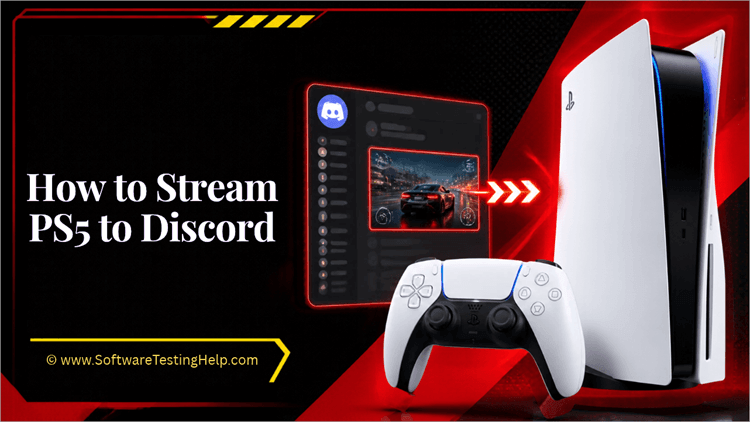
That said, streaming on Discord via your PS5 can be tricky. There isn’t a native option in Discord that allows you to stream PS5 directly into one of its channels or servers.
This is where my guidance comes in. Consider this article the only guide you’ll need to learn how to connect Discord to PS5.
Key Takeaways – Ways to Stream Discord to PS5
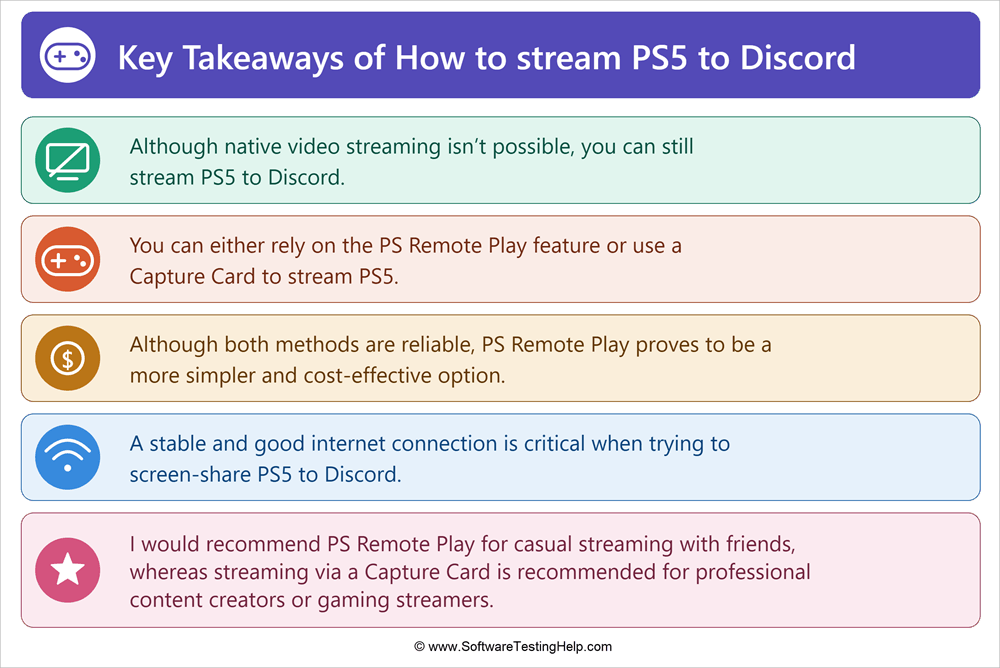
- Although native video streaming isn’t possible, you can still stream PS5 to Discord.
- You can either rely on the PS Remote Play feature or use a Capture Card to stream PS5.
- Although both methods are reliable, PS Remote Play proves to be a simpler and cost-effective option.
- A stable and good internet connection is critical when trying to screen-share PS5 to Discord.
- I would recommend PS Remote Play for casual streaming with friends, whereas streaming via a Capture Card is recommended for professional content creators or gaming streamers.
Can You Stream PS5 to Discord Directly?
As I mentioned before, there isn’t a dedicated feature that lets you stream PS5 to Discord directly. There are workarounds, though. You’ll need to rely on an external computer or specialized tech to capture gameplay video.
The simplest way to connect a PS5 to Discord would be via PS Remote Play. Alternatively, capture cards used in combination with software like OBS can also prove effective.
Here is the video guide on how to stream PS5 to Discord:
Everything You Need Before Starting
You’ve got two methods in front of you for connecting a PS5 to Discord without hassle. The things or equipment you’ll need will depend on which method you ultimately go with.
If you choose PS Remote Play, here’s everything you’ll need:
- A PS5 Console with up-to-date system software
- A Mac or Windows PC
- The PS Remote Play app installed on your computer
- A DualSense Controller
- A PlayStation Network account
- An active Discord account
- A good, stable Internet connection
If you choose to use a capture card, here’s everything you’ll need:
- A PS5 Console with up-to-date system software
- A Mac or Windows computer
- Capture Card
- At least two HDMI cables
- A USB cable for the capture card
- OBS installed on your computer
- Discord account
With that out of the way, let’s discuss how to stream PS5 to Discord on Mac and Windows.
How to Stream PS5 to Discord
Here are the 2 prime methods for streaming your PS5 gameplay to Discord.
Method 1: PS Remote Play
Let’s start with the simplest method. I don’t use the word simple lightly. Going with the PS Remote Play route means you’ll need less hardware for the job. You’ll be able to stream PS5 on Discord without a capture card.
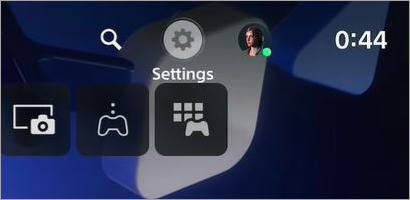
Step 1: Enable Remote Play
[Via GuideRealm]
First, turn on your PS5. Go to Settings > System. Select “Remote Play” from the left-hand-side menu and select “Enable Remote Play”.
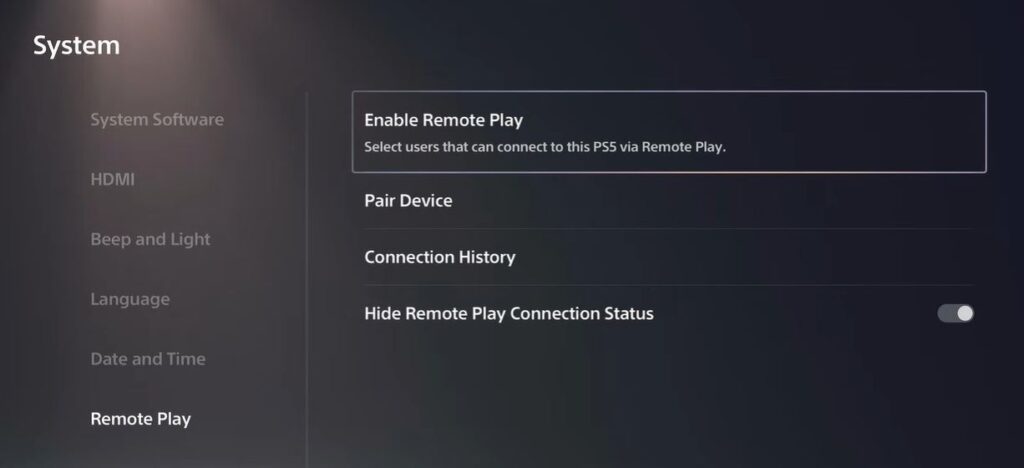
Remember, we want Remote Play to be on even when your PS5 is in rest mode.
So do the following as well:
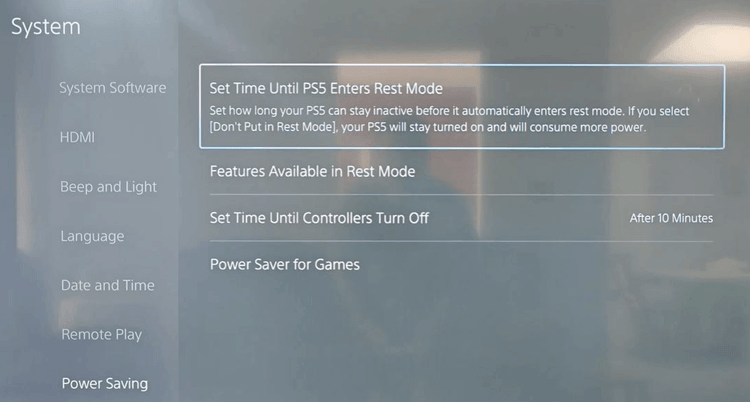
1. Go to Settings > System
2. Select Power Saving from the left-hand-side menu.
[Via Silentgaming]
3. Select Features Available in Rest Mode.
4. Now, turn on the following options:
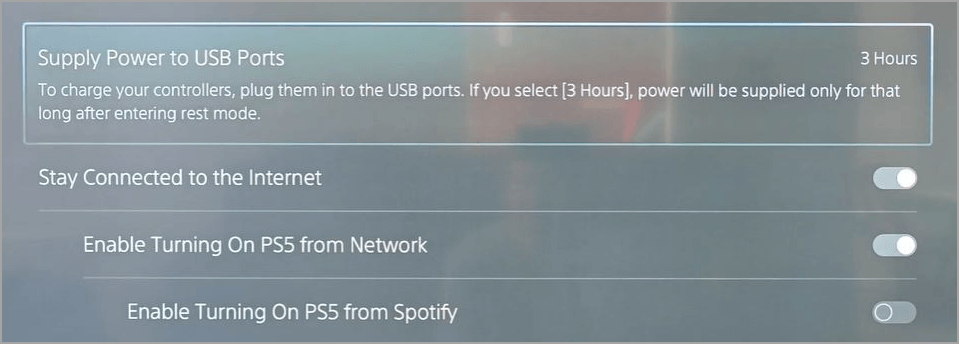
- Stay connected to the internet.
- Enable turning on the PS5 on the network.
Step 2: PS Remote Play Installation
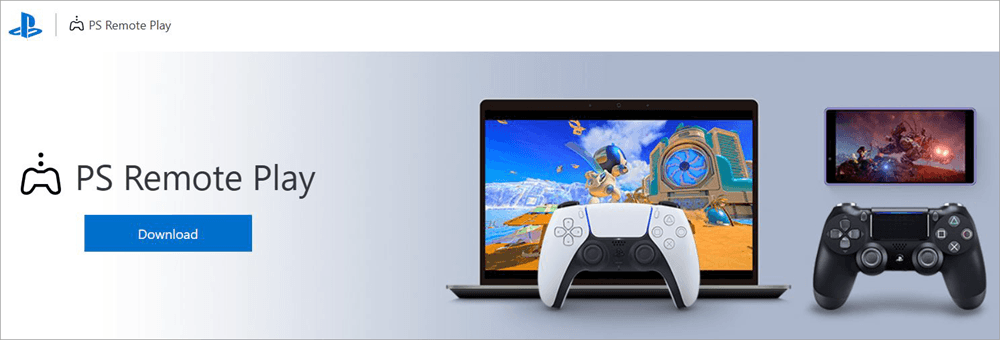
Now, go back to your Windows or Mac computer. Open the browser on your computer and visit the PS Remote Play website. You’ll need to download its app for your computer and install it by following the on-screen instructions.
Step 3: Connect the PS5 Controller to PC
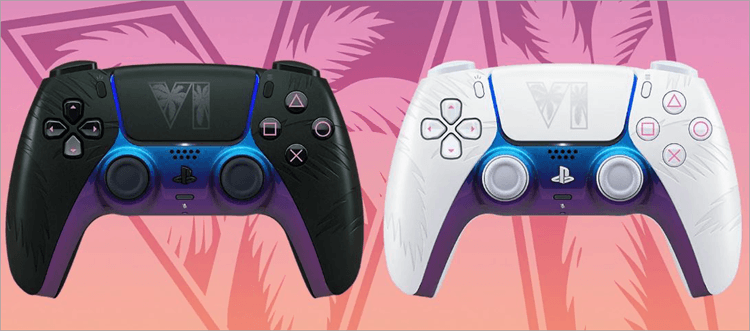
This is where your DualSense controllers will come into play. You can connect this controller to your Mac or Windows PC via a USB cable or a Bluetooth connection.
[Via PlayStation]
Step 4: Connect PS Remote Play to PS5
1. Open PS Remote Play on your PC
2. Sign in using the same PlayStation Network account that you use to sign in to your PS5.
3. Wait for the PS5 to be paired with your computer.
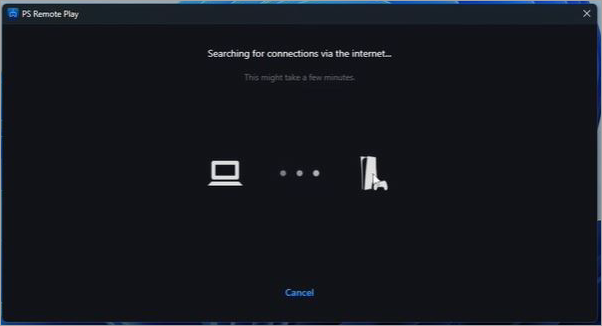
4. You’ll see your PS5 screen pop up on your computer once the connection has been established.
Step 5: Open Discord
Open Discord and sign in to your account. Join or enter the voice channel where you’d like to stream your PS5 gameplay. Make sure that the channel has granted you streaming permission.
Step 6: Screen Sharing
Select “Share Your Screen” from the Discord Voice Panel below. You’ll see a screen-share window pop up. Select PS Remote Play, set your resolution and frame rate. Finally, click on “Go Live”.
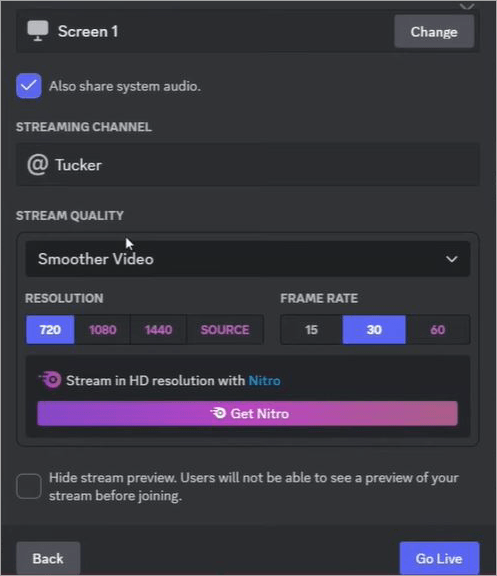
Congrats! Your PS5 is now streaming on Discord. Everybody on that Discord channel will be able to see and hear your game session. You’ll also be able to chat and talk to everyone within that channel in real time.
Although this is the simplest method, there is a trade-off. You’ll have to contend with occasional latency issues, connection drops, and visual quality compression.
You solve those issues by going with the Capture Card method instead.
Method 2: Capture Card
Step 1: Disable HDCP
Turn on your PS5 and go to Settings.
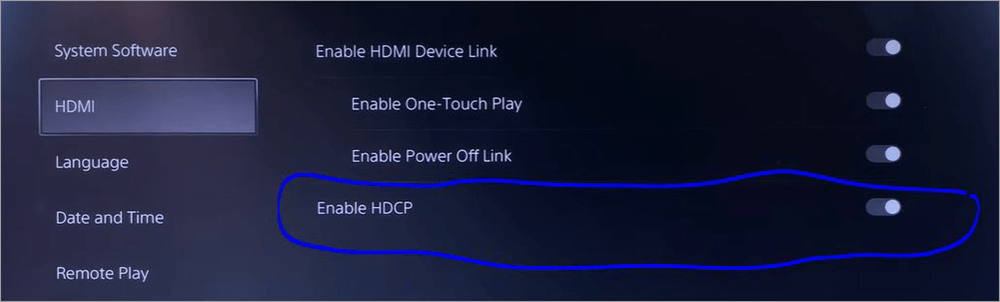
1. Select System > HDMI
[Via WebPro Education]
2. Find the option that says “Enable HDCP” and turn it off.
Doing this is a crucial first step, as HDCP can intercept the signals your PS5 would be sending to a nearby capture card. HDCP’s entire purpose revolves around protecting copyrighted content. A PS5 Discord stream black screen is mostly caused by enabled HDCP.
Our goal here is to broadcast PS5 gameplay (which is copyrighted material) to a Discord channel. So obviously, we’ll need to disable it and thus fix the black-screen issue in the process.
Step 2: Connect PS5 and Computer to the Capture Card
Depending on the capture card you’ve purchased, the process to connect it to a PS5 may differ.
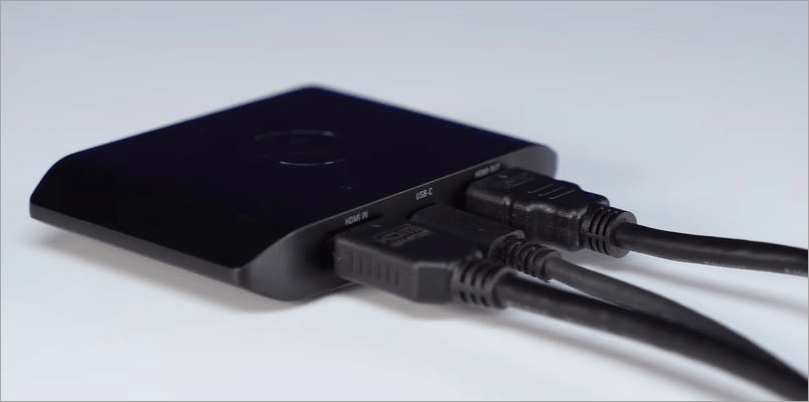
The basic blueprint will be something like this:
[Via Elgato]
- Connect your capture card to your PC via a USB cable.
- Connect the first HDMI cable from the HDMI Out port of your capture card to the HDMI In port of your computer or monitor.
- Connect the second HDMI cable from the HDMI In port on the capture card and connect the other end to the HDMI Out port of your PS5.
Step 3: Launch OBS
Make sure you have OBS Studio installed on your PC.
Open it and do the following:
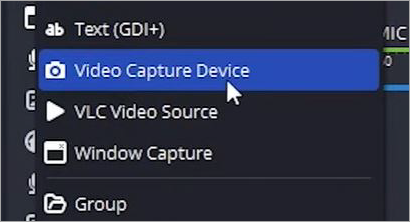
1. Click on the “+” icon.
[Via The Legendary Hero]
2. Select Video Capture Device.
3. Name the new scene and click on OK to create a Source.
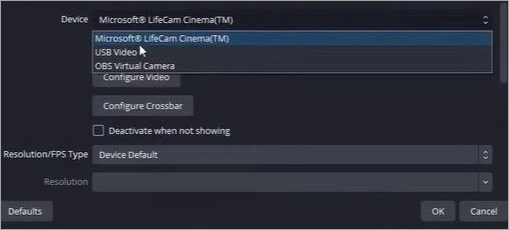
4. Select “USB Video” as the Device and hit the “OK” button.
You should see your PS5 gameplay appear in OBS.
Step 4: Open Discord
Sign in to your Discord account and open the voice channel where you’d like to stream your gameplay. Select “Share Your Screen”.
In the Screen Share window that opens, select OBS and then click on “Go Live”.
Everyone on that Discord channel will now see and hear your PS5 game session. Just like that, you’ve now learned how to stream PS5 games on Discord.
Other Methods to Connect Discord to PS5
Apart from the above two methods, there are a few other methods to connect Discord to PS5.
#1) Natively Stream to Twitch or YouTube and Drop Link
This is a great, less-talked-about and adopted method that can facilitate high-definition streaming.
Here’s what you need to do:
- Link PS5 to your Twitch or YouTube account.
- Launch the game.
- Hit the small button with three lines you’ll find on your DualSense controller to open the Broadcast menu.
- Select Broadcast > Choose Platform (YouTube or Twitch) > Go Live
- Now, just open Discord on your phone or computer and simply drop the link to your Twitch or YouTube stream in the channel where your audience is.
Upon clicking the link, your friends will be redirected to the stream. They’ll have to leave the Discord channel.
Moreover, stream latency is another issue you’ll have to tolerate, with your audience experiencing a delay of up to 30 seconds between what you do and what they see.
#2) Remote Play via Mobile Devices
Another thing you can do is use the PS Remote Play mobile app to screen share your PS5 on Discord. However, you’ll have to tolerate several restrictions via this method.
Here’s how you employ this method:
- Enable Remote Play on your PS5.
- Launch the PS Remote Play app on your iOS or Android device.
- Connect the app to your PS5.
- Now, open the Discord App on your phone, visit the channel where your audience exists, and tap on Share Your Screen.
- Go back to the Remote Play app to display the stream.
Warning: Both the Discord and PS Remote Play app demand heavy bandwidth. This means your streams will be plagued by frequent lag, pixilation issues, and sudden drops in connection.
How to Pick the Right Capture Card
Capture Cards aren’t cheap. A generic card will cost you around $7 to $30, whereas a high-end alternative can cost you anywhere around $3000.
We are talking about the PS5 here. So it will be in your best interest to invest in a quality capture card, one that can offer you the features necessary when streaming on Discord.
Here’s how you pick the right capture card:
- Consider the resolution and frame rate you play games in. If you consistently play in 4K resolution, you’ll need a capture card with 4K120 or 4K60 pass through.
- If you want the colors in your gameplay to pop, I suggest buying a card that supports HDR passthrough.
- Choose a capture card that supports VRR passthrough. This will prevent screen tearing when streaming.
- Check the capture card audio and software compatibility. At the very least, you want the capture card to work smoothly with software like OBS.
Remote Play vs Capture Card: Which Method to Choose
Both methods are effective at letting you connect PS5 to Discord. However, one might be better than the other, depending on your ultimate goal of streaming on Discord.
As for which is the better option, perhaps the table below can clear that up:
| PS Remote Play | Capture Card | |
| Latency | Higher | Lower |
| Network Reliability | Influenced by network quality | Consistent network reliability |
| Setup | Simple | Relatively complex |
| Visual Quality | Compressed but decent | Relatively better |
| Cost | Free | Capture cards are expensive |
| Best for | Streaming with friends | Professional streaming and independent content creation. |
Needless to say, the option that’ll best suit you will ultimately boil down to what your end goal is. PS Remote Play is perfect for folks who want to do nothing more than just enjoy their time on the PS5 with friends watching them play remotely.
If you want better image quality and wish to stream regularly or aspire to be a professional e-gamer, then I suggest investing in the best capture card you can find.
Discord Stream Quality: Free vs Nitro
You can use Discord for free or subscribe to its Nitro plan. As a standard user of Discord’s free tier, I noticed that stream quality was capped at 720p with a frame rate of 30 fps. Now, this isn’t really bad. It is decent, even, especially if your goal is casual streaming every once in a while.
I would strongly recommend buying a Nitro subscription if you plan to stream regularly and carve a career out of it for yourself. Discord’s Nitro plan will grant you a significantly better quality upgrade, with streams reaching 4K at a frame rate of 60 fps.
Nitro will cost you $9.99/month and 99.99/year, which isn’t a bad deal at all. It is worth noting, though, that simply upgrading to Nitro won’t improve your stream’s visual quality. Your internet connection, hardware performance, and capture method will also play a major part.
Here’s a table explaining other limits you’ll experience on Discord’s free vs Nitro plans:
| Feature | Free | Nitro |
| Server Join Limit | Up to 100 Servers | Up to 200 Servers |
| File Sharing | Up to 20 MB | Up to 500 MB |
| Message Length | 2000 characters | 4000 characters |
| Screenshare (DMs) | 720p @ 30 fps | 720p, 1080p, source @ 30 fps and 60 fps |
| Go Live DMs | 730p @ 30 fps | Source @ 60 fps |
Expert Tips to Stream PS5 Games on Discord
So, you now know how to stream to Discord from PS5. I would also suggest adhering to the following tips to ensure consistently better performance and quality when streaming your game sessions.
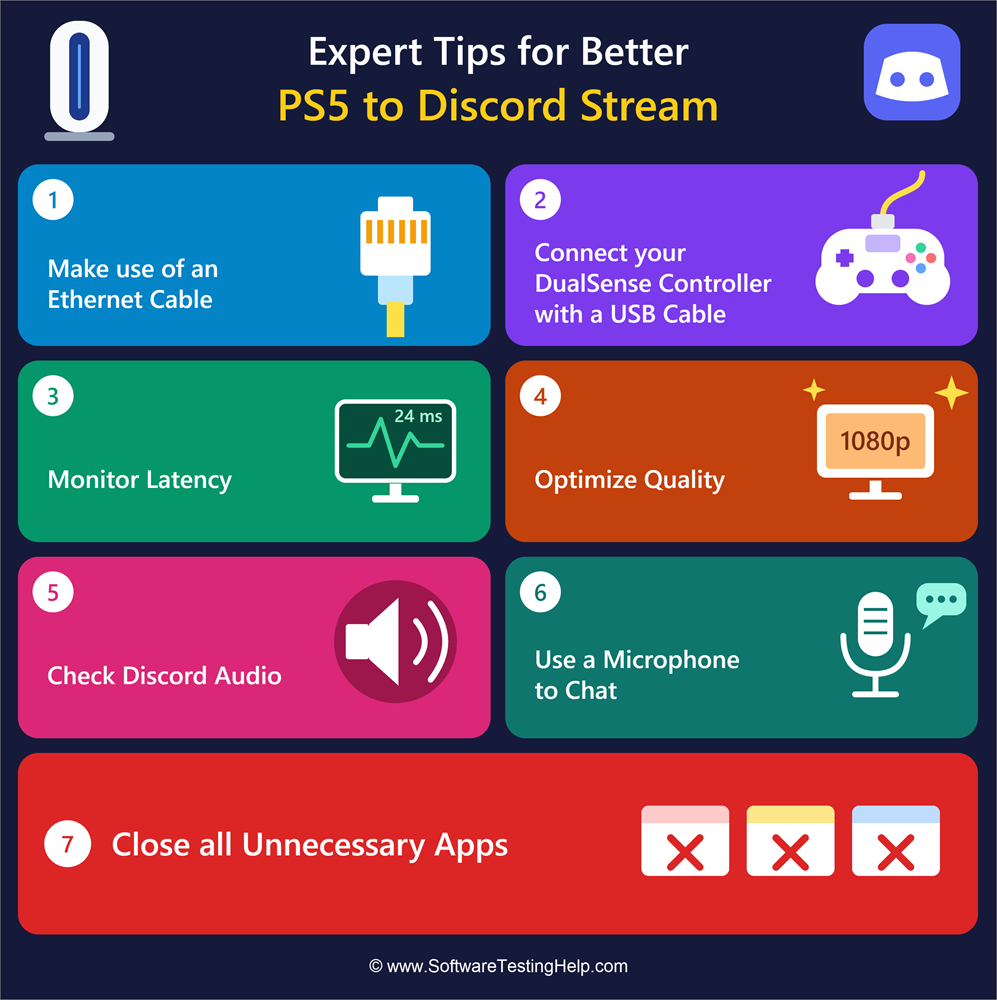
#1) Use an Ethernet Cable
Most people like the convenience that comes with having your PS5 and PC connected to the internet via Wi-Fi. That said, I would strongly recommend using an Ethernet cable to establish an internet connection when using PS Remote Play. Even the slightest drop in internet speed can affect how Remote Play streams your gameplay.
An Ethernet cable ensures a much stronger, more stable connection to the Internet. Therefore, I suggest using an Ethernet cable, if possible, instead of having your devices connected to Wi-Fi.
#2) Connect your DualSense Controller with a USB Cable
You are going to face similar connection issues if a DualSense is connected to a PC via Bluetooth. A USB cable can help you avoid many of the issues that can arise with wireless connectivity options.
#3) Monitor Latency
Keep an eye out for video that gets blurry, sudden resolution drops, or delayed response to controls. Latency issues mostly occur on Discord because of a poor or slow internet connection. Sony recommends a speed of at least 5 Mbps to stream gameplay via Remote Play.
#4) Optimize Quality
If you notice lag or resolution drops, I suggest optimizing visual quality by adjusting Remote Play’s frame rate and resolution settings. Drop resolution from 1080p to 720p if your network connection seems weak.
#5) Check Discord Audio
Most people only focus on video quality while completely ignoring audio settings. You want people in your Discord channel to both see and clearly hear your gameplay audio. Before you kick-start a stream, I suggest opening a random Discord voice channel to test the elements below:
- Microphone
- Game audio
- Voice chat
Ask your friend on the other side to help. Ask them to confirm whether they can see and hear everything properly on their side.
#6) Use a Microphone to Chat
If you are going to talk with your friends and other channel members, make sure you are using a microphone. A microphone will prevent your voice from echoing when chatting on Discord.
#7) Close all Unecessary Apps
Intense resource consumption will not only put a strain on your PC but also affect your Discord stream’s performance. Make sure you shut down all unnecessary apps before connecting PS5 to Discord.
Frequently Asked Questions
1. Can you stream to Discord from PS5?
Yes, you can stream to Discord from PS5, but not directly, as there isn’t a native feature that facilitates this. Streaming to Discord from PS5 is only possible with the PS Remote Play app or a capture card. You’ll find detailed instructions for both methods in the article above.
2. Can consoles stream on Discord?
Yes, all gaming consoles today can be streamed on Discord. However, the method for each varies. Xbox, for instance, facilitates direct streaming on Discord. On the other hand, PlayStation and Nintendo Switch do not support native Discord streaming. You’ll need to route the stream via external hardware (computer or capture card).
3. How to stream from PS5 to Discord with my phone?
You can connect PS5 to Discord with your phone via the PS Remote Play app.
The process will be as follows:
• Turn on your PS5 and Enable Remote Play
• On your iOS or Android phone, download PS Remote Play
• Sign in with your PlayStation Network account
• Wait till your phone pairs with your PlayStation 5.
• Open Discord on your phone. Select “Share Your Screen” inside the Discord channel you wish to stream your game session in.
• Select PS Remote Play from the list and tap on “Go Live”.
4. Why is Discord not working on PS5?
Discord may not work on PS5 for the following reasons:
• Your PS5 is running on outdated system software.
• Your PS5 and Discord account aren’t properly linked.
• Your PS5 or Discord’s privacy settings may be cancelling each other out.
• A software glitch affecting PS5 or Discord. Important: Channel permissions are denied.
This is an issue you can fix by employing any of the below troubleshooting measures.
• Unlink and relink Discord with your PSN account.
• Check and reconfigure audio and microphone settings.
• Update your PS5’s firmware.
• Disable hardware acceleration within Discord’s advanced settings.
• Ensure that Voice channel permissions for “Connect”, “Video”, and “Speak” are granted.
5. Do I need PS Plus to use Discord on PS5?
No, a PS Plus subscription is not necessary to use or access Discord on PS5. The only thing you need to do is have your PlayStation Network account linked to your Discord account.
Conclusion
So, there you have it: a definitive guide on how to connect PS5 to Discord. The fact that PS5 doesn’t provide native support for direct streaming on Discord certainly makes things challenging but not impossible. You’ll have to route your stream via the PS Remote Play app or a capture card.
Going with the PS Remote Play route is simple and won’t cost you a dime. However, you’ll have to contend with occasional latency problems and compressed picture quality.
Capture Cards, on the other hand, are expensive, but you do get significantly better picture quality and reliable performance.
Ultimately, I suggest you opt for the PS Remote Play method for casual streaming. If your goal is to take streaming PS5 on Discord as a career, then it makes sense to invest in a high-end capture card and go through the relatively complex setup process.
Research Process: The total time involved to complete and publish this article is approximately 41 hours. This content was created through a structured research approach to ensure accuracy and reliability.
For more-related guides, you can explore our range of tutorials below:
- How to Italicize Text in Discord
- How to Bold in Discord Quickly – Text Formatting in Discord
- Why Is Discord Not Opening on Windows PC?
- Discord Servers to Make Friends
- How To Clear Discord Cache Files on PC and Mobile
- Discord Timestamp Generator For Universal Timezone
- Discord Fatal JavaScript Error – 7 Possible Methods
- Top Discord Voice Changer Software (Latest Ranking)
Was this helpful?
Recommended Reading
-

Join the most active Discord communities for gaming or studying and build new connections. This step-by-step guide helps you discover the best Discord servers to make friends worldwide: What’s the first thing that comes to mind when you think of making friends online? If you immediately thought of platforms like…
-
Discover the top-rated Discord Timestamp Generator to convert date/time as per your timezone. Pick the right Discord Timestamp Maker to create timestamps instantly in all Discord styles: Discord is one of the most popular social media platforms, designed for gamers to communicate with each other in real-time while playing. It…
-

Learn the simplest way to make your text stand out in Discord chats. Discover the quick discord text formatting tricks to explore how to bold in Discord quickly and emphasize important messages: Discord is a gaming and communication application that acts as a social media platform where users can connect…
-
Is your Discord application experiencing some slowdowns? Follow these simple steps and get your Discord Cache Cleared on PC, Mac, iPhone, or Android device in minutes. The Discord application stores certain files, like images, emojis, GIFs, and many others to increase the speed of loading and ensure fast access to…