Is your Android voicemail inbox overcrowded with outdated or unnecessary messages?
Deleting voicemails is one of the effective approaches to organizing your inbox space. If you wish to delete a single voicemail message, multiple voicemail messages in bulk, or empty your entire voicemail inbox, then there are several methods offered by Android.
Let’s understand how you can delete voicemail on Android using Phone app, Visual Voicemail, and Carrier Voicemail Service. We will also cover how to delete messages without listening to them and troubleshoot common voicemail deletion issues.
How to Delete Voicemail on Android Phone Quickly
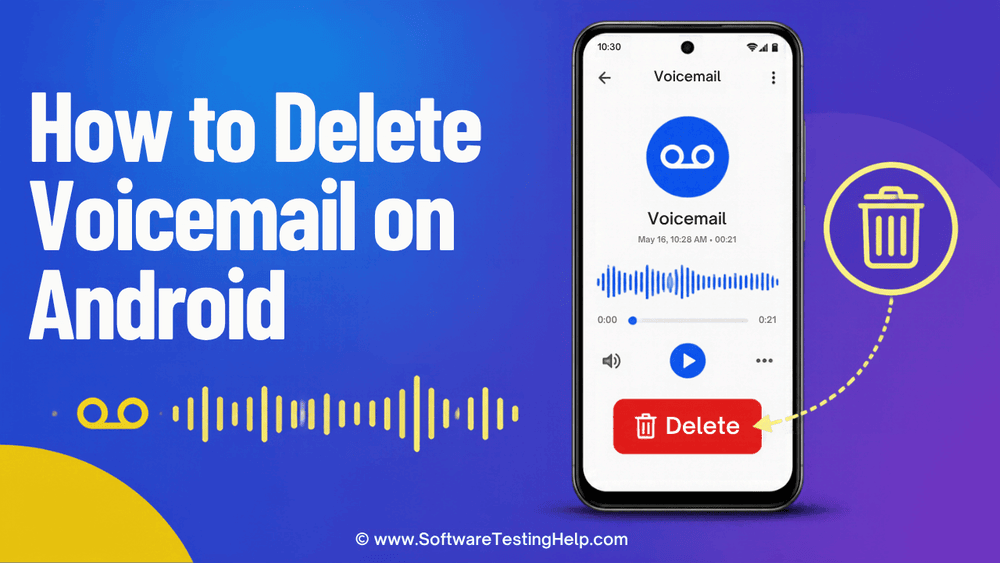
There are two ways to delete voicemail on an Android phone:
- For Visual Voicemail: Open the Phone app > Voicemail > Tap and hold the voicemail you wish to delete > Tap the Trash can.
- Using the Dialer: Open the Phone app > Open Keypad > Tap and hold the 1 key > Listen to the messages and follow the Voice prompts > Enter PIN or password, if prompted > Press the 7 or 9 key, depending on your mobile carrier, to delete the message.
How to Clear Voicemail on Android Using the Phone App
Before I give you any instructions, you should know that menu screens and interfaces vary from one Android device to another. I can see the Voicemail tab at the bottom of my screen as soon as I open the Phone app. That might not be the case for your phone.
Only the path to access Voicemail varies; the process nonetheless remains the same.
#1) Delete a Single Voicemail
- First, open the Phone app.

- Tap on the Voicemail tab, found at the bottom on most phones. On some phones, you’ll find the voicemail tab in the Phone app’s settings.
- Tap and hold the Voicemail you wish to delete until a Trash icon appears at the top-right corner of your screen.
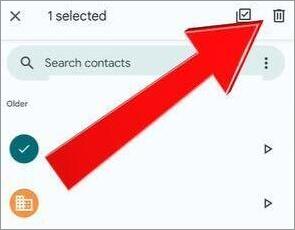
- Tap on the Trash icon to delete the voicemail.
- Alternatively, you can open the voicemail to listen to or read what it says. You’ll find another Trash can icon when the voicemail is opened. You can tap this button to delete the message as well.
#2) Delete Multiple Voicemails at Once
- Open the Phone app
- Tap on the Voicemail tab to access your inbox.
- Tap on one Voicemail until the Trash icon appears in the top-right corner of your screen.
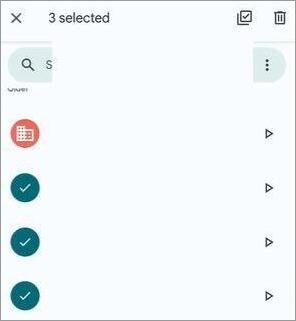
- Now start tapping on all the other voicemails you wish to erase.
- Tap on the Trash icon to delete. Confirm the deletion if prompted.
How to Delete Voicemail on Android Without Listening
This section describes the process of deleting voicemail messages from an Android device.
First of all, launch the Phone application and select the Voicemail tab at the bottom right corner and follow any one of method to delete voicemails without having to listen to the audio:
1) Swipe to Delete
Swipe left or right across the selected voicemail message. In this method, you simply need to swipe the finger across the voicemail message and remove it instantly.
2) Selection/Long-Press
Long-press on the selected voicemail message and wait for the appearance of checkboxes or select menu to pop-up. Now click on the trashcan button.
3) Bulk Delete
Click on the three dots icon in the upper-right corner and go for the Select option. Now select those items which you wish to delete or choose ‘Select All
How to Delete Voicemail by Calling Your Carrier
This is another, more traditional approach to deleting Voicemails. Older Android phones didn’t have what we modern phone owners know as the Visual Voicemail tab.
This method entails dialing into one’s voicemail inbox.
Here’s how that works:
- Open the Phone app
- Tap on the Keypad tab you’ll see at the bottom.
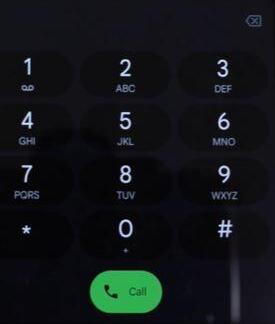
- Once the dialer is open, press and hold the 1 key.
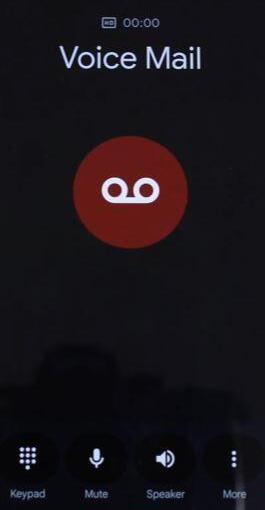
- Listen to the voice prompts and follow the audio menu to delete the message.
- Depending on your phone’s carrier, press 7 or 9 to delete the message (Don’t worry, the audio menu will tell you which key to press).
I’ve come across queries online where certain people have asked how to delete voicemail on Android without listening. Well, you don’t have to listen to a voicemail to delete it. Whether you’ve opened a voicemail or not, you can still follow the above methods to have the voice message erased.
How to Delete Voicemail Using Carrier Apps (Verizon, AT&T)
The method to delete voicemails will also vary depending on the carrier type you are using. The most popular US carriers like Verizon and AT&T offer their own dedicated Visual Voicemail app, which you can use to manage your voice messages.
So here’s how to delete your voicemail on Android, depending on the carrier you are using:
#1) For Verizon
- Open the Verizon Visual Voicemail App.
- Tap on Voicemail.
- Select the Voicemail you wish to delete and tap on the Trash icon.
#2) For AT&T
- Open the AT&T Visual Voicemail app.
- In the inbox, select the voicemail you wish to delete.
- Tap on the Trash icon to delete
#3) For T-Mobile
- Open the T-Mobile Visual Voicemail app.
- Select the Voicemail you wish to delete
- Tap on the Delete option.
How to Remove Google Voice Voicemails on Android
Google Voice users need to know that it is an entity that’s entirely separate from your phone carrier’s voicemail service. Google Voice can be used to store and manage one’s voice messages as well.
Just because you deleted a particular message from the Phone app doesn’t mean it is gone from Google Voice’s storage too.
Let me show you how to delete voicemail messages on Android if you are using Google Voice.
- Open the Google Voice app.
- Tap on “Voicemail”. You’ll see this option at the bottom.

- Select the voicemail you wish to Delete > Tap on the three dots displayed beside the message.
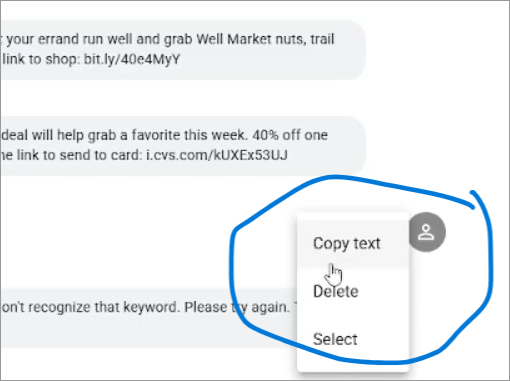
- Hit the “Delete” button on the menu that opens.
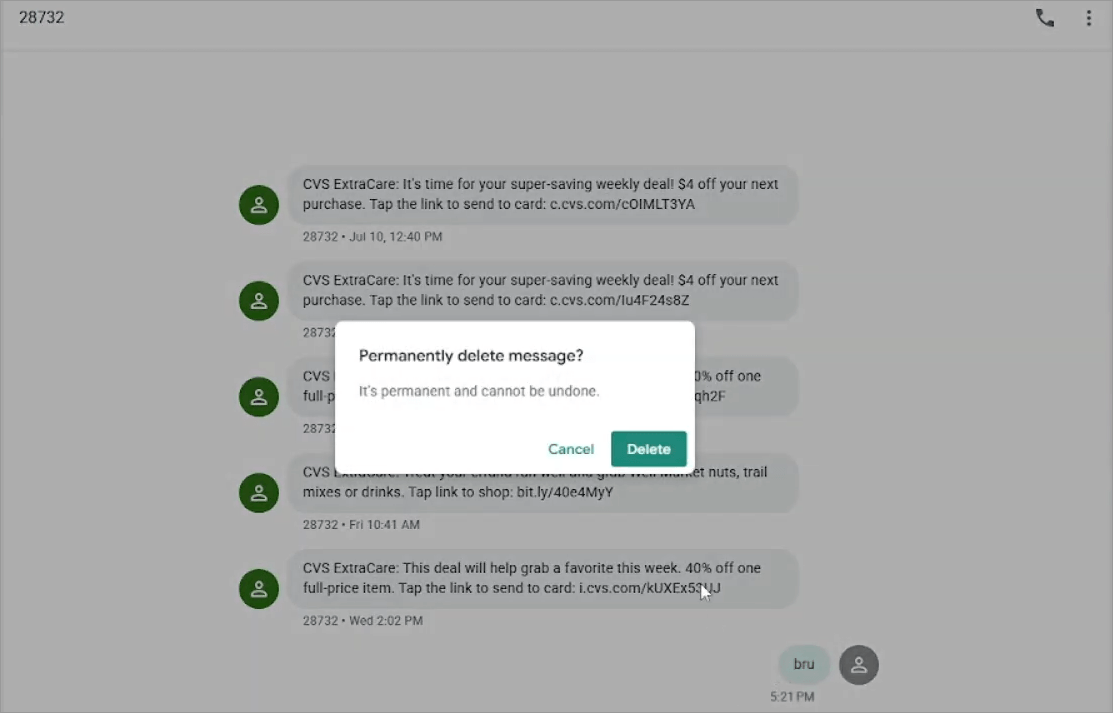
- Confirm the deletion.
To delete multiple messages, tap and hold one message, then select other messages one by one to delete.
How to Fix Voicemail Not Deleting or Mailbox Still Full
You might be one of the few unlucky individuals who hit a brick wall when trying to delete a voicemail.
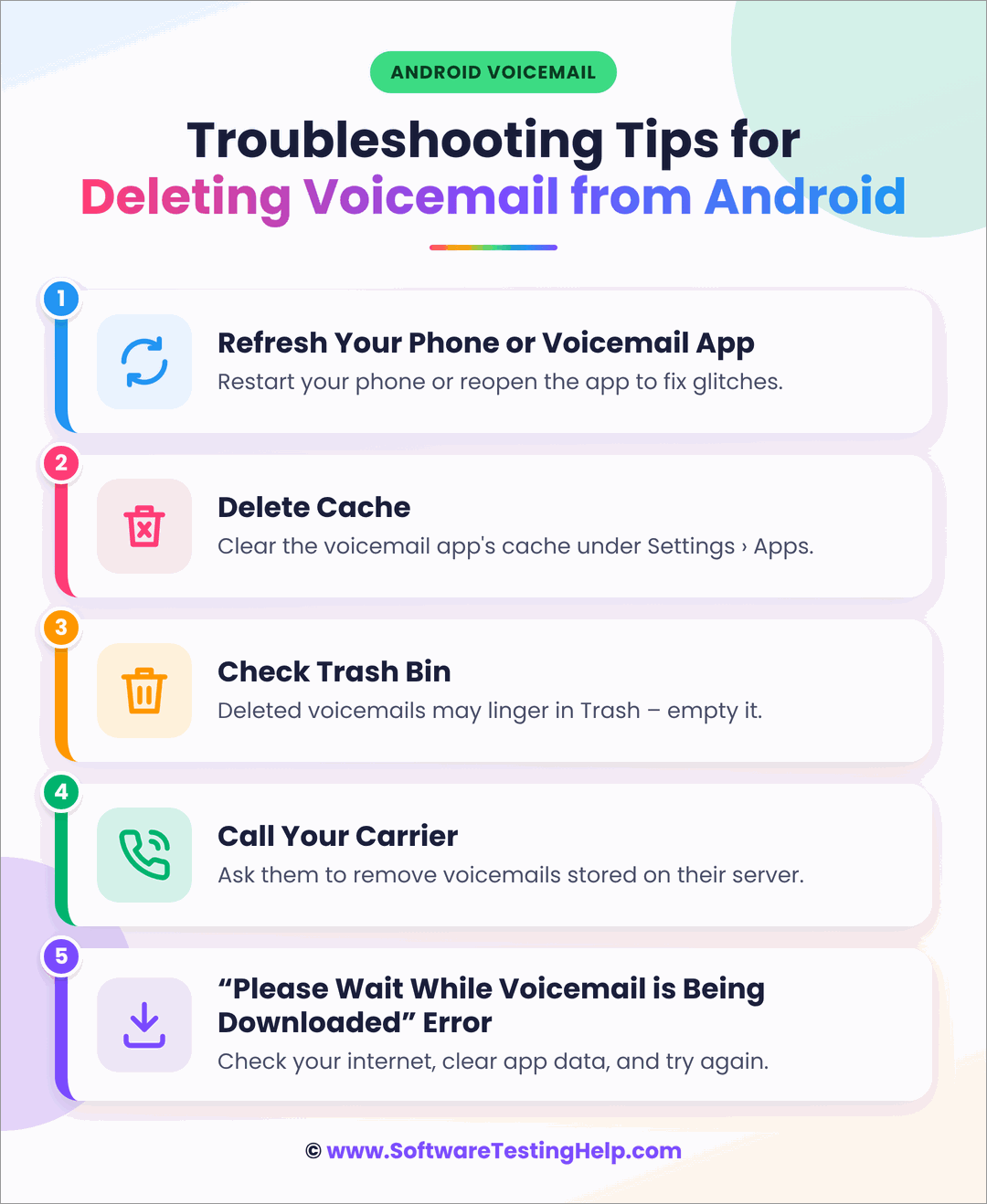
If that happens, I suggest you follow the tips below.
#1) Refresh Your Phone or Voicemail App
App syncing issues are perhaps the biggest culprit behind voicemails not getting deleted when that’s exactly what you are trying to do. Perhaps your Carrier Voicemail app or Phone app didn’t synchronize properly with your carrier’s voicemail server.
This is an issue you can fix by doing the following:
- Close your phone or Voicemail app and reopen it to see if the message has vanished.
- Enable Airplane Mode, wait for around 20 seconds, and disable it.
- You could also try rebooting your phone. Open the Voicemail app after your phone reboots to check if the message has vanished.
Doing any of the above will refresh the app and hopefully synchronize it with your carrier’s server.
#2) Clear the Phone or Voicemail App Cache
This is yet another thing you can do to fix this problem.
- Open Settings
- Select App > App Management
- Tap on the “Phone” app
- Scroll until you see Storage and tap on it.
- Tap on “Clear Cache”.
Alternatively, follow the same process and tap on “Clear Data” if you want to learn how to empty voicemail on Android.
#3) Check the Deleted Messages or Trash Folder
Some Android devices will have a Trash bin, where your deleted messages are stored. Once a message is deleted, look for three dots or an option in the settings that mentions Trash Bin. Open it and select “Clear all” to delete the messages permanently.
#4) Contact Your Carrier
If you’ve tried the above tricks and still haven’t found a solution, I suggest calling your phone carrier’s support team. Ask them to review your voicemail inbox to check whether there are deleted recordings.
#5) “Please Wait While Voicemail is Being Downloaded” Error
This is an error message that usually pops up when your phone or carrier’s visual voicemail app gets stuck in a sync loop. Too many background apps open at the same time, poor network connection, and corrupted cache can trigger this error.
You can fix this issue by clearing the cache, restarting your phone, switching network connections, and toggling Airplane Mode on and off.
Can You Recover a Deleted Voicemail on Android
Yes, but that depends on the carrier or Voicemail service you are using. As I said, the Phone app on some Android devices features a Trash Bin that can help you restore the message if you haven’t already cleared the bin.
The same goes for Carrier-specific Visual Voicemail Apps. Verizon, AT&T, and T-Mobile keep unsaved or trashed messages for 14-30 days until they are removed permanently. The days will vary depending on the tier or plan you’ve purchased.
Depending on your Android phone’s model, it may keep a message in the trash bin for up to 14 days before being erased permanently.
If you’ve accidentally deleted a very important voicemail, I suggest contacting your carrier immediately to check whether it can be restored. Recovery is possible only if your carrier’s server still holds the message and hasn’t deleted it.
Is Voicemail Full? Easy Steps to Free Up Space
Depending on the mobile carrier and the plan being used, one’s voicemail storage limit will vary.
The table below will give you a good idea of what to expect from different carriers:
| Carrier | Plan and Storage Limit | Duration Limit Per Message |
| Verizon | Basic: Up to 20 Messages | 2 minutes per message |
| Premium: Up to 40 Messages | 5 minutes per message | |
| AT&T | Basic: Up to 20 Messages | 2 Minutes per message |
| Premium: Up to 40 Messages | 4 Minutes per message | |
| T-Mobile | Up to 45 Messages | 3 Minutes Per Message |
Here’s everything I suggest you do to free up space, as this will make room for new messages:
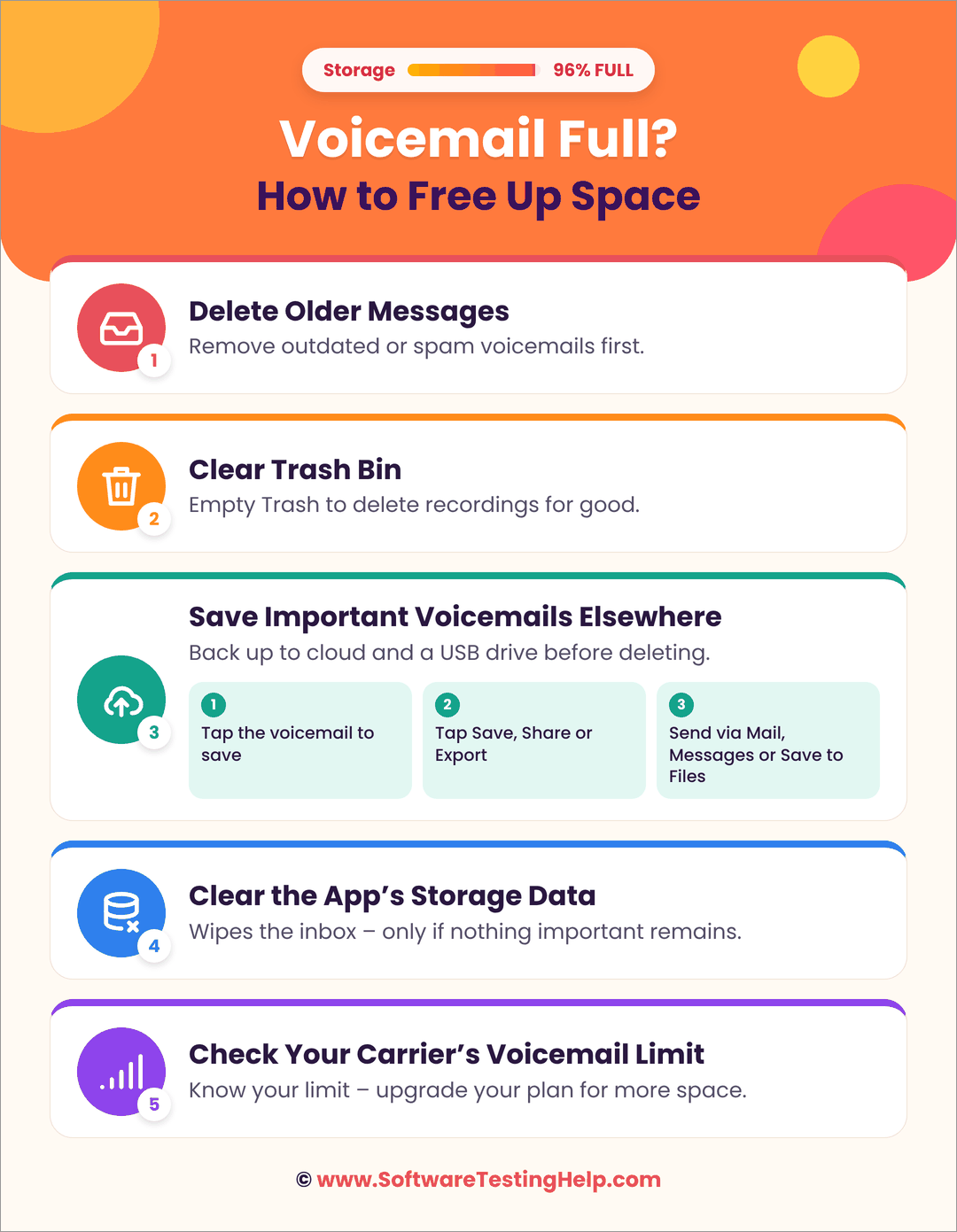
- Delete Older Messages: Clear out older messages. You can start by deleting messages that you deem outdated or spam.
- Clear Trash Bin: Just hitting the delete button once won’t clear your voicemail recordings. You need to empty the trash bin as well to permanently get rid of them.
- Save Important Voicemails Elsewhere: Before deleting an important voicemail, I suggest exporting or saving it to your system. Make two copies. Keep one in your cloud drive and another stashed on a USB drive.
- Tap on the Voicemail message you wish to save
- Look for a Save, Share, or Export option (depending on the phone model you are using) and tap on it.
- Select Mail or Messages to send the file to yourself, or tap on Save to Files to store the voicemails locally on your device.
- Clear the App’s Storage Data: Use the method I showed to clear the cache to empty your voicemail inbox. Do this only if you feel your inbox isn’t holding any important voice messages.
- Check Your Carrier’s Voicemail Limit: Refer to the table below or visit your carrier’s official website to learn about your storage limit. You can upgrade to an expensive plan and expand your storage limit, depending on the carrier you are using.
How to Turn Off or Block Voicemails on Android
You can very easily block or turn off your voicemails.
Refer to the video links below for quick and easy steps:
Frequently Asked Questions
1. What number to press to delete voicemail?
The number to press when deleting a voicemail by dial-in depends on the carrier you are using. You’ll first need to press and hold the 1 key and then follow the audio instructions given to you by the carrier. In the end, you’ll be asked to either press the 7, 9, or, in some cases, the 3 key to confirm deletion. This key keeps changing and varies across carriers.
2. How do I delete all voicemail messages at once?
The best way to delete all voicemail messages at once would be to do the following:
• Go to Settings
• Select App > App Management > Phone
• Tap on Storage > Clear Data
This will delete all voicemail recordings in one go.
3. Where is my voicemail app on Android?
Depending on the model and carrier you are using, your Voicemail app will either be at the bottom of your Phone’s home screen, or you’ll have to access it via the Phone app’s settings section.
4. Where are voicemails stored on Android?
Voicemail messages on an Android phone are stored on a carrier’s remote server instead of in the phone itself. However, you can export or save recordings and have them stored in your Google Drive or external drive.
5. How to permanently turn off voicemail?
To permanently disable voicemail on your phone, you’ll need to talk to your carrier service provider.
Either dial 611 or contact your carrier provider’s support number. Chat with the support agent and explain why you want the voicemail feature disabled. Once your request is granted, restart your phone.
6. Can I delete all voicemails at once without playing them?
Yes, indeed. Simply open the Phone app on your Android smartphone and navigate to the Voicemail tab. Then, press the three dot icon (⋮) located at the top right corner of your phone screen and select the option either Edit or Select. Finally, select all the messages and delete them in bulk.
7. Why does a deleted voicemail still show up on my Android screen?
When a deleted voicemail keeps appearing, your Android device could be having some syncing issues between your Visual Voicemail service and mobile carrier. To fix it, open the Phone app and head to Settings>Voicemail>Visual Voicemail switcher. Turn this setting off and back on. Sometimes clearing cache also works well.
8. Will deleting a notification clear the voicemail on Android?
No. When you swipe off a voicemail notification in your drop-down menu or notification panel, then you just remove the notification icon from appearing on your phone’s display screen. Your actual audio voicemail is saved at your inbox location in the app until you manually delete it from there or dial into your voicemail account (by holding the number 1 button).
9. How do I permanently delete voicemails so they can’t be recovered?
Once you delete the voicemail from your inbox under Visual Voicemail option, then that particular message gets transferred to the Deleted Messages section of your account. Now navigate to the bottom where you have ‘Deleted Messages’ or Trash section, and click on ‘Clear All’.
Conclusion
So, there you have it: how to delete voicemail messages on an Android phone. You may have multiple reasons to clear up your voicemail inbox. Perhaps you are trying to free up some space or wish to have an inbox that doesn’t feel cluttered. Whatever your reason, know that deleting voicemails is easy and you can delete without listening.
Of course, the process will vary depending on the phone model or carrier you are using. I suggest you check your inbox’s storage limit by visiting your carrier’s official website. That knowledge will help you keep tabs on your inbox. You’ll know exactly how many messages your inbox can handle, when to clear it up, and how much to pay for an expansion.
Research Process: The total time involved to complete and publish this article is approximately 41 hours. This content was created through a structured research approach to ensure accuracy and reliability.
For more-related guides, you can explore our range of tutorials below:
- Why Phone Calls Going Straight to Voicemail
- Why is My Android Phone Not Allowing Me to Make Calls
- Does A Factory Reset Delete Everything
- Best Short Professional Voicemail Greeting Examples
- How To Backup Android Phone on Cloud, PC Or Mac
- How To Clean Charging Port on iPhone & Android Safely
- How To Disable or Turn Off Safe Mode On Android or Windows Devices
- How To Stop Apps Running In Background On Android
Was this helpful?
Recommended Reading
-

Learn how to change Siri voice on iPhone or iPad with our step-by-step guide in just a few clicks and personalize your Siri experience instantly. Siri is a virtual assistant available on Apple devices, which is capable of doing tasks through voice commands like answering your questions, searching the internet,…
-
This tutorial explains how to do a Voiceover on Google Slides and why Google Slides is your best choice to create presentations: Presentation is considered an effective and efficient way to present data to the audience and make a complex topic easier. Earlier, it was a pretty cumbersome task to…
-
An Exclusive List of The Top Free and Commercial VoIP Software With Features and Comparison. Select the Best VoIP Tool Based on This In-depth Review: VoIP software is an application that will allow you to make calls over the Internet. Voice over IP software is used by businesses because of…
-
Get to know more about the Best Voice Monitoring Software Solutions along with their comparison to understand the different functionalities they offer: Voice Over IP (VoIP) technology delivers significant benefits compared to traditional telephone lines. From reduced costs, flexibility, and greater scalability to integrating calls with other internet-based business applications,…