Got promoted? Follow our quick guide to post a promotion on LinkedIn in minutes. Learn how to add a promotion on LinkedIn to grab recruiter’s attention and upscale your career:
So, you’ve finally won yourself a very well-deserved promotion. This, of course, calls for a celebration. Your hard work and years of hustling have paid off.
That said, might I suggest taking a few minutes to update your LinkedIn profile first? Updating your LinkedIn profile is the first thing I suggest you do, and everyone should do it as soon as they’ve earned a promotion.
Announce a Job Promotion on LinkedIn: Quick Ways
Not only will this strengthen your resume on the platform, but it will also open it up to some really lucrative opportunities further down the line. If this is your first time getting promoted, then you probably don’t know how to post a promotion on LinkedIn.
This is where I come in. Consider this article your hands-on guide.
Here is the video guide that explains how to add a promotion on LinkedIn:
Promotion Within the Same Company vs. Adding a New Position
How you go about updating your experience on LinkedIn will largely depend on whether you’ve been promoted within the same company or taken up a completely new job.
A promotion within the same company would entail being rewarded with a higher title by a current employer. It exhibits the progress of your career in the same company over time. LinkedIn will automatically group positions that are held by someone in the same company.
Taking up a new position means you’ve either joined a new company or switched to an entirely different role with additional job responsibilities.
The table below clarifies the distinction between these two situations:
LinkedIn: Promotion vs. New Position
| Promotion within the Same Company | A New Role or Company |
| Shows progression to a higher title within the company | Shows you joining a new company or starting a new role. |
| Example: Social Media Manager to Senior Social Media Manager | Examples: Social Media Manager at BCC Company to Social Media Manager at ACB Company |
| LinkedIn will group the positions, especially if the start date of the new role is within one month of the previous role’s conclusion | Your previous role and new role will be shown separately. |
Now that you are familiar with this distinction, I feel confident in moving to the meat of this article.
How to Add a Promotion on LinkedIn (Same Company)
#1) Show Promotion on LinkedIn on Desktop
- You start by logging into your LinkedIn account.
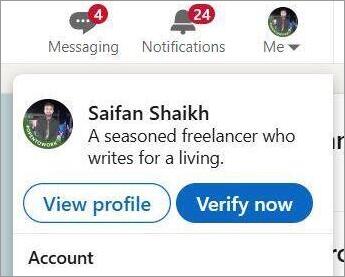
- Click on the profile icon you’ll see at the top-right corner of your screen and select View Profile.
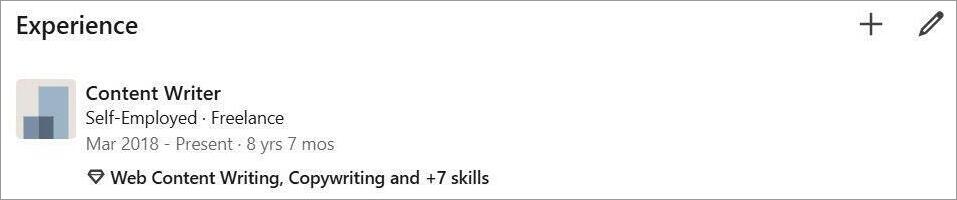
- Scroll down to update the LinkedIn Experience section. Here you’ll see a “+” sign and a “pencil” sign. You’ll see one pencil icon associated with the entire Experience section and pencil icons associated with each position mentioned within the section. Click on the pencil icon next to the position you wish to update.
- The first thing you are going to do here is change your Job Title. For Instance: From Social Media Manager to Senior Social Media Manager. LinkedIn may recognize what you are trying to do and display a prompt asking, “Did you get promoted?” If prompted, select +Add new position. This will show your previous position at the company while adding your new promotion.
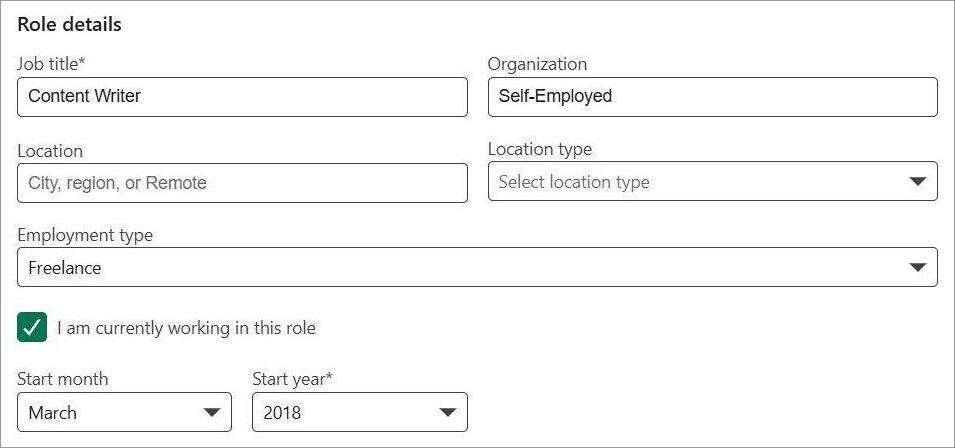
- Just update the fields you see (Location, Company, Start Date).
- Add skills. These skills will represent your responsibilities in this new position you now hold. Example: For a Senior Social Media Manager, the skills would be Strategy Development, Audience Research, Content Creation, etc.
- Once the skills have been updated, decide whether you wish to notify your network of the new position.
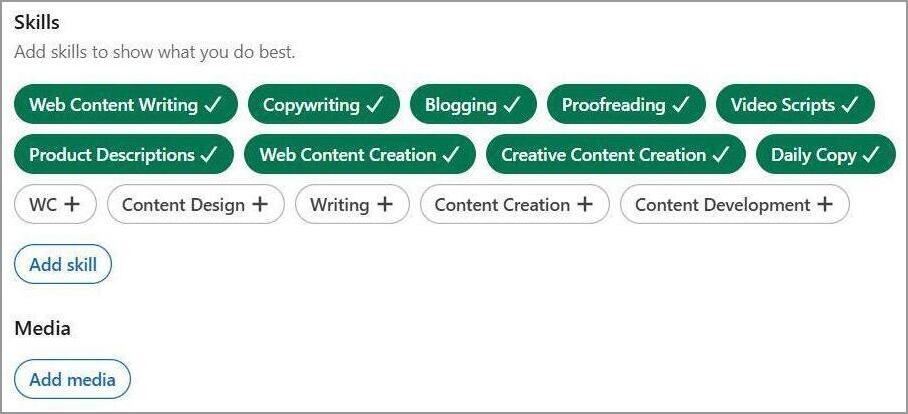
- You’ll also see the option to add media files. Although not necessary, I believe a brief video message makes a nice touch. Again, you can just skip this part if you don’t have any appropriate videos or images to share.

- Review your updates once and then hit the Save button.
#2) Show Promotion on LinkedIn on Mobile
The process of adding a promotion to LinkedIn on mobile is more or less the same.
Here’s how you do it:
- Open the LinkedIn app on your phone.
- Tap on your profile picture to open your profile.
- Scroll down until you see the Experience section and tap on the “pencil” icon.
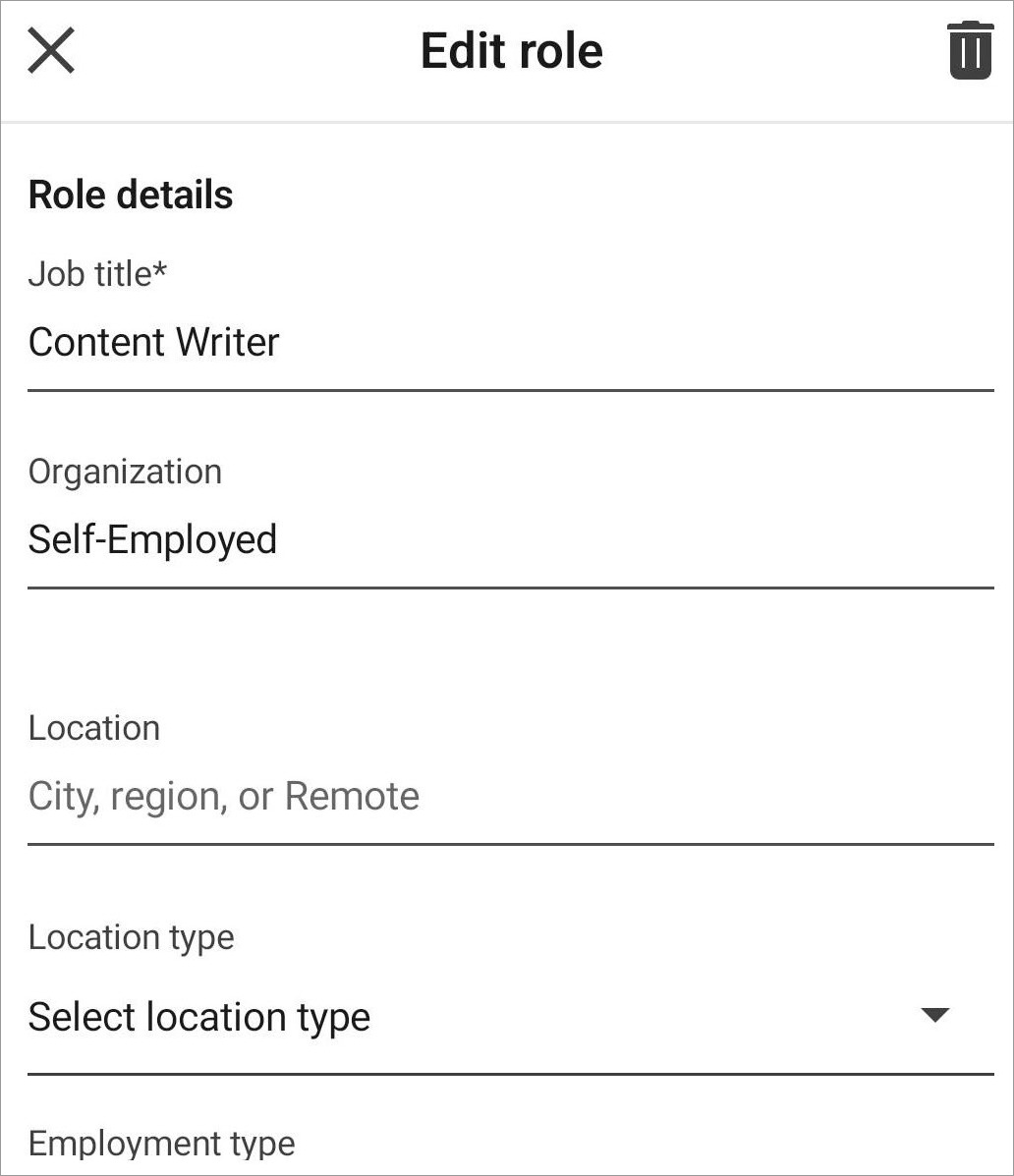
- Tap on the Pencil icon next to the position you wish to update.
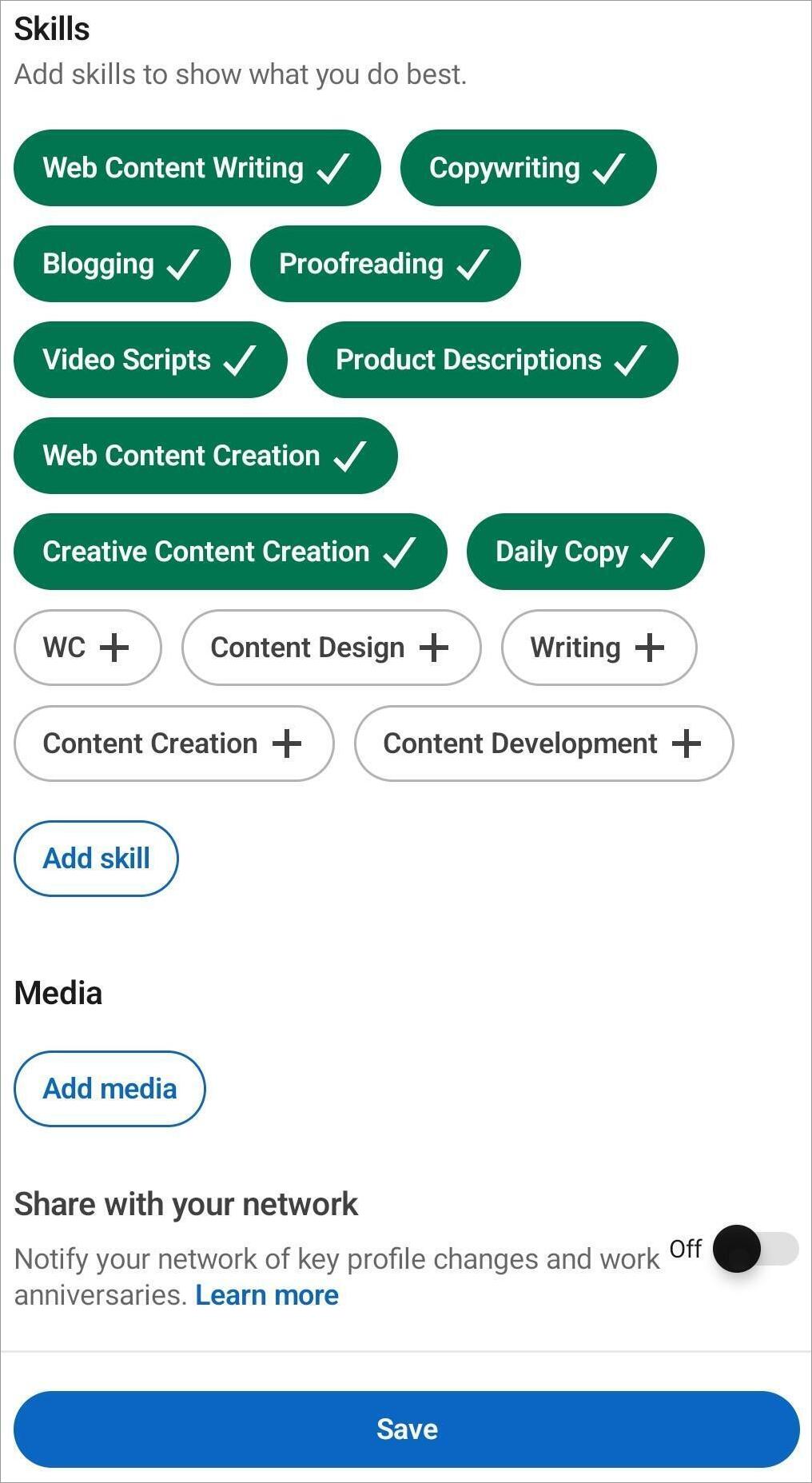
- Update your Job Title (Social Media Manager to Senior Social Media Manager). You may or may not see a prompt asking, “Did you get promoted?”.
- Fill in all the details. They are the same as the ones I’ve already discussed above when sharing the desktop process.
- Review your updated details before hitting the “Save” button.
Steps to Add a Promotion as a New Position in LinkedIn
Use this method if you’ve switched companies or if you want to update your new role manually.
#1) On Desktop
- Click on your Profile picture > View Profile
- Scroll down until you see the Experience section.
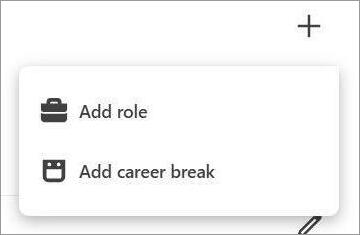
- Click on the + icon and then click on “Add Role”.
- Add your Job title, organization name, location, and start date.
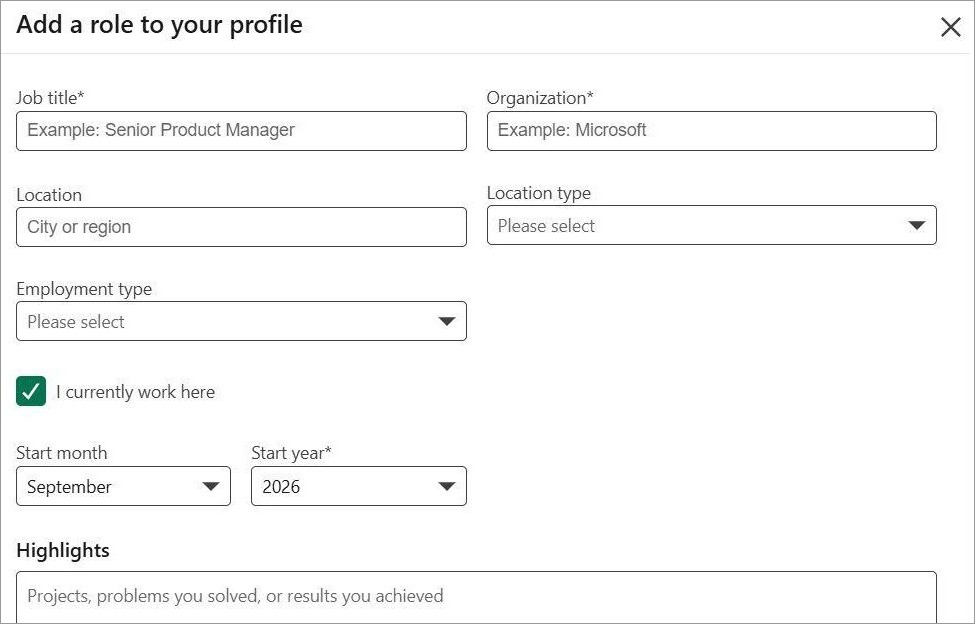
- Add a description and mention skills.
- Choose whether to notify your network.
- Review the information you’ve given and hit the Save button if everything seems right.
#2) On Mobile
- Click on Your Profile Picture
- Scroll down to the Experience Section.

- Click on the + icon and click on Add Role.
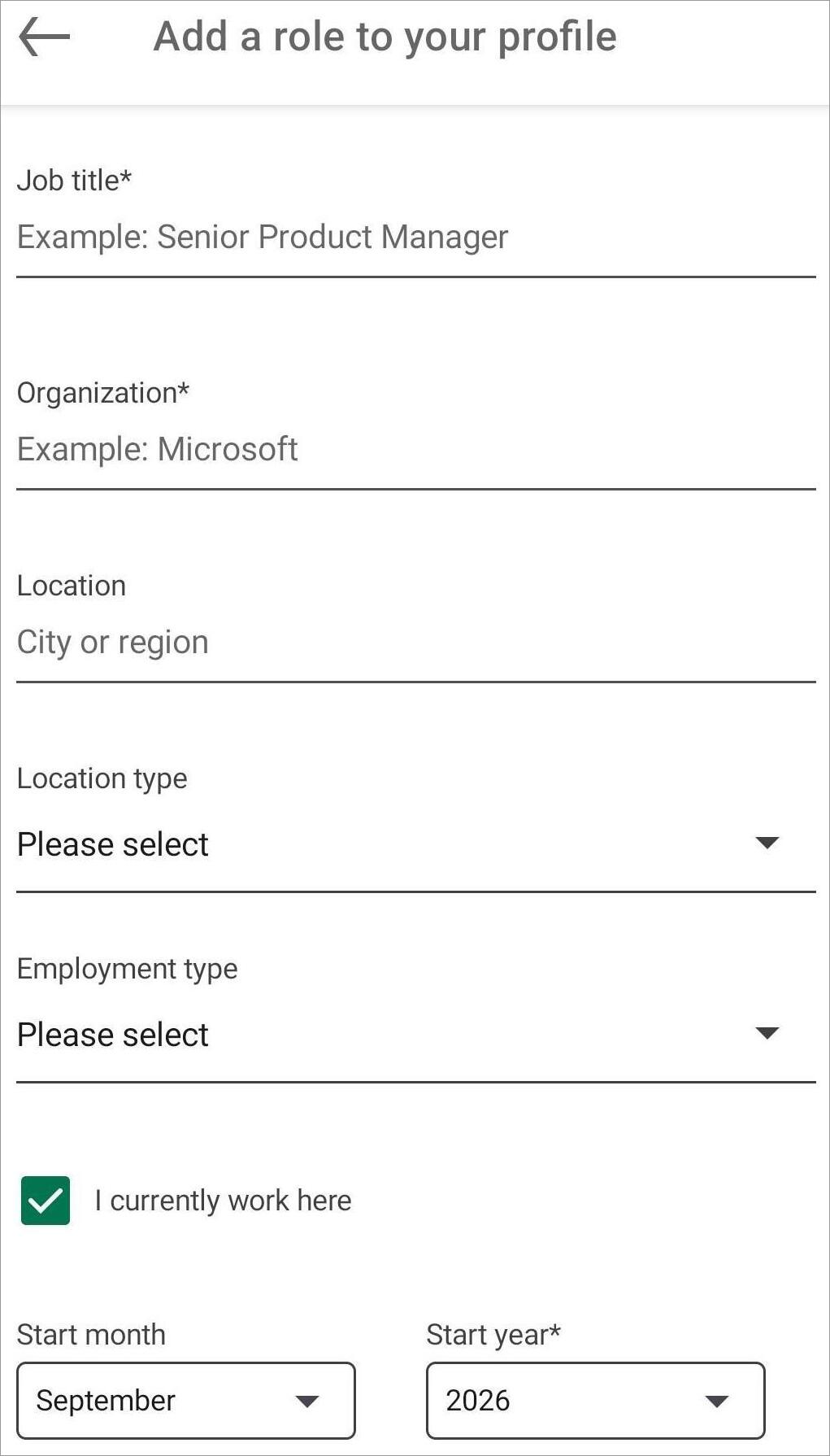
- Fill in all the fields (Job Title, Organization, Location, Start Date)
- Add a description and mention skills.
- Choose whether to notify your network.
- Review the information and hit the Save button.
Ways to Add a Promotion to LinkedIn With or Without Notifying
Sometimes you’d want to wait before announcing your promotion to the world. I understand that feeling. I wanted to share the news of my promotion with my family and friends before it reached strangers online.
Of course, that doesn’t mean you put off updating your LinkedIn profile to a later date. It is possible to add a promotion to LinkedIn without notifying.
You’ll see the notify network toggle when editing your details when adding a promotion.
All you have to do is:
- Click on the Edit or Add Promotion icon.
- Find the Share with your network section.

- Switch off the toggle right beside it
- Hit Save.
When the time comes to notify everyone of your promotion, just follow the same process to click on this toggle and turn notifications on.
How to Turn Notifications On and Off on LinkedIn
You can impose a blanket restriction on notifications being sent out to your network by simply limiting the visibility of your profile.
Just do the following:
- Click on your Profile Picture.
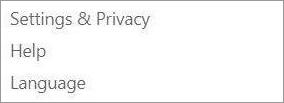
- Click on Settings
- Click on Visibility
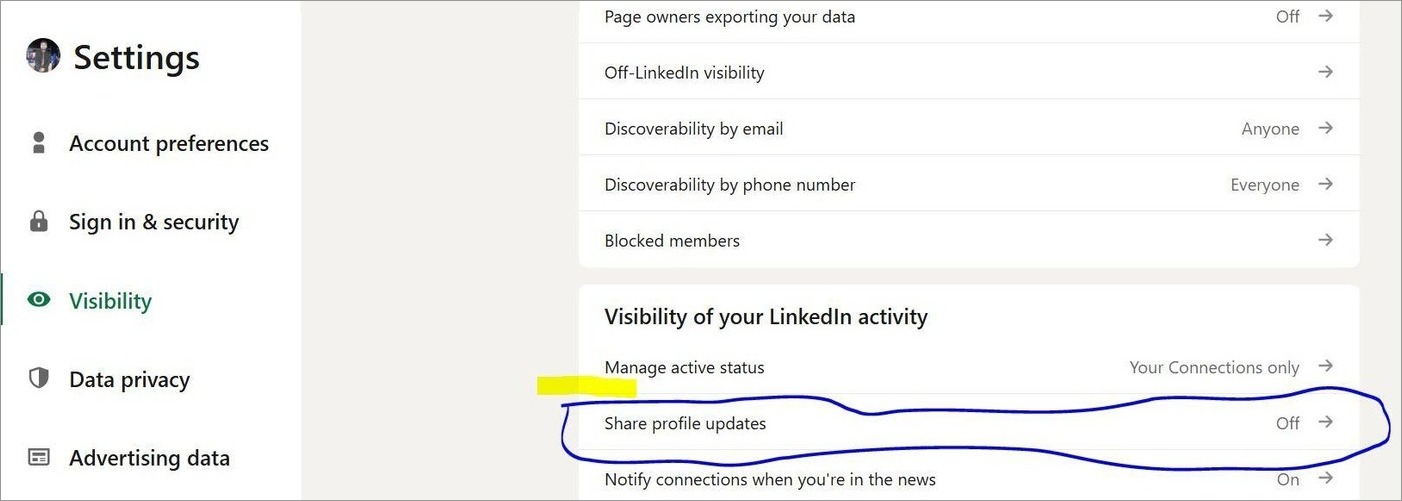
- Now, scroll until you see the option to “Share Profile Updates”.
- Switch it off if you don’t want anyone in your network to be notified of the changes or modifications to your LinkedIn resume.
- Switch it on if you wish to notify everyone of the changes being made immediately.
Tips to Write an Effective Role Description on LinkedIn
You now know how to add a job promotion on LinkedIn. That was just one aspect of the battle you’ll need to fight.
Adding a promotion will attract prospects to your profile. So, you’ll have to go above and beyond to ensure your profile looks enticing, and the best way to do that is by showcasing a solid role description.
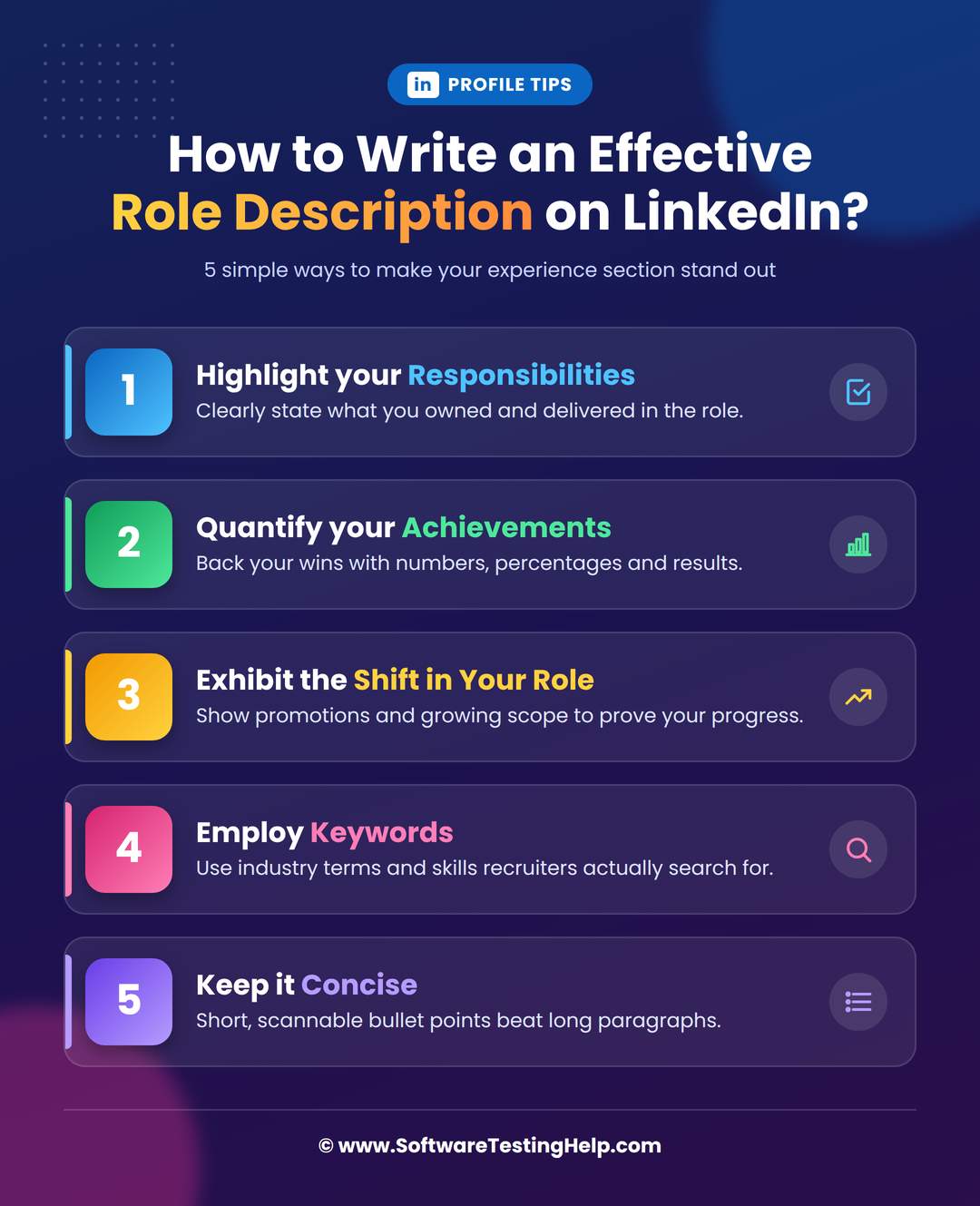
Below are a few tips I suggest you follow to write a compelling description of your new position:
#1) Highlight Your Responsibilities
I suggest coming out of the gate swinging. Start by highlighting your responsibilities right off the bat, but do so while sounding less generic. So, instead of saying, responsible for campaign management, why not say: Conceptualized and spearheaded campaigns across multiple platforms.
#2) Quantify Your Achievements
Don’t be afraid to brag a bit about what you accomplished. Quantifying the impact you’ve had so far in your role will only add a distinct level of charm to your profile.
For example: Boosted organic engagement on social media posts by 39%.
If you’ve got the numbers to prove just how capable you are, show them. Mention the revenue your campaigns have generated or the boost in traffic witnessed under your supervision.
#3) Exhibit the Shift in Your Role
A promotion means subtle or major changes in your responsibilities. Do mention these changes. If you are in charge of making decisions, training employees, leading projects, etc., mention them within your description.
#4) Employ Keywords
Strategy brainstorming, content production, SEO, and ads management are all responsibilities that one may exhibit in their position as a social media manager. These terms also serve as good keywords that might lure recruiters to your profile. So, mention them in your description.
#5) Keep it Concise
Remember, you are writing a role description and not authoring a novel. Keep your description short and to the point.
Just make sure your description can answer the following points:
- What you do
- What you’ve accomplished.
- How your new role differs from your previous position.
Updating the Rest of Your Profile After a Promotion
Don’t just add a promotion to your LinkedIn profile and call it a day. The rest of your LinkedIn profile should reflect the turn your career just took.
- Start by changing your headline. If it previously said – Social Media Manager at CKK Corp, it should now say – Senior Social Media Manager at CKK Corp.
- Change the About section. It should reflect the new responsibilities you’ll be taking on.
- Add skills relevant to your new position.
- Navigate to the “Featured” section and add links to new projects, blogs, or presentations you’d want to highlight.
- Now, go to the Photos and Banner section. This is completely optional. You can choose to change your profile picture in celebration of your new role.
- Make sure the resume uploaded to your LinkedIn profile is up-to-date. Information on your LinkedIn profile should match the information on your resume.
Why Update LinkedIn After a Promotion?
Your LinkedIn profile is different from your footprint on any other online social media platform. It basically serves as your online Resume. If you wouldn’t ignore updating a normal resume after a promotion, why treat your LinkedIn profile any differently?
Updating your LinkedIn profile boosts your resume’s credibility. You are strengthening its position, making it considerably more appealing to job recruiters who are constantly looking out for talent on the platform.
Announcing your promotion on LinkedIn is also a great way of reinvigorating attention to your profile. It can boost your profile’s visibility, keeping you at the top of everyone’s feed for a while.
You could also see this new promotion as an opportunity to revamp your LinkedIn profile with a new headline, profile picture, and job title.
How to Announce a Promotion on LinkedIn
You’ve spent years on LinkedIn reading promotion announcements posted by friends, colleagues, and people you’ve looked up to. Now, it is your turn.
You don’t have to post an announcement. I believe this is still a good way to make your promotional announcement feel more intimate and personal.
To write a good post, I would suggest you consider the following:
- Start by immediately stating what happened.
- Briefly reflect on your past position and everything you accomplished and learned in that role.
- Exhibit gratitude. Give thanks to your mentors, colleagues, family, friends, and everyone who contributed to your professional growth.
- Although completely optional, I would suggest boasting about one accomplishment you are proud of in your past role, only if you are comfortable sharing that information.
- End the post by mentioning how excited you are and what you are looking forward to.
LinkedIn Promotion Post Examples/Templates
With a new role come great responsibilities!
It is with immense happiness that I announce my promotion to (New Position) at (Company Name)
I would like to express my gratitude to every single person who helped me grow and learn along the way. I am grateful for the challenges that made me capable of embracing this opportunity.
I am excited and look forward to overcoming new challenges alongside the colleagues I’ve been blessed to work with. Cheers to new beginnings!
If you feel the above post is too long, I suggest going with something shorter:
Huge news: I’ve been promoted to (New Position) at (Company Name)
I have nothing but gratitude for everything I’ve learned so far and all the great people I’ve had the opportunity to work with along the way.
I am filled with pride and look forward to the challenges that await me on this new path.
Frequently Asked Questions
1. What is the difference between a promotion and a new position on LinkedIn?
A promotion on LinkedIn basically entails the progression of one’s career. It means that you’ve climbed to a higher position in the same company.
A new position, on the other hand, could either mean switching companies or taking on a new position that has nothing to do with your previous role.
When adding a promotion, LinkedIn will automatically group a post to link the roles you’ve held in the same company.
2. Does LinkedIn automatically post my promotion?
No, LinkedIn won’t automatically add your promotion. You have to add it manually. However, it will automatically notify everyone in your network on the platform, provided you’ve switched on the Network notify toggle when adding a promotion.
3. What should I say when I get promoted?
I suggest making a simple, short, and casual post announcing your promotion. You could start by saying that you’ve been promoted and then move on to expressing your thanks. You can end the post by mentioning what you are looking forward to in the new position.
4. How to change job title on LinkedIn after promotion?
You can change your job title on LinkedIn by following the steps below:
• Launch LinkedIn
• Click on your Profile Picture > View Profile
• Scroll to the Experience section and then click the “pencil” icon.
• In the opening window, edit the Job Title field.
5. How soon after a promotion should you update LinkedIn?
I suggest waiting until your promotion becomes official, i.e., once you’ve signed all the necessary paperwork.
Make sure your employer announces the promotion internally first before you make an announcement online. Some people announce their promotions 1-2 weeks after they’ve settled into their new role. Perhaps you could do the same.
6. What if I don’t get the Did you get promoted prompt?
This isn’t really a big deal and it also doesn’t mean something is wrong with your LinkedIn. LinkedIn may fail to detect or notice a pattern between the new role you are trying to add and the one that already exists. Proceed to manually add the entries if you don’t see the prompt.
Conclusion
So, there you have it: how to put a promotion on LinkedIn. As you can see, it is very simple and only takes a few quick steps. Just understand whether you’ve been promoted within the same company or are taking up a new role in another organization.
LinkedIn basically walks you through the process. So, you won’t be lost even if you don’t have the guide I’ve written for you here.
Make sure to review all the details you are updating before you hit the save button. People within your network, including recruiters, will come across your profile and contact you if they like what they see.
Research Process: The total time involved to complete and publish this article is approximately 36 hours. This content was created through a structured research approach to ensure accuracy and reliability.
For more-related guides, you can explore our range of tutorials below:
- How To Recover Deleted Messages On Instagram
- How To See Sensitive Content On X (Twitter) and Turn It On or Off
- How To Clear Discord Cache Files on PC and Mobile
- How To Hide Instagram Post From Some People
- How to See Deleted Reddit Posts (Working Methods)
- How To Half Swipe On Snapchat Without Opening or Read Receipts
Was this helpful?
Recommended Reading
-

Review and compare top Social Media Content Calendar Tools & Templates with features and pricing to select the best social media calendar per your requirements: Social media websites have become a digital home for several people. Billions of people all over the world have active profiles on at least one…
-
Tremendously improve your performance with the powerful Social Media Analytics tools that deliver actionable insights. Find the perfect platform to analyze audience behavior across all major social networks: In today’s fast-evolving digital landscape, social media can easily be a valuable asset or a tough riddle to crack. With millions of…
-
Comprehensive Review & Comparison of Top Social Media Management Tools. Select the Best Social Media Management Software as per your Requirements: Do you want to boost your brand awareness, or substantiate your brand power? Do you dream of heavy traffic on your website? Do you wish for a more loyal…
-

Explore the top tools to Automate Social Media Posts with their Pros & Cons. Pick the best Social Media Automation Tools of your choice for efficient time management: While social media is a regular habit for, well, almost all of us, not many know the power it wields. Social media…