


Quickly manage and automate Google Captcha with Selenium from our in-depth guide. Learn how to Bypass Captcha with Selenium and handle challenges in different test environments effectively:
Let’s find out what CAPTCHA stands for. CAPTCHA stands for Completely Automated Public Turing test to tell Computers and Humans Apart. CAPTCHA is a way to figure out if you are a computer bot or a human.
CAPTCHA is something that helps in security checks. It is a way to check if the person is using the website or an application, but not a computer program. This technique ensures that human beings are interacting with the websites/web applications and not an automated bot.
Handle CAPTCHA Automation With Selenium: Tester’s Guide

The main goal of CAPTCHA is to tell computers and humans apart, so it is like a test to figure out who is a real user, a computer or a human.
CAPTCHA is used for security checks to keep websites and web applications safe from automated bots. <Turing test–was first introduced by mathematician Alan Turing, hence the name used in Captcha>.
In this article, we shall see how this CAPTCHA can be handled during automation testing of any web applications/website testing using the Selenium framework, or how to bypass CAPTCHA using Selenium.
For example, developers specifically use CAPTCHA around registration forms, signing pages, contact information forms, and checkout pages of web applications to protect against spamming of credentials and any other malicious automated activities on websites.
What is CAPTCHA?
CAPTCHA is a security measure designed to distinguish human users from automated bots when using web services, preventing malicious activities, spamming, and data scraping.
When it comes to QA web automation testing using Selenium, handling CAPTCHA is a challenging task for QA engineers and automation testers, as Selenium is an automation tool, but CAPTCHA is designed to block automation.
So, some questions that may arise are:
- Can Selenium automate this CAPTCHA?
- How to handle CAPTCHA during web automation testing using Selenium?
In summary, most organizations disable this CAPTCHA feature in test environments or try other alternatives that are implemented in their automation testing strategies.
Let us see in the sections why it is difficult to automate using Selenium and some of the recommended approaches to handle CAPTCHA in Selenium framework-based automation testing.
Why Selenium Triggers CAPTCHA
Since the CAPTCHA feature is specifically designed for the identification and blocking of automated activities, when Selenium-based automation tests repeat the same browser interactions and browser actions multiple times, websites/web applications under test may think or suspect that.
It is a potential automated bot and shows the CAPTCHA verification request screens more often than it may show for normal human users
There are a couple of reasons why Selenium may trigger a CAPTCHA, such as:
- If the number of Requests is high.
- Usage of repetitive test data.
- Some unusual keyboard activities and unusual mouse moves.
- When browser interactive behaviours are automated.
- When a browser automation framework is detected.
- When browser usage is in headless mode.
- Monitoring traffic from IP addresses.
Let us see 1 scenario: Suppose the Selenium test scripts do the following steps:
- Open the registration form/page.
- Required fields on the form are filled in.
- Click on the ‘Submit’ button immediately.
- Repeat the above steps several 100 times.
There are some websites’ anti-bot systems (like Akamai, Cloudflare & WAF Web Application Firewall), which study the patterns and signals that are categorized as suspicious, then the websites will trigger CAPTCHA security measures, blocking any further requests and asking for additional verification.
That way, the websites don’t really recognize that whoever visits the site is an automated bot; they initially study and look for the patterns and signals, which will then suggest it as automated bot activity.
Some factors, like repeated requests, headless browser usage, rapid interactions with browsers and their interactions, and their actions, may cause Selenium-based test scripts to be identified as potential automated bots, hence, CAPTCHA protection is displayed for further verification.
In general, Test Teams don’t try to bypass CAPTCHA; instead of that, they try to disable it in Test Environment, Mock the CAPTCHA validations, and or try to test CAPTCHA feature integration separately from the usual functional automation testing.
Types/Methods of CAPTCHA
Over a long period of time, CAPTCHA technology has evolved, be it from simple text recognition to advanced complex behavioural analysis. CAPTCHA-based systems make use of unique techniques to differentiate between human users and automated bots.
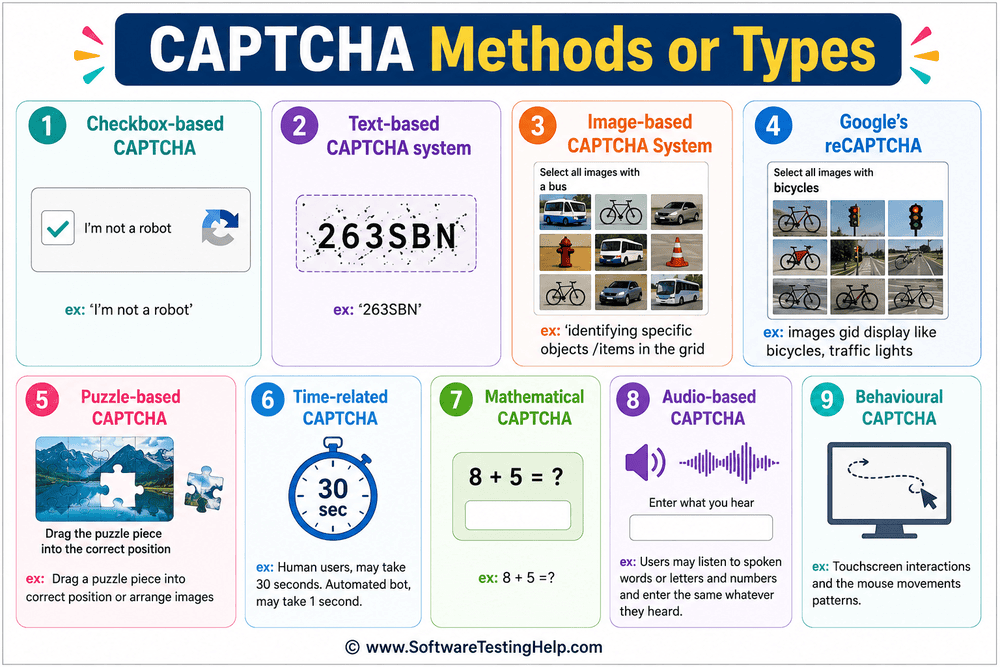
Some of the CAPTCHA methods or types are:
- Checkbox-based CAPTCHA, e.g., ‘I’m not a robot’
- Text-based CAPTCHA system, e.g., ‘263SBN’
- Image-based CAPTCHA system, e.g., identifying specific objects /items in the grid
- Google’s reCAPTCHA, e.g., images gid display like bicycles, traffic lights
- Puzzle-based CAPTCHA, e.g., drag a puzzle piece into the correct position or arrange images
- Time-related CAPTCHA, e.g., human users may take 30 seconds. An automated bot may take 1 second.
- Mathematical CAPTCHA, e.g., 8 + 5 =?
- Audio-based CAPTCHA, e.g., users may listen to spoken words or letters and numbers and enter the same as what they heard.
- Behavioural CAPTCHA, e.g., touchscreen interactions and mouse movement patterns
Most of the time, the above methods are combined to provide the strongest protection against any suspicious automated bot attacks along with user experience.
Some examples are shown in the images below as CAPTCHA security checks:
1. I’m not a robot.
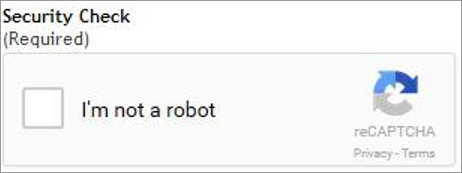
2. Select all squares with bicycles.

3. Distorted text.

[Via imperva]
Challenges Caused During CAPTCHA Automation
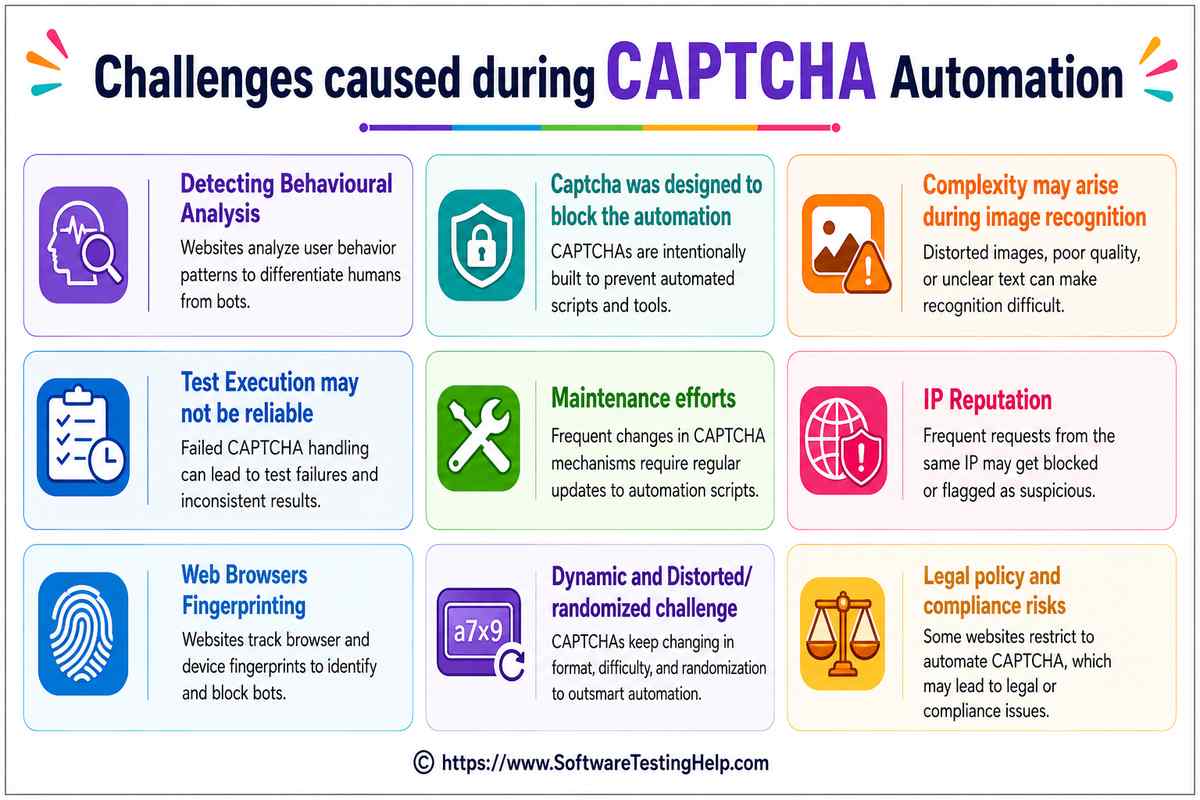
Some of the trickier challenges faced during Selenium automation testing, specifically when it comes to handling the CAPTCHA mechanism that are listed below:
#1) Detecting Behavioural Analysis
Modern CAPTCHA systems are analysing user behaviours instead of relying completely on visual challenges by continuously monitoring the:
- Clicking on screen patterns
- Mouse movements
- Typing speed
- Scroll behaviour on the page.
- How much time is being spent on the pages.
Human beings may show natural behaviour, whereas bots may follow repetitive actions.
Challenge is: Consistent simulation of realistic human behaviours is a bit difficult.
#2) CAPTCHA Designed to Block Automation
Often, CAPTCHA challenges are dynamically generated. The text-based, image-based puzzles presented to users will all change every time for every request. Example: A unique puzzle is shown; random text strings.
Challenge is: Selenium automation scripts cannot fully depend on predefined answers or on fixed locators such as ID, Class Name, Name, CSS selectors, link text, etc.
#3) Complexity During Image Recognition
Image-based CAPTCHA’s may need users to identify the objects/ items displayed on the grid, for example:
- Cars
- Bicycles
- Crossroads
- Traffic lights.
Challenge is: Selenium cannot interpret image contents like human users.
#4) Test Execution May Not be Reliable
CAPTCHA challenges may appear in inconsistent patterns.
For example,
- In Test Run 1: may show No CAPTCHA
- In Test Run 2: checkbox CAPTCHA appears
- In Test Run 3: Images grid is shown
- In Test Run 4: Multiple image recognition challenges.
Challenge is: Inconsistent patterns may lead to an unstable and flaky automation suite/tests.
#5) Maintenance Efforts
In this evolving bot era, CAPTCHA techniques are frequently updated to counter them. For example, some changes may include newly added formats. Additional security layer checks and detection algorithms may be updated.
Challenge is: Constant maintenance efforts are required for the Automation Solutions or scripts, which may stop working at any time without giving enough notice.
Note that there are additional challenges that may be faced during CAPTCHA automation.
6. IP Reputation
7. Web Browsers Fingerprinting
8. Dynamic and distorted/randomized challenge.
9. Legal policy and compliance risks, wherein some websites restrict automation CAPTCHA.
In summary, automating CAPTCHA is intentionally made challenging because of modern technologies, dynamic content changes, IP monitoring patterns, behavioural analysis, image recognition, and also machine learning to detect automated bot activities.
This is directly related to the popular automation framework Selenium, so QA professionals disable the CAPTCHA feature in test environments, may use official Google reCAPTCHA test keys, and mock CAPTCHA validation rather than bypassing the CAPTCHA security measures.
Best Practices for Handling CAPTCHAs Using Selenium
Since CAPTCHA is difficult to automate, as its intention is to stop automation activities. But by following some of the best practices and approaches to handle in automation testing strategies, CAPTCHA automation is still achievable.
Some of the proven best practices are listed below along with examples, and these can be recommended guidelines for maintaining reliable automation suites:
#1) Use Environment-based Configurations: CAPTCHA feature should be enabled only in Production and disabled on Test or Mock it in the test environment.
For example, in the QA environment:
captcha.enabled=false
#2) CAPTCHA Validations are done separately
By using dedicated tests to verify:
- Rendering of CAPTCHA
- Error handling scenarios
- Integration-level behaviours
#3) Element Interactions – By using Explicit Waits
There are likely pages that may load slowly, even when the CAPTCHA feature is disabled. It is ideal to make use of explicit wait methods.
Example:
WebDriver driver11 = new Chrome Driver ();
WebDriverWait wait1 =new Web Driver Wait (driver11, Duration. of Seconds (15));
wait.until(ExpectedConditions.elementToBeClickable(By.id("submit")));
#4) Request Test Environment Configurations
By collaborating and working with developers to provide:
- Mock service
- Test keys for the automation environment setup
- Disabling CAPTCHA
- Request Testing mode.
- Feature flags
#5) By Keeping the CAPTCHA Feature out of Regression Suites
Regression suites should be run without any interruptions, by including the CAPTCHA features in them may cause instability in the regression runs. Hence, CAPTCHA runs can be carried out separately and avoid the inclusion of CAPTCHA-dependent tests in regression runs.
#6) Never Try to Automate Production CAPTCHA Mechanism
The production environment is where real systems are; hence, Production CAPTCHA protects the real systems in real-world scenarios.
Also, it is ideal to avoid attempts to bypass security measures on production and should always remain active in production.
#7) CAPTCHA Integrations are to be validated instead of solving it
First, verify that the CAPTCHA feature is appearing and is functioning as intended without attempting to automate that challenge itself.
#8) Include Documentation of CAPTCHA Handling in Automation Testing Strategy
Make sure that all team members can understand how CAPTCHA is managed and maintained across all agreed environments throughout the testing life cycle.
Additional Strategies to Consider for CAPTCHA Handling During Selenium Automation
#1) Use Test Accounts
- Many firms would create separate test accounts for automation testing purposes.
- Test maintenance is much simpler, as test data is kept separate from production test users
#2) Click CAPTCHA checkbox during Selenium automation? Or can Selenium click on reCAPTCHA checkbox?
Yes, possible to click the reCAPTCHA checkbox.
Below is the sample code snippet:
driver.switchTo().frame(0);
driver11.findElement(By.cssSelector(".recaptcha-checkbox")).click();
#3) Configure Environment-specific CAPTCHA
#4) Carry out separate Functional automation testing with Selenium, excluding CAPTCHA testing
#5) Manual verification of end-to-end tests.
Some additional solutions are not suitable and are not recommended during CAPTCHA Automation, such as
- Selenium Stealth: Not recommended for automation due to its limitations.
Selenium stealth is a third-party tool/library that can modify certain browser properties during Selenium automation.
Selenium Stealth‘s intention is to totally reduce detection of the anti-bot mechanism itself. Hence not ideal to use in Selenium automation. This will not favour the real-time end user experience.
- Undetected Chrome Driver: Not recommended because of its drawbacks.
It is a more advanced version of the usual Chrome Driver which tries to reduce the browser’s characteristics during Selenium automation testing.
This may not solve the CAPTCHAs and may try to conflict with modern anti-bot mechanisms.
- Undetected Chrome Driver with Selenium Base: Not recommended for the same reasons.
Selenium Base is an open-source automation testing framework that is built on top of Selenium
Overview of Google reCAPTCHA v2 and reCAPTCHA v3
Google is offering the facility to protect your websites from potentially fraudulent activities and spamming. Google reCAPTCHA provides a security service to help websites detect whether it’s humans or automated bots.
Google reCAPTCHA comes in different versions from Google. Among them are reCAPTCHA v2 and reCAPTCHA v3 are widely used.
If Google reCAPTCHA is used to handle the CAPTCHA mechanism in your web application, then Site Keys and Secret Keys need to be configured in the test environment to disable the CAPTCHA window during automation.
So that all the functional feature testing verification of the UI will pass on Test Environment or bypass the CAPTCHA during Selenium automation.
reCAPTCHA v2
It verifies user interactions with the website. Validates that visitors are humans, presenting additional challenges for verification using its types mentioned below.
| Site key: 6LeIxAcTAAAAAJcZVRqyHh71UMIEGNQ_MXjiZKhI |
| Secret key: 6LeIxAcTAAAAAGG-vFI1TnRWxMZNFuojJ4WifJWe |
Different Types of reCAPTCHA are:
- Checkbox reCAPTCHA: I am not a robot
- Not visible reCAPTCHA
- Images identification on grid challenge
reCAPTCHA v3
It differs from reCAPTCHA v2, as it takes a different approach and analyzes the user’s activities in the background and tries to assign risk scores.
- When a user visits the website, reCAPTCHA v3 checks for commonly used signals, like
- Click patterns
- Mouse movements
- Browsing behaviour on the website
- Device data
- Interaction history
Then it will generate score-board between humans and a bot.
- For more detailed guidelines, please refer to the official site here: https://docs.cloud.google.com/recaptcha/docs/overview
- https://developers.google.com/recaptcha/docs/faq#id-like-to-run-automated-tests-with-recaptcha.-what-should-i-do
For a practical example of setting up reCAPTCHA for your automation testing, please refer to the 4th FAQ in the sections below.
Automate CAPTCHA in Selenium: Step-by-Step Guide
CAPTCHA is purposefully designed to prevent bot automation activities from accessing web applications and other online services. But Selenium is an automation framework that may not easily solve modern CAPTCHA challenges reliably, such as image-based CAPTCHA, Google’s reCAPTCHA, and/or behavioural CAPTCHAs.
When it comes to real-world scenarios or real-world test automation projects, QA teams have to plan strategically to handle CAPTCHAs effectively. By following best practices like using official test keys, disabling CAPTCHA in the test environment, or just mocking the CAPTCHA validation.
In this section, we shall see step-by-step recommended approaches to test web applications containing CAPTCHA security measures.
#1) Determine CAPTCHA Type Before Automation Scripts
Before arriving at Automation strategies identify which type/method of CAPTCHA is being used.
Example, Text-based CAPTCHA, checkbox-based CAPTCHA and Google’s reCAPTCHA v2, etc
#2) Use of Dedicated Test Environments Like Test, Staging, and Production
Automation testing is always carried out in the QA area, Staging and or Development environments instead of production systems.
Example:
Production area: CAPTCHA Enabled = True
QA Environment: CAPTCHA Enabled = False
#3) CAPTCHA Feature to be Disabled during Automation Testing
The simplest and most reliable approach is to disable the CAPTCHA specifically in non-Production environments. So that Selenium can automate the rest of the remaining workflows in functionality testing without any interruptions.
Developers may use configure settings like this:
captcha.enabled=false
#4) Google’s reCAPTCHA Test Keys to be Configured
If the application is making use of Google’s reCAPTCHA, developers may configure Google’s official testing keys in the non-production or testing environments.
Benefits of the Test Keys approach are:
- Automation test results are consistent
- Supports Test approaches
- No challenge attempts required
By this approach, the application behaves as if CAPTCHA system validations were successful at the same time allowing the automated test execution of features.
#5) Launch the Browser Application Using Selenium
Create a Selenium test using Java to open the application.
Example:
//import WebDriver and Chrome driver packages
//. selenium. WebDriver;
//.selenium.chrome.ChromeDriver;

public class CaptchaTest
{
    public static void main (String [] args)
 {
        WebDriver driver11 = new ChromeDriver ();

        driver11.get("https://examplesite.com/signin");
    }
}
#6) Automating from Entry Point
Populate required fields like usernames and passwords by using Selenium.
This step remains the same irrespective of whether CAPTCHA exists or not.
Example:
driver1.findElement (By.id("user2")) .sendKeys("testuser2");

driver1.findElement(By.id("pwd2")) .sendKeys("Pwd123456");
#7) Mocking / Skipping CAPTCHA Validation
If CAPTCHA validation is mocked by an application or if it has been disabled, this approach will still process the application’s requests without the need for CAPTCHA interactions.
Example:
driver1.findElement(By.id("signinButton")).click();
#8) Successful Verification of Login Feature
Validating the Application is behaving as expected.
Example:
String expectedTitle1 = "Dashboard";
String actualTitle1 = driver1.getTitle();
if(actualTitle1.equals(expectedTitle1))
{
    System.out.println("SignIn is Successful");
}
#9) Validate CAPTCHA Features/functionality Checks Separately
9.1 – Check for CAPTCHA displays
9.2 – Submit form without Captcha checks
9.3 – Manually complete the CAPTCHA method/s
#10) Monitor and Execute Tests in CI/CD Pipelines
Automation suite runs are carried out in CI/CD pipelines via tools such as
- Jenkins
- GitLab
- Azure DevOps
- GitHub
Make sure that the CAPTCHA is configured with Google’s test keys or can be disabled.
Sample Code Snippet for Login Test Using Selenium
//required packages to import:
//org.openqa.selenium.By;
// selenium.WebDriver;
//org.openqa.selenium.chrome.ChromeDriver;
public class SigninAutomation
{
public static void main(String[] args)
{
WebDriver driver1 = new Chrome Driver();
 Driver1.get("https://examplesite.com/login");
driver1.findElement(By.id("username1")) .sendKeys("testuser1");
 driver1.findElement(By.id("password1")) .sendKeys("Password123"); driver1.findElement(By.id("signinButton")) .click();
System.out.println("Login test is successful."); driver1.quit();
}
 }
Limitations of Automating CAPTCHA in Selenium
When teams try to automate CAPTCHA interactions using Selenium, several practical limitations are exposed for most of the automated test scenarios.
Some of the practical drawbacks of automating CAPTCHA in Selenium are:
- Selenium cannot understand images unlike a human user, which fails to attend the rendered page and recognize the shapes.
- Selenium (for automation) and CAPTCHA (to prevent automation) have conflicting objectives to address.
- Some websites think of and treat headless browsers as malicious activity.
- Automation tests seem flaky and produce inconsistent test results.
- Automation test suite may depend on external services, which may cause delays and outages.
- May require frequent maintenance of the automation tests created around CAPTCHA mechanism.
- Scaling becomes extremely difficult for Larger Test Suites.
- Not suitable for CI/CD pipelines. As CAPTCHA automation tests may interrupt causing failures of pipelines.
Frequently Asked Questions
#1) Why does a CAPTCHA exist?
Without CAPTCHA in place, websites are more prone to malicious activities by spammers and automated bots that can generate a large volume of unnecessary traffic to the website.
Hence, CAPTCHA helps to protect web applications in modern technology against:
• Data scraping
• Credentials stuffing attacks
• Fake account creation
• Forceful login attempts
• Spam form submissions
• Automated fraud actions
• Repeated Test Data usage
Since CAPTCHA stops the automation, it is natural that Selenium automation scripts conflict with CAPTCHA’s main purpose.
#2) Is Selenium not reliable to automate CAPTCHA? Why?
During web application automation, Selenium interacts with the web elements, for example,
Selenium is able to identify the HTML elements in the above code.
However, the main challenges around CAPTCHA are:
• Image recognition patterns
• Behavioural analysis
• Human decision-making
• Dynamic challenges
Essentially, Selenium cannot solve the above-mentioned challenges. For example,
Selenium cannot identify which squares have bicycles, which images contain traffic lights along with whether behavioural scores demonstrate as human users. Hence, CAPTCHA automation is purposely made a bit difficult.
But with proper workaround approaches and best practices to handle CAPTCHA during Selenium automation strategies, automating CAPTCHA is made possible.
#3) Is it possible to automate CAPTCHA in Selenium?
Yes, automating CAPTCHA and bypassing it is technically possible by making use of several methods. Such as:
• Disable that feature in the Test environment
• By integrating with Third-Party services: you may integrate your automation test data or scripts with paid API services like 2Captcha. These services internally may make use of advanced OCR technology to route the CAPTCHA to human users who are solving it and send the correct answer back to the bot.
•Special category scraping browser tools: which are designed for data extraction and web automation, like ‘Browserless’ which offers a built-in CAPTCHA routing feature, persistence of sessions, fingerprints monitoring to minimize the appearance of challenges and to resolve them automatically.
#4) How to handle the Google reCAPTCHA with Selenium?
In general, Google reCAPTCHA with Selenium cannot be bypassed reliably and we should not try to, as Google reCAPTCHA is particularly designed for the detection and prevention of automated bot activities, which will conflict with the security control measures of the web applications if at all tried to bypass.
But some approaches that can be utilised during test automation to handle Google reCAPTCHA are:
• Mocking the CAPTCHA validations
• Use Google Official reCAPTCHA test keys
• In the test environment, disable the CAPTCHA option.
• Carry out the CAPTCHA testing separately from that of usual functional feature testing.
• At times during end-to-end testing, testers may continue to test CAPTCHA manually before Selenium starts.
You may watch the short video on YouTube here for more detailed practical examples for reCAPTCHA automation.
#5) How to handle CAPTCHAs in Selenium automation with Python language?
Ideally, bypassing CAPTCHA system instructions will defeat the purpose of it posing legal and compliance risks hence, there are some recommendations to follow certain approaches for your legitimate automation testing activities. Let’s see them one by one.
1. Test Environment CAPTCHA to be disabled.
</> Python: CAPTCHA_ENABLED = False
2. Google’s reCAPTCHA official Test keys to be used.
3. Mock Verification of CAPTCHA:
</>Python:
# Test environment only
def verify_captcha(token):
return True
4. Separate CAPTCHA testing with Normal Functional features testing
5. Sample Login test using Python language in Selenium with CAPTCHA option disabled.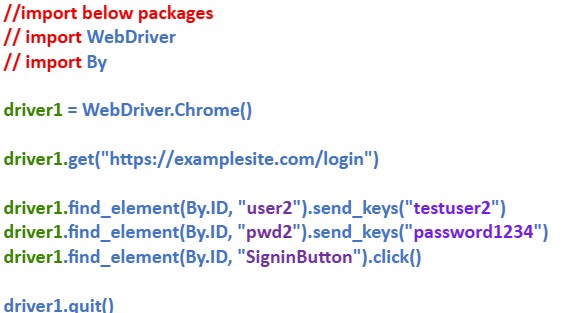
#6) How are organizations handling CAPTCHA during Automation?
Most of the organizations are not attempting / even avoiding to bypass CAPTCHA during automation testing, rather they are adopting proper automation test strategies that will still allow the automated test scripts to run, keeping the CAPTCHA security protection intact in the production environment.
1. Disable CAPTCHA in TEST Environment:
This is the most used approach, they may also disable it in Development, QA environments and Staging. This will benefit by having a stable test execution phase, with faster automation runs, and maintenance efforts are greatly reduced.
Example:
Production: CAPTCHA Enabled
on feature flag: DISABLE_CAPTCHA=true
QA/Staging: CAPTCHA Disabled
on feature flag: ENABLE_CAPTCHA=true
2. Make Use of Google’s reCAPTCHA Test Keys:
If the applications are using Google reCAPTCHA, teams will often be configuring the official test keys but not in the production environment.
Benefits of configuring it like this are:
• No real CAPTCHA challenges
• Automation results are consistent substantially.
• This is mainly supported by Google for testing purposes.
Hence, this approach is widely used in most of the enterprise environments.
3. Test CAPTCHA Separately:
Organizations always try to keep the CAPTCHA tests and Functional feature testing separate.
Example:
CAPTCHA verifies below tests:
• Verify CAPTCHA is disabled
• Verify form submission fails without CAPTCHA
• Verify successful submission after valid CAPTCHA verification is completed.
Functional features Automation testing tests:
• Sign In
• Registration page /form fill page and click on the submit button
• Search icon with search field
• Check out feature
• User Subscriptions
• User profiles management
To strengthen regression suites, make it stable and reliable throughout the testing life cycle.
4. Mock CAPTCHA Verifications:
For the benefit of faster tests with reliability and no dependency of external services, most of the organizations try to mock the CAPTCHA feature verification service instead of interacting with a real provider. I,e, instead of sending requests to the CAPTCHA provider, the application under test will return a pre-defined ‘Success’ JSON response.
Example:
</>JSON
{
“success”: true
}
5. Feature Flags or Environment Configuration are used: Most of the modern web applications use feature flags or environment configurations
example,
</>properties
captcha.enabled=false
By setting as shown above will automatically disable CAPTCHA during the automation testing
6. For limited scenarios, CAPTCHA can be completed manually:
The sample workflow would look like below:
• Selenium scripts open the page
• Testers solve CAPTCHA manually
• Automation continues execution
Most often, this approach is used during demonstrations and is reserved for occasional tests.
7. Integrate CAPTCHA Handling in CI/CD Pipelines: Most of the organizations are running their automation suites via:
• Azure DevOps
• GitHub
• GitLab
• Jenkins
Make sure the CAPTCHA is disabled in the TEST environment, can be mocked or configured with official test keys. Otherwise, the test execution will not be reliable.
7. What are the reasons for organizations to avoid CAPTCHA automation?
CAPTCHA systems are in place for detection and prevention of automated bot activities, protecting from theft or data spamming. Organizations think attempting to automate them may cause several other problems for the services they are offering.
Few examples to mention are:
• False failure rate
• Unstable test scripts
• Frequent maintenance required
• Dependency on changes to CAPTCHA algorithms.
• There might be potential legal policy, and compliance concerns.
Therefore, the QA testers will only focus to test applications features and functionalities instead of trying to automate CAPTCHA challenges. At a later stage, test CAPTCHA challenges individually.
Conclusion
CAPTCHA was invented intentionally to identify and stop automated bot’s activities. But direct automation using Selenium is not reliable and is inappropriate.
Hence, instead of attempting to bypass the security measures and protections, QA professional teams come up with accepted automation test strategies like disabling CAPTCHA in Test environments, mocking the validation services, and/or validating the CAPTCHA integration separately against the usual functional automation testing
The effective automation framework using Selenium will focus on business functionality tests along with treating CAPTCHA as their security layer, which should be configured appropriately for automation testing purposes.
This can be achieved when teams follow best practices, which helps teams to maintain stable, scalable, and yet maintainable automation suites without compromising on the security layer tests.
In modern web technology automation testing, the main goal of CAPTCHA is to provide a security layer and to create an environment wherein web application functionalities are tested efficiently, along with security controls and their integrity in the production environment (with real-world scenarios) are maintained well.
Hence, the goal here is not to overtake CAPTCHA protection.
Research Process: The total time involved to complete and publish this article is approximately 42 hours. This content was created through a structured research approach to ensure accuracy and reliability.
For more-related guides, you can explore our range of tutorials below:
- Best Selenium Tutorial for Beginners
- Firebug for Creating Selenium Scripts
- Sikuli Maven Project and Selenium WebDriver Integration
- Top 50 Selenium Interview Questions and Answers
- Cypress Vs Selenium: Differences With Examples
Was this helpful?
Recommended Reading
-

This Selenium Tutorial on Assertions Explains What Are Assertions in Selenium And Different Types of Assertions And Assertion Methods Using Junit and TestNG Frameworks: Assertions are used for validating a test case and helps us understand if a test case has passed or failed. The assertion is considered to be…
-
Get equipped with the necessary knowledge and skills to implement automated tests effectively with this step-by-step guide on Automating TestNG in Selenium: The TestNG framework is an open-source advanced automation testing framework for the Java programming language. JUnit and NUnit inspire it, and it has some new functionality that makes…
-

Welcome to our free Selenium Tutorial Series! This tutorial series was created in response to the requests of our readers. Starting from the very basics of web automation, you will reach advanced topics through practical examples. This tutorial series includes all you need to know about test automation with Selenium,…
-
In-Depth Tutorial On ChromeDriver for Running Selenium Webdriver Tests on Chrome Browser: Handling browser alerts while automating through Selenium will be discussed in this article. Moreover, we will elaborate on the set up of the Selenium script for the Google Chrome browser along with appropriate examples and pseudo-codes. Upon going…


