Is your YouTube down, buffering, or often freezing? Discover the proven fixes to resolve the YouTube glitching issue on your desktop or mobile from our step-by-step guide:
YouTube isn’t a mere video-sharing platform for me. It is a safe space to which I escape whenever I feel down or wish to unwind after a rough day. So, imagine how frustrated I would be when YouTube isn’t working as it should.
YouTube glitching out isn’t an uncommon issue. Since its launch, there have been days and instances in the past where YouTube glitched out or just stopped working.
As it isn’t an uncommon issue, there are many simple things you can do or measures you can take to get YouTube working again without any interruption.
YouTube Glitching: Proven Solutions to Try
So, why is YouTube glitching? Consider this article your guide to understanding this problem and fixing it without breaking a sweat.
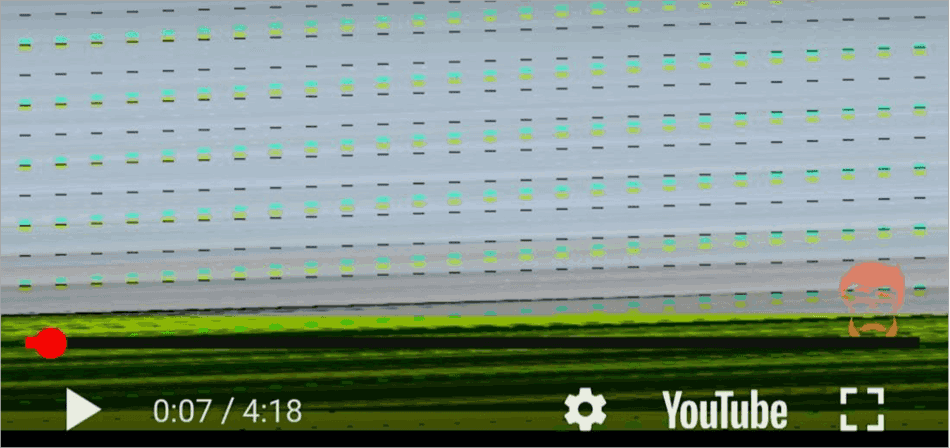
[Via Brave]
Quick Answer – Why is YouTube Glitching?
Your YouTube might be glitching for several reasons. It could be because the servers are down. In that case, I would advise visiting the DownDetector website or checking the latest news articles reporting on the issue.
If that’s not the case, the issue could be because of an unstable internet connection, corrupted cache, outdated app, VPN or browser extension, outdated video card, or excessive RAM usage.
Depending on the issue, you can have this problem resolved by upgrading to a better bandwidth internet plan, clearing app and browser cache, updating your system and app, updating your graphics card and drivers, force-stopping and restarting the app, and disabling any active VPNs or ad-blocker extensions in your browser.
Is YouTube Down Right Now?
YouTube is currently fully functional and operating with no noticeable issues to report. That said, YouTube has been plagued by sudden downtime in the past. The most recent example of this came in April of 2026, when users started experiencing extreme RAM usage and interface stuttering while using the platform.
The problem was later attributed to a rendering loop issue within the platform’s UI code. There was also the instance of a global outage that affected thousands of YouTube users worldwide in February this year.
Before you go all in, throwing everything at the kitchen sink to see what sticks, I suggest finding out whether the problem is on your side or with YouTube itself.
First, visit the platform DownDetector to check the user reports and live regional maps that show whether YouTube is in fact down. You could also try typing “Is YouTube Down?” in Google to get the latest headlines reporting the issue.
If it is a platform-wide issue, there isn’t much you can do. Thankfully, YouTube’s engineers have a track record of fixing such issues briskly. So, wait out the downtime. I would advise following the Team YouTube official X handle to get updates on this problem while you wait.
Check the video guide on how to fix YouTube Shorts glitching:
Common Issues Connected to YouTube Glitching
A solution to any problem lies in first unearthing its cause. Here are all the common issues that can cause YouTube to glitch or misbehave.
#1) Poor Internet Connection: YouTube requires a good, stable, and fast internet connection to function properly. If your internet connection is sluggish, YouTube’s performance will obviously suffer. Make sure you’re getting internet from a reliable ISP. Upgrade to a faster bandwidth plan.
#2) Corrupt App Data: Temporary app files and corrupted cache can affect YouTube’s performance, impeding its loading speed. This problem can be solved by regularly clearing the browser cache.
#3) Outdated Web Browser: An outdated web browser may struggle to run YouTube smoothly. As such, make sure that your Chrome, Edge, or whatever browser you are using to stream YouTube is updated to the latest version.
#4) Outdated or Incompatible Video Card: An outdated or downright incompatible video card in your system will cause YouTube to glitch out. Make sure your system’s graphics card is updated with the latest drivers. Additionally, check the card for compatibility concerns.
#5) Exhausting Computer Resources: YouTube needs sufficient RAM and hard-drive space to stream videos without interruption, freezing, or buffering. Make sure you have a system with enough free hard-drive space. Also, make sure there aren’t multiple apps running at the same time, trying to put pressure on your system’s RAM.
#6) Ad Blockers and VPN: I understand that ads on YouTube can be an annoyance. However, using ad-blockers isn’t the solution. YouTube can detect most ad-blockers. Certain so-called advanced ad-blockers might actually affect the platform’s performance.
On the other hand. A VPN connection can also interfere with YouTube’s performance. If YouTube is glitching, check whether an ad-blocker or VPN is active. Disable them and try to restart YouTube.
#7) Simultaneous Tabs in Browser: If you have multiple tabs open in your browser that need bandwidth, your YouTube video’s speed is bound to be affected. Close all unnecessary tabs and only keep the YouTube tab open.
Why is My YouTube Glitching on Browsers
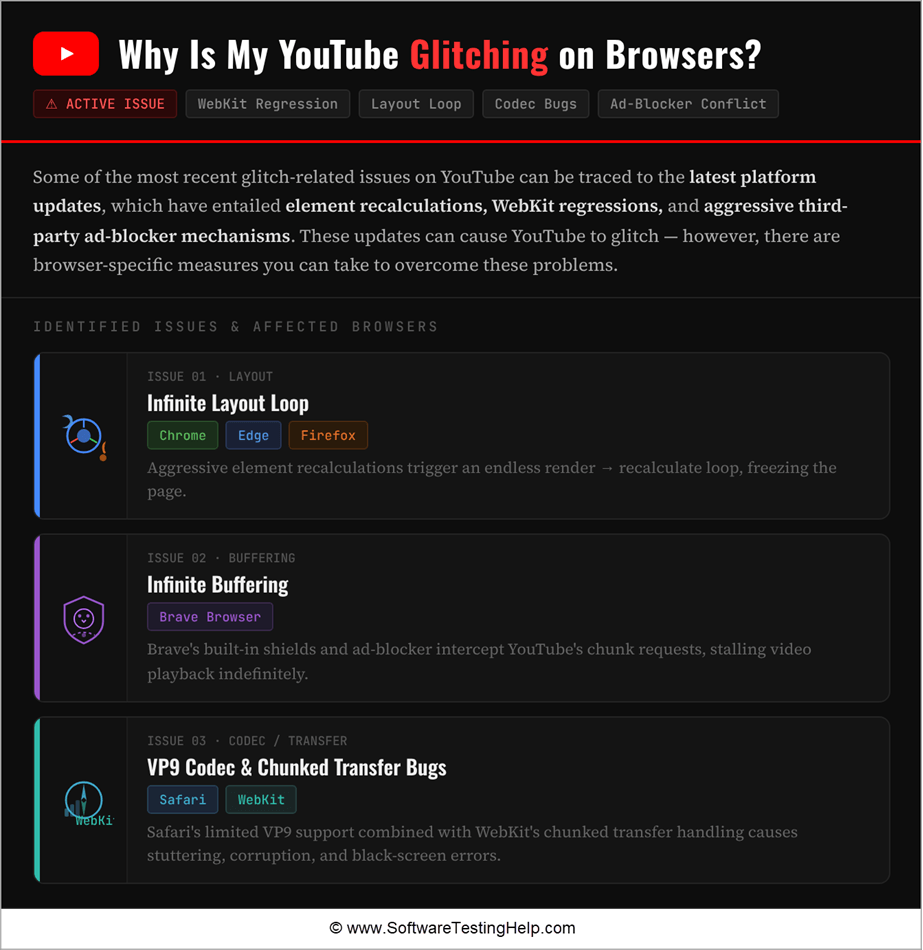
Some of the most recent glitch-related issues on YouTube can be traced to the latest updates the platform has received. The latest layout updates to YouTube have entailed element recalculations, WebKit regressions, and aggressive third-party ad-blocker mechanisms.
These updates can cause YouTube to glitch. However, there are browser-specific measures you can take to overcome these problems.
#1) Infinite Layout Loop on Chrome, Edge, and Firefox: I’ve already discussed this bug above. Simply put, this bug can trap your browser in an infinite loop that triggers massive GPU and CPU usage. The best way to solve this problem is by logging in and out of YouTube on your Chrome, Edge, and Firefox browsers.
There are some reports out there that recommend using uBlocker. I would advise against it as they might end up causing other problems. You could also try zooming in and out of your browser page to force YouTube’s layout to recalibrate itself, thus breaking the loop.
#2) Infinite Buffering on Brave Browser: In an attempt to block third-party ad-blockers, YouTube comes into direct conflict with the Brave browser’s built-in shields. This triggers the infinite buffering problem. Brave gives you the option to disable this Shield feature.
I would also suggest blocking the browser’s built-in ad blocker. This will stop YouTube from getting stuck in a state of infinite buffering.
#3) VP9 Codec and Chunked Transfer Bugs on Safari and WebKit: WebKit regression in the recent update did affect chunked transfer encoding for VP9 and WebM formats. This resulted in major performance issues like crashes, stuttering, and playback errors. Thankfully, this problem was patched in April 2026, and you don’t have to worry about it anymore.
How to Fix the YouTube Glitching Problem
Now that you know what causes this problem, you are in a better position to fix it. Here’s everything you can try to stop YouTube from glitching:
On Web and Desktop
#1) Check your Internet connection: YouTube is best experienced on an Internet connection that promises at least 100MB/second download speed. Upgrade your plan or choose a reliable ISP. If your plan and ISP are fine, try to reboot your router and see if that does the trick.
#2) Clear the browser cache and Cookies: If the problem isn’t with the router, it has something to do with your browser’s cache. You can clear the browser cache by hitting the shortcut keys Ctrl + Shift + Delete on Windows or Cmd + Shift + Delete on Mac. This will open a box with options to clear browser data, cache, and cookies.
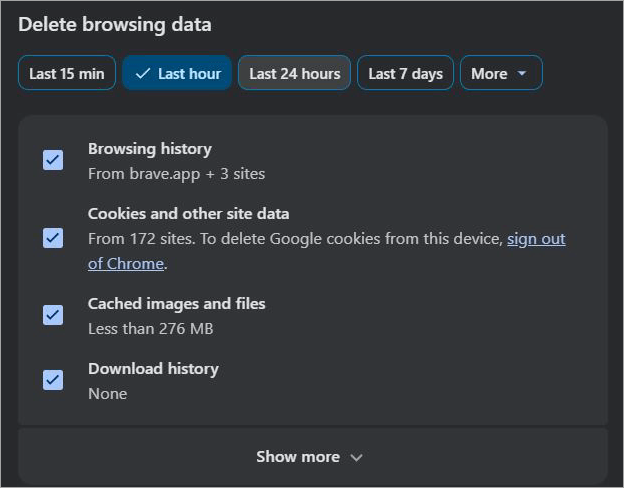
Make sure those options are checked and hit the delete button. Once deleted, close and restart the browser to see if that fixes the problem.
#3) Disable Graphics Acceleration: Graphics acceleration can affect video streams on your browser. I would suggest disabling it to fix any glitches.
To disable, do the following:
a) Go to your browser’s settings
b) Click on System
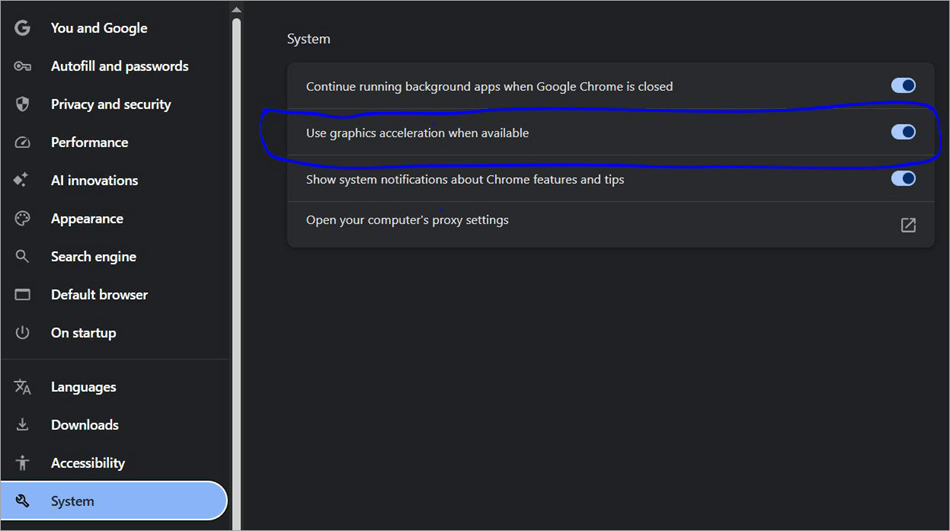
c) Switch the toggle off against the option that mentions graphics acceleration.
#4) Disable Extensions: As I mentioned before, Extensions like Ad-Blockers and VPNs can affect YouTube.
Perform the following actions to disable them:
a) Click on the Extensions icon above your browser and select “Manage Extensions.”
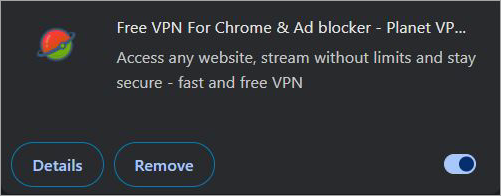
b) Select active VPN and ad-blocker extensions and toggle them off.
#5) Update your Browser: Finally, I would recommend keeping your browser up-to-date. New updates can fix any bugs or performance issues affecting your video streams.
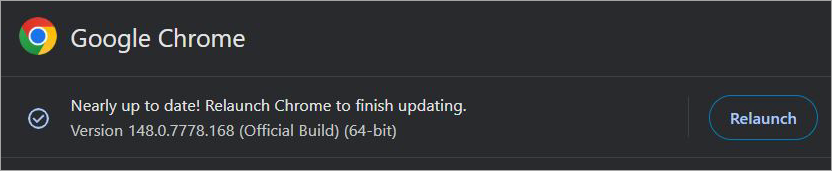
Simply go to Settings > About > Check for recent updates. If there are updates available, install them.
On Smartphones
For those asking why YouTube is glitching on my phone, here are possible solutions:
1. Force Quit App: There are two ways to force-quit an app. Simply tap on the center-bottom home button on your phone to preview all open apps. Simply tap on the YouTube page and swipe up to shut it down.
You can also force-quit the app on Android by navigating to:
a) Select App
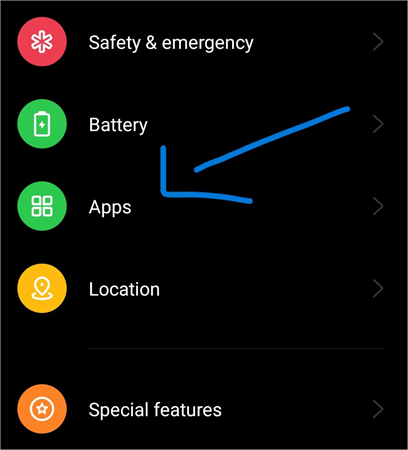
b) Select App Management
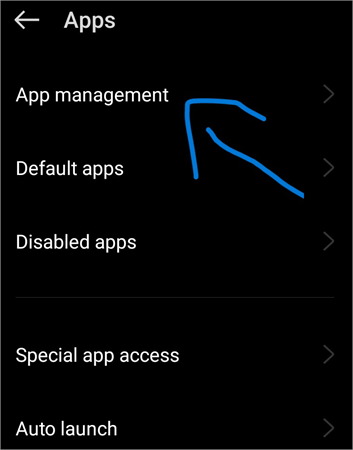
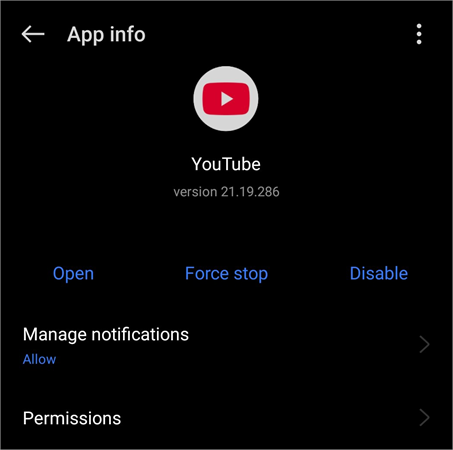
c) Select YouTube and tap on “Force Quit”.
2. Clear App Cache: Clearing the cache is just as effective on smartphones as it is on your browser.
Here’s how you clean app cache:
On Android:
a) Go to Settings
b) Select App > YouTube
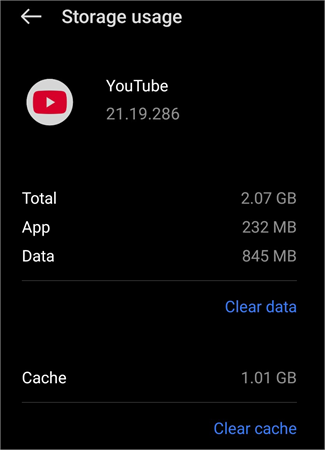
c) Select Storage and Cache > Clear Cache.
On iPhone
- Open YouTube
- Go to Settings
- Click on Storage
- Select “Clear Cache”.
3. Delete and Reinstall App: Deleting the app and reinstalling can not only get rid of any corrupted data but also make sure you have the up-to-date version downloaded on your phone.
Simply tap on the YouTube icon on your Android or iPhone and drag it to the trash bin or hit the appearing uninstall button. You can reinstall the app from the Google Play Store or the App Store.
4. Update the App: Finally, make sure you have the latest version of YouTube installed on your phone.
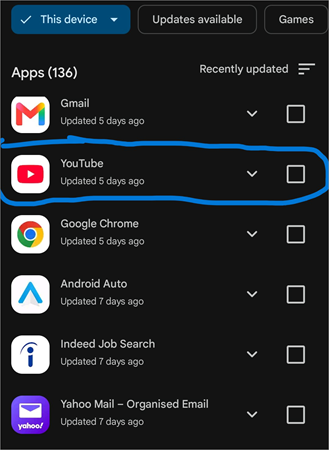
On Android:
a) Open the Google Play Store
b) Select Manage apps and devices.
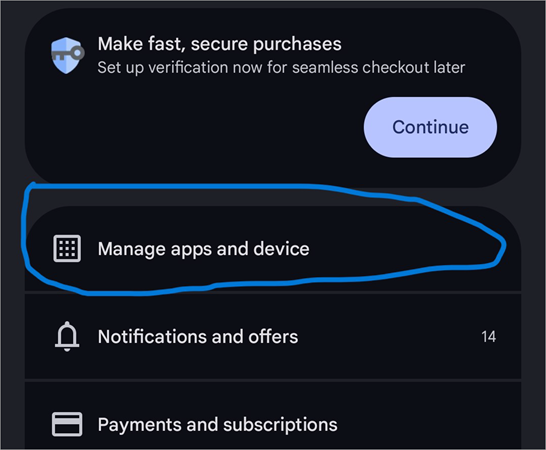
c) Select YouTube and check whether updates are available for the device.
On iPhone
a) Open the App Store
b) Find YouTube and hit the Update button next to it.
On Smart TV
For those asking why YouTube is glitching on my TV, here are some solutions:
1. Reboot TV: Unplug your TV and plug it back in after a few seconds. This will allow the system to reboot and the apps within your TV to refresh.
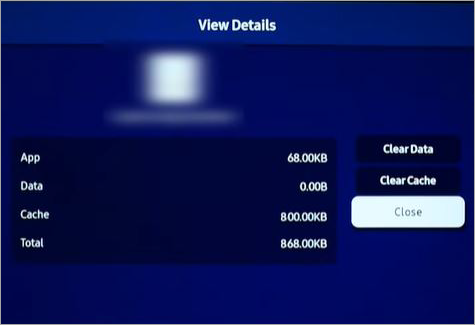
2. Clear App Cache: If that doesn’t solve the problem, clear your app’s cache. Here’s how you do it on TV:
a) Go to Settings
b) Select Apps
[Via Samsung]
c) Find YouTube > Select the Clear App Cache option.
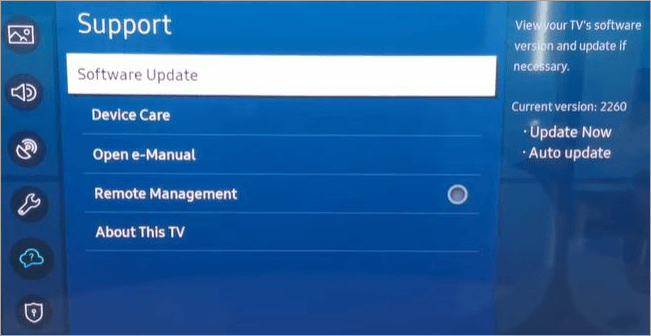
3. Update your TV’s firmware: Any compatibility or performance issues can be fixed with a single firmware update.
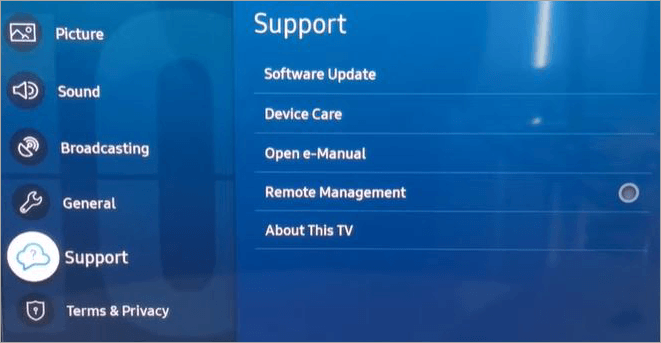
Here’s how you can update your TV’s firmware:
a) Go to Settings
b) Select “About” or “Support” to check for system updates
[Via GuideRealm]
c) If an update is available, install it.
General YouTube Glitches on Mobile & Smart TVs: How to Fix
Here are some of the quick steps to fix common YouTube glitches on mobile and Smart TVs.
On Smartphone
#1) Ads Frozen on Full Screen: This is a very common YouTube glitch on smartphones that results in ad banners getting stuck on the screen even after you’ve closed them. This issue can be fixed by force-quitting the app and restarting it.
#2) Video Freezes When Exiting Full Screen: This is yet another issue you can fix by either force-shutting your app or clearing the app cache. You’ll find a step-by-step guide for both above.
#3) Audio Desyncs and Video Lags: You can get this glitch fixed immediately by force-rebooting the app, clearing app cache, or rebooting your phone’s entire system.
On Smart TV
1. Only Audio, No Video: This issue can be caused if there is a lot of pressure on your TV’s RAM. Restarting your TV by unplugging it can fix this problem.
2. Constant App Crash: This issue can be fixed by clearing the app cache or uninstalling and reinstalling YouTube on your smart TV.
3. Endless buffering: YouTube needs at least 7mbps speed for smooth streams. Make sure your Internet is stable and fast. Reboot your router or upgrade your bandwidth plan.
4. Video only plays on a small screen or box: This is a problem you can fix by adjusting your TV’s aspect ratio. Make sure it is not stuck in Zoom. Adjust the video’s aspect ratio to 16:9 or “Full” for a better viewing experience.
Expert Solutions for YouTube Glitching
Let’s take a look at some of the perfect solutions from our experts to resolve YouTube glitching.
#1) Reduce Video Quality
If your internet speed isn’t stable or fast, you could try reducing your video’s quality. On mobile, simply switching to 480p instead of HD resolution could resolve any buffers. The same applies when watching videos on a smart TV or a desktop.
Higher-quality videos demand a lot of bandwidth, thus causing buffering and sudden video freezes. Whenever this happens, you can continue watching a video by simply reducing its quality. Keep your video quality at 720p or 480p for decent picture quality without consuming bandwidth.
#2) Change DNS Settings
Sometimes, YouTube may not work as intended because your ISP is throttling your speed. As such, you are not getting the bandwidth necessary to stream videos without interruptions. If you suspect ISP throttling to be the case behind why your YouTube is glitching, I suggest changing your system’s DNS settings:
On Windows:
- Open Network Connection
- Right-click on your Internet network and select properties.
- Select Internet Protocol Version 4 and select properties.
- Now tick the option that states “Use the following DNS server addresses” and enter your preferred address.
On Mac
- Open System Settings
- Go to Network, select Wi-Fi > Details
- Click on DNS, and in the DNS Servers option, hit the + icon to add your preferred DNS address.
On Android
- Go to Settings > Connections
- Select Wi-Fi
- Select the gear icon next to the open Wi-Fi network
- Select “View More” > IP Settings
- Scroll down to enter your preferred DNS addresses and hit “Save”.
On iPhone
- Go to settings
- Select Wi-Fi
- Click on the “i” icon and select “Configure DNS”
- Select Manual and enter your preferred DNS addresses.
How to Fix Specific YouTube Feature Glitches
This section explains the fix for certain glitches in specific YouTube features:
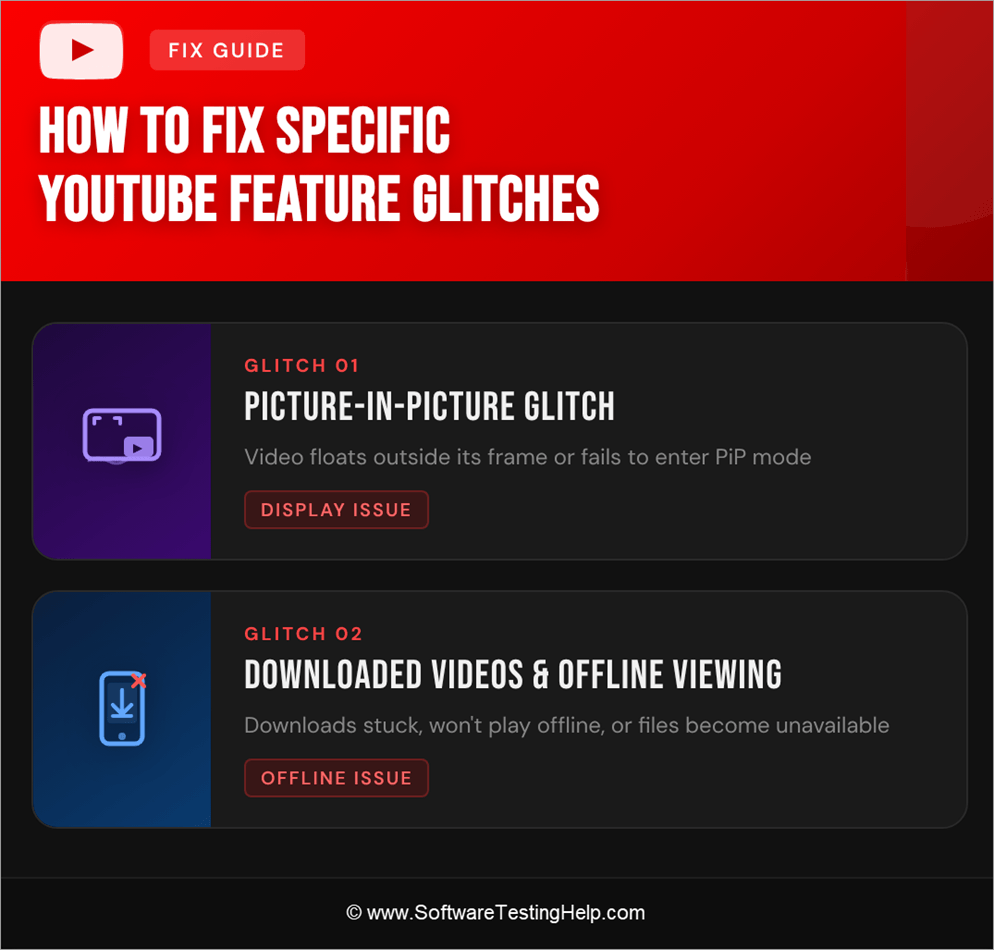
#1) Picture-in-Picture Glitch
The PiP glitch is a very common YouTube UI error where everything from the play-pause button to the seek bar itself becomes unresponsive. This issue can occur because the platform is coming into conflict with a browser extension. It could also be because of corrupted cache data or an outdated app.
To fix this issue, try to force-stop and restart YouTube again. If this problem is happening on your desktop, make sure all ad-blockers and VPNs that may interfere with the platform’s performance are disabled. Also, clear the browser and app cache. Finally, keep your app and browser up-to-date.
#2) Glitches with Downloaded Videos or Offline Viewing
A downloaded video may not work on YouTube for several reasons. Perhaps your app is outdated, there is a corrupted cache interfering with your platform’s performance, or the third-party tool you used has downloaded the video in a format that isn’t compatible with your device.
When faced with this issue, try to re-download the video and see if it works. This usually resolves the problem. If not, check if your downloaded video’s codec is compatible with your device. If not, use an online video converter to transform the video into a format like MP4.
Finally, keep your app and browser up-to-date and clear any cache or cookies for seamless performance.
Why is My YouTube Glitching or Flickering During Playback
This is a common issue connected to driver problems on your computer. Hardware acceleration can also be the cause of this issue.
I would suggest making sure all video cards and graphics drivers on your system are compatible and up-to-date. Disable hardware acceleration on your browser. Another thing you can do is try to open YouTube in incognito mode.
Finally, clearing the browser cache can also do the trick and fix this flickering issue during video playback.
When to Contact YouTube Support
YouTube Support should be your last resort. If you’ve exhausted all the tips and measures I’ve recommended above and still have seen no results, your best bet would be to contact YouTube Support.
You can get in touch with them via Google’s official YouTube Help Center. There, you’ll find detailed troubleshooting guides for any problem you are facing. For immediate help, leave a comment or DM on the platform’s official X or Instagram page.
Frequently Asked Questions
1. Why is YouTube slow today?
If YouTube is slow today, I would recommend visiting DownDetector or performing a Google search to find whether this is a platform-wide issue. If it is, all you can do is wait. If the problem isn’t associated with the platform, use the measures I’ve suggested above to fix the problem on your system.
2. Why does YouTube keep freezing on my laptop?
An outdated app, browser, or device OS can be the primary culprit behind YouTube freezing on your laptop. Other issues could pertain to extensive RAM or GPU usage, enabled hardware acceleration on the browser, corrupted app data, or a slow internet connection.
3. Why is the YouTube app glitching on my phone?
The YouTube app might be glitching on your phone for a variety of reasons, such as the following:
• Unstable internet connection
• Outdated app
• Too much app cache.
• Problem with the phone’s software or hardware.
4. Does clearing the cache fix YouTube?
Yes, clearing the cache is an effective way of fixing YouTube glitches. Clearing the cache can get rid of cookies, corrupted cache, and other data slowing down videos on YouTube.
5. How do I know if the YouTube server is down?
There are two effective ways to know whether the YouTube server is down. First, go to DownDetector and check the user-submitted reports on the outage. Second, perform a Google Search with the query “Is YouTube down?” to unearth news articles and headlines reporting on this issue.
6. Why is YouTube Shorts glitching?
You may have noticed several problems when watching YouTube Shorts, such as the video freezing after only a couple of seconds. You could attribute this problem to several reasons, the most prominent of which are:
• Infinite Scrolling Error: This is a glitch that may occur when you try to scroll through shorts in rapid succession, thus pushing the platform into a constant “fetch and reload” loop. You can solve this issue by giving the scripts some time to load before you scroll forward to the next short.
• Ad-Load Freeze: This is a very common issue with YouTube Shorts, wherein the video just freezes or starts buffering after only a couple of seconds. This is because the platform is trying to load an ad that might appear after a few more videos in your feed.
• Auto-Play Bug: This bug causes a YouTube Short to start automatically as soon as you open the platform or app on your phone. This can happen because of a stalled UI fetch or mismatched playback settings.
On mobile, you can solve this issue by updating your phone and the YouTube app. Clearing app cache can also help. You can also offset the ad-load freeze by simply swiping down to the next video and immediately swiping back up to access the previous video.
On desktop, try disabling hardware acceleration, ad-blockers, and VPNs. Also, clear your browser’s cookies and cache.
Conclusion
YouTube glitching out can be annoying, and dealing with it can be frustrating. That said, it is a common issue that you can fix using any of the measures I’ve discussed before. YouTube itself is a great platform with bugs being fixed as soon as their presence is felt. So, a quick update might be the only thing you’ll have to do to fix a variety of problems.
Just make sure you know what the reason behind the glitching is before you employ a measure to fix it. If it is a platform-wide issue, then waiting is the only thing you can do. If it isn’t a platform-wide issue, then by all means, use the tricks I’ve discussed above without hesitation.
For more YouTube-related guides, you can explore our range of tutorials below:
- Why Is my YouTube Not Working Today? How to Fix It Fast
- What is Ambient Mode on YouTube
- YouTube Comments Not Loading? Top 9 Methods to fix
- FIX: How to Disable Restricted Mode on YouTube
- How to Delete a YouTube Account Quickly in a Few Steps
- 5 Ways To Fix YouTube Audio Renderer Error (With Screenshots)
Was this helpful?
Recommended Reading
-

Are you planning to make use of audio from YouTube for your professional needs? Here is a detailed review of the Best YouTube Audio Ripper with features for you to choose from: YouTube does not allow you to rip audio from the YouTube library to your storage device from its…
-
Review of Top YouTube Video Downloader Apps with Features, Pricing & Comparison. Select the Best Free Online YouTube Ripper for PCs to Download YouTube Videos: YouTube is the most-watched video streaming website. Launched in 2005, the online video platform features a wide variety of content, including TV clips, educational videos,…
-

Select the best YouTube Subtitle Downloader per your requirements to download Subtitles from YouTube from the tools reviewed here: Multimedia has made things easier as now you can easily find a visual explanation for your questions and queries in an instant. Suppose, if any of your assignments or homework is…
-
Review and compare the top YouTube to GIF Maker and select the best YouTube to GIF Converter as per your specification: GIF or Graphics Interchange Formats have become immensely popular these days. It is a lossless format that supports 8 bits per pixel and can display 256 colors. GIF supports…