Is your Alexa blinking yellow light? Here is a complete troubleshooting guide with step-by-step fixes and simple solutions to put an end to Alexa’s yellow light blinking issues:
The light ring (or light bar on the Echo Show devices) is blinking yellow, and likely, you have noticed that. This is not a peculiarity; on the contrary, it is among the most frequent Alexa light signals, which people enquire about.
The yellow blinking displays are how Alexa physically reminds you that she has something to tell you (a comment, notification, reminder, etc).
Alexa Yellow Ring: Possible Reasons With Quick Fix
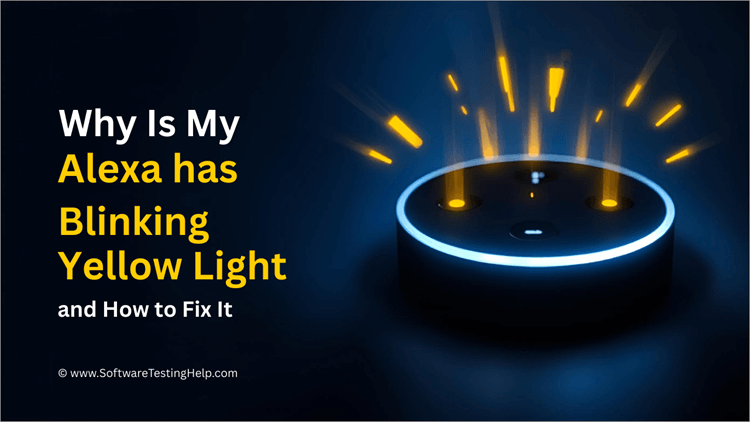
Consider it a phone call that was missed – it is a light that Alexa made to indicate that you need to check in. Since Alexa can be used with various services (messages, Amazon orders, reminders, third-party skills), the yellow indicator may appear rather frequently.
Here is a video on the Alexa Yellow Light Ring for your reference:
The yellow light is actually confused by many users with the setup or error states. Therefore, it is very important to know the precise meaning of each blinking pattern and how to clear it to reduce frustration and understand whether it is a normal alert or a more serious issue.
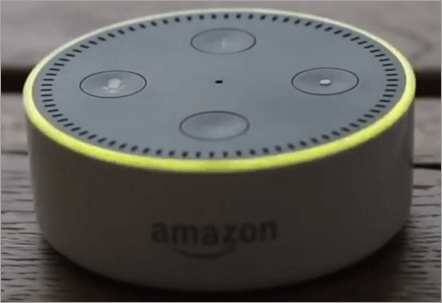
Quick Summary of Why is My Alexa Yellow
Why is my Alexa blinking yellow? It is a light that Alexa made to indicate that you need to check a comment, reminder, notification, etc.
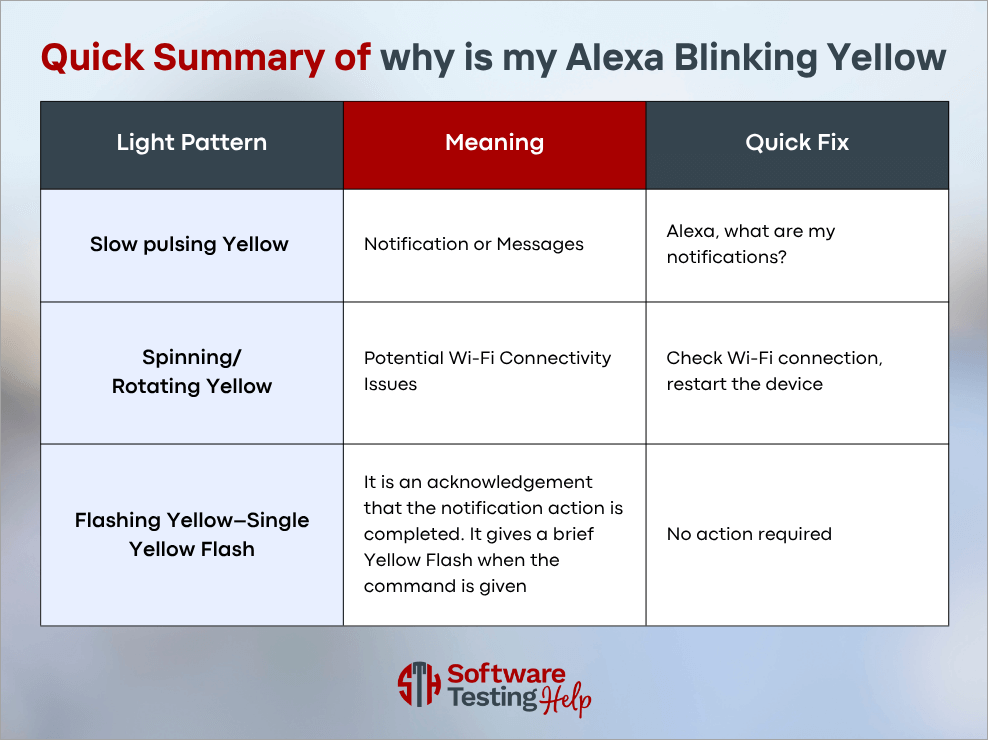
Alexa Blinking Yellow: What Does it Mean
The yellow light is not a one-sided kind of light. But really, does yellow light mean something is wrong?
Here are the reasons you might find yellow light blinking:
1. Unread Messages: You may have some messages that are not yet read. This may include either Alexa app messages or third-party app notifications as shown below.
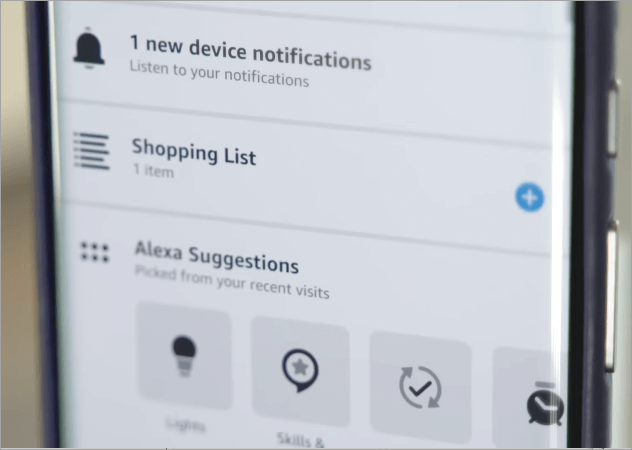
2. Reminder Notices: For instance, when you told Alexa to remind you of calling your friend or to take medicine, and you ignored it, the yellow light will stay there until you notice it.
3. Delivery or Shopping Notifications: Alexa will inform you about a package being delivered and alert you about a deal concerning your shopping.
4. Unusual Cases: In some cases, users complain of a yellow blink upon Alexa trying to restart tasks or buffer (but it does not mean it has to be orange; the setup of Wi-Fi is supposed to be).
Cleaning Yellow Blinking of Messages and Notifications
The fact that Alexa flashes yellow due to received messages or notifications simply means that it is waiting for you to view them.
Voice Commands (Easiest Way):
- Ask: Alexa, what are my notifications? Or, Alexa, tell me my notifications, or Alexa, what did I miss?
- Alexa will be reading out impending notifications (such as Your order was shipped on Amazon).
- Say: Alexa, are there any messages I have?
- Alexa will read any Alexa-to-Alexa messages or app messages that you have received.
- You do not want to hear them say: Alexa, delete all notifications.
- With this out, it clears, and the light vanishes straight off. Alexa, read my notifications, or Alexa, play my messages.
With the Alexa App (provides more control):
1. On your phone, open the Alexa app.
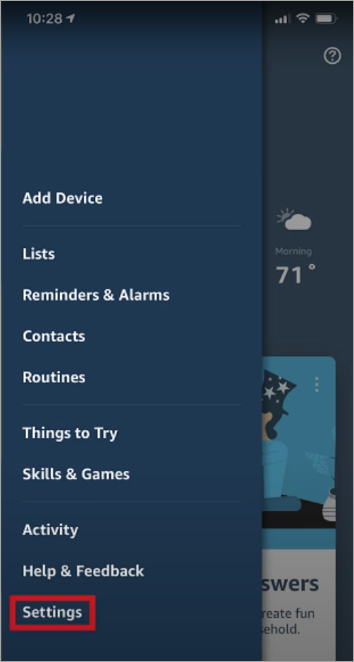
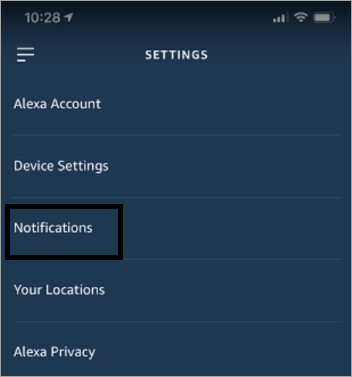
2. More Taps -> Settings -> Notifications.
The image below shows the setting option:
The image below shows the Notifications option:
3. Look up the categories (e.g., Messages, Shopping, Skills, etc.) to find out what is in store.
The image below shows the various category options:
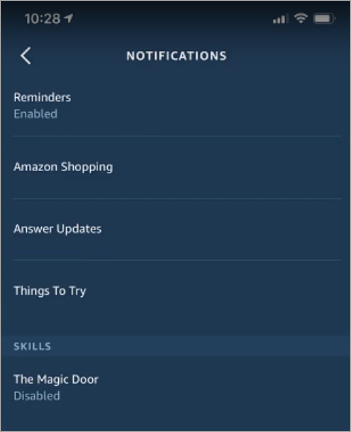
4. Read or delete items turned on – when all the items are cleared, the yellow light on the device will cease.
What if the Light Doesn’t Clear?
Will the yellow light eventually turn off by itself? No. Therefore, it still pays to look at other things below that may cause the flashing.
- Turn your Echo on again (unplug and then plug it back in after some 10-20 seconds).
- Ensure that your Echo is signed in with the same account as the Alexa app. The yellow light may become trapped with the use of two accounts.
- Check if multiple Amazon accounts are linked. Maybe Alexa is still sending some notifications or messages to other linked accounts, although you have signed out of yours.
- Verify all household members have cleared their notifications.
How to Repair Yellow Blinking on Amazon Shopping / Delivery Notices
Amazon order monitoring is one of the most common causes of the yellow notifications. Shipping updates are automatically told to Alexa.
Stop Shopping/Delivery Notifications:
- Open the Alexa app.
- Tap More -> Settings -> Notifications -> Amazon Shopping.
- On this page, you may switch off: “Order updates, “Out for delivery, “Say or show item titles (very handy when you do not want to know what you are getting to the receiver as a present).
- Being disabled, once it is disabled, the Echo device does not flash yellow to indicate package updates.
- You can play with Do Not Disturb to turn off the notifications permanently, but you should not do so, enable it so that your phone will temporarily silence them (such as at night).
Steps to Resolve Yellow Blinking on Reminders Missed
Its most helpful feature is Alexa reminders, and they may make it blink yellow in case you miss them.
Here’s how to remove missed reminders:
- Say: “Alexa, what do I have to be reminded of?” – Alexa will list them.
- You can answer with either Done or Delete reminder to clear the reminder.
- Otherwise, open the Alexa app -> More -> Reminders and Alarms.
- Reminders are marked by hand or deleted.
When the yellow blinking seems to be a setup or network failure
So, how long does the yellow light stay on? For as long as you can resolve the problem. Wi-Fi is normally not yellow to set up; that is, orange. Other users mix up the shades or even observe a yellow-like flickering when attempting to reconnect.
What to Do:
- Unplug your Echo device for 30 seconds to reboot it.
- Reboot your router and modem. Then wait until Wi-Fi is connected again.
- In case the light is on, open the Alexa app -> Devices – (+) Add Device and repeat the setup.
Notifications vs. Alexa
In this case, Alexa does make a distinction:
- The notifications refer to general messages (deliveries, skill messages, app notifications).
- Notifications are time-related or immediate (timers, alarms, reminders).
- On the Alexa app, navigate to Settings -> Notifications and alerts under Settings -> Reminders and Alarms to control notifications. This allows you to customize what you would have as yellow blinking and what would come out as a sound instead.
Can Yellow Blinking Occur Due to Malfunction
No, most of the time it is simply a communication signal. However, sometimes the light may be stuck because of a software bug, synchronization error, or hardware breakdown.
Signs of Malfunction
The light will never clear, even when all the notifications are removed.
Alexa does not respond to commands or restarts continually.
Several misplaced colored lights are observed simultaneously.
Before Repair Troubleshooting:
- Restart the device.
- In the Alexa app, check the updates of firmware.
- Unregister the machine and reregister.
- Check the updates of the firmware for your Alexa.
- Unregister and reregister the machine.
- Factory reset the device – remember the instructions are different for resetting different devices.
- Perform a factory reset (instructions are different depending on the model). For Echo Show and Eco Spot, use the touch screen and visit Menu -> Settings -> Device options -> Restore default settings. Use manual buttons and press and hold the Action button for about 25 seconds until the light ring is now Orange, to reset the Amazon Echo Dot 4th and 3rd generation. Otherwise, the 2nd generation is reset by simultaneously pressing and holding for a few seconds the microphone mute and volume down buttons. The first generation is reset by pressing the reset button located at the bottom of the device.
Warranty and Free Repairs
The Amazon Echo products are usually accompanied by a one-year limited warranty that includes defects in material and workmanship.
Amazon can repurchase using new/refurbished parts, buy a new/refurbished unit, or refund.
Checking Warranty and Requiring Service:
- Open Amazon -> Your Devices and Content.
- See warranty information as per your device.
- Select Get Product Support to initiate a request to repair/replace the device.
- Have your device serial number and order receipt.
Switching off the Yellow Blinking Light on Alexa
It is not possible to turn off the yellow indicator completely, but you can disable it by turning off notifications or turning off alerts.
Benefits of Disabling:
- Eliminates disturbances during the silent times.
- Helps not to spoil the contents of packages.
- Reduces blinking in case you have been getting numerous alerts.
Methods to Disable
| 1 | Select notifications category-by-category in the Alexa app in the Settings -> Notifications. |
| 2 | Allow Do not Disturb to remove the light at a particular time of day. |
| 3 | Voice Delete Follow the voice command, saying Alexa, delete all notifications. |
Why You Shouldn’t Disable It
It may cause you to miss important notifications, e.g., medication or appointments.
Shared updates can be lost by members of the household.
It makes Alexa a less useful hands-free assistant.
Other Alexa Lights Meaning: Explained
Alexa does not just blink the yellow light. At times, it flashes red, orange, purple, and green lights as well. This section will brief you on the meaning of different Alexa lights in detail.
Check the video below to know what each light on Alexa means:
Alexa Red Light
Most Echo devices have a red light that is normally solid and indicates that the microphone of the device is switched off, and thus Alexa will not respond to voice commands.
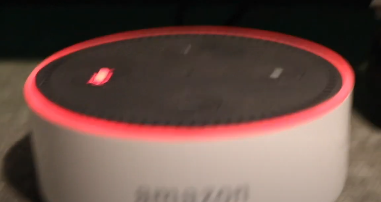
A permanent red indicator, which does not vanish when unmuted, may also signal software errors, a stuck computer, or (infrequently) a hardware malfunction with the microphone or with the mute button.
Due to the significant influence of the red indicator on privacy and even basic functioning, it is reasonable to address it as one of the high-priority troubleshooting problems.
Here is why you could have a red-colored (muted/stuck) light:
- The device has its microphone/mute button used to deliberately mute the microphone.
- The computer recognized the mute button through software (mic off state), which indicates a solid red color.
- One of the bugs in the firmware or system software would leave the device in red even after the mute was switched off.
- This is because the mute button or the internal microphone component is physically faulty and is unable to leave mute.
- Leave the red light on until reset by power-cycle or boot issues (the device is stuck at the start of booting).
- Account, registration, or a cloud-syncing error may sometimes display as a frozen red indicator when the device is non-responsive.
Details of the steps to take to solve each cause:
If the microphone was muted (hypothesis):
- Locate the microphone or mute button on the top or on the side of the Echo device and press it once.
- Wait until you hear a tone and observe the red light. The solid red indicator will instantly disappear because of a successful unmute operation. You can try asking something like, What is the weather? Which will allow you to verify that the machine hearkens to you.
In case the device appears to be locked on red upon unmuting (software/firmware glitch):
- Disconnect the Echo and leave it without power (30 seconds) and reconnect the Echo.
- On rebooting, press the microphone button again to mute on/off and check if the red light clears.
- Open the Alexa application, then navigate to Devices -> [your device] and check for any firmware or device update notices. Install any available updates.
- When the problem does not change, make a factory reset (model-specific instructions displayed on the support pages of Amazon) and re-register the device.
When there is a physical jamming of the mute button, or possibly a fault with the microphone hardware:
- Check the area around the button to confirm that no debris or stuck material is causing the issue. Use compressed air and a soft brush to clean the area.
- Attempt a factory reset to exclude software: press the device down on the sequence of actions that Amazon specifies across a particular number of held actions, and watch the orange setup ring appear.
- In case a factory reset fails to reboot the device or the mute hardware will not respond in any way, reach out to Amazon Device Support and be ready to provide the device serial number and the date of purchase.
In case the device has frozen or is in a power/boot loop
- Switch off the device, leave it without any source of power for 60 seconds. Reconnect the power supply to discharge capacitors.
- In case of reboot, change the power outlet/power adapter (only use one that Amazon supplied or a suggested alternative).
- If the device does not reboot or the red light fails to go away after several attempts, launch a case with support. Look for further information on warranty or repair information as described below.
At what point should one suspect that there is a hardware fault and ask to be repaired?
- In case you have attempted to un-mute, reboot, check/apply updates, and factory reset, the red light still appears, or the mic does not respond at all, the issue is most likely hardware-related.
- Review your Amazon purchase history to verify the purchase date to determine whether the device is under a One-Year Limited Warranty or not.
- Open a repair/ replacement request using Amazon -> Your Devices or Get Product Support, and include the serial number and order/invoice as requested.
Green Light in Alexa
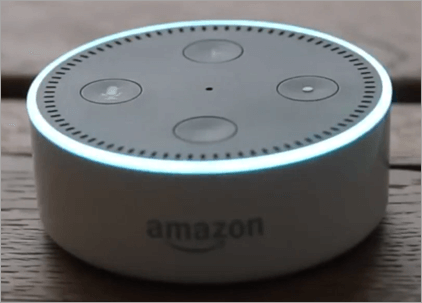
The Echo devices have a spinning green light that indicates a call activity: a live/active call or an incoming call (including Drop-In).
- Green is coupled specifically with communications functionalities (calling, Drop-In, and some behavior akin to an intercom) of the Alexa and is the visual indicator of Amazon to answer, ignore, or hang up.
- Since the green indicator frequently occurs in live calls, it might be a life and death situation to determine whether the light is malfunctioning and you do not regard an active call.
The possible cause of a green (pulsing/spinning) light:
- Incoming call or drop-in request -> green is pulsing to indicate a caller from your Echo.
- The spinning or steady green on the phone when on an active call indicates that the phone is in a voice connection (call or Drop-In).
- If the green light is suppressed, it could be due to a failed call teardown or glitch wherein the device fails to perceive that the call has ended.
- Green behavior can be invoked by a third-party skill or notification, which invokes communications (rare) in some configurations.
- A network outage when making a live call can put the device in a half-connected state and continue remaining green until the time when the session is completely terminated.
Solving each cause step-by-step:
In case there is an incoming call or a drop-in (when you should):
- Tap Answer to receive the incoming call, and the green will turn on in the call status.
- In order to ignore the incoming call, one should say Alexa, ignore or tap the on-device action to reject the call.
- Use the command Alexa, hang up or tap the hang-up button on the screens of the Echo Show to close a call.
Should a call end some time previous to its expected completion (teardown glitch)
- Open the Alexa application – make and check whether there are any active calls; terminate the call there in case.
- When there is no active call, it is necessary to unplug the Echo for 30 seconds to resolve any unresolved sessions and then plug it.
- And when the green light does not clear, repeat saying Alexa, hang up, and then re-read the device by relaunching it in the Alexa app.
Should unwanted green activity be provoked by Drop-In settings or contact settings?
- Open Alexa app -> Communicate -> Contacts. From this menu, try to find the person or household device and read the Permissions of Drop-In (allow/block).
- Stop Unsolicited drop-ins to a device or a contact to prevent unsolicited drop-in requests (so that other people cannot open audio sessions).
- Use contact privacy and blocked lists to prevent the use of Alexa communications by unknown callers.
In case network disruptions continue to be green
- Restart your Internet router or modem. Wait for the Internet reconnection. From here, reconnect Echo to Wi-Fi through the Alexa app where necessary.
- If or when the Echo is connecting partially, try making sure that it is moved and stays closer to the Internet router or connected to a less busy Wi-Fi band.
- Finally, the last option is to de-register the device in the Alexa app and run a factory reset, after which, re-register and place calls once more.
When and how do you know your device has hardware fault issues and seek the necessary assistance?
- In case green persists after the above attempt and your device does not respond to voice or app commands, this could be a firmware or hardware issue.
- Ensure you update your device in the Alexa app and update it; do a factory reset in case the updates do not assist.
- In case of trouble, call Amazon Support for the device and provide them with your device serial number and details of the order to obtain a warranty or to have it repaired.
Alexa Purple Light
The purple light seen sometimes on the Echo device is usually associated with the On/Activated status of the Do Not Disturb feature/settings or with an unsuccessful network or connection during the configuration, depending on the pattern and timing.
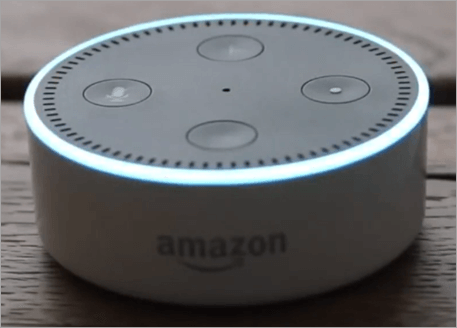
If/when the device flashes purple color only once upon issuing a command, then you might suspect that the DND is enabled. Whenever there is a repeating or flashing of the purple color on your Echo Alexa device, you might suspect a connection issue or an issue with the Wi-Fi.
Echo device purple light is normally associated with either Do Not Disturb (DND) or an unsuccessful network/connection during configuration, depending on pattern and timing. One purple flash upon command indicates DND being enabled, and repeating or flashing purple at setup indicates a connection issue or Wi-Fi.
Why you might see Purple
- Do Not Disturb is turned on the device (purple flash released post-interaction).
- The equipment could not connect to the Wi-Fi network at all or in the reconfiguration.
- A temporary cloud service or an account authentication problem prevents the device from doing something and displays purple as an error status.
Solving Purple Causes: Step-by-step
In case you are not interested in DND on:
- Open Alexa app -> Devices -> Echo and Alexa -> [device] -> Do Not Disturb and switch off DND.
- Alternatively, send a voice message to Alexa, for instance, saying, “Alexa, switch off Do Not Disturb” to do so.
- In case DND has to be kept, update the schedule in the DND settings to release the hours you desire notifications.
Purple on Setup – Means Wi-Fi Failure
- Restart the modem or router, and then the Echo Alexa device. After this, wait for the network restoration before re-initiating the setup.
- On the Alexa app, repeat the device set-up process and make sure that you use the correct Wi-Fi password and you choose the appropriate SSID.
- In case it is prolonged, they have to reset the device to factory settings and reconfigure it again somewhere near the router to minimize interference.
When to request support
If or when the purple persists even after you switch the Do Not Disturb, and you rebuild the network. In this case, contact Amazon Device Support to provide further diagnostics.
When to contact support vs. when to factory reset Alexa devices:
- When you are considering giving it away or reselling it, consider a factory reset
- When no support solution is forthcoming or when the solution offered is not working, consider a factory reset
- When there are technical issues, such as slow responses or other issues local to the device, try contacting support first.
Orange Light in Alexa
An orange spinning light means that Alexa is in setup mode, or trying to join Wi-Fi; it is the visual indication of Amazon that something is happening with network configuration. It even depicts orange when the device starts its boot up into the Alexa setup screen or when it is attempting to connect to a new network.
Why you might see Orange
- The Echo device is waiting for installation or re-installation after you did a factory reset (standard setup orange).
- There was an issuance of network credentials that were wrong, or the router blocked the device when attempting to connect.
- Alexa, in this case, is attempting to reconnect to Wi-Fi after experiencing a Wi-Fi outage or after there has been a firmware update.
What may cause an orange light on an Alexa device, and how can you troubleshoot the various issues
In case the device requires installation or re-installation:
- Open the Alexa app -> Devices – + (Add Device) and complete the steps of the setup; you can see the orange ring to tell that the Echo is in the pairing mode.
- Make sure the phone is on the same 2.4/5 GHz SSID that you will be using, and type in the Wi-Fi password carefully when setting up.
- In case the app fails to detect the Echo, move the Echo and phone nearer to the router and re-attempt.
In case of network credentials/router block problem:
- Restart your network devices, including the router or modem. Make sure that the device is not experiencing stoppage as a new device, due to a MAC IP address issue, such as IP address conflicts with another device on the same network, or due to parental control, or from isolation of the guest network.
- You might want to temporarily stop using security features (WPS/filters) during the setup of the Alexa device on the network, and instead, turn on such security features once the Alexa device is registered.
- In case you are using an enterprise WPA/WPA2-Enterprise router or captive portal (hotel/office Wi-Fi) router, first set up the Alexa device using a home/standard Wi-Fi network.
What if the Orange light shows persistently?
- Factory Reset: Do a factory reset and restart setup one more time, in case the orange is still spinning, and setup is never finished, call Amazon support and ask about warranty/repair.
- A pulsing or spinning Green: There is an active or incoming call. This can be fixed by speaking to Alexa with a response like, “Alexa, answer,” or by hanging up (Alexa, hang up).
- Red (solid): Microphone Muted: Try unmuting the mic, or restarting in a stuck state, press the mic button.
- Purple: The feature Do Not Disturb is tweaked on if the flash is being triggered by command. It is a Wi-Fi network problem in case there is incessant purple. To resolve the issue, turn off the DND or reconnect to the Wi-Fi network.
- Spinning Orange: The device is prepared or connecting to Wi-Fi. Set up or reset the connection by clearing the Open Alexa app, then attempt the reconnection.
Third-Party Devices That Use Alexa
The colored indicators of lights are the most common feature of Amazon Echo units, yet Alexa appears in various third-party speakers, soundbars, and smart displays.
These devices occasionally share the same light patterns, although sometimes the manufacturer can substitute them with the use of screen icons, small LED displays, or mobile application notifications.
For instance, a single LED that does not change color as easily as a light ring on an Echo can control an Alexa-enabled soundbar. Some smart displays do not use physical color codes and instead will show onscreen banners.
Since manufacturers of third-party products manufacture their own hardware, error messages and solutions may vary, and the user must refer to the manual and customer care of the brand to find the particular meanings.
Nonetheless, colors that are related to communication, such as green (calls), red (mic off), or yellow (notifications) color are standardized since the software used on Alexa devices displays them in the same way.
In order to troubleshoot, customers need to follow the instructions of the Alexa app and use them with the official instructions of the device manufacturer, whereby not only the software but also the hardware design are taken into consideration.
Instruction Adherence and Guides of the Manufacturers
Official setup and support documentation by Amazon and the manufacturer of the device is highly recommended before proceeding to any troubleshooting measures. These manuals are model-specific or even device-specific so that users can use safe, model-specific procedures.
The product packaging includes manuals that include setup directions, the meanings of the lights, and resets, which reduce the chances of breaking the device by taking the wrong measures.
Numerous of these directions could also be found online, on the pages of Help and Customer Service of the Amazon site, which contains the troubleshooting articles, the answers provided by the community, and the official tutorial videos.
The advantage of using verified instructions is that it ensures that the instructions are compatible with the device firmware, warranty protection, and a clear process guaranteed by tests by the manufacturer.
Besides, online guides are constantly updated with new software fixes or modifications to the behavior of Alexa devices, and it is possible that using old printed materials can overlook recent fixes or other alterations.
To make it easier, customers have access to these guides in the Alexa app, in the menu, Help and Feedback, where instructions to reset and connect models are presented step-by-step, model-specific.
Frequently Asked Questions
1. My Alexa keeps blinking yellow even when I do not get new messages.
Customers frequently get lost when Alexa shows yellow, even though there are no new messages clearly displayed. This is because Alexa notifies, and unread messages will be tracked by the device, but will keep blinking before all the notifications and messages have been read.
Although you have opened one notification, there might still be some unread alerts in a different category, like a delivery status email turned into a voice notification.
At other times, related household accounts or joint Amazon accounts also play a role since one individual’s unread message maintains the rest of the device yellow.
Moreover, latency adjustment between the cloud service of Alexa and the gadget can keep the light on until it has confirmed all the notifications have been disregarded.
This can be resolved easily by saying to Alexa, “Alexa, what are my notifications?” Keep repeating this until you get a reply from Alexa stating that there are no more notifications, or scroll the Communicate and Notifications tabs in the Alexa app.
2. Is it possible that the yellow blinking is an error rather than a notification that Alexa is making?
It should be noted, though, that despite being predominantly associated with notifications and messages, the yellow indicator, in isolated instances, may occur as a result of software bugs and the incorrect interpretation of cloud updates.
To illustrate, when the Amazon server sends a message that is not complete or the device goes off the internet before the update is complete, the yellow light might still be on, despite there being no messages.
The device firmware may also suffer bugs and hence cause these issues; for instance, it may cause a stuck notification state until you restart or reset the device to clear it. This may mislead the users into believing that they have messages awaiting them, yet the device just requires rebooting.
Maintaining continuity of the light after a reboot and the notice checks is a good way to know that the error is a syncing error that can only be resolved by deregistering and registering the device once again through the Alexa app, however, being aware that yellow does not mean anything wrong is very reassuring and will help the user understand that it is a simple hiccup.
3. What is wrong with my Alexa when it turns yellow, but does not read the messages?
In other cases, when a user asks Alexa to read his or her notifications, there will be a yellow blinking without any spoken reply. This is common when the microphone is switched off or there is noise in the background, which prevents Alexa from being able to perceive the wake word correctly.
In any other instance, the Alexa app might not be configured to meet some categories of notifications, particularly when connected to third-party services.
The third issue of less frequency is corrupted data in the Alexa app cache, which might prevent the app from appropriately syncing messages between the cloud and the device.
To deal with this issue, first check that the device microphone is turned on, and thus in a state where no solid red light is showing, then rephrase the request.
In case Alexa still does not work, launch the application, remove outstanding notifications, and make sure that message permissions are turned on in the Settings – Notifications.
Another way to fix the problem with syncing is to restart a device or reinstall an app, which will resume the normal operation of Alexa reading out notifications.
4. What can I do so that Alexa does not flash yellow at night or when I do not want notifications?
Numerous users do not want to see blinking lights at the time of sleeping or working. Although it is not advisable to turn off the yellow feature all the time, as it indicates to you some critical alerts, you can control when and how it shows.
You may consider enabling the Do Not Disturb feature, which stops and blocks notifications, whether visual or audio, at designated times, and this is one method for solving this issue.
The other alternative is to change the notification settings in the Alexa app, which allows you to turn off delivery notifications or announcement notifications but leave essential notifications on.
Other users also relocate the devices to less obtrusive places in the bedroom or wrap the light to less obtrusive places using approved accessories that diffuse light.
Notably, convenience versus awareness implies maintaining a few alerts that will not be hidden to prevent the lack of receiving package updates or reminders, which is the main value of the yellow indicator.
5. Does the yellow blinking burn battery or require additional power when left undecided?
In plug-in Echo devices, the blinking yellow has an insignificant impact on power consumption since LED indicators consume minimal power.
Constant LED flashing can increase the rate of battery exhaustion, especially with portable Alexa devices such as the Echo Input Portable or third-party battery-powered devices.
This distraction to the user and possibly missed alerts in the face of continued ignoring of the yellow blinking is what issues. Leaving the light unread also has the risk of not receiving timely information, such as delivery problems or scheduled reminders.
Thus, power draw itself is insignificant, but it is a general rule to pay attention to clearing the alerts as soon as possible so that you use the device and your time efficiently.
6. The color on my Alexa is red despite clicking the microphone button.
This is because when Alexa is red even after pressing the mic button, then it is normally stuck in the mute position. This can be attributed to the fact that the button hardware is stuck, or the software glitch has it locked.
In other instances, the device is reporting as the mic being active when in fact it is not, due to a bug in the firmware or a corrupted state of the system. Sometimes, the microphone circuit may contain physical defects that may lead to a wrong interpretation of the input by the device, and it will be muted.
Power cycle the device at least 30 seconds to restart it, and then check the mic. This is the first step of troubleshooting the problems on your Alexa. In case of this, do a firmware update and factory format, and check functionality. In the event of hardware failure, Amazon support must be contacted to get warranty damage or a replacement.
7. Why does the green light continue to rotate when I am not making a call?
If the device continues to blink green after a factory reset, you may contact support, since it may happen due to a deeper firmware problem.
Network interruptions can tend to leave the device in confusion, not knowing whether a connection was completely closed or not, and the green light would go on and on.
It is also possible that some users leave Drop-In sessions open by mistake, which are considered active calls and ensure that the green light is spinning.
There are also infrequent bugs in software that report call status incorrectly, resulting in false and nonexistent calls in the Alexa app.
To repair this, make sure that the Communicate tab in the Alexa app is closed by terminating any current sessions.
In case none of them are found, restart the device and the router, and use the command Alexa, hang up. In case green remains after a factory reset, contact support, as a hardware or deeper firmware problem is likely to be the cause.
8. Why did Alexa turn purple when I talked to it?
A hasty purple flash following an Alexa reaction normally indicates the presence of Do Not Disturb (DND). This is not an error but a deliberate action, as it is supposed to remind you that notifications or calls are switched off at the moment.
Nevertheless, purple when used outside this context could be evidence of Wi-Fi configuration or connection. Upon failure to connect to your router during configuration, Alexa will flash purple to indicate that the setup is unsuccessful.
The steps to troubleshooting include initially ensuring that the settings of DND are checked in the Alexa app, then ensuring that they are turned off, and finally, restarting both your device and router.
When the problem is long-lasting, a factory reset, with the re-adding of the device, will usually do away with purple connection errors. The users must always make sure that the purple is either DND or Wi-Fi because both have very different solutions.
9. How come my Alexa just gets stuck on orange and does not complete the setup?
It should only take an orange spinning ring until Wi-Fi setup is complete; however, when it remains on, it means that the device is having a difficult time connecting.
Wrong Wi-Fi credentials come first, then compatibility of the router, and a weak signal. The successful connections can also be deviated by security settings like MAC address filtering or captive portals (in hotels or offices).
The solution would be to ensure that you have the right Wi-Fi password typed in the Alexa app, and then restart both the router and the device. In case it fails, it is best to keep the Echo nearer to the router and make sure that it operates with the right frequency band (2.4 GHz is frequently a better fit than 5 GHz).
Constant orange resets are possible indicators of a faulty unit, and in this case, it would be suitable to contact Amazon support to engage in warranty maintenance.
10. Why then does my Alexa take so long to turn on?
A momentary blue light is to be expected when Alexa is working on a command, whereas a prolonged or stunted blue light may show that the device is frozen.
Software bugs, partial firmware updates, or a temporary loss of internet connectivity usually cause the issue with Alexa suspending on the blue ring. Alexa may also not advance beyond the blue startup screen due to power supply issues, e.g., the use of an incompatible adapter.
The remedy to this would be to unplug the Echo within 60 seconds and re-plug it with the right power adapter. In case it is blue, go through the Wi-Fi status on a different device, then reset the Echo in the Alexa app and reinstall.
Should the device remain unresponsive and permanently show a blue ring, it can be a sign of hardware failure that should be repaired or replaced under warranty.
Conclusion
One of the most frequently used signals is the yellow light on Alexa. In a majority of cases, it is an innocent reminder that you have some messages, notifications, or delivery updates to get. With the ability to check and clear them very fast, either by speaking or using the Alexa app, you will maintain your device distraction-free.
The other light colors (green, red, purple, orange) also have definite meanings, and you will be able to know at a glance whether Alexa wants you to accept a call, reconnect to Wi-Fi, or just check your shopping updates.
Last but definitely not least, keep in mind: when your Alexa displays strange or frozen lights that do not go away, check your warranty and contact Amazon support. The nature of the echo devices is a dependable device, and Amazon normally addresses any real hardware problems promptly.
Research Process:
The total time involved to complete and publish this article on Alex Blinking Yellow is approximately 38 hours. This content was created through a structured research approach to ensure accuracy and reliability.
For more quick AI Tools-related guides, you can explore our range of tutorials below:
- Why is My Alexa Blinking Green Light
- Alexa Not Connecting to the Wi-Fi Internet – Quick FIX
- How to Connect Alexa to WiFi
- Amazon Alexa vs. Google Home: Which is the Best Assistant
- The Top 10 Artificial Intelligence Software
- Top AI Testing Tools for Your AI-Powered Testing
- Top 10 Competitive Intelligence Tools To Beat The Competition
- Top AI Agent Development Service Company
- How to Change Alexa Name
- How to Fix Alexa Red Light Blinking
- The 15 Best Personal Robot Assistant (AI-Enabled)
Was this helpful?
Recommended Reading
-

Through this tutorial, you will identify and understand some effective ways to Fix Alexa not Connecting to Wi-Fi Issues: I have a third-generation Amazon Echo and I use it for various things, like a speaker for my TV, alarm, smart devices in my house, and so on. Sometimes it goes…
-
Get to know all about the several aspects of Amazon Alexa vs Google Home to identify the one which best suits your requirements: Recently, smart technology has become a hot topic for simplifying your home life. You may wish to add simple security features, such as weather updates and timers,…
-
Enjoy a seamless Alexa WiFi connection with our expert guide. Troubleshoot and learn how to connect Alexa to WiFi in minutes without the Alexa app and fix all common issues: The introduction of AI-powered devices has revolutionized the world in recent years. These devices have several merits and demerits. While…
-
Explore all about Displaying Variables in PHP with examples. Understand the differences between PHP echo and PHP Print statements to get output text or variables in PHP: In this tutorial, you will learn how to display variables using PHP echo, PHP print, PHP print_r() & PHP var_dump(), some other uses…