


Is Facebook dating not showing up in your app? Explore the troubleshooting steps for the Facebook dating not working issue and fix the FB dating not working problem within minutes:
Facebook’s new feature, Facebook Dating, helps people who share common interests and are looking for lovers to find each other. You can use it to search for and meet new people and develop relationships.
Facebook Dating is accessible only on and through the Facebook app on smartphones. It is not available as a standalone app or via Facebook on desktops.
Is Facebook Dating Not Working? Explore the Solutions

However, multiple users have been experiencing one or more issues when using this feature, and this tutorial explores the reasons for this and meaningful ways of solving the issue of the Facebook Dating feature not working normally.
What Happened to Facebook Dating: Common User Problems
Below are the most commonly reported problems on Facebook Dating.

#1) Facebook Dating page not showing up: Sometimes users open the page but it keeps loading without showing:
Note: To access Facebook Dating on your Facebook account, the user must be 18 years and above based on the information you provide to Facebook when signing up for the Facebook account. The error is related to age not being set up, location permissions not set up, or other issues.
#2) Notifications not showing up when users are using the Facebook Dating feature:
The problem might be that you have turned off notifications for the Facebook app on your device. This is either done from the Facebook app or your device settings for those notifications that have to be given from your device.
#3) Photos not showing up when using the Facebook Dating feature/app:
The main causes include poor data or a Wi-Fi connection. Ensure that you have an Internet connection and that the signal is strong. It might also occur if you are using an outdated app. Also, check that the VPN app or VPN connection is working normally in case you have been using them.
#4) Facebook dating app/page crashing together with the Facebook app, for instance, before or after signing in:
The most common causes are storage and memory issues. This problem may also arise due to a bug in the app and/or the Facebook app being outdated, which can be solved by updating the app or uninstalling and re-installing it altogether. Besides clearing storage and cache for apps, try out the following as suggested in the previous sections:
How to solve the issue of Facebook app or Dating features crashing:
Check your internet connection, disable VPN, restart the Facebook app, restart the Android device, log out and re-log into Facebook, force close the Facebook app, and update the Facebook app as suggested in the previous sections.
#5) The “Facebook Dating is unavailable” error, which means a user cannot access or use the feature on Facebook:
Facebook Dating is not available in select regions. Therefore, if you are using it for the first time and this error flashes on the screen, it might be an issue with Facebook Dating feature not being accessible from the region in which you are using Facebook and everyone in such regions is unable to use it.
The second cause for this problem is the Facebook server being down, experiencing outages, glitches, and/or breaches. This might be the case if you have Facebook Dating available or accessible in your region.
Is Facebook dating down? You can visit DownDetector.com and check the server status of Facebook.
Maybe your Internet connection is down or experiencing problems, your VPN connection/service is down or disconnected, or the app is unable to access the Internet.
Let’s see how to fix when Facebook dating is not working
How to Solve Facebook Dating Not Showing Up Issue
#1) Meet requirements: If your age is not set up, Facebook Dating features may not show up. To enter your age on the Facebook app, log in, tap the three-line menu at the top right, tap on your profile, tap Edit your profile, scroll down to Edit Your About info, then scroll to the Basic info section and tap the Edit button to edit it, select the day and month and the year.
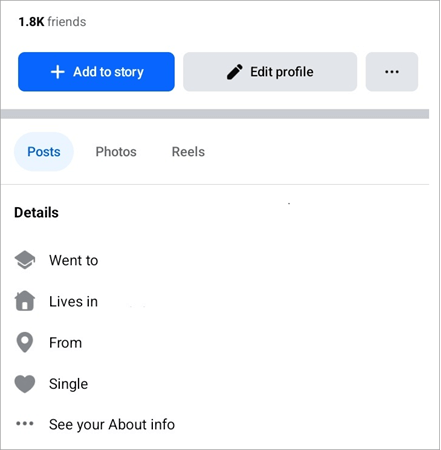
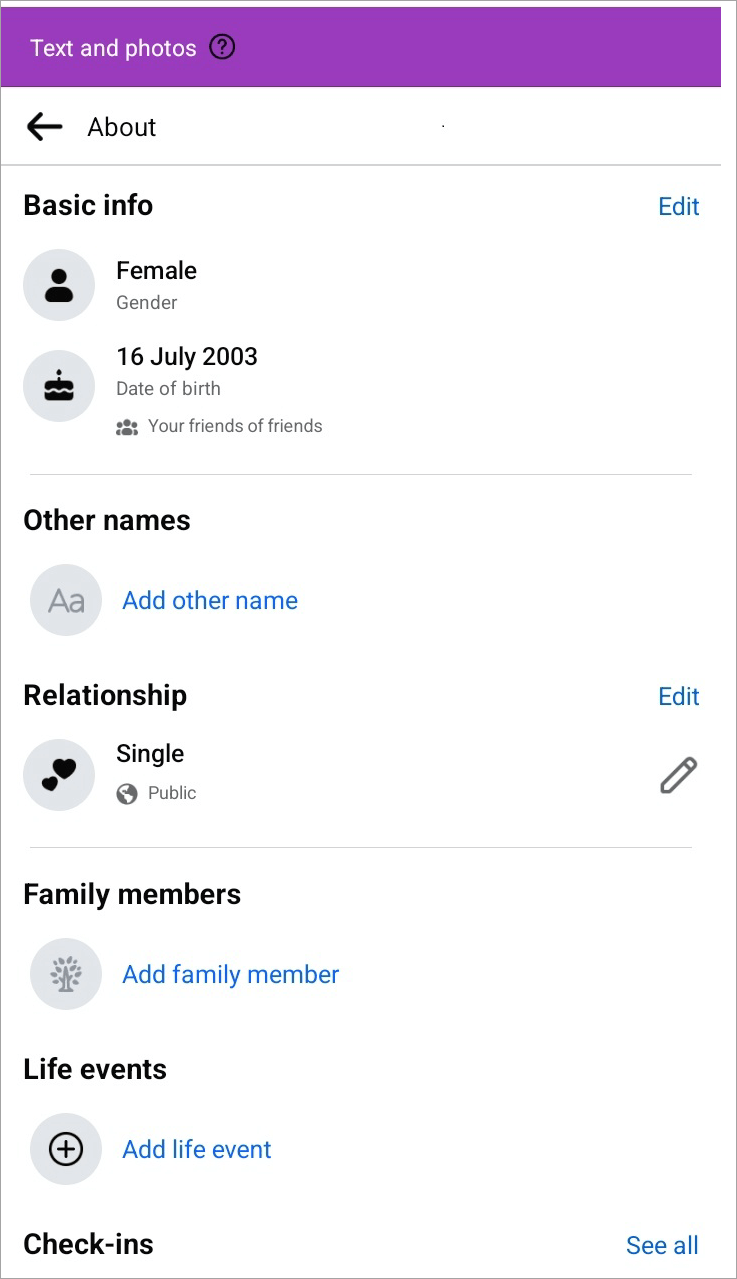
Note: The account must be active and at least 30 days old.
#2) Grant location permissions on Facebook: It is also required to grant location permissions on Facebook for the Dating feature to show. Permitting location permissions for the Facebook app will allow the Facebook app to detect your location and determine if to show dating features.
If using iOS devices, navigate to Settings -> Apps -> Facebook -> Location. For Android, open Settings -> Apps then find Facebook and tap on it, select Permissions -> Location, and turn it on or allow it. Log out and log back in to access Facebook. Also, go to Settings & Privacy on your Facebook app tap Device Permissions, and then tap Location from where you can permit Facebook to access your device location.
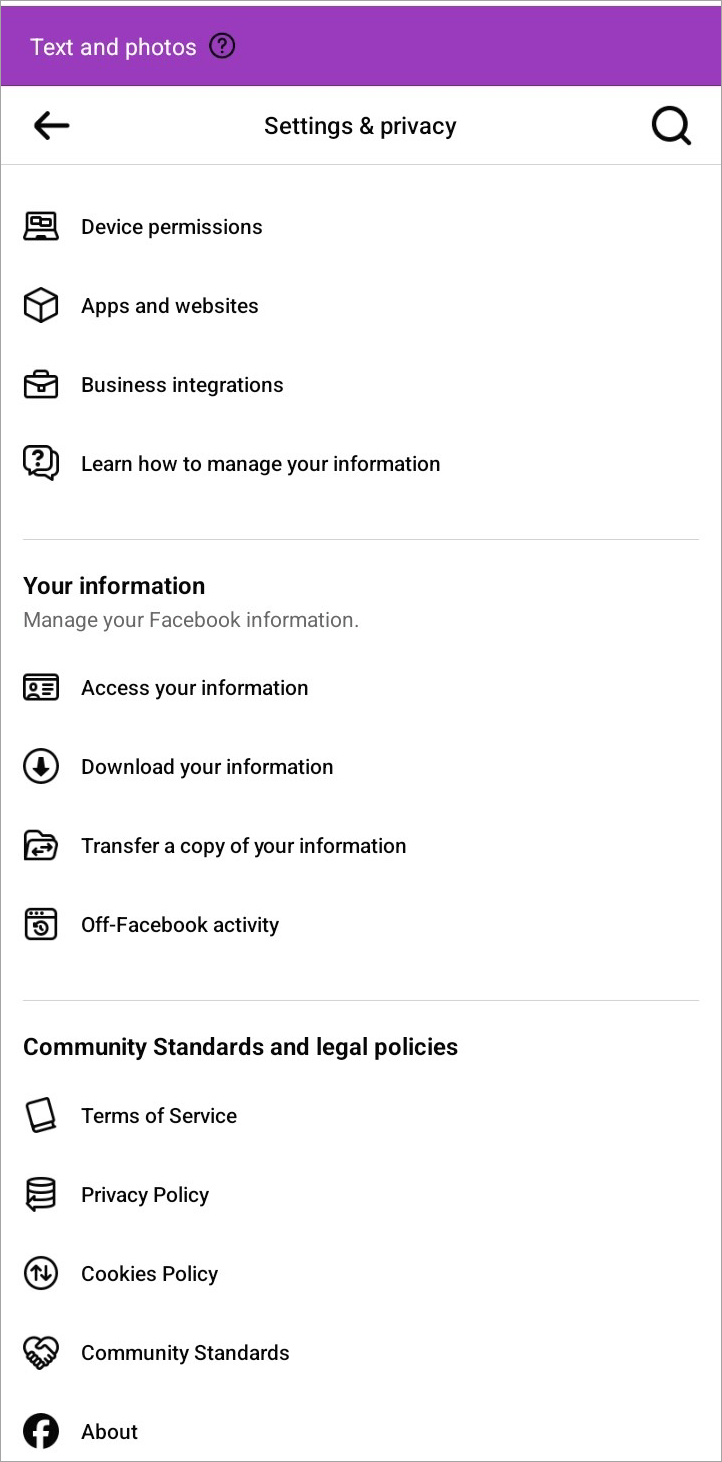

How to allow location services for Facebook on your device:
#3) Access it from regions in which it is permitted: Facebook Dating is also available in select regions and therefore, you must be using it from those regions for it to be accessible in your account. Otherwise, the Dating features will not show up. To check if Facebook Dating is accessible, search Facebook Dating in the search bar or tap the dedicated Facebook Dating shortcut.
If the Dating menu does not appear on the list yet and there is the See More option, tap on it to see if the Dating menu will appear.
Facebook Dating is available in the following regions:
Argentina, Austria, Belgium, Bolivia, Brazil, Bulgaria, Canada, Chile, Colombia, Croatia, Cyprus, the Czech Republic, Denmark, Ecuador, Estonia, Finland, France, Germany, Guyana, Hungary, Italy, Iceland, Ireland, Laos, Liechtenstein, Lithuania, Luxembourg, Malaysia, Malta, Mexico, the Netherlands, Norway, Paraguay, Peru, Poland, Portugal, the Philippines, Singapore, Slovakia, Slovenia, Suriname, Thailand, the United Kingdom, the United States, Uruguay, and Vietnam.
#4) Try unhiding the Dating menu: If it still does not show up yet you meet all the requirements, it may be set to hide for you. To unhide it, tap on the gear icon at the top right of the screen.
It will open the Facebook Settings. Scroll till you can find the navigation bar menu option and tap on it. Tap on the Customize the bar option.
Under the Hidden menu section, check to see if dating appears and unhide it so it will appear on your icons list under the menu. Tap Dating if it shows under the Hidden menu section above, and then tap the pin option. This way, it will be accessible when you tap the Hamburger menu.
If available in your region, Open the Facebook app, tap on the Hamburger menu, tap Dating, and either sign in or create a dating profile.
#5) Meet Community Standards and if banned, wait for at least 7 days to be unbanned: Users must also adhere to Facebook’s Community Standards and the Dating profile must refrain from posting promotional and commercial offers. If not, you will be banned from accessing the feature.
You need to scroll and read the community standards because being unaware of something could result in a second or subsequent violation, which only extends the period of ban for over seven days.
#6) Check your device and app Internet connection: If Facebook is supposed to show up but still does not, there are several causes: your VPN might be experiencing Internet disconnection, the Facebook app might have disconnected from the Internet, there might be a temporal glitch in the Facebook app, the app may be outdated, or there might be bugs in the app.
#7) Log out and log back in: A very simple fix to this type of problem or indeed others that we will discuss here is to log out and log in again. This will solve most temporal glitches and issues with the Facebook app and device.
Special Tip: Restarting your Android or iOS device will also work to fix most temporal issues with any app.
#8) Disconnect VPN: If you have been using a VPN either through a VPN app or from the device network settings, try disabling it and re-opening Facebook to see if the Dating features will work as expected.
Sometimes you might have the VPN connected Internet through a server located in a different region to yours, making it impossible to access Facebook Dating features (for instance, if the region in which the VPN server is located is not allowed to access Facebook Dating) or there could be a temporal Internet disconnection affecting the VPN app.
Most VPN apps can be disabled with just a button toggle. To disable VPN through your smartphone settings, go to Settings->Network & Internet->Internet->VPN and select the VPN to which you are connected and tap Disable or Forget and confirm disabling kit. Ensure to Disable the Always On or Block Connections Without VPN button on the same page.
#9) Confirm device Wi-Fi and data connectivity: Above said, you ensure that your data or Wi-Fi connection is up and running and that the device is connected to the Internet. From your device’s Internet settings, you can see if the phone has data still on or if the Wi-Fi button is toggled on.
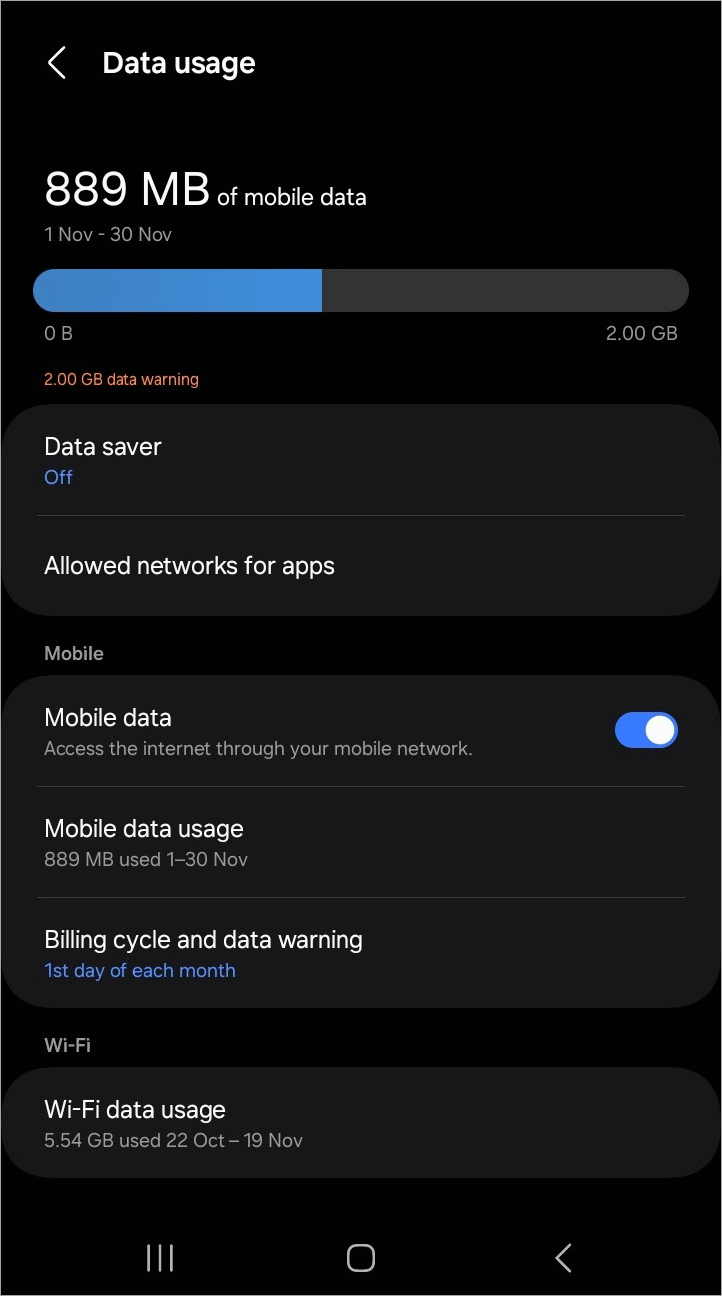
Depending on your Android device model, visit Settings -> Connections or Network & Internet -> Data Usage or Internet and see that it is marked Connected or that the Mobile Data is toggled on if using data; or that under the Wi-Fi option, the device is still connected to a Wi-Fi network.
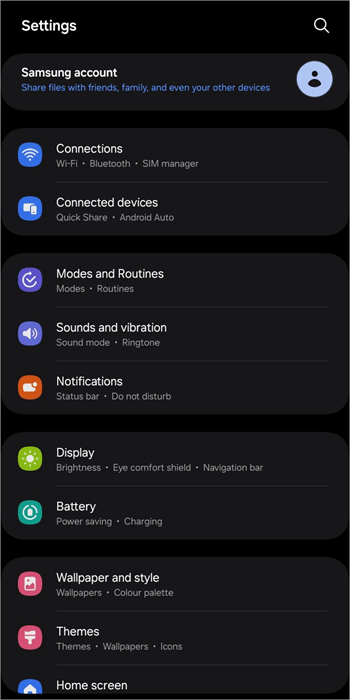
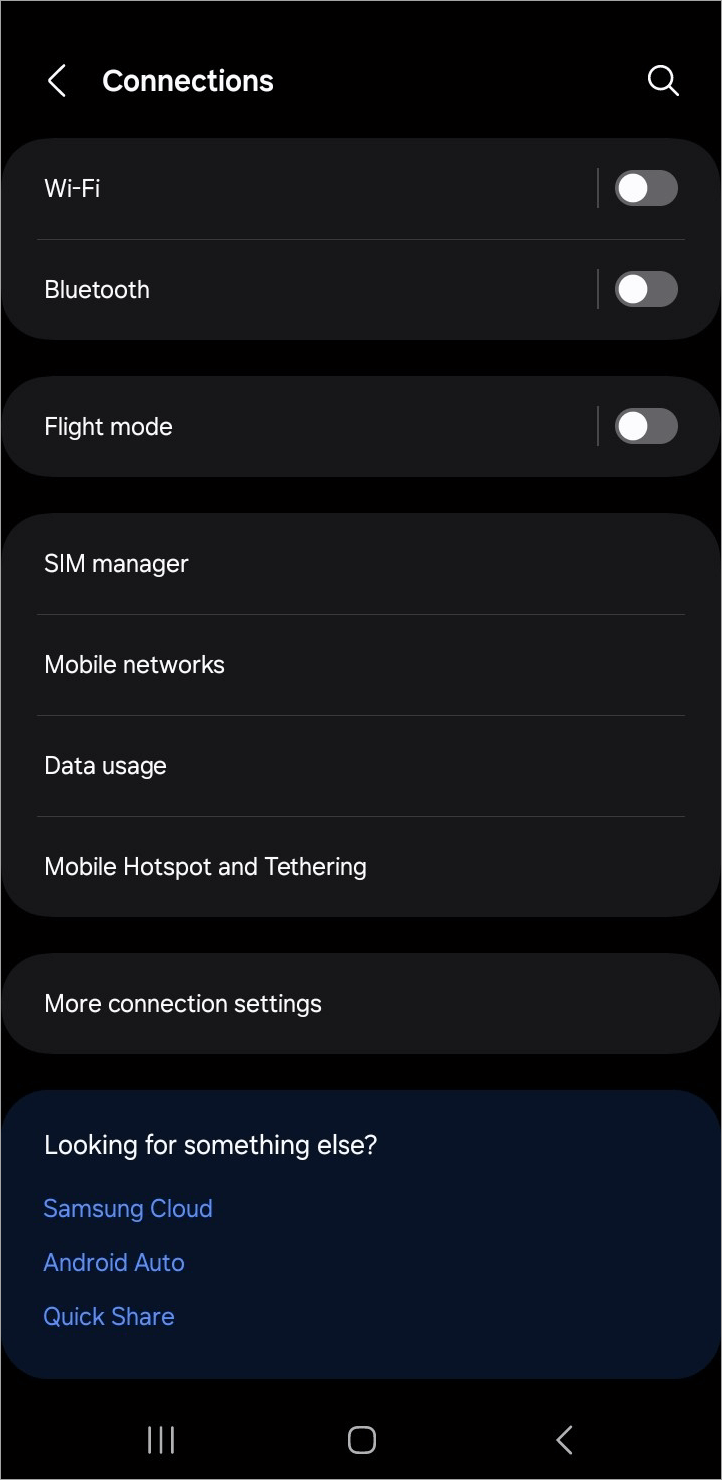
You can try disabling and re-enabling the Internet connections for instance, by toggling off and on the Wi-Fi status button or the Mobile Data option (navigate to Settings -> Network & Internet -> Internet and tap on the gear icon, then scroll to Mobile and Data) just in case there is a temporal issue with Internet connection or unavailability.
#10) Force close Facebook app: Other solutions that could solve this issue include closing the Facebook app and re-opening it.
To force close on Android, tap the small box icon on your screen to open used apps, scroll by swiping to the left or right to find the Facebook app window, and then swipe up to force a close.
On iOS, swipe up from the bottom using your finger at your device’s homepage, which will pop up all the recently used apps on your screen. Tap on the Facebook app from the displayed options and swipe up to close it. With iPhone 8 and earlier models, press the Home button twice firmly and this will display the used apps on the screen. Locate the Facebook app and swipe it up to close.
#11) Clear Facebook cache and storage: Another usual solution is clearing the Facebook app cache and/or storage and re-logging in.
Also Read => How to clear Instagram cache on iPhone and Android
For iOS devices, you might need to offload the app to have the cache and app data cleared since there is no other option without uninstalling. Open Settings -> General -> iPhone Storage. Select the Facebook app and tap Offload App. Reinstall it from the Apple App Store.
For Android devices, navigate to Settings -> Apps -> All Apps or Manage Apps then select Facebook from the list by tapping it, tap the Storage option, and select Clear Cache or Clear Storage. For iPhone users, visit Settings -> General and find Facebook, tap on it, and then select Offload App.
#12) Uninstall and re-install Facebook: You might also work out a solution by uninstalling and re-installing Facebook via the app store. To uninstall on iPhone, find the app on the home screen, tap and hold the app until you see the small menu of Options, on this small menu select Remove App.
To re-install, go to the Apple App Store, search Facebook, and tap the Cloud icon to install it. With Android devices, find the Facebook app icon on the home screen, tap, and hold on until there is a menu on which there is an Uninstall option. Tap on this option to uninstall. To re-install, go to the Android App Store, search for Facebook, then select Install.

Notifications Not Showing? Is Facebook Dating Down
#1) Turn on notifications on Facebook: To turn on/off Facebook and Facebook Dating notifications, launch the Facebook app from your device or browse it from the PC or tablet browsers.
Tap/click on the gear icon at the top right of the screen and scroll to find Settings & Privacy->Settings->Preferences->Notifications and turn on/off the notification classes that you desire. You turn on those most necessary and turn off the less important notifications.


#2) Turn on Notifications for the Facebook app on your device to receive on-screen notifications from Facebook: Apple and Android devices have different routes for accessing notification settings. From Android, navigate to Settings->Notifications and turn on/off those that are necessary, e.g. for Facebook, navigate to Notifications then App Notifications, and scroll to find the Facebook app and modify its per-category notification settings.

Depending on your device model, you can also access the notification settings for each app by navigating to Settings -> Apps -> All Apps and searching for the app, e.g. Facebook, then scrolling to find and tap on the notification settings.
The Do Not Disturb setting on your Android can affect your reception of notifications from the Facebook Dating app, and therefore, to modify it, navigate to Settings and search Do Not Disturb, tap on the necessary setting, and toggle it to Off to allow to be notified while on other tasks on Android.
#3) Recheck your Data and/or Wi-Fi connectivity: Otherwise, your device and/or app might experience a problem connecting to the Internet or you may be on a slow Internet connection (Wi-Fi or data). On Android, navigate to Settings -> Connections/Network &Internet -> Mobile Networks/Internet and tap on the option.
Suggested Read => Best WiFi network for your home
Check that your device’s mobile Data or Wi-Fi are connected. If not, and you are using Wi-Fi, toggle the Wi-Fi option after which the device searches for the Wi-Fi network tap on the relevant Wi-Fi network to which you want to connect, and proceed to connect or put in the password.
Wi-Fi networks in most cases will connect automatically on mobile devices although it can be otherwise set for each Wi-Fi network. If using a mobile data connection, tap on the gear icon against the Internet option or visit Settings -> Connections/Network &Internet -> Mobile Networks/Internet -> Data Usage, scroll to mobile Data, and toggle it on.
#4) Try disabling VPN: If you have been using a VPN connection, check that the VPN app has Internet access. Try disabling it or toggling it off and then try to reconnect the Facebook app. VPN networks may sometimes block access to the Internet if the “Always On” or “Block Connections Without VPN” settings are turned on the mobile device.
If you have the Always On turned on, the device may not access the Internet when the VPN loses Internet connection even if your data or Wi-Fi are turned on (without the Always On toggled on, you can access the Internet in such a case). Block Connections Without VPN means apps that do not work with VPN and the proxy will not work.
On Android, navigate to Settings -> Network and Internet -> Internet scroll to the VPN option tap the VPN on which you are connected, and see if the Always On and/or Block Connections Without VPN option is toggled on (and toggle it off if needed).
If you are using a VPN that was set up from the device settings, tap the VPN (when you navigate to Settings -> Network & Internet -> Internet -> VPN), choose to edit the particular VPN, and untick the Always On VPN option.
#5) Restart the Facebook app and/or device: Restarting both the Facebook app and device might help if everything is working normally except the Facebook app. Your device might also struggle to bring on notifications if your memory and storage are running out: in that case, cleaning storage manually by deleting unnecessary apps and data, or cleaning it by using memory-cleaning apps might help.
You can also clear the App cache and storage data. On Android, navigate to Settings -> Apps -> All Apps, search for the Facebook app and tap on it, scroll to the Storage and Cache option and tap on it then tap to clear cache and/or storage.
To restart the Facebook Dating app, all you need to do is find the recent apps by tapping the small box icon on your Android home screen, which opens all the used apps on the screen. Tap on the Facebook Dating app and close it by swiping it right using your finger.
Reopen the app and see if it works normally. On iPhone devices, swipe up from the bottom of the home screen, tap on the Facebook Dating app from the displayed options, and swipe it up to close it.
Reopen the app and see if it resumes normal working. For iPhone 8 and earlier models, press the Home button twice to display the used apps and swipe up the Facebook Dating app to close. Reopen and check to see if it works normally.
To restart iPhone 8 and newer models, press and release the Volume Up button, then quickly press and release the Volume Down button. Press and hold the Power button till the Apple logo appears. To restart the iPhone 7, press and hold both the Volume Down and Power buttons at the same time, hold them until the Apple logo appears on the screen.
For iPhone 6 and older models, press and hold both the Home and Power buttons at the same time until the Apple logo appears on the screen. Restart all devices by pressing and holding the power button for a few seconds.
To restart Android devices, press the side Power button, after which a Power/Power Slide button appears on the screen. Press and hold the button or tap it to show options and tap on the Restart/Reboot option. Repower the device by pressing the power button.
#6) Update Facebook app: If all fails, try updating your Facebook or Facebook Dating app or uninstalling and re-installing it. On Android, tap the Play Store app from the menu or app list from the settings, search for the Facebook Dating app, and tap Update.
Once done, tap Open to launch the updated version. On iPhones, locate the Apple app store, open its home page, tap on the Profile icon from the right corner and you will see all the updates on the applications that are outdated. Check the pending updates for the Facebook app and tap the Updates button to install the latest version. Relaunch to see if it works normally.
#7) Uninstall and re-install the Facebook app on your device: To uninstall the app on Apple devices, find it from the home screen and tap and hold its icon until the Options Menu appears. Select the Remove App option to uninstall. To reinstall, visit the App Store and search Facebook from the search bar, then tap the Cloud icon to download and reinstall it after which you will need to log in and see if Facebook Dating works normally.
To uninstall on Android, find the Facebook icon from the menu, tap and hold it until the option Uninstall appears, and select it from your finger to uninstall. To reinstall, open the Play Store search for the Facebook app, and then tap Download to download and install, after which you will need to log in and retry the Facebook Dating feature.
Fix Photos not Showing up Issue While on FB Dating Feature
Check your internet connection as suggested in the previous sections, disable VPN, restart the Facebook app, restart the Android device, clear the Facebook app cache, log out and re-log into Facebook, force close the Facebook app, and update the Facebook app as suggested in the previous sections.
#1) Try a VPN if not in accepted regions, otherwise, check that the VPN is accessing connection with its VPN location as your region or another acceptable region: If Facebook Dating is unavailable in your region (check allowed regions in Section 1 of this tutorial), you might try accessing it through VPN either with a new account or existing account.
From the Facebook Settings, it might be possible to change your region and therefore, set one from which you can access Facebook Dating (see above the list of regions in which the Facebook Dating feature is available), then retry. Otherwise, there is not much you can do except wait until the feature becomes available or accessible in your region.
#2) Check if a server is up and running: If Facebook Dating is accessible in your region, try checking if the Facebook server or Facebook Dating server is down. This can quickly be done by checking Facebook accessibility and issues causing a downtime, through the DownDetector.com site. If it is down, you may notify the staff or wait for servers to be up and running.
#3) Confirm your Internet connection is OK: Solving your Internet connection might start by checking whether other apps (other than Facebook) or indeed other Facebook features are working. If other apps are working normally, it could be an issue with only the Facebook app or the dating feature, in which case it could be server-related, an outdated app, or the app not connecting to the Internet.
#4) Clear Facebook app cache: Try clearing cache and unused app data on Facebook then log in, if it is the Facebook app or fb dating not working but have ensured the device can access the Internet. This will clear some data and free up space on your phone since a clogged memory could be causing temporary issues related to running the application.
On Android, iOS, PC, and other devices, excess data and storage on an app can be done from the device’s settings. For instance, on Android, navigate to Settings>Apps>All Apps, scroll to find the Facebook app from the list and tap on it, tap the Storage & Cache option, then tap Clear Cache and/or Clear Storage.
You can also use third-party apps such as Dr. Fone- to clear each app’s cache and stored data. After this, launch Facebook, log in, and retry Facebook Dating.
#5) Disconnect VPN: You might try disconnecting the VPN and retrying Facebook Dating, or check that the VPN connection is up and running. This might be the case when only the Facebook app or all the apps are not working. Try rechecking your device’s Internet connection status and settings from the device’s Internet connection settings.
For instance, if using the data connection on Android, navigate to Settings by clicking on the gear Icon after you swap down the screen notification panel at the topmost of the screen, or by tapping the Settings gear icon on the Android menu, then tap Network & Internet, then the Internet option and see if data or Wi-Fi is marked as Connected and if not, proceed to connect by toggling Wi-Fi on from the same page if using Wi-Fi (you might have to select the Wi-Fi network to which you want to connect and then input the required password to connect).
If using a mobile data connection, tap on the gear icon at the side, scroll down to Mobile Data and toggle on the data. A slow connection can affect accessibility or speed of connecting to Facebook and the Facebook Dating pages.
Further reading =>> Review and compare the top Safe VPNs
#6) Contact Facebook Help Center:
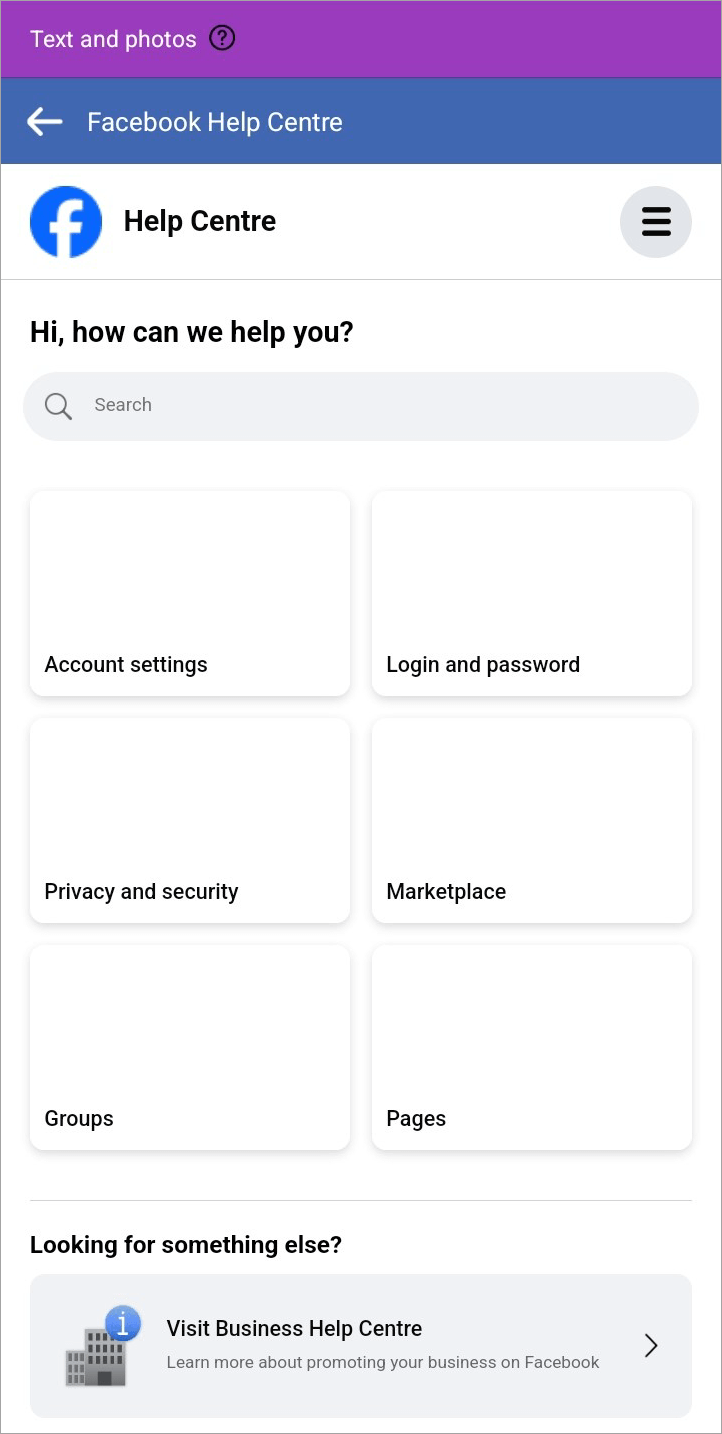
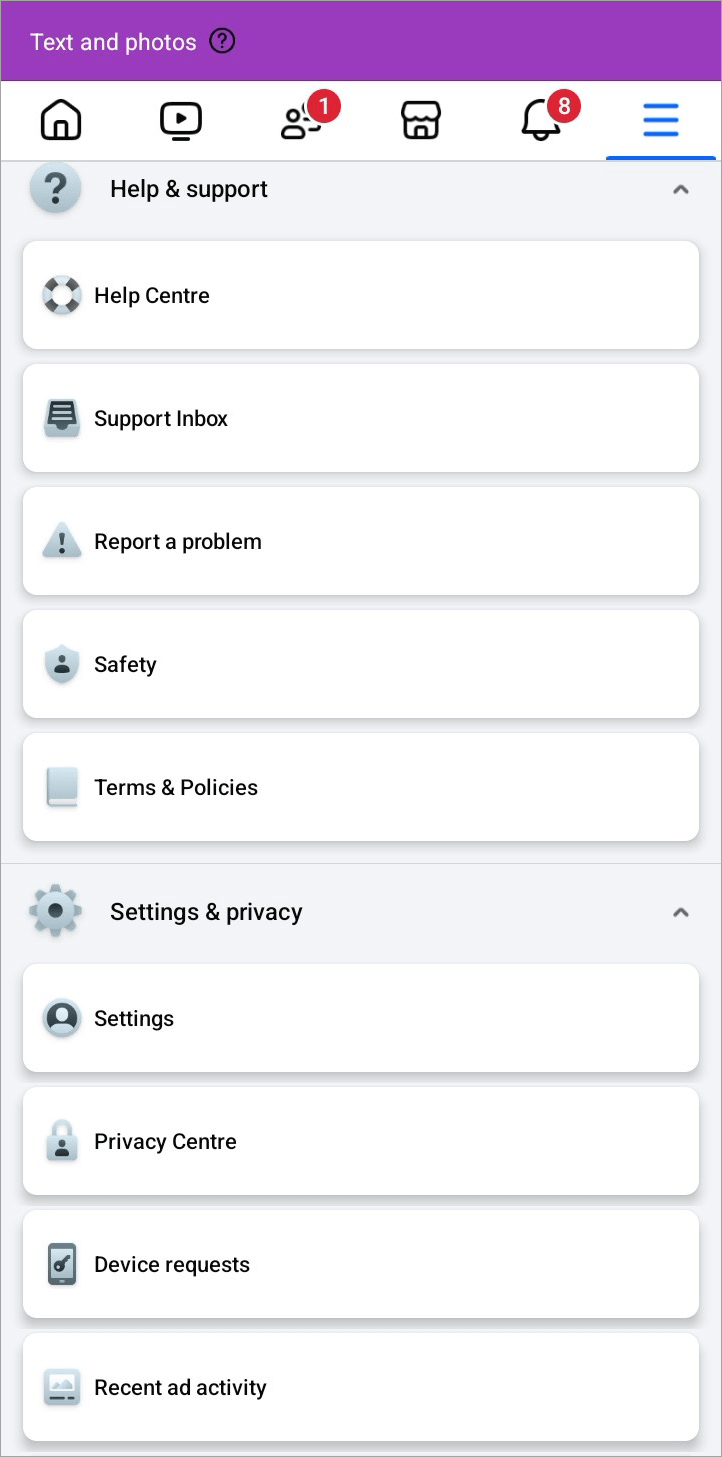
Contacting the Facebook Help Center can be a last resort in case you are still experiencing difficulties in running the Facebook Dating app normally. To contact the Facebook Help Center, open Facebook and shake your phone or tap the three-line menu icon, choose Help & support->Report a problem, and select Report a Problem. Type in and send the issue to the Facebook Help Center.
FAQ’s on FB Dating Not Working
1. How do I get Facebook Dating back?
To get Facebook Dating features back, try updating the app. Visit the app store, search for the Facebook app, open it, and tap Update. If that does not work, try uninstalling and reinstalling the app. Find the app menu on the home screen on both Android and iOS and press and hold the icon until a small menu appears.
On Android tap the uninstall option and on iOS tap the Remove App option to uninstall. Reinstall the app by opening the Android or Apple app store, searching for Facebook, tapping on it, and tapping the install (Cloud button on iOS devices) button to install.
In case you have changed the location, Facebook Dating may not work while using Facebook in some locations, so confirm that you are in a location in which the features are accessible.
Additionally, try updating your age and allowing location permissions on the Facebook app. In case you have been banned on Facebook Dating, then you can try from another Facebook account, wait to be unbanned, or send a message to the Help Center on the matter.
2. Have I been shadow-banned on Facebook Dating?
To check whether you have been shadow-banned on Facebook Dating, try searching for your posts using another person’s account. If the posts do not appear on the feed, you have likely been shadow-banned. Most accounts are unbanned after seven days after which you can get back Facebook Dating features.
3. How to get Facebook Dating back after being banned?
You cannot appeal once you have been banned from Facebook Dating. However, most accounts are banned for seven days after which you can get back Facebook Dating features.
You can also confirm by contacting the Facebook Help Center if the ban will be lifted and after how many days. If the ban on Facebook Dating is not removed after seven days or a specified duration, or if you do not want to wait, then try signing up for a new account to access the features.
4. Why am I no longer getting matches on Facebook Dating?
Posting multiple photos, not having a video introduction, and having a poor profile are some reasons you might not get matches on Facebook Dating.
5. How to enable Facebook Dating?
Open the Facebook app on your smartphone, tap the Menu which is represented by three small lines on the top right corner, tap Dating, tap Get Started, and follow the prompt to set up your profile. The profile is generated using the information from your Facebook profile.
6. Why is my Facebook Dating not working?
There are many reasons why Facebook Dating is unavailable or working, among them a poor or no Internet connection, a temporary glitch on the app which can be solved by logging out and then re-logging in, storage or memory being full on the device which can be solved by cleaning the memory or cache or removing some apps/info/data, outdated app, or a ban on Facebook Dating for violating Community Standards.
Conclusion
For those customers looking/searching for solutions on Facebook Dating crashes, Facebook Dating not showing up, Facebook dating apps not working, Facebook dating not working on iPhone, or Facebook dating not working on Android there are several individual or combined solutions for fixing this problem.
This tutorial suggested practical ways of solving this problem, and there are simple to advanced or complex ways of trying to resolve the issue.
The most common solutions are restarting your Internet connections, restarting your Facebook app, deactivating your VPN, updating the app, checking whether Facebook Dating is accessible in your region, clearing storage and cache for those experiencing limited storage problems, and uninstalling and re-installing your Facebook app, among others.
Time taken for review: 2 days
Was this helpful?
Recommended Reading
-

Read, review, compare, and select among the list of top platforms available in the market today for Facebook Lead Ads Integrations with your CRM: Introduced in 2015, Facebook Lead Ads is a tool invented to help marketers generate leads while keeping the cost of lead acquisition at bay. This is…
-
Are you looking for any compelling caption descriptions that can go along with your post? Here you will find 300+ BEST Instagram Captions to draw attention to: They say a picture is worth a thousand words and I couldn’t agree more. This is perhaps why Instagram has emerged as one…
-
Review and comparison of the the top Instagram Story Viewers with features and pricing to help you select the best Instagram Viewer: Launched exactly a decade ago, Instagram quickly became a new favorite online hangout spot for people across the globe. The online photo and video sharing platform has only…
-
Be it Reels, Videos, Instagram Stories, or If You Want to Go Live, here you will get to know about the Best Time to Post on Instagram for More Likes: It's no secret that you need to create and populate your Instagram feed with intriguing content to gain more followers…
-
Go through some impressive methods, explained stepwise in this tutorial to recognize the best way: How to Reset Instagram Password: It takes diligence to maintain security online, especially on social media accounts like Instagram, Facebook, etc. And with having to remember so many passwords, from bank accounts to emails, social…
-
List and comparison of the top Facebook Video Downloader with features and pricing. Select the FB Video Downloader software from this list per your requirements: You have to be living under a rock to not know what Facebook is. It is after all a behemoth amongst social media platforms. From…
-

Express the words in your heart with these Top captions for instagram for girls. Enhance and complement your photos with these unique Instagram Captions for Girls to reflect yourself perfectly: As far as social media is concerned, I doubt anyone would argue when I say that Instagram has never been…
-
Review of the best Private Instagram Viewer to View Account and profiles. A private Instagram account viewer tool will allow you to view private profiles on Instagram easily. The Instagram private profile viewer will be invaluable to parents as they make sure their children don’t indulge in dangerous activities to…


