Discover the simple steps on how to game share on Xbox from this guide. Learn the process of setting up your Xbox Home console to gameshare on Xbox with your friends for unlimited fun:
Sharing games on Xbox consoles is a fantastic option if you or a friend hasn’t yet purchased a premium game subscription. It comes in handy if you have a second console, regularly play on a friend’s console, or want to play online multiplayer games with friends simultaneously.
We will show you how, but first, this feature allows anyone to download, play, and share digital games on any console without having to switch the home Xbox. Besides, it is a money-saving technique many Xbox users have been considering since it became available in 2013 with the launch of Xbox One.
Table of Contents:
- Can You Gameshare on Xbox: Step-by-Step Guide
- Begin Game Sharing on Xbox: Know What You Need
- Points to Consider Before Setting Up Game Share on Xbox
- How to Game Share on Xbox Consoles
- Benefits of Sharing Games on Xbox
- What Can or Cannot be Shared on Xbox Consoles
- Limitations of Xbox Game Sharing
- Common Issues With Game Share on Xbox: How to Solve
- How to Remove Any Console as a Home Xbox
- FAQ’s on How to Gameshare Xbox
- Conclusion
To share games or subscription services between Xbox consoles with your friends or family, all you need to do is log into your account on their console and designate your Xbox as their Home Xbox or log into their account on your console and designate their Xbox as your home Xbox.
It involves linking any Xbox Live account to any other console. Users on any of the two Home Xbox will now have access to games and subscriptions owned by the other.
Xbox game sharing works on all game consoles – Xbox One, Xbox One S, Xbox One X, and Xbox Series X/S. Friends who sign in to your console with their Xbox profile information can also access games associated with your Xbox account even when you are not signed in.
Note: Not all games can be shared because not all games are compatible across all consoles. Developers design some games for particular console models.
Also Read => Best-selling Video Game Consoles
Begin Game Sharing on Xbox: Know What You Need
#1) At least two Xbox consoles and their peripherals, and the consoles do not need to be of the same model. However, they must be of the same model to share all games since some games will not work on certain/given models. For instance, some games are compatible with the Xbox Series X/S only and cannot work on Xbox One.
#2) Internet connection. Games and content that are not downloaded will not appear unless there is an Internet connection. Only offline games will appear.
#3) Xbox accounts: Both who need to game share will need Xbox accounts. Subscriptions to games are not a must, as they can be played for free.
#1) Make sure your friend cannot misuse your personal information once you or he/she makes your Xbox account their Home Xbox. You will both have access to each other’s personal information because you are sharing each other’s account. Ensure that none can buy games or content with the other’s information if that is not desirable to both.
#2) Disconnecting from the Internet for a while may make games not accessible on consoles because the licenses are not verifiable by Microsoft. Reconnecting the consoles to the Internet will have the licenses re-verified.
#3) Ensure to sign in to your console even as you make your friend’s account at My Home Xbox. The same should be the case with your friend on his console. Otherwise, you or the friend cannot access your/their games and your/his Xbox subscriptions on your/his console.
#4) Game sharing is legal and allowed on Xbox consoles.
#5) Those games not supported for playing on a console model cannot be sharable on that particular model.
#6) Both consoles must be set to allow multiplayer games from their privacy settings, otherwise cross-network game sharing will not work.
To get access to the friend’s game subscriptions:
Quick Steps:
Switch on your console.
Navigate to the Profile & System tab[->Add or Switch->Add new. Add your friend’s account credentials to your console by signing in with your friend’s Xbox account details.
Set the added friend’s account credentials as the Home Xbox on your console.
Let’s delve into the step-by-step process. Do the following on your console to access games and game subscriptions owned/purchased/subscribed to by your friend or family member.
Step #1: Switch on your console.
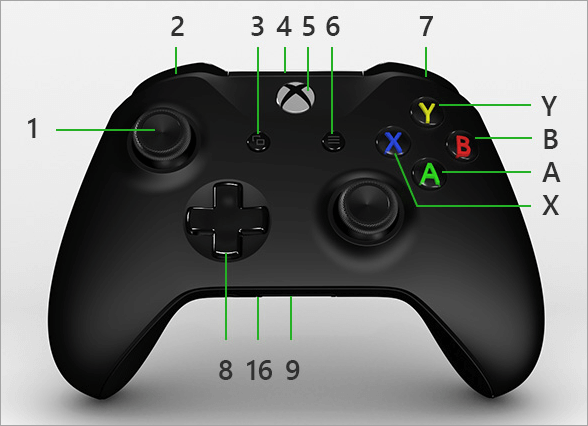
Step #2: Press the Xbox button on the Xbox controller (number 5 on the below image). This opens the guide.
[image source]
Step #3: Navigate to Profile & System tab -> Add or Switch -> Add new. Add your friend’s account credentials to your console by signing in with your friend’s Xbox account details.
Once this is done, the remaining step is to set the added friend’s account credentials as the Home Xbox on your console. Make it your Home Xbox.
Remember, if you have already set up your console after purchase, your account is already added as Home Xbox automatically unless you set it to lock it down during the set-up process. This account receives the purchased games and subscriptions.
To simplify it, all games and subscriptions bought using this account will be accessible regardless of the console you used to log into this account.
You can also add a new account on your console and set it to Lock it down so it won’t be set up as the Home Xbox. Only one Home Xbox can be set up at a time and it is recommended to set one that is frequently used in case you have multiple consoles.
Step #4: Make your friend’s Xbox (account) your Home Xbox by navigating to Profile & System -> Settings -> General -> Personalization. Select the ‘My home Xbox’ option and choose the ‘Make this my home Xbox’ option.
Thus, any games and subscriptions associated with your friend’s account are now accessible on your console, even if your friend is not signed in.
To share your Xbox games with a friend:
Quick Steps:
- Navigate to Profile & System tab -> Add or Switch -> Add new. Add your own Xbox account to your friend’s console by signing in with your Xbox account details.
- Set up your Xbox as their Home Xbox by navigating to Profile & System->Settings->General->Personalization. Select the ‘My home Xbox’ option and choose the ‘Make this my home Xbox’ option.
Do the following on your friend’s Xbox console to share your Xbox games (Xbox games associated/purchased/subscribed to with your Xbox account) with the friend.
Step #1: Turn on your friend’s console or ask them to.
Step #2: Press the Xbox button on the above console Xbox Controller.
Step #3: Navigate to Profile & System tab -> Add or Switch -> Add new. Add your own Xbox account to your friend’s console by signing in with your Xbox account details.
Step #4: Set up your Xbox as their Home Xbox by navigating to Profile & System -> Settings -> General -> Personalization. Select the ‘My home Xbox’ option and choose the ‘Make this my home Xbox’ option.
Any games and subscriptions associated with your account are now accessible to their console even when you are not logged in. Both consoles can now download and play games from either account without needing both accounts to always be signed in.
To share games on consoles, ensure reliable internet connectivity. Disconnecting both of your and your friend’s consoles from the Internet for a while may render the games inaccessible because the licenses cannot be thus verified when disconnected from the Internet. You will need to reconnect both consoles to the Internet to have the licenses renewed.
To access their games and subscriptions, each person should be signed into their account on their console. For instance, if your friend is accidentally signed into your account on their console, they cannot access their games and subscriptions.
Among other things, some games are not compatible with all consoles, so you might have problems trying to share them if the two consoles are different in models. Besides, for games under Xbox Live Gold and Game Pass subscriptions to be shared, those subscriptions must not be expired. Check the privacy settings on both consoles to see that the consoles allow the sharing of content and games.
Benefits of Sharing Games on Xbox
- You and your friends can play the same game simultaneously on the respective consoles. You can play multiplayer games together from different locations.
- Others can play games without interrupting your gameplay since they can do it even when you have not logged into the Xbox.
- Saves money.
When anyone signs into their home Xbox with their console, they can access the games subscriptions associated with their account, games from an Xbox Game Pass, as well as all the downloaded content from the Microsoft Store. (Game Pass allows you to play multiplayer games on Xbox console with other people on their consoles.
To do so, connect to the Xbox network and subscribe to Xbox Game Pass or Xbox Game Pass Ultimate which allows you to play online multiplayer games. Ensure the privacy settings on your console allow multiplayer games to communicate with friends and invite friends to play. Microsoft Store indicates if a game supports cross-network play, which means you can play with people on their consoles and devices).
Check this video to know how to join multiplayer games on Xbox:
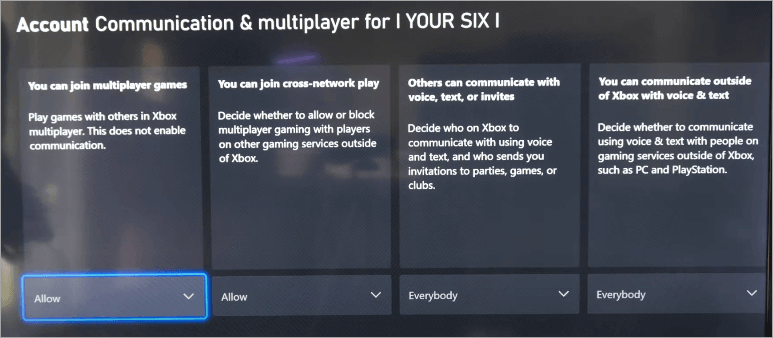
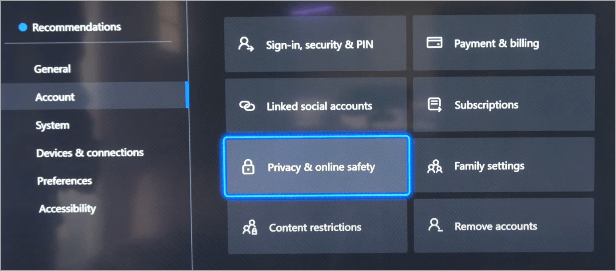
Navigate to Press your Profile -> Settings -> Account -> Privacy & Online Safety -> Type your pass key if any -> Xbox privacy -> View details & Customize -> Communication & Multiplayer. From the drop-down menu under ‘You can join multiplayer games’, ensure it is allowed. Do the same for other options.
Games can be shared on Xbox online and offline. For instance, you can share downloaded games while the Xbox console is offline. Other content that can be shared.
Microsoft specifies on the Xbox support page that the items that are specific to your account will not be shared with your friends who sign into your home Xbox on their console. These include items such as Minecraft Skin Mashups or Halo REQ Packs purchased with in-game currencies; in-game currencies, such as Minecraft Coins; and pre-order bonuses and special edition content that can be redeemed only once.
Furthermore, some level of caution is needed for in-game console sharing. First, since anyone you share the Xbox has access to personal information on your account and second, they can make purchases through the account.
Limitations of Xbox Game Sharing
At any given time, you can only share games with one other person because only one console can be designated as the Home Xbox. You must end up sharing with one friend to share with another.
Besides, Xbox has put a limit of five changes a year, so you can only change the Home Xbox account five times a year. Otherwise, you risk being locked out of changing settings.
Game sharing also does not work for sharing physical discs, which must be physically present in the console. It only works for digital content.
Suggested read =>> Easy fixes for Xbox One Black Screen of Death
1. Exceeding 5 switches on Home Console Switch feature: When you assign My Home Xbox under System -> Settings -> Personalization -> My home Xbox -> Make this my home Xbox, and have changed it 5 times a year, it won’t change it anymore. To resolve this error, wait for the Xbox counter to reset or contact Microsoft support.
2. A certain game does not share on Xbox while all the rest do: Check that the game is supported to play on both of the Xbox models. A game will not be possible to share unless it is supported to play on the Xbox on which you want to share.
3. “You started playing on another console” error: This may display if both of you get on Xbox, for instance, when one is already on and the other you have game-shared with then gets on his console. You cannot be logged in on the console twice to game share. To fix this error, log off your friend from the console.
4. All games disappearing as well as Xbox membership when you game-share: Try logging off on both consoles and repeating the process of game-sharing from the start. Check that you have set his Xbox as your Home Xbox and he has done so with your Xbox account on his console. If it does not work, contact Microsoft support.
5. Xbox not working after getting right the sharing steps: Do the following to resolve the majority of common issues with Xbox.
- Check that you have set the Xbox you need to use as your home Xbox under System -> Settings -> Personalization -> My home Xbox -> Make this my home Xbox.
- Power cycle the Xbox: Power off the Xbox by pressing and holding the power button for 10 seconds. Disconnect it from the power source once it turns off. Wait for 30 seconds or more and reconnect the console to a power source.
- Clear persistent storage: Navigate to Settings -> Disc & Blue-Ray, then head over to Persistent Storage. Select Clear persistent storage to clear it.
- Factory-reset the console: This can be a last resort in solving issues with Xbox if all the required setup process is followed. To do so, navigate to Settings -> System -> Console info -> Reset console.
How to Remove Any Console as a Home Xbox
You can remove any console as the home Xbox by pressing the Xbox button on your controller and navigating to Profile & system -> Settings -> General -> Personalization, and then select My home Xbox -> Make this my home Xbox and then ‘Remove this as my home Xbox.’
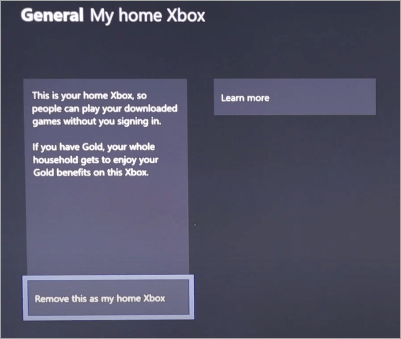
Switching the home Xbox means the license tied to that home Xbox will expire and a new license is retrieved for the new home Xbox. Therefore, your friend or family member can play games and apps on your old home console when/if you switch to a new home Xbox. You will need to sign in back to the old home console for that to work.
Note: You can switch the home Xbox on any controller up to five times a year.
You can check this video on how to remove my home Xbox from another console:
Further Reading => Easy Methods to Uninstall Xbox Game Bar From Windows
1. How does game share work on Xbox?
On your device, add your friend’s Xbox account by signing in with their Xbox account credentials. Make the account your home Xbox and you can thus access their games and other shareable content online and offline. The same applies to them when they log into their device with your account credentials and make your Xbox account their home Xbox.
Otherwise, you can copy games and other content from one Xbox to another. Press the Xbox button and navigate to Profile & system -> Settings -> System -> Back up & transfer -> Network transfer and check the Allow network transfer box.
Turn on the other Xbox and navigate to the same settings page. Press on the host box that has to be listed on the page, choose items to copy, and select the ‘Copy selected’ option.
2. How to Xbox game share 2024?
All you need to do is log in to your device using your friend’s account credentials and set their account as your home Xbox from the Profile & System settings. This means you can access their games subscriptions including Xbox Game Pass subscriptions.
You can also share an Xbox Game Pass Ultimate subscription between Xbox and a P.C. Those who sign in to your home Xbox will have access too, even if the two accounts are not logged in continually.
The same happens if/when you allow a friend to sign into their Xbox device with your account credentials and set your account/profile as their home Xbox. They can access your game subscriptions and content.
3. How do I share games from one Xbox to another?
There are two ways through which you can accomplish it. First, you can log into your Xbox device using a friend’s or family member’s account details and make the Xbox profile your home Xbox through the Profile & System settings.
This way, you and the people who sign into your device can have access to your friend’s game subscriptions and content. The friend can also access your game subscriptions and content by signing into their Xbox device using your login credentials and making that profile their home Xbox.
The second option is to use network transfer to copy games and apps to another Xbox. This works if both consoles are on the same home network. This provides a faster way of sharing than downloading another copy of the same game or app on the other console, too. It also saves money on data consumption.
Copying from one another Xbox is achieved by pressing the Xbox button on the controller and navigating to Profile & system -> Settings -> System -> Back up & transfer -> Network transfer and checking the Allow network transfer box. Turn on the Xbox to which you will copy content and go to the same settings page.
The ‘host’ device will be listed. Select the Xbox from which you want to share content, choose items to copy, and select the ‘Copy selected’ option.
4. How to share an Xbox Game Pass?
Those with more than one Xbox can share and extend their Xbox Game Pass subscriptions with friends and family by signing into the other consoles with their primary Xbox account and making it the home Xbox. Anyone who signs into the other consoles with their profile will have access to game subscriptions, including the Game Pass subscriptions.
5. How to game share on Xbox Series X?
Consider that the account with which you make a game purchase on the Xbox store will have access to that game regardless of the console into which the account is logged.
Therefore, logging another person’s, e.g. a friend or family member’s console and making it their home Xbox will give them access to gaming content, including Game Pass subscriptions, even if you are not logged in.
Thus, you can share games on Xbox Series X or in deed other Xbox consoles when other people log into them with their profiles. However, you will need to be logged in to your console with your credentials to access your content just as they will be required to do.
Navigate to Profile & system -> Settings -> General -> Personalization -> Add new and add their account to your console to access their game content. Then navigate to
Profile & system -> Settings -> General -> Personalization -> My home Xbox -> Make this my home Xbox to make their Xbox (account) your home Xbox.
Do the same on their console by logging in with your account details and making it their home Xbox, to have them access to all your sharable game content and subscriptions on their Xbox console.
Recommended Reading => Most Popular Sound Cards To Look For
Conclusion
Game sharing restrictions, especially on premium games and subscriptions, are now a thing of the past since the launch of Xbox One a few years ago. With a few setups, you can share your games and game subscriptions with friends and have them share their games and subscriptions with you.
Time taken to review: 1 day.
Was this helpful?
Recommended Reading
-

Wondering why your Xbox controller keeps disconnecting? Here are some excellent troubleshooting tips to quickly fix the issue: If you are a console gaming addict, you must own an Xbox. The Xbox wireless controller in the fourth generation console offers a premium gaming experience. However, like all wireless devices, one…
-
Here we will explain the Xbox One Black Screen and multiple effective methods to fix the Xbox One Black Screen of Death: Gaming has gone over a lot more than just a passion. Now, it has even turned into a reputable profession. Each day, new advancements are made to gaming…
-
This is an in-depth review of the best VR Games with their features, pricing, ratings, and comparison. Select from this list of best Virtual Reality games: All the virtual reality platforms, namely Oculus, PlayStation VR, Samsung Gear VR, HTC Vive, Windows Mixed Reality, Valve, and even the cheaper virtual reality…
-
Want to play PlayStation games on PC? Read our review of the top PS3 & PS4 emulators and compare their features, etc. to identify the best PS4 Emulator: PlayStation is a home video game console developed by Sony Entertainment Network. It is the eighth generation console that supports single-play and…
-
This tutorial reviews and compares the Best Gaming Keyboards with features to help you select the top keyboard for gaming as per your requirements: Think about 100 keystrokes per minute and continuing it for at least half an hour! It is painful, right? Your keyboard will determine the amount of pain…
-
Want to know about the hottest games for Android devices? Check out this detailed review of the Best Android Games to help you in the selection process: The video game industry has come a long way since such games were first developed for home consoles in the early 1970s. Today,…
-

Discover the multiple methods on how to remove the Xbox Game Bar. Find out how to uninstall Xbox game bar from your Windows PC with simple step-by-step instructions: Microsoft's Xbox is a video gaming console released in North America on November 15th, 2001. Compared to Sony's PlayStation 2, the Xbox…
-
Do you have a console and want to play games at a higher refresh rate without any lag? If yes, then you need to review this list of best Gaming TVs to pick one of your choice: Gaming TVs can compete with gaming monitors these days. This can be a…
-
Read this complete guide to compare and buy the Best Virtual Reality Headset for PC, PS4, and Xbox 360 based on the review, buying tips, and pricing: The purpose of a virtual reality headset is to immerse you in a virtual environment to feel as if you are fighting with…