Discover the quick and safe ways to change payment method on Spotify in minutes. Follow the simple steps from our in-depth guide to change Spotify payment method on any browser to enjoy unlimited music:
Want to make a quick switch to any other payment mode for your Spotify Premium subscription?
Well, you can easily change payment methods on Spotify through its account settings. It is extremely useful if your current card has expired, you have a new card from your bank, or you wish to change your existing payment method.
Quick Steps to Modify Payment Method on Spotify
In this blog, we will explore different ways to change the payment mode for your Spotify account and what you can do if the payment method is not working, along with other intricacies.
Simple Ways to Update Spotify Payment Method
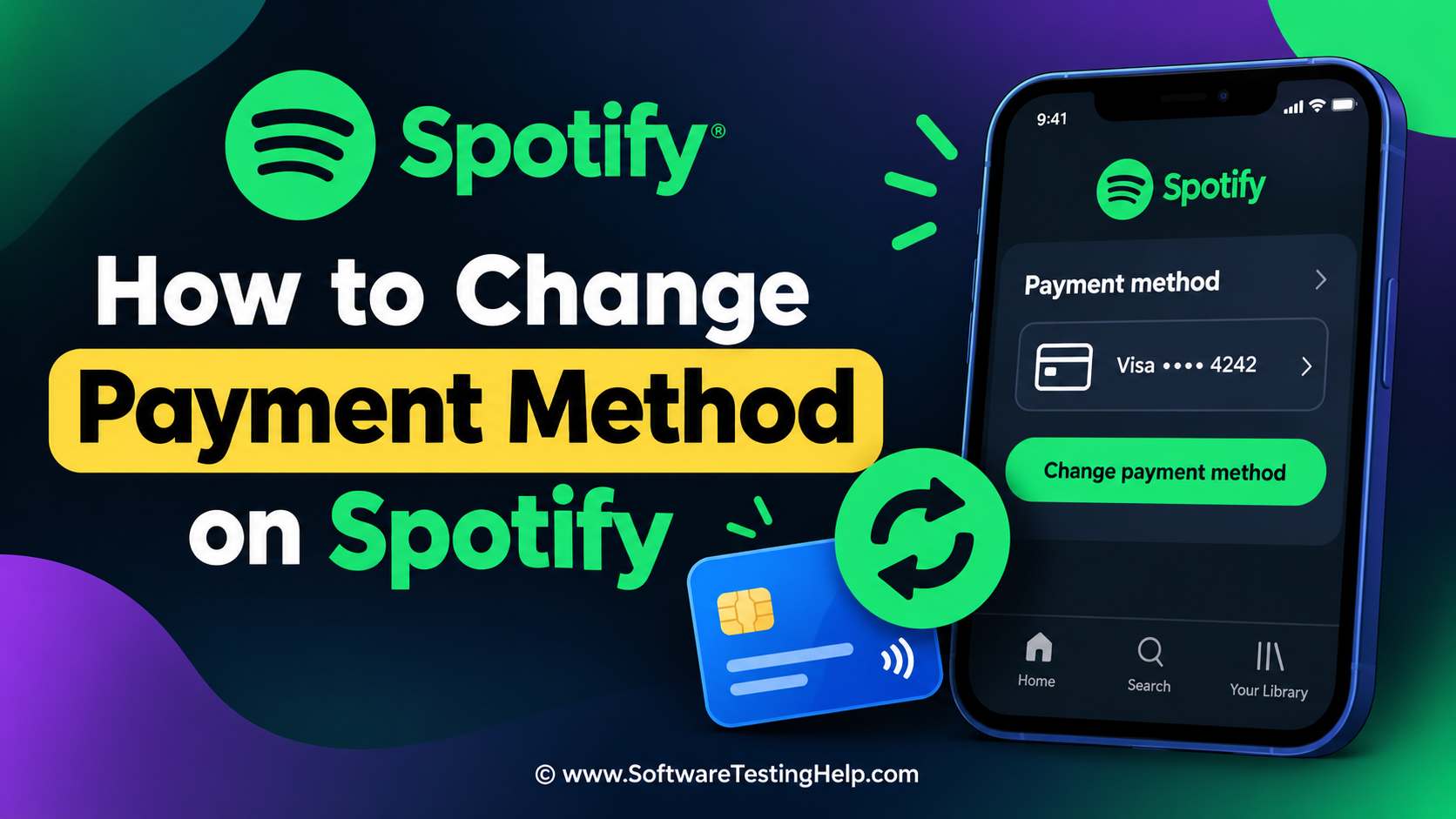
To update or change your Spotify payment method, you need to go to Payment methods and choose Add to enter a new payment method.
You can also tap on Remove if you wish to remove an existing one. Finally, select Add/Change payment method to save your updated details.
Points to Remember Before Updating Spotify Payment Method
Before you update Spotify payment details, it is essential to keep certain points in mind to avoid payment issues or interruptions to your Premium subscription later on:
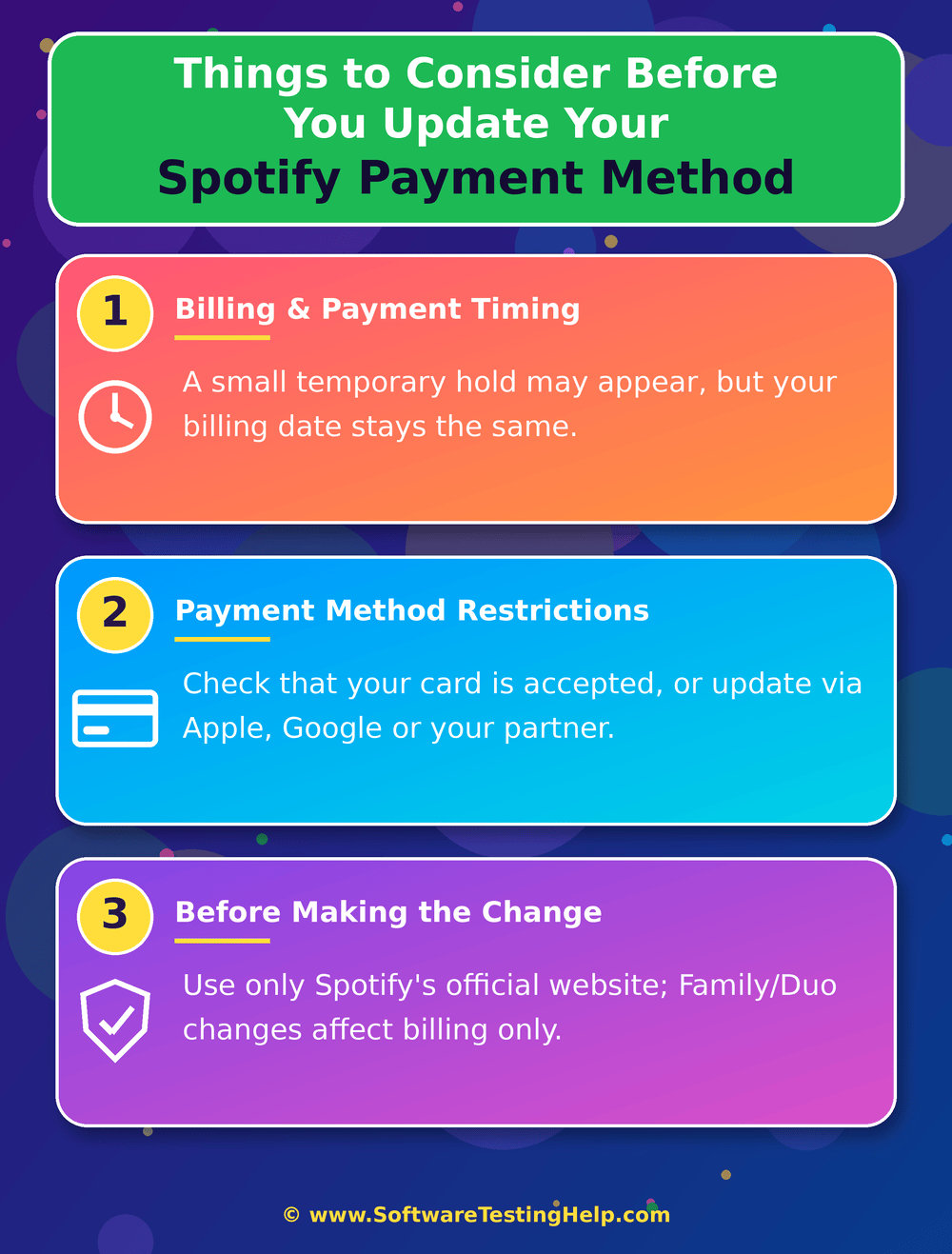
#1) Billing and Payment Timing
- Spotify may hold a small, temporary charge in order to authorize your new card. This is automatically refunded within a few business days.
- Your regular billing date does not change with the change in your payment method.
#2) Payment Method Restrictions
- Not every prepaid card is accepted by Spotify, so it is important to check whether the preferred payment option is accepted.
- If your subscription is billed via Apple, Google, or any other partner, you may need to update your payment method through that provider instead.
#3) Before Making the Change
- When entering payment information, remember to use Spotify’s official website.
- If you manage the Family plan or Duo, updating the payment method applies to the subscription billing rather than changing other members’ account details.
Here is the video guide on how to change the payment method on Spotify.
How to Change Payment Method on Spotify
Here is how to change the payment method on Spotify across various devices and platforms:
#1) On Desktop Browser
How to change the payment method on Spotify on a Desktop browser:
- On your desktop’s web browser, go to spotify.com
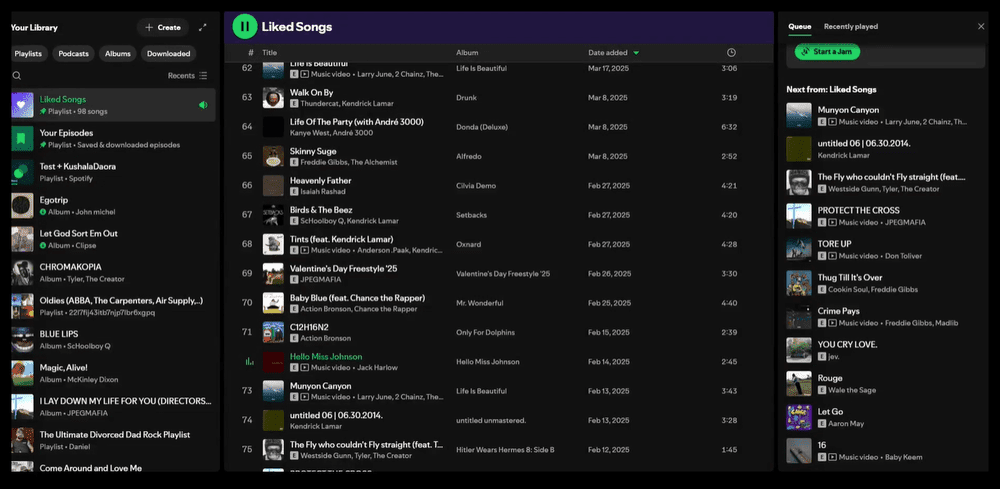
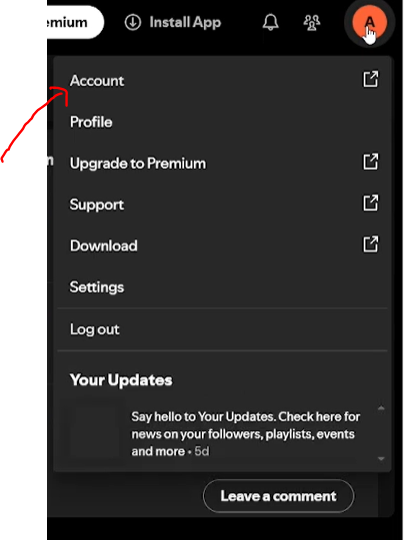
- Now, go to the Spotify Account page and log in with your account details.
Your premium subscription will remain active until the next billing date, after which your account will switch to the free version. If the cancellation is made during a zero-priced free trial period, the account will switch to the free service immediately. Zero-priced free trials cannot be reactivated.
- Now, find the Payment section, and there you will find the + Add option next to your current payment method to add new card information.
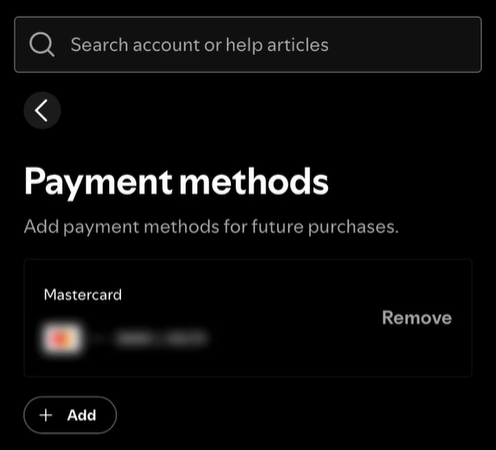
- Enter your payment information. You can also remove the previous card with the Remove option available.
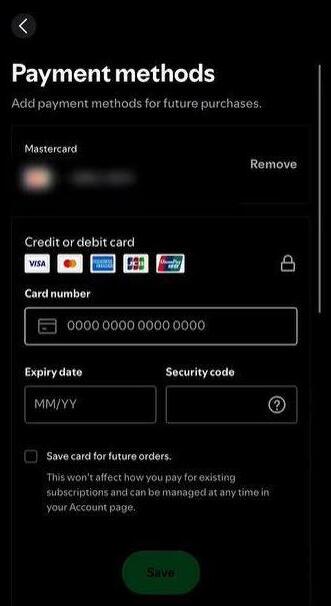
- Select Save card for future orders.
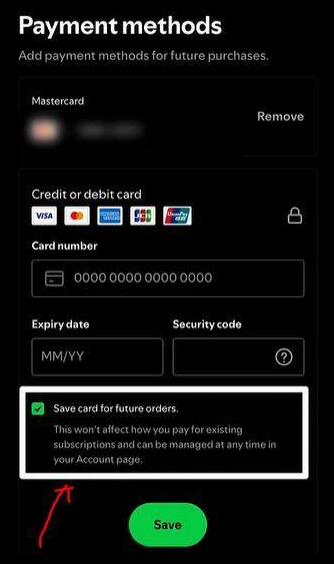
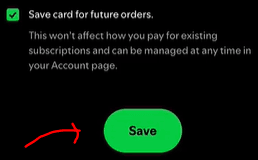
- Finally, click the Save button at the bottom to save the new payment mode.
#2) On Mobile Browser
How to Change Payment Method on Spotify on Mobile Browser:
- Another way to change your Spotify payment method is by going to spotify.com on your mobile browser and logging into your account.
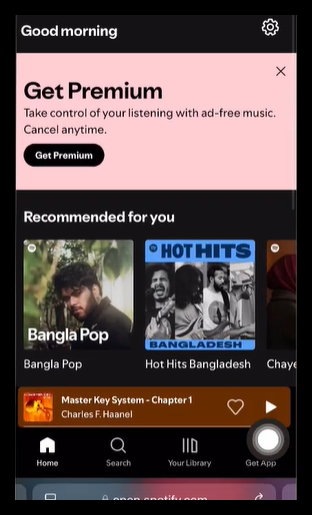
- Choose the settings gear option or menu button present at the top right corner and tap View account.
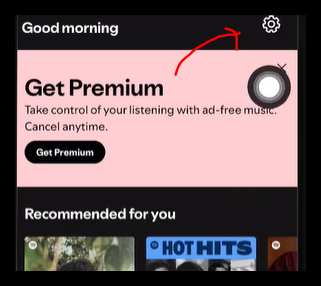
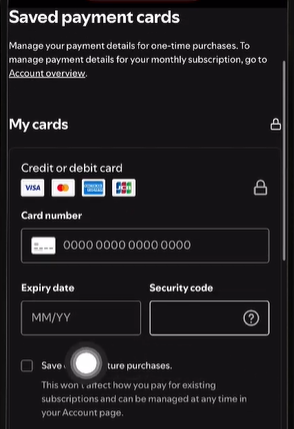
- Scroll to the Payments section and Saved payment cards. Enter your new credit or debit card details or PayPal information and confirm your choice.
#3) Via Android (Google Play)
How to Change Payment Method on Spotify via Android (Google Play):
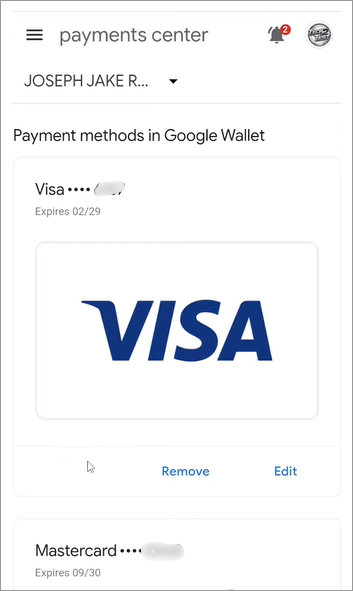
- On your mobile device, open Google Play Store and go to your Profile icon.
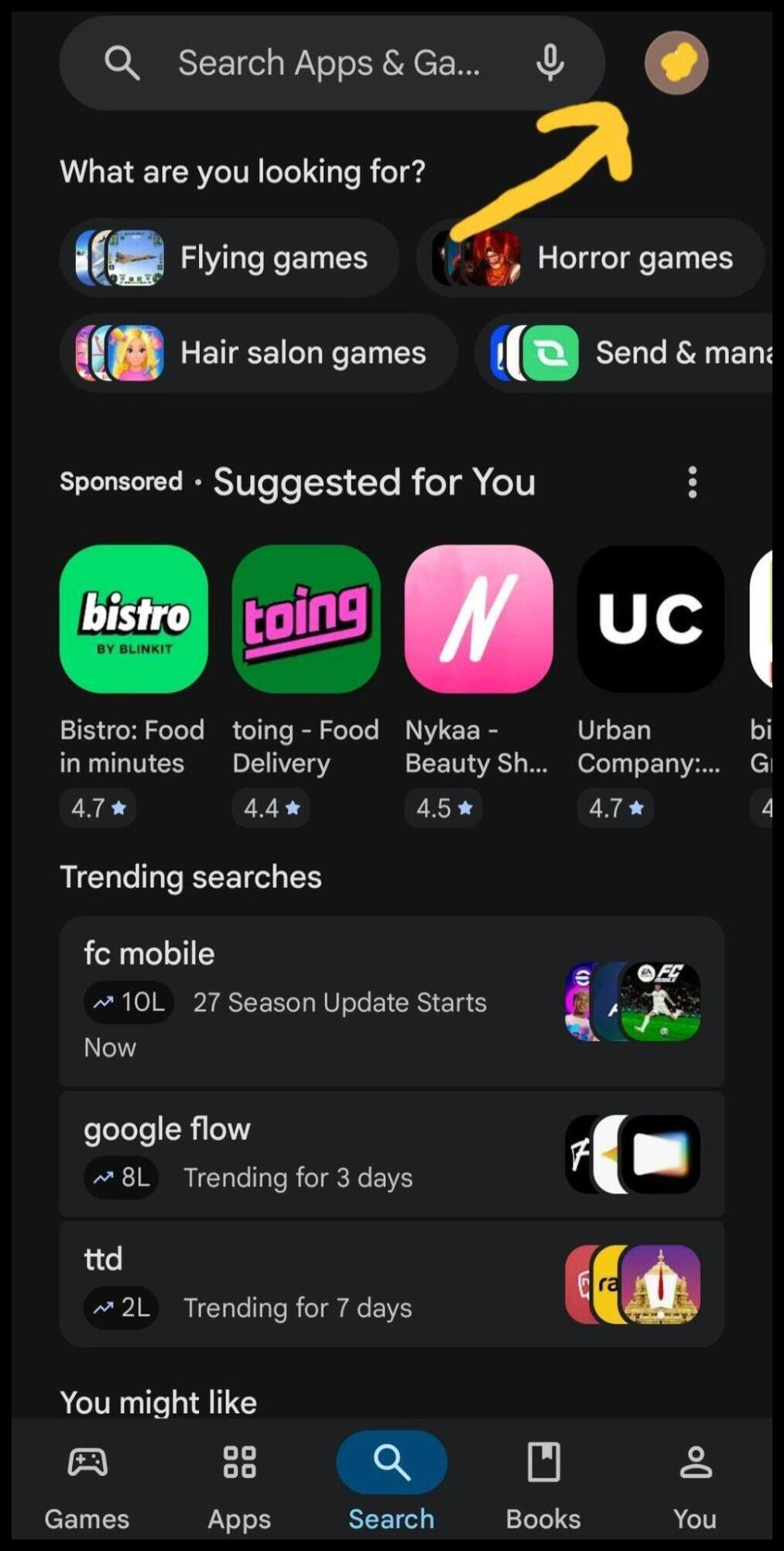
- Choose Payments & Subscriptions.
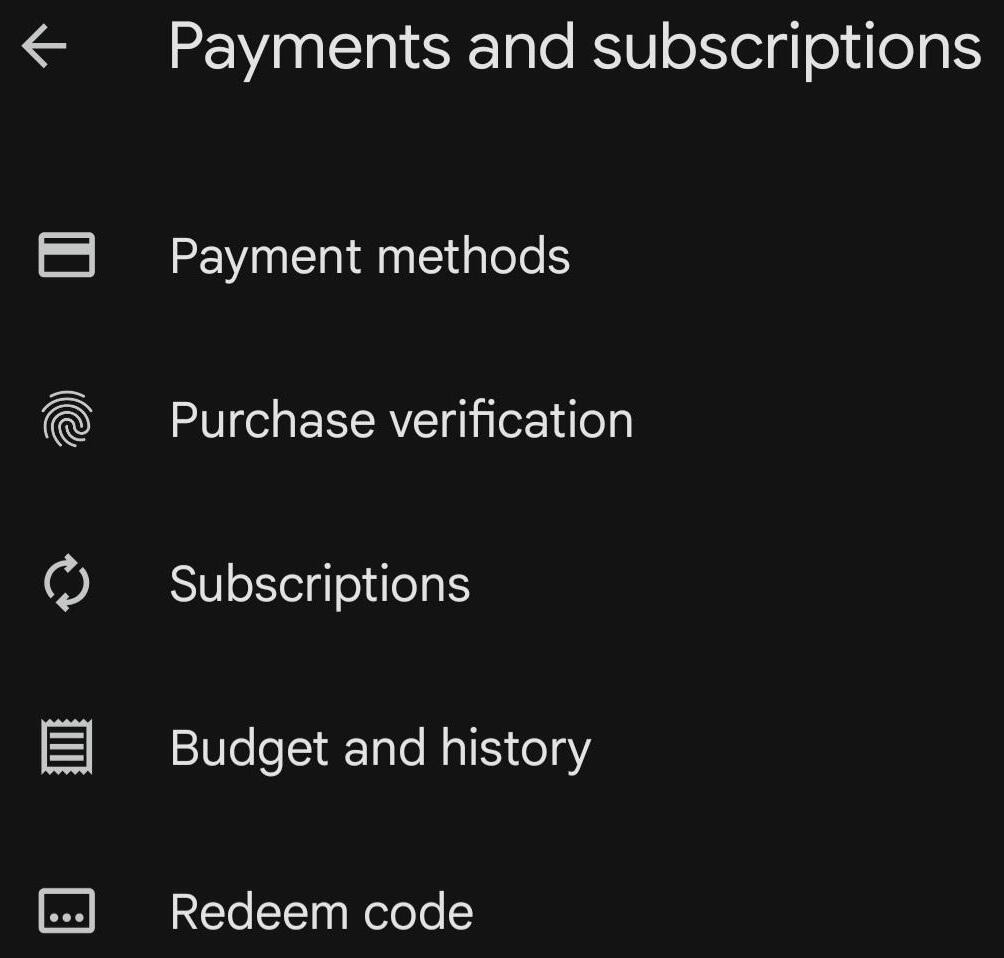
- From your active subscriptions, choose Spotify and select the Update option or change the primary method to the one you want to keep.
#4) Via iPhone (Apple Billing)
How to Change Payment Method via iPhone (Apple Billing):
- Open the Settings app on your iPhone, iPad, or Apple Vision Pro.
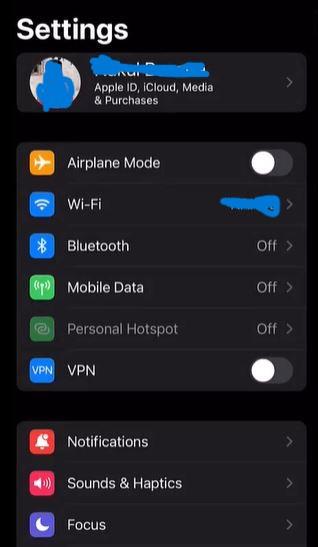
- Click on your name (Apple Account/Apple ID).
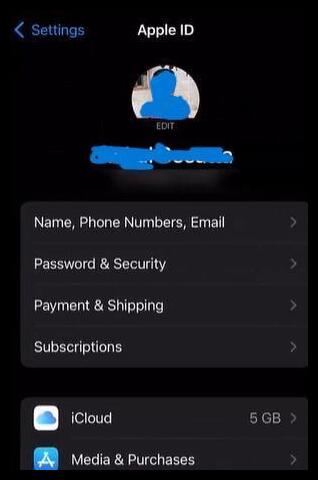
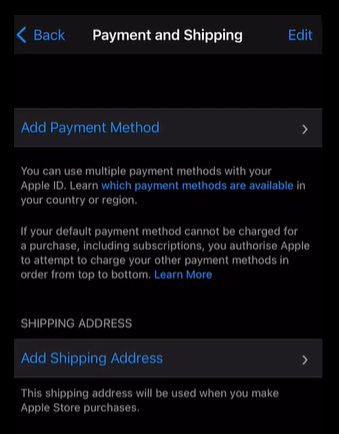
- Select Payment & Shipping.
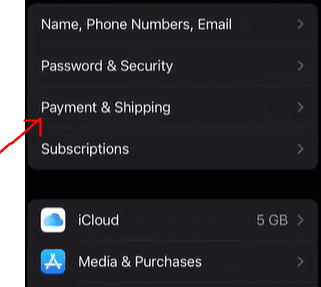
- If you want to add a new card, choose Add Payment Method, fill in your new card details, and click on the Done icon.
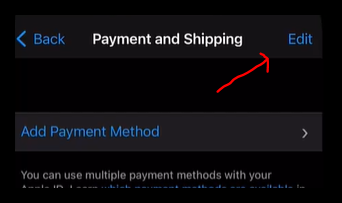
- In order to remove or change the previous/ old card, select Edit, choose the red delete or select button, and confirm.
- Apple will automatically use your new default payment method when your Spotify renewal comes.
#5) From a Third-Party App
How to Change Payment Method for Spotify from a Third-Party App:
- For Spotify third-party billing, visit the app’s official website, which is linked to your Spotify account.
- Log in and go to your active services or billing profile.
- Update your credit card information or debit card details directly with the given provider.
Spotify Payment Through a Partner
If your current plan is billed through a partner company, such as your internet or phone provider, these partners will manage your payments according to Spotify.
If you want to make a switch to Spotify billing, here’s what you can do:
- Visit your provider’s website to cancel your current premium plan.
- Once your account switches back to free, you can sign up for any premium plan.
Update Spotify Payment Method: Troubleshooting Guide
Here are some of the troubleshooting tips to follow while updating your Spotify payment method:
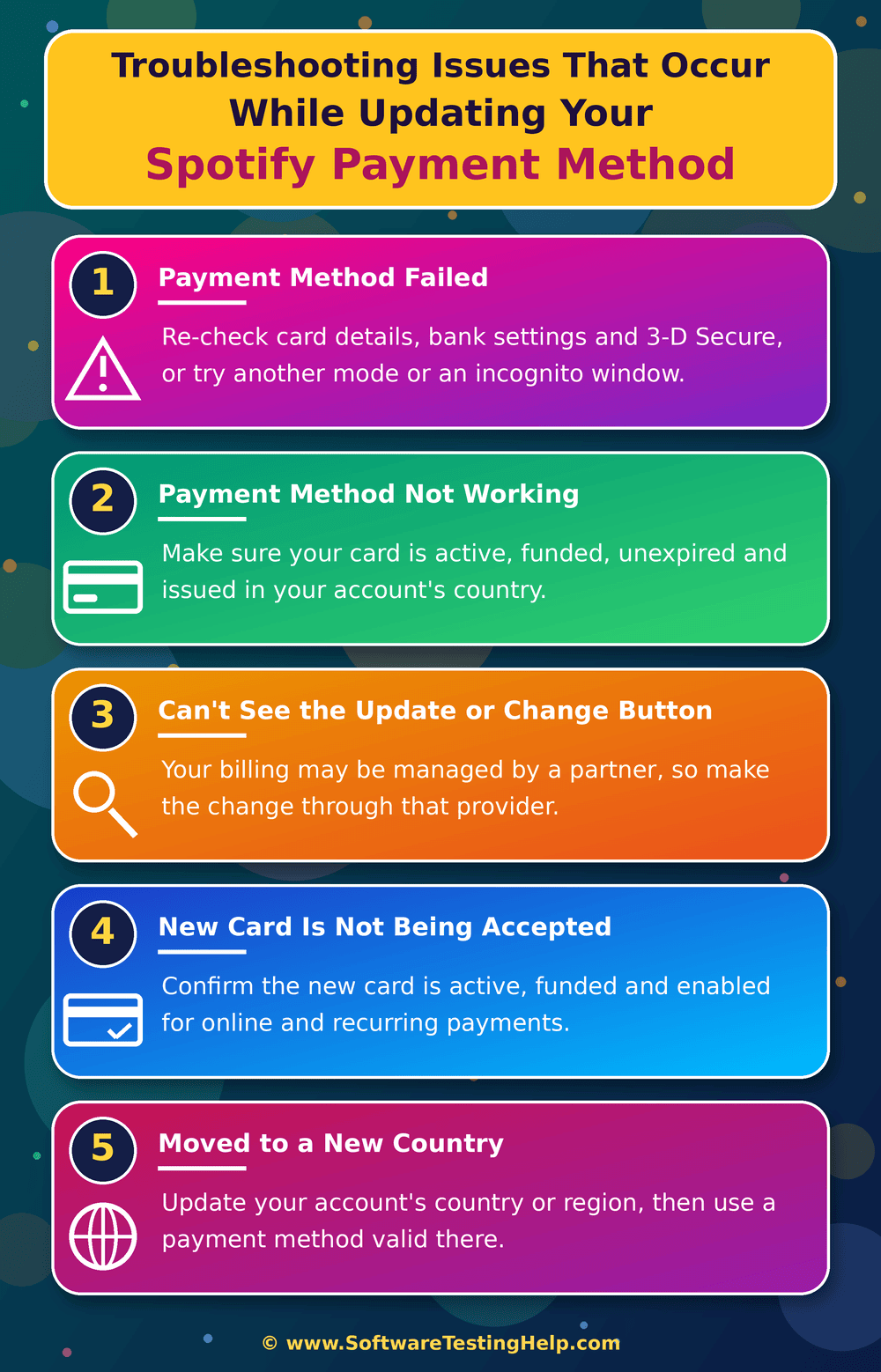
#1) Payment Method Failed
- If you’re unable to pay for your Spotify Premium subscription, you must check your card and payment details again.
- You can also try making your payment with another method or use an incognito or private window to enter the details.
- Check the payment history page to get more details about your failed payment.
- Ensure that your card supports foreign, secure online, and recurring purchases. You can find these settings in your mobile’s bank app.
- Sometimes payment fails because of bank issues. You can contact your bank or your card issuer to find out the reason for the failed payment.
- Make sure your bank has 3-D Secure 2.0 enabled for your card. Contact your bank to confirm this.
- A temporary technical glitch can lead to payment failure. In such cases, you can wait for a few hours and try again.
- If you make a payment from a third party, then you need to resolve the payment issue through that provider itself.
#2) Payment Method Not Working
- If the payment method is not working, ensure that your card is active, has sufficient balance, and is not expired.
- Try checking the country or region. This is because your payment method should generally be issued in the same country or region as listed on your Spotify account.
- The payment method sometimes does not work because of browser issues. In such cases, open incognito mode and enter your details again.
- You can also try using another payment method, or if your billing is done through a third party, you may need to contact your provider.
#3) Can’t See the Update or Change Button
- If you can’t see the Update or Change button, check your Spotify subscription.
- Go to Manage your subscriptions and look under the Payments section to find out about your provider.
- This is because if your billing is managed by a mobile carrier, internet provider, or another partner, you will need to make the changes through that provider instead of Spotify.
#4) New Card is Not Being Accepted
- If the new card is not being accepted, the first thing to do is to check whether the card is active and not expired.
- Ensure that the new card has sufficient funds.
- Verify and confirm that the card supports online and recurring payments.
- Confirm whether the issuer of your new card is located in the same country or region as your Spotify account.
- If the card is still not functional, try another supported payment method or contact your bank for further details.
#5) Moved to a New Country and Unable to Use New Payment Method
- If you changed your country and are unable to use the new payment method, try and check the country or region listed on your Spotify account.
- If you have moved permanently, update your account’s country or region.
- Now, use the payment method applicable in your country or region.
- If you have a premium account, the changed Spotify payment method will take effect from the next billing cycle.
How to Cancel Your Spotify Subscription?
You can cancel your premium subscription on Spotify anytime.
- Go to Manage your plan.
- Choose the Cancel subscription option.
Frequently Asked Questions
1. Why is my Spotify payment failing?
Spotify payments can fail due to various reasons, such as an expired or declined card, insufficient balance, or unsupported payment methods. The payment method can also fail due to a mismatch between the current payment mode and the account country.
Temporary technical issues or third-party billing can also lead to Spotify payment failure.
2. How do I update my payment method on the desktop?
On your desktop’s web browser, go to the Spotify Account Page and log in with your account details. Click your profile picture and choose Account.
Find the Payment section and click on the Saved Payment Cards icon. In the payments section, you will find the + Add option next to your current payment method to add new card information.
Enter your payment information. You can also remove the previous card using the Remove option available. Select Save in order to save the new payment mode.
3. How can I change my payment method on mobile browsers?
To change your Spotify payment method, you must go to spotify.com on your mobile browser and log in to your account. Choose the settings gear option or menu button present at the top right corner and tap View account. Scroll to the Payments section. Enter your new credit or debit card details or PayPal information. Finally, select Change Payment Details to confirm your choice.
4. Can I use the same card for two Spotify accounts?
Yes, you can use the same card for two Spotify Premium accounts. However, the same card cannot be used for free or discounted introductory trials on multiple accounts. The payment method also needs to match Spotify’s region or requirements.
In cases where you are paying for more than one account for people living in the same house, you can consider Spotify Duo or Spotify Family.
5. How do I block Spotify payments?
To prevent Spotify from charging further payments, go to Manage your plan and choose Cancel subscription. Your premium subscription will remain active until the next billing date, after which your account will switch to the free version. If the cancellation is made during a zero-priced free trial period, the account will switch to the free service immediately. Zero-priced free trials cannot be reactivated.
6. How do I see my payment details on Spotify?
To see payment details on Spotify, go to Manage your subscriptions. Alternatively, you can also check the payment details on your Spotify app: Profile Picture > Settings and Privacy > Account > Billing.
Conclusion
Changing the Spotify payment method is easy if you know where the subscription is billed. Whether you are making use of desktop, mobile browser, Google Play Store, Apple account, or any of the third-party providers, each step stated above will lead you to change your Spotify payment method to the one you need.
As such, by following the steps mentioned above, you can seamlessly update your payment mode and enjoy your Spotify subscription without any interruptions.
Research Process: The total time involved to complete and publish this article is approximately 38 hours. This content was created through a structured research approach to ensure accuracy and reliability.
For more-related guides, you can explore our range of tutorials below:
- Amazon Alexa vs. Google Home: Which is the Best Assistant
- Best CRM Software Tools (Latest Rankings)
- Top 10 Payment Gateway Providers
- Best Spotify to MP3: Download Spotify Songs & Music Playlist
- How to Find Your Spotify Wrapped (Past and Upcoming)
- Best Podcast Software to Record & Edit Podcasts
- Payment Gateway Testing Guide with Sample Test Cases
Was this helpful?
Recommended Reading
-

Looking for leading apps like Affirm? Discover the top Affirm alternatives that might provide superior options for buy now, pay later shopping to help you shop smarter: The BNPL market is worth 33 billion in 2026 and is expected to touch 40 billion in 2027. So, the popularity of apps…
-
Searching for the best Apps like Klarna that offer flexible payment options? Shop smartly with the top payment apps like Klarna to buy now and pay later without any hassles: Klarna is definitely one of the most popular BNPL (Buy Now, Pay Later) apps out there. Launched in 2005, Klarna…
-

Here is the Tester’s Guide to Payment Gateway Testing: What are the payment processors? According to Wikipedia, “A payment processor is a company (often a third party) appointed by a merchant to handle transactions from various channels such as credit cards and debit cards for merchant acquiring banks. The payment processor…
-

Review and compare the top Payment Gateway providers and select the best payment gateway for hassle-free payments for your business: A few questions that come to mind when we talk about payment gateways are: What is a payment gateway? How does a payment gateway work? How to build a payment…