


Did you delete an important email by mistake? Learn how to recover and restore deleted emails in minutes using the Gmail Message Recovery Tool with simple, step-by-step instructions from our exclusive guide:
The Gmail Message Recovery Tool is a service/solution provided by Google that lets you submit a recovery request for emails lost due to unauthorized access.
That said, it isn’t a foolproof way to recover deleted emails. It may not always work.
Gmail Message Recovery Tool: Quick Steps to Restore
In this article, I’ll show you how to use the Gmail Message Recovery Tool and when you should use it. We’ll also discuss alternative recovery approaches and steps you can take to prevent accidental loss of sensitive emails.
What is Gmail Message Recovery Tool
- The Gmail Message Recovery tool lets you submit an email recovery request for messages lost because of unauthorized access.
- Recovery of an email through this tool is usually successful if the email was deleted or cleared from the Trash folder within the last 30 days.
- The tool will not work if Google fails to verify unauthorized access, the 30-day window has expired, the email is in the Spam or Trash folder, or if you are a member of Google Workspace.
Here is the video on how to recover permanently deleted emails from Gmail:
When to Use Gmail Message Recovery Tool
Recovery with the Gmail Message Recovery Tool isn’t 100% guaranteed. Sometimes it may not work at all.
I suggest you refer to the table below to know whether the tool is even worth your time.
| When it May Work | When it May Not Work |
| Email was lost because an unauthorized individual hacked into your account. | The email was deleted manually by you. |
| The email was cleared from the trash bin. | The email is still sitting in your trash bin. |
| The email was deleted within the last 30 days. | More than 30 days have passed since the email was deleted. |
| The email belonged to a personal Gmail account. | Your email account is part of a larger Google Workspace account. |
| A technical glitch resulted in the accidental deletion | The data was lost because you ran out of Google storage space. |
Points to Remember Before Using Gmail Message Recovery Tool
Given the strict conditions laid out by Google to use the Gmail Message Recovery Tool, I would only suggest using it as a last resort.
This means only use it after you’ve exhausted the options below:
#1) Search Your Gmail
There’s a good chance that the email wasn’t accidentally deleted. Perhaps it just got lost in the stack. Use Gmail’s search bar to look for the email. You could enter keywords related to the email’s subject or the sender/recipient’s address, if you remember it correctly.
Use Gmail’s filters to look for the email. Gmail’s filters can help you look for an email sent or received after a particular date, before a particular date, or emails older than a set date.
#2) Search the Spam and Trash Section
If the email was deleted recently, it must have found its way into your account’s trash. So, check the trash first. If the email’s there, simply move it back to the Inbox with a single click. No need to go through the ordeal of submitting a recovery request.
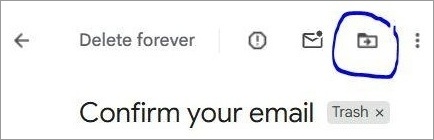
It is also likely that the email wasn’t deleted at all. Instead, Gmail mistakenly identified it as Spam and sent it there. So, open Spam, and if you see that email, simply mark it as “Not Spam”.

#3) Review POP/IMAP Settings
POP Download is used to forward emails received via Gmail to other tools like Outlook and Apple Mail. If POP Download is set to “Delete Gmail’s Copy”, then the mail in your inbox will be deleted automatically as soon as it is downloaded or forwarded to an external mail service or tool.
Similarly, bad IMAP sync configurations in external clients can also result in an email getting deleted or trashed accidentally.
You can review these settings by doing the following:
- Click on the Gear icon you see at the top-right corner of your screen.
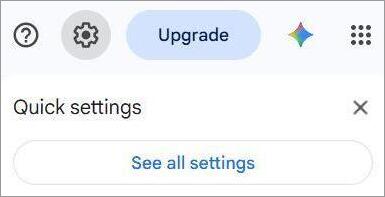
- Select “See all Settings”.
- Click on the “Forwarding and POP/IMAP” tab.

- Make sure the second option is always set to “Keep Gmail’s copy in the inbox”.
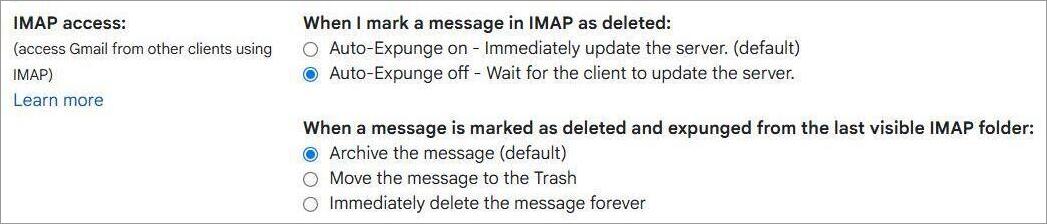
- Scroll further until you see the IMAP Access section and set it to “Auto-Expunge” off.
This should do the trick.
#4) Remember the 30-Day Rule
Gmail Message Recovery Tool won’t work if more than 30 days have already passed since the email was originally deleted. So, make sure the deletion or loss took place within the last 30 days.
#5) Check Whether You Have a Personal or Workspace Account
Gmail Message Recovery Tool only works on a personal email account. People with emails belonging to a larger Workspace account (School or Office) shouldn’t even bother with the recovery tool. You’ll have to request the account’s admin to help you recover the mail (more on this later).
#6) Check Gmail Filters and Blocked Addresses
In the Settings section, there is a tab called “Filters and Blocked Addresses”. You can create filtering rules there that would basically empower Gmail to automatically delete certain emails, archive them, or send them to Spam.
Review your Filter rules. Delete filters that could be causing your emails to get lost, sent somewhere else, or deleted accidentally.
How to Use Gmail Message Recovery Tool
With the prerequisites out of the way, we can now focus on using the tool to hopefully get that very important email back.
So, let’s find out how to recover a deleted Gmail message using this tool.
Step 1: Visit the Gmail Message Recovery Tool page.
It’ll look something like this:
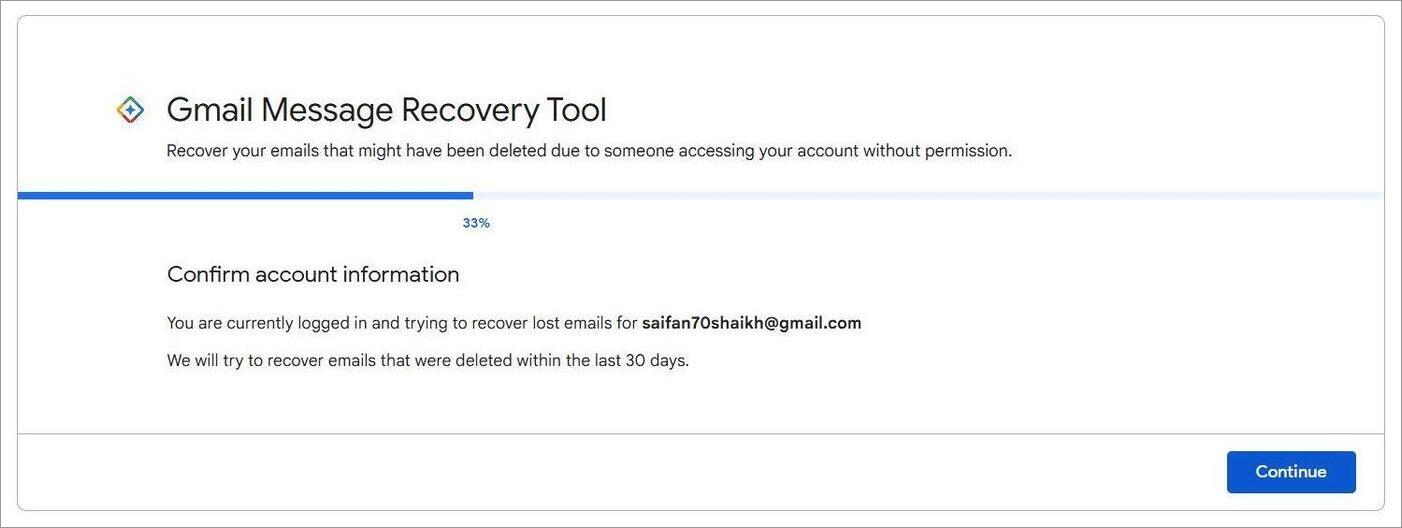
Sign in immediately. Make sure you are signed into the correct account, and by that I mean the account that lost the email in the first place. If you are using multiple Google accounts, you’ll be prompted to select the right one.
Step 2: Follow the On-Screen Instructions
Once signed in, simply follow the instructions on your screen. Hit Continue to keep proceeding through the steps.
Google may or may not ask you to explain why you want to use the tool. Provide an honest answer. Be as clear as possible. Hit the “Continue” button again.
Step 3: The Results
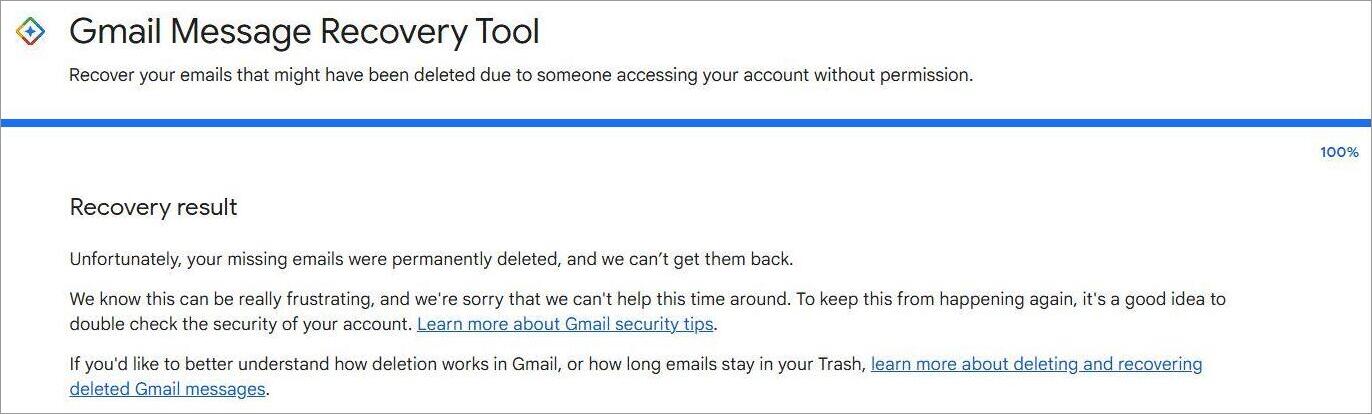
The tool will now present you with the results of its recovery efforts. You’ll know whether the recovery succeeded or failed. If the tool responds with a successful recovery message, go back to your Inbox and look for the lost message.
How Long Does Email Recovery Take
The initial scan to find out whether an email can be restored only takes about a minute or so. You’ll quickly know whether the recovery is possible or not.
The actual recovery can take hours. You can expect to wait for days if the volume of recovery is vast. This will put a load on the server, thus causing severe delays in recovery.
Recovery Emails After 30 Days
If you are using a personal Gmail account, know that an email deleted over 30 days ago is gone for good. An email moved to trash will automatically be deleted if it remains there for over 30 days.
However, that all changes if you are a member of Google Workspace.
If you are using an account provided to you by the company you work for or the college/school you go to, then you can have the Google Workspace’s main admin restore a deleted email for you.
According to Google Workspace’s Regulatory Compliance rules, an admin can recover a deleted email or Google Drive data for 25 days after it was emptied from that account’s trash bin. This means an additional 25-day recovery window beyond the original 30 days.
So, if you are a member of Google Workspace, reach out to your account’s admin with a recovery request.
The admin may do the following to restore the deleted mail:
- Sign in to the Google Admin website.
- Look at the left-hand-side menu. You’ll find the Directory option. Expand it and select “Users”.
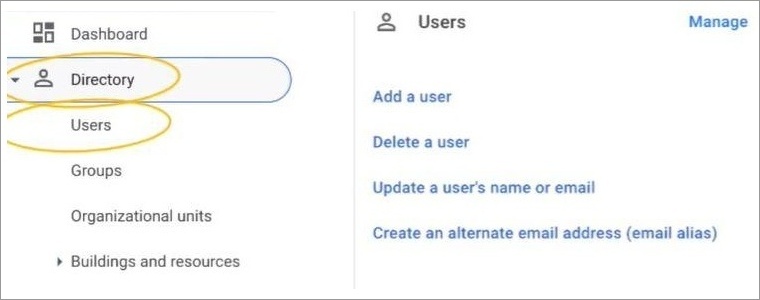
- Select the User, click on More Options > Restore Data.
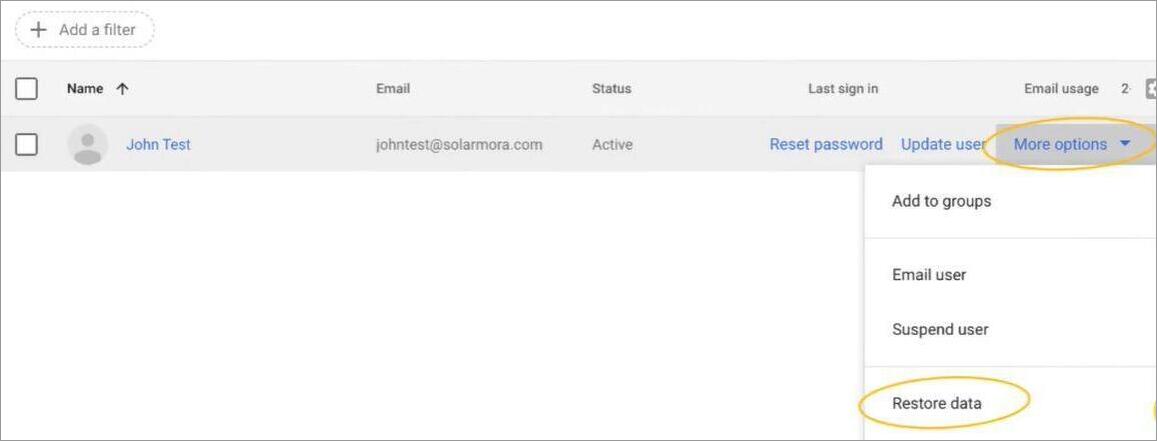
- Enter the Date Range. The admin can only select a date within the last 25 days to recover successfully.
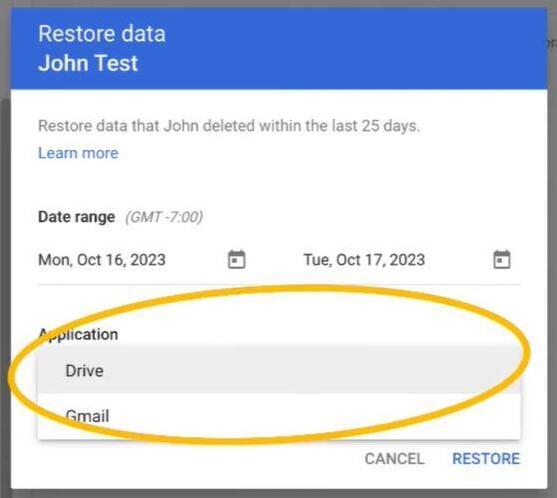
- From the Application Section, select Gmail.
- Hit the “Restore” button.
What to Do if the Gmail Message Recovery Tool Doesn’t Work
As I said before, recovery with this tool isn’t 100% guaranteed. If you weren’t able to recover with the tool, that’s because you didn’t meet the required conditions.
Perhaps 30 days have already passed, or maybe that email is sitting in your Spam or Archive folder. I suggest you check your Gmail filters, Spam, Trash, and Archive folder again, just for your peace of mind.
If you believe the email was lost because of unauthorized access, immediately change your password.
If you have the recipient’s email address or contact, ask them to send the email again. You could also try accessing your email via other devices. For instance, if you were using your desktop browser before, try to access your Gmail inbox via smartphone.
Also, check the Sent folder. If you’ve communicated with the sender or if you were the one who sent the message, the email could probably be in the Sent folder of your Gmail account.
If POP forwarding was enabled, then the email could’ve been forwarded to another email client like Outlook or Apple Mail. Check those email accounts to see if your email was forwarded there.
You might be tempted to use a third-party email recovery tool. You’ll find a plethora of those online. Fair warning, though: none of them are going to work. There is a good chance that installing them might end up compromising your system or email security.
Stay away from services or tools that ask for your email or Google credentials to recover the lost email.
How to Prevent Emails From Deletion
There are certain things you can do and should do to protect your emails, especially if you’re handling some sensitive information via your Gmail account.
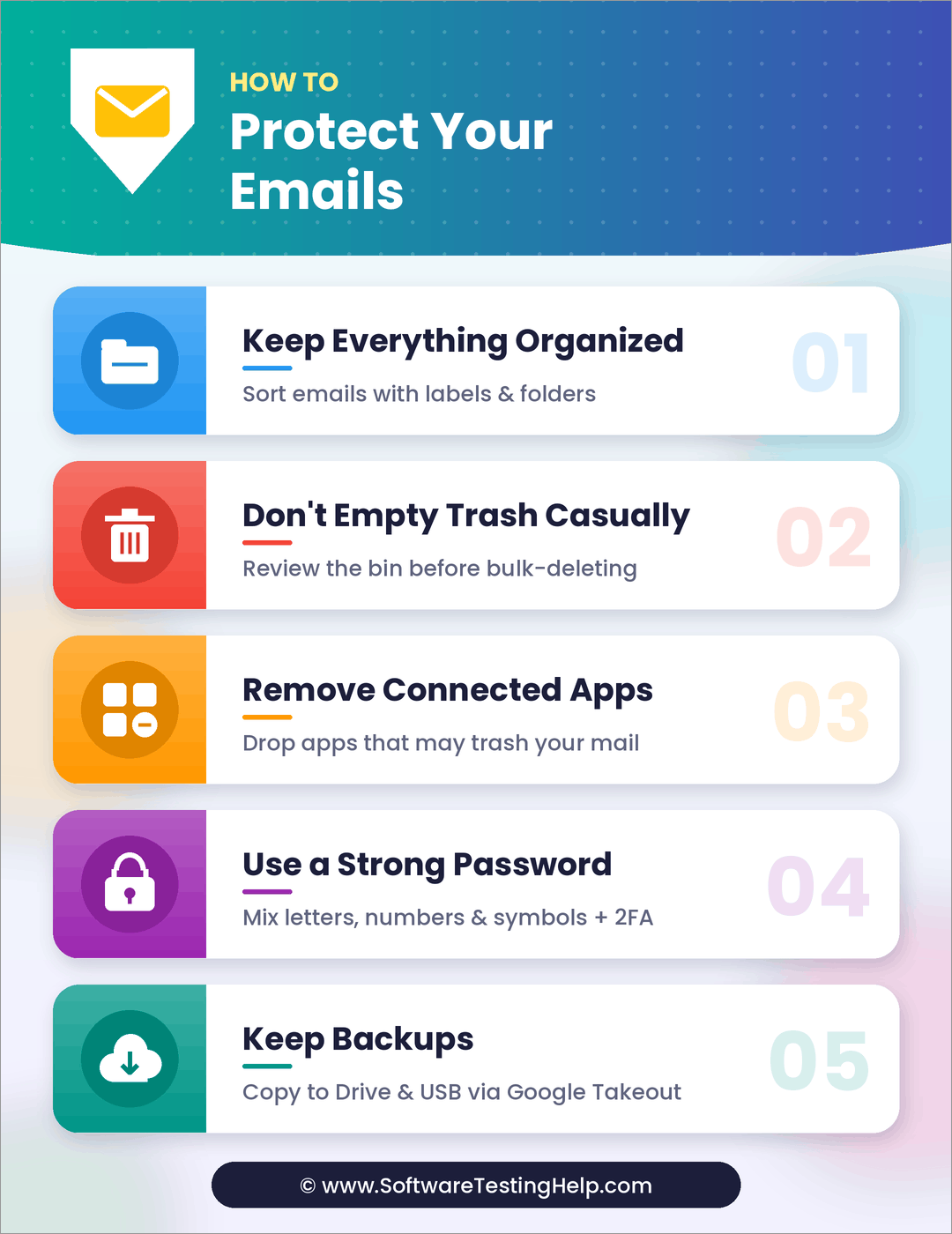
#1) Keep Everything Organized
My first suggestion to you would be to keep your emails well organized. Gmail lets you categorize emails with the help of labels and folders. Use that privilege to keep emails organized so you can retrieve them without any delay whenever needed.
#2) Don’t Empty Trash Casually
Some people have the habit of clearing their trash bin without even checking what’s in it. Always review your trash bin, especially if you have a habit of deleting emails in bulk.
#3) Remove Connected Apps
Google has stated that apps connected to Gmail can interfere with how the service functions and even accidentally trash your messages. Review connected apps regularly and remove apps you suspect of affecting your experience on the platform.
#4) Use a Strong Password
Make sure you are using a very strong password, preferably a mixture of characters, letters, and numbers. Also, set appropriate account authentication paths and options. This will drastically reduce the chances of somebody unauthorized getting access to your account.
#5) Keep Backups
If emails contain important records about your business or finances, I suggest keeping multiple copies of those. Keep one copy in the cloud (Google Drive) and one stowed away on an external drive (Hard Drive or USB Drive). This way, you have a copy even if the original is lost. An easy way to access your backup is via Google Takeout.
Just do the following:
- Sign in to your Google Account and open Google Takeout in your browser.
- You’ll now see a list of all Google products that may contain your data backup. Make sure to uncheck all but Gmail. Hit the “Next Step” button.
- Choose file type, destination, and export frequency. Hit the “Create Export” button.
Depending on the size of your mailbox, this could take hours. Once done, Google will send you the archive file to download via email.
Checklist to Find Out Whether your Gmail is Hacked
I also suggest reviewing the following checklist to know for sure whether your Gmail or Google account has been hacked.
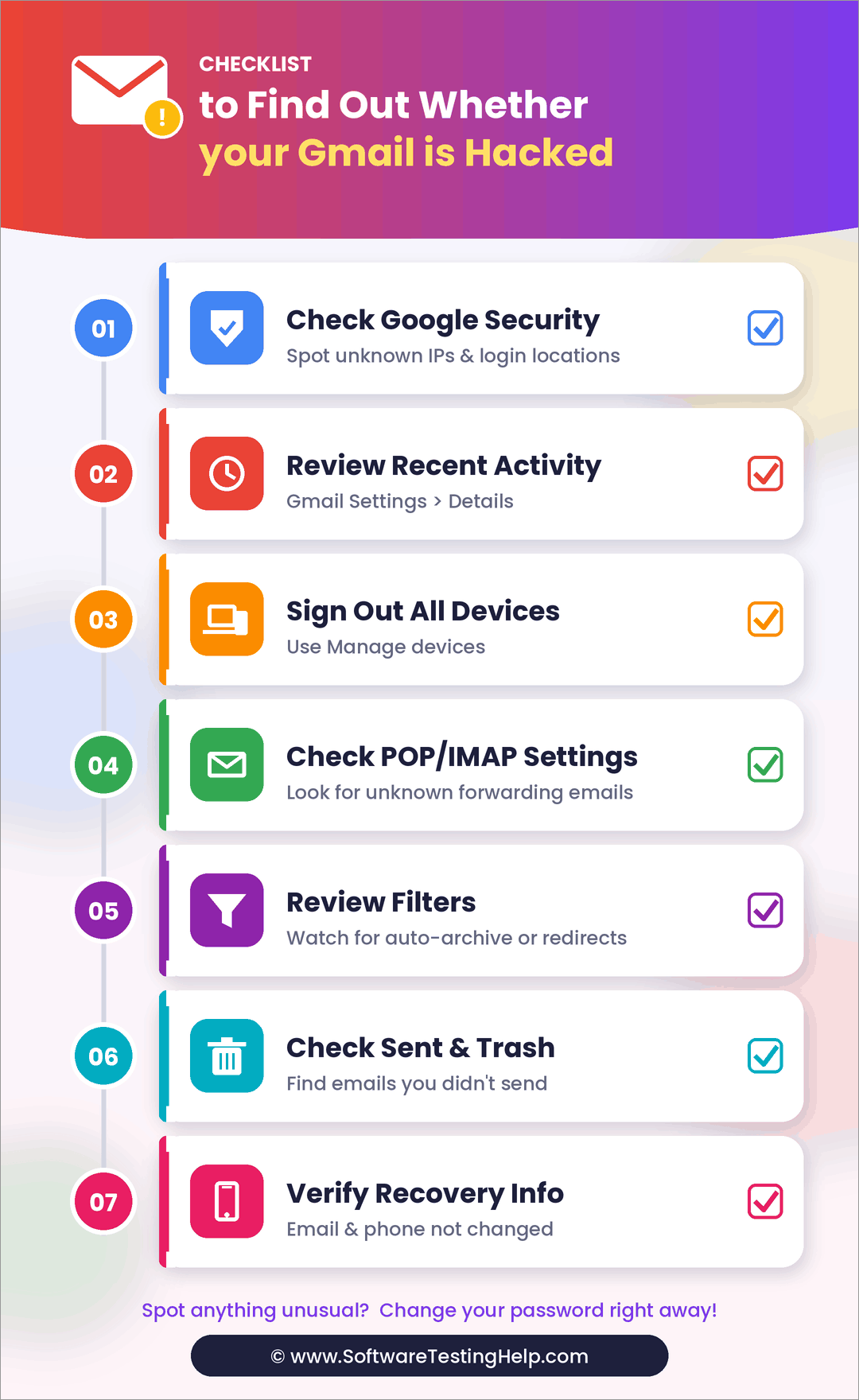
- Visit Google Account Security. While there, I suggest checking for suspicious IP addresses or login locations. This could indicate an unauthorized attempt to access your account.
- Open General Settings in Gmail and scroll down until you see the Details button. Click on it to review all recent activity.
- Click on Manage Devices to sign out of all devices that you are currently logged in.
- Review your POP/IMAP settings. Check whether these settings have an unrecognized email address set to receive your emails.
- Review filters that may archive your emails or send them to another folder.
- Check the Sent and Trash Folders for emails you did not send.
- Finally, review your recovery email address and phone number. Make sure these details have not been changed without your knowledge.
How Do I Recover Deleted Gmail Emails on iPhone and Android?
There are two options at your disposal when it comes to recovering lost Gmail emails on your smartphone.
The first entails the standard recovery procedure wherein I suggest checking your Trash or Spam folder. If the missing email is there, you can move it to your inbox or mark it as “Not Spam” with a single click, thus successfully recovering it. This method works if you haven’t cleared the trash bin within the last 30 days.
The second method entails using the Gmail Message Recovery Tool, which you can access via the Gmail Mobile app.
Here’s how you do it:
- Open Gmail on your phone.
- Select Help and Feedback from the side menu.
- Search for “Missing” and then select “Gmail messages are missing”.
- At the bottom, you’ll now see an option: recover your emails. Click on it.
- You’ll be redirected to the browser version of the Gmail Message Recovery tool. Tap on “Continue” to kick-start the recovery process.
Does the Gmail Message Recovery Tool Restore Attachments, Drafts, or Labels?
The Gmail Message Recovery tool can recover attachments, as Google considers these files a part of the email’s body. So, if you have a particular email completely restored, then the attachment it contains will also be recovered.
That is not the case with labels and drafts. Once a draft is deleted, there is no way to restore it. The same goes for nested and custom labels as well as organized tags.
Frequently Asked Questions
1. Where is the Gmail Message Recovery tool?
Gmail Message Recovery tool can be accessed via Google’s official support workflow. Once you’ve visited the page, you’ll immediately be asked to sign in to the account that has lost the email. From there on, all you have to do is follow the on-screen instructions and let the tool do its job.
2. Can Google recover deleted messages?
As a Gmail user, you can personally recover messages that are sitting in your Trash folder for no more than 30 days. After 30 days, those messages will be deleted automatically.
If the messages were deleted from the Trash folder within the last 30 days or if you suspect unauthorized account access, there’s still a chance to retrieve the mail via the Gmail Message Recovery Tool.
3. Why is the Gmail Message Recovery Tool stuck at 99%?
This could hint at a server-side issue. This issue may also arise if the 30-day recovery window has lapsed or if the Google servers fail to verify an unauthorized access.
You can try fixing the issue by doing the following:
– Wait for a few minutes and try using the tool again.
– Clear the browser cache.
– Switch to a different browser or internet network.
– Don’t click Continue repeatedly. Wait for the tool to respond to your command.
– Open the Gmail Message Recovery tool in Incognito mode or another browser and then try again.
4. Is the Gmail Message Recovery Tool free?
Yes, the Gmail Message Recovery Tool is a free service provided by Google to all with a Google account. You don’t have to pay a dime to use it to restore lost email or data from Google Drive.
5. Why isn’t my Gmail Message Recovery Tool working?
It could be due to the following reasons:
– The 30-Day window to retrieve the message successfully has already expired.
– The email was marked as Spam and is sitting in the Spam folder.
– The email was cleared from the Trash bin automatically after 30 days of dwelling in it.
– A weak internet connection or a server-side issue is causing the tool to malfunction.
– Your account belongs to Google Workspace.
Conclusion
Trust me, I understand just how dreadful it is to lose a very important email. Don’t lose hope just yet, though, as the Gmail Message Recovery tool may just come to your rescue. The tool is quite useful if you’ve lost an email that was either accidentally deleted within the past 30 days or lost because someone accessed your account.
That said, Gmail Message Recovery Tool may not always work, especially if the 30-day recovery window set by Google has already passed. I suggest being vigilant with emails of sensitive nature. Keep your emails organized, keep backups in the cloud and on external drives, and always use a strong password to secure your accounts.
Do that, and you may not even have to rely on a recovery tool at all.
Research Process: The total time involved to complete and publish this article is approximately 36 hours. This content was created through a structured research approach to ensure accuracy and reliability.
For more-related guides, you can explore our range of tutorials below:
- Top 11 Email Marketing Tools (Reviews & Comparison)
- How to Recall an Email in Outlook (Quick Steps Screenshots)
- How to Sign Out of Gmail on Laptop, Computer and Phone
- How To Transfer, Share, Email or Send Large Files
- Fix for Android Email App Keeps Stopping
Was this helpful?
Recommended Reading
-

Review the top SD Card Recovery Software. Compare the features & select the best free or paid Memory Card data recovery software: An SD Card can be a convenient little piece of hardware to store your data in. It is fascinating to learn how popular these devices still are decades…
-
Explore the methods to understand How to Create Windows 10 Recovery USB. Also, review the top tools to Create Windows 10 Recovery Disk: Losing data while booting a different version of Windows or resetting the system is a common issue faced by most users. But there is yet another risk…
-
This tutorial explains how to use EaseUS Data Recovery software to effectively recover deleted data from a variety of storage systems: Have you ever accidentally deleted weeks' or months’ worth of work from your system? If so, then find solace in the fact that you are not alone. This severe…
-

A complete review of Stellar Data Recovery to protect you from the biggest data breach incidents and ensure complete data protection: According to a report published in IT Governance, there have been 5 billion security incidents in 2023 alone. While organizations and institutions have become more vigilant, the security measures…


