Can you really sync two Google Calendars into one? Discover the smart and easy ways to Merge Google Calendars into one with our step-by-step guide and organize all your events like a Pro:
Google Calendar is perhaps the finest, free-to-use, cloud-based time management app one can use today. Its impact on my life has been astronomical. I sometimes wonder how I would’ve managed my work and personal time if it weren’t for this application. I consider it a godsend, and I believe many others feel the same way.
That said, the app isn’t without its issues. Although the app is immensely useful in helping you schedule and organize your life, things can get a little messy if you are using multiple Google Calendars.
Merge and Sync Two Google Calendars: Expert Guide
I’ve come across many people who, for obvious reasons, like to keep 2 or 3 separate Google Calendars. One could be for work and the other for personal time management. Oscillating between the two calendars can get chaotic, which is ironic when you consider the app is supposed to help you stay organized.
The only way to escape this chaos is to merge your calendars. Now, if you are wondering how to merge Google calendars, this article’s got you covered.
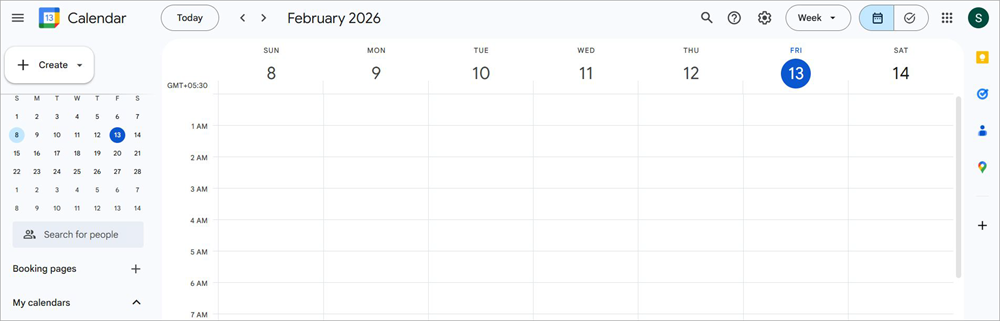
Here is a video guide on how to merge Google Calendars:
Why Merge Google Calendars
Let’s understand why it is ultimately wise to merge two Google Calendars and how this seemingly innocuous practice could streamline your life.
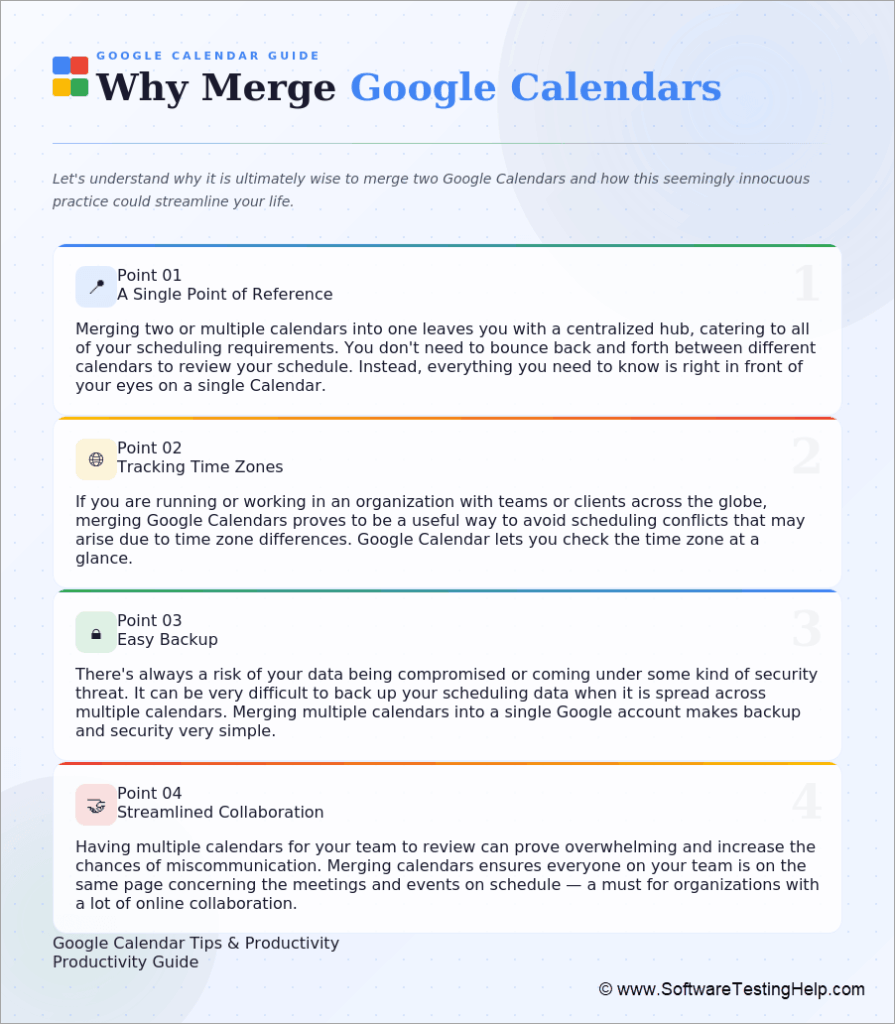
#1) Single Point of Reference
Merging two or multiple calendars into one leaves you with a centralized hub, catering to all of your scheduling requirements.
You don’t need to bounce back and forth between different calendars to review your schedule. Instead, everything you need to know is right in front of your eyes on a single calendar.
#2) Tracking Time Zones
If you are running or working in an organization with teams or clients across the globe, merging Google Calendars proves to be a useful way to avoid scheduling conflicts that may arise due to time zone differences.
Google Calendar comes with many interesting features, with one particular feature letting you check the time zone at a glance.
#3) Easy Backup
There’s always a risk of your data being compromised or coming under some kind of security threat.
It can be very difficult to back up your scheduling data when it is spread across multiple calendars. Consolidating calendars into one Google account fixes this, simplifying data backup and security.
#4) Streamlined Collaboration
Having multiple calendars for your team to review can prove overwhelming and increase the chances of miscommunication.
My advice to organizations with a lot of online collaboration involved would be to merge calendars. This ensures everyone on your team is on the same page concerning the meetings and events on schedule.
Further Reading => How to Turn on Companion Mode in Google Meet
Merging Vs Syncing Vs Combining a Calendar
People who want to learn how to merge two Google Calendars often confuse merging with syncing or combining calendars. You should know that these three things are different from each other.
Let me explain how.
What is Syncing?
Folks who wish to learn how to merge calendars in Google Calendar, pay attention to what I am about to discuss here. Merging and syncing Google Calendars aren’t the same. Merging involves exporting scheduling data from one Google Calendar and importing it into another, thus effectively merging two calendars into one.
On the other hand, Syncing is a practice of keeping different calendars updated across multiple devices. For instance, if you sync your Google Calendar with your Apple Calendar, then any update you make to the Google Calendar will appear on your Apple Calendar. That update will be in real-time.
What is Combining?
Combining and merging may again sound the same. However, they cannot be any more different. Combining calendars basically refers to overlaying one calendar over another or viewing them side-by-side in the same window.
You can toggle between the two calendars by checking or unchecking them in the left sidebar. The data on both these calendars remains separate.
| Merging | Syncing | Combining | |
| Data Separation | Data is merged | Data remains separate | Data Remains Separate |
| Use Case | Merging two separate accounts into one. | Updating Calendar in real-time across devices | Viewing multiple Calendars at the same time. |
| Process Time | Takes time. Involves export and import of data | Quick. | Quick |
| Best for | Long-term, permanent data consolidation | Short-term data organization. | Short-term for multi-viewing. |
How to Merge Google Calendars From Different Accounts
Now that you know the difference between merging, syncing, and combining, we can safely move on to the meat of this article.
Here’s how to merge multiple Google Calendars:
1. Open the Google Calendar with the data you’d like to merge into another calendar.
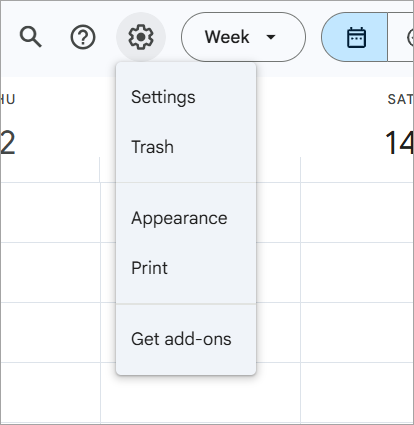
2. Click on the “Wheel” icon at the top of your calendar and select “Settings” from the drop-down menu.

3. Select “Import & Export” from the menu on the left-hand side of your screen.
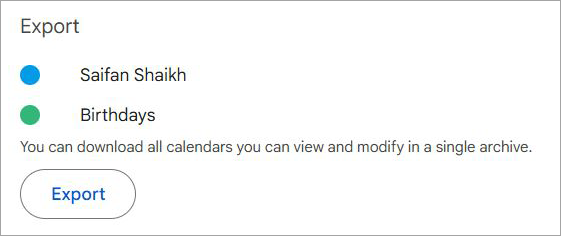
4. Click on the Export button to download the scheduling data of that calendar onto your device.
5. Extract the ICS calendar file from the downloaded zip file.
6. Now, open the calendar where you’d like to add or merge this data.
7. On the new calendar, again select Settings > Import & Export.
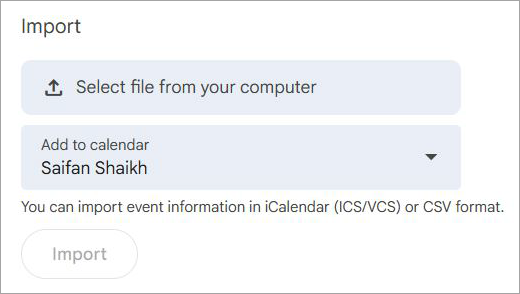
8. Click on the “Select file from your computer” option and import the downloaded ICS calendar file.
You’ll now see the imported data in the new merged version of your Calendar. Repeat this process for all the other calendars that you’d like to merge.
How to Merge Google and Apple Calendars
Two Google Calendars aren’t the only things you can merge. It is also possible to merge one’s Apple Calendar with Google.
There are multiple ways to get this done. Allow me to show you how to merge Google Calendars with iPhone, iCloud, and Mac.
#1) From iPhone or iPad
1. Open Settings on your iPhone or iPad device.
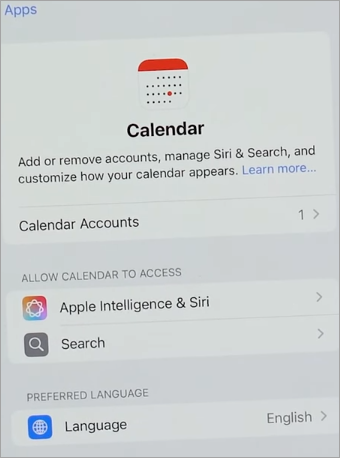
2. Select Calendars > Accounts > Add Account.
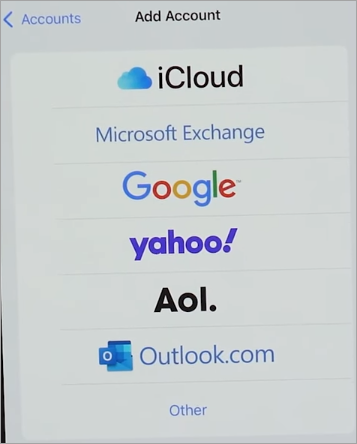
3. Choose a Google Account and sign in with your Google credentials.
4. Tap on the toggle next to Calendar to enable it.
5. Now open Apple Calendar and select “Calendars”. You should see Google Calendar at the bottom.
#2) Using iCloud
1. Open the Calendar app on your Mac and navigate to Preferences.
2. Go to iCloud and select the Calendar you’d like to share.
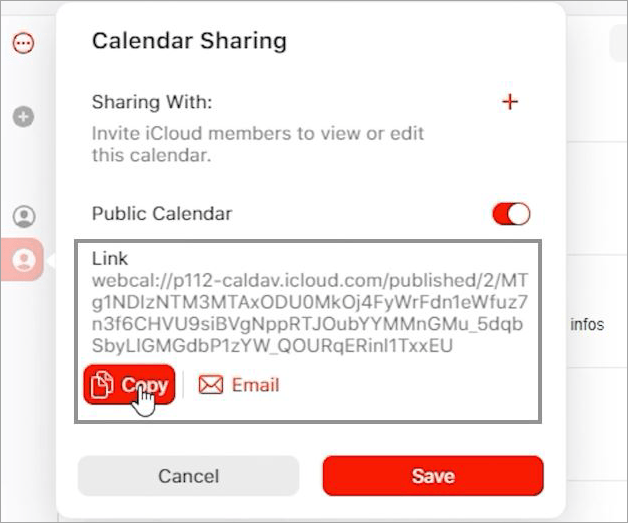
[Via Jigxor]
3. Copy its link.
4. Open Google Calendar > Settings > Add Calendar
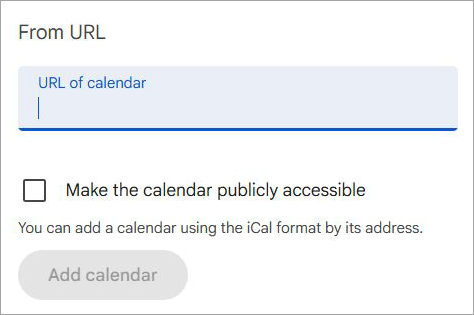
5. Select the From URL option, paste the copied link. Once pasted, click the “Add Calendar” button.
#3) Using Mac
- Click on the Apple menu on your Mac.
- Go to Preferences and select Internet Accounts.
- Add your Google account and sign in.
- Just make sure the Calendar checkbox is checked for your Google account for this to work.
How to Merge Google Calendars with Outlook
Yes, you can merge an Outlook Calendar with your Google Calendar as well. The process is somewhat similar to what we’ve discussed already.
Here’s how you do it:
1. First, sign in to your Microsoft 365 account.
2. Click on the App Launcher and select Outlook from the left-side menu.
3. With Outlook open, select “Settings”.
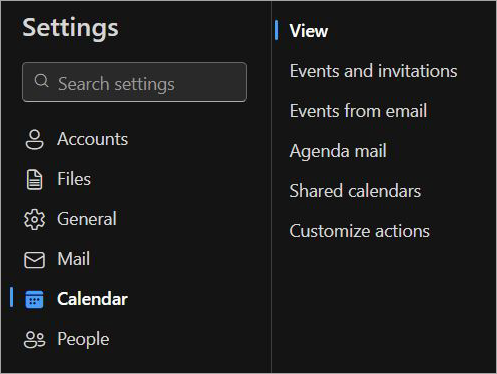
4. In Settings, click Calendar > Shared Calendar

5. Under the Publish a calendar section, select “Calendar” and “Can view all details”. Click on “Publish”.
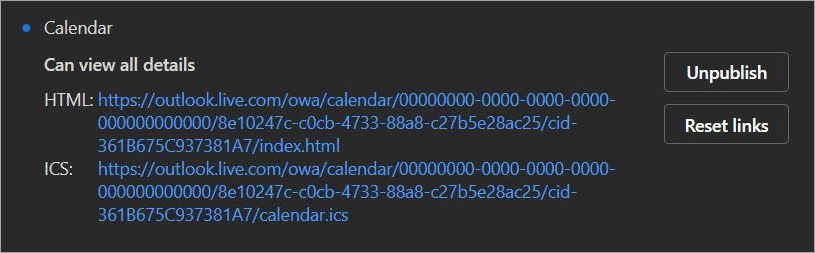
6. You’ll now see two links on the Window. Copy the ICS link.
7. Now open Google Calendar > Settings > Add Calendar.
8. In the Add Calendar section, select From URL, paste this ICS link, and click the “Add Calendar” button.
You’ve successfully merged the Outlook calendar with your Google Calendar.
How to Get the Most Out of Merged Google Calendars
When it comes to calendar management, merging is just the first step to staying organized. Once merged, you’ll need to do a few things to optimize your calendar as well.
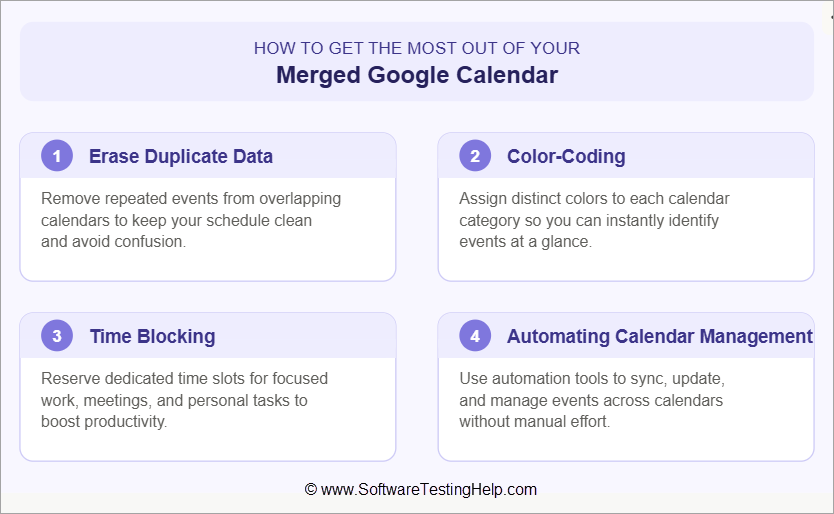
Here’s how you get the most out of your merged Google Calendar:
#1) Erase Duplicate Data
Once you merge two calendars, there’s a good chance of your calendar being riddled with duplicate data everywhere.
Make sure to find this redundant data and delete it immediately. You can seek help from third-party apps like the Clean Calendar to automatically delete duplicate data.
#2) Color-Coding
Color-coding your calendar is a great way to distinguish one event from another.
You could mark any urgent event with a red color, while you can mark any personal events with the blue color. Color coding will help you prioritize your schedule at a glance.
#3) Time Blocking
Blocking time on the calendar will notify your team members not to schedule a meeting or event at that time. Use the “Goals” feature on Google Calendar to schedule time for recurring activities. This time could be reserved for your lunch, workout, or any other personal activity.
#4) Automating Calendar Management
There’s a tech or app out there that can simplify or streamline almost any task you’re doing manually. This is true for calendar management.
I would recommend using calendar automation tools like Reclaim or Akiflow to automate tasks like time blocking or two-way calendar syncing, if you can afford to spend a few extra bucks.
Steps to Fix Duplicate Events in Google Calendar
Merging two calendars can result in an event being mentioned two or more times. It is quite common for duplicate events to appear on a Google Calendar, especially if you’ve imported an ICS file or synced two separate accounts.
As of right now, there isn’t a built-in feature that lets you easily delete a duplicate event in Google Calendar.
You’ll have to either delete the duplicate event manually or use a third-party tool that specializes in this task.
To delete duplicate events in Google Calendar manually, do the following:
- Open Google Calendar
- In the search bar, type the keyword for the event you wish to delete.
- A list of events with the same keyword will appear.
- Review them one by one and delete any redundant events.
Although effective, the manual process is tedious and time-consuming. There is also the risk of you accidentally deleting the original event.
My advice would be to do this process automatically, and for that, you’ll need the help of third-party software. In my opinion, the DRS ICS Converter tool and the SysInfo ICS Converter tool do this job very well.
Prevention is better than a cure. I would suggest you follow the tips below to ensure this problem never occurs in the first place:
- Stop syncing the same calendars simultaneously across devices.
- Review the permissions for all shared calendars.
- Disable any third-party tools that may interfere when importing information from another calendar.
- Clean up the old integrated calendar once the migration is done.
Privacy and Security Risks In Calendar Sharing
Google Calendar is a safe and secure platform. That does not mean there’s no risk of your privacy or security being compromised, especially when you are sharing the calendar.
Shared links to calendars, especially if not properly reviewed, can result in sensitive data being exposed to unauthorized individuals. This can leave you vulnerable to spam, fake event notifications, and malicious links.
These unauthorized individuals could use this information to track the calendar owner’s routine. If the calendar contains personal information, it could fall into the wrong hands. Attackers could also alter your calendar by performing unauthorized edits.
To stay safe, I suggest doing:
- Always check your calendar’s access permissions to make sure only authorized users have access.
- Make sure your calendar’s visibility isn’t set to “Public”.
- Make use of Google’s built-in security features to properly manage user permissions and access.
- Beware of emails that tell you to “verify” your account. You could end up clicking on a malicious link.
Frequently Asked Questions
1. Can you merge two Google Calendars?
Yes, it should be apparent to you after reading the guide above that it is quite simple to merge two Google Calendars. The process is a bit long yet straightforward.
Follow the guide as I’ve dictated above, step-by-step, and you’ll be able to merge two or more calendars together with ease. You can also merge Apple and Outlook Calendars with your Google Calendar.
2. Can you transfer everything from one Google Calendar to another?
Yes, that is the purpose of merging two calendars. You basically export data from one calendar and export it to another. As such, you’ll be able to see the scheduling data in your previous calendar on the new merged calendar.
3. How to add another Google Account calendar to mine?
Here’s how you add another Google Account calendar to your existing one.
1. Open Google Calendar on your desktop or phone.
2. Click on your profile account at the top.
3. Select “Add Another Account”.
4. Sign in to the other account.
Just like that, you’ve successfully added another Google Account to your calendar.
4. Can I copy an entire Google Calendar?
Yes, when you export the ICS calendar file from your Google Calendar, you are essentially copying all its data. Select “Settings” > “Import & Export,” then click the Export button to download your Google Calendar’s scheduling data.
5. Does Google Calendar allow multiple users?
Yes, it facilitates real-time collaboration, which makes it perfect for scheduling business events and meetings. A single calendar can be shared with a specific person or the entire organization.
Conclusion
Google Calendars are great at helping you manage your personal and work time. Free to use, it is one of the best time management applications anyone can use to get their life in order. That said, having multiple Google Calendars can be an advantage.
This matter of inconvenience is easily resolved by merging the calendars to get a single, centralized hub for your scheduling data.
Anyone who wants to know how to personalize and work calendars on Google will find this article of great help. You can merge multiple Google Calendars or even have your Apple and Outlook Calendars combined with your existing Google Calendar. The process is quick and straightforward.
Research Process: The total time involved to complete and publish this article is approximately 40 hours. This content was created through a structured research approach to ensure accuracy and reliability.
For more related guides, you can explore our range of tutorials below:
- 11 Best Social Media Content Calendar Tools And Templates
- The 19 Best Task Tracker Apps and Software
- Best 15 Top Editorial Content Calendar Software Tools
- Top 10 Evernote Alternatives And Competitors
- Best Virtual Events Platform Software
- Top Appointment Scheduling Software
Was this helpful?
Recommended Reading
-

Review and compare top Social Media Content Calendar Tools & Templates with features and pricing to select the best social media calendar per your requirements: Social media websites have become a digital home for several people. Billions of people all over the world have active profiles on at least one…
-
Here we review the Best Editorial Content Calendar Software to help the content team choose the Content Calendar Tools as per their need: An editorial content calendar is a tool to plan the content of the g. You can use this tool to schedule tasks for the content management team.…
-
Discover the simple ways to make a perfect Google Forms Header Image that matches your brand. Learn how to change Google Form Header Image Size and customize it as per your requirements: Like many other entrepreneurs today, I use Google Forms to create forms. It has been an invaluable tool…
-
Here you will learn the easy steps about how to Drop a Pin in Google Maps for Android / iOS devices and desktops: Google Maps is no doubt a huge discovery. It is one of the most popular mobile applications in the world and is offered by Google, whose name…

![Top Editorial Content Calendar Software Tools [2021]](https://www.softwaretestinghelp.com/wp-content/qa/uploads/2021/04/Top-Editorial-Content-Calendar-Software-Tools-2021.png)