Is Google Maps not working on your phone? Follow our step-by-step guide to fix Google Maps when it is down or not working anymore on iPhone or Android and get your navigation running smoothly again in seconds:
Why is Google Maps not working? A question I hope no one ever has to ask, especially when you are stranded somewhere and need the app to get moving in the right direction. As a frequent traveler, I treat Google Maps as an essential part of my life.
Google Maps came to my rescue when I was lost in the dense urban jungle of Tokyo or the maze-like neighborhoods of Hong Kong.
Why is Google Maps Not Working: Complete Guide
That said, Google Maps does have a history of malfunctioning now and then. Fortunately, this isn’t that big of a deal, especially if you know what tricks to employ.
Consider this article your hands-on guide on what to do when Google Maps isn’t working.
So without much further ado, let’s dive in.
Quick Answer
- Google Maps may stop working or malfunction because of a poor internet connection, an app bug, a corrupted cache file, or because its servers are down.
- Try to update the app, restart it after force-stopping, make sure it has the necessary device permissions, clear the app cache, or switch to incognito mode.
- Check whether the app is down only for you or for everyone by visiting the DownDetector website.
Here is the video guide on how to fix Google Maps not working on Android:
Is Google Maps Down For Everyone or Just You?
Before you throw the entire kitchen sink at this problem, it is imperative that you understand what caused it. If the problem is on your side, perhaps with your device or with your network connection, then it makes sense to employ the methods I’ll be sharing here.
However, on some rare occasions, the fault may lie with the Google Maps server, causing the app to temporarily go down. To understand whether the problem is with you or everyone, I suggest you visit one of those websites that let you check whether an app or site is experiencing downtime.
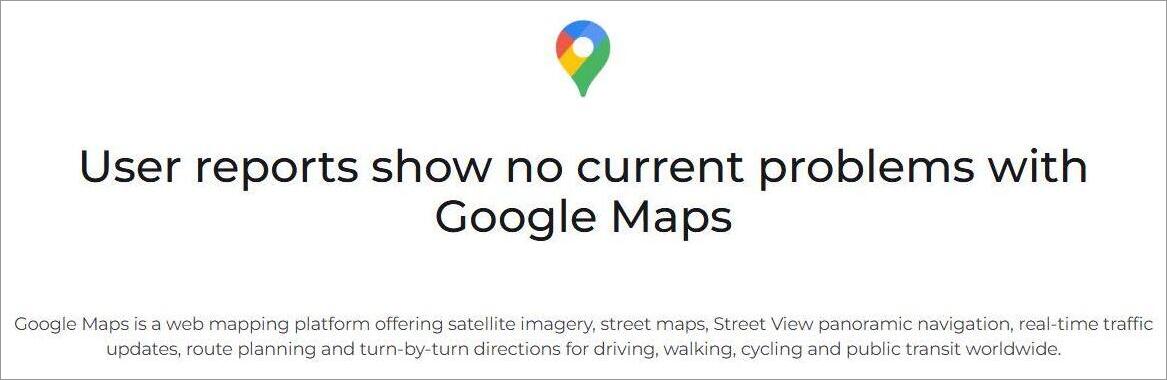
The site I frequently visit is called DownDetector. Go to the website and search for Google Maps on it. In an instant, the website will tell you whether Google Maps is facing any problems in your vicinity.
If everything is fine, you shall see a message like the one below:
Quick Solutions to Try if Google Maps App is Not Working
Here are a few quick fixes I suggest you try if Google Maps isn’t working as it should:
- Check Wi-Fi connection. Disconnect and reconnect your phone to Wi-Fi.
- Force-stop Google Maps and restart it again.
- Update the Google Maps app and your phone’s OS.
- Uninstall and reinstall the Google Maps app.
- Make sure your phone’s location settings are turned on.
- Clear the Google Maps app cache.
- Toggle Airplane mode on and off. This will reset the network connection and fix any minor bugs plaguing the network.
- Low storage space will affect Google Maps’ overall performance. Clear storage space. Delete unwanted apps, photos, documents, and offline maps.
How to Fix Google Maps Not Working
Well, without wasting any more time, let’s delve deeper and understand how you can fix this issue for good.
#1) On Android: Possible Solutions
Here are some of the possible solutions to try when Google Maps is Not Working on Android.
i) Fix Internet Connectivity: More often than not, this issue might have something to do with your internet connection. Google Maps relies on live GPS data to function. Without a proper, stable internet connection, the app won’t have this data and is bound to malfunction.
So, make sure that your internet connection is stable. If you are outside and trying to access Google Maps, you’ll need to enable your phone’s cellular data.
Just swipe down on your Android device to open the Quick Access menu and tap on the Mobile Data option.
Alternatively, you can follow the steps below:
- Open Settings
- Open Network and Internet
- Select SIMs, choose your SIM, and toggle on Mobile Data.
If Google Maps isn’t working even if your phone’s cellular data is on, then perhaps the Wi-Fi-only mode on the app is enabled.
To disable it, do the following:
- Open Google Maps
- Tap on your Profile Icon > Settings
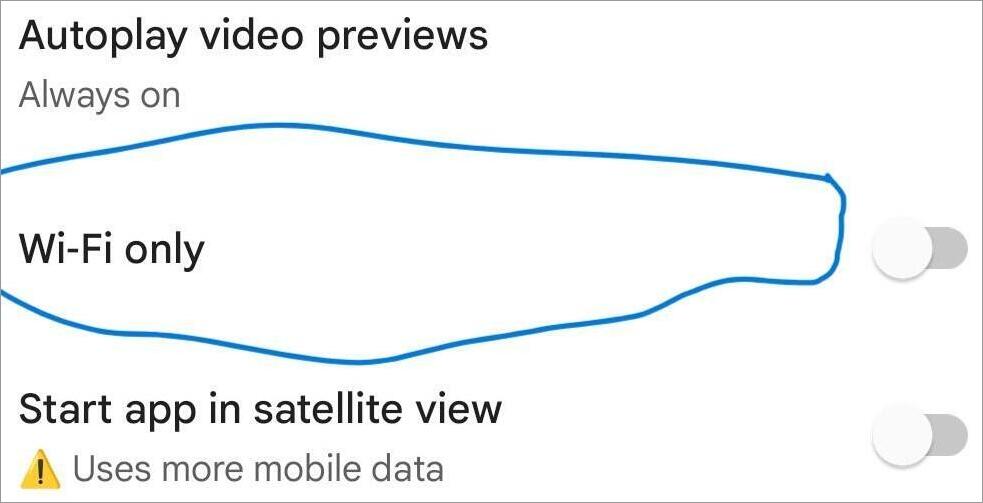
- Now, just toggle off the Wi-Fi-only option.
ii) Force-Stop and Restart the App: There’s nothing a simple reboot cannot solve when it comes to tech. This principle also applies to Google Maps.
Here’s what you need to do:
- Go to Settings > Apps > App Management
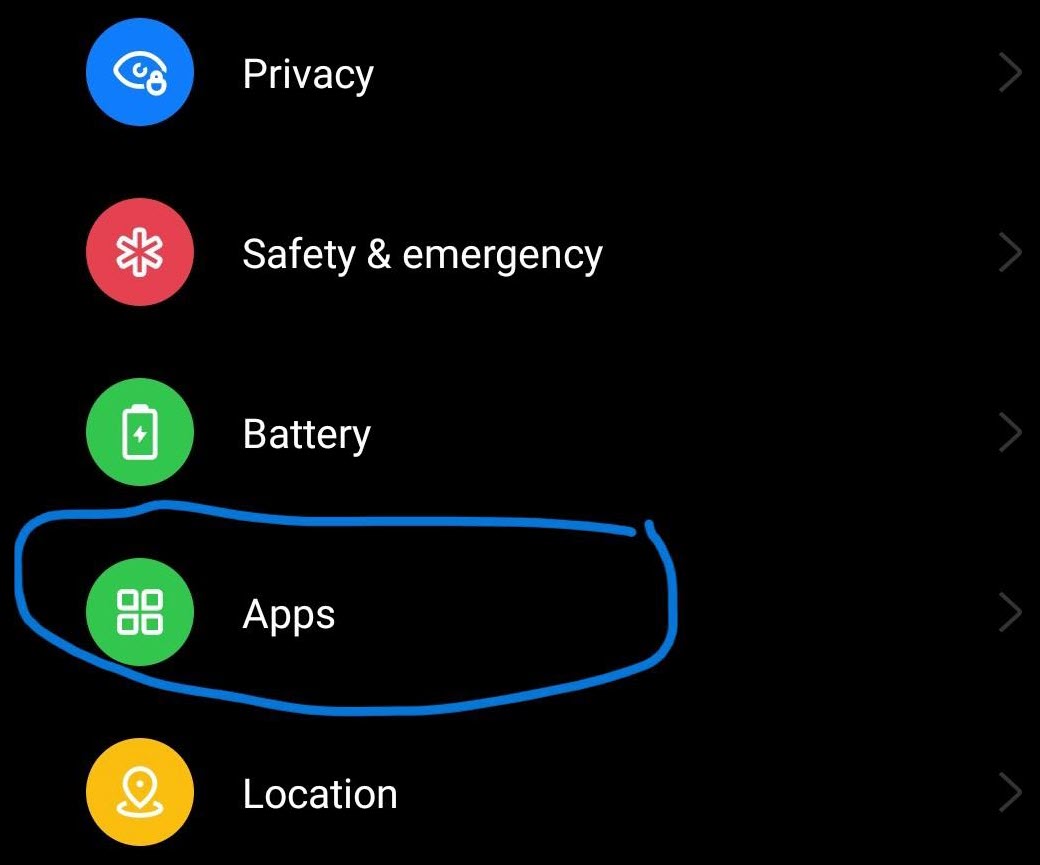
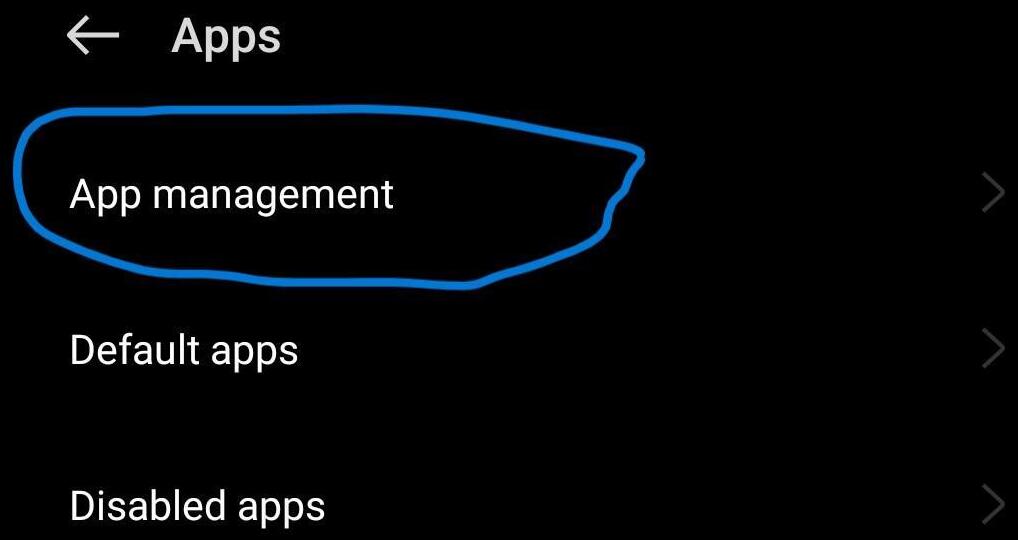
- Select Google Maps from the list.
- Tap on Force Stop.
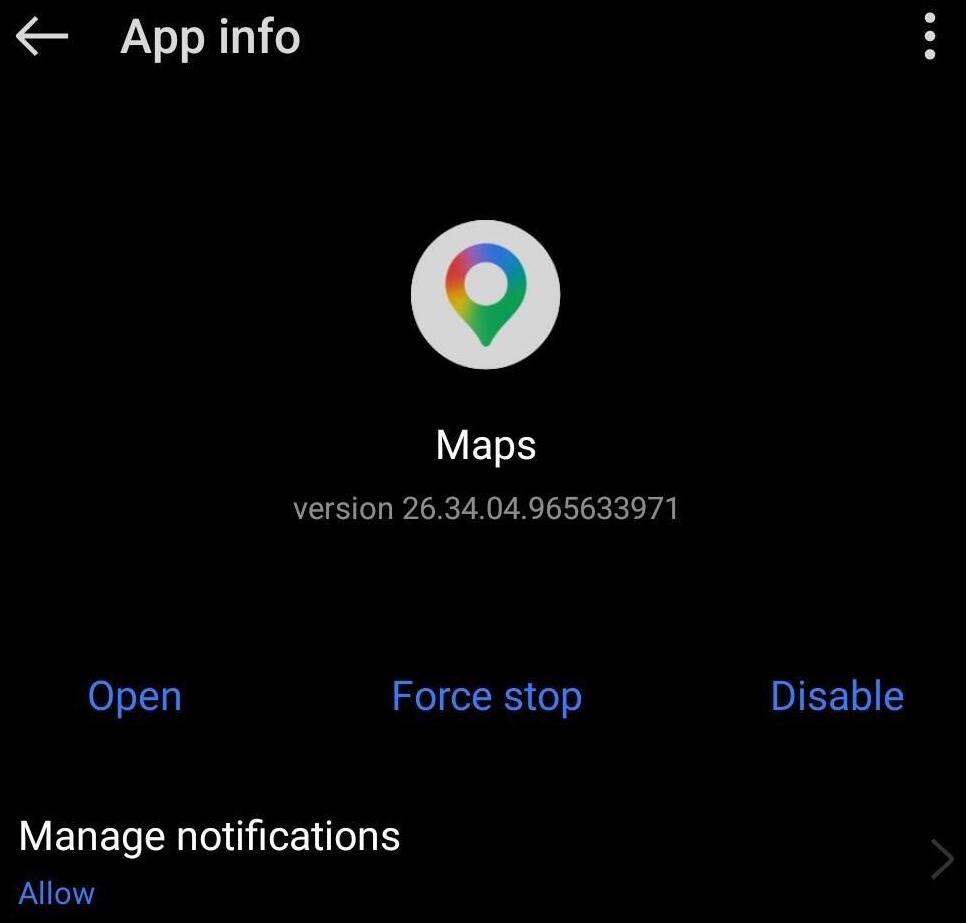
- Tap OK to confirm
You can restart the app after stopping it to see if it is working properly again.
iii) Restart Your Phone: If restarting the app doesn’t do the trick, maybe go a step further and try to reboot your phone.
Here’s what you need to do:
- Press the power button on the side of your phone and hold it until you see the option to restart or switch off your phone.
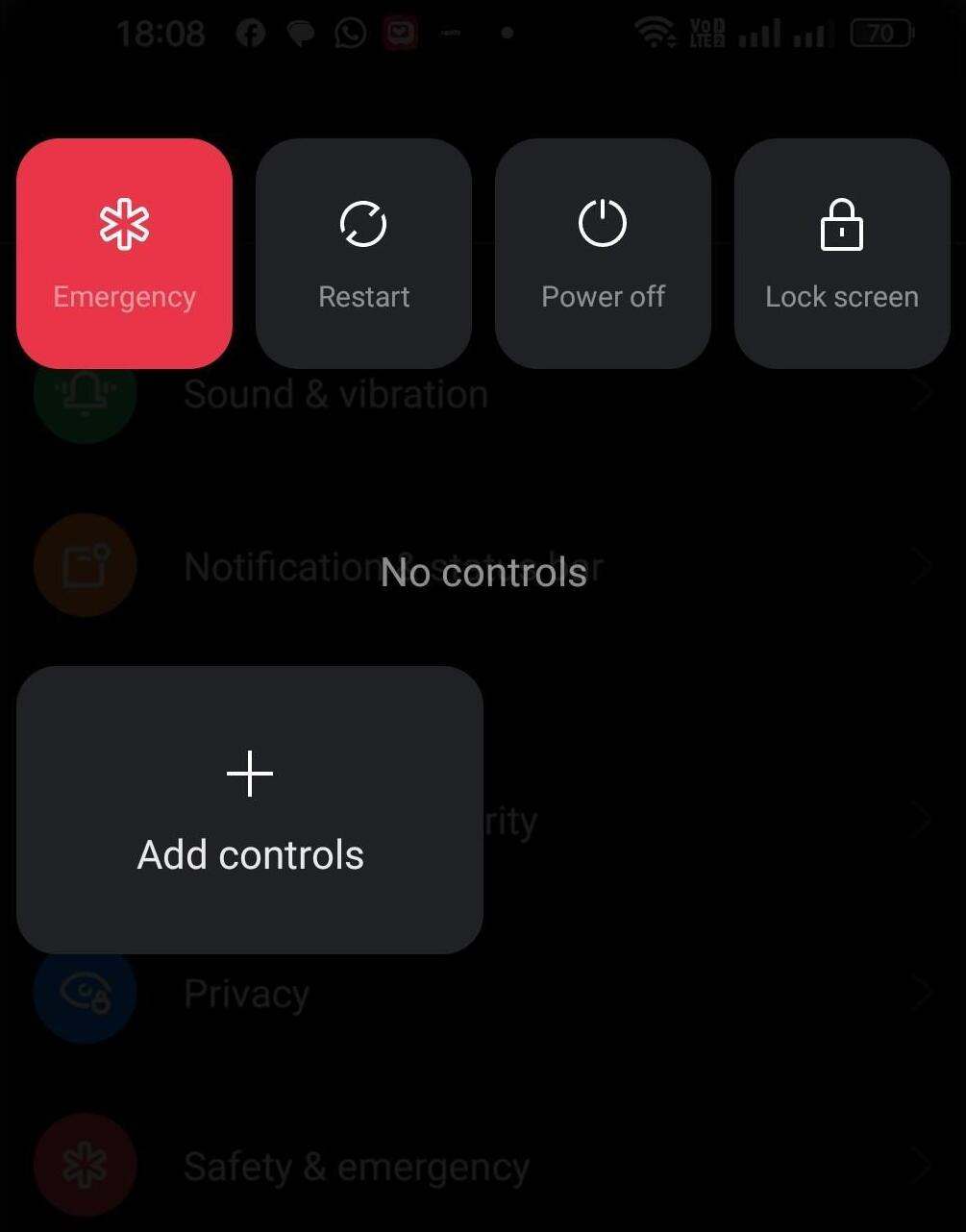
- Simply tap the restart button.
Wait until your phone reboots, and you can try launching Google Maps again.
iv) Update Your App: This goes without saying. Keeping your apps up-to-date is always recommended. A quick update will fix any bugs or glitches affecting an app’s performance.
To update Google Maps:
- Open Google Play Store
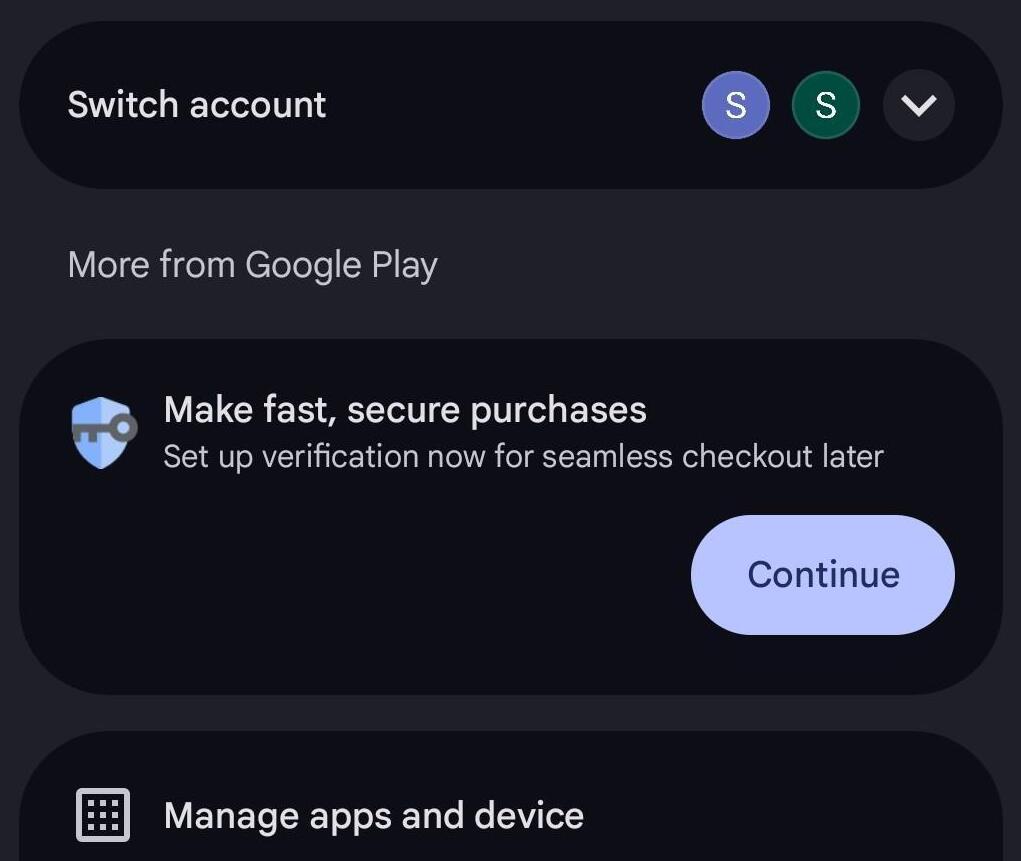
- Tap on your Profile Icon > Manage Apps and Devices
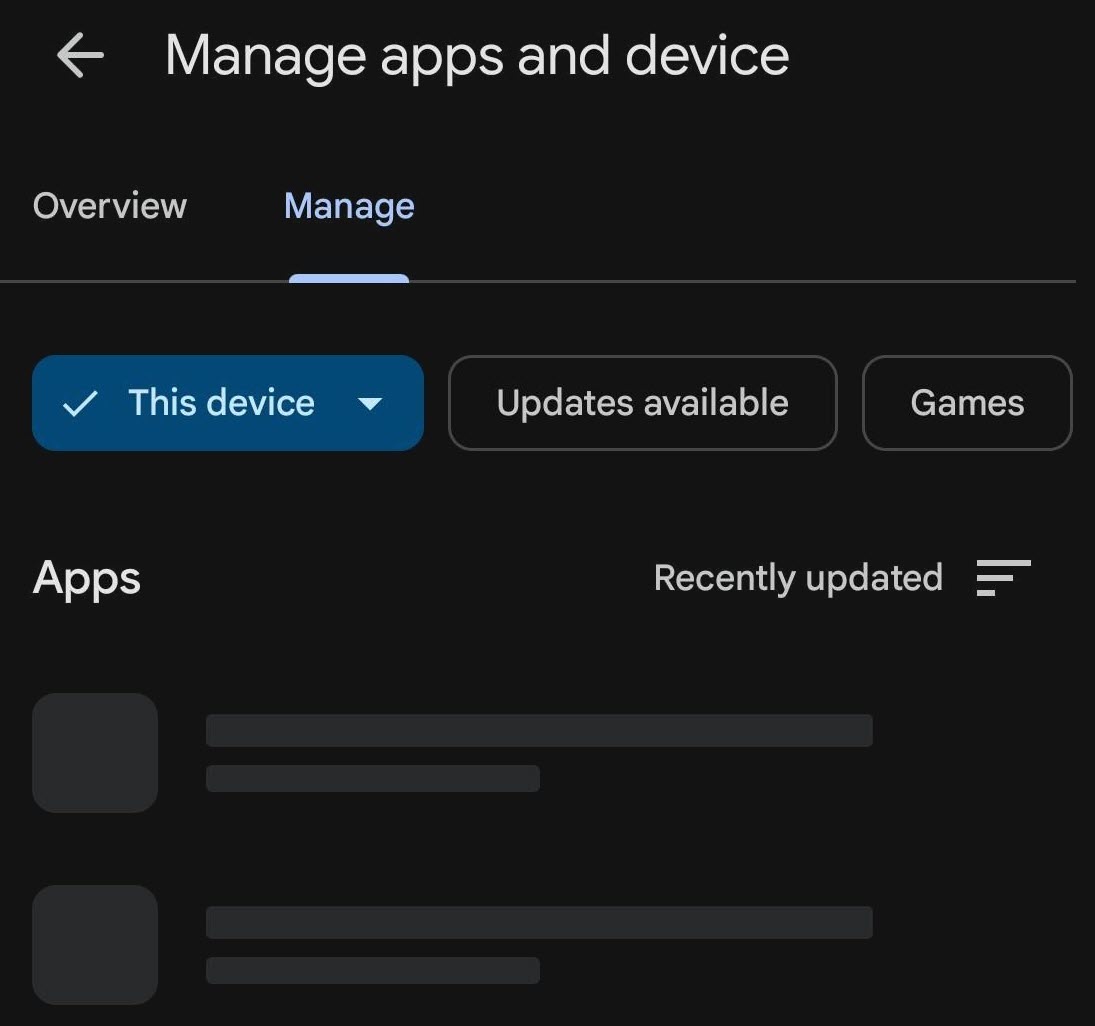
- Select Updates Available
- See if there are any updates available for Google Maps. Select Update, if available.
v) Clear App Cache: The app cache contains data that can contribute to Google Maps performance. However, this data can sometimes get corrupted, thus having the opposite effect.
So, clearing the app cache may resolve the often-asked question: Why is my Google Maps not working?
Here is how to do it:
- Go to Settings
- Select Apps > App Management
- Select Google Maps from the list.
- Scroll down until you see “Storage Usage”.
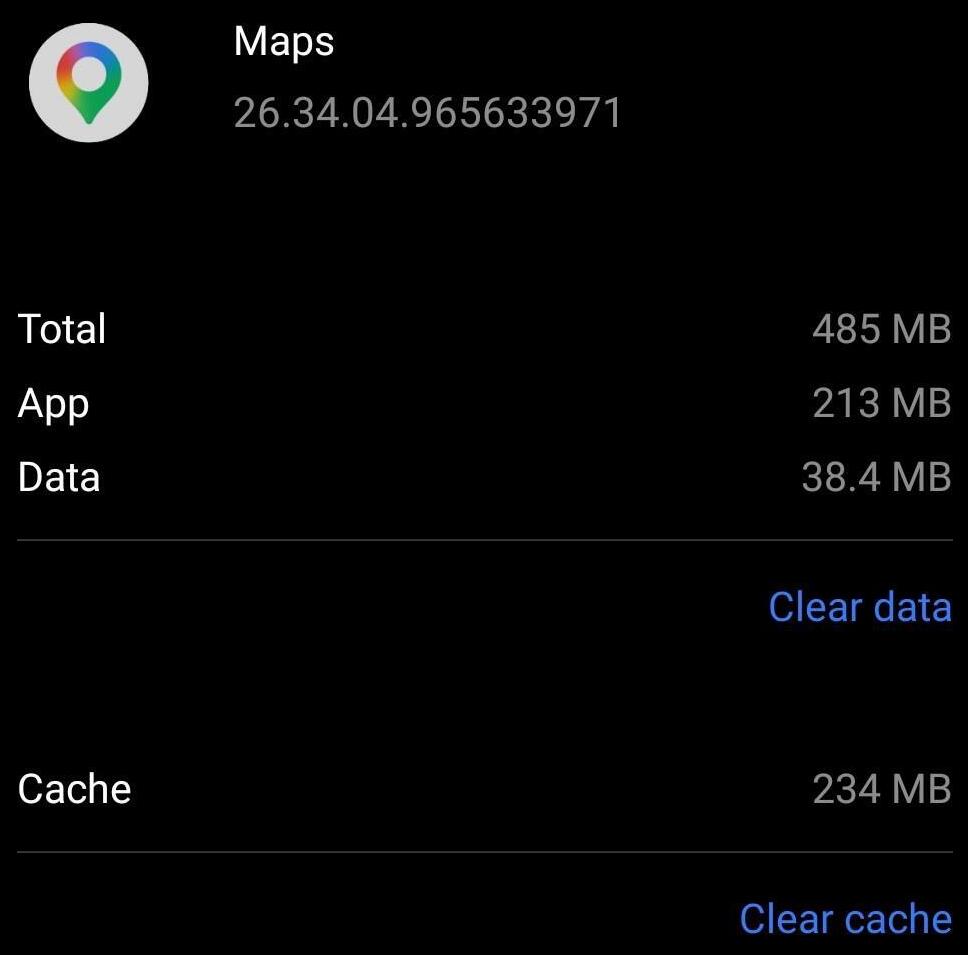
- Tap the Clear cache button and restart the app.
vi) Switch to Incognito Mode: There’s way too much data moving in and out when you use Google Maps. This can put undue pressure on the app and thus cause it to fail. Switching to Incognito Mode can give the app a cleaner environment to work in.
Here’s how you can enable Incognito mode within the app:
- Open the app.
- Tap on your Profile icon.
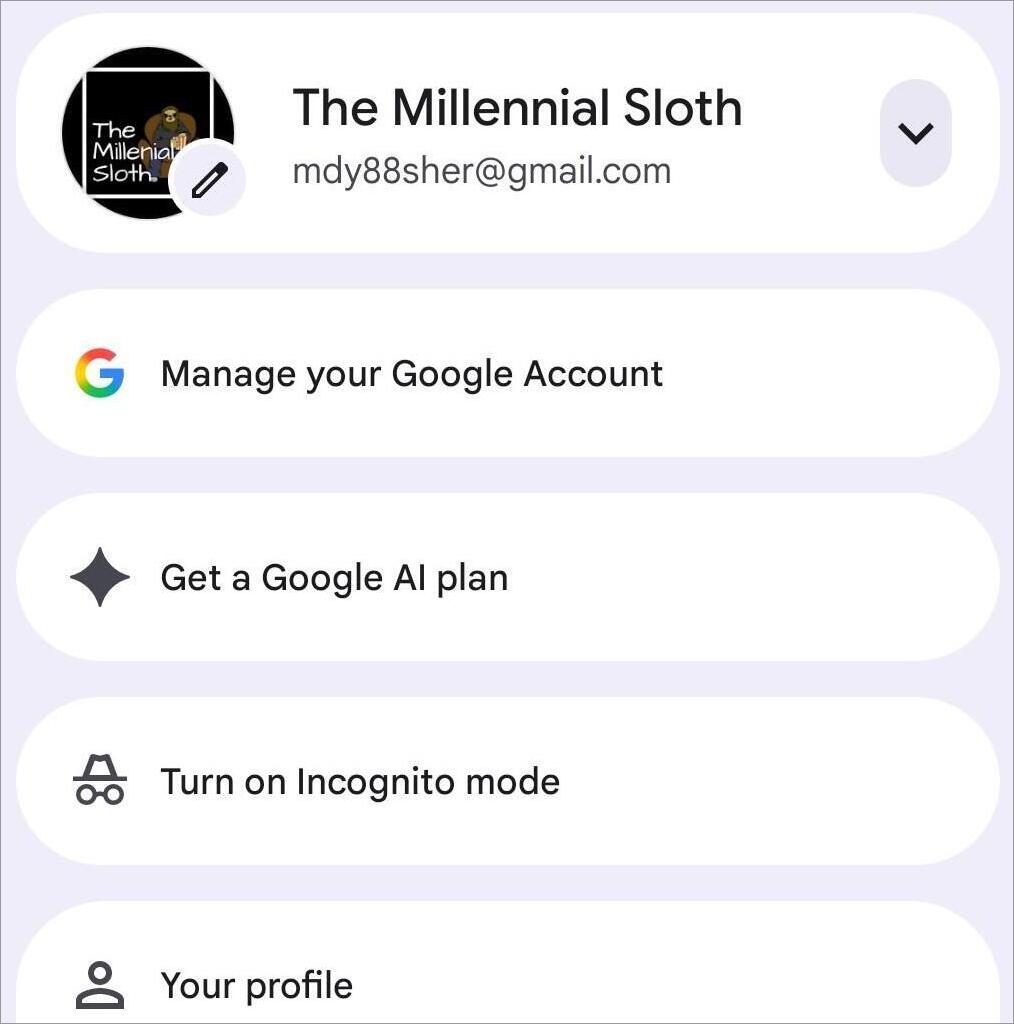
- Select the option “Turn on Incognito mode”.
The steps are identical on both Android and iOS versions of the app.
vii) Check Permissions: Make sure the app has permission to access the device’s location.
To do so:
- Open Settings
- Select Apps > App Management
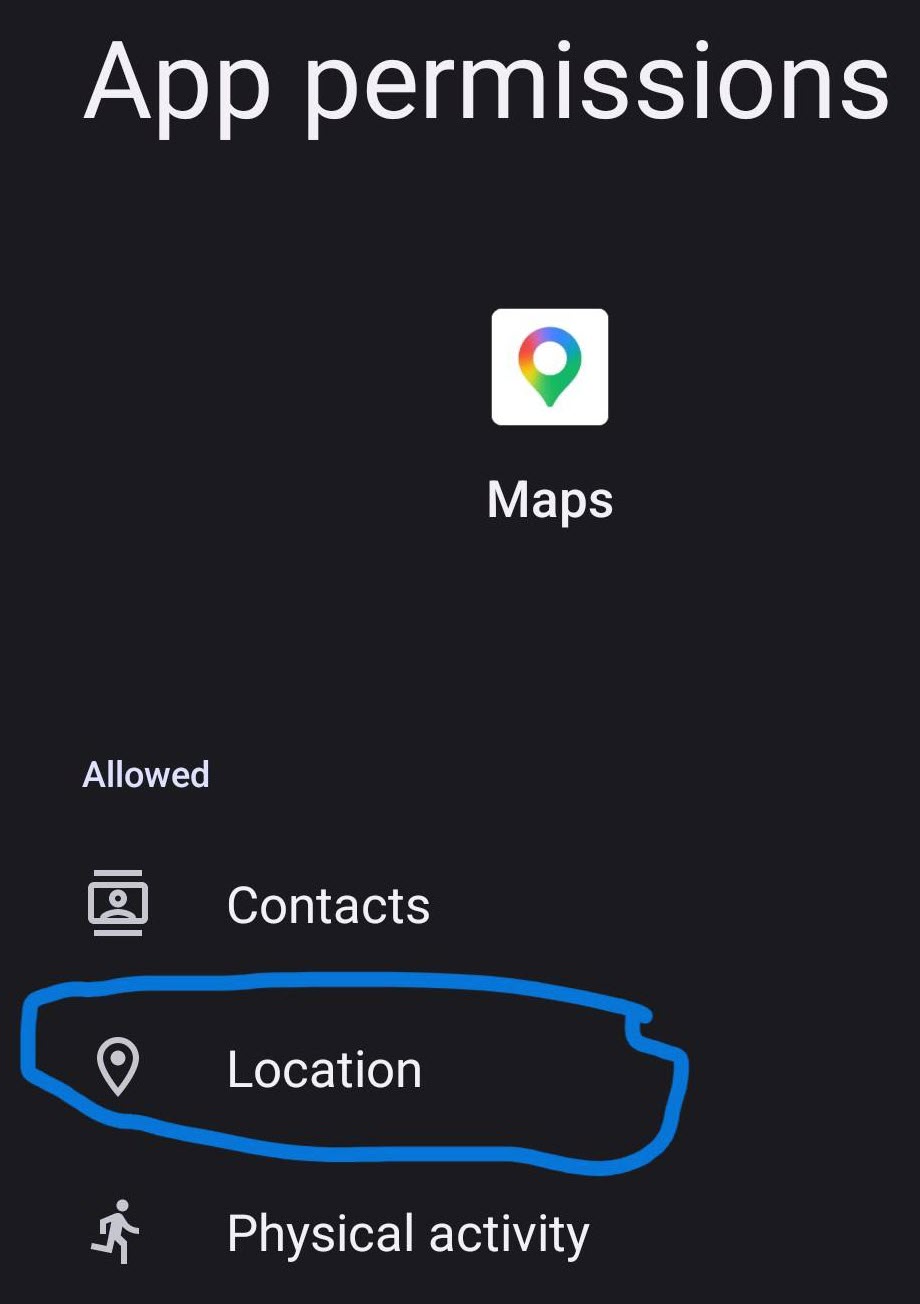
- Select Google Maps from the list.
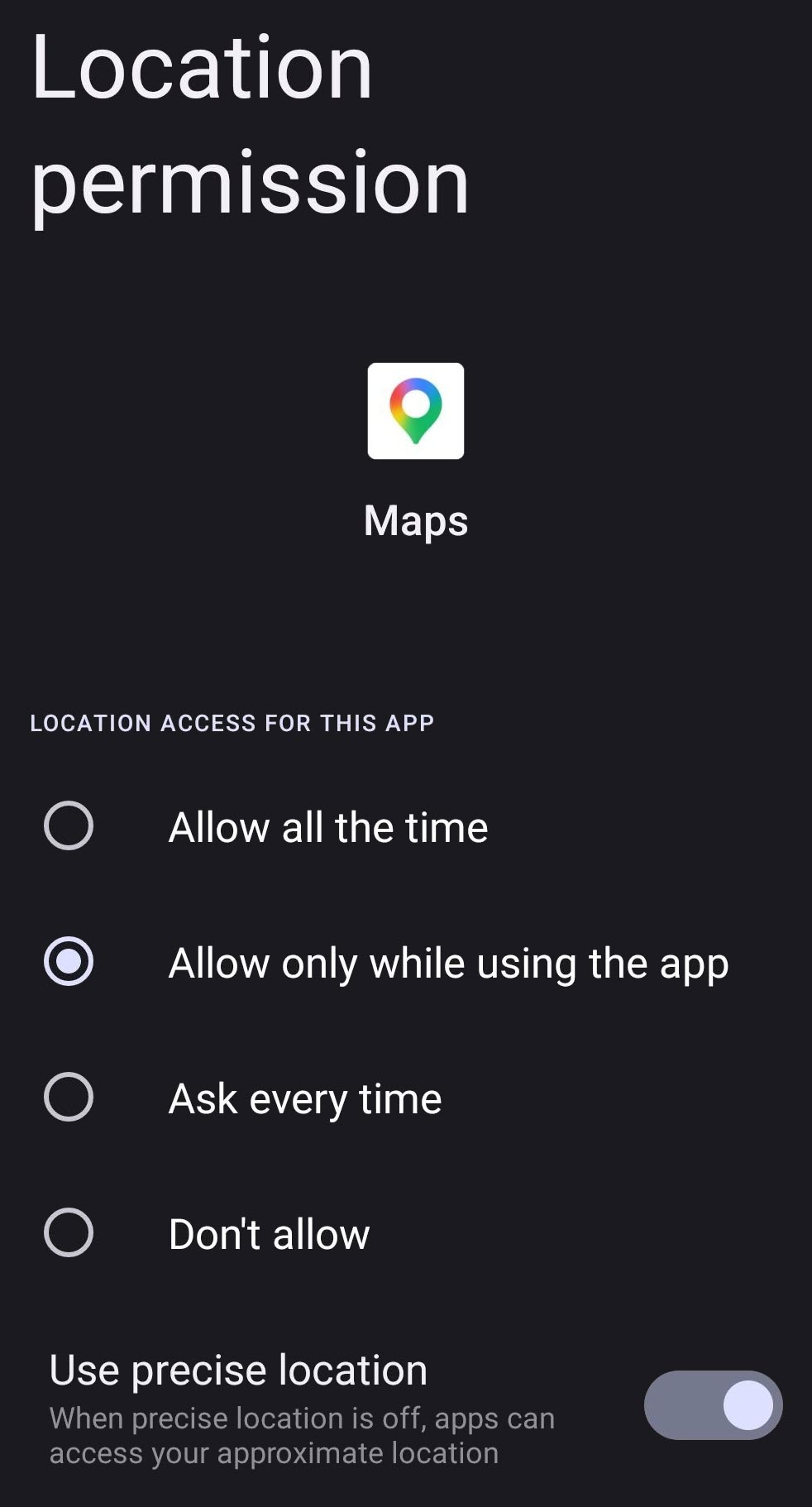
- Select Permissions and make sure the “Do Not Allow” box isn’t checked.
#2) Google Maps Not Working on iPhone
Some of the same measures we used to fix Google Maps on an Android device can also be employed on an iPhone device, albeit with a few distinctions.
i) Force-Stop and Launch the App Again
- Press the home button or swipe up to see all apps currently open on your phone.
- Swipe left or right until you find Google Maps. Do not tap on it.
- Hold onto the floating Google Maps window and swipe up to force-stop it.
You can relaunch the app to see if the problem has been resolved.
ii) Restart Your iPhone
- Press the power button alongside the volume up or down button on your iPhone.
- Drag the slider that appears on your phone to switch off.
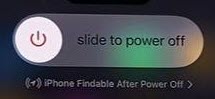
- Press and hold the power button again to restart your iPhone.
Relaunch the app once your phone has completely rebooted.
iii) Update the App
- Open the Apple App Store
- Tap on the profile icon
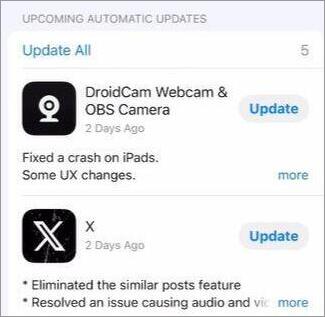
- Navigate to the Upcoming Automatic Updates section and find Google Maps in the list.
- Select the Update button next to it.
iv) Clear App Cache
You cannot delete the cache from an iOS app. So, you’ll need to uninstall and reinstall the app.
- Find Google Maps on your iPhone
- Don’t open it. Instead, tap and hold until the option to uninstall appears.
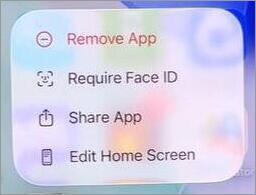
- Select the “Remove App” option.
- Confirm by tapping on Delete App.
v) Check Permissions
- Open Settings
- Tap on Privacy and Security
- Tap on Location and select Google Maps from the list.
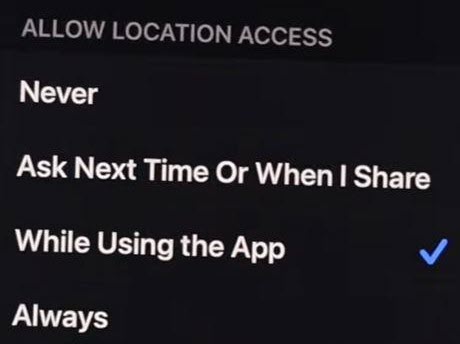
- Make sure the box next to “Never” isn’t checked.
- Toggle the “Precise Location” option on to ensure Google Maps has your exact permission.
#3) In a Browser
If you are using Google Maps in a browser instead of the app, here’s everything you can do if it isn’t functioning properly.
i) Open Google Maps in Incognito Mode
- Tap the three dots in the top-right corner of your screen.
- Select “New Incognito Window”.
Alternatively, you can hit the shortcut keys Ctrl + Shift + N.
ii) Clear Cache
- Tap the three dots in the top-right corner of your screen.
- Select History > Click on Delete Browsing Data.
- Make sure to check the box next to Cached images and files.
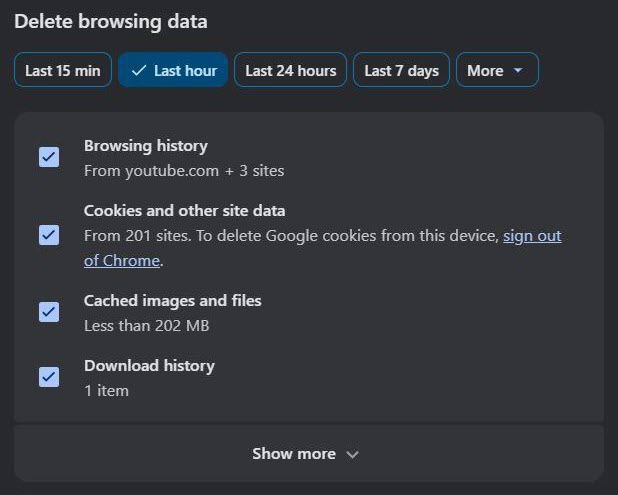
- Select the time (24 hours or last 7 days) before hitting the “Delete Data” button.
iii) Disable Hardware Acceleration
Hardware acceleration is notorious for interfering with the performance of certain web apps. So, I suggest trying to disable it and then opening Google Maps.
- Tap the three dots in the top-right corner of your screen.
- Select Settings
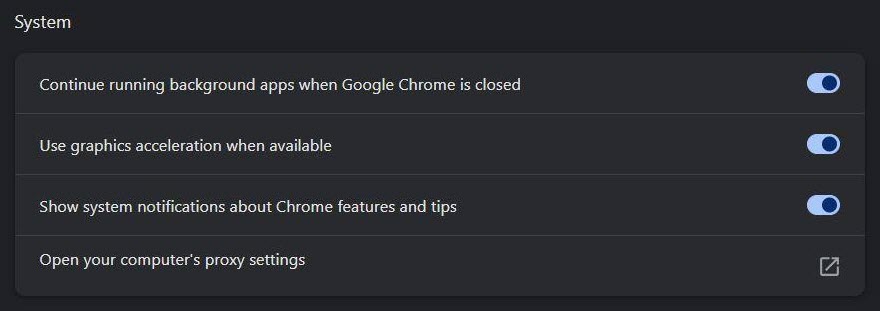
- Switch the toggle against the option “Use graphics accelerator when available” off.
iv) Disable Extensions
Similar to hardware acceleration, certain browser extensions may also interfere with Google Maps functioning.
Disabling these extensions is quite simple:
- Click on the puzzle-like icon in the top-right corner of your screen.

- Select Manage Extensions.
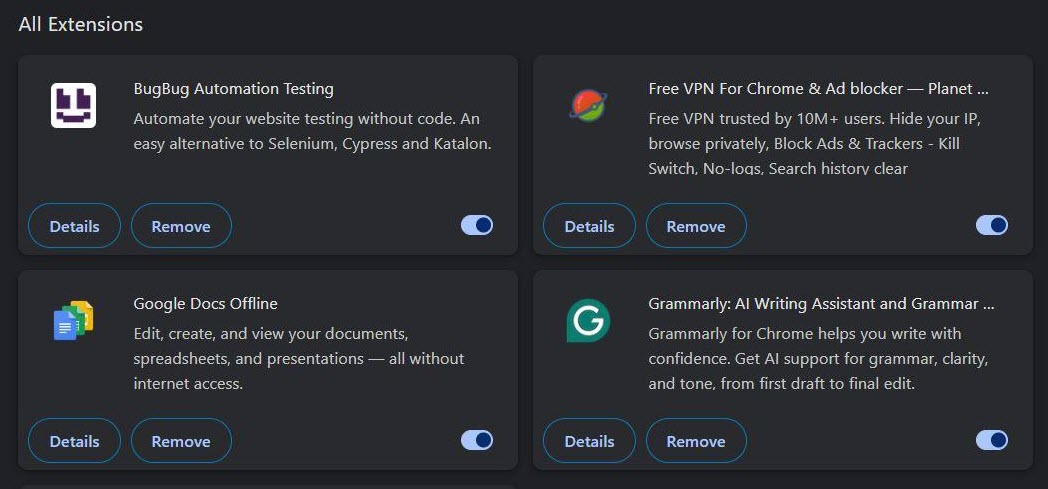
- Now switch the toggle off against extensions that are on.
v) Update Your Browser
Always keep your browser up-to-date. If you are using Chrome, which is a browser I recommend when using Google Maps, then follow the steps below:
- Click on Settings
- Scroll down and select “About Chrome”.
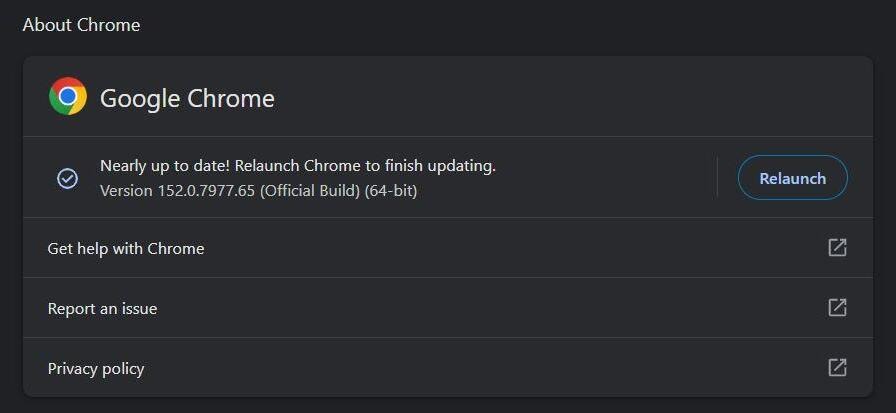
- You’ll see the browser update automatically.
Relaunch the browser once the update is done.
vi) Enable JavaScript
Google Maps relies on JavaScript for most of its functions. This includes everything from loading maps to giving directions. You’ll see maps fail to load or freeze if JavaScript is disabled.
I suggest checking whether your browser allows websites to run JavaScript:
- Select Settings > Privacy and Security.
- Look for an option to manage JavaScript.
- Now make sure the browser allows websites to manage and optimize JavaScript.
Fixing Location and GPS Accuracy Issues
Google Maps has built-in features that you can fine-tune to fix any location or GPS-related issues you may face. I suggest you use these features when you see the blue dot on your map misbehave. Recalibrating Google Maps location can fix a blue dot that freezes in one location or appears to drift.
For instance, you can fix the location accuracy of the app on both the Android and iOS versions of the app by doing the following:
- Launch Google Maps
- Tap on your Profile Icon > Settings
- Select Location accuracy tips.
You’ll now receive tips to improve the accuracy of Google Maps on your phone.
Alternatively, you can also choose to recalibrate the app:
- Open Google Maps
- Tap on your location on the map (It will be a blue dot).
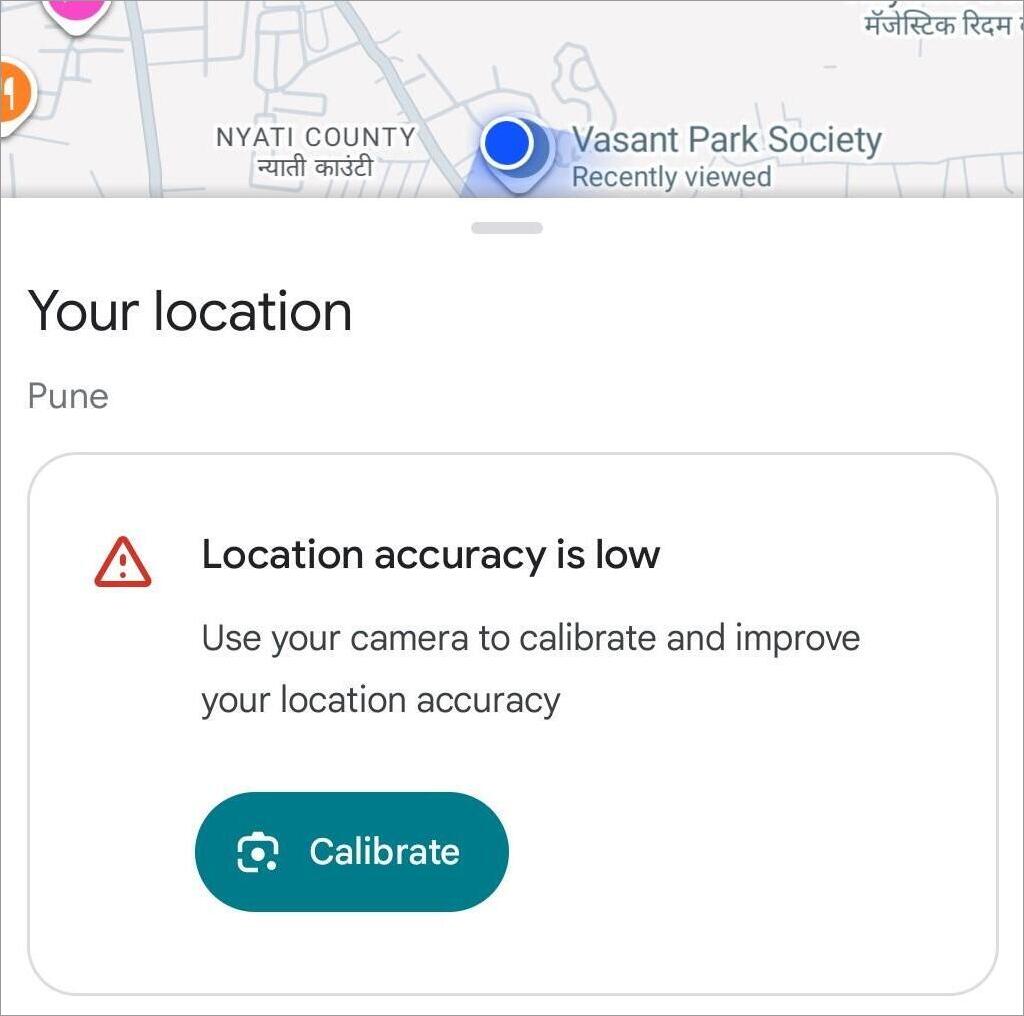
- Now select Calibrate
- The app will instruct you to move a bit and point your phone towards different things.
Steps to Fix Google Maps Not Working in Your Car
If you are using Google Maps on your car’s screen, then the methods you’ll need to use to ensure it’s working properly will obviously be different.
The first thing I’d suggest you do is check whether the issue is with your car’s antenna. If Google Maps is working fine on your phone but not in your car, then the issue is with the built-in GPS antenna, which you’ll have to fix.
You could try rebooting your car’s screen. The best way to do so would be to completely switch off your car, wait a few seconds, and then restart the system.
Loose cables within the car may also trigger this issue. Ensure all USB cables are connected properly. Disconnect and reconnect the USB cable. Make sure you are using high-quality cables.
If your car’s system is connected to your Android device, then make sure your phone’s Google Maps battery usage status has been set to “Unrestricted”. This will ensure Google Maps does not automatically shut down when it is connected to the phone.
Also, you can try clearing the app cache on the phone. You’ll find the instructions to do so above.
You can face audio issues with Google Maps for a number of reasons. This problem could indicate muted speakers within the app, or audio being misrouted to a nearby Bluetooth-enabled device.
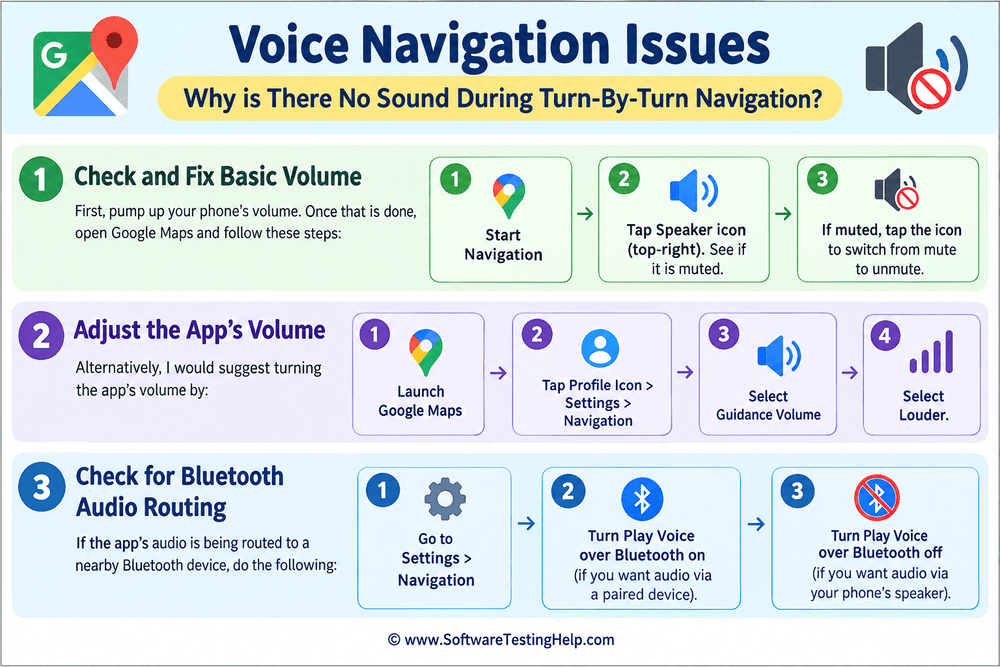
You can fix this issue by first pumping up your phone’s volume.
Once that is done, open Google Maps and do the following:
- Start Navigation.
- Tap on the Speaker icon you’ll see in the top-right corner. See if it is muted.
- If it is, simply tapping on the icon will switch the app from mute to unmute.
Alternatively, I would suggest turning the app’s volume by:
- Launching Google Maps
- Tap on the Profile Icon > Settings > Navigation
- Select Guidance Volume
- Select Louder
If the app’s audio is being routed to a nearby Bluetooth device, do the following:
- Go to Settings > Navigation
- Turn Play Voice over Bluetooth on if you wish to hear audio via a paired device.
- Turn Play Voice over Bluetooth off if you want to hear audio via your phone’s speaker.
Fix Common Issues Associated With Google Maps
| Problem | Reason | Solution |
|---|---|---|
| Blue Dot Freeze or Inaccurate Location | Unstable Network Connection or Poor GPS. | Calibrate Google Maps location by moving your phone. Disconnect and reconnect Wi-Fi |
| Absent Voice Navigation | Incorrect Audio Output, Muted Audio in App | Tap the speaker icon inside the app to unmute or unpair Bluetooth |
| Google Maps Freezing | Outdated App, Corrupted Cached File | Clear App cache, Update App. |
| Battery Drain | Heavy reliance on Cellular data, Continuous GPS tracking, High device brightness | Use offline maps, switch on Dark mode within Google Maps. |
| Maps not loading | Restricted app permissions, Weak network connection | Toggle Airplane mode on and off, check app permissions. |
| Offline Maps Not Functioning | Very low storage space. Expired Map data | Tap on the Profile icon, Offline Maps, tap on Update on expired area. |
When Nothing Works: Google Maps Alternatives to Try
While Google Maps is the holy grail of location-based apps, it isn’t the only one out there. If Google Maps isn’t working and you need to track your location urgently, it would be best to have alternatives downloaded on your phone.
Waze is the first app that comes to mind, mainly because it was also developed by Google. The app relies on crowdsourced data to provide you with information on accidents, traffic jams, and hazards in real-time.
If you are using an iPhone, it would make sense to try Apple Maps instead. Although Google Maps has an edge over it when it comes to overall global utility, Apple Maps outshines it in the privacy and simplicity department.
Finally, I would recommend Organic Maps because of its offline nature. It is perfect if you constantly find yourselves in areas with a very weak internet connection. The app provides you with detailed offline maps that can be used for trekking, hiking, or travel.
Downloading Google Maps for Offline Use
It’s impossible to get a network in remote locations. Google Maps understands this and therefore lets you prepare in advance with an offline map of that area.
To download a map for offline use:
- Open Google Maps
- Tap on the profile icon
- Select Offline Maps
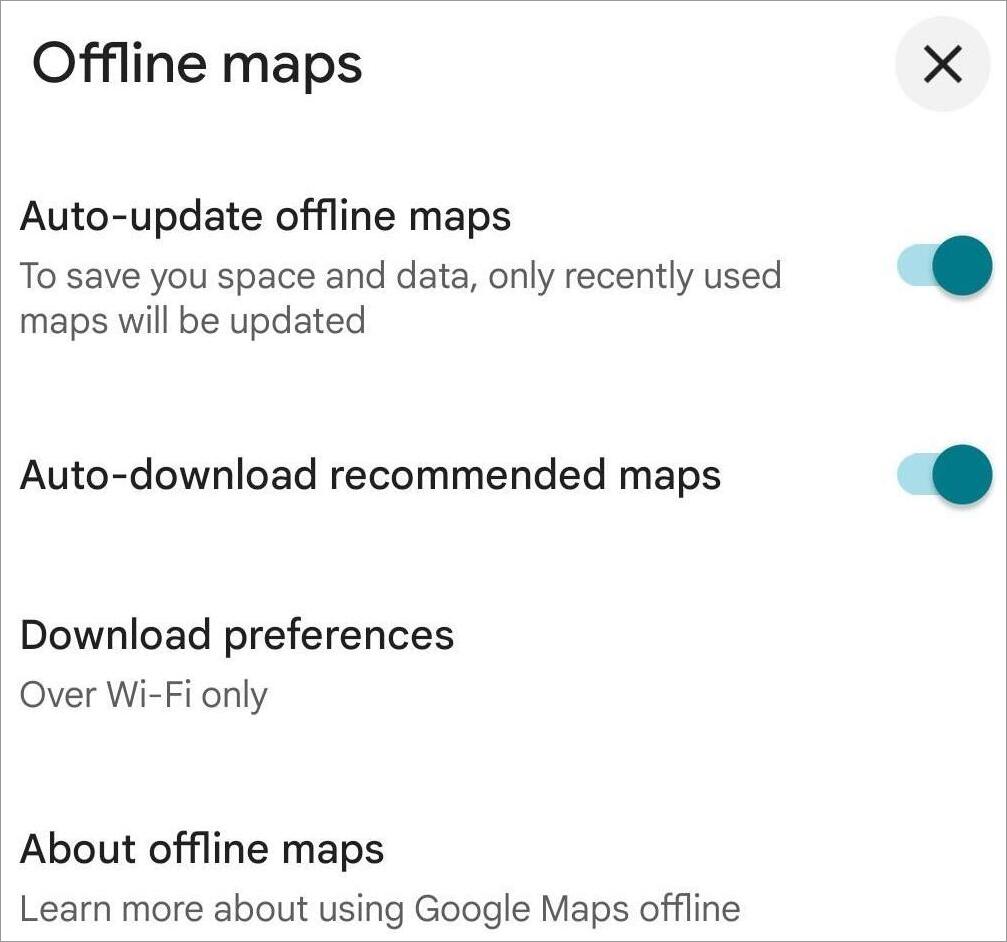
- Select your own map
- Now, pick the area you wish to download.
- You can zoom in and out to ensure the map covers the area you want.
- Now, hit the download button.
What to Do If You See a Blank Map or Grey Tiles That Don’t Load
Depending on where you are using Google Maps, you can use any of the following solutions:
On Browser
- Immediately refresh the Google Maps page.
- Open Google Maps in Incognito Mode.
- Clear browsing history and cache.
- Disable hardware acceleration.
On Smartphones
- Uninstall and Reinstall the app.
- Disconnect and reconnect the device to your Wi-Fi.
- Toggle Airplane mode on and off.
- Clear app cache
Frequently Asked Questions
1. Why is Google Maps not working on my phone suddenly?
Well, you could attribute this problem to many causes, such as the following:
• Google Maps server down
• Bad or unstable internet connection
• App bug or glitch
• Corrupted cache file
• Outdated app or device
2. Is there a problem with Google Maps right now?
People often ask this question when they believe the problem is with the app’s servers instead of something on their side. The easiest way to find out is to visit websites like DownDetector. Run a Google Maps query on that site, and you’ll know within seconds whether Google Maps is down or not.
3. How to get Google Maps working again?
The most common fixes for this problem are as follows:
• Force stop and restart the app.
• Update the app
• Clear app cache
• Restart the device
• Uninstall and reinstall the app
• Switch to Incognito mode
• Adjust location accuracy or improve app calibration.
• Check the internet connection or switch to a better one.
4. Why isn’t Google Maps working on my mobile data?
The most obvious explanation for this issue might have something to do with a weak cellular data connection.
Other reasons could involve:
• Only Wi-Fi mode is enabled on the app.
• The app doesn’t have cellular data permissions.
• A VPN is active, thus hindering the app from accessing cellular data.
• A corrupted cache file is interfering with the app.
• Your phone’s battery is in power-saver mode, which is affecting the app.
5. Do I need to update my Google Maps app?
Although not mandatory, I would strongly recommend keeping your Google Maps app up-to-date. An update will ensure your app has the latest navigation features. An update will also fix any bugs affecting the app’s performance.
Conclusion
It can frustrate to find out your Google Maps isn’t working, especially when you need it the most. Fortunately, just because the app isn’t working properly doesn’t mean it is dead. Every method I’ve suggested above can ensure your app is up and running within seconds or minutes, as if nothing happened.
To make sure you are not in a bind when you need the app to work, I suggest you keep an alternative map installed on your device or download an offline version of the map you need from the map in advance.
Go through each method one by one and pick one that you find convenient or that serves you best.
Research Process: The total time involved to complete and publish this article is approximately 42 hours. This content was created through a structured research approach to ensure accuracy and reliability.
For more-related guides, you can explore our range of tutorials below:
- How to Drop a Pin in Google Maps: Quick Simple Steps
- How to Draw (Show) a Radius on Google Maps: Step-by-Step
- How To Use Google Meet Breakout Rooms: Complete Setup Guide
- How to Record a Google Meet on Desktop, Android & iPhone
- What Is Companion Mode In Google Meet and How to Use It
- How To Transfer Google Authenticator to a New Phone (iOS or Android)
- How to Merge and Sync Two Google Calendars Into One
Was this helpful?
Recommended Reading
-

This tutorial explains how to do a Voiceover on Google Slides and why Google Slides is your best choice to create presentations: Presentation is considered an effective and efficient way to present data to the audience and make a complex topic easier. Earlier, it was a pretty cumbersome task to…
-
Can you really sync two Google Calendars into one? Discover the smart and easy ways to Merge Google Calendars into one with our step-by-step guide and organize all your events like a Pro: Google Calendar is perhaps the finest, free-to-use, cloud-based time management app one can use today. Its impact…
-
In this guide, we will cover how to record Google Meet session on your desktop or Android, which features you can use on iPhone and iPad, how to record without paying for any plan, where Google Meet recordings are stored, and what to do if recording is not available. Google…
-
Review this step-by-step guide to transfer files from Dropbox to Google drive. Also, explore the top tools to save and transfer data: The need for storage services has grown by leaps and bounds in the last few years. With the growing demand for storage services, services like Dropbox, Google Drive,…