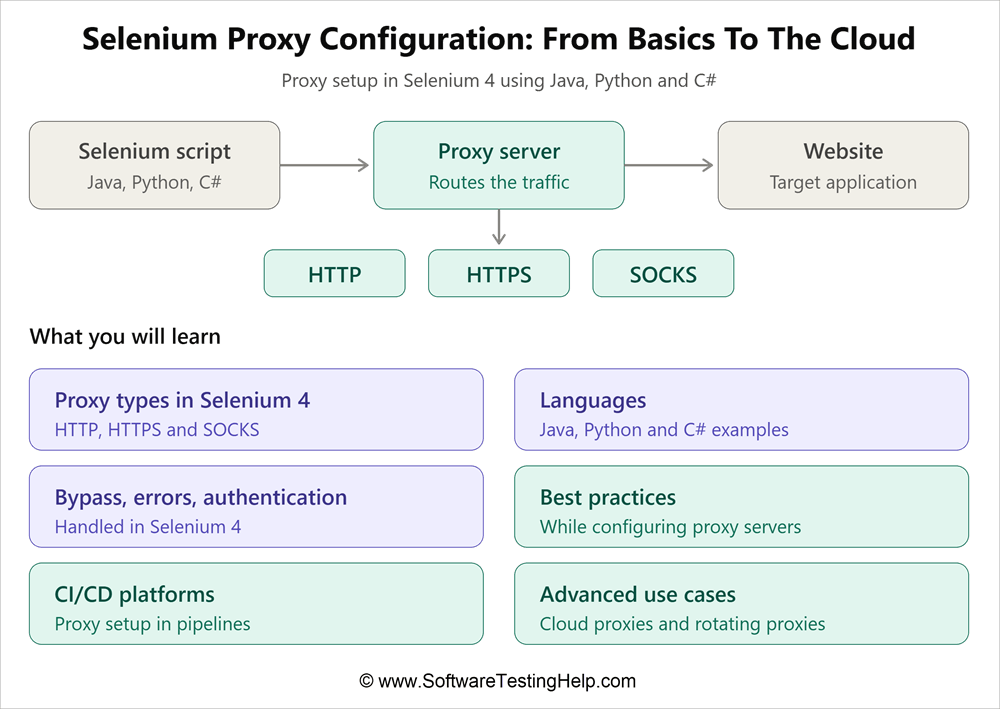
In this article on how to configure Proxy Servers in Selenium, you will learn how Selenium handles proxy server configuration using popular programming languages like Java, Python & C#, as well as various types of proxy configurations along with the ways to implement them.
You will learn from basic to distributed, up to cloud or some advanced proxy usages.
- Know about proxy servers’ configuration in Selenium 4;types of proxies are HTTP, HTTPS and SOCKS.
- Handle proxy bypass, proxy errors, and authentication in Selenium 4.
- The best practices to consider during the configuration of proxy servers in Selenium 4,
- Proxy server configurations in CI/CD platforms.
- Advanced use cases like running a Selenium proxy on the cloud and how to rotate proxies in Selenium.
- Best Practices to consider during proxy configurations.
Selenium Proxy Configuration: Complete Setup Guide
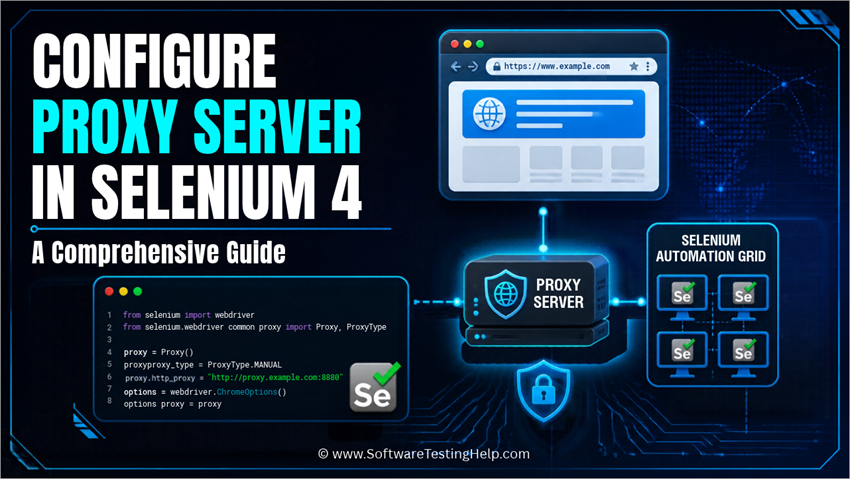
Proxy servers play a crucial role in network configuration, browser automation, and web testing and are usually used during software testing to control how the browser traffic is focused between the targeted web application and an automated test script.
When using the Selenium WebDriver, configuring the proxy server will allow the QA testers to reproduce specific network environments, troubleshoot authorized browser traffic, and work within the corporate infrastructure.
Particularly, proxy servers are useful in enterprise test environments wherein internet accessibility is controlled, where applications are required to be tested via corporate proxies or must be directed via a test network.
Selenium 4 provides the built-in proxy configuration facility via the proxy class, where the configuration can be combined with the browser-specific options, namely ‘ChromeOptions’ and ‘FirefoxOptions’, during the creation of the WebDriver session.
For example, without the proxy setup, it would be like
Selenium WebDriver -> Browsers -> Applications
For example, when the proxy server is configured, the workflow would be like this:
Selenium WebDriver -> Browsers -> Proxy Server -> Applications
What is a Proxy Server?
A proxy server is an intermediary server that sits between a client (like your computer/app) and a destination server (like a website) to monitor network traffic routing.
During automation testing, the browser sends a request to the proxy server, which will then forward that request to the destination server.
Example: Browser-specific request -> Proxy Server -> Web Application
The proxy server receives the request and sends back the response to the browser.
The following information is required to configure the proxy server, i.e.,
- IP address or hostname
- Proxy port
- HTTP proxy
- HTTPS or SSL Proxy
- SOCKS proxy
- Proxy bypass considerations
- Authorisation requirements
An example of a proxy server looks like this: (URL Slug)
proxyurl.example.com:8080
The proxy server’s hostname is proxyurl.example.com, and the port is 8080.
If required, proxy server authentication can be configured explicitly, and you will require a username and password to log in.
Necessity of a Proxy During Selenium Automation Testing
There are several genuine reasons why proxy servers are configured during Selenium automation.
Commonly known ones are:
- When testing through the Corporate Network.
- During geographic network location testing/ regional testing.
- During web traffic inspection/debugging.
- To test the different network conditions across different environments during testing.
- To test applications behind the proxy gateway.
Let us understand the above-mentioned reasons in detail below:
#1) When Testing Through Corporate Proxy Network
Most of the organizations direct their internet traffic via a corporate proxy network. Selenium WebDriver tests that run inside such an environment will require using the same proxy configurations as other applications.
Configuring like this way, or configuring a proxy, will allow automated test scripts to operate within an organization’s architecture/organization’s network to increase the security level checks during automation tests.
Example: Selenium test scripts -> Corporate Proxy network -> Application
#2) During Geographic Network Location Testing/ Regional Testing
Some of the organisations make use of legitimate infrastructure of proxy to test their applications from different geographical network locations, which will help to verify regional content, routing behavior and localization tests.
An appropriate authorization, within the targeted website’s terms and conditions, and also the organization’s test policies should be in place or should be there before the test runs are carried out.
#3) During Web Traffic Inspection/Debugging
HTTP proxy set up will help testers to inspect the browser traffic in an authorized test environment. Hence, it is useful for debugging requests, responses, and headers along with other network behavior.
#4) To Test Different Network Conditions Across Different Environments During Testing
To simulate different network configurations, a proxy can be utilised in a controlled test environment. For example, QA testers may test whether their application behaves as expected and correctly whenever a request passes through a particular network gateway.
#5) To Test Applications Behind Proxy Gateway
Some of the applications are accessible via a particular network gateway or a proxy; hence, it is necessary to make sure the Selenium needs to be configured accordingly for the WebDriver to have access to the application.
How Selenium Handles Proxy Server Configurations
Firstly, we need to know that there is a ‘Proxy’ class for defining the proxy settings and is provided by Selenium.
The steps involved in the proxy server configuration process are:
- Create a Selenium ‘Proxy’ object.
- Mention the proxy server and the proxy port
- Create browser ‘Options’.
- Assign the proxy to those ‘options’.
- Initiate the WebDriver instance by using the above configured ‘options.
So, in Java, the proxy class can be imported using the below package:
Import org.openqa.selenium.Proxy
Basic proxy configuration is created as shown below:
Proxy proxy = new Proxy();
proxy.setHttpProxy(“proxy.examplesite.com:8080”);
Then that proxy needs to be associated with the browser’s options or browser capabilities.
Chrome Options options = new Chrome Options();
options.setProxy(proxy);
WebDriver driver11 = new Chrome Driver(options);
Top Methods to Configure Proxy Servers in Selenium
There are different types/methods to configure the scenarios in Selenium, such as
- HTTP proxy
- HTTP/SSL proxy
- SOCKS Proxy
- Authentication Proxy
- No-proxy rules or proxy bypass
- Complete example using different languages
In the sections below, let us see how to configure proxy servers in Selenium using different programming languages such as Java, Python, and C#, along with different types/methods.
#1) Configure HTTP Proxy in Selenium 4
By using Selenium’s ‘setHttpProxy()’ method, HTTP proxy can be configured.
Browser traffic is configured to use ‘proxy.examplesite.com:8080’.
The ‘setProxy()’ method associating the Selenium proxy configurations with Chrome.
Example code snippet in Java:
Import the below-mentioned packages.
* org.openqa.selenium.Proxy;
* org.openqa.selenium.WebDriver;
* org.openqa.selenium.chrome.ChromeDriver;
* org.openqa.selenium.chrome.ChromeOptions;
public class HTTPProxyURLExample
{
public static void main(String[] args)
{
Proxy proxy = new Proxy();
proxy.setHttpProxy(“proxy.examplesite.com:8080”);

Chrome Options options = new Chrome Options();
options.setProxy(proxy);
WebDriver driver11 = new Chrome Driver(options);
driver11.get(“https://examplesite.com”);
driver11.quit();
}
}
#2) Configure HTTPS Proxy in Selenium 4
QA Testers may be required to configure the proxy for secure traffic where there is an increase in the number of web applications using HTTPS.
For this purpose, only the Selenium WebDriver Java API provides the setSslProxy() method.
This configuration is specifically useful whenever a test environment needs traffic for both the HTTP and HTTPS connections to pass via the proxy.
Proxy proxy = new Proxy();
Proxy.setSslProxy(“proxy.example.com:8080”);
ChromeOptions options = new ChromeOptions();
Options.setProxy(proxy);
WebDriver driver11 = new ChromeDriver(options);
- You may also configure both HTTP and SSL proxy settings as shown below:
Proxy proxy = new Proxy();
proxy.setHttpProxy(“proxy.examplesite.com:8080”);
proxy.setSslProxy(“proxy.examplesite.com:8080”);
ChromeOptions options = new ChromeOptions();
Options.setProxy(proxy);
WebDriver driver11 = new ChromeDriver(options);
#3) Configure SOCKS Proxy Server in Selenium 4
SOCKS proxy is distinct and functions differently from HTTP and HTTPS proxies. It is useful in a network environment that needs SOCKS-based routing.
In other words, a SOCKS proxy is a network tool which routes internet traffic via an intermediary server called the SOCKS (acronym is ‘Socket Secure’) protocol. SOCKS proxy is general-purpose and capable of handling any type of traffic. Example: End-User -> SOCKS proxy -> Internet.
proxy.setSocksProxy(“127.0.0.1:8080”);
127.0.0.1:8080 represents the SOCKS proxy endpoint.
127.0.0.1 is IP address, and 8080 is the custom port number; the exact port and host depend on the proxy service and testing environment that is being used. This port number is not a constant. i.e., when the user’s device connects to the SOCKS server, it will open the connection to the destination server on the user’s (your) behalf.
The target server will see the IP address of the proxy server, making the real IP address hidden. This is also called IP masking.
Selenium also supports the SOCKS-based proxy configuration, used specifically for geo-location testing purposes.
Proxy proxy = new Proxy();
Proxy.setSocksProxy((“127.0.0.1:8080”);
ChromeOptions options = new ChromeOptions();
Options.setProxy(proxy);
WebDriver driver11 = new ChromeDriver(options);
driver11.get(https://examplesite.com);
driver11.quit();
#4) Configure a Proxy Using ChromeOptions
An alternative method to configure is to create Chrome-specific parameters where the browser is notified to use the specified proxy server.
For simple Chrome-specific configurations, this approach is more convenient. However, Selenium’s proxy capability is used more often as it is easier to understand or transparent when your automation test framework requires support for different types of proxy setup settings.
Example:
ChromeOptions options = new ChromeOptions();
options.addArguments(“--proxy-server=http://proxy.examplesite.com:8080”);
WebDriver driver11 = new ChromeDriver(options);
#5) Configure a Proxy Using FirefoxOptions
Selenium provides capability to configure proxy settings for the Firefox browser.
However, the basic approach remains the same. The main difference is in the browser-specific options class. I.e., use ‘FirefoxOptions’ instead of using ‘ChromeOptions’ for the Firefox browser.
Sample code snippet for FirefoxOptions:
Import the below-mentioned packages
* org.openqa.selenium.proxy;
* org.openqa.selenium.WebDriver;
* org.openqa.selenium.firefox.FirefoxDriver;
* org.openqa.selenium.firfox.FirefoxOptions;
public class FirefoxProxyTest
{
public static void main(String[] args)
{
Proxy proxy = new Proxy();
proxy.setHttpProxy(“proxy.examplesite.com:8080”);
proxy.setSslProxy(“proxy.examplesite.com:8080”);
 proxy.setNoProxy(“localhost; 127.0.0.1; internal.mycompany1.com”);
FirefoxOptions options = new FirefoxOptions();
Options.setProxy(proxy);
WebDriver driver11= new FirefoxDriver(options)
driver11.get(“https://examplesite.com”);
driver11.quit();
}}
#6) Configure a Proxy to Bypass Certain Addresses in Selenium
Sometimes, an internal application can have direct access without any proxy configurations; only an external application’s traffic may require passing via a proxy.
Selenium’s ‘Proxy’ class capability provides proxy bypass configurations using the ‘setNoProxy()’ method, where setNoProxy() can identify the comma-separated list of host addresses or domain names that should bypass the proxy server.
This type of configuration is particularly useful in corporate environments wherein the applications are segregated as external and internal infrastructure
Example:
Proxy proxy = new Proxy();
proxy.setHttpProxy(“proxy.examplesite.com:8080”);
proxy.setSslProxy(“myproxy.com:8080”);
proxy.setNoProxy(“localhost; 127.0.0.1; internal.mycompany1.com”);
ChromeOptions options = new ChromeOptions();
Options.setProxy(proxy);
WebDriver driver11 = new ChromeDriver(options);
Handle Proxy Authentication in Selenium
Proxy servers may need authentication before any requests are made to pass through them.
Proxy will need,
Username and Password
Proxy Host and Proxy Port
Example:
username: testuser1
password: password123
proxy: proxy.examplesite.com:8080
Since browsers don’t always handle proxy credentials via the simple Selenium method, proxy authentication requires some additional configurations or additional considerations.
The most commonly used approach is to use a browser extension that handles the authentication.
Another way is to use a proxy specifically designed for automation testing purposes, where the authentication can be configured separately.
For example, avoid using it like this:
String username1 = “myusername1”; String password1 = “mypassword1”;
Instead, use it as shown in the example below to keep the sensitive information outside of the test script’s source code.
String username = System.getenv(“PROXY_USERNAME”);
String password = System.getenv(“PROXY_PASSWORD”);
Configure Proxy Servers Using Different Programming Languages in Selenium
This section explains how to configure proxy servers using various programming languages in Selenium.
One Complete Example of Selenium Proxy Using JAVA
The following code snippet illustrates all of the above-stated configurations, i.e., it combines HTTP, HTTP/SSL, and proxy bypass configurations. It is a complete example of Selenium proxy using JAVA.
Code snippet details go like this:
- All required packages are imported.
- Creates a Selenium Proxy object.
- Configures HTTP traffic.
- Configures SSL traffic.
- Defines proxy bypass addresses.
- Associates the proxy with Chrome.
- Creates the browser session.
- Closes the browser using finally.
import the below-mentioned packages
* org.openqa.selenium.proxy;
* org.openqa.selenium.WebDriver;
* org.openqa.selenium.chrome.ChromeDriver;
* org.openqa.selenium.chrome.ChromeOptions;
public class SeleniumProxyConfigTest
{
public static void main(String[] args)
{
Proxy proxy = new Proxy();
proxy.setHttpProxy(“proxy.examplesite.com:8080”);
proxy.setSslProxy(“proxy.examplesite.com:8080”);
 proxy.setNoProxy(“localhost; 127.0.0.1; internal.mycompany1.com”);
ChromeOptions options = new ChromeOptions();
Options.setProxy(proxy);
WebDriver driver11= new ChromeDriver(options)
try {
driver11.get(“https://examplesite.com”);
System.out.println(“page title: “+ driver11.getTitle());
} finally
{
driver11.quit();
}}}
Selenium Proxy Example Using Python
In the Python code snippet below, we are going to do the following:
- Required packages are imported.
- Creating Chrome browser options
- Configuring a manual proxy
- Applying proxy to HTTP traffic
- Applying proxy to SSL traffic / HTTPS traffic
- Defining a host address that should bypass the proxy
- Initiate Chrome using configured options
- Opens the test website
- Lastly, make sure the browser closes using ‘finally’.
<pre class="highlight pre-shadow">
<code class="python">
from selenium import webdriver
from selenium.webdriver.chrome.options import Options
#Define options for Selenium driver
def create_driver():
options = options()
    # To Configure different types of proxies,i.e., HTTP, HTTPS/SSL proxy
   proxy =”proxy.examplesite.com:8080”
    options.proxy =
      {
                      “proxyType”: “manual”,
         “httpProxy”: proxy,
         “sslProxy”: proxy
       }
   #bypass the proxy for host address
   Options.proxy[“noProxy”] = (“localhost,127.0.0.1,internal.examplesite.com”)
 driver = webdriver.Chrome(options=options)
  return driver
 driver = create_driver()
#Visiting to targeted test website
try:
  driver.get(“https://examplesite.com”)
  print(“Page title:”, driver.title)

finally:
 driver.quit()
</code>
</pre>
Selenium Proxy Example Using C#
The following steps are the walkthrough for the C# code snippet:
- Required packages are imported.
- Creating a Selenium ‘proxy’ object
- Configuring HTTP proxy
- Configuring HTTPS/SSL proxy
- Mention the host addresses that should bypass the proxy
- Adding proxy configuration to ‘ChromeOptions’
- Initiating the Chrome browser
- Navigating to the targeted test website
- Lastly, closing the browser using ‘finally’ in the last block
using System;
using OpenQA.Selenium;
using OpenQA.Selenium.Chrome;

class SeleniumProxyExample {
static void Main()
{
  //Creating proxy configuration
var proxy = new Proxy
{
HttpProxy = “proxy.examplesite.com:8080”,
SslProxy = “proxy.examplesite.com:8080”,
NoProxy = “localhost;127.0.0.1;InternalChecks.examplesite.com”
};
 //Creating Chrome options
var options = new ChromeOptions
{
   Proxy = proxy
};
  // Starting Chrome browser
IWebDriver driver11 = new ChromeDriver(options);
try
{
 driver11.Navigate().GoToUrl(“https://examplesite.com”);
Console.WriteLine(
  “Page title:” + driver11.Title
);
}
finally
{
driver11.Quit();
}
}
}
Advanced Testing Scenarios or Use Cases
Advanced testing use cases or scenarios are different testing techniques to configure the proxy servers in Selenium testing. Let us understand these techniques in detail.
#1) Running Selenium Tests Through a Cloud Proxy
A cloud proxy is known as an intermediary server, hosted on cloud grid infrastructure, which routes the traffic between end-user clients & their destination servers, back-end web servers, the internet and internal loads. Depending on its configuration, it can also inspect, filter network traffic or control without needing dedicated on-premises proxy hardware.
In Selenium Testing, a cloud proxy acts as an intermediary proxy service hosted on cloud to route traffic from cloud-based browsers to the destination web application in order to support controlled network routing, region-specific testing, and traffic inspection on protected test environments.
When the Selenium test scripts are run in cloud-based platforms, the web browser will execute on a remote machine instead of the QA tester’s local system/computer. In between the cloud browser and the destination test application, A cloud proxy controls the browser traffic routing.
An overall setup would look like:
Local System / CI pipelines -> Selenium Tests -> Cloud Testing Platforms -> Remote Browser -> Cloud Proxy -> Targeted test application.
The above approach is more useful for testing applications that need specific network routing, controlled test environments, regional network location, and specific corporate proxy.
Cloud Testing Platforms and Cloud Proxy (Cloud-based Server): These are two different concepts and should not be confused. Also, they can be used together during automation testing. i.e.
Selenium -> Cloud Browser -> Cloud Proxy -> Application
Running a Selenium proxy in the cloud allows running ‘proxy-enabled’ test scripts in parallel, and the real-time execution can be monitored, which will eliminate the need for local infrastructure.
An important thing to note here is that the proxy configurations done on the local system/on your computer will not be made available automatically to the browser that is running in the cloud.
The ‘remote browser’ instance must be able to reach the proxy configurations.
Example: Selenium Tests + Cloud Proxy
Here Selenium tests/code are similar to the usual proxy configuration. The main difference is that the proxy endpoint should be accessible from a remote browser environment.
Selenium Proxy sample code snippet using the Java programming language:
Proxy proxy = new Proxy();
Proxy.setHttpProxy(“cloud-proxy.examplesite.coom:8080”);
Proxy.SslProxy(“cloud-proxy.examplesite.coom:8080”);
ChromeOptions options = new ChromeOptions();
Options.setProxy(proxy);
WebDriver driver11 = new RemoteWebDriver(new URL(“https://cloud-selenium.examplesite.com/wd/hub”), options);
try {
driver11.get(“https://examplesite.com”);
System.out.println(driver11.getTitle());
}
finally {
driver11.quit();
}
#2) Cloud Proxy With BrowserStack
QA testers and developer teams can check their testing websites or applications on real devices and do cross-browser checks on a popular cloud-based software testing platform called BrowserStack.
There are other popular cloud-specific software testing platforms too, such as Sauce Labs and Test Mu AI (formerly Lambda Test), which both offer wider-scale cloud grid infrastructure for real-device testing and cross-browser testing.
The sample test setup would look like this:
Selenium Tests -> BrowserStack Cloud -> Remote Browser instance -> Proxy or local testing tunnel -> Private application (Internal)
BrowserStack can be used with Selenium tests when the test environment application is behind the proxy.
BrowserStack’s proxy configuration is going to handle connections from a machine behind the proxy.
BrowserStack’s Local provides a secure pathway for internally hosted applications or any other private ones from remote cloud browsers. An appropriate configuration depends on where exactly the proxy is situated and where exactly the application is hosted.
#3) Rotating Selenium Proxy During Testing to Avoid Detection
Proxy Rotation is changing the proxy endpoints, proxy server, or IP address that are used by different Selenium test sessions or test runs, or test requests. Instead of sending all of the test traffic via a single proxy, a pool of proxies will provide different approved proxy endpoints.
Rotating Selenium Proxy is a testing technique and is session-based rotation wherein each test session would make use of a different approved proxy instead of changing the proxy during the single browser session.
The workflow would be like this:
Selenium Test scripts -> Proxy Pooling ->
P1, P2, P3 ->
Targeted Test Application
In Selenium Testing, proxy rotation will be useful for the following reasons:
- To test the region-specific content.
- To test different network routes.
- To test application behaviour under the approved IP addresses.
- To validate the geolocation functionality.
- To simulate various customer network environments.
However, proxy rotation is not a guaranteed method of bypassing anti-bot protections like CAPTCHAs or Cloudflare.
#4) Why Use a Cloud Proxy With Selenium
There are key benefits of using a cloud proxy with Selenium, such as:
- Geo-location Testing: This will make it easier to know how your targeted test website/web application looks and behaves in different countries for users.
- Bypassing Any Blocks/Bans: In order to avoid IP bans and limit the rate and CAPTCHAs during execution of heavy automated test scripts or during data scraping.
- Reliability Checks: Test failures are prevented, which are likely to be caused by local network connectivity drops and/or any hardware-related limitations.
- Scalability: Without slowing down your local computer, you can run hundreds of tests at the same time by making use of different IP addresses.
- No maintenance Efforts: The cloud provider manages the server infrastructure and IP rotation.
- To test proxy-dependent applications’ behavior.
How to Confirm That a Proxy Setup is Working
QA testers should always verify that the traffic is actually passing through it after the proxy configuration is set up.
One of the approaches is to navigate to an (internal) test endpoint that is authorized and provides network information.
Example:
driver11.get(“https://examplesite.com/networkinfo-test”);
Later on, verify actual expected network behaviour or the traffic patterns.
Most of the time in corporate test environments, the IT operations team or infrastructure team provides the health check endpoint (or diagnostic endpoint), which will display the request’s proxy information details or the source network information.
Make sure not to rely completely upon navigating to the browser and opening the page successfully. Sometimes browsers can connect directly when the bypass rules are applied or sometimes proxy configurations are incorrect.
Common Proxy Errors: Troubleshooting Guide
During browser automation configurations, proxy errors are more common, such as
#1) ERR_PROXY_CONNEECTION_FAILED
Quite often the Chrome browser will display this kind of error message when a connection cannot be established with the configured proxy.
Possibly, the causes are the following:
- Incorrect port number
- Incorrect proxy address
- Firewall-related restrictions
- The proxy server is not available
- Network access restrictions
#2) Authentication is Required
If a proxy needs authentication, the browser will display an authentication prompt or may reject the request. Hence, before any modifications are made to Selenium tests, make sure to verify the proxy authentication mechanism.
#3) Errors on SSL Certificate
When HTTPS traffic is directed via an inspection proxy, it will lead to such certificate warnings or errors. This is bound to happen when the enterprise proxy carries out TLS checks; the browser will not trust the proxy’s authority certificate.
To know more about TLS (Transport Layer Security) inspection, you may please refer to the official documents of Google Cloud source/site.
As per the organisation’s security terms, policies, and procedures, appropriate certificates need to be installed. At all times, it is advisable to avoid disabling such certificate verifications as a permanent solution.
#4) Failure in Proxy Connection
Whenever the proxy port number and hostname are incorrect, an error will occur. Make sure to verify the proxy is reachable from the machine on which the browser is running.
So, the checks are against:
- Proxy’s Hostname
- Proxy’s port number
- Firewall restriction rules
- Network connectivity information
Proxy Vs VPN in Selenium Testing
Proxy and VPN (Virtual Private Network) connections are not the same.
Both tools’ task is to hide the real IP address of the website you are visiting, but they differ in the purposes they serve and work differently.
In general, a proxy routes a browser’s or application’s traffic via an intermediary server.
Whereas, a VPN will establish the network-level connection which will route traffic from your device or network through a VPN server.
Key features for Selenium testing: comparison between proxy and VPN:
| Key Features | PROXY | VPN |
| Browser-specific traffic routing | Possible | Broader level |
| Application-specific traffic | Can be configurable | System or Network Level |
| Authentication | Depends on proxy setup. | Depends on VPN setup |
| Browser Configurations | Required | Not required |
| Selenium Integration | Direct proxy capabilities are available | External to Selenium |
| Network Testing | Quite Useful | Useful during network-level scenario testing. |
Best Practices to Follow During Proxy Configurations in Selenium
Always try to follow the best practices when using proxies with Selenium automation testing.
To list some of them:
- Always use environment variables.
- Usage of different configurations for specific environments.
- Test the proxy-related scenarios separately.
- Maintain proxy configuration separately or independently.
- Unnecessarily, try not to disable security level controls
Advantages and Disadvantages of Using a Proxy in Selenium
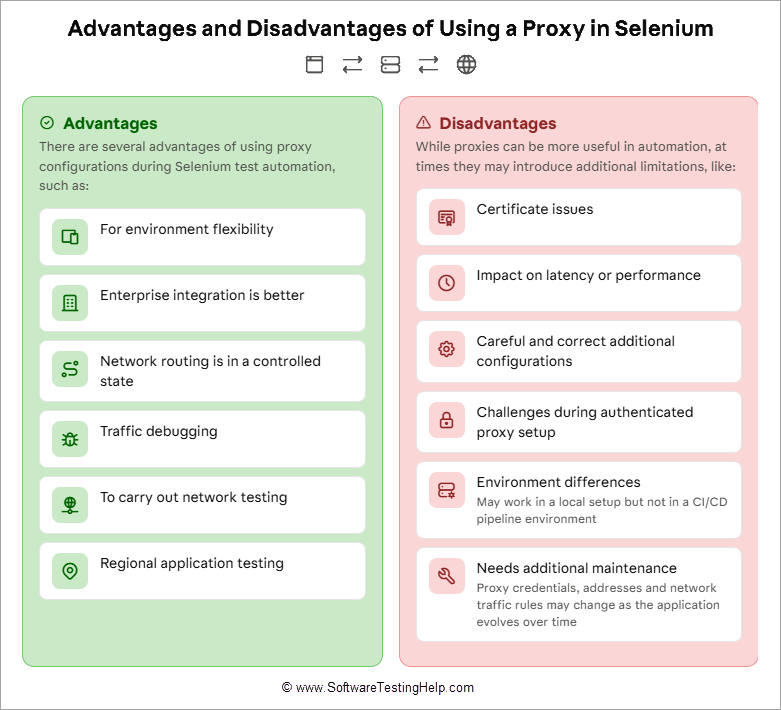
There are several advantages of using proxy configurations during Selenium test automation, such as:
- For environment flexibility
- Enterprise integration is better.
- Network routing is in a controlled state.
- Traffic debugging and
- To carry out network testing
- Regional application testing
While proxies can be more useful in automation, at times they may introduce some of the additional limitations, like:
- Certificate issues
- Impact on Latency or Performance
- Careful and correct additional configurations
- Challenges during authenticated proxy setup
- Environment differences, i.e., may work in a local setup but may not be in a CI/CD pipeline environment.
- Needs an additional maintenance, as the credentials of a proxy, addresses, and network traffic rules may change as the application evolves over the period of time.
Proxy Configuration and CI/CD Pipelines
There are several CI/CD platforms, like Jenkins, Azure DevOps, GitHub Actions, etc., that are used to run the Selenium test automation scripts.
An architectural example would be like this:
CI/CD pipeline -> Selenium test scripts -> Browser -> Corporate proxy -> Application.
As mentioned earlier in this article, the proxy configuration is managed as an environment-specific one rather than a hard-coded one in the script’s suite.
Example:
PROXY_HOST,
PROXY_PORT,
PROXY_USERNAME
PROXY_PASSWORD
The testing framework can fetch these values during runtime.
This approach is well-suited and makes it easier for different environment configurations. Namely,
Local development area, test area, staging area, and CI/CD pipelines.
When to Opt for a Proxy in Selenium Testing?
Proxy is more suitable whenever there is a clear picture of the testing infrastructure requirements.
Proxy should not be added just like that for the sake of adding and not simply because it is available. Unnecessary routing may lead to slowing down the tests, along with introducing an additional failure rate.
Some of the common scenarios where a proxy is required are:
- When testing network routing
- Test applications behind the corporate proxy configuration.
- When integrating Selenium with an enterprise network environment
- Debugging HTTP traffic that is authorised
- Test regional application behavior
- When replicating the customer’s network configurations in a local test environment.
- Run the browser test scripts via a controlled/authorized test gateway.
Frequently Asked Questions
1. How to avoid or bypass proxy for localhost domain?
The ‘setNoProxy ()’ method is used to define the list of host names that will bypass the proxy server, and this method is provided by Selenium’s Proxy class.
Example: proxy. setNoProxy(“localhost;127.0.0.1”);
2. Is it possible to configure a SOCKS proxy in Selenium?
Yes, SOCKS proxy configuration is possible in Selenium by using the ‘setSocksProxy()’ method.
Proxy.setSocksProxy(“127.0.0.1:9050”);
Ensure that the host and port number are coming from an authorized proxy environment.
3. Is it possible to configure a proxy server in Selenium?
Yes, possible to configure, as Selenium Web Driver can provide the ‘Proxy’ class capability, which is then used to configure HTTP, HTTPS/SSL, and SOCKS proxy settings for the supported browser sessions.
4. What are the browser-specific options that Selenium supports to configure the proxy?
To configure proxies in Chrome and Firefox browsers using Selenium, ‘ChromeOptions’ and ‘FirefoxOptions’ are provided by Selenium capabilities. These can be utilised in Selenium’s proxy settings.
5. How to set up a proxy in Selenium 4?
First, create a ‘Proxy’ object and define ‘proxy server’, and then associate that with browser-specific options such as ChromeOptions and FirefoxOptions.
For example, for Chrome:
Proxy proxy = new Proxy();
proxy.setHttpProxy(“proxy.examplesite.com:8080”);
Chrome Options options = new Chrome Options();
options.setProxy(proxy);
WebDriver driver11 = new Chrome Driver(options);
Conclusion
In Selenium, configuring a proxy server is quite straightforward when the requirements of proxy settings are clear and well understood.
As Selenium provides the ‘Proxy’ class capability to configure HTTP, SSL, and SOCKS proxy servers which can be used in combination with browser-specific options such as ‘ChromeOptions’ and ‘FirefoxOptions’.
The proxy configuration should be considered in the main testing infrastructure strategy rather than just defined in just browser settings.
Keeping user credentials secure, verifying network connectivity and using the correct settings for the authorised test environment will definitely help QA teams to prevent proxy-related issues during automated test runs.
Not limiting to the above-mentioned considerations, along with some advanced environment configurations, QA testers may also consider the bypass rules in terms of usage, SSL certificate configurations, proxy authentication, the network connections accessibility, and CI/CD integration pipelines.
When the proxy configurations are done properly and correctly, the proxy server in Selenium 4 will certainly support the QA testers with more flexibility to carry out the browser-specific application testing on controlled network environments.
Research Process: The total time involved to complete and publish this article is approximately 46 hours. This content was created through a structured research approach to ensure accuracy and reliability.
For more-related guides, you can explore our range of tutorials below:
- WebDriver Listeners In Selenium With Code Examples
- How To Configure And Use Charles Proxy On Windows and Android
- How to Use TestNG Framework for Creating Selenium Scripts
- Cypress vs Selenium: Which Is Better? (TestedReview)
- Free Online Proxy Websites: Tested & Verified
- List of Best Free Proxy for WhatsApp to Unblock It Anywhere
- The 15+ BEST FREE HTTP and HTTPS Proxies List
- The 10+ Best Free Online Proxy Server List of (VERIFIED)
Was this helpful?
Recommended Reading
-

Reviewed and compared the top Online Proxy Websites to shortlist the best free proxy site to browse the Internet anonymously. Want to know the best free proxy websites to browse the internet anonymously? In this guide, we’ve tested and verified the 50 best free proxy sites for speed and security…
-
Learn how CroxyProxy web proxy is used to unblock YouTube and Instagram without a VPN. CroxyProxy is considered the most trustworthy free web proxy for individuals who are seeking an unrestricted internet experience but do not want to set up a Virtual Private Network (VPN). You can easily access CroxyProxy…
-
Learn to Install, Configure and Use Charles Proxy - a Web Debugging Tool to Monitor the Network Traffic on Windows, Android and IOS Devices: What Is Charles Proxy? Charles Proxy is a web debugging tool that monitors the network calls and decrypts the web traffic. It helps in understanding the…
-

Explore this well-researched list of the top WhatsApp proxies to unblock geo-restricted content. Pick the best free Proxy for WhatsApp and learn the setup process for complete online anonymity: Proxies for WhatsApp mask your user identity via the Internet, such as the IP, so you can unblock WhatsApp services where…