In this guide, we have tested and reviewed transcribers to convert your MP4 videos to text for free.
Nowadays, it has become very easy to convert an MP4 file into text format using artificial intelligence-based transcription software that is able to recognize speech and produce a transcript within minutes.
Transcription is sometimes free, but there are also transcription services with additional features such as speaker recognition, time-stamping, multiple language support, and exporting to TXT, DOCX, SRT, and VTT formats.
Below, you will learn about the best MP4 to transcription converters, get the full information on how to transcribe MP4 and get acquainted with all transcription techniques and formats.
How to Transcribe Video to Text for Free
Below are the fastest and fully free methods to transcribe video to text:
1. YouTube Videos (Quick and Automatic)
- Play YouTube video on your computer.
- Select … (More) option under the video title and choose Show transcript.
- Copy the text that will be automatically generated on the right hand side.
2. Online AI Tools (No Installation Required)
- VideoTranscriber.ai/CaptionX: Use drag-and-drop functionality to upload local videos (MP4, MOV, etc.), or even paste links for free AI-based transcription with no compulsory registrations.
- Canva: Navigate to Text>Captions to generate automatic captions and scripts.
3. Windows/Mac Computers (Totally Free and Unlimited Using OpenAI Whisper)
- Install a free desktop app built using OpenAI Whisper (Whisper Web/MacWhisper).
- Drop any media files within the application for automatic transcription.
Here is the video guide on how to create a transcript from video or audio automatically in Microsoft Word:
How We Tested and Selected the Best MP4 to Transcript Converters
Our testing of the MP4-to-transcript converters described in this guide was done using similar video files in order to determine how well these converters perform the transcription work.
Our considerations were based on features such as transcription accuracy, speed, user-friendliness, speech recognition capabilities, timestamping option, supported languages, export format options, free limits, and quality of the generated transcript.
On the basis of this testing and comparison, we chose the tools that provide the most helpful combination of these criteria.
How to Convert MP4 to a Transcript Free (Step by step)
If you want to convert MP4 to a transcript or transcribe video to text free of cost then you can adopt any of the following free methods explained step by step with visual representation:
Method 1: Free Online AI Transcription Tool
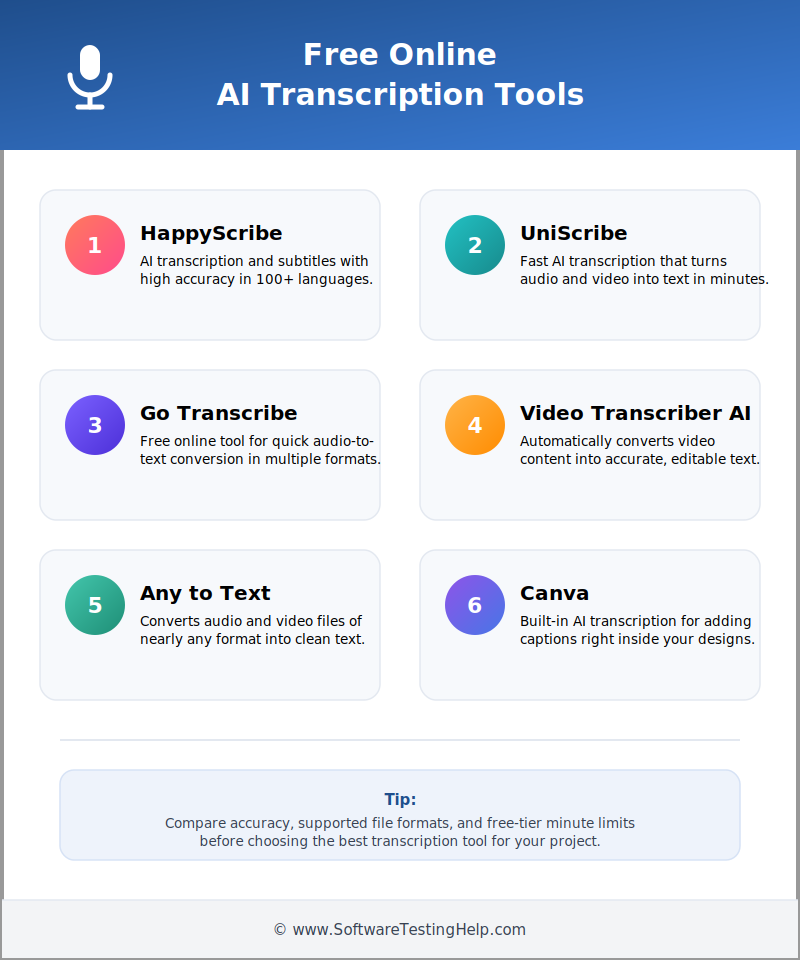
Online AI transcription tools are cost-effective and one of the easiest ways to convert MP4 into text. Some of the best free AI tools for this are listed below, with HappyScribe topping the list, followed by other tools that you can consider too.
Well, let us see the process of transcription using the HappyScribe free tool:
#1) HappyScribe
- Create an account on HappyScribe by signing up, or if you already have an account, log in.
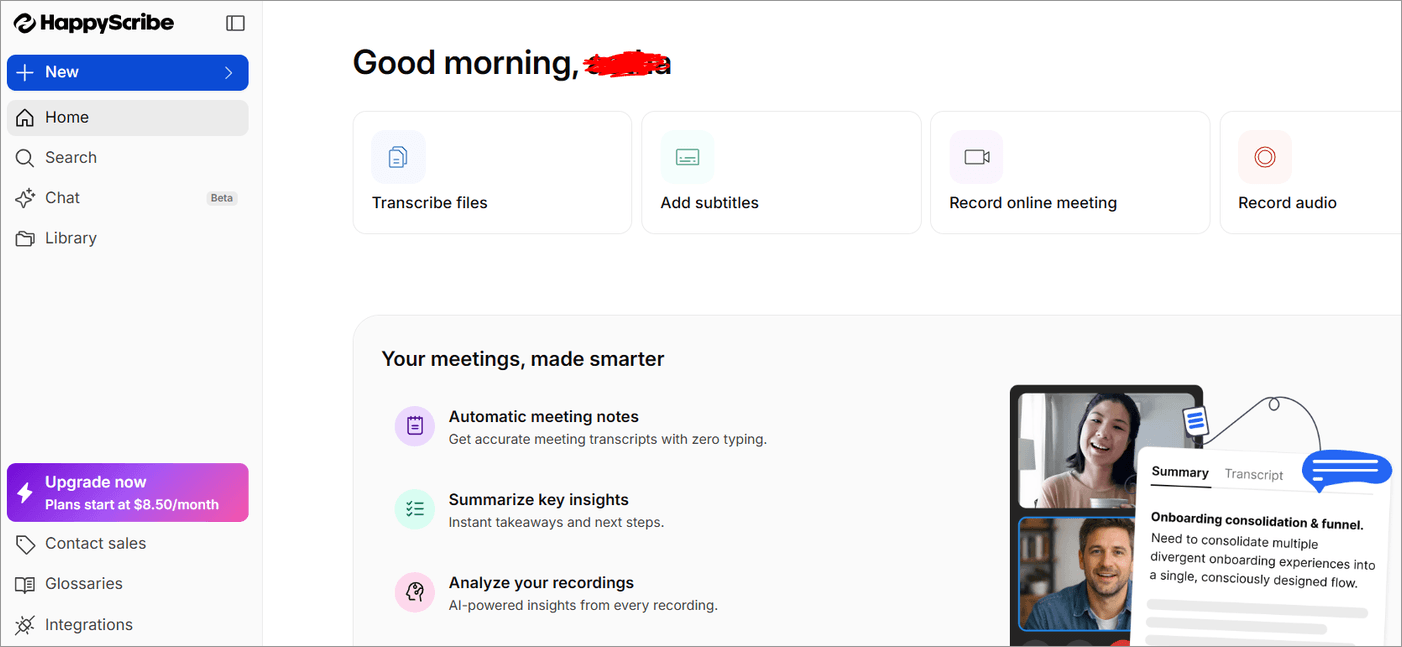
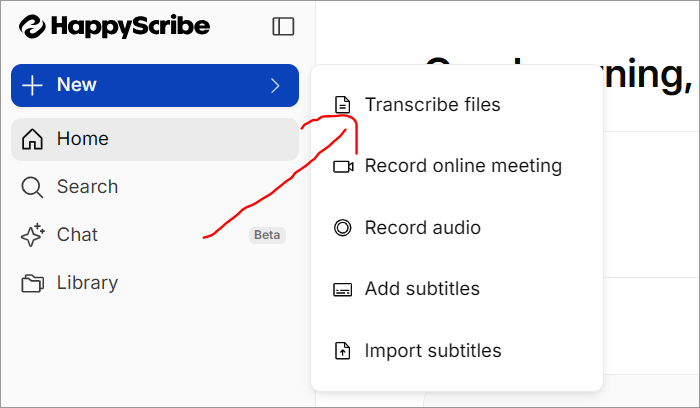
- Tap on Upload a New File or Create New option.
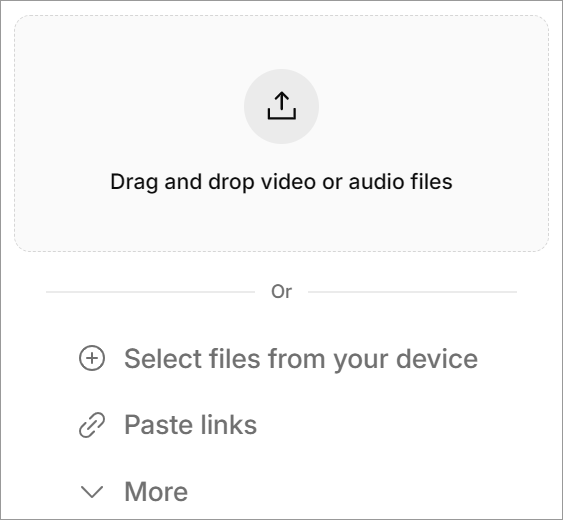
- Drag or drop the MP4 here or you can directly import the link.
- You need to choose the main language that has been used in your MP4.
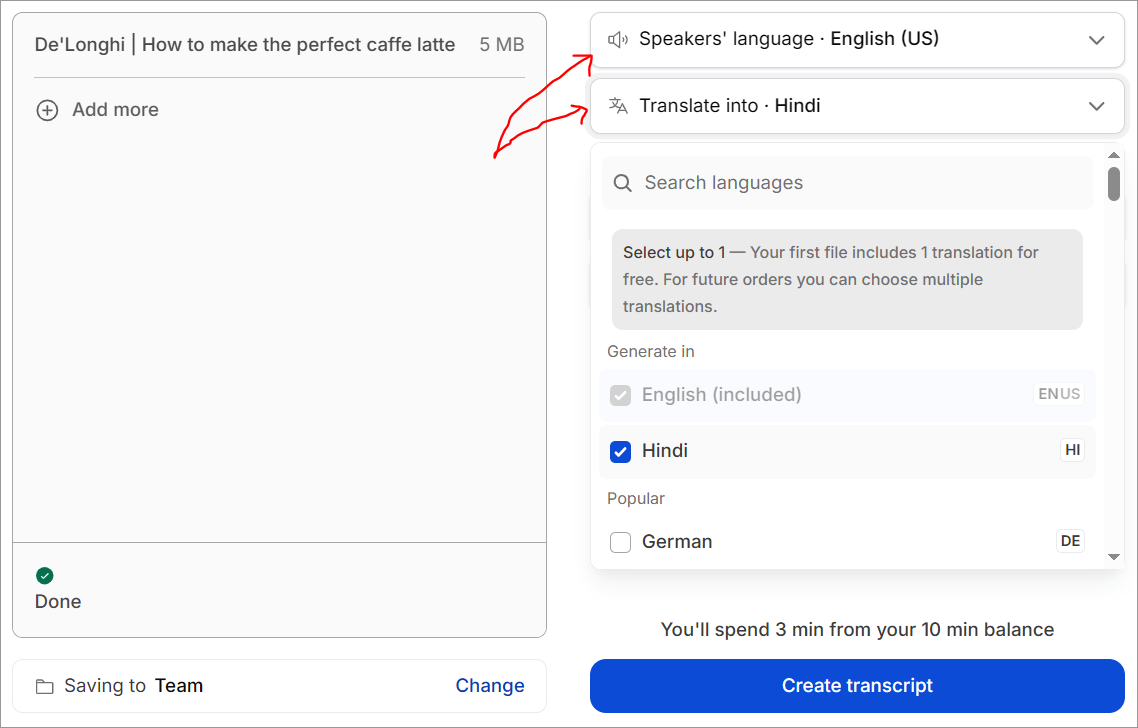
- Select your transcript method, which can be machine-generated (AI) or human mode. AI mode will deliver results in minutes, and human mode, it is proofread by native speakers, so it might be a bit time-consuming.
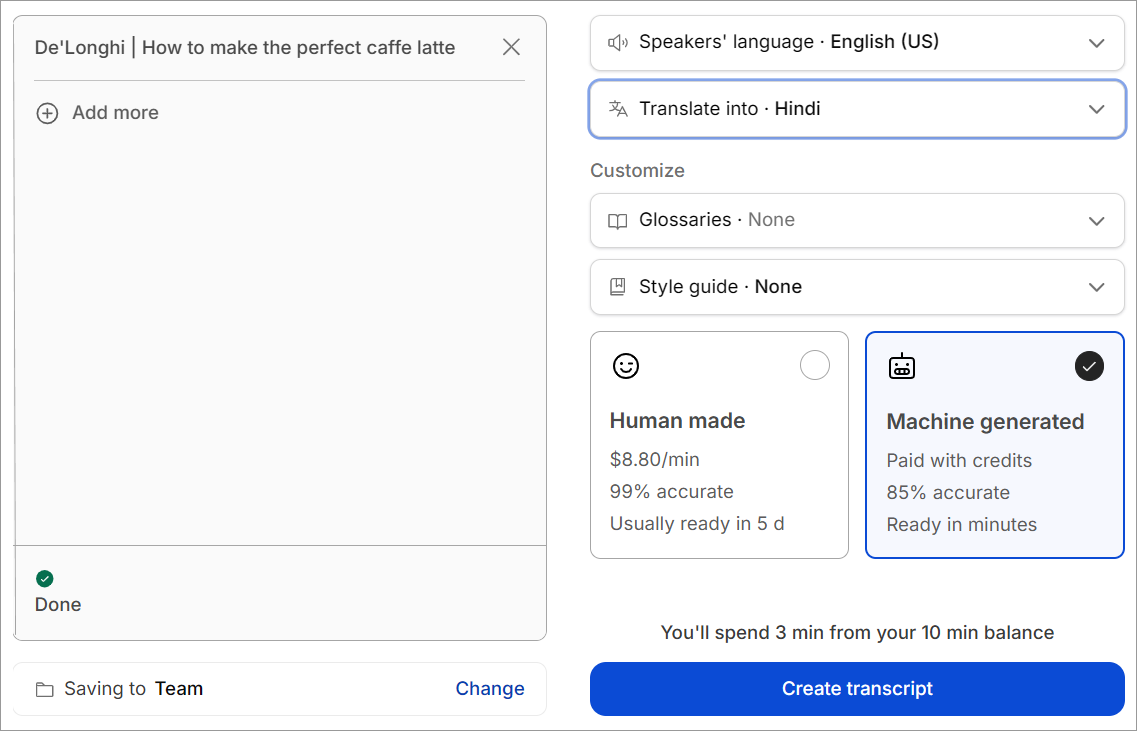
- Tap on Transcribe to begin processing your file.
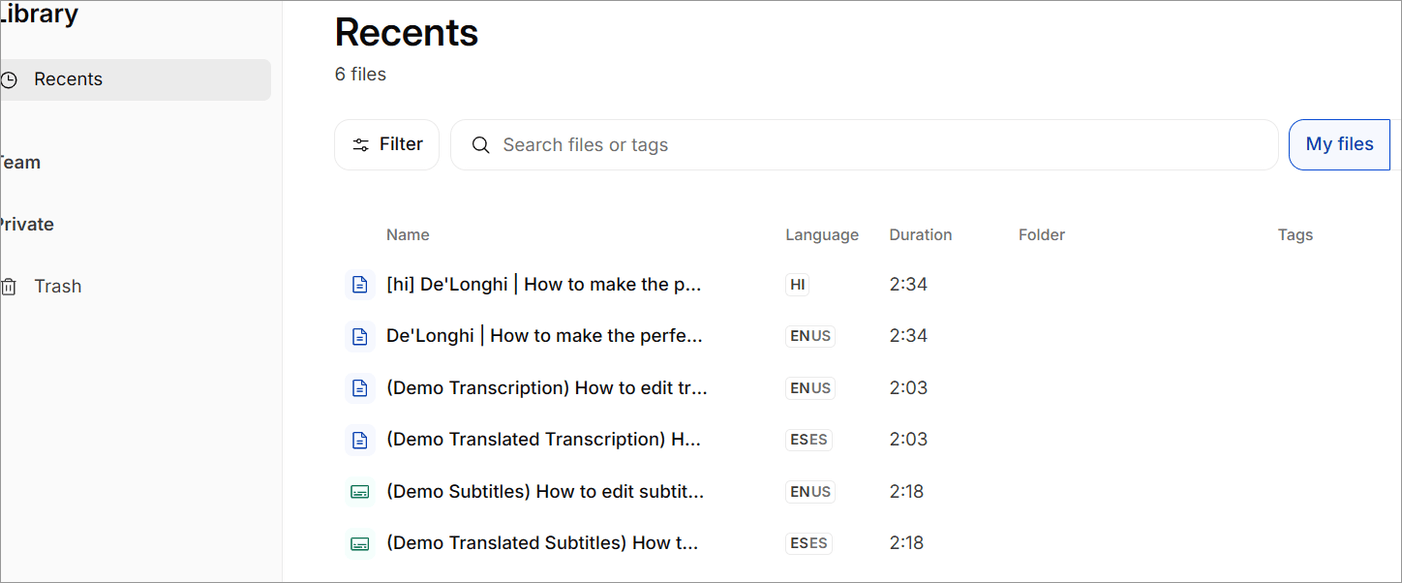
- If you want, you can review and edit the generated output.
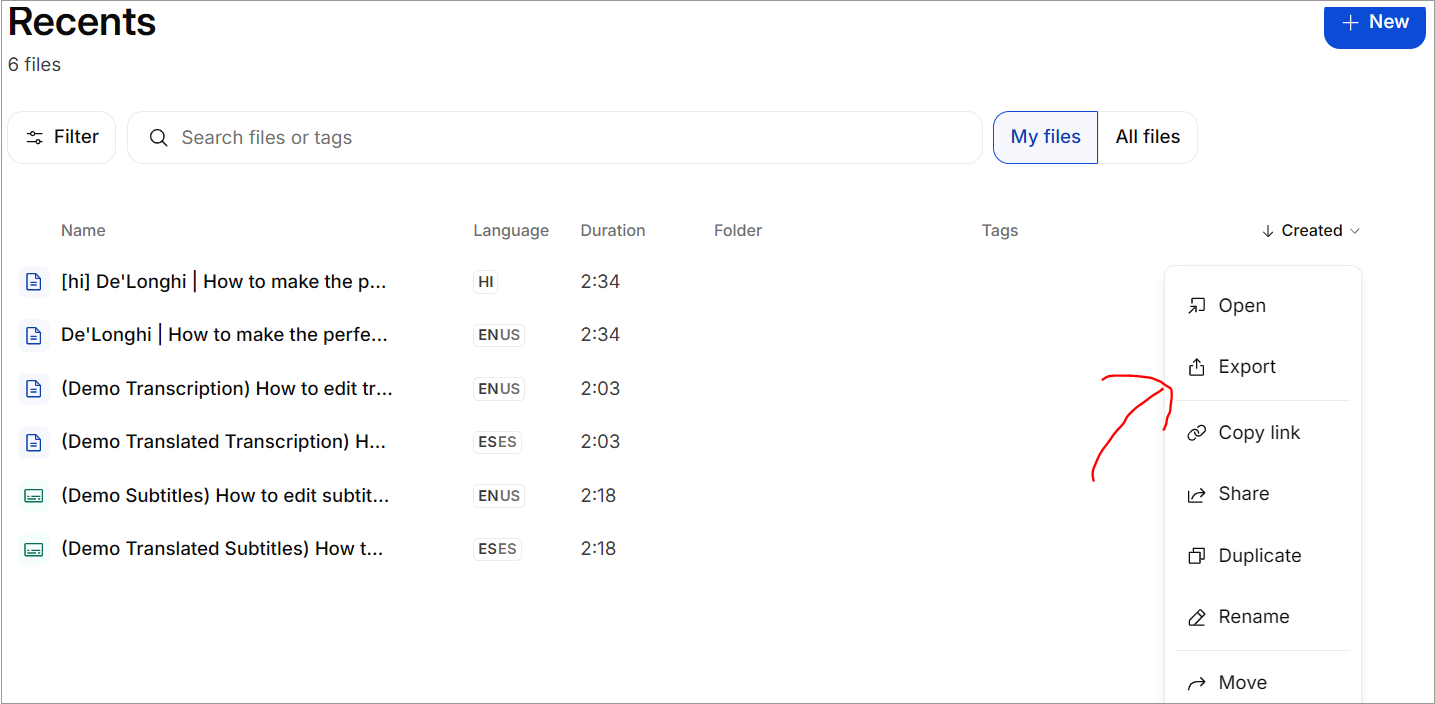
- Choose the Export button that is present in the top corner.
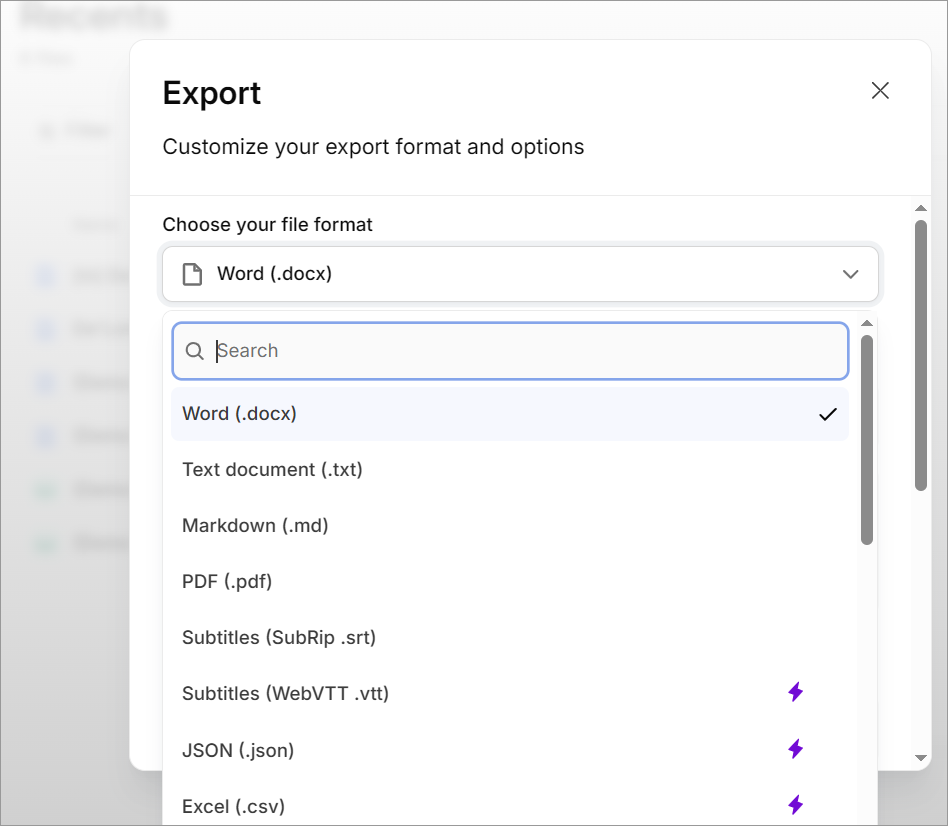
- You can choose the type of format that suits your needs, ranging from DOCX, TXT or PDF for standard text, or SRT, VTT if you wish to transcript the subtitles of the videos.
Website: https://www.happyscribe.com/video-to-text/mp4
#2) UniScribe
An AI-powered transcription tool, it is an efficient MP4 to transcript converter. The best part is that it supports multiple languages and is essentially useful for meetings, lectures, interviews, or any other recording types. Users just need to upload their MP4, and the tool will automatically come up with a transcript, removing the need for manual typing.
Website: https://www.uniscribe.co/
#3) Go Transcribe
Go Transcribe is yet another free MP4 to transcript converter that is easy to use. Using leading speech recognition, this tool can transcribe a 60-minute recording in only around 10 minutes. It also provides a browser-based editor for users to make quick edits to the generated content.
Website: https://go-transcribe.com/convert-mp4-to-text
#4) Video Transcriber AI
All-in-one platform, Video Transcriber AI is a popular audio and video transcription tool. This transcript converter allows users to transcribe video to text from some of the popular online platforms such as YouTube, Instagram, Facebook, and Zoom. It also supports multilingual transcription.
Website: https://videotranscriber.ai/
#5) Any to Text
With the help of AI-powered transcription, Any to Text is another tool by which you can convert MP4 to transcript. The end-user just needs to upload a video, and the processor will immediately generate the text version of the spoken content.
Website: https://any2text.com/mp4-to-text
#6) Canva
Canva is also a widely used tool that offers video-to-text functionality. It is especially useful when someone is already working on or editing a video in Canva. The tool can instantly help transcript or create captions in the video.
Website: https://www.canva.com/features/video-to-text/
Method 2: Transcribe an MP4 in Microsoft Word (Built-In)
Another method to easily convert MP4 to transcript is using the built-in transcribe feature of Microsoft 365 Word. This is available for the desktop or web app with an active subscription that lets users extract the audio while separating speakers. It even helps add timestamps and text straight into the document.
Follow these simple steps to transcribe an MP4 using Microsoft Word’s built-in feature:
- On your desktop application or web browser, open Microsoft 365 Word.
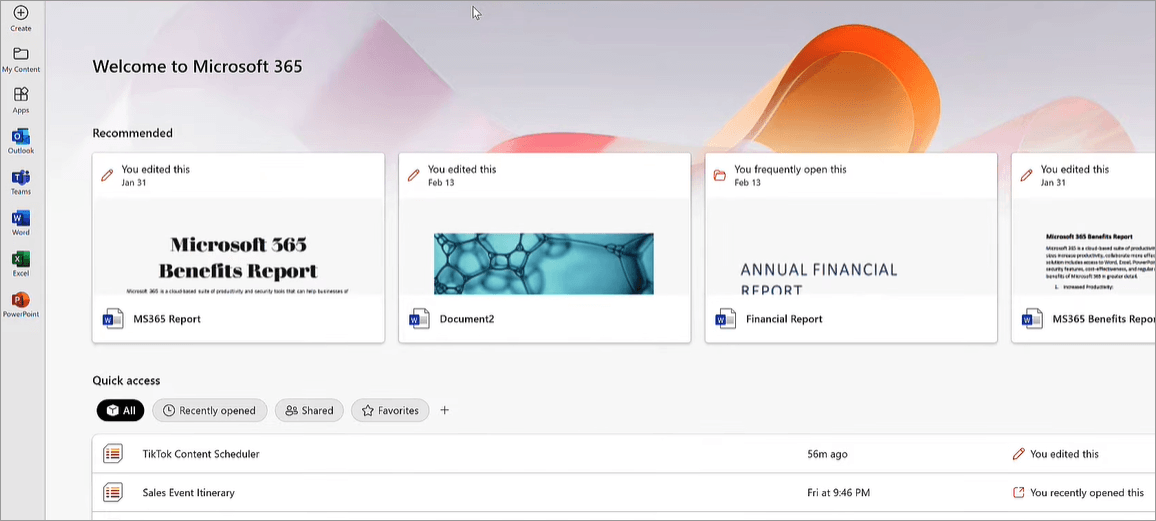
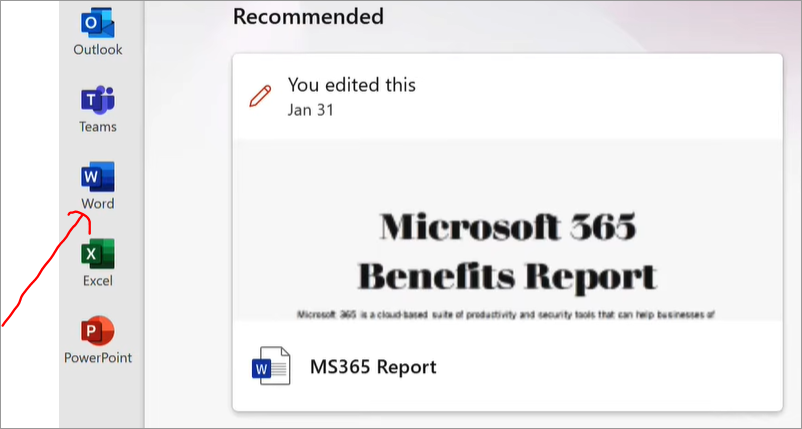
- Now click on the MS Word option on the left.
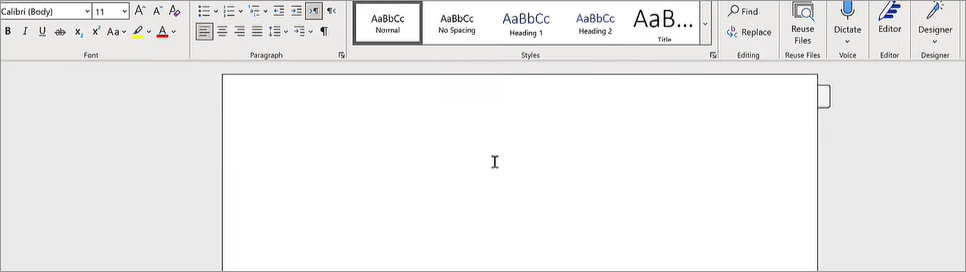
- Open a blank document.
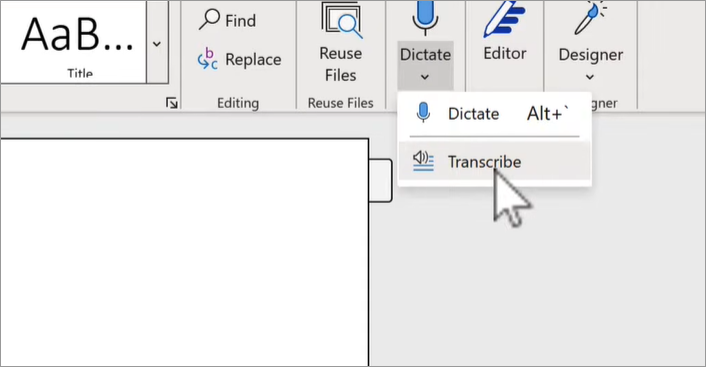
- Tap the Dictate option and choose Transcribe.
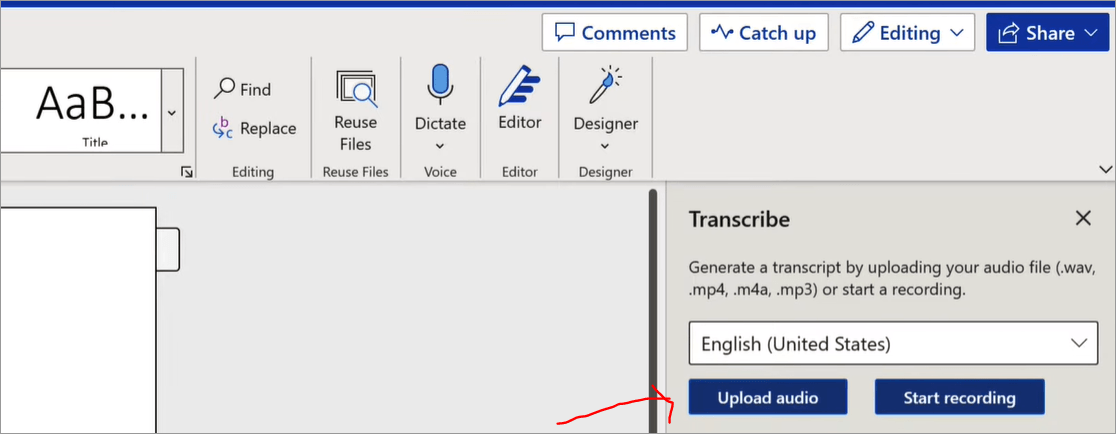
5. On the right side, in the Transcribe pane, click on Upload audio.
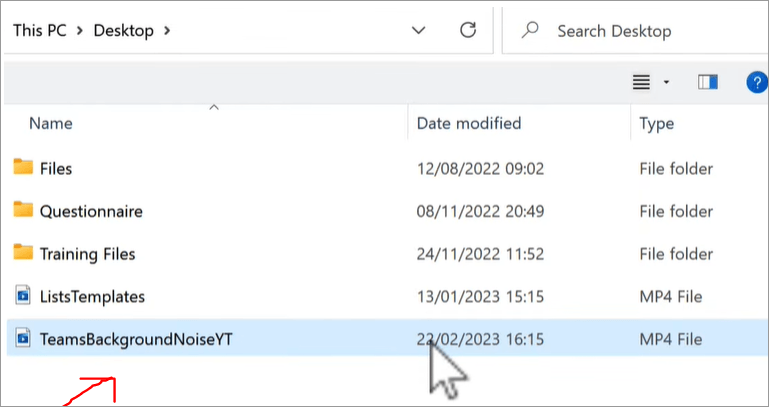
6. Choose your MP4 player and open it.
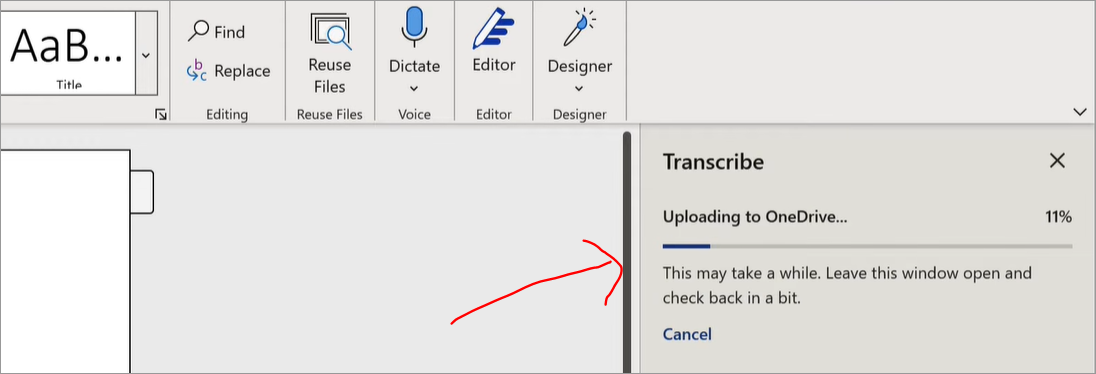
7. You need to wait for the transcription process to finish.
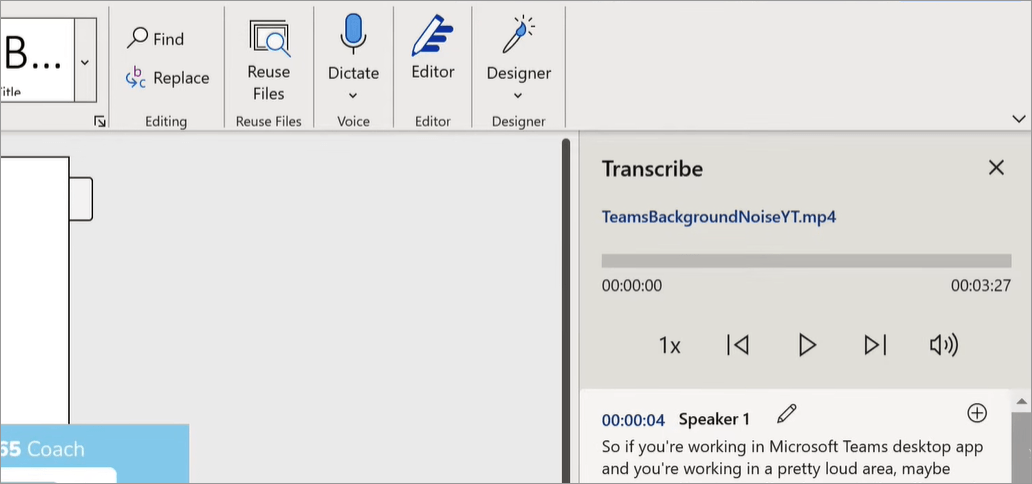
8. Check the generated text, timestamps as well as speaker labels.
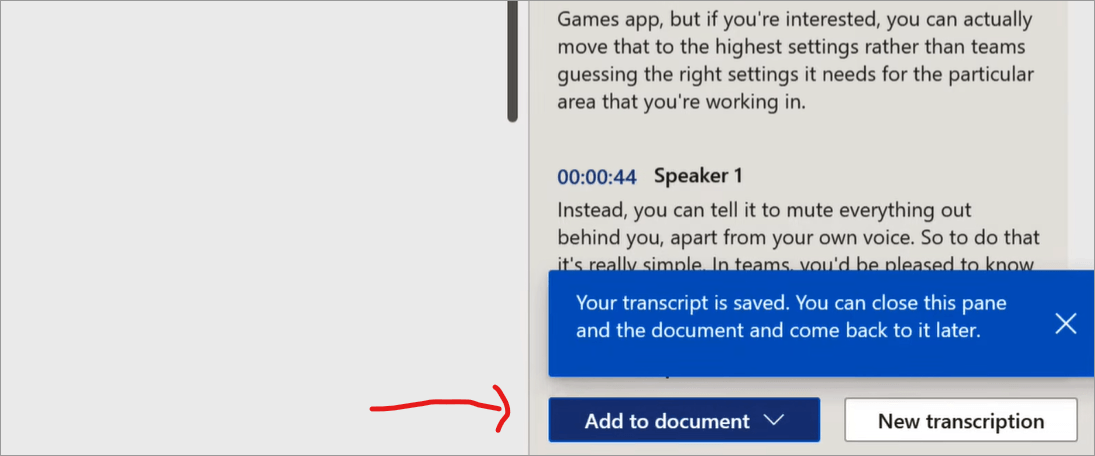
9. Finally, tap on the Add to document option in your Word page, and your transcription is ready.
Method 3: Extract Captions from YouTube (If Your MP4 is Already Uploaded)
Another method is using YouTube transcripts. In this method, if your MP4 is already uploaded to YouTube, you can directly generate a transcript using the watch page.
Below are the steps to get started:
- Using a web browser, start a video of your choice on YouTube.

- Under the video title, click on(…More options) to open the description.
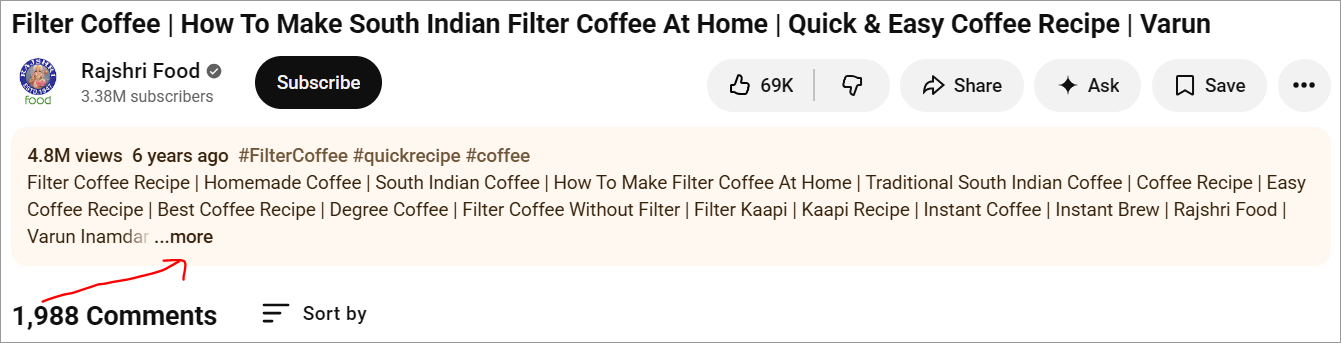
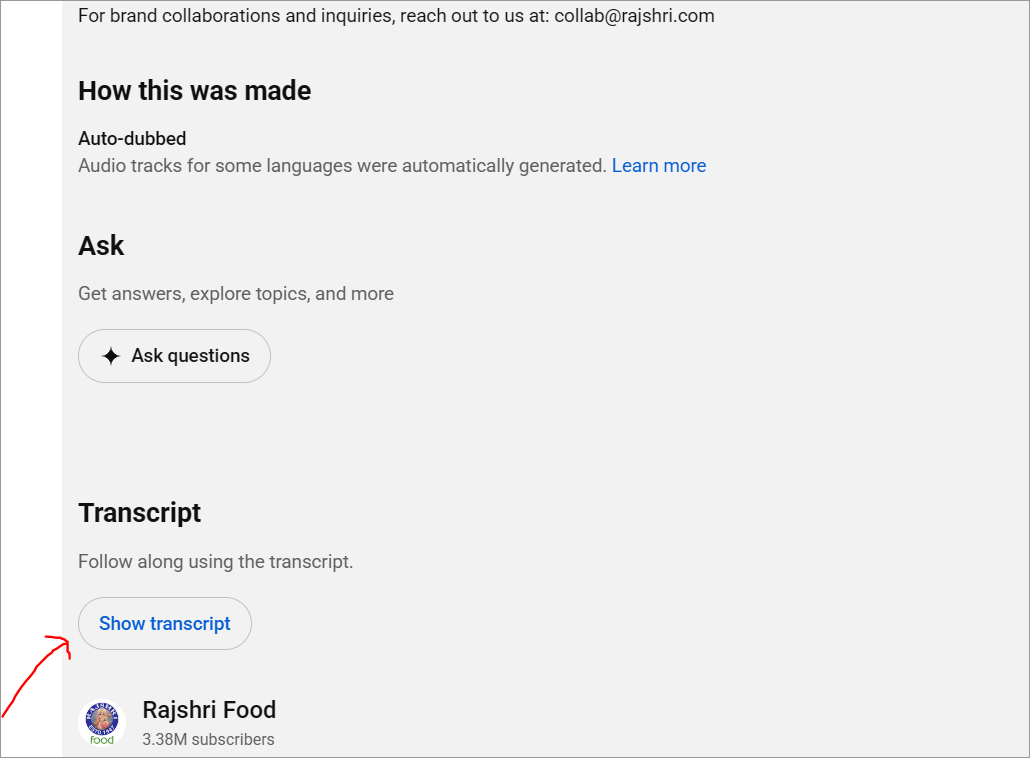
- Scroll down to the bottom and tap Show Transcript.
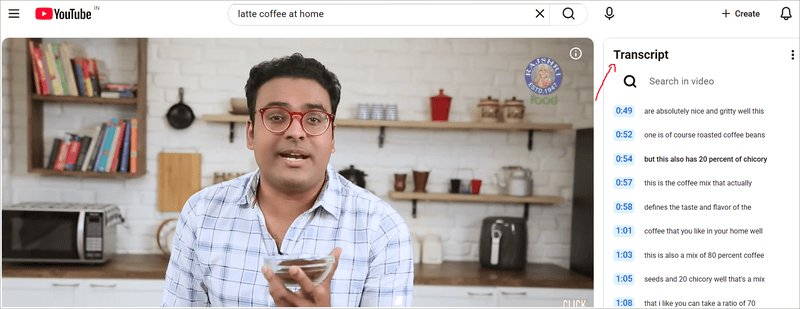
- On the right side, you will find timestamps.
- Finally, select the transcript and copy the text to paste it into a Word doc or any other editor of your choice.
Method 4: Manual Transcription (No Tools, Just a Media Player)
Another method to transcribe is the manual one without any tools, using just a media player. In this method, one needs to listen to an audio file and type what they hear. Although time-consuming, this method gives complete control over the transcript and does not require the end-user to upload any video anywhere on the web.
So, how to get a transcript from an MP4 without any tools?
Well, follow these steps to get a manual transcript from a media player. Here we are taking an example of VLC media player.
- Choose the piece of audio you want to transcribe. Keep a Word document open where you can write the text.
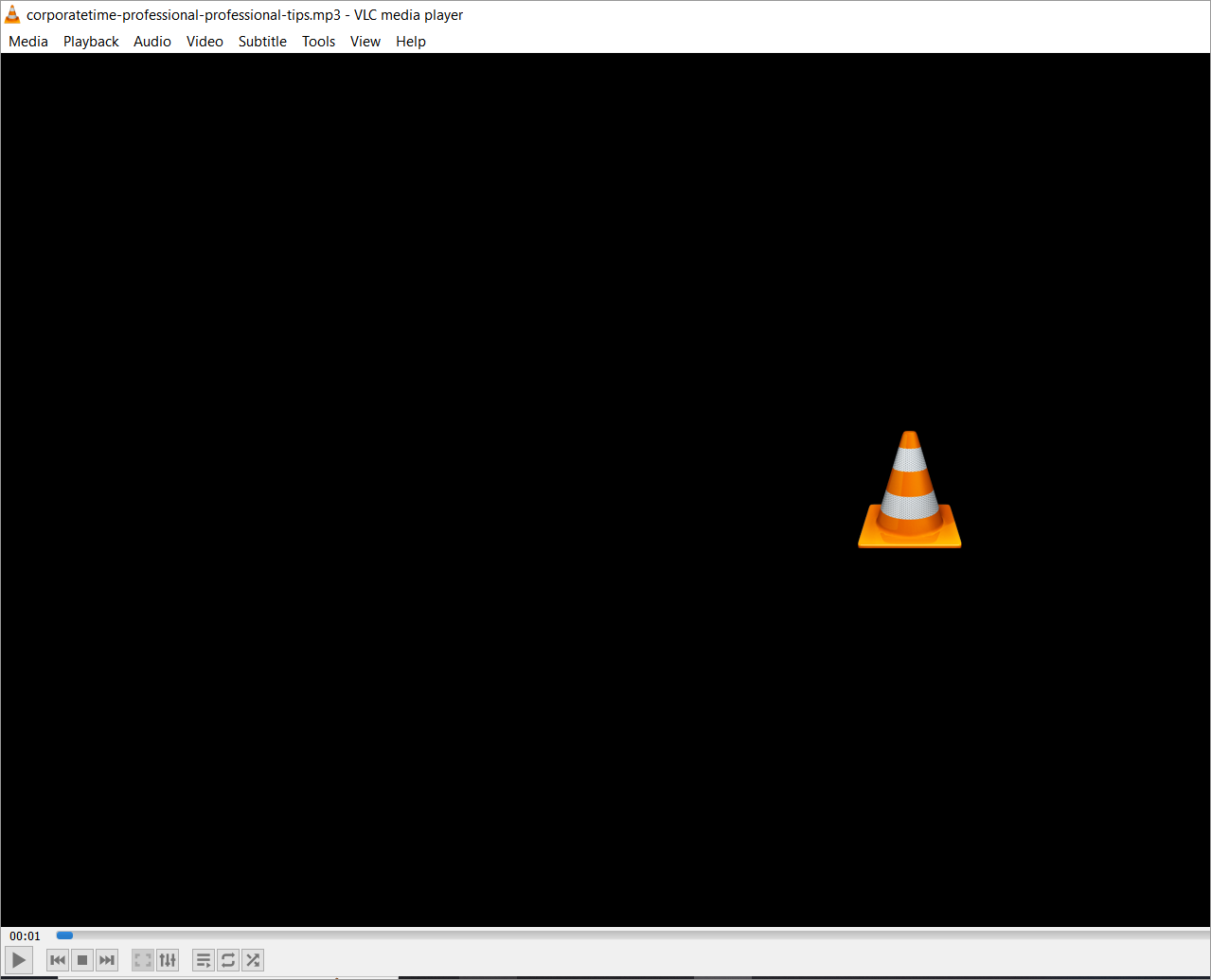
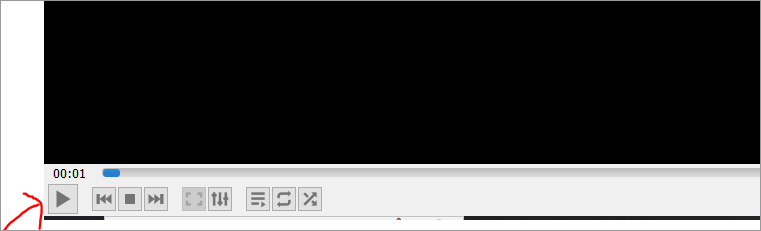
- Start the media and pause in between to write the words you hear.
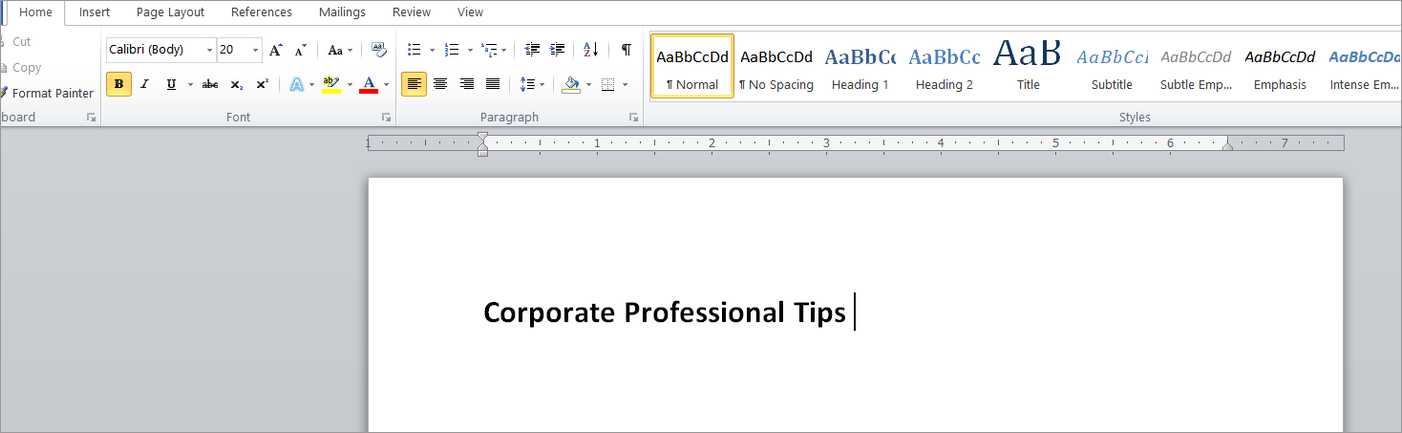
- Continue the process till you complete the whole transcription and you’re done.
Method 5: Desktop Transcription App
Desktop transcription app is yet another way by which you can convert an MP4 to transcript.
Here is how you can transcribe your video files easily:
- Use an open-source local app such as Vibe or Buzz on Windows or Mac.
- Once you start the app, choose your preferred AI speech model size, which can be tiny, base, or even large.
- Drag and drop your video file directly.
- Tap the Transcribe option, which will process your file locally without sending it to the web.
- Finally, export the transcribed notes once done.
Method 6: Mobile Transcription – Android & iPhone
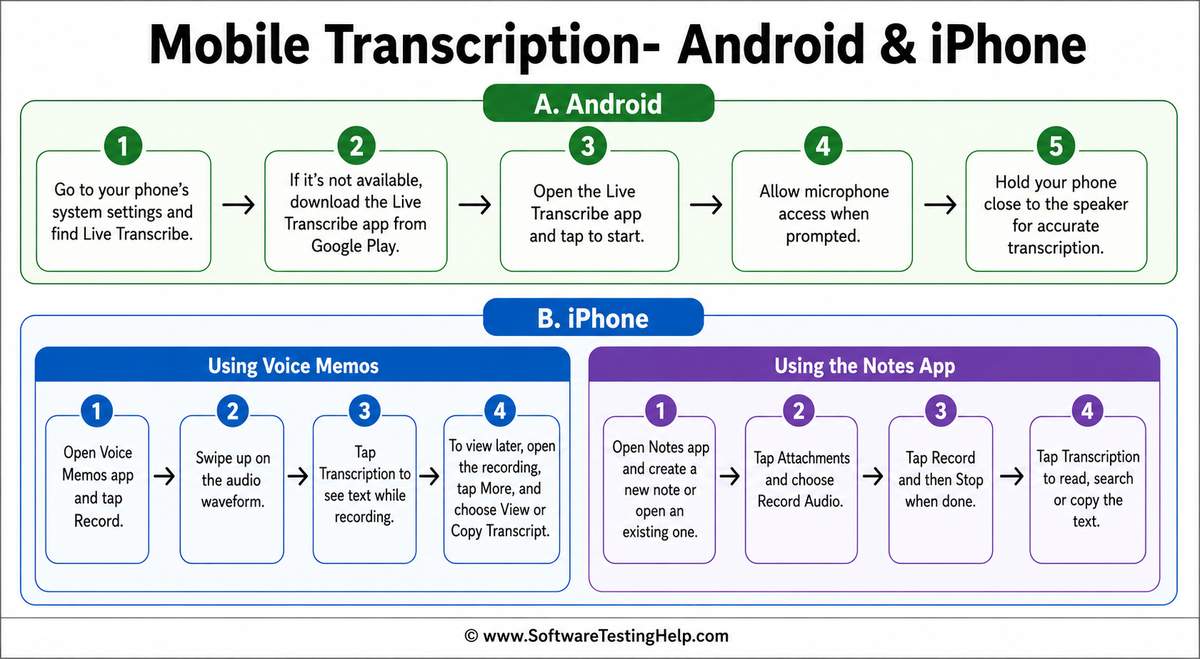
Another method to convert an MP4 to transcript is using your Android or iPhone. This is an ideal option for those who do not have access to laptops at the moment or want to transcribe a recording on the go.
#1) Android
On the Android mobile, if you have a Pixel phone with you, go straight to the Pixel section.
- In your phone system settings, look for Live Transcribe.
- If the app is not available, go to Google Play and download the app.
- Open the Live Transcribe app and tap on it.
- Allow microphone.
- Hold your phone closer to the voice you want to capture.
#2) iPhone
Transcription can be done with the iPhone using built-in apps such as Voice Memos and Notes.
Using Voice Memos
- Tap the Voice Memos app and select the Record button.
- Push upward from the top of the audio waveform.
- Click on the Transcription button to view the text as the recording goes on.
- If you want to access the recording later, open the Recording, choose the More button, and select View Transcript, or Copy Transcript.
Using the Notes App
- Click on the Notes app, and open an existing one or create a new note.
- Choose Record Audio when you tap on the attachments option.
- Tap the Record button and choose Stop when you’re done.
- Click on the Transcription button to read, search or even copy the text generated.
Method 7: Google Docs Voice Typing
Google Docs voice typing is yet another effective and free tool alternative to MS Word.
Here is how you can get started:
- Open Google Docs and create a new document.
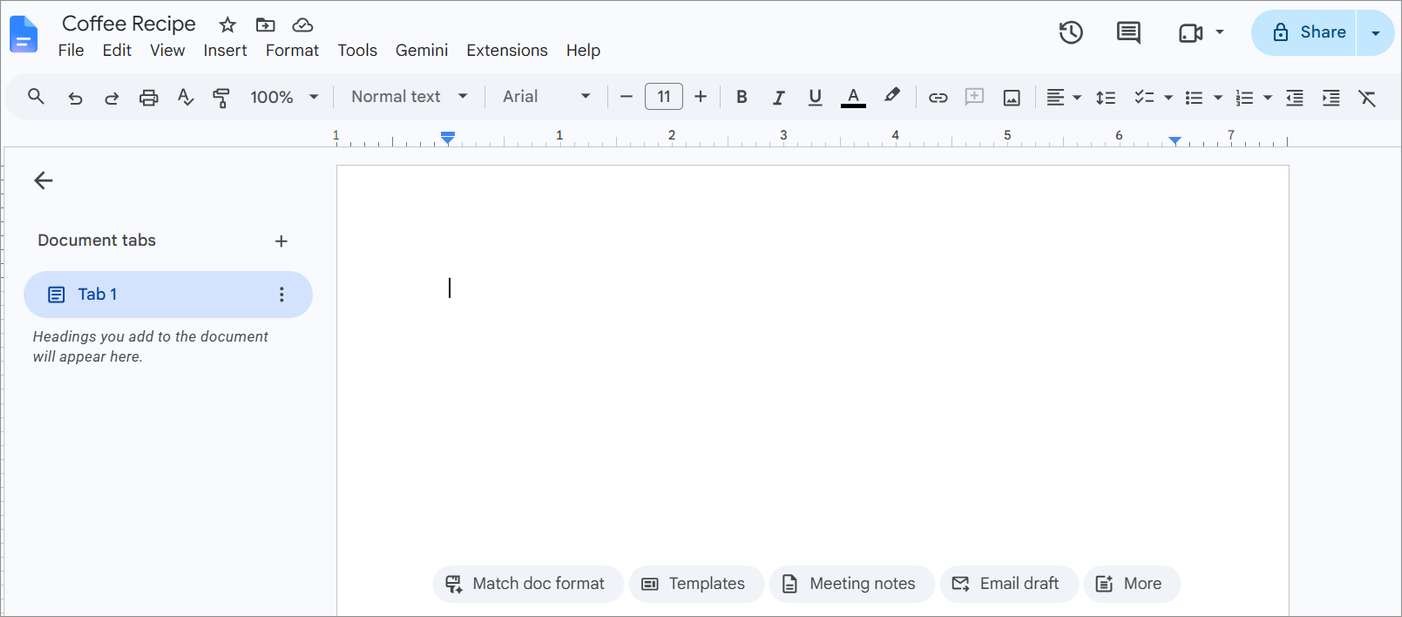
- Go to Tools and choose the Voice Typing option.
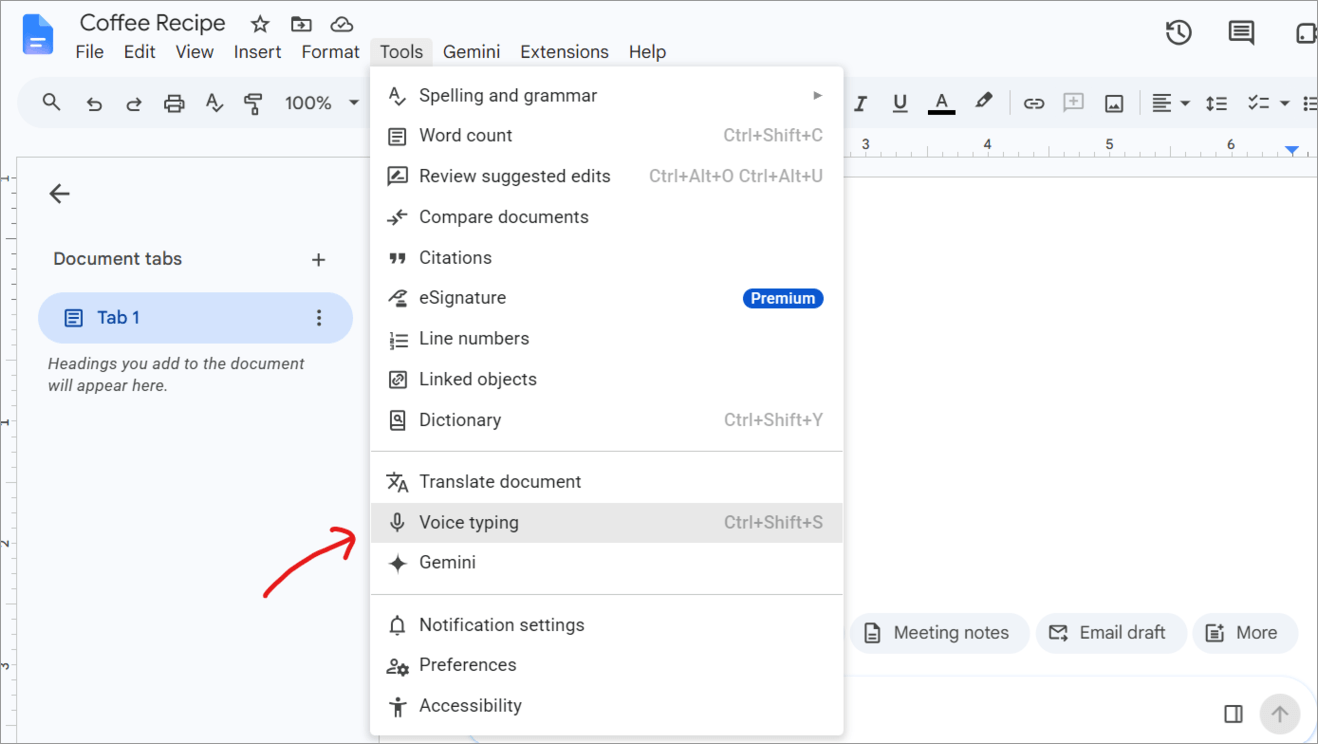
- Tap the microphone icon to begin recording.
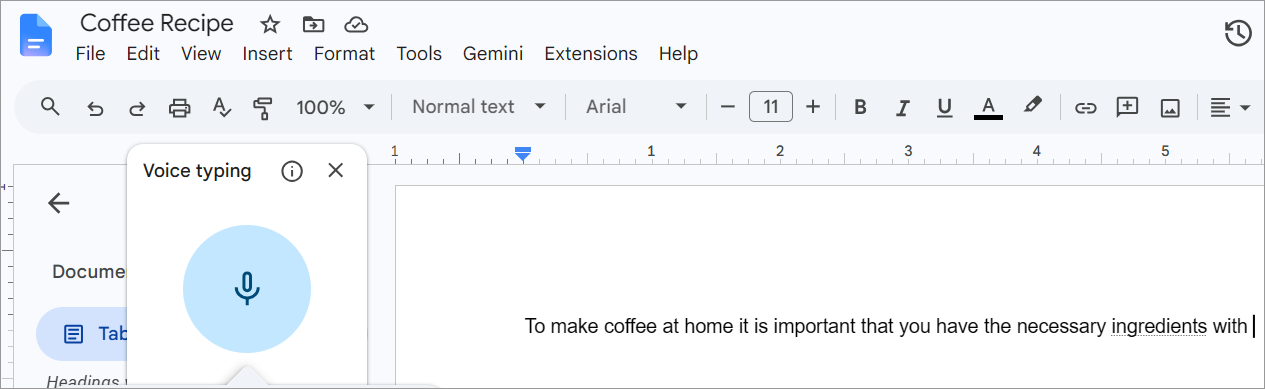
- Google Docs will convert the spoken words into written format.
- Stop the recording once you’re done.
- You can review and correct the transcript for accuracy.
MP4 to Text Converter: A Quick Comparison
| Method | Cost | Speed | Speaker Labels | Timestamps | Export Options |
|---|---|---|---|---|---|
| Free online AI Transcription Tools | Free, can also have some paid options for advanced features | Fast | Usually available | Usually available | TXT, DOCX, PDF, SRT, VTT |
| Microsoft Word Transcribe | Paid version of Microsoft 365 | Fast | Yes | Yes | Word document |
| YouTube Captions | Free | Fast | No | Yes | Copy/ paste |
| Manual Transcription | Free | Slow | Manual | Manual | Any text format |
| Desktop Transcription | Free & Paid (both) | Fast | Depends on software | Usually available | TXT, SRT, VTT, etc. |
| Mobile Transcription | Free & Paid (both) | Fast | Depends on app | Depends on app | Depends on app |
| Google Docs Voice Typing | Free | Slow–Moderate | No | No | Google docs/ text |
Free vs. Paid: When You Need a Paid Transcription Tool
For short MP4 files, MP4 to transcript free tools are enough. However, paid transcription tools work well when you consistently need higher-volume transcription, strict data privacy, advanced editing, multi-speaker identification, or additional export options.
When Is A Free Tool Enough
- You transcribe videos occasionally.
- You only have a single, clear speaker devoid of background noise.
- You need the transcription for personal use where minor errors in translation are not an issue.
- You do not need advanced collaboration or editing tools.
- You do not mind downloading, copying, or pasting text manually into other apps.
When to Use a Paid Transcription Tool
- You regularly transcribe large volumes of videos that are longer in length.
- You have multiple speakers and need distinct speaker labels.
- You are responsible for highly confidential data ranging from corporate, medical or legal information.
- You need accurate timestamps or certain export formats such as SRT and VTT.
- You want to save time by avoiding extensive corrections.
Mentioned below are some of the paid transcription tools that you can use based on your needs:
Remember, if you transcribe MP4 files occasionally, use free tools to get started. However, if your needs extend beyond these and you regularly transcribe large volumes of videos into text, a paid tool might be a better option for you.
Should You Extract Audio From MP4 Before Transcription?
In most cases, no. If the transcription tool you’re using accepts MP4 files, you can go on and upload the video directly. However, audio extraction can be helpful if the platform does not support MP4, has a file-size limit, or if it’s a very large video where you only need the spoken content.
When Should You Choose TXT, SRT, VTT, or DOCX?
The best format depends on what you wish to do with the generated transcript. You can choose TXT for simple and searchable text along with easy copy-pasting. Select SRT if your goal is to have subtitles that work across video platforms.
VTT is better suited for purposes such as video players or certain online content. When you want to edit, format, review, or share the transcript, use DOCX.
Tips for a More Accurate Transcript
If you want to have a more accurate and clear transcript, keep the following points in mind:
- Minimise background noise and place the microphone closer to your mouth so that the words are clear.
- Use good-quality recordings since it produces more accurate results.
- Record in a small room as it will reduce the chances of echo.
- Make sure that multiple speakers are not speaking simultaneously.
- Rewind or replay sections that you have missed to ensure you’re getting the right text while manually transcribing.
- Proofread the entire transcript and correct any mistakes, if any.
Frequently Asked Questions
1. How can I convert an MP4 to a transcript for free?
You can convert an MP4 to a transcript for free using online AI tools by extracting captions from the video if someone has already uploaded it on YouTube or by manually transcribing it.
2. Can AI transcribe a video?
Yes, most AIs can transcribe a video by extracting the audio from it and processing the speech with the help of automatic speech recognition. It then gives readable output along with timestamps and punctuation.
3. Is Google transcription free?
Google transcription is free or not depends largely on the specific tool or service being used. For example, Google Docs voice typing is completely free, while higher-tier Google Workspace business features have their own costs and specific requirements.
4. Is Amazon transcribing free?
No, Amazon Transcribe is not completely free, although it offers certain free-tier options along with its standard pay-as-you-go pricing model.
5. Can ChatGPT do audio transcription?
Yes, ChatGPT can perform audio transcriptions with the aid of its built-in voice recording or OpenAI’s WhisperAI.
Conclusion
MP4 to transcript does’nt need to be a time-consuming process. Whether you make use of an AI transcription tool, MS Word, YouTube captions, Manual transcriptions, or Desktop app transcriptions, the best method depends on your goals and needs.
For occasional transcription work, free tools are sufficient. However, regular transcripts demand dedicated paid transcription tools. No matter the tool you use for your transcriptions, before finalising the transcripts, check for errors in the generated content.
With the right tool, you can quickly turn an MP4 into a desirable, editable, and searchable text!
Research Process: The total time involved to complete and publish this article is approximately 40 hours. This content was created through a structured research approach to ensure accuracy and reliability.
For more related guides, you can explore our range of tutorials below:
- Top 15 Best Transcription Software (Audio/Video to Text)
- Notta Review: One-stop Solution for Speech-To-Text Transcriptions
- 15 Best YouTube Subtitle Downloaders to Download Subtitles
- 15+ Best Video To MP4 Converters (Updated List)
- Top 5 Online Free AVI To MP4 Converters
- Top 11 WebM To MP4 Converter Software [UPDATED LIST]
Was this helpful?
Recommended Reading
-

Read this review and comparison of the top Video to MP4 Converters including features and pricing, to convert video to MP4 format: Videos are not only pixels moving on the screen, as there is a vast mechanism that runs in the background, and each format has a different way of…
-
Learn about top MOV To MP4 Converters with pricing, comparison, and steps to convert .MOV to MP4 using the best converter online: MOV is undoubtedly one of the most popular media formats for Apple devices. It is a format that is exclusive to the Apple brand, so much so that…
-
Here is a list of the top Instagram to MP4 HD Video Downloader with comparison. Learn how to convert an Instagram video to MP4 Downloader from this exclusive review: Instagram does not allow you to download a video directly to your device. Instead, you can take the help of an…
-
This tutorial reviews the top YouTube to MP4 Converter Tools with comparison and pricing to help you convert YouTube Videos to MP4 online: YouTube to MP4 converter software allows you to download and convert YouTube videos online. Using the tool is ideal if you want to watch videos without glitches…