Are you looking for breakout rooms in Google Meet? Learn how to create, manage and run Google Meet breakout rooms from our step by step guide to boost engagement in your virtual meetings:
Ever thought and secretly wished you could split large meetings into smaller groups for focused discussions or brainstorming?
Well, Google Meet breakout rooms help users solve this issue seamlessly. Amazingly enough, this feature enables the host to split an ongoing Google Meet session into up to 100 separate breakout rooms.
Also, a Google Meet meeting can have up to 25 co-hosts who also get moderation control across any breakout rooms created.
Can You Do Breakout Rooms In Google Meet?
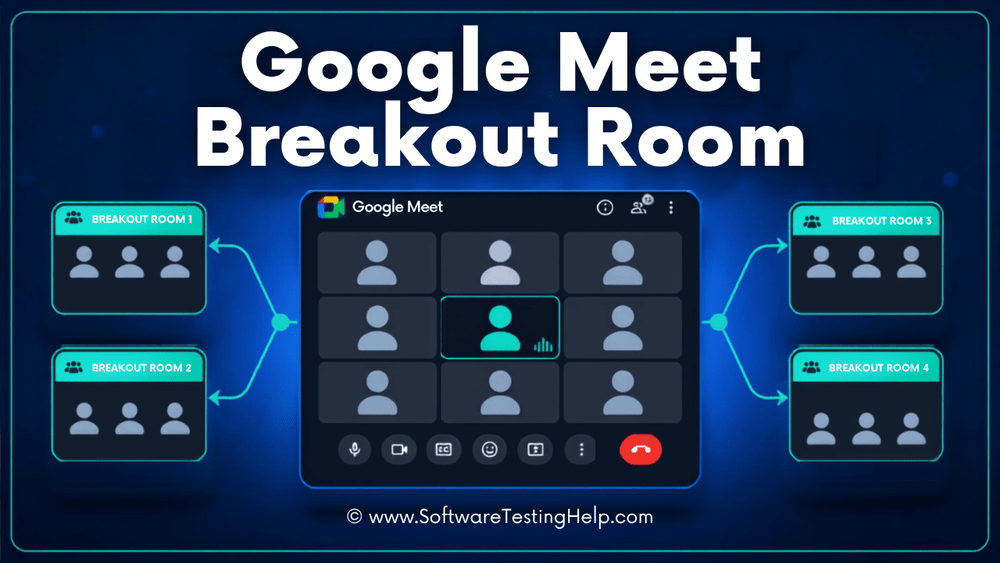
Surprisingly, Google Meet does not have a limit on participants per room. This means that no matter the number of people in the main meeting, it simply splits them across breakout rooms. Here, hosts or co-hosts can assign participants to one room or divide them evenly based on their choice.
From virtual classrooms and online teaching to organizing multiple group activities, this feature helps enhance engagement, communication, collaboration, and productivity.
The best part?
Once the activity is complete, users can return to the main meeting to share their insights and discuss further on the same topic.
Well, let’s delve deeper and understand what breakout rooms are in their entirety, how it functions, and how you can create breakout rooms in your Google Meet sessions for improved collaboration.
What are Google Meet Breakout Rooms?
Breakout rooms in Google Meet refer to the feature wherein the host can split any meeting into smaller groups in order to have more focused and collaborative activities. In this, each of the separate rooms functions as an independent meeting session under the main session, where participants can share their ideas and opinions without disrupting the other meeting.
An immensely valuable feature, it offers focused spaces to participants, making corporate meetings, online classes, and training programs more meaningful. However, it is important to understand that breakout rooms are only functional with paid Google Workspace accounts.
Here is the video guide on how to use Breakout rooms in Google Meet:
Benefits of Google Meet Breakout Rooms
Google Meet breakout rooms is an interactive tool that provides users with a focused discussion space.
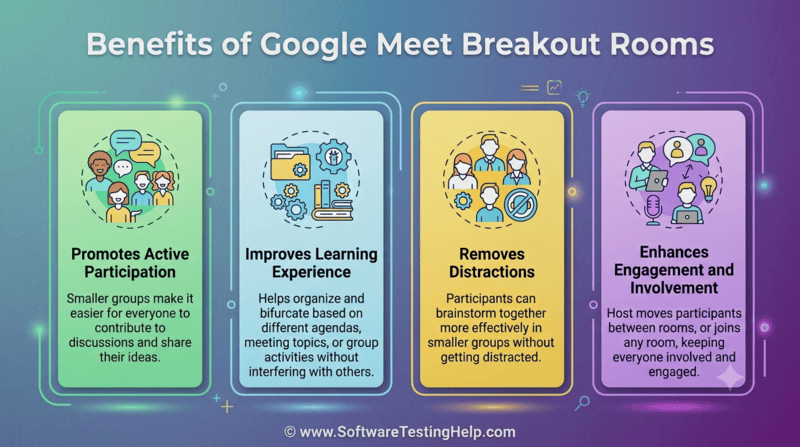
Here are some of the key benefits of this Google Meet feature:
- Promotes active participation since smaller groups make it easier for everyone to contribute to discussions and share their ideas.
- Improves the learning experience since it helps organize and bifurcate the breakout rooms based on different agendas, meeting topics or group activities without interfering with the other breakout rooms.
- Removes distractions since in smaller groups, participants can brainstorm together more effectively without getting distracted.
- With the host being able to move participants between different breakout rooms or join any breakout room for discussion, this feature keeps everyone involved and engaged at the same time.
Requirements to Use Google Meet Breakout Rooms
Before you create or join a breakout room in Google Meet, you need to fulfill certain prerequisites.
You can be a part of the breakout room if:
- You use an updated version of the mobile Meet or Gmail app, or use a computer.
- You join the meeting with your mobile phone.
- You were invited to the Google Meet session with a phone call.
- You are signed into a Google Workspace edition such as:
- Essentials
- Business Standard
- Business Plus
- Enterprise Starter
- Enterprise Essentials
- Enterprise Standard
- Enterprise Plus
- Education Plus
- Teaching and Learning Upgrade
- Workspace Business
- Nonprofits
- Workspace Individual Subscriber
- You’re using Meet Hardware.
How to Set Up Breakout Rooms in Google Meet?
Once you’re aware of the requirements, you may be wondering how to create breakout rooms in Google Meet?
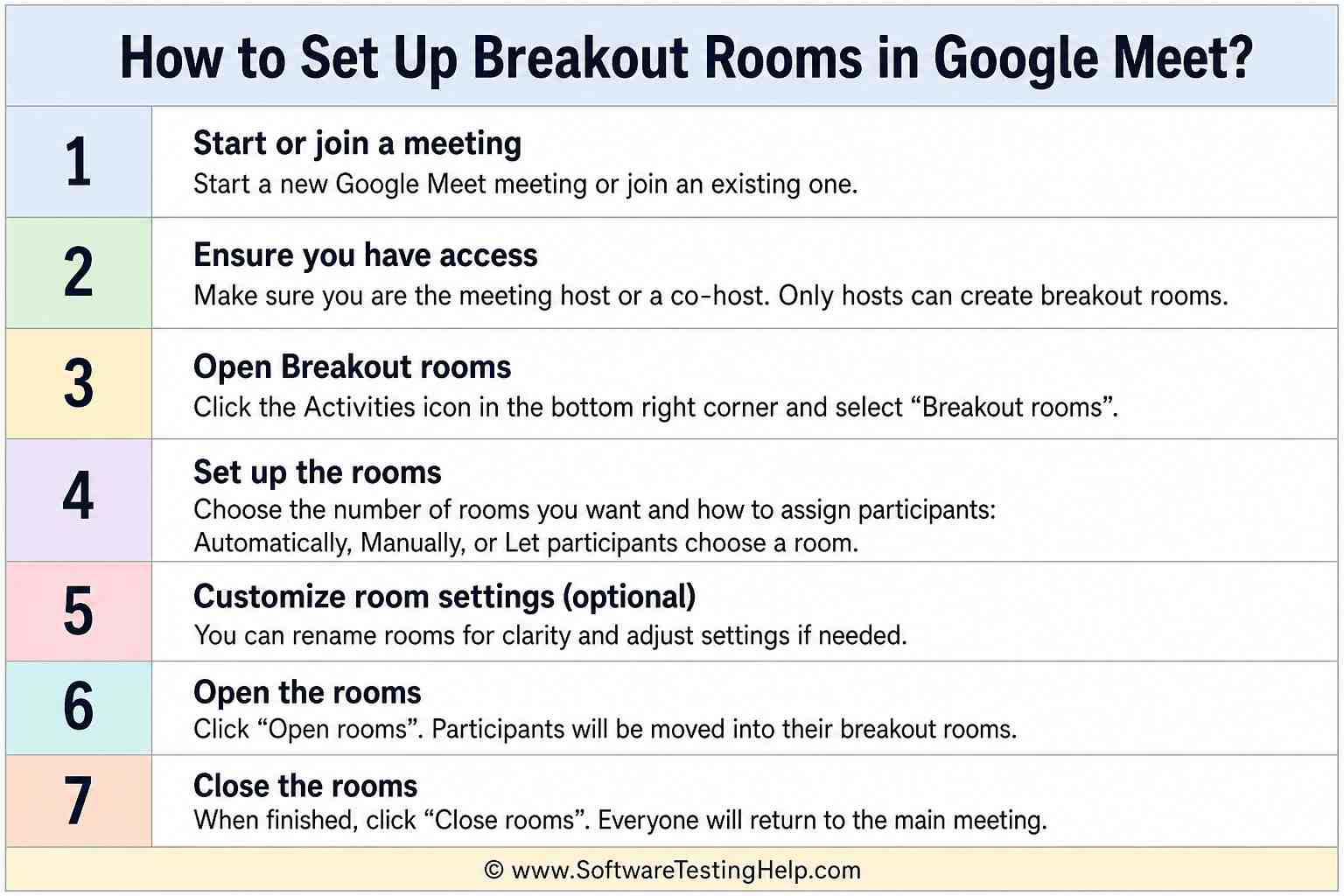
Well, follow these simple steps to set up breakout rooms during live meetings:
1. In the bottom right corner of your Google Meet, tap the activities icon.
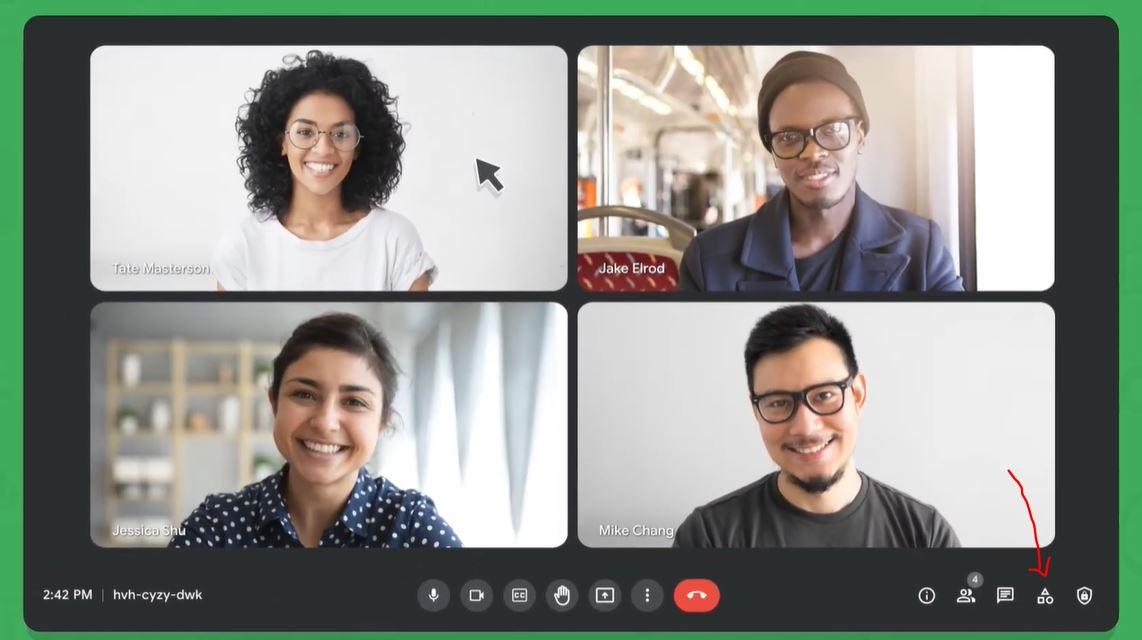
2. From the pop-up menu, select Breakout Rooms.
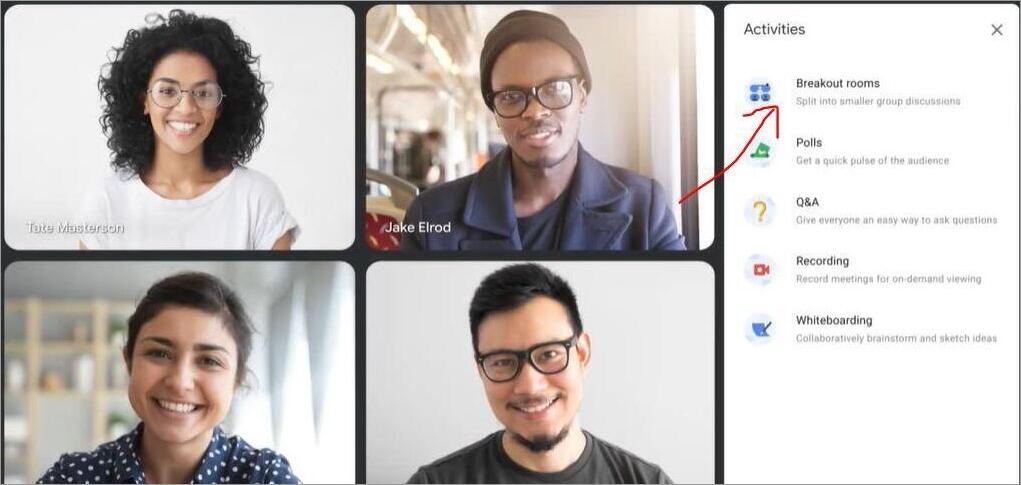
3. Here, you are allowed to choose the number of rooms you want to create.
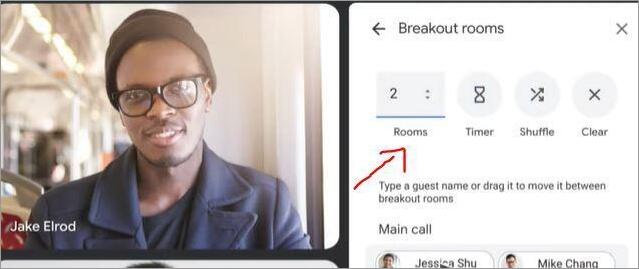
4. You can assign participants to each of the rooms you have created.
5. Add the names to the created breakout rooms through the list.

6. You can also drag and drop the names of the participants.
7. Tap on the Shuffle icon to automatically assign participants to the rooms.
8. If you want, you can also set a timer for 5, 10, or 30 minutes if you wish to have control over the session length. Once the time is up, there will be a mandatory 30-second countdown in each of the breakout rooms, after which participants will automatically return to the main meeting.
9. To activate, choose Open rooms to start the breakout room sessions.
If you want to pre-assign breakout rooms through Google Calendar, follow the steps below:
1. Open your Google Meet calendar to create a new event.
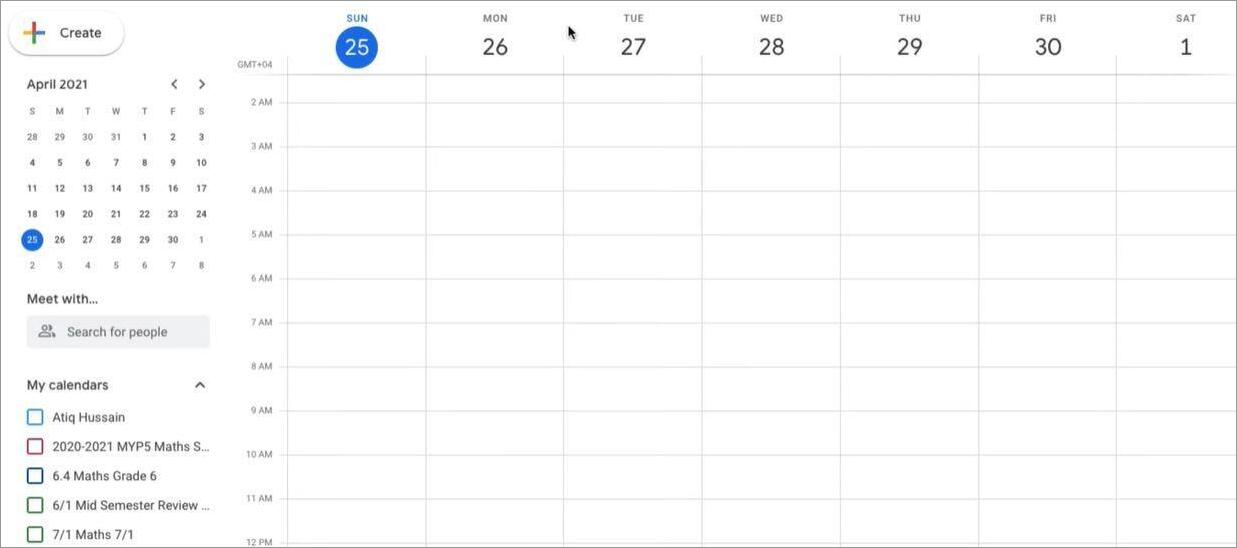
2. Tap Add Google Meet video conferencing and add participants.
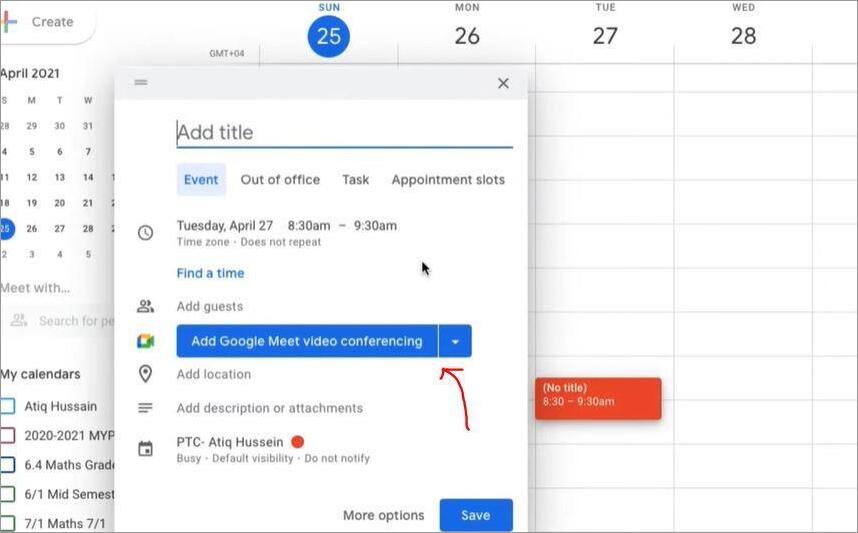
3. Click on Change conference settings.
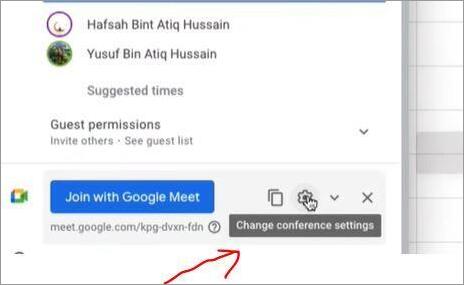
4. Tap on Breakout rooms on the left.
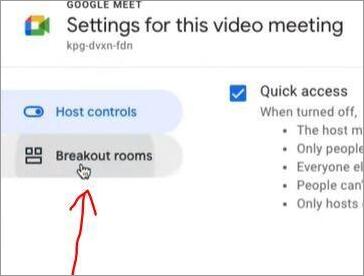
5. Select the number of breakout rooms you want to create.
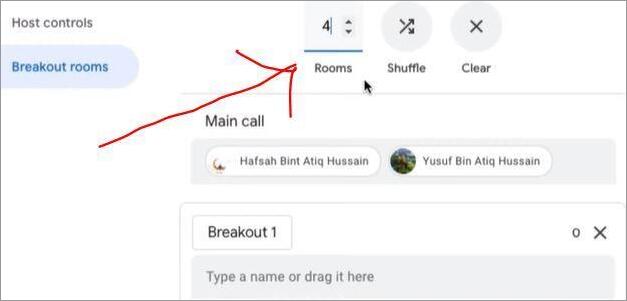
6. Assign participants to groups by either shuffling, entering names directly, or dragging their names.
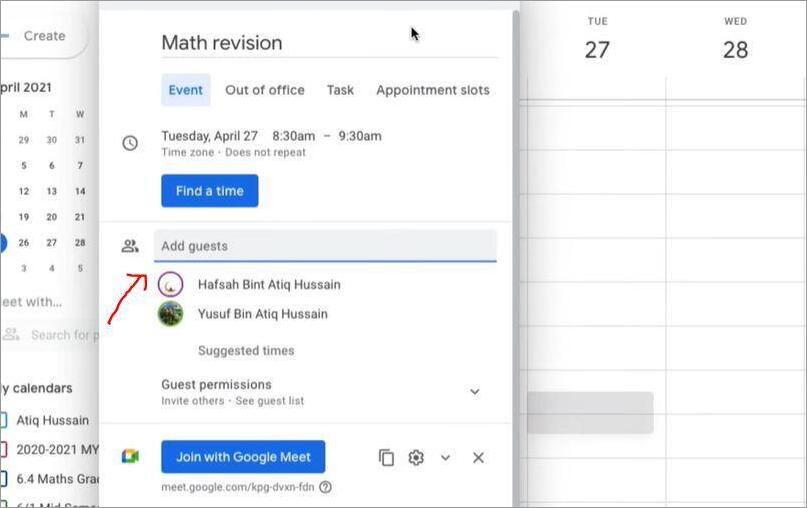
7. Tap on the Save icon and save the calendar event.
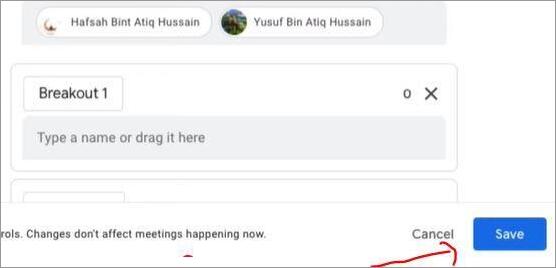
8. Here, if you wish to make edits in an existing link, you need to open the same link on Google Calendar and choose the Edit event option.
9. Tap on Change conference settings.
10. Select the breakout room present on the left side.
11. Follow the same process for selecting the number of breakout rooms while assigning the participants to each room.
12. Finally, click on the Save button.
If during the meeting, you want to or callout, you can follow these simple steps:
- Tap on Activities in the Google Meet window.
- Choose Breakout rooms.
- Select the participant you wish to move.
- Drag and drop their name into the chosen breakout room.
- The concerned participant will get a prompt to join the following breakout room.
- After they accept the invitation, they will be assigned to that particular breakout room.
Managing Breakout Rooms as a Host
One of the effective Google Meet breakout room features is that once the meeting is live, hosts and co-hosts get complete control over how they wish to manage the rooms.
Here are some of the key actions that hosts can perform in a breakout room:
- Create breakout rooms from 2 to 100.
- Join any ongoing breakout rooms to discuss, answer, or provide guidance.
- Drag and drop participants to any of the breakout rooms or make them to a different breakout room from the current one.
- Send important updates or make announcements across the different breakout rooms.
- Add a timer to the breakout rooms so participants know how much time is left before they will be redirected to the main meeting.
- Edit the names of the breakout rooms or change the number of rooms created.
- Pre-assign breakout rooms via Google Meet calendar.
- Keep track of the breakout room activity and track the overall progress.
- End the breakout rooms, wherein each of the participants gets notified about the breakout room countdown.
Steps to Join a Breakout Room As a Participant
Once the host creates Google Meet breakout rooms, as a participant, you will receive an invite to join the assigned rooms.
This is how you can do it:
- Sign in to your Google account.
- Join the meeting link through the Meet Mobile App or your computer.
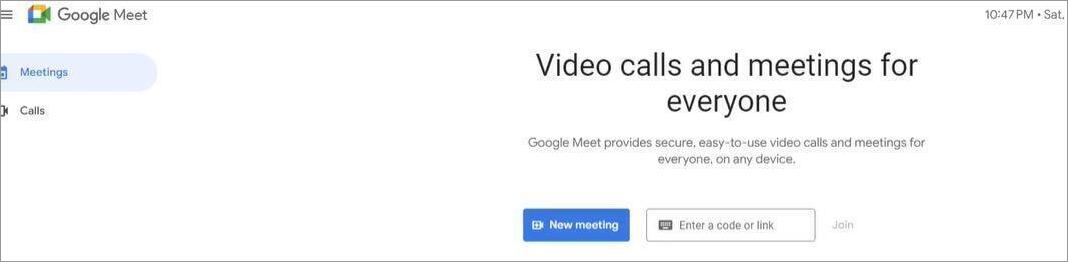
- When you get invited to any of the breakout rooms, you need to tap on the Join icon to be a part of the assigned breakout rooms. This will be through a link. Also, if you click Cancel, you will remain in the main room.
- Once inside the breakout room, you are allowed to send chat messages or speak to other participants.
How to Actually Run a Good Breakout Session
If you wish to run a good Google Meet breakout session, focus on the following practices:
- Keep Groups to 3-6 Participants: Smaller groups help everyone have a productive discussion wherein each participant can contribute.
- Assign a Facilitator per Room: By assigning a facilitator in each breakout room, you can keep the group on track and ensure that all the essential points are covered.
- Set Clear Expectations at the Beginning: Explain the objective, discussion topic, and other details of the meeting before sending the participants to the breakout rooms so that the end goal is clear to them.
- Broadcast a Time Warning: Send a message to all the breakout rooms at least 5 – 10 minutes before the end of the meeting session so that they can wrap up, record key points, and get ready for the main discussion.
Troubleshooting Common Issues in Google Meet Breakout Rooms
If Google Meet breakout rooms are not working or not showing up, it may be because of one of the following reasons:
#1) Breakout Rooms are Not Working
- Usage of Wrong Account Types: If you are using the free personal version of Gmail accounts, then you cannot make use breakout rooms since it does not support them. Make sure you have a paid Google Workspace edition to get started with breakout rooms.
- You’re not the Host: If you are not the host, co-host, or the meeting creator, you will not be able to see or manage the breakout rooms.
- Weak Internet Connection: If there is a glitch in your internet connection, then breakout rooms might not work. Refresh the meeting or reconnect through a stable network.
- Outdated Browser or App: If you are not using the latest version of the app or the browser, then breakout rooms might not work. You must update the Google Meet app or use the latest version of Google Chrome to get started.
#2) Google Meet Breakout Rooms Not Showing Up
- Restrictions by your Admin: It may be that the breakout rooms are being disabled by your administrator. You can contact them to enable them.
- Feature not Available: If you’re using the free version, then the breakout room option will not be visible.
- Unsupported Browser or App: Using an outdated version of the browser or an app can lead to the non-visibility of the breakout rooms. Make sure you are using the latest version to avail of the breakout room feature.
Frequently Asked Questions
1. Are breakout rooms in Google Meet free?
No, the breakout room feature is a paid feature and is only available to those hosts who are using eligible paid tiers. However, participants with a free account can still be part of the breakout room if they are invited by the host who is using the paid version of Google Workspace.
2. Can you set up breakout rooms in Google Meet in advance?
Yes, you can set up breakout rooms in Google Meet in advance if you’re using an eligible Google Workspace edition. This can be done in Google Calendar, where you need to create a link, click Add Google Meet video conferencing, and add the participants.
Click on Change conference settings, and select Breakout rooms on the left. Choose the number of breakout rooms you want to create. Assign participants to groups by either shuffling, entering names directly, or dragging their names. Tap on the Save icon and save the calendar event.
3. Can the host see you in breakout rooms?
No, hosts can not watch or listen in on the breakout rooms from the main call. If they want to be a part of that breakout room, they need to manually join it to hear the conversation.
4. Can Google Meet Record Breakout Rooms?
No, currently Google Meet does not have the feature of live streaming or recording. Even in a high-tier paid workspace, where there is a recording option for the main meeting space, participants or co-hosts cannot start a recording from an individual breakout room.
Conclusion
Google Meet breakout rooms are an interactive video conferencing tool that promotes focused discussions and collaboration. From setting up the breakout rooms in Google Calendar in advance to managing them during the live sessions, understanding this feature allows the end-user to make meetings more organized and engaging.
By following simple yet effective steps outlined above, you can take full advantage of this interactive feature and make your meeting experience one of a kind.
Research Process: The total time involved to complete and publish this article is approximately 37 hours. This content was created through a structured research approach to ensure accuracy and reliability.
For more related guides, you can explore our range of tutorials below:
- Top 10+ Video Conferencing Software (Rankings)
- The 15 BEST Virtual Events Platform Software [TOP LIST]
- The 10 Top Webinar Platforms | Webinar Software
- 9 Omegle Alternatives for Video Chat (Safe Sites)
- RingCentral vs Zoom: What Customers Choose? Compared
Was this helpful?
Recommended Reading
-

Review and compare the list of the Best Chrome Extensions along with the features to select the must have Google Chrome Extensions: Google’s Chrome browser is one of the most popular web browsers around. Millions of users across the globe use this browser daily. This browser’s functionality can be enhanced…
-
Can you really sync two Google Calendars into one? Discover the smart and easy ways to Merge Google Calendars into one with our step-by-step guide and organize all your events like a Pro: Google Calendar is perhaps the finest, free-to-use, cloud-based time management app one can use today. Its impact…
-
In this guide, we will cover how to record Google Meet session on your desktop or Android, which features you can use on iPhone and iPad, how to record without paying for any plan, where Google Meet recordings are stored, and what to do if recording is not available. Google…
-
Review this step-by-step guide to transfer files from Dropbox to Google drive. Also, explore the top tools to save and transfer data: The need for storage services has grown by leaps and bounds in the last few years. With the growing demand for storage services, services like Dropbox, Google Drive,…