Is your xbox mic not working? This guide will help you with troubleshooting tips, easy fixes, and expert solutions to fix the Xbox Mic not working issue instantly.
In case you have problems with your Xbox mic that has stopped working all of a sudden, you should know that you are not alone in this matter. There is a great number of Xbox One and Xbox Series X/S users who experience problems when their microphones do not work while playing. There are a variety of reasons why this might happen.
These include muting of the headsets, firmware problems of the controllers, privacy settings issues, problems with NAT settings, and so on.
In this article, we will explain then causes and solutions to fix Xbox microphone not working issues.
Why Is My Mic Not Working on Xbox? Top Causes
If your Xbox mic is not working, the most common causes are:
- Muted headset
- Loose controller connection
- Incorrect audio settings
- Privacy restrictions
- Outdated controller firmware
- NAT or party chat issues
Most users can fix the issue by reconnecting the headset, updating the controller firmware, and checking Xbox communication settings.
[Via xbox.com]
No wonder that in most community reports about Xbox mic problems, customers report hearing game audio well but being unable to transmit voice, and this is a typical symptom of mic problems.
This then leads us to the purpose of this tutorial, which is to lead you through all the steps, all the possible causes and solutions of any music issues and troubles on any Xbox device.
We will take you through the causes and their solutions:
- The invisible inline mute switch and the way it destroys your voice.
- Shoulder pads, smutty contacts, crooked plugs.
- Profiles/Mis-configured controller assignment.
- Software and driver incompatibilities.
- Each OS has privacy/permission systems.
- Violent noise suppressors.
- Antivirus, exclusive mic locks, firewalls.
- The diagnostic applications/tools at your disposal.
Quick Fixes for the Xbox Mic Not Working Issue
Here is a pictorial representation of the quick fixes to try when Xbox Mic is not working.
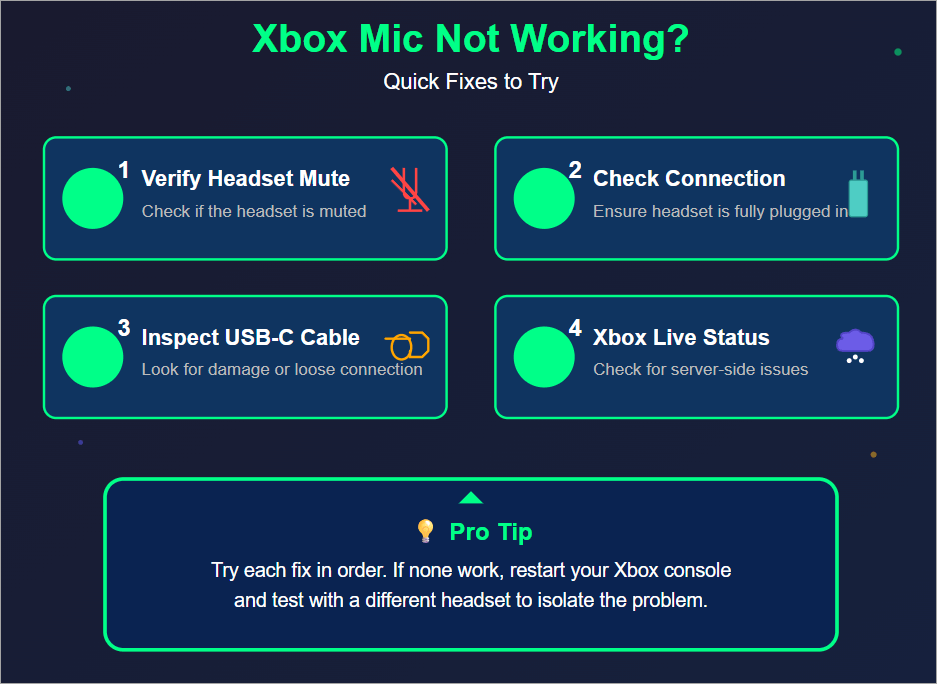
Who is this guide for?
We made this tutorial based on official and authoritative sources of Xbox guides, support, and information, such as the Microsoft support documentation, technical support sites, and community Xbox and technical forums.

The tutorial is directed at the common-level user of the Xbox device to help them solve the mic problems from the comfort of their home, single-handedly.
Nevertheless, it can also be used by rather techy individuals and expert professionals who are not indifferent towards assisting clients in troubleshooting the problem with the Xbox microphone at the professional stage.
Xbox Mic not working: Root Cause Analysis and Solutions
Enlisted below are some of the root cause issues behind the failure of the Xbox Mic along with the possible fixes for your reference.
#1) The Inline Mute Switch
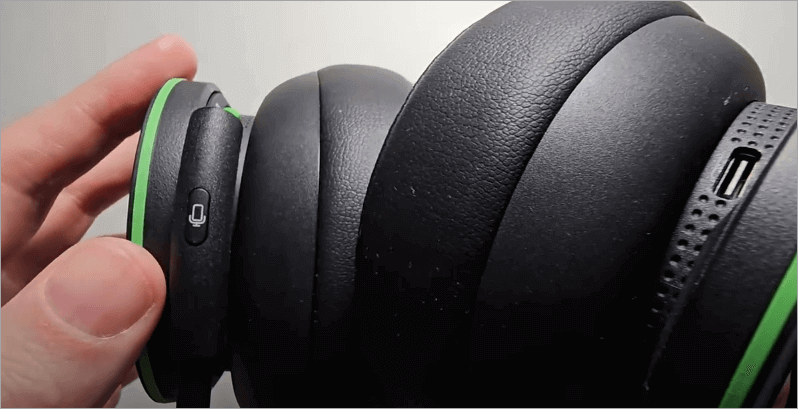
A large number of headsets comprise a small inline control module on the wire (a puck or box on the lead) containing a mute, mute volume, or other control button or slider. This holds physically as this module interrupts or grounds the muted mic signal.
The mute switch may fail to close when you want it to, or it may open by itself, preventing you from being able to use the mic at all, although you can still hear game audio.
Numerous user reports about mute switches relate to hearing others but not being heard. So if you have been struggling with that, it’s the right time to hold the problem by the horns.
To diagnose and fix this issue:
Step 1: Follow your headset wire until you come to some sort of module or bump; and that is usually the inline switch.
Step 2: The switches are to be flicked up and down (slide, press) deliberately multiple times, waiting to hear a clicking or feel a change.
Step 3: It is advisable to test after every toggle of the voice, which can be done in a party chat or by recording the voice. Sometimes, the headset will show a light on the mic once muted.
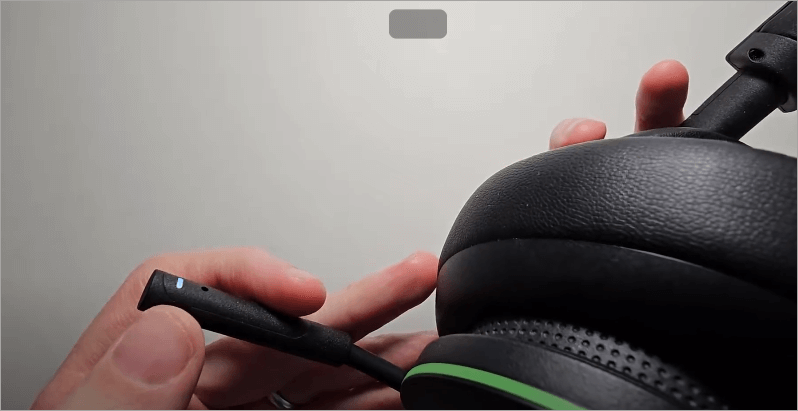
Step 4: If you feel no response at the switch or no response at all, wiggle the surrounding cable. An intermittent response is a sign that the inner wiring is faulty.
In case the module is removable, it can be replaced; however, it may be required to replace the headset or cable. Unless you take this easy test, you might pursue setting phantoms as the mute is quietly murdering your voice.
#2) Loose, Dirty, or Damaged 3.5mm Plug and Jack Contacts
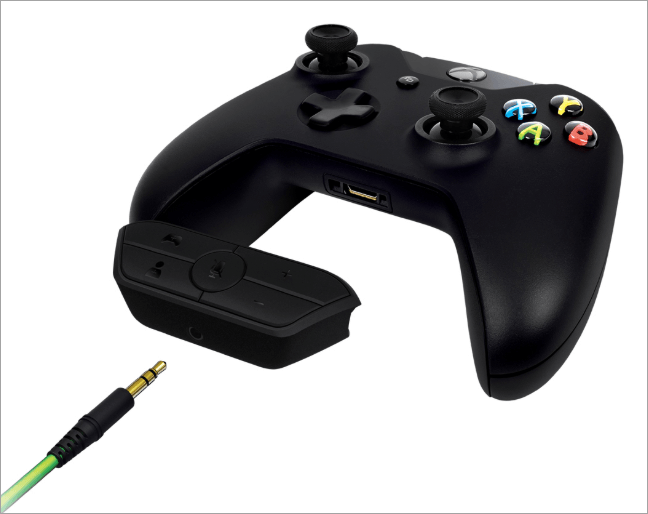
[Via computerhope.com]
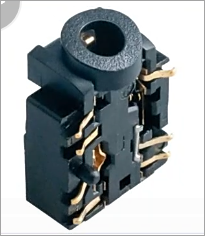
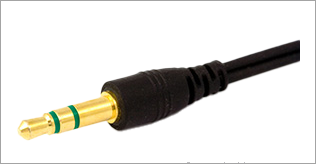
The 3.5 mm plug-headphone jack system is a mechanical, physical, contact system. Dust, lint, corrosion, or bent contacts, especially on the mic line, can break the circuit. (The jacks of controllers smear up rubbish quite readily.)
Any minimal oxidation could cause enough resistance to cause the mic signal to fall to silence. Other users have noted that the voice is temporarily restored by twisting the plug or reseating it.
[Via alibaba.com]
Remedy:
Step 1: Examine the plug and jack visually by flashlight for lint, oxidation, or bent rings.
[Via computerhope.com]
Step 2: Blow compressed air into the jack (short bursts) to loosen dust.
[Via alibaba.com]
Sep 3: Clean the plug contacts with a cotton swab dipped in 70-90% isopropyl alcohol, and allow them to dry completely.
Step 4: Still push the plug firmly until it “clicks” and twist some more, trying it.
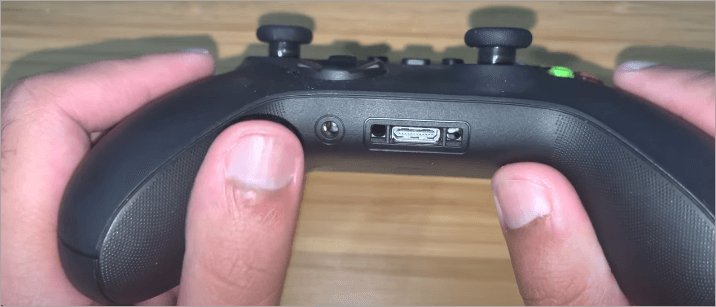
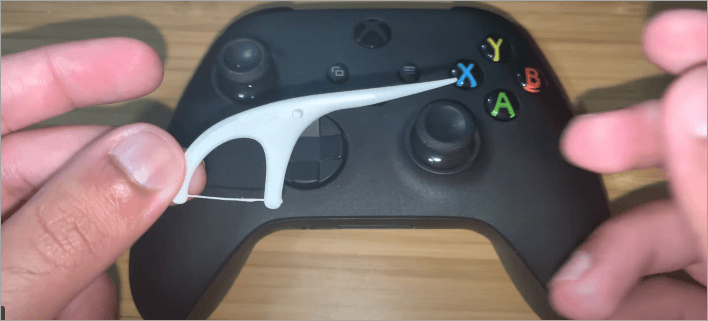
Step 4: Insert the headset into a phone/PC when testing the microphone’s behavior. When it operates but not in the console, it is probable that the controller jack is faulty.
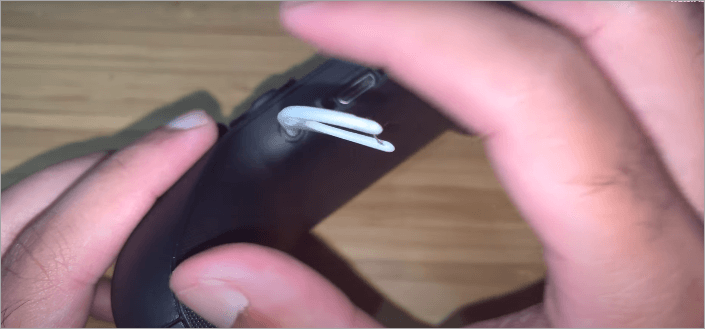
Step 5: In case the jack is broken, repair/replace the audio port of the controller (or the controller itself).
This is a check that is done at the hardware level, and it fixes 30-40 percent of complaints about the mic.
#3) Controller Assignment to a Profile and the Configuration of a Profile
Xbox consoles consider controllers to be bound to profiles; the voice system relies on this binding to forward voice. In case a controller is not assigned, voice input could be neglected.
This is one step that many users forget and question why all other things appear to be okay, but the mic does not. The solution to the problem was explicitly going to the Accessories settings and reassigning the controller in community threads.
How to resolve:
Step 1: The first thing to do is to press the Xbox (Guide) button and make sure your avatar/profile is active.
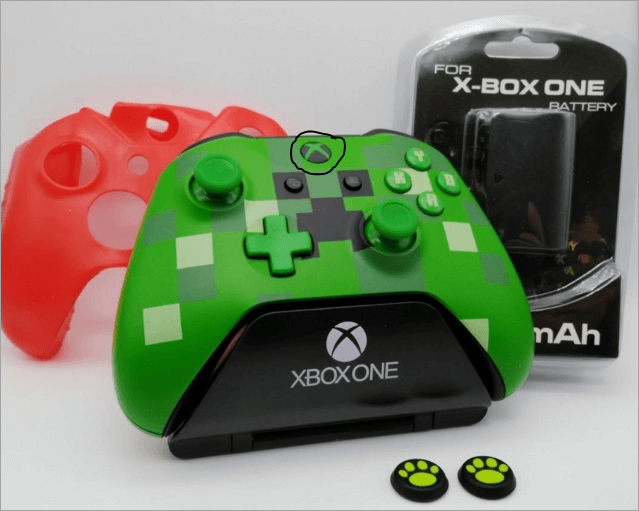
[Via Carousell]
Step 2: In case the controller is not assigned to your profile, press the Xbox – Sign In and select your profile.
Check the video below to know how to assign Xbox Controller to an account to sign in automatically:
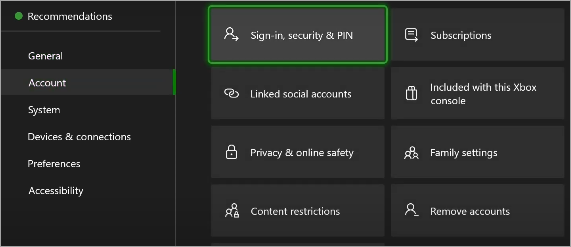
Step 3: Go to Profile and system -> Devices and connections -> Accessories and select the controller, making sure it belongs to you.
Given below is the image of the Controllers & Headsets option:
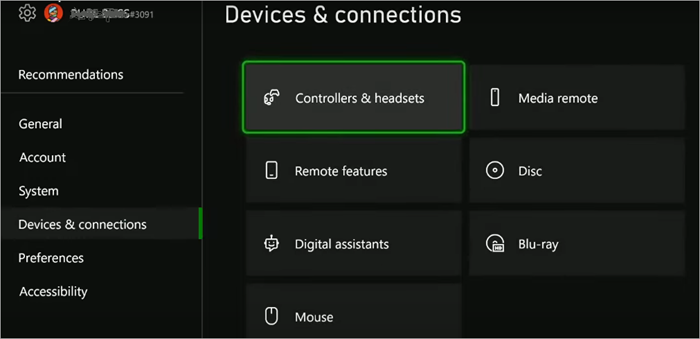
“This Controller signs in nobody” option is shown below.
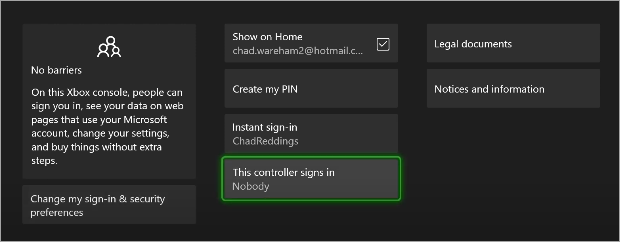
Link Controller button is depicted in the image below:
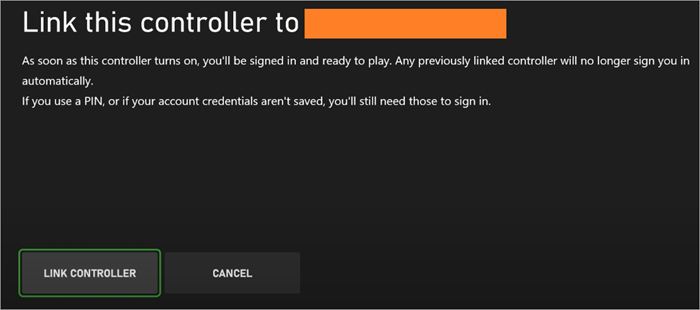
Step 4: Switch the controller on and off (wait a moment and switch it on again).
Step 5: Voice chat test-retest.
If it still fails, reassign, reset the controller, then retest.
The issue of the microphone working inconsistently is often resolved this way for many users.
#4) Firmware or Driver to the Controller or Headset Being Unpredictable
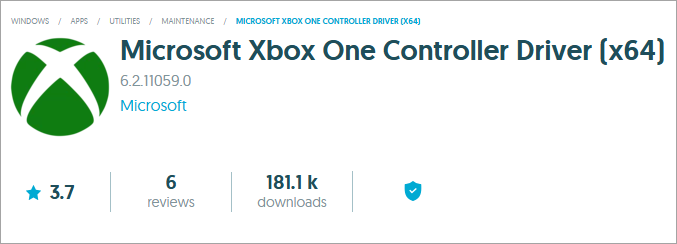
The controllers and headsets of the present day have firmware inside of them, which is software that governs the internal operation, such as audio routing, signal gain, and feature selections. Stale or corrupted firmware can do this without leaving any trace.
It is a common occurrence to report that following console updates, the older firmware will fail to be compatible, and that the mic stops working.
How to fix that:
Step 1: Select the Xbox Accessories application (on a console or a PC) to monitor the current firmware status.
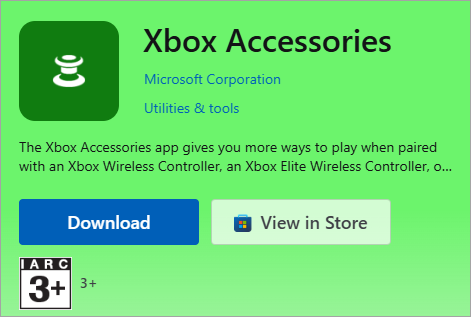
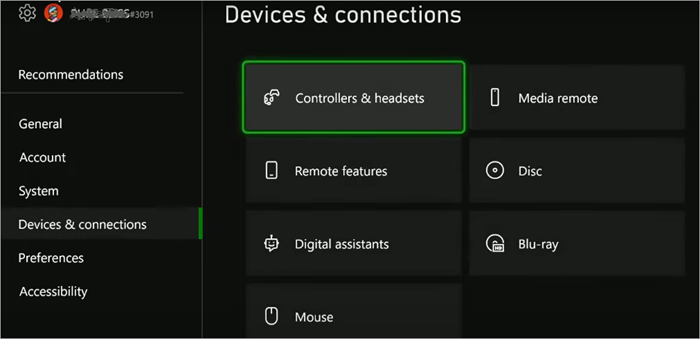
Step 2: In case there is an update, then update it cautiously (follow instructions; do not switch off during update).
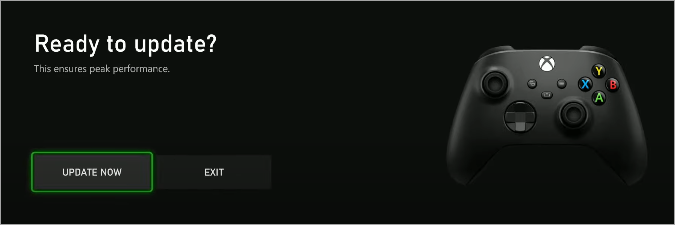
Step 3: Perform a test once the update is complete.
Step 4: In case of an unsuccessful update on the console, attempt to update using a Windows PC.
Step 5: Some accessories can be reset to factory; these should be reset and the updates once more pasted.
Step 6: Restart once you are through with the updating and repair practices.
This action usually restores the voice immediately.
#5) OS and Console Privacy and Mic Permissions
Every contemporary system secures access to the microphones. In case the mic permissions of your OS or console block this, the mic will look effective and useless when there is no problem with the hardware.
Here is how to resolve:
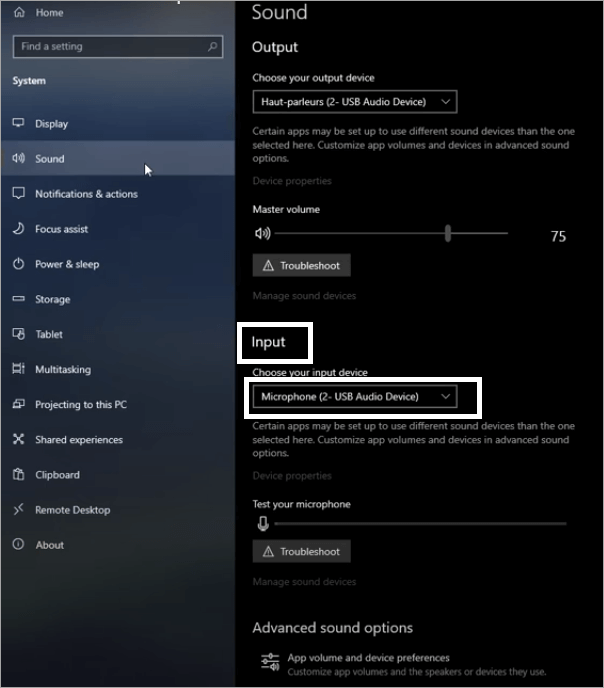
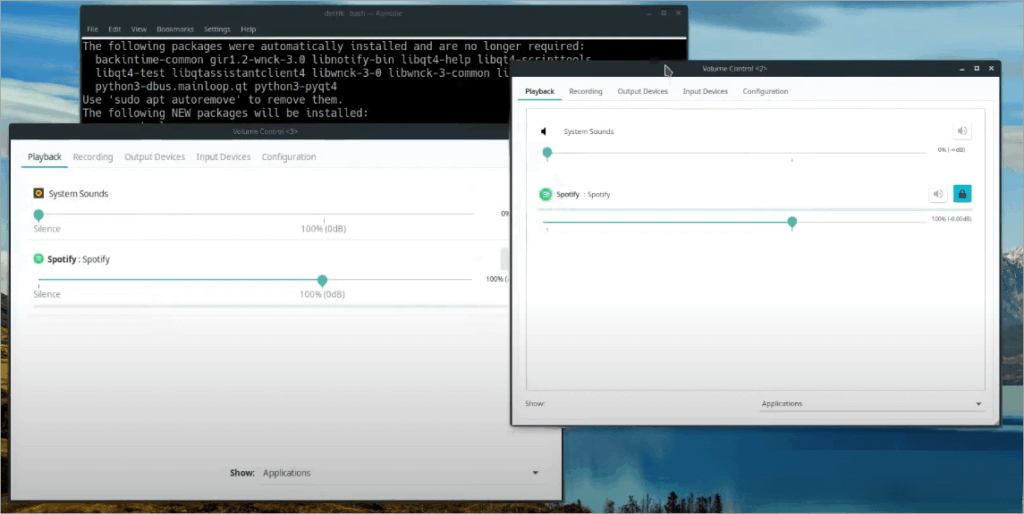
Step 1: Choose, from your audio settings on the desktop, a headset as your audio input device (GNOME, KDE) as shown in the image below.
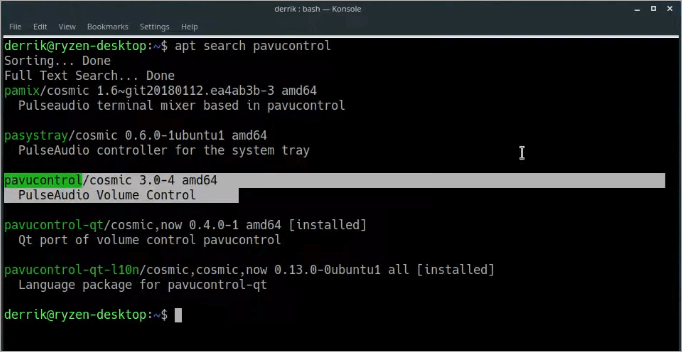
Step 2: Run, and if not installed first, install pavucontrol or PipeWire analog. Unmute and raise the level from the Input Devices option. From Recording In Recording, make sure that the input is selected correctly in Xbox/game apps.
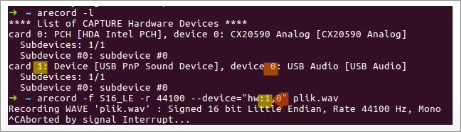
Step 3: Open arecord and use it to list and test capture devices on your machine. To list, use -l on arecord and to test use -f cd test.wav → aplay test.wav to validate. In case the mic is not present, dmesg or journal logs should contain USB audio errors; the driver modules should be loaded.
#6) Noise Suppressions, Software Blockers, and Interference
Such software layers will mute or even kill your mic, even when the hardware is flawless. We will look at each of them in detail.
Noise suppression (sometimes also called noise cancellation, noise reduction) is a digital algorithm that removes background noise (fan hum, room hiss, keyboard clicks, etc.) in your microphone signal in order to get your voice through. Numerous applications and operating systems use it by default.
The way it can make you sound unintelligible: When the oppression is too loud, your voice (a low or soft voice in particular) will sound like a noise and will not be suppressed at all. There are those users who complain that switching noise reduction turns off the mic completely (e.g., Xbox Game Bar users that noise reduction silences the mic).
Additionally, when there is more than one layer of suppression in the chain (headset DSP + OS + app), they are capable of over-filtering and canceling your voice.
Symptoms to look for:
- Input meter (in app) means that there is minimal or no movement when talking.
- Others say that you just disappear in the middle of the sentence.
- Voice reappears by suppressing it.
- Microscopic changes in the position of the mic have the greatest impact on audibility.
Step-by-step Mitigation:
Step 1: User In your communication/streaming application (Discord, Teams, Xbox), go to your voice/audio settings and turn off Noise Suppression, Echo Cancellation, or Automatic Gain Control features.
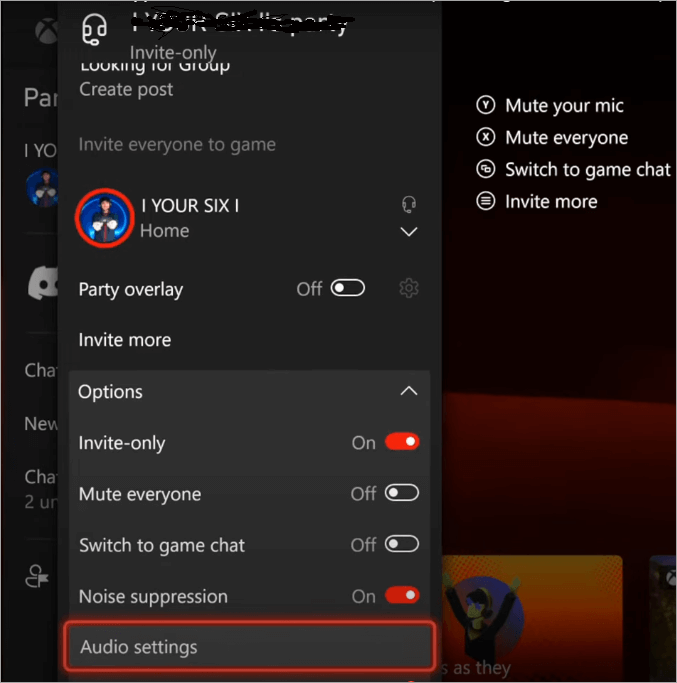
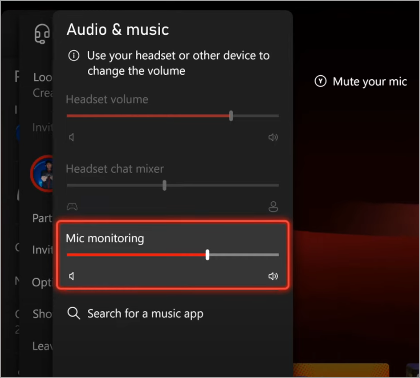
Step 2: In Windows, go to Sound settings – More sound settings – Recording tab – device Properties – Enhancements and uncheck Noise Suppression or Acoustic Echo Cancellation. (There is a hint in one community that Speaker noise cancellation should be disabled in the Realtek console).
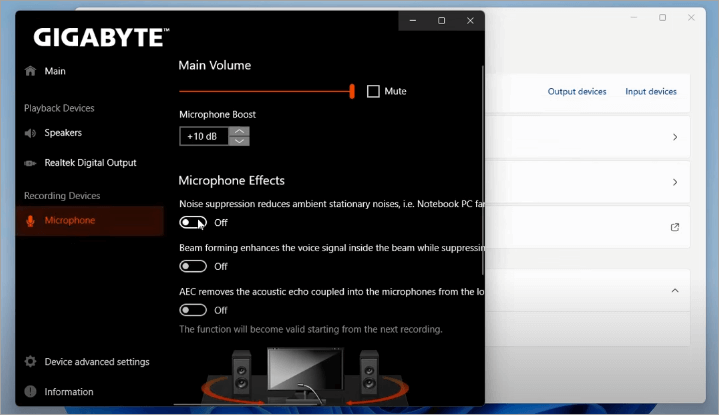
Alternatively, see the pictures below for where to navigate to adjust the sound level:
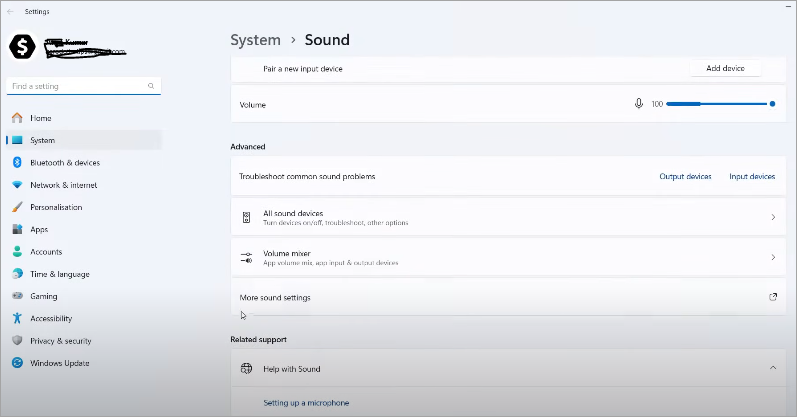
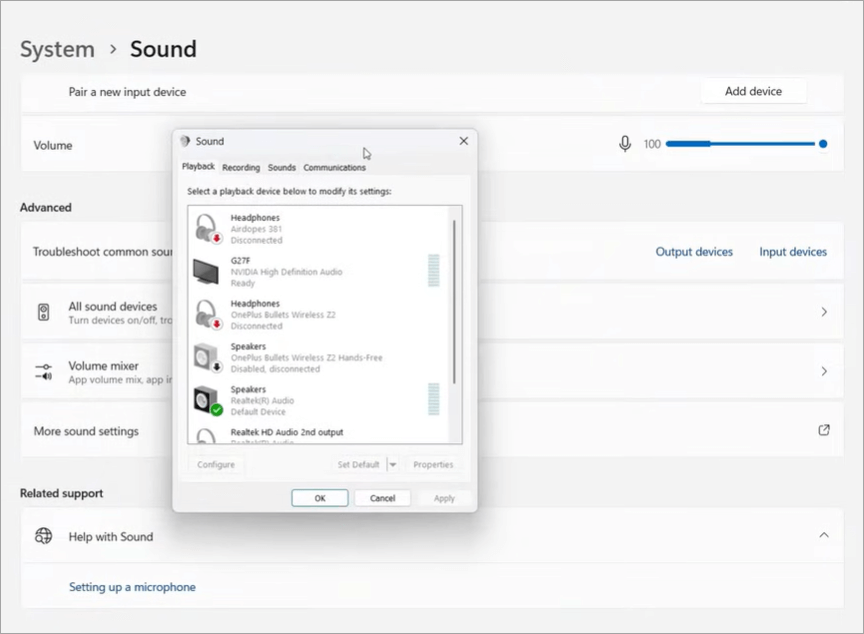
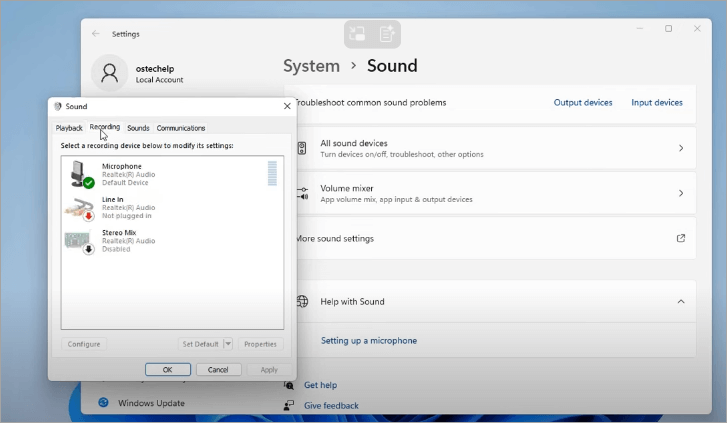
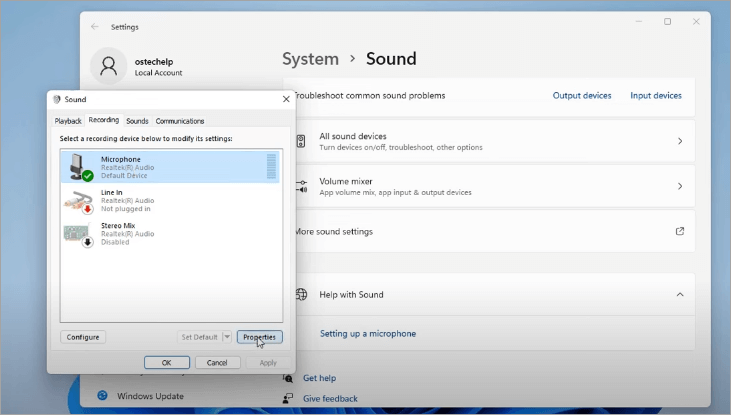
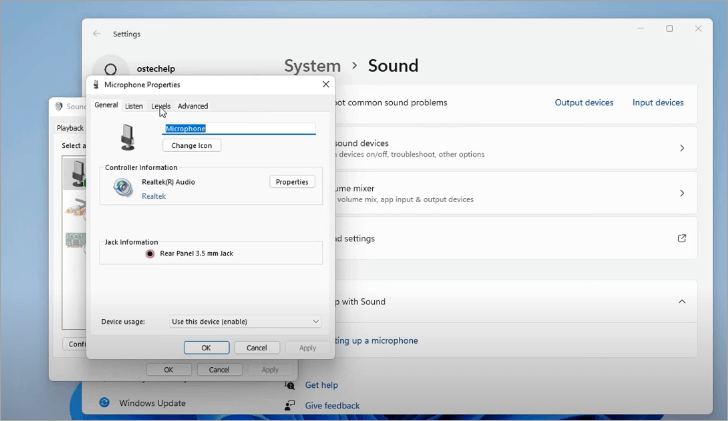
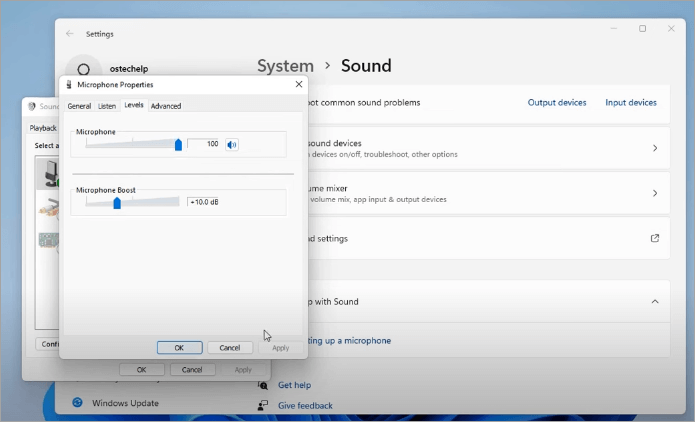
Note the Boost and Microphone sound levels:
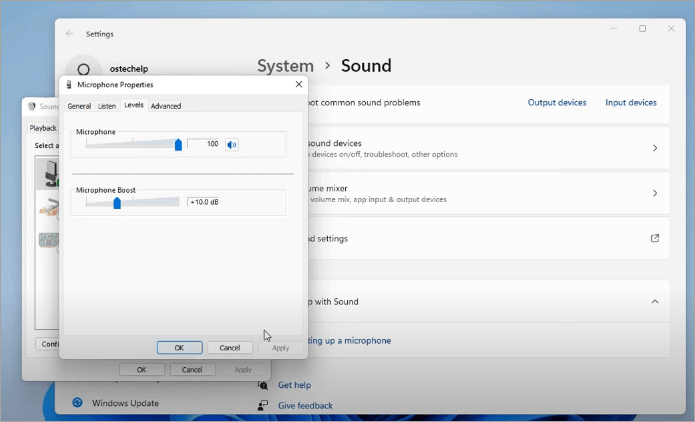
Here, the image displays properties with reduced Boost and increased Microphone
Step 3: Disabling noise reduction (if used) in Xbox Game Bar, some people claim that it silences the microphone completely.
Step 4: In case your headset is equipped with a companion software or integrated DSP, then turn off its noise filters as well.
Step 5: Move the mic: move it nearer, tilt it away towards the fans or other noise-makers to enhance your voice-to-noise ratio.
Test voice chat once more, following every modification to determine which source of suppression was excessive.
#7) Firewalls, Antivirus, and Software Blocking
Firewalls block and scan network traffic in accordance with rules. Antivirus/security suites scan the actions of the apps, can block or sandbox suspected apps (those that try to capture audio or open network ports). They falsely block Xbox applications, voice traffic, or updates on the firmware.
How this may kill your mic:
- Disabling the Xbox application from transmitting/receiving data and disabling voice chat.
- Obtaining servers to prevent updating firmware.
- Covering up the microphone hardware and system APIs, such that the app is not able to access them.
Signs you’ll see:
- You listen to other people, yet they cannot hear you.
- Updates of the firmware are unsuccessful or freeze.
- The Xbox application presents network or permission failures.
Remediation when working with Firewalls:
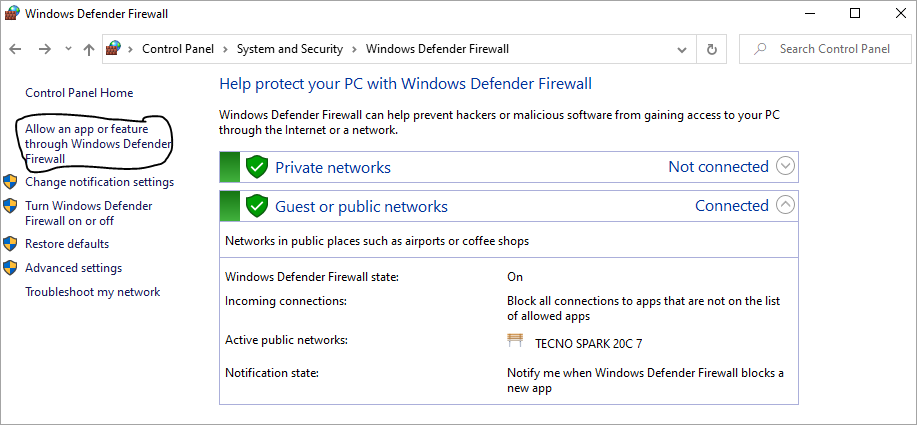
Step 1: Turn your antivirus/firewall off and see how voice chat works. You have the suspect in case the mic works, which you can now disable.
[Via David]
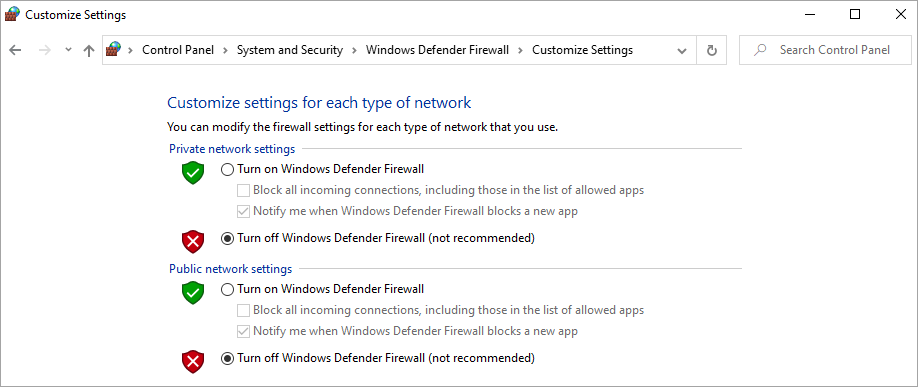
Step 2: Enable security immediately and proceed to whitelist the game executables, the Accessories app, and the Xbox app: whitelist the app.
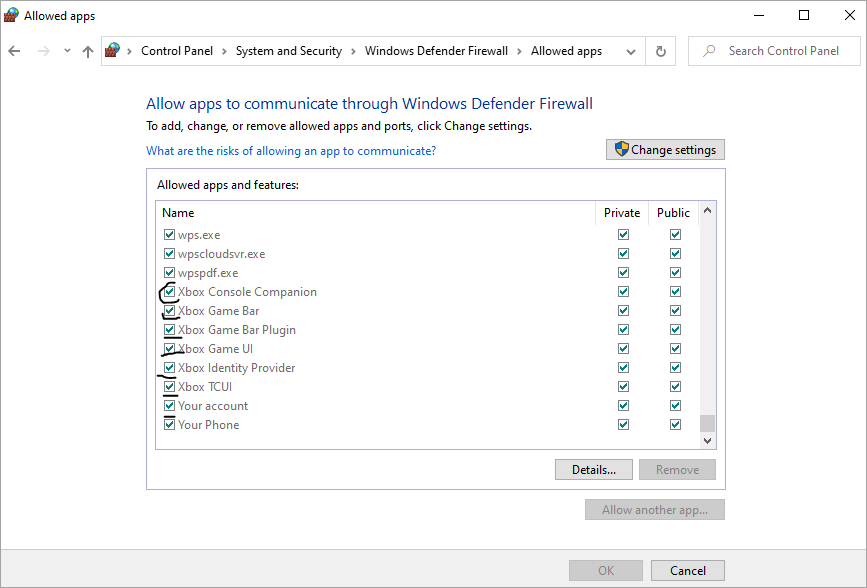
Step 3: Windows Defender Firewall: Control Panel -> Windows Defender Firewall -> Allow an app or feature -> Make sure that Xbox and related apps are selected as Private and Public.
Step 4: Ports (e.g., UDP 3074) coming or forwarding in your router or firewall.
Step 5: View AV logs or quarantine objects to determine whether processes related to Xbox were detected – un-quarantine or declare safe.
Step 6: Restart the system and voice chat again.
You might have to ask for firewall exceptions on voice traffic in case your network is in a restrictive environment (school, corporate).
#8) Exclusive Access/Conflicting Background Applications
There are some apps (recording software, DAWs, OBS) that can ask apps to have exclusive access to the microphone device. When one application is monopolizing it, there will be no time to use it by another application (such as Xbox or chat).
The reason this prevents voice: The Xbox app will not see any access even though the microphone may be on, provided it is locked to another application.
Symptoms:
- The mic functions in one application and not in party chat.
- Voice is back when closed recording/streaming apps are reopened.
- Sound settings are displayed as occupied by another application.
How to resolve it:
Step 1: Turn off all the background audio/recording programs (OBS, Audacity, etc.).
Windows: Sound settings -Input – device properties – additional device properties – advanced tab – uncheck – allow applications to obtain exclusive control.
Step 2: Open the Xbox/chat application again and check the voice again.
Step 3: Remember to still be locked in Task Manager or Resource Monitor, locate the process that has the mic, and forcefully close it.
Step 4: Reboot and retest.
Diagnostic Applications & Tools and Style of Use
These are your tools of light in the dark of troubleshooting the mic. Isolate hardware to software faults using them.
#1) Xbox Accessories (Console & PC)
This is the official controller/headset manager at Microsoft. It can display firmware state, update it, and perform diagnostics.
How you use it:
Step 1: Open the app; the name of the connected controller/headset should show the version of the firmware.
Step 2: In case an update is present, use it with caution (do not switch off during the process of updating).
Step 3: After updating, test your mic.
Step 4: Use any built-in device testing or factory reset if there is available.
It can easily discover problems that are not apparent to normal applications due to its deep-level interface.
#2) Windows Microphone Privacy Settings
This is an inbuilt panel that allows or denies applications to use the mic. It is the initial gate in the software process.
How to use it:
Step 1: Navigate to Environments -> Privacy and security -> Microphone.
Step 2: Switch Microphone access ON, enable apps and desktop applications.
Step 3: Enable toggle applications (Xbox, Discord, and so on).
Step 4: Apps have to be restarted to get changes.
Step 5: In case of wrong permissions, nothing would be able to restore the mic functionality.
#3) Xbox App (Remote Play Mobile/PC and Party Chat on Mobile/PC)
Check the video below to know the step-by-step instructions to join Xbox party on PC with the Xbox App:
It is a mobile/PC application that allows you to voice chat and stream your console through your phone, with you being able to use your phone/PC microphone instead of the console.
How you use it:
Step 1: You can download the Xbox app to your phone or your PC and log in.
Step 2: Join or start a party
Step 3: Talk and know whether people listen to you.
Step 4: In case your mic is fine at this location and not working on the console, the issue is found in the console/controller path.
It is an effective isolating test.
#4) Phone and P.C. Voice-capturing Devices
This is such a basic yet efficient utility: turn on voice recording in the local area to check whether the mic can record audio.
How you use it:
Step 1: Open the voice memo/recorder app
Step 2: Record with your headset
Step 3: Play it back
Step 4: When your audio sounds good, then the mic hardware is functioning, and the error lies with the voice chat path.
This does not make your test complex with networking and accounts.
#5) Discords / Teams or Other VIP Applications
These applications offer live input meters, suppression switches, and diagnostics that will be of use as an alternative to Xbox chat.
How you use them:
Step 1: Join a voice channel or call
Step 2: Speak and watch the input meter
Step 3: Switch off Noise Suppression, switch off Echo Cancellation, AGC, and test again.
When voice passes here and not in Xbox, the route taken by the Xbox is questionable.
These tools cast some light on the passing of raw voice with your mic.
#6) Driver Audio Manager / Audio Driver
On Windows, they allow checking the way the OS perceives the devices present in the mic and the state of the drivers.
How you use them:
Step 1: ODM – Audio inputs and outputs.
Step 2: In case of the non-listing of the mic, update or reinstall the driver.
Step 3: Check improvements using the Sound Control panel or audio software supplied by the vendor (turn off noise filters)
Step 4: Having corrected driver problems, retest the mic.
Driver issues usually disguise themselves as system failures.
#7) Support and Network Status for Xbox
These are not gadgets installed on them; they are sources of reference to see when there are widespread outages or known troubles.
How you use them:
Step 1: Visit the Microsoft Xbox Live status pages to determine whether or not voice/chat services are degraded.
Step 2: Party audio – Use the formal Microsoft troubleshooting flows.
Step 3: When there is a global problem on the scene, do not spend hours of time to diagnose your hardware, but wait until the patch is available.
This check is time-saving when the fault is in the infrastructure of Microsoft.
The steps to follow all the above in practice are:
Step 1: Take 1-2 minutes to check the Device: Unmute the device, plug it in fully seated, and go ahead to perform the wiggle test.
Step 2: Cross-device Test (2-3 min): Insert headset to phone/PC and record- in case blank, headset is faulty.
Step 3: Change Controllers (3 min): Attempt to use the headset on the other controller; in case of success, that jack on the first controller is faulty.
Step 4: Take about 5 minutes for Firmware and Assigning: The Xbox accessories can then be utilized in updating and assigning the controller.
Step 5: All OS Permissions and Mic Recognition (5 min): Adjust privacy settings; it is necessary to check whether the mic is listed in OS input.
Step 6: Network/party Chat Test (5 min): Test NAT, isolate console or software fault with the help of voice chat with the Xbox app.
Step 7: Suppression and Security all off in about Five Minutes: With noise suppression in the off position, disable antivirus or firewall, and ensure no apps that are conflicting run.
In case of continuing failure – hardware probably malfunctioning, gather logs, recordings, and support contacts. You solve a problem by breaking it down into smaller parts, and as you go, you get to eliminate whole categories of problems until you are left with one.
Best Practices to Avoid Xbox Mic & Headset Problems
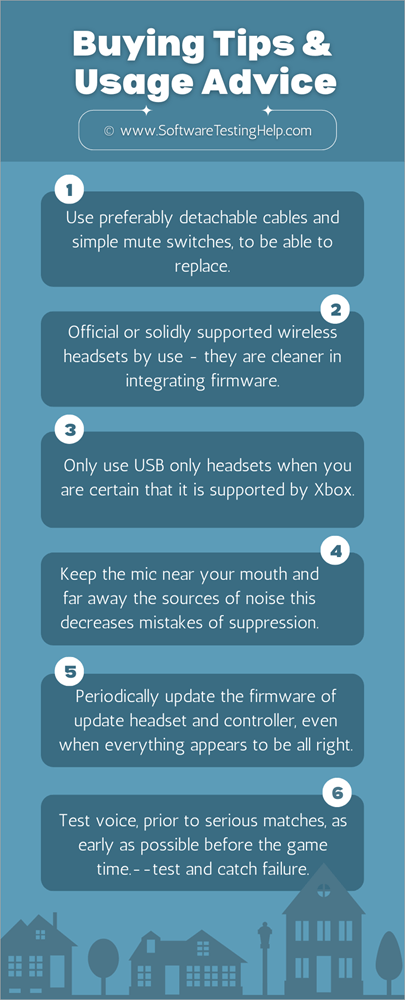
- Use preferably detachable cables and simple mute switches to replace.
- Official or solidly supported wireless headsets by use – they are cleaner in integrating firmware.
- Only use USB headsets when you are certain that they are supported by Xbox.
- Keep the mic near your mouth and far away from the sources of noise; this decreases the mistakes of suppression.
- Periodically update the firmware of the update headset and controller, even when everything appears to be all right.
- Test voice, before serious matches as early as possible before the game time.–test and catch failure.
FAQs about Xbox Mic Not Working
Why is my Xbox mic not picking up my voice?
My Xbox mic won’t record voice because there could be some problems with the headset being muted, the mic’s connection, sound settings on my Xbox, privacy issues, or even an Xbox controller that is damaged in the headset plug.
Why can I hear but not talk on Xbox?
The most common cause for this issue is having the sound working fine but not being able to speak because of Xbox communication settings, the party chat setting or NAT type of the network used in the console.
How do I reset my Xbox microphone settings?
In order to reset your Xbox microphone settings:
• Navigate to Settings > General > Volume & audio output
• Make sure Party chat output is okay
• Restore audio settings to their defaults
Why does Xbox party chat not work?
The reasons why Xbox party chat fails to operate include:
– Issues with network or NAT
– The user has set up privacy settings preventing the voice connection
– Server-side Xbox Live problems
– Defective headset/controller
Can a faulty controller stop the mic from working?
Yes, indeed. A defective Xbox controller can hinder mic operation when the 3.5 mm headset plug is faulty.
How do I update Xbox controller firmware?
To update firmware:
Go to Settings > Devices & connections > Accessories
Select your controller
Click Update if available
Keeping firmware updated fixes mic detection bugs and audio issues
Why is my Xbox headset working but not the mic?
This occurs if you get sound in headphones but your mic is not recognized because of:
– Muted mic switch
– Mic input settings mismatch
– Mic blocked by privacy options
– Broken boom microphone
How do I fix Xbox app microphone issues on PC?
For mic issues with the Xbox app:
• Allow the Xbox app access to the microphone in Windows settings
• Switch to the right input device
• Close conflicting programs such as Discord, Zoom, etc.
• Restart Xbox application
Conclusion
Xbox mic issues are annoying and can only be effectively narrowed down to: hardware damage, controller/console firmware, or permission/settings conflicts, and can be systematically identified through the use of the above steps.
Start with something basic like physical checks and device replacement, and move on to updates to firmware, OS permissions, and firewall/AV exemptions, and only then think about replacement.
In case the problem remains after exhausting all the measures, reach out to Xbox Support with your troubleshooting procedures and diagnostics, as it will inform hardware repair or replacement.
Research Process: The total time involved to complete and publish this article is approximately 42 hours. This content was created through a structured research approach to ensure accuracy and reliability.
For more related guides, you can explore our range of tutorials below:
- How to Uninstall Xbox Game Bar on Windows PC
- Xbox One Controller Keeps Disconnecting (Quick Solutions)
- How to Game Share on Xbox With Friends
- [FIXED] Black Screen of Death Xbox One: 7 Easy Methods
- The 9 Top Gaming TVs for PS5 and Xbox Gaming
Was this helpful?
Recommended Reading
-

Here we will explain the Xbox One Black Screen and multiple effective methods to fix the Xbox One Black Screen of Death: Gaming has gone over a lot more than just a passion. Now, it has even turned into a reputable profession. Each day, new advancements are made to gaming…
-

Discover the simple steps on how to game share on Xbox from this guide. Learn the process of setting up your Xbox Home console to gameshare on Xbox with your friends for unlimited fun: Sharing games on Xbox consoles is a fantastic option if you or a friend hasn't yet…
-

Discover the multiple methods on how to remove the Xbox Game Bar. Find out how to uninstall Xbox game bar from your Windows PC with simple step-by-step instructions: Microsoft's Xbox is a video gaming console released in North America on November 15th, 2001. Compared to Sony's PlayStation 2, the Xbox…
-

Is your Xbox controller light blinking fast or slow without connecting? This exclusive guide will help you to fix the Xbox controller flashing issue quickly. Is your Xbox controller blinking and not connecting to your console or PC? In most cases, a blinking light indicates that your Xbox controller has…