Are YouTube Shorts taking over your feed? Learn how to turn off, remove, or disable YouTube Shorts easily in just a few steps to enhance your YouTube viewing experience:
Tired of shorts on YouTube? Well, you are not alone. I’ve been using YouTube since its heyday. I really miss the old YouTube when things were simple, and I didn’t have to see an endless stream of bite-sized YouTube Shorts.
Sometimes I feel like Shorts has taken over my YouTube homepage. There isn’t a way past them, or is there? I’ve made my peace with the fact that YouTube Shorts are here to stay. That does not mean you cannot avoid them.
Remove YouTube Shorts on Any Device: Complete Guide
While YouTube itself doesn’t offer a feature to disable Shorts, some workarounds might help, and I’ve tried them all.

In this article, I would like to share those tips and tricks with you.
Here’s your guide on how to remove Shorts from YouTube:
What are YouTube Shorts?
Shorts on YouTube can be described as bite-sized videos, typically ranging from 15 seconds to 3 minutes in length.
YouTube launched Shorts in the latter half of 2020, aiming to capitalize on the growing trend of short-form content. It was designed for mobile viewing, as evidenced by the vertical 9:16 aspect ratio of the videos.
Shorts has proven to be a great success for YouTube since its launch. It is now estimated that almost all the top US YouTubers today produce short videos. Also, Shorts are estimated to get more engagement than long-form videos.
In the year 2023, videos shorter than 60 seconds averaged 19 million views, which was 27% more than the views longer videos got.
People cannot deny the popularity of Shorts, which is why YouTube won’t introduce a feature to explicitly disable it. So people like me, who’ve grown exhausted with Shorts showing up on their feed, have no other option but to look elsewhere to get rid of these videos.
Luckily, there are options at your disposal to get rid of Shorts for good.
How to Disable YouTube Shorts?
So, can you disable YouTube Shorts? The short answer is no, at least not with a straightforward method.
As I said before, YouTube doesn’t have any built-in features that let you shut off Shorts content. With its popularity at an all-time high, it wouldn’t be wrong to assume that YouTube won’t be introducing a feature like that anytime soon.
Fortunately, there are certain tips, tricks, and tools you can use to somewhat get rid of Shorts. Allow me to share all of those workarounds here.
#1) Turn Off YouTube Shorts for 30 days
Although this isn’t a permanent measure, YouTube does offer you an option to disable shorts for up to 30 days. Shorts will start appearing on your home page and feed as soon as those 30 days are up. However, you can repeat the steps I am about to show you again and again to turn off shorts for a period of 30 days.
Here’s how you do it.
How to Remove Shorts On Desktop:
1. Open YouTube on your browser; it doesn’t matter which browser. The process will remain the same.
2. Scroll down until you find the Shorts shelf.
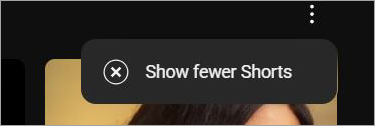
3. Click on the three dots displayed in the top-right corner of your screen and hit the “Show Fewer Shorts” button as in the image below.
How to Remove Shorts from the YouTube App:
1. Open YouTube on your iOS or Android phone.
2. Scroll down until you find the Shorts shelf.
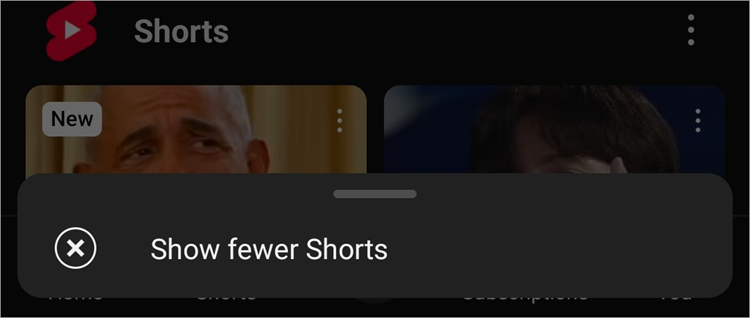
3. Tap on the three dots displayed in the top-right corner of your screen and hit the “Show Fewer Shorts” button as shown above.
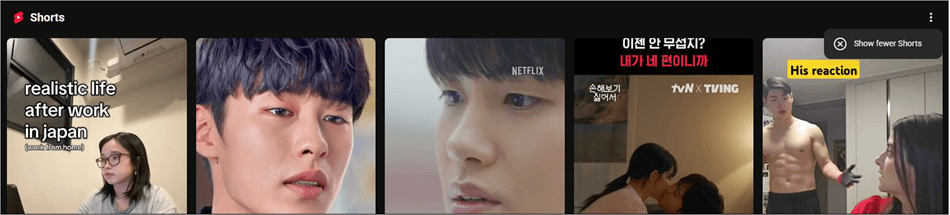
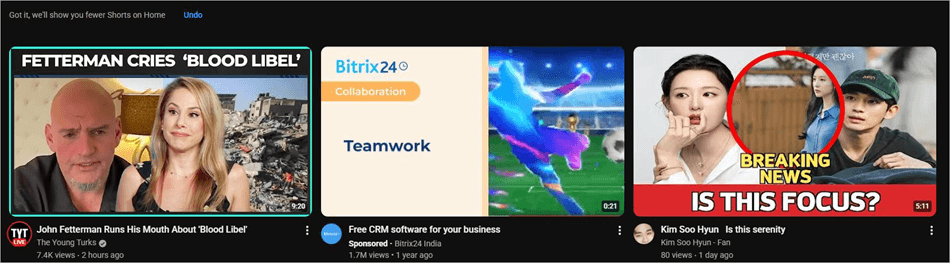
It is that simple. Do note that this does not permanently disable YouTube Shorts and is a temporary measure that you’ll need to repeat every 30 days.
#2) Remove YouTube Shorts from Home Screen Using the “Not-Interested” Option
If you are annoyed with Shorts, it is probably because your homepage is cluttered with them. You can’t help but be greeted with a short video on your feed or home page. This is YouTube’s way of getting you accustomed to this format. You might also start seeing videos that are similar in nature and theme.
Luckily, YouTube has a feature that lets you stop certain types of videos from showing up on your home page. All you have to do is make use of its “Not Interested” option whenever you come across a video you don’t like.
Here’s how to remove YouTube Shorts from the feed or home screen:
1. Open YouTube on your desktop browser or Mobile. The process will be the same, regardless of where you are using the platform.
2. Scroll until you find a Shorts video you want erased from your feed.
3. Tap on the three dots displayed in the top right corner of the video.
4. Select “Not Interested” from the given options as shown below.
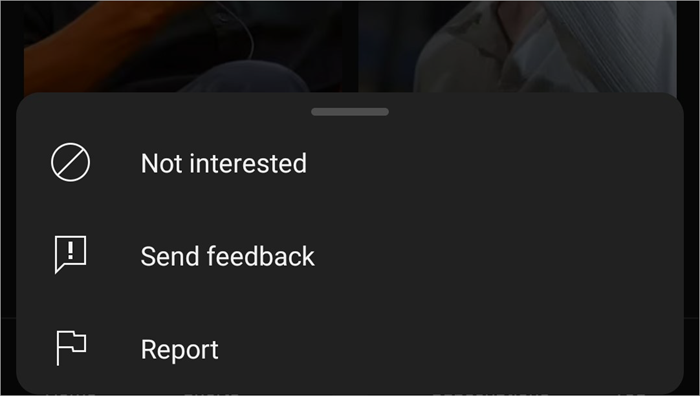
Repeat this process anytime you come across a Short you don’t want on your feed or home screen. YouTube will soon learn not to show you Shorts like that.
#3) Remove Shorts from YouTube by Downgrading the App
Perhaps the most effective way to get rid of Shorts on YouTube for good would be to go back in time.
I don’t mean literally going back in time, but downgrading the app to an older version instead. This might sound complicated, and it kind of is. You’ll need to go online and look for an APK file containing YouTube’s older version.
Here’s how you do it:
1. First, you’ll need to uninstall all updates from the YouTube app’s settings.
2. Uninstall the latest version of YouTube on your iOS or Android phone.
3. Now, find a third-party website that offers APK files containing older versions of YouTube. You might find this file on websites like AndroidAPKsFree, Uptodown, etc.
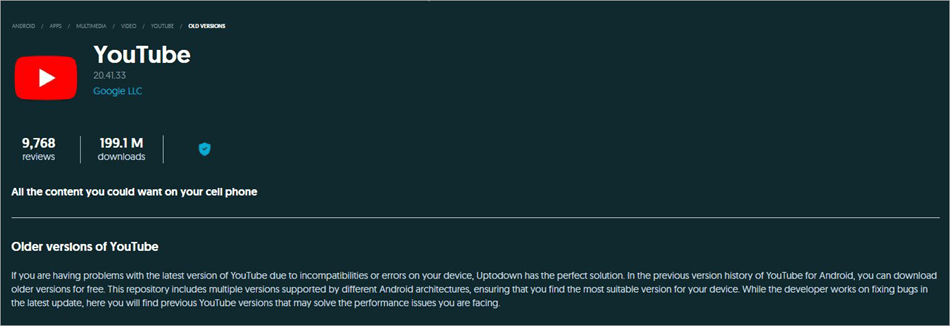
4. Download and install this version on your phone.
Make sure updates for YouTube are disabled on your phone. This is a risky method as it involves downloading an APK file from a third-party website.
So, proceed with caution. Also note that, as you’ll be using an older version of YouTube, there will be features other than Shorts that will be missing. So, I’d suggest only opting for this method if you are desperately trying to get rid of Shorts.
#4) Delete YouTube Shorts Using a Browser Extension
Another very effective method to completely delete Shorts from YouTube is via a proper browser extension. There are many extensions available on different browsers, which you can employ to disable Shorts while you are using YouTube.
YouTube Shorts Block and ShortsBlocker are two prominent examples of extensions that work well with Chrome.
ShortsBlocker extension is depicted in the image below:
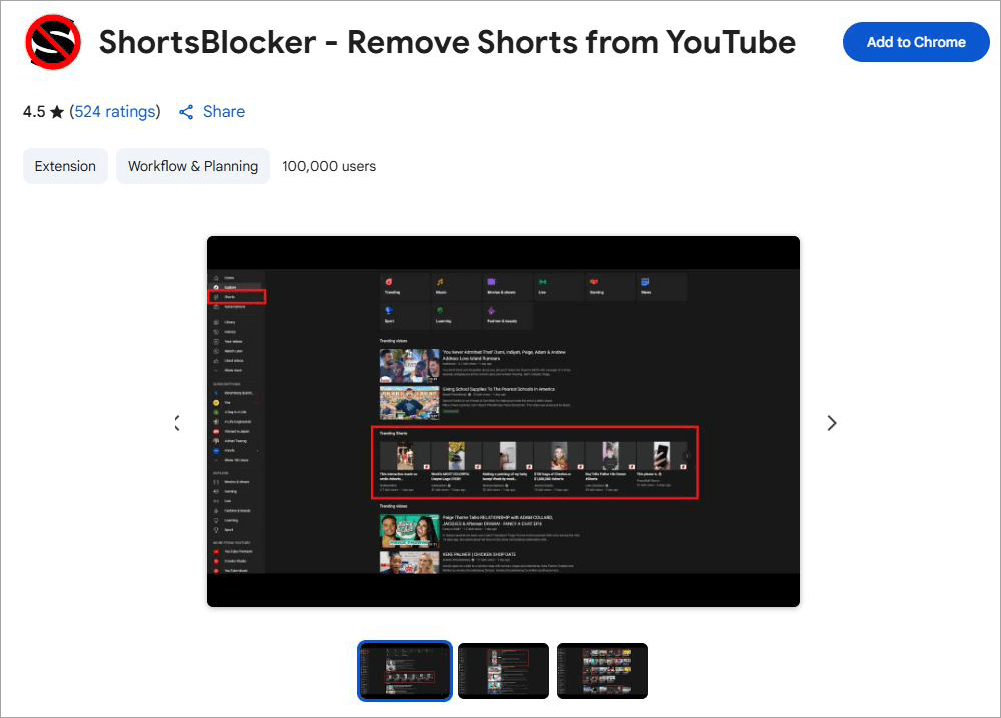
All you need to do is find these YouTube Shorts blocker extensions on the Chrome Web Store and click on “Add to Chrome”. Then, you’ll need to activate these Chrome extensions by navigating to your browser’s extension settings.
YouTube Shorts Block extension is depicted in the image below:
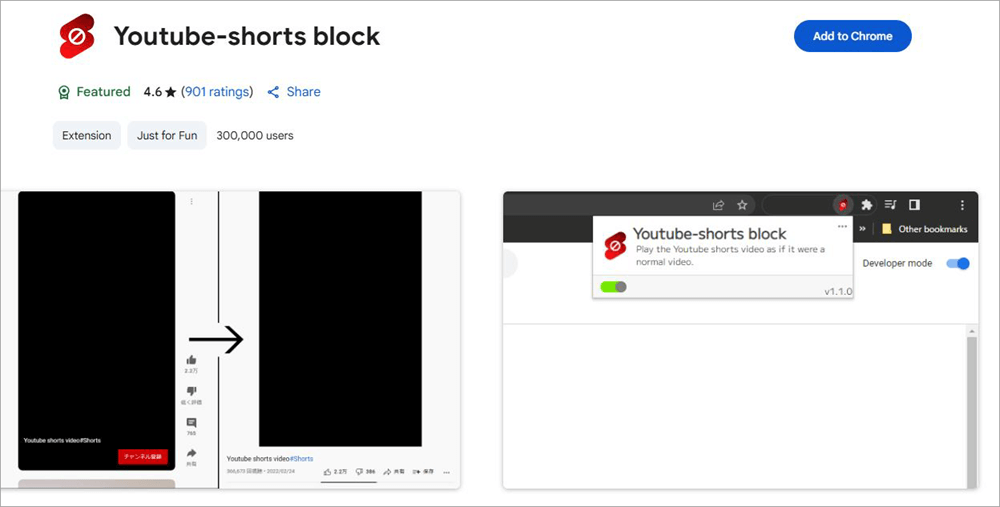
These extensions will disable YouTube Shorts by default as soon as they are activated. That said, these extensions may end up having a not-so-ideal effect on your browser’s YouTube interface. Take that into consideration before you decide to use these extensions.
Alternative Methods to Shutting Off Shorts
Besides the methods I’ve discussed above, there are other things you can do to avoid YouTube Shorts.
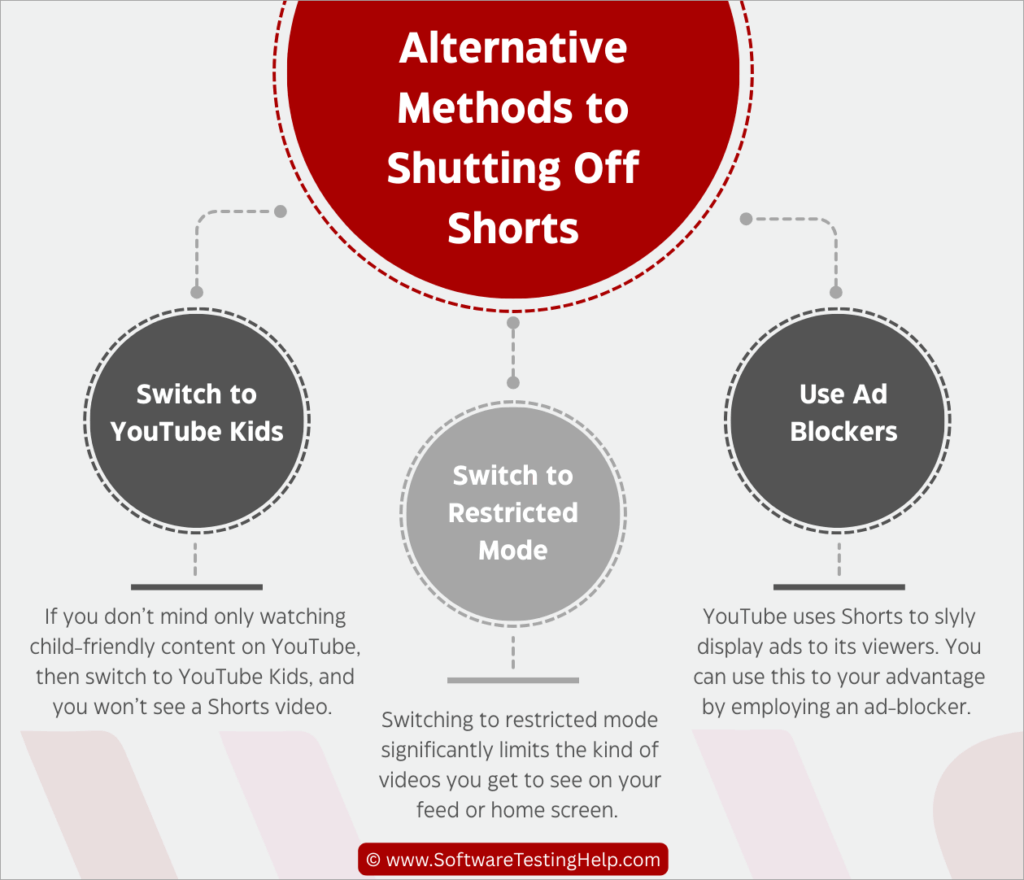
They are as follows:
Switch to YouTube Kids
I was shocked to learn that YouTube Kids does not have Shorts on it. As such, this version of YouTube may be suitable for you. If you don’t mind only watching child-friendly content on YouTube, then switch to YouTube Kids, and you won’t see a Shorts video.
Switch to Restricted Mode
Switching to restricted mode significantly limits the kind of videos you get to see on your feed or home screen.
Do the following to disable restricted mode:
1. Sign in to your YouTube account
2. Click on your profile photo
3. Tap on Settings => General
4. Find Restricted Mode as shown below and turn it on.
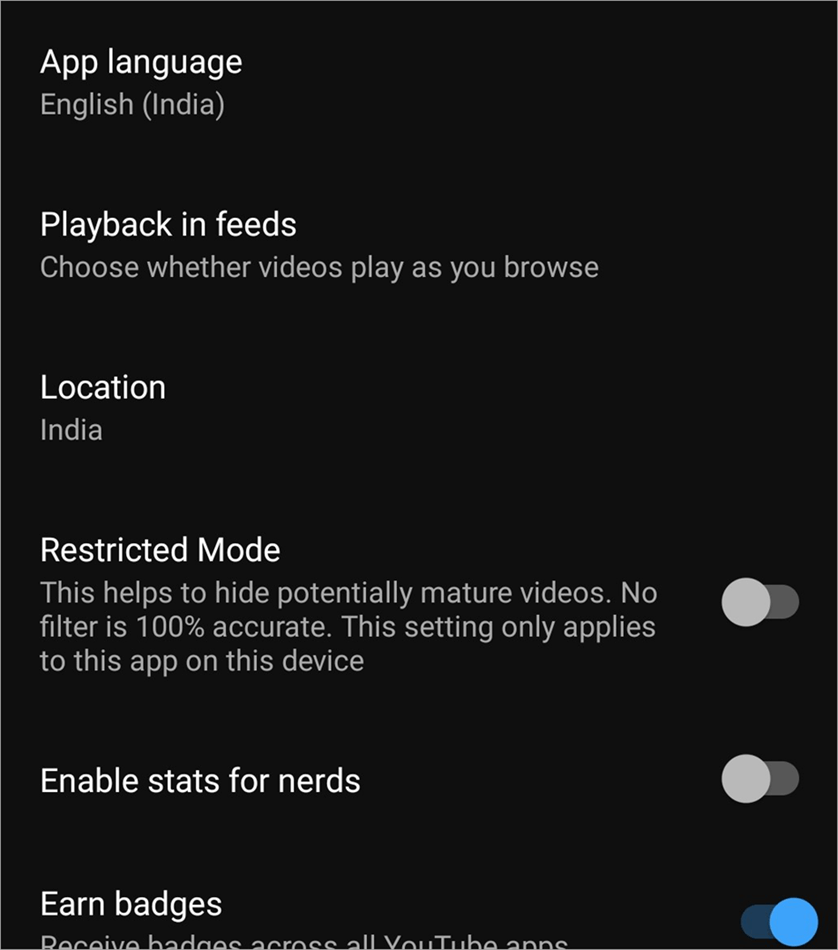
With this mode on, you won’t be seeing a lot of mature content on the platform. If you don’t mind limiting recommendations by YouTube, switch your account to restricted mode.
Use Ad Blockers
YouTube uses Shorts to slyly display ads to its viewers. You can use this to your advantage by employing an ad-blocker. Some ad-blockers may end up inadvertently hiding YouTube’s Shorts section in their effort to block ads.
Removing Shorts From Your Search Results
Now here’s a trick that lets you filter shorts out of your YouTube search results. This is arguably the most effective method for removing Shorts from YouTube.
You’ll need to know how to use YouTube’s search filters for this to work. We all know that YouTube Shorts cannot be longer than 3 minutes. You can use this knowledge to your advantage by simply filtering out videos that are of shorter durations.
How to remove YouTube Shorts from YouTube search results:
1. First, search for a topic on YouTube.
2. Click on “Filters” presented to you below the YouTube search box, right above the video feed.
The image below shows the Filters option in YouTube:
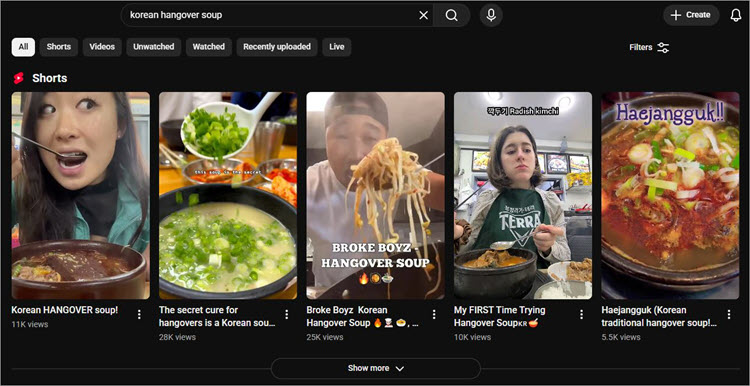
3. In the resulting window, select “Video” in the Type section and select “4-20 minutes” in the Duration section as shown below.
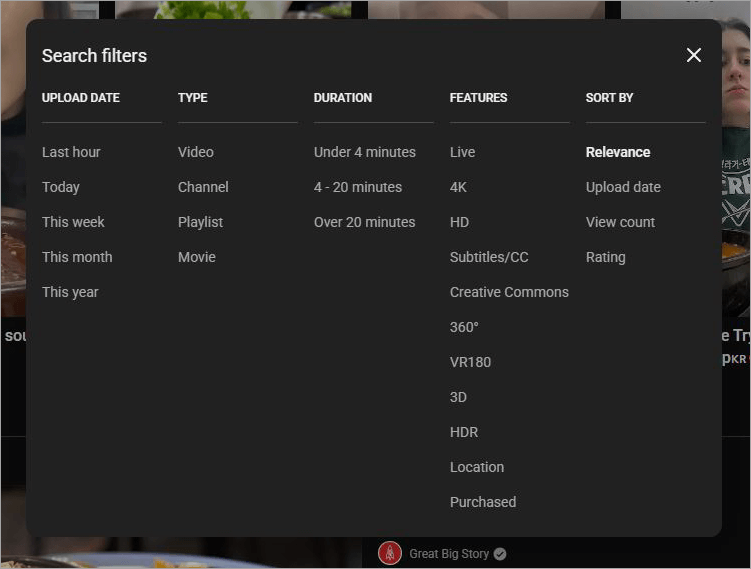
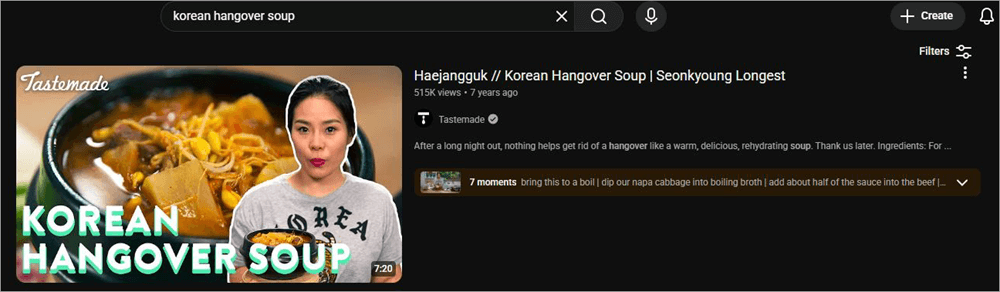
4. YouTube will obey your command and only show you videos that fall within the 4-20 minute range, thus effectively blocking shorts.
Using Smartphone Apps to Remove YouTube Shorts
Besides the tips, tricks, and workarounds I’ve shared above, you also have third-party apps that can come to your aid. Two of the most popular apps that can block YouTube Shorts today are No Shorts and NoScroll, both available to download for free on the Google Play Store.
The primary purpose of these apps is to help users control and monitor their cell phone usage. You can use them to monitor screen time, block distracting apps and sites, as well as block short-form content like Shorts and Reels.
They are free to use, can be easily installed, and allow you to block Shorts and Reels with a single click.
The apps you are going to come across are free and therefore riddled with ads. These apps can affect the performance of your phone’s YouTube. There used to be more apps being recommended to remove Shorts back in the day.
However, most of them have now faded into obscurity because of the terrible experiences users had while using them.
Turning Shorts into Regular YouTube Videos
The vertical format of YouTube Shorts definitely looks great on a smartphone. That said, these videos do look awkward on a PC or larger screen. If only you could watch these Shorts as a regular YouTube video instead. Well, you can.
Here are a few tricks you can employ to turn Shorts into Regular videos.
#1) Manually Edit Video URL
1. First, click on a YouTube short you wish to watch on your browser.
2. Go to the URL of this video, and change the “shorts” text to “watch” as shown below.

3. Press enter once you have edited the URL.
This will instantly redirect the Shorts video into YouTube’s regular player.
#2) Click on a Date on any Comment in Shorts
Given below is an image that depicts comments in shorts:
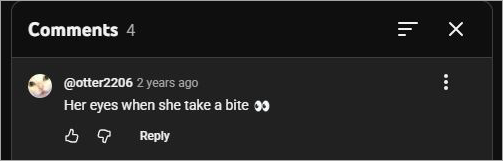
This is perhaps the easiest way to redirect a Shorts video into YouTube’s regular player. All you have to do is go to the comments section of the Shorts video you are watching.
Select any comment and simply click on the date displayed against it, and just like that, with a single click, the Short will turn into a regular video.
#3) Like the Video
For this method to work, you’ll need to like the Shorts video first.
1. Once liked, click on the Liked Videos option, displayed in the left-hand side menu.
2. You’ll see all the videos you’ve liked recently in the Liked Videos window, as shown in the image below.
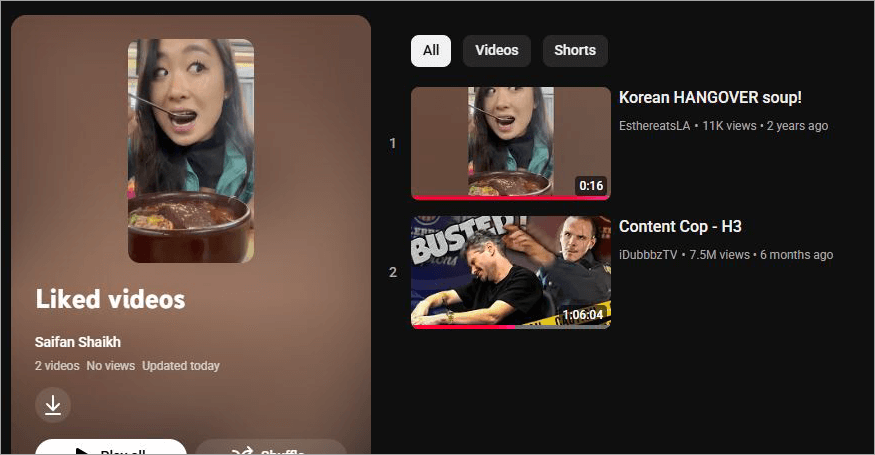
3. Click on the Short you had just liked, and it will open as a regular YouTube video.
#4) Use an Extension
There are browser extensions out there that redirect YouTube Shorts to a normal player. You’ll need to install and set up these extensions on your browser for them to have the desired effect. However, they’ll do all the heavy lifting once installed, automatically turning Shorts into normal videos with little to no input from you.
Two popular extensions that do this effectively are “Redirect Shorts” and “Shorts to Normal player”. Once installed, these extensions automatically edit your YouTube video’s URL, replacing the “shorts” text with “watch”.
Comparing All Methods to Remove YouTube Shorts
| Method | Effect | Cons |
| Show Fewer Shorts | Remove the entire Shorts shelf from the browser and smartphone app | Temporary measure. Only remove Shorts for 30 days. Not available on Smart TV app. |
| Not Interested | Retrains YouTube’s Algorithm. | Takes time. You’ll need to click the “Not Interested” option again and again for the algorithm to take a hint. |
| Downgrade App | No Shorts on your feed, as the YouTube version being used is old. | You’ll need to contend with a dated interface. You’ll need to download the older version from shady websites not affiliated with Google. |
| Browser Extension | Effective in blocking Shorts | The extensions can affect your YouTube interface inside the browser. |
| Using Search Filters | Hides Shorts | Videos that are not Shorts but shorter than 4 minutes will also be hidden. |
| Third-party Smartphone Apps | Block shorts completely | The app can affect YouTube’s performance. Risk of Malware and Virus infestation. |
Can YouTube Shorts be Removed on Smart TV Interfaces
Unlike smartphones, the YouTube app on Smart TV doesn’t have a specific option (Show Fewer Shorts) that lets you remove the entire Shorts shelf. However, you can still employ other workarounds and tricks that I’ve already discussed in this article to still effectively remove Shorts on a Smart TV.
For instance, you can use the “Not Interested” button to train YouTube’s algorithm to show you fewer shorts. You could also try opening YouTube via a browser on your Smart TV and then use the “Show Fewer Shorts” feature to remove the Shorts shelf.
You can also use search filters to ensure only videos longer than 4 minutes are displayed to you on the feed.
Another effective method to remove Shorts from YouTube TV would be to switch to YouTube Kids.
Reasons to Disable YouTube Shorts
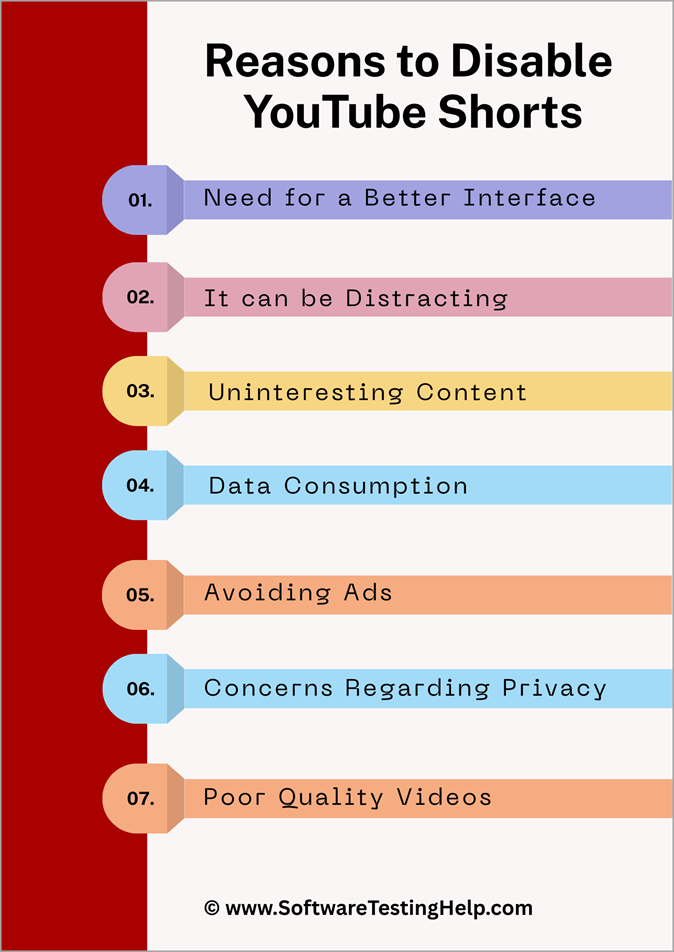
Although one doesn’t need a good reason to delete Shorts, I’ve heard plenty of concerns from YouTube users that sort of justify getting rid of this content. I believe all of these concerns are valid.
#1) Need for a Better Interface
While this may not bother some, there are others who dislike what Shorts has done to the YouTube interface. It can make YouTube look more cluttered and disorganized. Getting a cleaner-looking interface is a good-enough reason to disable Shorts.
#2) Can be Distracting
Short-form content is a major reason why doom-scrolling has turned into an epidemic of sorts. One can easily find oneself hypnotized by Shorts on their phone. Some people can end up scrolling through Shorts, one after another, for hours and end up losing track of time. It is a distraction that’s best avoided.
#3) Uninteresting Content
You don’t have control over the type of Shorts showing up on your feed. It may be content that doesn’t align with your interests, or it may be highly inappropriate. The only way to avoid such content for some would be to disable Shorts altogether.
#4) Concerns Regarding Privacy
Like other social media platforms out there, YouTube also analyzes your behavior and engagement on the platform to tailor its recommendations. YouTube does this while you engage with short-form content. Some people may rightfully feel uncomfortable with this and decide to disable Shorts to protect their privacy.
#5) Poor-Quality Videos
Although addictive, I think people would agree with my assessment that most short videos on YouTube aren’t great in terms of their quality. They are poorly produced, often misleading, and seem to only exist to exploit people with short attention spans. If you feel this way, disabling Shorts just makes sense.
#6) Data Consumption
You may not notice it, but scrolling through an endless list of Shorts may end up exhausting your data. This may be a major concern for folks using the internet via their mobile’s data plan, which is often limited. So, it makes sense to disable Shorts to save data.
#7) Avoiding Ads
As I said before, YouTube uses Shorts to display ads to viewers. If you don’t like seeing ads, it makes sense to disable Shorts, which would, in turn, also disable ads.
Frequently Asked Questions
1. Can you disable YouTube Shorts?
YouTube does not have a feature that lets you disable YouTube Shorts. However, you can click on the “Show Fewer Shorts” button to temporarily disable these videos on your feed or home screen.
Alternatively, you could also try using some browser extensions to disable Shorts permanently.
2. How to remove Shorts from YouTube on TV?
The same methods I’ve discussed above apply when you are using YouTube on your smart TV. As you are using an app, use the “Show Fewer Shorts” button to disable such videos temporarily. You could also use the “Not-Interested” option to block certain types of short-form content from showing up on your feed.
3. What is the extension to remove Shorts from YouTube?
There are many extensions out there that can help you permanently disable Shorts from YouTube. However, only a few of these are effective. I suggest using the Shorts Blocker or Remove YouTube Shorts extension on Chrome for the best results.
4. Why do YouTube shorts keep appearing?
YouTube Shorts keep appearing on your feed because of the platform’s active algorithm. It assesses your behavior and engagement on the platform and tailors video recommendations accordingly.
The Shorts you see on your feed are being recommended by the YouTube algorithm after taking into consideration your past activity on the platform.
5. Can YouTubers make money with Shorts?
Yes, Shorts can be monetized. Any Shorts that appear on the platform’s main feed are eligible for monetization. Of course, you’ll need to fulfill certain requirements to become eligible. You’ll need 10 million valid public Shorts views in the last 90 days to monetize your content.
6. How long can a YouTube Shorts be?
YouTube Shorts can be up to 3 minutes long. For better engagement, it is advised to keep the duration of short-form videos under 60 seconds.
7. Can I remove Shorts from YouTube on iPhone?
Yes, you can remove Shorts from YouTube on iPhone using the tricks and workarounds I’ve mentioned above.
Here’s a quick rundown on how to block YouTube Shorts on iPhone:
• Tap on the “Show Fewer Shorts” button to erase the Shorts shelf
• Tap on the “Not Interested” option on a Shorts video.
• Filter out shorter videos from YouTube’s search results.
• Downgrade to an older version
• Switch to YouTube Kids.
8. Is there an app to block YouTube Shorts on Android?
Yes, there are Android-specific apps that can be used to block YouTube Shorts. The most effective and least problematic, at least according to user reception, would be NoScroll and NoShorts.
Both are free to use and very effective, allowing you to disable YouTube Shorts via the Android app.
A word of caution, though. These apps may affect the YouTube app’s performance and even interfere with your Smartphone’s functioning.
9. How do I filter Shorts from YouTube search?
This can be done by filtering videos that are shorter than 4 minutes from your search results.
Simply follow the steps below:
• Search for a topic on YouTube
• Click on “Filters” right above your feed.
• Select “Video” in the Type section and “4-20 Minutes” in the Duration section.
• Once these filters are applied, you’ll only be shown videos that are longer than 4 minutes, thus effectively removing Shorts from your feed.
10. Does uBlock Origin work for YouTube Shorts?
uBlock Origin is a free, open-source content blocker that’s primarily used to block ads, miners, and trackers once installed. While not used for the purpose of blocking Shorts, it can still be used to do just that. That said, the process itself is a bit complicated.
For uBlock Origin to work, you’ll first need to install the extension on Chrome or Firefox.
1. With the extension installed, click on the uBlock Origin icon on your browser’s toolbar to open its dashboard.
2. Navigate to the “My Filters” section as shown below.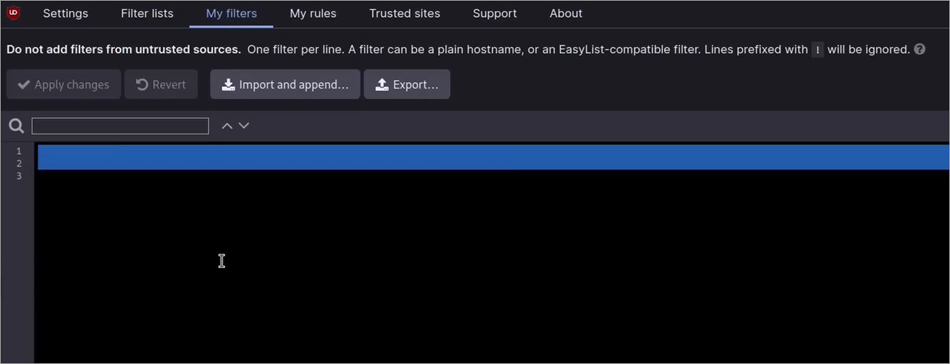
[Via Eric Murphy]
3. Here’s what you’ll need to import a filter list. You’ll find a pre-made filter list on GitHub. Copy the link you’ll find there and paste it right underneath the “Import” heading.
4. Now, click on “Apply Changes”.
This should block YouTube Shorts on your browser.
Conclusion
Short-film videos are the new trend nowadays, and there is nothing you can really do about it. It doesn’t matter whether you like Shorts or not; they are an integral part of the YouTube experience today. As such, they aren’t built-in features that let you disable YouTube Shorts.
Fortunately, there are workarounds to this problem. By either using the “Show Fewer Shorts” or “Not Interested” option, downgrading your app, or using a browser extension, you can disable YouTube Shorts for good. I suggest giving each method a try to get a YouTube interface that’s free from those pesky bite-sized videos.
Research Process: The total time involved to complete and publish this article is approximately 35 hours. This content was created through a structured research approach to ensure accuracy and reliability.
For more quick YouTube-related guides, you can explore our range of tutorials below:
- 5 Ways To Fix YouTube Audio Renderer Error [With Screenshots]
- How to Delete a YouTube Account (Quickly in a Few Steps)
- [Fixed] YouTube Comments Not Loading – Top 9 Methods
- 18 Best YouTube Ad Blocker For Android, iOS & Web Browsers
- YouTube Not Working? Try These Quick Fixes [14 Methods]
- FIX: How to Disable Restricted Mode on YouTube
Was this helpful?
Recommended Reading
-

Are you planning to make use of audio from YouTube for your professional needs? Here is a detailed review of the Best YouTube Audio Ripper with features for you to choose from: YouTube does not allow you to rip audio from the YouTube library to your storage device from its…
-
Review of Top YouTube Video Downloader Apps with Features, Pricing & Comparison. Select the Best Free Online YouTube Ripper for PCs to Download YouTube Videos: YouTube is the most-watched video streaming website. Launched in 2005, the online video platform features a wide variety of content, including TV clips, educational videos,…
-

Select the best YouTube Subtitle Downloader per your requirements to download Subtitles from YouTube from the tools reviewed here: Multimedia has made things easier as now you can easily find a visual explanation for your questions and queries in an instant. Suppose, if any of your assignments or homework is…
-
Review and compare the top YouTube to GIF Maker and select the best YouTube to GIF Converter as per your specification: GIF or Graphics Interchange Formats have become immensely popular these days. It is a lossless format that supports 8 bits per pixel and can display 256 colors. GIF supports…