Quickly learn how to Port forward your Minecraft server effortlessly with our step-by-step guide. Get expert tips along with troubleshooting steps to unlock global access to your Minecraft server:
Minecraft is one of the most played games on the Internet today, boasting well over 204 million monthly active users. Some reports note it attracts 225 million per month during peak months, solidifying its relevance in gaming culture.
Running a Minecraft server is easy, but making it accessible to friends outside your network can be confusing. To do that, you need to set up port forwarding on your router.
In this guide, you’ll learn how to port forward a Minecraft server step by step, understand the default Minecraft port number, and avoid common mistakes that prevent players from connecting.
Minecraft Port Forwarding: Ultimate Step-by-Step Guide
Here is a quick video guide on how to port forward any Minecraft server
Why You Need Port Forwarding
[Via Minecraft.net]
Port forwarding essentially tells your home router, “Forward incoming Minecraft traffic to my server’s local IP.” Without it, external connections can’t reach your server unless you’re using hosting or tunneling solutions.
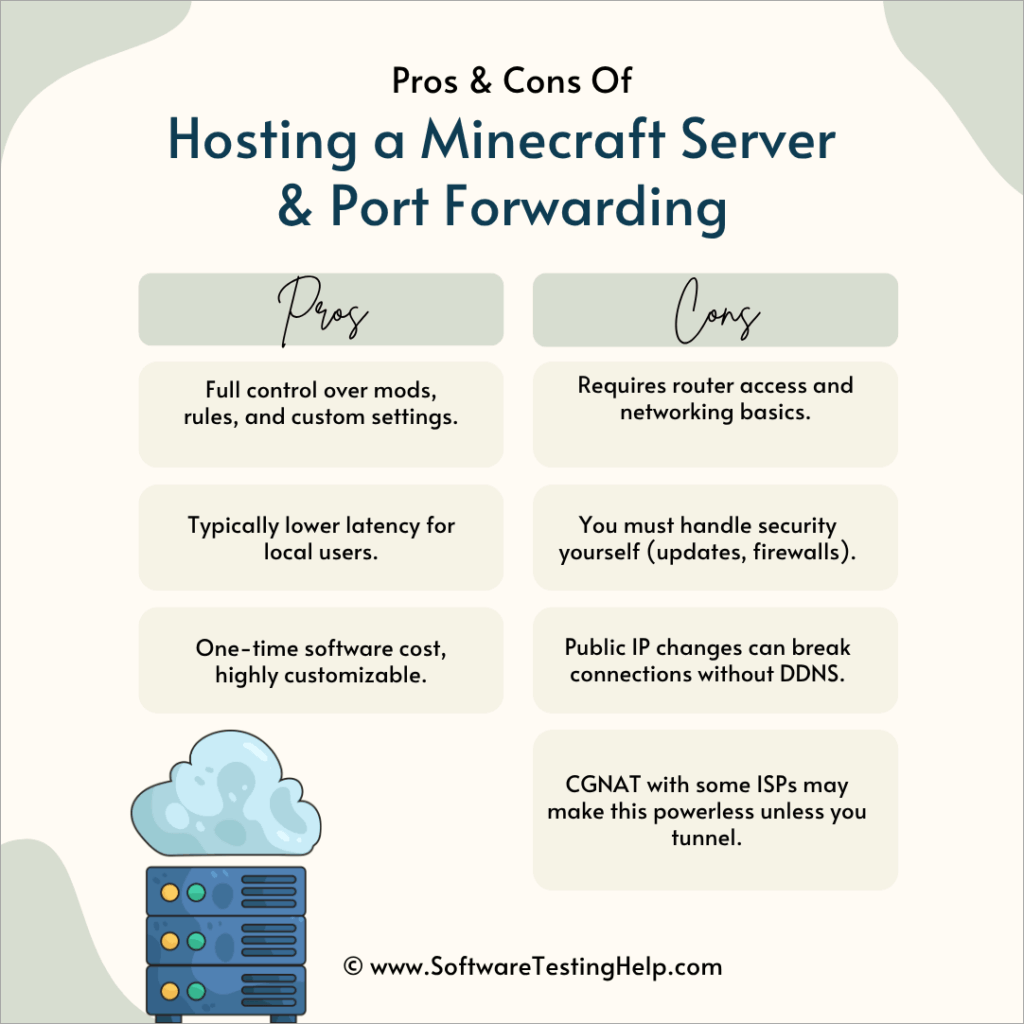
| Pros of Hosting a Minecraft Server & Port Forwarding | Cons of Minecraft Server Setup & Port Forwarding |
| 1. Full control over mods, rules, and custom settings. 2. Typically lower latency for local users. 3. One-time software cost, highly customizable. | 1. Requires router access and networking basics. 2. You must handle security yourself (updates, firewalls). 3. Public IP changes can break connections without DDNS. 4. CGNAT with some ISPs may make this powerless unless you tunnel. |
What are the Requirements For Port Forwarding in a Minecraft Server
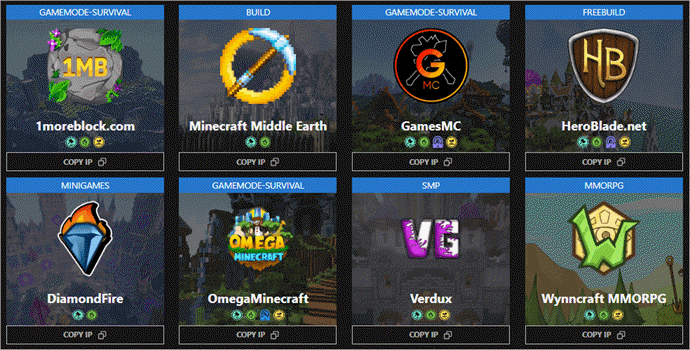
[Via findmcserver]
Make sure you have the following ready to go before we start:
- A running Minecraft server (Java or Bedrock) on the latest version.
- Administrator access to your home router’s web interface.
- A static local IP address or a DHCP reservation for your server machine.
- The correct port numbers: Java: TCP 25565, Bedrock: UDP 19132 (default)
- Firewall awareness: You may need to open these ports on your OS.
- A device outside CGNAT/ISP restrictions that allows inbound port forwarding.
How to Port Forward a Minecraft Server: Platform-Specific Guide
Windows (10/11)
Here’s how to set up port forwarding for Minecraft on Windows:
Step #1: Run ipconfig via Command Prompt; note your IPv4, subnet mask, and gateway.
Step #2: Set a static IP: go to ncpa.cpl → right‑click your adapter → Properties → IPv4 → Properties → enter a fixed IP (outside DHCP range).
Step #3: Log into your router (commonly at 192.168.1.1) via browser.
Step #4: Navigate to Port Forwarding (often under “Advanced” or “Gaming”).
Step #5: Add a rule naming it “Minecraft Java” (or “Bedrock”): Internal & External Port: 25565 (Java TCP) or 19132 (Bedrock UDP). Protocol: TCP for Java, UDP for Bedrock (or BOTH). Destination: your device’s static IP
Step #6: Save and reboot the router if needed.
Step #7: In Windows Defender Firewall, create inbound rules for TCP and UDP 25565 (or the appropriate port).
These rules are created as follows: first, open the Defender Firewall with Advanced Security by pressing Win+S and searching for the Windows search feature.
Open the Advanced Firewall settings window and from the left pane, click on Inbound Rules to create inbound rules. Click New Rule from the right pane, and select Port, then Next, and select TCP.
In the Specific local ports field, enter 25565, click Next, and Allow the connection, then click Next. Check all three: Domain, Private, and Public (or only the ones relevant to your network). Name the rule: Minecraft Server TCP 25565. Click Finish.
Create an Inbound Rule for UDP by repeating the same process, except that you select UDP where possible and enter 25565 on the port. Click Next and choose Allow the connection, then Next. Check the appropriate network profiles. Name it: Minecraft Server UDP 25565. Click Finish.
To verify that the inbound and outbound rules are working, first make sure they appear in the Inbound Rules list and are enabled (green check mark). If they do not appear, right-click the rule and select Enable Rule. Validate by using PortChecker.co or similar, and attempt an external connection via Minecraft.
Note: If using both protocols isn’t available, duplicate rules, one for TCP, one for UDP.
macOS
Step #1: In System Settings → Network, go to Advanced → TCP/IP; note your local IP and router.
Step #2: Set “Configure IPv4” to Manual, input a static IP outside the DHCP range.
Step #3: Follow the same router port‑forwarding steps as Windows.
Step #4: Open Firewall settings under System Settings → Security; add the Java app, enabling “Allow incoming connections” for it.
Linux (Ubuntu/Fedora/etc.)
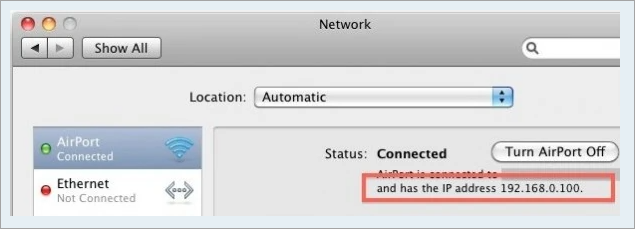
[Via Minecraft fandom]
Step #1: Determine your IP via ip addr or ifconfig.
Step #2: Assign a static IP:
Step #3: Ubuntu/Debian with Netplan: edit /etc/netplan/*.yaml, configure addresses, gateway, and DNS. Red Hat/CentOS: use nmcli to switch IPv4 to manual and apply changes.
Step #4: Complete router port‑forwarding as above (TCP/UDP ports to your local IP).
Step #5: Configure the firewall (e.g., ufw or iptables) to allow the designated port(s).
Step #6: Confirm port opening using a tester, then join the server externally.
Comparing the Various Platforms
| Platform | Ease of Setup | Security | Community Support |
|---|---|---|---|
| Windows | Easiest: GUI for static IP and firewall. Lots of tutorials & tools. | Good security if Defender is configured. | Massive user base, tons of how‑tos. |
| macOS | Moderate: UI is clean but fewer step-by-step guides. | Solid security defaults; whitelist needed for Java. | Smaller but helpful support community. |
| Linux | Harder: netplan/nmcli and iptables require comfort with terminal. | Most secure overall, with fine-grained control | Strong but more technical resources. |
Verdict: Windows offers the quickest and most user‑friendly setup. macOS is a solid middle ground. Linux offers the most control and security, but demands technical comfort.
Router-Specific Port Forwarding
Despite varying interfaces, the pattern holds:
Step #1: Access router UI → locate “Port Forwarding” (under Advanced, Applications, NAT, etc.) → set ports, protocol, and IP → enable rule.
Step #2: The screenshots above illustrate what this step can look like on common routers (generic, Netgear, Verizon).
Step #3: For precise menus, consult manufacturer support pages for Linksys, ASUS, TP-Link, etc.
Advanced Configuration
Want more flexibility? Here’s how to take your setup to the next level:
You can host multiple Minecraft servers (e.g., minigame, hub, factions) on the same machine by running each on a different port, such as 25565, 25566, 25567, and forwarding them all accordingly.
If you’re running both Java and Bedrock editions, forward TCP 25565 for Java and UDP 19132 for Bedrock, then launch each server instance with matching port settings.
To handle frequent changes in your home IP, use Dynamic DNS (DDNS) services like DuckDNS, No‑IP, or DynDNS; many routers auto-update the record so your friends can always connect via a reliable hostname. Read through our detailed guide on Router setup and configuration to gain more insights.
Going further, you can link a custom domain (e.g., mc.example.com) via CNAME or A record to your DDNS hostname, making it sleek and memorable for players. For automation and server maintenance, consider bash scripts or cron jobs on Linux to back up worlds, restart servers, and adjust firewall rules dynamically.
A bonus option: use a GeyserMC proxy, allowing Bedrock clients to join a Java server. This eliminates the need to manage two separate server types and ports.
Security Best Practices
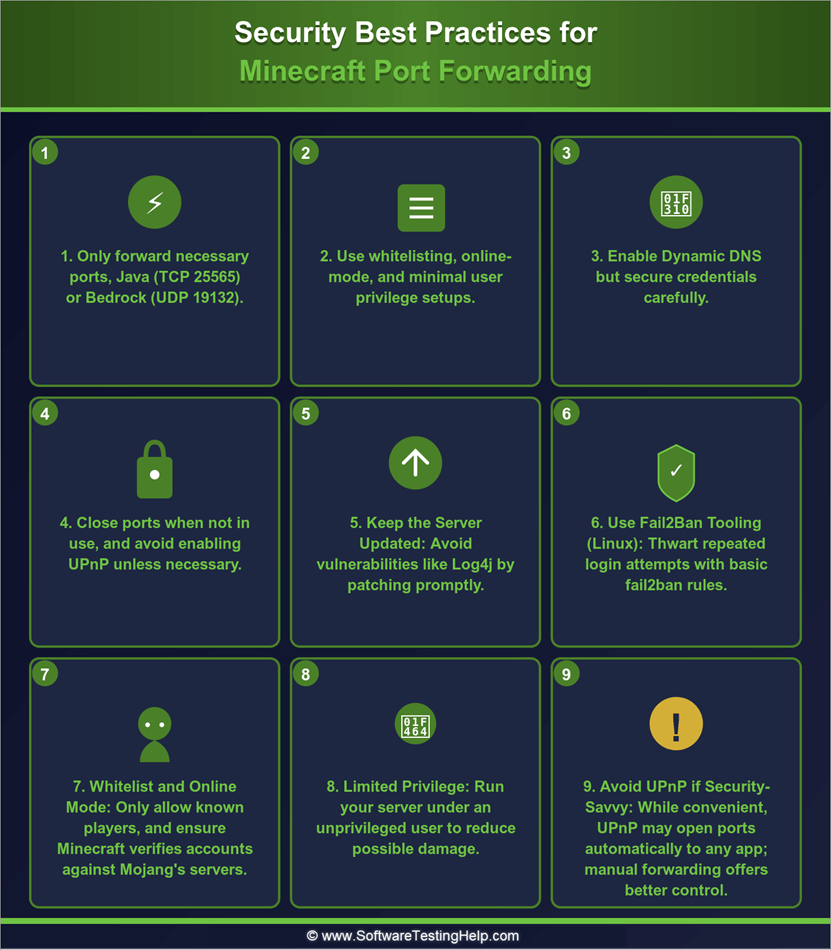
- Only forward necessary ports, Java (TCP 25565) or Bedrock (UDP 19132).
- Use whitelisting, online-mode, and minimal user privilege setups.
- Enable Dynamic DNS, but secure credentials carefully.
- Close ports when not in use, and avoid enabling UPnP unless necessary.
- Keep the Server Updated: Avoid vulnerabilities like Log4j by patching promptly.
- Use Fail2Ban Tooling (Linux): Thwart repeated login attempts with basic fail2ban rules.
- Whitelist and Online Mode: Only allow known players, and ensure Minecraft verifies accounts against Mojang’s servers.
- Limited Privilege: Run your server under an unprivileged user to reduce possible damage.
- Avoid UPnP if Security-Savvy: While convenient, UPnP may open ports automatically to any app; manual forwarding offers better control.
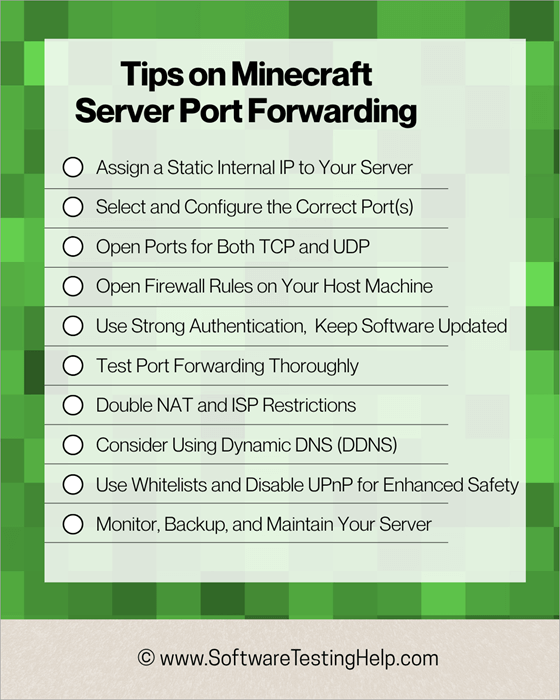
Tips on Minecraft Server Port Forwarding
Enlisted below are some of the important tips on Minecraft Server Port Forwarding.
#1) Assign a Static Internal IP to Your Server
To keep port forwarding stable, ensure your Minecraft server has a fixed local IP address so the router always knows where to send traffic.
- Consider setting up a static IP on the device or via a DHCP reservation to avoid conflicts. Consider assigning a static IP within your LAN and outside the DHCP range.
- Consider the guidelines on setting up a static IP on Windows and macOS.
- Static internal IPs prevent forwarding disruptions.
#2) Select and Configure the Correct Port(s)
By default, Java Edition uses port 25565, and Bedrock Edition uses 19132–19133 (UDP and TCP).
- Port forwarding TCP port 25565 for online Minecraft access.
- UDP port is 19132–19133. You can also use UDP where possible.
- Java uses 25565 (both TCP/UDP), Bedrock 19132/19133.
#3) Open Ports for Both TCP and UDP
Minecraft communication can involve both protocols; forward both to ensure connectivity.
- Minecraft mainly uses TCP, but forwarding both TCP and UDP is safer.
- Other experts note the difference between TCP and UDP and recommend UDP for efficiency.
- Some experts advise explicit forwarding of both UDP and TCP for Java and Bedrock servers.
#4) Open Firewall Rules on Your Host Machine
Ensure your operating system allows incoming traffic on your chosen port(s).
- Consider adding firewall exceptions for the port you’re using.
- Consider the following expertise guides on Windows Firewall setup for both TCP and UDP.
- Consider the following firewall rules across Windows, macOS, and Linux.
- Also includes enabling firewall protection.
#5) Use Strong Authentication and Keep Software Updated
Prioritize security by updating software and using strong credentials.
- Includes using strong passwords, limiting IP access, enabling firewalls, and regularly updating server software.
- Includes keeping router and server software up-to-date and using whitelists.
- Includes monitoring logs and restricting access.
- Be warned about potential security risks when sharing IPs.
#6) Test Port Forwarding Thoroughly
Use port check tools and real-world tests to confirm your setup works.
- For this purpose, online tools like CanYouSeeMe.org and YouGetSignal.com to validate port status.
- Step‑by‑step guides also recommend testing through friends connecting over different networks.
- Other troubleshooting activities include checking firewall blocks and using port scanners.
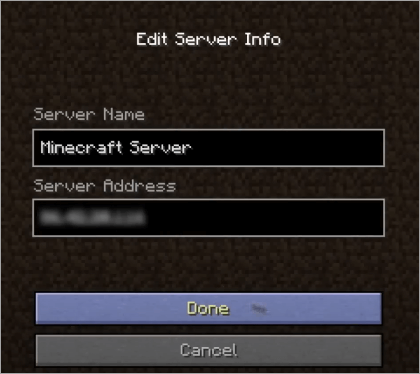
- Also carry out testing by connecting using “publicIP:port” in Minecraft’s multiplayer menu.
#7) Address Common Pitfalls: Double NAT and ISP Restrictions
Be aware of network configurations or external restrictions that may block forwarding.
- Double NAT, having multiple routers, can disrupt port forwarding.
- It’s also recommended to verify NFT performance and possibly contact your ISP about port forwarding limitations.
- ISP port restrictions and dynamic DNS as potential workarounds.
- Ensure compatibility with your router and avoid firmware glitches.
#8) Consider Using Dynamic DNS (DDNS)
If your public IP changes, DDNS ensures players can still connect through a fixed domain name.
- Ensure to follow basic guidance for DDNS setup to avoid IP fluctuation issues.
- See and learn how you can set up DDNS services like No‑IP or DynDNS, and integrate them with your router.
- Hostinger notes the convenience of DDNS for dynamic IP environments and ease of connection.
#9) Use Whitelists and Disable UPnP for Enhanced Safety
You need to start limiting who can log in to your server and avoiding automatic, potentially dangerous port openings.
- According to Reddit users, you need to start enabling whitelists and offline mode; this “gets you practically everything you’d need” security-wise.
- These users also suggest that you need to start disabling UPnP since it can open ports without your knowledge and persist after uninstalling apps.
- Another Reddit thread mentions that Minecraft users interested in port forwarding should start renaming default ports and whitelisting, which reduces risk from exploits like Log4j.
#10) Monitor, Backup, and Maintain Your Server
By keeping good maintenance habits when port forwarding, you will protect your server from long-term issues.
- Maintenance includes monitoring logs, disabling unused ports, and using VPNs if needed.
- It also includes doing regular backups, keeping software updated, and using whitelists for access.
- There is also a need for backing up world files, managing plugins, and routine updates.
Troubleshooting Common Scenarios of Minecraft Port Forwarding
Connection Timed out/Refused: Check correct static IP, firewall rules, and that the Minecraft server is listening properly (no IP binding in server.properties).
Firewall Blocks: On Windows, confirm Java is allowed (inbound rule for both protocols); on macOS, ensure Java is permitted; on Linux, ensure firewall openings.
External IP vs. Local IP: Share your public IP only; friends need that, not your local network IP.
CGNAT / ISP Restrictions: Services like T-Mobile Home Internet and similar mobile/broadband ISPs may block incoming connections entirely. It is user-confirmed that “Port forwarding simply won’t work with T‑Mobile Home Internet… CG‑NAT prevents any inbound IPv4 connections.”
Double NAT: If you have both an ISP modem/router and your own router, consider putting the ISP’s device in bridge/DMZ mode or using UPnP carefully.
Dynamic IPs: May change; use Dynamic DNS to map a static hostname to your IP.
Other Issues
1. CG-NAT / Shared Public IP: T-Mobile Home Internet frequently uses Carrier-Grade NAT (CG-NAT). This means you don’t have a unique public IP address. By default, all incoming connection attempts from the internet, such as friends trying to join your Minecraft server, are blocked because the NAT layer does not forward unsolicited traffic.
No/limited port forwarding through the user gateway: The home gateway provided by T-Mobile usually doesn’t let you set up standard port forwarding. Therefore, you cannot open port 25565 or any other port needed for Minecraft to be accessible from outside networks.
Workarounds: Possible methods include using a reverse proxy or tunneling service, such as LocaltoNet, which can relay traffic from a public endpoint to your local device.
Another option is to use a VPN service that gives you a publicly routable IP or allows port forwarding.
Latency and stability concerns: Even if you bypass port restrictions, T-Mobile Home Internet is wireless, either 5G or LTE. Its performance can vary, leading to issues like jitter, packet loss, or fluctuating latency, which can harm your Minecraft experience. While this is not heavily documented, many users have reported similar experiences.
2. Starlink Port Forwarding / CG-NAT Issues CG-NAT by Default: Starlink also uses CG-NAT in many of its residential and standard plans. This results in the absence of traditional port forwarding and no guarantee of a static or public IPv4 address. Inbound traffic is blocked unless you have a special arrangement.
Public IP / Priority Plan: Starlink offers “Priority” or business-grade plans that may provide a public IPv4 address or a more reliably routable IP. This option allows for port forwarding or at least public access, but it comes at a higher cost.
IPv6 and Alternate Router Setups: Some users take advantage of IPv6 addresses, if available, or use third-party routers to bypass the built-in Starlink router and firewall.
This approach allows for more precise control over firewall and port settings. However, external clients must support IPv6, and the default Starlink router doesn’t always let users create custom firewall rules.
VPN / Tunnel / Reverse Proxy: Similar to T-Mobile, using VPNs that support port forwarding or employing services like NGROK or reverse SSH tunnels are common workarounds. These methods may require additional configuration and could add some latency.
3. 5G Home Internet Solutions Potential and Limitations: 5G home internet from providers like Verizon and T-Mobile offers high download and upload speeds and lower latency compared to many satellite or older technologies. However, many 5G home internet gateways are limited in configuration. Providers often control whether you can use your own router or if port forwarding is allowed.
Incoming port restrictions are typical due to NAT layers. Choosing plans and equipment: To run a server effectively, you need not only good upload bandwidth, which is especially important for Minecraft with multiple players, but also a stable, low-latency connection.
Check if the 5G provider offers a “fixed/public IP” option or allows you to set the gateway to “passthrough” or “bridge” mode, so a personal router can manage port forwarding and firewall rules.
Workarounds: If port forwarding is blocked, using VPNs that provide public IPs or support port forwarding, or reverse proxies and tunnels, are frequently used alternatives. Sometimes, opting for a business plan instead of a consumer plan grants more control. Additionally, using IPv6 when possible is beneficial.
4. University / Dorm Network Workarounds Network Policies and Firewall Restrictions: Dorms or university networks often restrict inbound ports and block or limit server hosting due to security, bandwidth, and liability concerns. Network administrators manage core routers and firewalls, so students usually can’t set up port forwarding on their own.
Shared or NATed IPs: Many dorm networks use shared outgoing IPs or NAT. Even if you configure something on your machine, incoming traffic may not reach you because it’s blocked upstream or because the NAT layer does not forward unsolicited inbound traffic.
Tunneling / Reverse Proxy / VPN: To bypass restrictions, students often use services like NGROK or similar tools to expose a localhost service over a public endpoint. Students can employ a VPN endpoint with its own public IP and route traffic through that.
However, this may violate school policies if running servers is forbidden, so it is important to check the acceptable use policies.
Proposing to IT: In some instances, universities may allow exceptions or provide static IP addresses or port forwarding if you present a valid case, particularly for academic or approved activities.
This might involve filling out requests, agreeing to specific terms, or using authorized equipment. Placing the server in a sanctioned location managed by the university could be advantageous.
Alternative Connectivity Solutions to Port Forwarding
When port forwarding fails or isn’t available, we can use the following options:
Reverse Tunnel Tools
Services like LocalXpose, LocaltoNet, Pinggy, Cloudflare Tunnel (and playit.gg / ngrok) allow your server to connect out, creating an accessible endpoint through their infrastructure.
These tools allow you to expose your local server, such as Minecraft, to the Internet while avoiding port forwarding hassles. It works in a case where the server is behind a firewall, NAT, or ISP restriction, which means players cannot connect to your Minecraft server using your public IP and an open port.
These tools create outbound connections from the local machine to the cloud infrastructure. They establish a tunnel and provide a public URL or IP/port that others can use to connect to your server. Thus, all the incoming traffic can reach the server.
By avoiding port forwarding, you get the following benefits: avoid exposing your real IP. These services also provide extra features like encryption, rate limiting, authentication, or custom domains.
They are mostly useful for users on mobile hotspots, CGNAT, or enterprise networks where port forwarding isn’t possible. While some services offer free tiers (e.g., Playit.gg or Ngrok), others offer paid plans for persistent tunnels or premium features.
VPN or VPS Solutions
Host a VPS, use WireGuard/ZeroTier/Tailscale to bridge your home server, and expose ports on the VPS. The benefits of doing this include: bypassing port restrictions.
VPNs can route traffic through an external server with open ports, avoiding limitations imposed by ISPs or routers. Another advantage is that you get a secure, encrypted connection because VPNs encrypt data between the client and host, adding a layer of security not offered by direct port forwarding.
Besides, it will hide your real IP address, where your public IP is masked, thus reducing the risk of DDoS attacks or malicious scans. There is also the capability to access the home network remotely.
VPNs like WireGuard or OpenVPN enable remote users to securely join your local network, as if they were on the same LAN, and bypass double NAT or CGNAT. VPN tunnels can be established outbound, bypassing complex NAT environments. Commercial VPNs like PureVPN provide port forwarding even behind CGNAT.
Read through our detailed guide on the Top 6 Safe VPNs to pick the best one as per your requirements.
Monthly Cost Comparison Between Port Forwarding and Alternatives
| Approach | Estimated Cost (per month) | Notes |
|---|---|---|
| 1. Port Forwarding (Home network) | $0 | No ongoing fees, just your existing internet bill. |
| 2. VPN Solution | $2 – 6 | Budget VPNs like Surfshark or CyberGhost often cost ~$1.99‑$2.19/month with long‑term plans; mainstream VPNs range $3–$6/month. |
| 3. VPS (e.g., DigitalOcean) | $4 – 20 | Basic droplets start at ~$4–$8/month (1 vCPU, 512 MB–2 GB RAM). More robust options (2 GB RAM) ~$12–$16 . |
| 4. Reverse Tunnel Tools ‣ Cloudflare Tunnel ‣ Ngrok (Personal basics) ‣ Pinggy.io ‣ InstaTunnel | Free – $20+ $0 (basic) $8–10 $2.50–3 $0 – 15 | Varies by service: Included in Cloudflare’s free plan. Personal tier ~$8/month; Pro ~$20/month; usage-based “Production” starts at ~$18/month. Pro plan ~$2.50/month. Free tier with generous limits; Pro ~$5/month; Business ~$15/month. |
1. Cost-Effectiveness
One advantage of port forwarding over popular solutions is that it is a free solution: it utilizes existing hardware and an internet connection, eliminating the need for additional services. In comparison, VPNs and VPS services often require monthly subscriptions, and reverse tunneling tools may necessitate the use of paid cloud services.
For instance, while reverse tunneling via a VPS can be free with providers like Oracle Cloud or AWS, it requires technical setup and may incur costs if usage exceeds free tiers.
2. Simplicity and Low Latency
Setting up port forwarding is straightforward compared to other methods, involving basic router configuration to allow external connections to the Minecraft server. This direct connection minimizes latency, providing a smoother gaming experience.
In contrast, VPNs can introduce additional latency due to encryption overhead, and reverse tunneling tools may involve multiple hops, potentially increasing delay.
3. Full Control Over Server Configuration
With port forwarding, server administrators have complete control over the Minecraft server’s settings, including mods, plugins, and performance optimizations. While VPS hosting offers similar control, it comes with additional costs and management responsibilities.
VPNs and reverse tunneling tools typically do not provide the same level of access to the server’s internal configurations.
4. Security Considerations
When properly configured, port forwarding can be secure, especially when combined with strong passwords and regular software updates. While VPNs can offer enhanced security by encrypting traffic and masking IP addresses, they may not be necessary for hosting a Minecraft server and can introduce complexity therein.
While reverse tunneling tools can bypass NAT restrictions, they may expose the server to external vulnerabilities if not configured correctly
5. Performance and Scalability
Port forwarding provides a direct connection to your Minecraft server, thus ensuring optimal performance for small to medium-sized Minecraft communities.
While VPS hosting can offer scalable resources, it may experience performance degradation if the server is oversubscribed over the Internet. In addition, VPNs can limit bandwidth because of encryption, and reverse tunneling tools may not scale well when the player base is large.
How Minecraft Compares with Popular Games Online
| Game | Player Base & Pricing | Features & Strengths | Pros | Cons |
|---|---|---|---|---|
| Minecraft | $27 | Sandbox creativity, Java/Bedrock editions, educational use, mods | Unlimited creativity, cross-platform, educator-friendly | Steeper learning curve, minimal monetization for creators |
| Roblox | ~230M registered users, ~85M daily users; free with microtransactions | User-generated games (Roblox Studio), virtual economy, social hub | Massive variety of experiences, monetization for creators | Quality inconsistent, child-safety concerns |
| Fortnite | ~350M registered players; free-to-play with in-game purchases | Battle Royale, building mechanics, frequent events and collabs | Highly engaging gameplay, pop-culture relevance | Competitive landscape, less creative freedom |
| Valheim | Sold millions quickly after early-access launch | Viking survival, procedural worlds, co-op up to 10 players | Deep gameplay, polished feel despite early access | Still early-access, limited modding and platform support |
| Core Keeper | Recent release, smaller player base | Top-down sandbox, survival, crafting, up to 8-player co-op | Cozy aesthetics, indie charm, easy to host small servers | Less expansive than Minecraft, console/VR support uncertain |
| Realm Royale | Peaked early with ~10M players in 2018; now declined | Battle Royale spin-off of Paladins, class-based gameplay | Unique classes and abilities within BR framework | Lost player momentum, less community support |
| Aternos | Millions of hosted servers; free hosting platform | Cloud-based Minecraft server hosting, mods/plugins support, no ISP setup required | Free, easy setup, bypasses port forwarding restrictions, supports friends’ co-op | Limited performance, queues for server start, auto-shutdown when inactive |
Frequently Asked Questions
1. Why can’t friends connect even after port forwarding?
Common issues include wrong IP forwarding, firewall blocking, port not open, or ISP using CGNAT. Always test from an external connection and confirm the public IP.
2. Do I need port forwarding if I use Realms or hosted servers?
No. Realms and paid hosting providers manage servers externally, no setup needed on your end.
3. Is port forwarding safe for my home network?
When limited to necessary ports and paired with firewalls/whitelists, it’s generally safe. Regular monitoring and timely updates help mitigate vulnerabilities.
4. What is CGNAT, and why can’t I port forward under it?
CGNAT means your ISP assigns multiple customers to the same public IP, blocking unsolicited inbound traffic. Port forwarding doesn’t work unless you use reverse tunnels, VPNs, or get a dedicated public IP.
Conclusion
Even as Minecraft server is a popular option for online game players, port forwarding is known as the best option for gaming applications due to the advantage of cost and simplicity, as it won’t require continued setups.
Port forwarding allows players from external environments to connect to your Minecraft server by opening your router’s firewall to Minecraft’s default port 25565. It then forwards traffic to your server’s local IP address. Thus, the players can access the server beyond their local network.
The most viable platforms for hosting are a personal PC or a dedicated server. It will obviously require a stable internet connection from ISPs like Comcast Xfinity, Verizon Fios, or AT&T Fiber.
When compared to other ISPs, these alternatives are more preferable because they typically support static or semi-static IPs needed for consistent port forwarding setup and low-latency gameplay.
Compared to other options, port forwarding is cost-effective as it uses existing hardware and the internet without monthly fees.
In comparison to VPS or paid hosting services, which are considered alternatives to port forwarding, the main investment is time spent configuring router settings and securing the server with strong passwords and firewall rules.
Port forwarding is straightforward to do and does not require expertise. All you need is to access your router’s admin panel, navigate to port forwarding, and forward TCP/UDP traffic on port 25565 to your server’s local IP address. This step is critical whenever external players must join, as without it, routers block inbound connections by default.
Research Process:
The total time involved to complete and publish this article is approximately 34 hours. This content was created through a structured research approach to ensure accuracy and reliability.
For more quick Minecraft-related guides, you can explore our range of tutorials below:
- How to Setup Minecraft.Server Properties
- How to Download and Host Minecraft Server on Your PC
- Top Minecraft Earth Server List
- How to Find the Seed of a Minecraft Server
- Cheapest Minecraft Server Hosting Providers
- Best Rust Server Hosting Providers
- How to Make Terracotta in Minecraft
Was this helpful?
Recommended Reading
-

This is a comprehensive review of Apex Hosting with features, pricing, pros, cons, and comparison with other Minecraft Hosting Platforms: In this article, we will take a thorough analysis of the many features provided by Apex Hosting, understand whether the pricing packages that the platform offers are reasonable. Read this…
-

We have put together a list of the best, free, and cheapest Minecraft Server Hosting Provider companies in the world. Check out the detailed comparison and select a suitable vendor for you. Minecraft Server Hosting is a service provided by hosting companies to help individuals or organizations host their games…
-
Are you an addictive player who is looking for a seed finder in Minecraft? Discover how to find the seed of a Minecraft Server instantly with proven methods using simple commands: So, how does one find the seed of a Minecraft server? A question that’s often asked by the more…
-

Unlock the Crafting Secrets and get to know how to make Terracotta in Minecraft. Explore more about the Terracotta Minecraft recipe and learn to successfully create terracotta within the Minecraft game environment: Terracotta, as hardened clay was introduced on 24th April 2013 by Dinnerbone - its developer, and released under…