Even a small crack on your computer screen might worry you a lot. Deeply explore how to fix Broken Laptop Screen effectively in an expert way without replacing the broken computer screen:
A computer monitor or laptop screen is mainly used to view the output as the user interface, text, images, and videos, usually with input commands or mouse or keyboard actions like playing videos, viewing images, opening text files, etc.
The computer monitors should be protected from dust, moisture, or any physical damage resulting in damaging the screen. Replace the broken computer screen with a new one. We will discuss in this article how to fix a broken laptop screen.
Screen Repair: How to Fix Broken Computer Screen
There are various features you should consider while selecting a computer monitor or laptop screen such as the size of the screen from 11 inches to 17 inches, refresh rate varying from 60 Hz for basic use to 240 Hz for enhanced visual performance for professional gamers, pixel density ranging from 70 pixels per inch (PPI) to 200 PPI for high-resolution monitors, brightness, accuracy of colors, types of panel such as OLED, TN or IPS, and viewing angle.
It all started in 1964 with Cathode Ray Tube (CRT) as a computer monitor for Uniscope 300, with a monochrome display in 1973, Light-emitting Diode (LED) in 1977 for displaying colors in CRT monitor. In 1985 LED screen was replaced by LCD (liquid-crystal display) for computer screens.
Research and technology advancement keep on changing every year with the Video Graphics Array (VGA) in 1987 and Super Video Graphics Array (SVGA) in 1989. Since 2007, AMD and Intel have been global market leaders for computer screens or laptops.
Importance of Computer Monitor
The computer monitor acts as a primary output, allows users to interact – with various mouse actions, and displays the results of user interactions. The modern computer screen is designed with features that enhance the visual experience of content.
Brightness screen radiates should be adequate and comfortable for the viewer’s eyes, as excessively dim or bright settings may strain the eyes – resulting in headaches, dry eyes, redness, and eye irritation.
Refresh rate – the frequency at which a new image is rendered on the screen plays a major role in viewing animation or videos on a laptop or computer screen. The reasons may vary for issues related to refresh rates like incompatible ports, outdated drivers, faulty cables, or corrupt software files.
Maintaining a computer screen and replacing the defective one with a new one is essential, as it may damage our eyes. In this article, we will discuss how to fix a broken laptop or computer screen.
Suggested Reading => Top Monitor Desk Mount with specifications
Causes for Broken Computer Screens
You may accidentally drop your laptop or face physical impact during travel and may experience pressure on the screen, which results in screen damage. In case of physical damage, replace the broken screen with a new screen from an authorized computer accessories supplier.
Here is the video on why you should have a laptop warranty.
There are various other defects your computer screen may face, such as:
- Out-of-date drivers
- Problem with cables connected to your monitor and CPU
- Freezing of pixels
- Burn out screen
- Screen backlight malfunction
You may experience a black screen displaying nothing, a flickered or distorted screen, visuals that look stretched, blurred, or pixelated, incorrect brightness, or inability to select pixels for colors, Windows fails to detect and monitor or HDR (high dynamic range) does not support while playing games.
Signs of Broken Computer Monitor
Other than visible scratches or cracks on the monitor because of physical damage, for which you have to replace the screen with a new one, other signs show your computer monitor is broken.
You may experience a black screen, flickering screen, blurry or distorted images, persistent small colored dots, or irregular pixelation. You will find lines appearing intermittently on the screen. In addition, you will see half of the screen is missing, delayed brightness, stuck or freezing of pixels.
Also Read =>> List and Comparison of the Most Popular Curved Monitors
How to Fix a Broken Laptop Screen Without Replacing It
#1) Restart your laptop
You may experience a black or blank screen, delayed brightness, or lines appearing on your laptop screen, due to issues with your operating system, you can simply restart your computer.
- You can select the Windows icon on the left bottom corner of your screen
- Click on the Power icon & select the Restart option from Sleep, Shut down, and Restart
OR
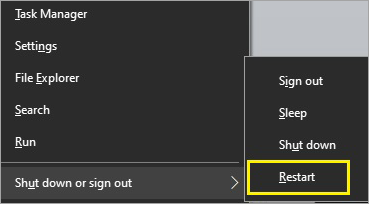
- Click the Windows icon + X keyboard simultaneously
- You will observe a list of options will appear on the left corner of your screen
- Select Shut down or sign out
- You have four options to select from Sign out, Sleep, Shut down, and Restart
- Select the Restart option
#2) Cleaning dust from laptop screen
- Make sure your computer is turned off and the power cable is unplugged
- Select a lint-free, soft cloth and wipe the laptop or computer screen in a circular direction
- Use a slightly moistened or damp cloth with distilled water to remove stubborn marks
- Avoid spraying any liquid directly on the screen
- You can use cleaning wipes specially designed to clean computer screen
#3) Update display card driver
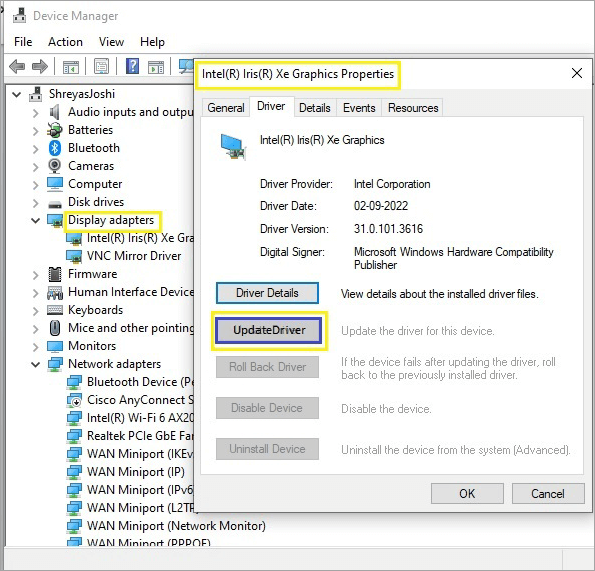
When you observe any of the visual defects while rendering a computer screen like distorted text, screen glare, not being able to focus on close-up objects, etc. you need to update graphics drivers.
- You need administrator rights to update the driver
- You can right-click on the Windows icon on the left bottom corner of the screen
- Select Device Manager from the list
- You can right-click on Display Adaptor and select the option Update Driver
- You can allow the system to search automatically for driver
OR
- Browse your computer for driver software,
Note – There are three Display Driver manufacturers – NVIDIA, AMD, and Intel.
#4) Resolve the dead pixels issue
When you observe an image that displays a black dot on the screen instead of lighting up is known as a dead pixel – caused due to power failure, malfunctioning of the transistor, or defects related to the production of the pixel.
Pixel count per inch (PPI) is responsible for the resolution/screen size ratio. You can try switching off your computer or laptop for 12 or 24 hours and restart it. It may fix the dead pixel issue. You can use pixel repair software by connecting your computer with an HDMI cable to repair pixel issues.
- Dead pixels are inactive pixels that do not display any light or color
- A stuck pixel can display only a single color – Red, Blue, or Green
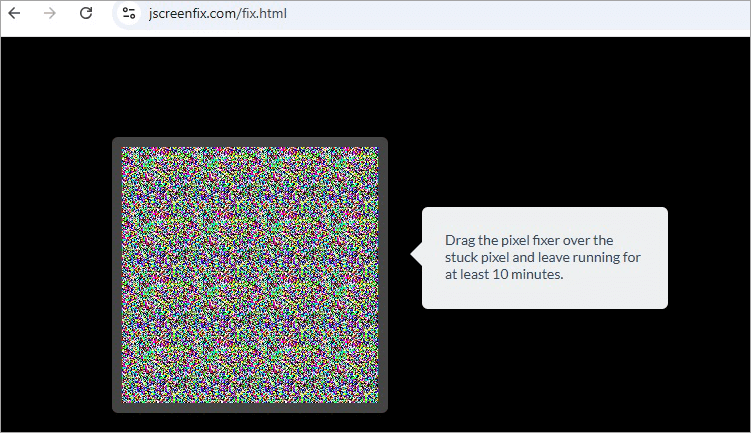
You can use JScreenFix software available for free as a web application at jscreenfix.com to resolve pixel issues, especially with LCD and OLED screen types of your computer or laptop.
#5) Screen burn-in resolution
We usually never change display settings, such as pixels, by changing the resolution value under display settings and screen brightness. The system itself suggests to us what is recommended for the device. Screen burn-in occurs when you notice discoloration of the previously rendered images being displayed on the screen, with a slightly different color than usual.
- You can try to fix the burn-in of your computer monitor by turning it off for at least 48 hours to automatically fix the burn-in issue.
- You can use the JScreenFix online pixel repair tool, also resolve burn-in issues
- Apply a screensaver that has a white image for a few hours and switch it to a white & black image screensaver, this is found to resolve the burn-in issue.
#6) Backlight issue
You need a computer hardware technician to carefully check the internals of the computer or laptop screen, replace faulty components and wiring responsible for the backlight by removing the back cover, followed by disconnecting wires or cables and replace backlight components with new ones.
- Backlight issues are the result of damaged backlight LEDs, faults in the inverter, or loosely connected cables.
- You should turn off your computer and unplug the power cable, wait for a few seconds, plug the cables back, and turn on the computer.
- Verify all cables are connected to monitor and computer CPUs and power cable is securely plugged in.
- Adjust the computer brightness by going to the display setting it to a low level and then try to adjust it.
#7) Use screen mirroring software
Displaying the screen content of your laptop or computer on different devices like smartphones, or screens of another computer is known as screen mirroring.
You can connect external output screens like a TV screen, another computer or laptop, or a projector that is compatible with Wi-Fi (wireless) software like Miracast or BenQ QCast Video Streaming Dongle that share multimedia content like high-definition videos and high-resolution images.
- You can plug in BenQ OR Miracast adapter or dongle to the external screen like a projector or TV,
- Click simultaneously Windows icon + K key,
- A list of external devices connected wirelessly will be displayed
OR
- Connecting another Windows laptop or computer with your computer screen
- Click on the Windows icon (Start) on the left bottom corner of your monitor
- Select Settings from the menu options displayed
- Click on the System icon from Windows Settings
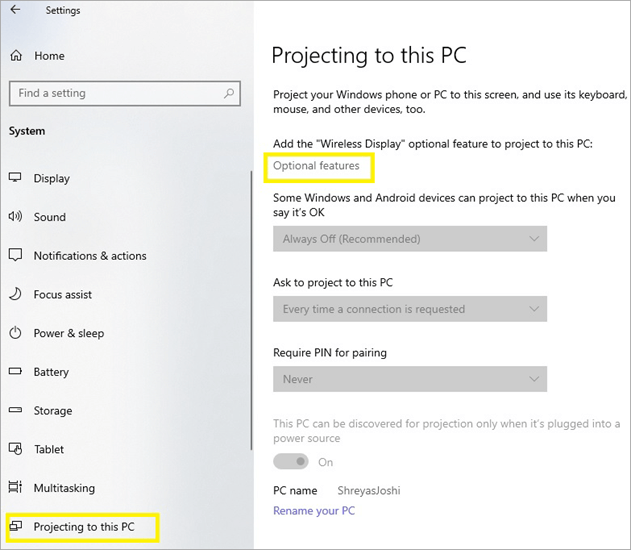
- Select Projecting to this PC option from the left panel
- Click on the Optional Features link to Add a Wireless Display option to protect your PC
- Click on the Add a feature link and enter Wireless display & install this feature.
- Once installed you can protect your PC in the Settings
Here is a video on “How to fix a cracked laptop screen without replacing”
Tips for Preventing Future Screen Damage
You can protect your computer monitor screen with
- A good quality screen protector as a plastic screen that can withstand impact or avoid scratch can be applied to your monitor screen.
- You can build a protective case to protect your screen from dust, or sudden impact.
- Keep your room temperature under control by installing air conditioning machines.
- Clean your screen at regular intervals to avoid the deposition of dust or debris in the viewing area.
- Keep your screen fixed in a particular place and avoid moving to different places.
Professional Repair v/s DIY: Price Comparison
Finally, we will discuss two possible ways how we can fix a broken laptop screen – You can take your laptop to a repair shop where there are professionals who are experts in repairing daily. You may end up paying more, depending on the delay they take in fixing your screen. You can certainly send your laptop if it is under specific warranty coverage unless the manufacturer offers such a warranty.
Manufacturers of laptops in the standard warranty offer coverage only for any defect in workmanship, and materials but not for cracked or broken screen, damage due to liquid spill on the screen or electrical voltage unbalance causing damage, these damages are covered under accidental damage protection (ADP) warranty plan.
Lenovo, HP, Asus, Dell, Lenovo, Acer, and Apple are some of the reputed global brands that are manufacturers for laptops. Pay an additional premium amount for the ADP warranty, which usually ranges from one year to three years of interval.
Without an ADP warranty plan, spend on the cost of the screen and repair cost, should have patience till your device returns from the repair shop. You may think about Doing it Yourself (DIY), you need a few tools like a magnetic screwdriver, an Allen wrench of size 1.5, and of course, a new screen purchased from an e-commerce website.
Many DIY videos are available on YouTube to help fix your broken laptop screen yourself.
Follow the steps suggested in the video such as collecting repair tools, removing the power cable and shutting down your laptop, removing broken laptop screen, there will be a tap that holds together wires, removing any interferences that prevent easy removal of screen, removing LCD and replace screen, and carefully start the laptop, and check the display of the new screen.
FAQ’s on Broken Laptop Screen
1. How laptop with a cracked screen will affect normal functioning?
The normal functioning of a laptop with a cracked screen will be affected in several ways:
• Visual deformity: It will be difficult to read or view content clearly on the laptop screen
• Risk of further damage: Using a laptop with a cracked screen will have the risk of further damage, making it useless in the long run.
• Possibility of injury: A cracked screen, if shattered, can have sharp edges, resulting in injury to the user.
• Reduced Battery life: A laptop with a cracked screen can negatively impact adversely on performance and battery life.
2. My laptop screen is not turning on, any fix?
You may check or try multiple fixes in case your laptop screen fails to turn on
• Verify your computer’s battery and power source (by typing at the command prompt and running as administrator – powercfg /battery-report), verify the battery is charged for the laptop to turn on
• Check power cord is properly plugged into the laptop and cord is not broken also check if there is a loose connection between the socket and the plug
• You can keep pressing the power button for a few seconds
• You can unplug or remove the USB drive, Bluetooth-connected speakers, and other peripherals connected externally and try to press the power button.
3. My laptop screen takes too long to turn on / shows a black screen & does not turn on – please advise
You may follow the below-listed steps to fix the black screen
• You may stop utilities or applications that run on start-up by going to task manager by pressing ctrl +shift +esc keys simultaneously
• Try BIOS/UEFI reset by pressing any one of the keys ESC, DEL, F10, or F2 keys on restarting the laptop
• You may use Windows repair by searching Advanced Startup options & go to the restart now option, troubleshoot -> Advanced Options ->Start Up Repairs & allowing the computer to reboot by itself.
• Try to boot your computer in safe mode, by following the Windows repair steps & pressing the 4 key to restart/boot the computer in safe mode, after booting the computer in safe mode, access Device Manager & select each device for updating their drivers manually.
4. How can I fix the flickering laptop screen?
Flickering screen is due to out-of-date drivers, loosely connected power cables, or insufficient refresh rate. You can fix the flickering screen of your laptop with one of the following fixes:
• Check if the power cable is loosely connected.
• Stop any unnecessary processes running in the background.
• Running system upgrade.
• Update graphics drivers.
• Configure display setting and update refresh rate.
5. How to fix a broken computer screen without replacing it?
You can fix a broken computer screen without replacing the screen in any of the following ways
• You can reboot or restart your computer
• Clean dust or small particles stuck on the monitor
• You can use online software like jscreenfix to fix stuck or dead pixels
• Resolve monitor screen burn-in
• Backlight and screen connectivity
• Update graphics card drivers with the latest ones.
6. How do I fix my PC screen?
You can resolve issues related to the PC screen in one of the following ways:
• Check if the computer monitor is loosely connected.
• Scan for malware or virus.
• Reset BIOS settings.
• Update graphics card drivers.
• Remove externally connected peripherals.
• Restoring system files.
Conclusion
The computer screen is an output device that displays the results of user interactions such as clicking text, numbers, or special characters as input, clicking the mouse on a particular icon to select, or double-clicking to perform activities.
This article explored the various ways to fix broken computer screens effectively without any hassels.
Was this helpful?
Recommended Reading
-

Are you planning to upgrade your gaming experience from a regular mechanical keyboard to LCD Keyboard? This review of the best Keyboards with Screen could help you in choosing one: It's time to switch over to the best Keyboards with Screens available in the market. The best keyboards with screen…
-

Want to know about the best Green Screen Software Chroma Key Apps? Click here to read our review of the best green screen editing software: Chroma key software apps can create professional videos. The app can isolate a color or chroma and remove it from images and video clips. It…
-
Review, compare, and select from the list of best budget Ultrawide Monitor based on features & technical specs for an enhanced gaming experience: Have problems viewing on a compact screen while playing your favorite games? Are you willing to shift to an increased field of view? Consider a new monitor…
-

Best Screen Capture Software Tools that would enable you to make your workday much more productive: A few years ago, screenshots were not that much popular. It was only used to share the error message on the screen. But, nowadays screenshots are routinely and widely used in our day-to-day life.…
-
Easily mirror your screen to a TV or any smart device with these top Mirroring Apps. Pick the best Screen Mirroring apps of your choice to enable fast, and seamless mirroring with great quality: Screen Mirroring is a modern-day technique that allows you to easily and quickly share a screen…
-
A Complete Step-by-Step Guide on How to Screen Record on Windows. Get to know the simple and easy methods to quickly screen record windows: If a picture speaks a thousand words, then a video is worth a million. With Windows, you can easily record your screen to demonstrate how to…
-
A complete step-by-step guide to clearly understand how to Share Screen on FaceTime using iPhone, iPad, or Mac without any difficulties or hassle. With FaceTime’s screen sharing feature, you can share your iPhone, iPad, or Mac screen with someone you are making a FaceTime call with. This is a great…
-
This in-depth review of the Movavi Screen Recorder tool covers how to use the tool, its key features, pros and cons of the tool. Check out this hands-on Movavi Screen Capture software review: Movavi Screen Recorder captures screens quickly in one click. This is the best tool if you want…