In this DroidKit review, you will learn how to resolve all your Android phone issues and how to recover lost data, along with the pros and cons.
Is DroidKit safe at all or is it yet another hyped-up Android utility that fails to deliver its promises?
If you simply doubt about the ability of DroidKit to retrieve your data safely from your phone, then you’re not alone.
In 2026, various utilities, such as iMobie’s DroidKit, assure customers about everything from FRP bypass up to full data retrieval; however, actual experience shows something else.
This review of DroidKit aims to debunk myths around the utility, as we have tested it under various Android restrictions (such as WhatsApp, Instagram, system locks) and will share with you what exactly works – and what does not.

Is DroidKit Safe?
DroidKit appears to be a legitimate software program developed by iMobie, although there can be some potential risks based on the features utilized. Recovery of data through regular software seems relatively safe; using advanced functions such as bypassing or unlocking FRP may pose certain restrictions for specific devices.
The best course of action would be to test the product for free before purchase.
What Is DroidKit and What Does It Do?
DroidKit is an all-in-one tool suite created by iMobie that can deal with any problem concerning Android devices in one application.
Unlike having to download various applications for various problems, DroidKit offers you a solution for all your Android-related problems in one window on your personal computer. It is designed to resolve system issues, recover lost data, or bypass security locks directly from your PC or Mac.
DroidKit Key Features Explained
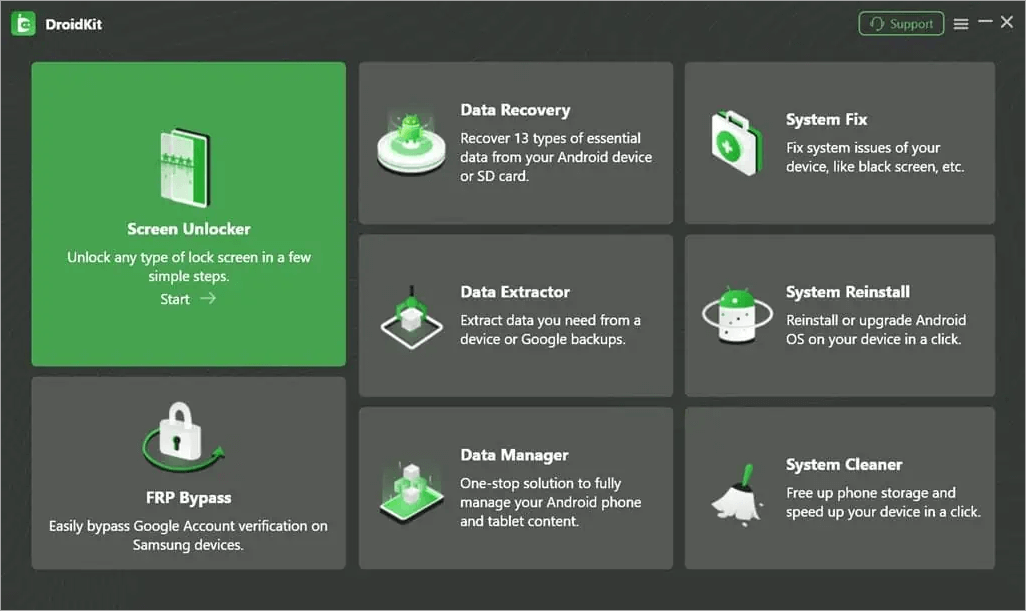
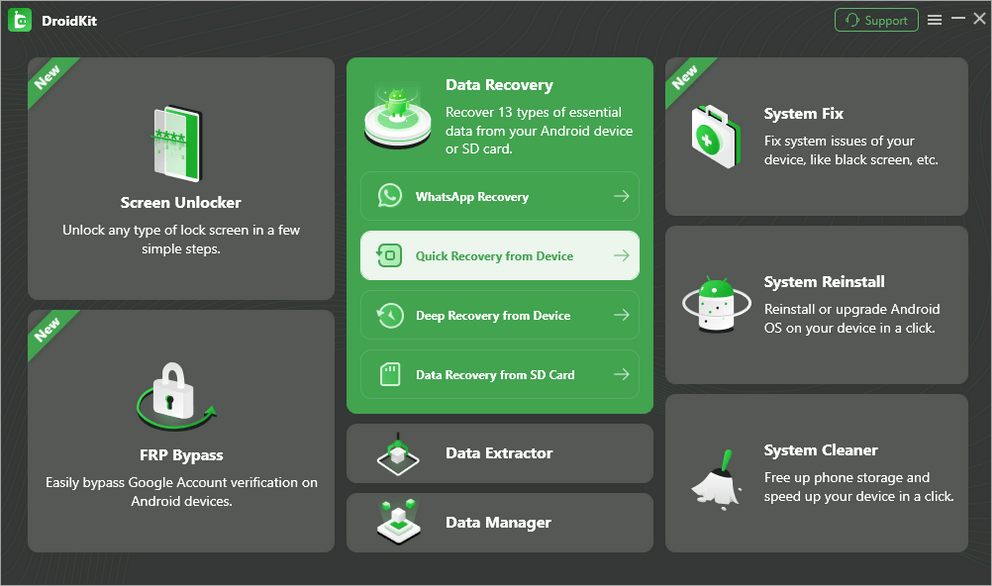
DroidKit isn’t just one tool—it’s a collection of features you can use depending on what problem you’re trying to fix.
[Via MSPowerUser]
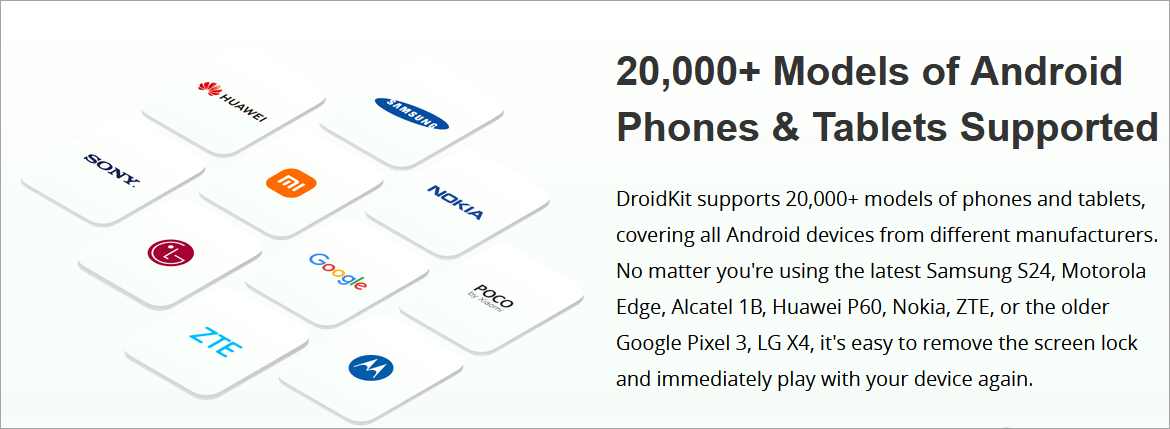
#1) Screen Unlocker: DroidKit can unlock screens on many Android devices in case the owner forgets the phone password, PINs, or pattern, or when the fingerprint, facial recognition, and other methods of unlocking do not work. According to the website, the unlocker can unlock over 2,000 Android smartphone models.
The DroidKit screen unlocker feature works similarly to hard resetting the phone, for instance, by using the power and volume buttons. It will wipe all your user data once done.
Although one can use the button-based hard resetting, which turns out easier than using DroidKit, the latter may help where the button-based hard resetting procedure cannot work.
#2) FRP By-pass: Factory reset protection, or FRP, is implemented on phones as a second layer of security and privacy in case the phone is hard reset.
Users of Android 6 and later devices must sign in to their email accounts to complete setting up the phone after a hard reset. Without the email account password previously set up on the device, a user would not easily access the device after a hard reset.
Therefore, in many cases, for more modern smartphones, FRP pass is presented when you hard reset your phone, for instance, using the power + volume keys. In other cases, if the user didn’t create an FRP account, the FRP pass doesn’t appear, and therefore, they wouldn’t need FRP Bypass tools like DroidKit.
DroidKit unlocks security and FRP lock on Samsung, Xiaomi, Redmi, Oppo, Vivo, Sony, Realme, Motorola, and other models. The user will set up a different email account.
#3) Data Recovery: DroidKit is used to recover files on the device in case of deletion, for instance, files lost through a device hard reset or normal deletion operation. You can recover data from various scenarios, including those seen in the image below.
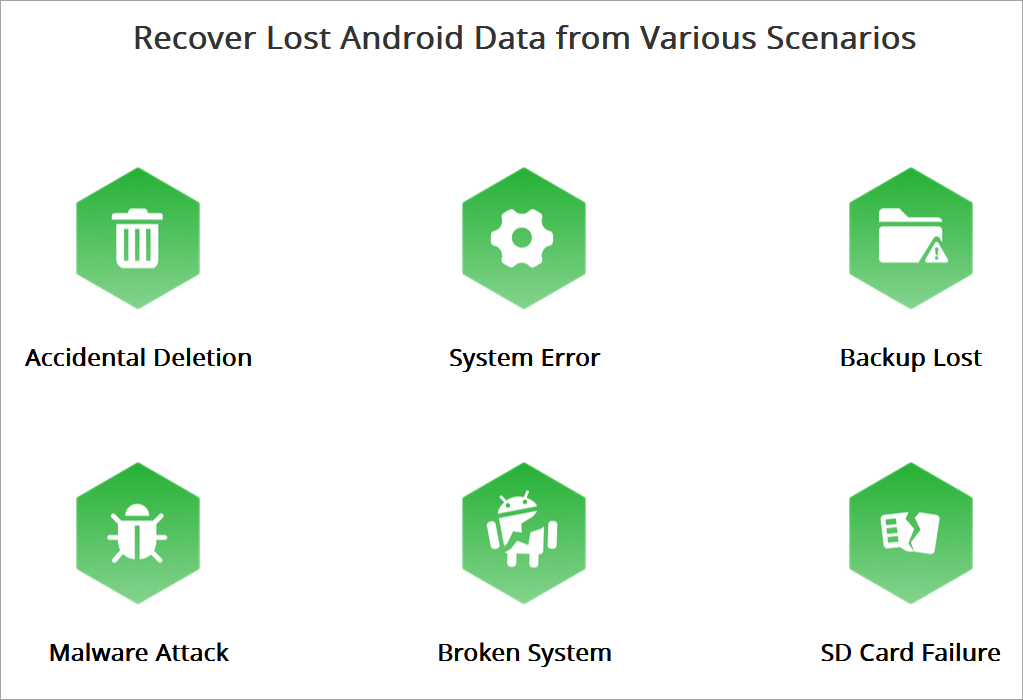
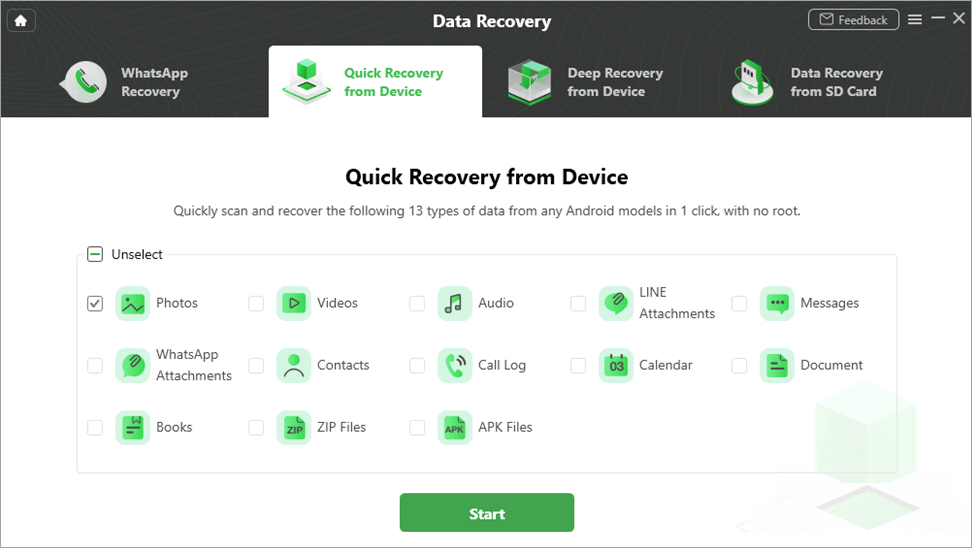
DroidKit types of data recovery are WhatsApp recovery, Quick recovery from the device, deep recovery from the device, and recovery from SD. The tool recovers 13 types of files, including photos, videos, documents, and messages.
One must enable USB debugging from their device settings once connected to a computer via a USB cable.
#4) Data Extractor: You may require extracting data from a smartphone, for instance, before a hard reset. Examples include when the phone is stuck on the Samsung logo when starting up, when suffering a damaged screen, or when the phone is locked, and you cannot remember the password. In such cases, you can extract data from the phone and save it on your computer.
The feature works on Samsung devices only. The tool will extract photos, videos, messages, attachments, zip files, call logs, and other types of information. To reset the device, the owner must provide the PDA code, a piece of information they should be aware of.
To extract data from Samsung devices: The feature allows you to extract data from damaged Samsung devices to save it to a hard drive or cloud service data storage. You must have the PDA code for your device, which can be impossible to find with a severely broken screen.
You can also retrieve from the device a copy of WhatsApp messages, call records, and Wi-Fi passwords, among others. You can also extract data from the Google Account on the device or the SIM card.
#5) Data Manager: DroidKit is this way used to organize files to make them easy to access and transfer, for instance, to a computer or a new Android and iOS device. For instance, it can assist in the easy transfer of files from Android to iOS devices and vice versa.
DroidKit supports three types of data management: Device Manager, Android Mover, and WhatsApp Manager.
#6) System Fix: This feature is used to troubleshoot software issues, but it works only for Samsung devices.
Errors that can be fixed include system errors such as boot loops, app crashes, and error reports; freezing issues, e.g. when the phone is stuck in a certain mode or not responding to gestures; issues related to system repairs, such as failure to charge, camera failure, and black screens; and serious issues such as system crashes, viruses, black screens, and white screens.
#7) System Reinstall: This feature is used to reinstall Android software or upgrade to a new version. Currently, it works only for Samsung devices. On connecting the device, the system will match the right version to install.
#8) System Cleaner: This feature is for ridding the system of junk files and freeing up more space on the device. For instance, it can be useful if the user is experiencing a slow system response because there is little or no storage space on the device or a clog in the RAM.
Using the feature, a user can delete one file at a time or select to delete all the junk files at once.
Supported Devices and Compatibility
As of 2026, DroidKit has expanded its compatibility to support the latest hardware and software iterations.
| Category | Compatibility Details |
|---|---|
| Android Versions | Compatibility with Android 6.0 to Android 16 (latest updates included). |
| Device Brands | Works on 20,000+ device models across manufacturers such as Samsung, Google, OnePlus, Xiaomi, Redmi, OPPO, Vivo, Motorola, Sony, and many others. |
| Computer OS | Windows: Windows 11, 10, 8, 7 (32/64 bit). Mac: macOS Ventura back to OS X 10.11. |
| Specialized Support | Customized repair and FRP unlock software have been developed specifically for Samsung and Xiaomi devices with high success rates. |
Who DroidKit Is Best For
DroidKit is designed for three primary types of users:
- Locked-out Users: In case you have lost your lock screen passcode or find yourself at the Google FRP unlock screen following a factory reset, then DroidKit can help you regain control of your device with its user-friendly guidance.
- Data Recovery Needs: This tool will serve users who have unintentionally deleted their WhatsApp chat histories or photos without having a recent backup either on Google Drive or locally on the phone.
- Troubleshooters: The “zombie phone” scenario where the phone’s screen remains black or enters into an endless loop during reboot, but without the expensive visit to a professional repair shop.
- iOS to Android Users: Individuals transferring from the iOS platform to Android devices who require assistance in transferring data such as photos and messages.
Is DroidKit Safe to Use?
Firstly, DroidKit does not infect any computers or phones with malware since there are no malware present in the software, as checked by many reviewers of DroidKit who used malware discovery tools to test the software, like VirusTotal.
According to our 2026 technical evaluation report, DroidKit is a reliable application from iMobie, an established company in the mobile software market for over a decade now.
While transferring confidential files, such as those stored in a Google account, to Samsung devices through the Data Extractor tool, SSL-256 data encryption is utilized.
Privacy and Data Security Review of DroidKit: Unlike other shady apps, DroidKit is a product from a reputable firm and is used by many people. In terms of safety considerations, the following should be noted:
- No Malware: The app does not contain any malware; it gets a clear bill of health after going through standard virus checks (VirusTotal/Malwarebytes) and does not include any unnecessary programs.
- Safe Scan (Read-Only Mode): If you use it to perform such operations such as Quick Recovery, it will not delete any of your information; instead, it will scan your memory for recoverable data.
- Reputable Company: The company behind DroidKit, iMobie, is trusted by both Apple and Microsoft, unlike many shady firms offering you free phone unlocking software.
However, normally DroidKit will process your data locally using your computer and not via any cloud server. No reliable proof exists that DroidKit shares your data unless you opt to do so in terms of logs and backups.
Nevertheless, since DroidKit acts as an unlocking and recovery software, it needs full access to your gadget, so you must:
- Stop using it if it involves highly confidential information
- Turn off the internet if you require further security
Safety Risks Before Using USB Debugging
Advanced functions such as unlocking or deep device recovery require you to switch on USB debugging mode, which is quite risky:
- It grants the third-party software access to your device’s internals
- If coupled with malicious software, it may compromise your information
- Some functions, such as unlocking and FRP bypass, may result in full data loss.
Moreover, the DroidKit program may not be fully compatible due to recent security patches by Android developers.
Best Practices:
- Enable USB debugging only when necessary
- Use DroidKit exclusively from its website
Does DroidKit Actually Work? (Real Test Results)
That’s the main question—is it a scam or does DroidKit actually work? To prove it, we decided to test the 2026 edition on various gadgets, namely the Samsung S23, the Google Pixel 8, and a Xiaomi Redmi device.
The short answer is—it does work, but not in every aspect and for every device. Everything depends on your tasks and the state of your smartphone.
Data Recovery Test Results
The chances of recovering data largely depend on the recency of its deletion.
- Instant Recovery (No Root): Worked great for recent data—about 90% recovery rate for WhatsApp media files and images. Older data, such as SMS messages, was far more difficult to retrieve, particularly if it had been overwritten.
- Direct Recovery (Requires Root): Here is where DroidKit really stands out. DroidKit uses its root capabilities to effectively recover deleted file remnants that were deleted over three months ago.
- The Verdict: DroidKit highly effective when retrieving media files, but the chance of successful recovery falls when there has been considerable usage of the device after the data loss.
FRP Bypass Test Results
Factory Reset Protection (FRP) is probably one of the most powerful security measures offered by the Android OS. The effectiveness of the “FRP Bypass” from DroidKit highly depends on the smartphone’s manufacturer.
- Samsung & Xiaomi: Tested a Samsung smartphone with the latest update regarding the security patch installed. In this case, DroidKit offered us a special firmware package that bypassed the account verification within about 15 minutes.
- All Others: The effectiveness was somewhat lower for newer models of OPPO & Vivo (about 75%) and needed several attempts or even certain settings in “MTP mode.”
- In Short, DroidKit is one of the best tools for Samsung and Xiaomi smartphones when it comes to Factory Reset Protection at this moment.
Screen Unlock Success Rate
- DroidKit helps users who face physical blockage of their phones because of forgetting PIN, Pattern, and/or Biometric authentication.
- Common Lock Types: Our experience with the tool has proven that its Screen Unlocker works with 100% accuracy when dealing with PIN, Pattern, and Fingerprint locks from different brands.
- Tip: One should know that using the Screen Unlocking option will erase all data from your phone. It is a restriction of the Android system and has nothing to do with DroidKit.
- Evergreen Samsung Exception: DroidKit sometimes succeeds in unlocking an old Samsung without erasing its data, yet for the rest 99% of smartphones, the process requires a factory reset.
- The Verdict: If you need to get back into a locked phone and don’t have a backup, DroidKit is highly effective, though it comes at the cost of your local data.
How to Use DroidKit Practically (Step by Step Explained)
To use DroidKit, one must have a computer and a USB phone connector to connect the phone to the computer through the USB port, and then install the software on the computer. It supports usage on both Windows (11, 10, 8, 7, Vista (both 32bit and 64-bit)) and Mac (10.13 (High Sierra) and above).
All Android devices from all manufacturers are covered if running Android 5 and later. Some features are restricted to some device manufacturer types.
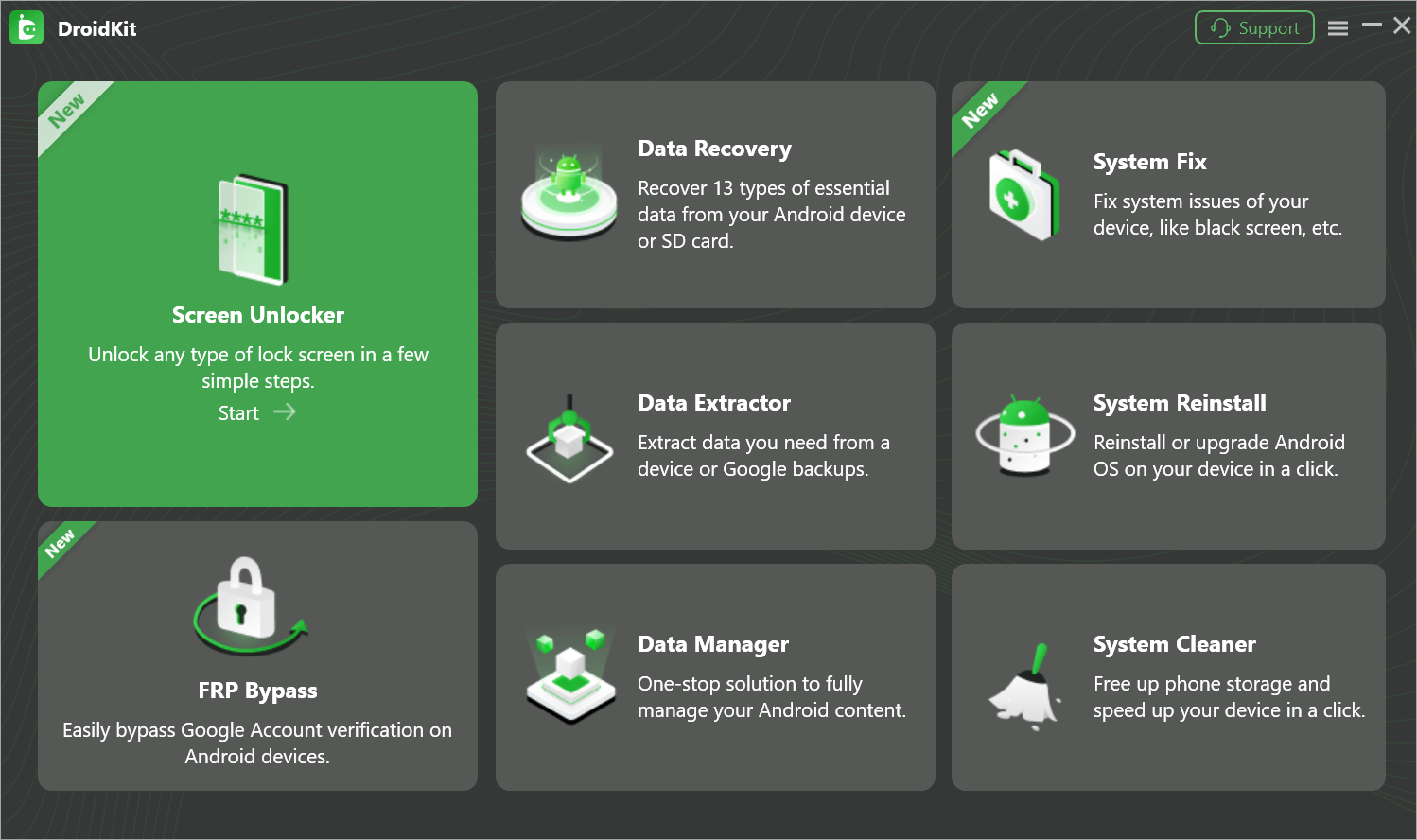
Step #1: Visit the website, download the app, and install it on your computer. Open the app and choose on the homepage the feature you want to use based on the type of service required for your device. The features are displayed on the default user interface.
Step #2: Connect the smartphone to the PC using the USB cable and make sure the relevant USB driver software is installed. Sometimes, it would install automatically on connecting the mobile via USB. In other cases, you need to search for and install the USB device drivers for a manufacturer or just use the Universal drivers from the Internet.
The Device Manager on your Windows computer, for instance, can also install a new device or update the USB device drivers.
The phone version and model are detected on the PC if the software is installed successfully. The software will also detect that the device is connected to the computer. It will display the phone type and model, and show that it has connected successfully. The software will show it to you if the phone is not detected.
We present here an example of resetting FRP or using the FRP Bypass feature.
To reset FRP, follow the above procedure. The software will build configuration files for your device once it has been detected. If you choose FRP Bypass as the service option, you want. Click or tap Start to continue when a pop-up with that option appears. You will then need to put the phone into recovery mode.
For Samsung, use the power + volume key combination to put it into recovery mode. The combinations differ per device. Once you are on the Recovery menu, choose Wipe Cache partition and select the option using the power button.
This will reset and wipe all data from the phone. The software again walks you through locating and identifying your phone’s Android version, after which you need to click/tap the Download Now button on the computer. Ensure you connect the device to the PC. It will show the progress of the installation process.
Once complete, it will indicate the process as complete and you can disconnect the phone from the computer, boot it, and set it up.
Steps to Unlock Your Android Device Using DroidKit
Refer to this video:
Step #1: Download, install, and launch the DroidKit software on your PC. Also, find the Screen Unlocker feature.
Step #2: Click the Start button on the next screen.
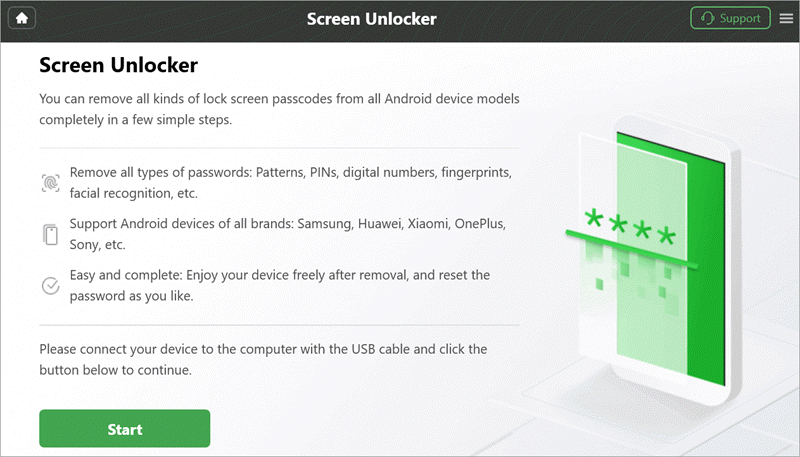
Connect the phone to the computer via the USB.

Click the Device Connected button. It will start preparing the configuration files for unlocking. Once created, click the Remove Now button.

Put your device in recovery mode.
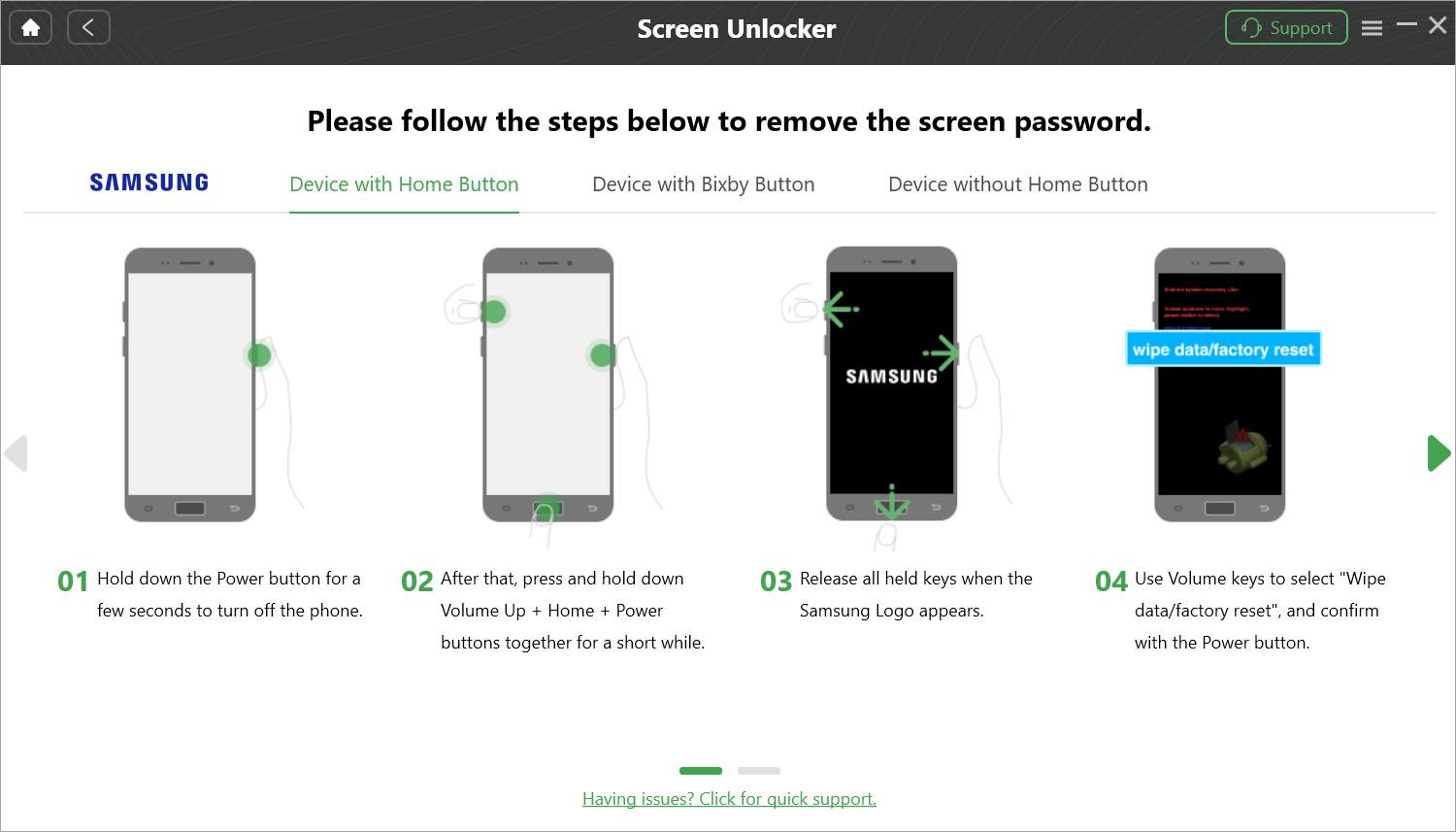
Step #3: Select the phone’s manufacturer brand from the list shown and click Next. Follow the onscreen steps to complete the process. It also provides screenshots of the steps to be followed when unlocking a phone.
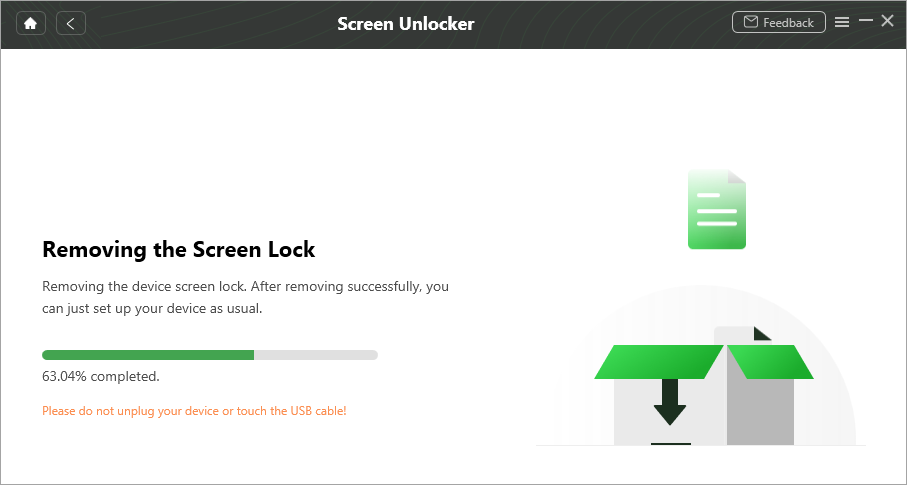
How to Recover Lost Data on Android Using DroidKit
This feature does not require you to root your mobile phone. In case the phone is rooted, you access an even more detailed recovery process with DroidKit. Recovery of data from SD currently works only on Windows.
Step #1: Select the Data Recovery section -> Quick Recovery from Device. Select the data type and click Start. It will scan for the selected data types, and list all the found files, from where you can select the files you want to recover either To Device or To Pc.

To clean junk files, simply open the app, select the System Cleaner feature, and click Clean Now. It will find all the junk files. Select specific files to delete or wipe all of them at a go.
Customers can access technical support services and report any issues, as well as manage the subscription from the homepage. The technical support staff can assist with any issue a customer has regarding usage.
DroidKit Review: Pros and Cons
| Category | Pros (The Wins) | Cons (The Trade-offs) |
|---|---|---|
| Pricing | Purchase Modularly: Purchase only the required tool (FRP Bypass, for example) to cut costs. | Very Expensive to Own: Modules cost money individually; purchasing the entire software is very expensive. |
| Usability | Ease of Use: User-friendly interface that offers step-by-step instructions for all activities. | Not Mobile: The program needs to be plugged into the PC/Mac using a stable USB connection; no mobile application available. |
| Functionality | Multi-Purpose: It is an eight-in-one device used for data recovery, system cleaning, and repair, among other functions. | Restricted Brand Options: Key "System Fix" module functions work only with Samsung and Xiaomi handsets. |
| Rooting | Rootless Functionality: Contrary to other apps, "Quick Recovery" and "Screen Unlock" do not require root access. | Needs Root Access for Advanced Features: Module "Deep Recovery" still needs rooting access, potentially voiding warranty. |
| Security | Safe & Legal: 100% clean from viruses/malware/bloatware (tested using VirusTotal) and processes data locally. | Deletes All Phone Data: Use of "Screen Unlocker" or "FRP Bypass" module deletes all device data. |
| Compatibility | Latest Updates: Compatible with more than 20,000 phone models, works with Android 5.0 to Android 16. | Doesn’t Work with Old Phones: Does not work with keypads or old Android versions (pre-5.0). |
DroidKit Pricing — Is It Worth Paying For?
A frequent question that users ask is, “Is DroidKit free?” The answer to this question would be “DroidKit is a ‘Freemium’ software.” It is free to download, install, and scan your phone, but any operation will require a license key.
In 2026, iMobie still maintains modular pricing for its DroidKit, and this becomes an enormous benefit for those who only need to solve one particular issue.
DroidKit pricing
Each DroidKit feature has a separate price: you can buy Screen Unlocker, FRP Bypass, Data Recovery, Data Extractor, and System Fix each for $35.99. Data Manager costs $25.99, while System Cleaner and Reinstall features each cost $15.99.
Free vs. Paid Features
To help you decide if it’s worth the investment, here is a breakdown of what you can do without spending a dime versus what requires a subscription.
| Feature | Free Version | Paid Version |
|---|---|---|
| Data Recovery | Review and preview deleted pictures/text messages. | Data Recovery and Transfer to PC/Phone |
| Screen Unlocker | Determine phone type and download the driver software. | Removal of PIN, pattern, or biometric security |
| FRP Bypass | Ensure compatibility for your particular brand. | Full Google Account unlock |
| System Fix | Diagnose operating system errors with scan. | Solve black screen, boot loop, and other similar issues |
| Data Manager | Move a maximum of 50 files daily. | Unlimited high-speed data recovery |
| System Cleaner | Delete unnecessary and bulky files. | Automatic optimization and cleanup. |
The Verdict: The free version is basically an evaluation tool. Test its ability to ‘see’ your lost files or ‘identify’ your locked phone prior to paying for it using your credit card information.
Refund Policy Review
What happens when it doesn’t work out? DroidKit provides a 60-day money-back guarantee, a much better offer compared to most other apps available in the mobile utility market. Nevertheless, certain conditions known as “Experience-First” need to be fulfilled:
Known Limitations of DroidKit Before You Buy
Limits in New Android File-based Encryption
With the advent of new Android OS versions, especially those that are above Android 12, file-based encryption has been employed, which poses serious constraints on whatever a recovery tool, such as DroidKit, can retrieve.
- Most deleted files become permanently encrypted and hence cannot be retrieved
- In many situations, all you may end up retrieving will be thumbnails and incomplete data
- Modern devices focus more on being safe than on being recoverable
FRP Compatibility Issues
- While one of DroidKit’s best-selling points is bypassing FRP, it’s one of the least reliable functions.
- Less compatibility for devices with recent security patches
- Less compatibility for Android 13/14+ devices
- Compatibility issues for certain brands such as Pixel, Xiaomi, and Oppo
- Reddit users said, “Paid software like DroidKit… Failed to bypass FRP”.
Cases Where DroidKit May Fail
Even beyond the scope of FRP, DroidKit can experience difficulties as follows:
- Being unable to proceed with the procedures (for example, freezing at 50% while trying to bypass FRP)
- The wrong choice of Android version may lead to the failure of the operation
- Complete recovery needs root access, which people do not use
- SYSTEM Repair works best only on Samsung devices
- The success rate is largely dependent on the device type, its version, and condition
How to Unlock Android Phone without Password | Without Losing Data
The following video shows how to unlock an Android phone without a password using DroidKit.
How Does DroidKit Compare with Other Tools
[Via iMobie ]
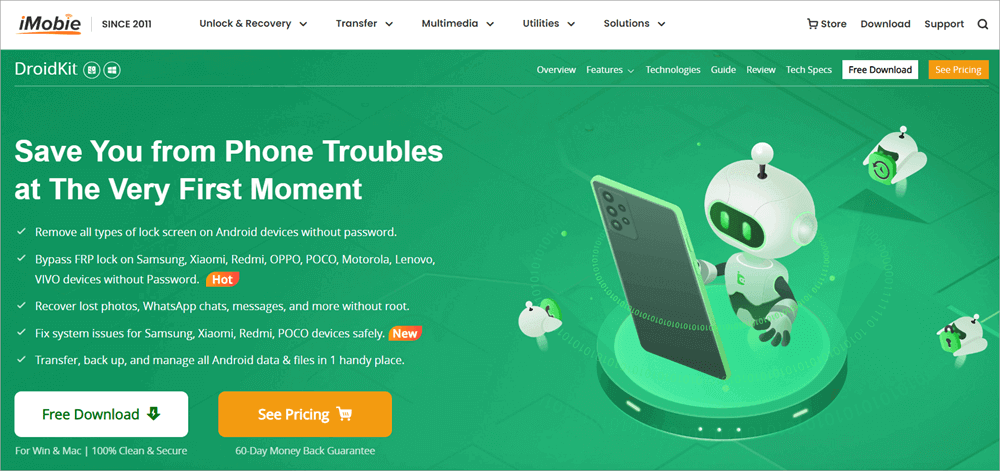
iMobie DroidKit is most suited for troubleshooting Android smartphone issues and offers more phone recovery scenarios than many competitor tools. It will also recover data from SD, SIM cards, and Google drives, including deep recovery, which is more thorough than the basic quick recovery option.
The latter is most suitable for rooted devices. The tool can also transfer data between Android and other Android iPhones or PCs. DroidKit is also more affordable.
Price-wise, DroidKit is more affordable, at $39.99 for a one-year license and $55.99 for a perpetual license. In comparison, Dr. Phone, a popular alternative, supports both iOS and Android devices. Dr. Phone also comprises extra tools, such as real-time root status, battery health, and hardware configuration management. Dr. Fone costs $99.95 per year and $115.95 for a perpetual license.
DroidKit FAQs
1. Is DroidKit free or paid?
DroidKit uses the freemium approach. It allows users to scan or view scan results for free. However, more sophisticated options such as recovering, bypassing FRP, or unlocking a smartphone cannot be used without purchasing a license.
2. Is DroidKit safe and legit?
The only major risk is that of losing data on your Android device when using Android system recovery and security resetting functionalities. Otherwise, it is legit and safe to use. It encrypts sensitive data, the company promises never to leak information or data, and does not have hidden malware based on our DroidKit review above.
3. Can DroidKit unlock a phone?
DroidKit unlocks Android smartphones using Android version 5 and above through Android 11. It can unlock screens suffering security locks with a PIN, passcode, pattern, fingerprint ID, and facial recognition protection.
4. Does DroidKit root your phone?
DroidKit will not in any way root your phone. It is used for phone system recovery, error recovery, screen security unlocking, data recovery, and data extraction.
While it can be used on rooted devices – which renders more benefits when recovering lost data through the Deep Recovery option – DroidKit is meant to be used on unrooted devices.
5. How to recover deleted photos from WhatsApp on Android without backup?
DroidKit is one of the software kits used to recover data from Android devices without the need to root the device. It also supports recovery of 13 WhatsApp file types, including photos, videos, and documents.
Step 1:
Download DroidKit from the official website, install it, and launch the program on your computer.
Step 2:
From the homepage, select the Data Manager option. Choose WhatsApp Manager, then click Restore WhatsApp and select Restore Now. The tool will load all available WhatsApp backups. Click View to preview a backup.
Step 3:
On your Android phone, open WhatsApp → Chats → Chat Backup, then tap Back up to Google Drive – Backup to create a fresh backup.
Step 4:
When a pop-up appears in DroidKit on your computer, follow the on-screen instructions to grant the required permissions. Click Continue, then tap OK on both the app and your phone.
Step 5:
Enter the password 1234 to back up WhatsApp data. Re-enter 1234 and tap Restore my data on your Android device.
Step 6:
DroidKit will begin restoring WhatsApp data to your phone. Once completed, check your device to confirm the data has been restored. Tap OK on your phone and click OK in DroidKit when the interface shows Restore Successful.
Alternative Method (Without Backup):
To recover data without a backup, select the Data Restore option. DroidKit will scan the device for lost files. You can restore individual items or select all files to restore them at once.
6. How to recover permanently deleted photos from the gallery without backup?
Step #1: Install DroidKit on your computer and connect the phone with a USB cable. This works for Android devices version 5 and later. Launch the DroidKit app.
Step #2: Select the Data Recovery option and either use Quick Recovery or Deep Recovery for rooted devices. It will scan all deleted files and you can select any or all to restore.
7. Does DroidKit actually recover deleted files?
Yes, but it’s not possible to restore all deleted files in some cases. The application can restore deleted photos, text messages, and WhatsApp backups when they are not completely wiped out from the memory. Otherwise, you might find that the file has not been fully restored.
8. Does DroidKit work for FRP bypass?
Yes, in most cases, the software will help you unlock your phone using the FRP bypass technique if the phone belongs to the list of supported models (mostly Samsung devices).
9. What is the best DroidKit alternative?
There is a range of options, including Dr.Fone, Tenorshare UltData, and other solutions designed for the same purposes. Although they are very similar, their efficiency and performance differ. Therefore, users should choose according to their purposes (recovering, unlocking, FRP).
10. Can DroidKit damage your phone?
No, in the majority of cases, using the software doesn’t hurt phones. However, certain options might erase data or modify settings (unlocking, bypassing FRP), leading to data loss. Thus, it’s recommended to backup your data before performing any actions.
11. Does DroidKit work on newer Samsung devices?
Partially. DroidKit supports many Samsung devices, but newer models with updated security patches (Android 13/14+) may have limited support—especially for FRP bypass and system repair.
Conclusion
DroidKit is a fast and easy-to-use Android troubleshooting software, and our review reveals it is reliable and delivers most user expectations, except that it is limited for use with some Android versions, models, and types, including iPhones.
It supports a host of manufacturers such as SAMSUNG, Google, HTC, SONY, LG, MOTOROLA, HUAWEI, ZTE, Xiaomi, OPPO, SHARP, ViVo, LENOVO, MEIZU, OnePlus, TCL, Gionee, Meitu, Nubia, Smartisan, etc. A user will also lose their data on unlock and system recovery operations.
The most favorite usage would be in removing screen security locks, for instance, when the Android owner forgets security codes, passwords, PINs, fingerprints, and face IDs.
All a user needs to do, like with most Android phone troubleshooting software, is to install DroidKit on the computer and connect the phone to the computer via USB. With the relevant USB drive and ADB software installed, DroidKit will automatically detect the device.
However, for iPhone unlocking, you will need to utilize other apps, such as ApowerUnlock and Dr. Fone. Some apps, such as the 4uKey, offer the option to keep data while unlocking the screen.
Review Process:
The total time spent on completing research and publishing this page is approx. 48 hours. This DroidKit review was prepared after evaluating the tool’s official documentation, feature set, and supported devices, along with analyzing real user reviews and common Android recovery scenarios.
For more Android phone-related guides, you can explore our range of tutorials below:
- How to Fix Android No Command Error with 4 Quick Ways
- Why is My Android Phone Not Allowing Me to Make Calls
- Why Is My Phone So Slow? 5 Easy Ways to Speed Up Your Phone
- The Top 10 Android Phone Cleaner Apps in 2026 [UPDATED LIST]
Was this helpful?
Recommended Reading
-

Compare the top Parental Control Apps to discover the Best Parental Control apps for iPhone and Android most suited for your children: The rapid advancement of technology poses a risk to children. Various studies have shown negative physical and mental effects of smartphone usage at earlier ages. Parental control apps…
-
A simple guide to help you understand the multiple effective ways to answer the question - How to Transfer Apps from Android to Android phone quickly: Switching to a new Android phone can be very enticing. However, transferring all your apps and data from the old to the new Android…
-
Here we will review the features and compare the top Root Apps For Android Phone to guide you in your selection: Root access to an Android phone is similar to gaining administrator privileges in Windows. You will have more control over your phone when you root your device. It will…
-

Are you confused about choosing from the widest list of Android Phone Cleaner Apps available today? Compare and select the best Android Cleaner Apps: Phone cleaning or junk cleaning refers to removing unused or unnecessary files from the phone. These files can include photos, videos, cache files, cookies, residual files,…