Is your Xbox controller light blinking fast or slow without connecting? This exclusive guide will help you to fix the Xbox controller flashing issue quickly.
Is your Xbox controller blinking and not connecting to your console or PC? In most cases, a blinking light indicates that your Xbox controller has failed to connect successfully. This may be caused by low or incorrectly placed batteries, Bluetooth or wireless connectivity problems, software bugs, or even hardware malfunctions. The best part is that most of these problems can be resolved easily.
In this guide, I will explain the common reasons why your Xbox controller keeps blinking and provide step-by-step solutions to fix this issue with Xbox One, One S, One X, Series X, Series S, and even PC users, so you can quickly reconnect and get back to gaming.
Table of Contents:
- Why Is My Xbox Controller Blinking (Slow or Fast): Common Causes
- Proven Solutions to Fix My Xbox Controller Keep Blinking Slow or Fast
- #1) Attempting to Pair With the Console or PC
- #2) Out-of-sync Controller
- #3) Low Battery or Incorrectly Installed Batteries
- #4) Xbox Controller Light Blinking – Firmware Issues
- #5) After Connecting the Controller to the PC or Using it on Another Controller
- #6) Controllers Need Resetting
- #7) Xbox Controller Keeps Blinking – PC Driver Issues
- #8) Problems With Hard Drives, Memory Units, or Console Needs Service
- #9) Console Turns Too Hot & Needs to be Cooled Down
- #10) Xbox Controller Blinking Slow – A/V Connection or Cable Problems
- Frequently Asked Questions
- Conclusion
Why Is My Xbox Controller Blinking (Slow or Fast): Common Causes
If your Xbox controller is flashing or blinking, it usually means there’s a connection or power issue. Below are some of the most common causes you can look for:
1. Not Synced with the Console: The most common reason is a syncing failure. The Xbox controller may not have synced with your Xbox Console or PC.
2. Low Batteries: Weak, drained, or improperly inserted batteries can cause the controller to blink continuously. If you’re using a rechargeable battery pack, a loose connection can interrupt power and trigger blinking.
4. Out of Range: Being too far from the console or having obstacles (walls, furniture) can block the signal and can drop the connection.
5. Other Wireless Device Interference: Other wireless devices like Wi-Fi routers, headphones, or USB 3.0 devices may interfere with the signal.
6. Outdated Firmware: An outdated Xbox controller firmware can cause syncing issues and can blink your Xbox.
7. USB Cable Issue (For Wired Setup): If your Xbox is connected via USB, a faulty or low-quality cable can also prevent pairing that can lead your Xbox to blink.
8. Console Not Powered Properly: If the Xbox console is frozen or is in sleep mode, then it is also possible for your Xbox keep blinking.9. Hardware Problem: Internal damage to the controller, such as the motherboard, wireless chip, etc., can also cause persistent flashing of Xbox.
[image source]
Proven Solutions to Fix My Xbox Controller Keep Blinking Slow or Fast
#1) Attempting to Pair With the Console or PC
Try checking if the connection problem is temporal by pressing the pairing button on the console and the controller. You can also switch it off and on again to see if the problem disappears.
Also, a common test is to change the device to which it is connecting. For instance, even if you are using it on a console, you could check it using a phone or PC using the right connections and check if the problem goes away. This is the case if you suspect the problem is with the controller device to which it is being connected.
#2) Out-of-sync Controller
The controller can start blinking or flashing if it is out of sync with the console. This is done to try and re-establish the connection and alert the user of the issue. The Xbox controller blinking slowly means it cannot find the Xbox it is synced with.

[image source]
To re-sync and re-establish the connection, turn on the Xbox console, press and hold the Pair button (with ))) symbols) located on the front of the console until the Xbox button flashes. Press and hold the Pair button on top of the controller until the Xbox button on the controller flashes more rapidly. Wait for a few seconds. The controller will be reconnected if the lights stabilize.
Ensure that you are in range and have direct signal strength. Your controller might just be too far from the console and show this problem when you are using wireless connectivity.
Additionally, check that there is no interference coming from other devices around the controller. If you have already connected other controllers, try disconnecting them first and using the original controller.
Also Read => Quick Fix for Xbox Controller Keeps Disconnecting
#3) Low Battery or Incorrectly Installed Batteries
Flashing issues also happen if the controller is not adequately powered either because battery power is low or a faulty battery installation.
If the battery is low, the flashing will be occasional as it warns you that the battery is about to go flat. Again, this problem can manifest by the controller blinking diagonally across the four lights, which also warns that the battery is nearly flat.
Open the battery compartment and check if the battery terminals are correctly inserted and touching and that they are correctly placed. If the problem does not end, try recharging or replacing the batteries.
#4) Xbox Controller Light Blinking – Firmware Issues
Bugs and issues in the firmware can cause communication problems between the controller and console. You should update the software to solve these problems.
To update the firmware, connect the controller to the Xbox console with a USB cable. Press the Xbox symbol, then navigate to Settings -> Devices & Connections -> Controllers & headsets or Accessories, then select your controller. Select “…” to check the current firmware version of the controller and choose Update if an update is available, then select the most recent Firmware version. Follow the on-screen prompts to install.
Refer to this video:
Xbox controllers flash when the firmware is being updated.
Further Reading => Learn how to Update the Router Firmware for different routers
#5) After Connecting the Controller to the PC or Using it on Another Controller
Xbox controllers do sync with the latest device on which they are used. Hence, a constant blink, even when the console is on, can happen if it has been used on a different device.
To solve this problem, plug the Xbox controller into the console using a USB-to-Micro-USB cable and remove it once it connects. Press the beacon-style (with ))) icons) button on the Xbox One, S, and X (located on the side of the Xbox One or at the front of One S and X and between the LB and RB buttons next to the micro-USB connector).
The console and Xbox controller blinking fast under this operation means they are syncing and will soon stop blinking.
A rapid blink here means that the controller has gone into sync mode. In that case, pull out the battery and back in to bring it out of sync mode.
Further Reading => Simple Steps to Uninstall Xbox Game Bar
#6) Controllers Need Resetting
Resetting a controller can also fix issues with blinking or flashing. It will restore the controller to its default state and allow it to establish a fresh connection with the console.
To reset the controller, hold down the Xbox symbol to turn off the controller. Remove the batteries for a few minutes and re-insert them. Press the Xbox symbol button to turn it on again.
#7) Xbox Controller Keeps Blinking – PC Driver Issues
If using the Xbox controller as a controller for PC and not the console, it is important to have the controller drivers installed.
Xbox controllers connect to the PC via Bluetooth and a USB cable. For the latter case, it is plug-and-play on Windows 10 and later Windows versions. Therefore, either the correct drivers are not installed or it is a faulty connection with the cable or USB ports.
Try to uninstall the drivers if using an older OS, plug back the Xbox controller device, and update its drivers via the PC Windows Device Manager utility (search the settings to find this). An option can search manually and install the Xbox controller drivers on the Internet, but using the Device Manager utility on your PC can make it easier to install the relevant drivers.
Updating controller firmware on PC:
Also Read => Methods to Uninstall NVIDIA Drivers in Windows 10
When using the USB-C or other micro-USB, it should be plug and play. If not detected by the PC, press the Xbox button on the controller to turn it back on or plug the cable from the PC and in again.
If it blinks several times and stops when connected via USB to the PC, try pressing the power button and holding for 30 seconds to reset the Bluetooth hardware in order to reconnect it to the console.
Here is how to uninstall and re-install the Bluetooth drivers on your PC using the Device Manager.
For Wireless controllers, you can still use the USB cable, the Xbox Wireless Adapter for Windows, or Bluetooth to connect it to the PC or other Windows utility.
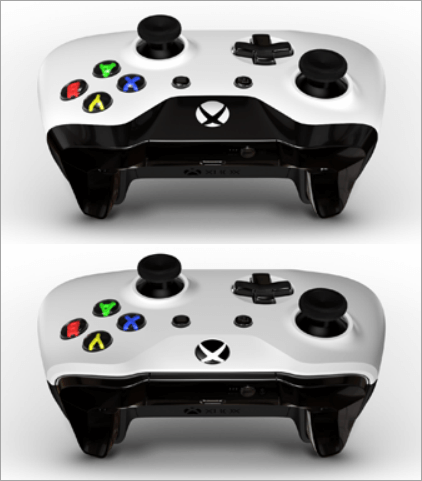
For those that support Bluetooth, the Xbox button  is part of the face of the controller, and for those that do not the button is part of the top, where the bumpers are.
Connecting to the PC via Bluetooth means other attachments, such as the headsets, chat pads, and Stereo Adapter will not work.
To pair to a PC via Bluetooth, press the Xbox button, then hold the Pair button ((( on the controller for three seconds after which the Xbox button will start flashing rapidly). On your PC, navigate to the Start button -> Settings -> Devices -> Bluetooth and other devices or Settings -> Bluetooth and devices on Windows 11. Turn the Bluetooth on.
Select Add Bluetooth or other device -> Bluetooth or Add Device on Windows 11. The computer will search for the controller and if found, select it (Xbox Wireless Controller or Xbox Elite Wireless Controller -> Done).
If it is not found, the Bluetooth hardware on the controller or the PC may not be functioning properly. If the Bluetooth on the controller still connects to the console, then this is probably the case. Then you can try using a Bluetooth dongle on your PC to enable it to connect with the controller. Follow the same procedure.
Alternatively, you can try using the Xbox Wireless Adapter for Windows, which requires the PC to have Xbox Wireless built in.
All you need to do is connect the Adapter to the PC and press the Xbox button to turn on the controller (and the button will start flashing), press and hold the Pair button (((on the Adapter after which a small light flashes for several seconds, then press and hold the Pair ((( button on top of the controller after which the Xbox button will start flashing more rapidly searching for the Xbox Wireless Adapter.
The Xbox button on the controller will stay lit when they are connected.
#8) Problems With Hard Drives, Memory Units, or Console Needs Service
This is signified by a flashing light (red color) on the console’s power button when one turns on the console. You can try disconnecting and reconnecting the power supply, memory units, and hard drives or taking the device to servicing.
Do this by first turning off the console and then, at a time, unplugging each device, reconnecting it, and checking if the device works well. (NB: Not all consoles have hard drives).
If the red light continues to flash on the console even after disconnecting and reconnecting one device at a time, then the problem is not with the said device. Move on to the test by disconnecting and reconnecting the other devices and accessories each at a time.
Again, if it doesn’t work normally after disconnecting and reconnecting all devices and accessories at a time, then the console most likely needs servicing. Go to the Xbox website, sign in at Devices Services, select Register new device, and check the device’s warranty status. It can still be repaired at a fee if not covered by warranty.
#9) Console Turns Too Hot & Needs to be Cooled Down
This problem on the Xbox 360 console manifests as two flashing lights on the power button when the device is turned on. Clear the area around the console, ventilate it, or place it in an open area. Ensure that the console and power supply are placed on a hard surface, not on something soft like a bed, sofa, rug, etc.
Also, keep the console away from direct sunlight, heating vents, and other heating devices and appliances. For instance, it may become heated when placed near computers, televisions, and other electronic devices.
If the device is already in a clean and well-ventilated area, cool it down by turning it off and waiting for one hour before turning it back on. If this does not work, register the device on the Xbox website and submit a repair request.
For red or orange light on the power supply or the power supply is not lit, unplug and reconnect the power supply. To check if the power supply cables have a problem, turn the console off; disconnect power cords from the back of the console, from the electrical outlet, and from the power supply.
Make sure that the three connections are firmly secured and turn it back on. A normal working device will have a steady green light on the power button and no flashing or red lights.
Disconnect the console power supply and the power supply from the electrical outlet. Take the console and power supply to another room. Connect the power supply directly to a vacant electrical outlet. Do not use a surge protector or extension cord.
Reconnect the power supply to the console and firmly secure all the power supply connections. Turn back the console. Four red lights should flash on the console because the A/V cable is not plugged in.
If the device power button flashes a steady green light without a red light on the power supply when testing a new outlet, then inspect the faulty one or get a new power strip before returning the device to the original location.
Red lights can also show if the power supply is overheated. Turn off the console and unplug all power supply connections. Cool it down for one hour and reconnect back the device normally. It should render a steady green light on the power button. You can also order a power supply replacement from the Xbox console website.
The light on the Xbox One should be a steady solid white or orange. If the light is flashing, the power supply may not be connected or may need replacing. Also, avoid using power strips in that case.
#10) Xbox Controller Blinking Slow – A/V Connection or Cable Problems
This problem is signified by four green flashing lights on the Xbox 360’s power button. Turn off the console and television. Disconnect the A/V cable from the TV and console, then reconnect them. You can also try a different A/V cable.
Otherwise, if the problem persists, register the device on the Xbox website and submit a repair request.
If there are three flashing red lights around the Xbox 360 power button, for instance, instead of the one to four green lights that indicate normal operation, the device might need a repair. The problem is commonly referred to as the Red Ring of Death.
A flashing light may show when the console is downloading a game.
This may happen due to hardware compatibility issues and/or faulty connection or incompatible HDMI cables.
Frequently Asked Questions
1. Why does my Xbox controller keep blinking?
There could be several problems, including faulty or discharged batteries, problems with connecting to the console or computer (for instance, if the cable connections are damaged), outdated firmware or it being updated, or simply that it needs resetting.
2. Why is Xbox controller blinking and not connecting?
The batteries may be low and need recharging or replacing. First, check that the batteries are properly secured and connected before recharging or replacing. Ensure that you are operating the controller while not too far from the console. Otherwise, check that there are no other problems.
3. Why is the Xbox controller blinking?
Blinking can happen due to several issues on the controller itself or the console. For instance, it may have lost connection with the console and need reconnecting or resetting. The batteries could be faulty or low on power. The third cause is a faulty controller which needs replacing.
This covers all controllers used on PC, Xbox One, One S, One X, Series X, or Series S.
4. How do I resync my Xbox controller?
Turn on the Xbox console and the controller, press the sync button on the Xbox console, and press and hold the sync button on the Xbox controller. Release the sync button on the Xbox controller when the Xbox light on it stops flashing.
5. Why is my Xbox controller blinking and fading?
It may be due to battery issues or wired connections. Remove and reinsert the battery and the wired connections. Turn the controller back on and repair it to the console. Blinking may also be a result of many other problems, including problems with the console itself.
Conclusion
Your Xbox controller light blinking could mean one or several things, all depending on the nature of the light on it. It could be a damaged or low-powered battery, a faulty connection being out of sync with other devices, or even damaged hardware.
To resolve a case of the Xbox controller flashing but not turning on, try resetting it, replacing or recharging the batteries, cooling it down, disconnecting and reconnecting any wired connections, removing other controllers, moving closer to the console, ensuring that there is no interference from other devices near it or console, and considering a repair service.
Research Process:
- To ensure this guide is accurate and useful, we researched Microsoft support pages, tech forums, controller manuals, and firmware information to determine which solutions are actually effective.
- We also took into consideration real-world user experiences with Xbox One, Series X, Series S, and PC configurations to ensure the solutions in this guide are useful and workable.
- Total time taken to research and publish this guide: 45 Hours (Approx).
Was this helpful?
Recommended Reading
-

Here we will explain the Xbox One Black Screen and multiple effective methods to fix the Xbox One Black Screen of Death: Gaming has gone over a lot more than just a passion. Now, it has even turned into a reputable profession. Each day, new advancements are made to gaming…
-

Discover the multiple methods on how to remove the Xbox Game Bar. Find out how to uninstall Xbox game bar from your Windows PC with simple step-by-step instructions: Microsoft's Xbox is a video gaming console released in North America on November 15th, 2001. Compared to Sony's PlayStation 2, the Xbox…
-
Do you have a console and want to play games at a higher refresh rate without any lag? If yes, then you need to review this list of best Gaming TVs to pick one of your choice: Gaming TVs can compete with gaming monitors these days. This can be a…
-
Wondering why your Xbox controller keeps disconnecting? Here are some excellent troubleshooting tips to quickly fix the issue: If you are a console gaming addict, you must own an Xbox. The Xbox wireless controller in the fourth generation console offers a premium gaming experience. However, like all wireless devices, one…
-
Here we will review the top-selling PS4 Controller and compare their features to find the best PlayStation controller as your game partner: Missing out on the fun of playing games on your PlayStation console? A good gaming controller is all that you'll need. A good PS4 gaming controller provides you…
-
In this article, we have provided an overview of Pre-Processors and Controllers in JMeter (Part-III): => Follow comprehensive series of free JMeter tutorials here This article will guide users through the usage of Pre-Processors, Post-Processors and controllers in JMeter. Controllers are very useful as they make your test scenarios. You…
-
Learn about various innovative VR Controllers and Accessories available to enjoy an immersive Virtual Reality Experience: Complete immersion in virtual reality environments is possible when all body senses and movements are involved. The sense of taste and smell may be way too far for VR systems currently, but the sense…