


In the previous two tutorials, we made you acquainted with the basic architecture and features of WebDriver and the infrastructure required to get started with Selenium WebDriver. Assuming that you all might have set up the system with all the utilities and packages, we will move further with the implementation of our first WebDriver test script.
Therefore, moving ahead with the consequent Selenium WebDriver tutorial, we will create a WebDriver script. In addition, we will cover the basic and commonly used WebDriver commands. We will also cover the strategies for locating UI elements and incorporating them into test scripts. Get Commands will be studied in depth too.
Table of Contents:
Implementation of First WebDriver Test Script

Script Creation
For script creation, we will use the “Learning_Selenium” project created in the previous tutorial and “gmail.com” as the application under test (AUT).
Scenario:
- Launch the browser and open “Gmail.com”.
- Verify the title of the page and print the verification result.
- Enter the username and Password.
- Click on the Sign in button.
- Close the web browser.
Step #1: Create a new java class named as “Gmail_Login” under the “Learning_Selenium” project.
Step #2: Copy and paste the below code in the “Gmail_Login.java” class.
import org.openqa.selenium.By;
import org.openqa.selenium.WebDriver;
import org.openqa.selenium.WebElement;
import org.openqa.selenium.firefox.FirefoxDriver;

public class Gmail_Login {
/**
* @param args
*/
       public static void main(String[] args) {

// objects and variables instantiation
              WebDriver driver = new FirefoxDriver();
              String appUrl = "https://accounts.google.com";

// launch the firefox browser and open the application url
              driver.get(appUrl);

// maximize the browser window
              driver.manage().window().maximize();

// declare and initialize the variable to store the expected title of the webpage.
              String expectedTitle = " Sign in - Google Accounts ";

// fetch the title of the web page and save it into a string variable
              String actualTitle = driver.getTitle();

// compare the expected title of the page with the actual title of the page and print the result
              if (expectedTitle.equals(actualTitle))
              {
                     System.out.println("Verification Successful - The correct title is displayed on the web page.");
              }
             else
              {
                     System.out.println("Verification Failed - An incorrect title is displayed on the web page.");
              }

// enter a valid username in the email textbox
              WebElement username = driver.findElement(By.id("Email"));
              username.clear();
              username.sendKeys("TestSelenium");

// enter a valid password in the password textbox
              WebElement password = driver.findElement(By.id("Passwd"));
              password.clear();
              password.sendKeys("password123");

// click on the Sign in button
              WebElement SignInButton = driver.findElement(By.id("signIn"));
              SignInButton.click();

// close the web browser
              driver.close();
              System.out.println("Test script executed successfully.");

// terminate the program
              System.exit(0);
       }
}
The above code is equivalent to the textual scenario presented earlier.
Code Walkthrough
Import Statements:
import org.openqa.selenium.WebDriver;
import org.openqa.selenium.firefox.FirefoxDriver;
import org.openqa.selenium.WebElement;
import org.openqa.selenium.By;
Prior to the actual scripting, we need to import the above packages:
import org.openqa.selenium.WebDriver – References the WebDriver interface, which is required to instantiate a new web browser.
import org.openqa.selenium.firefox.FirefoxDriver – References the FirefoxDriver class that is required to instantiate a Firefox-specific driver on the browser instance instantiated using the WebDriver interface.
import org.openqa.selenium.WebElement – References to the WebElement class which is required to instantiate a new web element.
import org.openqa.selenium.By – References to the By class on which a locator type is called.
As and when our project grows, it is evident and logical that we might have to introduce several other packages for more complex and distinct functionalities like Excel manipulations, database connectivity, logging, assertions, etc.
Object Instantiation
WebDriver driver = new FirefoxDriver();
We create a reference variable for the WebDriver interface and instantiate it using the FirefoxDriver class. A default Firefox profile will be launched, so no extensions and plugins would be loaded with the Firefox instance and that it runs in the safe mode.
Launching the Web browser
driver.get(appUrl);
A get() method is called on the WebDriver instance to launch a fresh web browser instance. The string character sequence passed as a parameter into the get() method redirects the launched web browser instance to the application URL.
Maximize Browser Window
driver.manage().window().maximize();
The maximize() method is used to maximize the browser window soon after it is re-directed to the application URL.
Fetch the page Title
driver.getTitle();
The getTitle() method is used to fetch the title of the current web page. Thus, the fetched title can be loaded to a string variable.
Comparison between Expected and Actual Values:
if (expectedTitle.equals(actualTitle))
              {
                     System.out.println("Verification Successful - The correct title is displayed on the web page.");
              }
              else
              {
                     System.out.println("Verification Failed - An incorrect title is displayed on the web page.");
              }
The above code uses the conditional statement Java constructs to compare the actual value, and the expected value. Based on the result obtained, the print statement would be executed.
WebElement Instantiation
WebElement username = driver.findElement(By.id(“Email”));
In the above statement, we instantiate the WebElement reference with the help of “driver.findElement(By.id(“Email”))”. Thus, a username can reference the Email textbox on the user interface every time we want to perform some action on it.
Clear Command
username.clear();
The clear() method/command is used to clear the value present in the textbox if any. It also clears the default placeholder value.
sendKeys Command
username.sendKeys(“TestSelenium “);
The sendKeys() method/command is used to enter/type the specified value (within the parentheses ) in the textbox. Notice that the sendKeys() method is called on the WebElement object which was instantiated with the help of the element property corresponding to the UI element.
The above block of code enters the string “TestSelenium” inside the Email textbox on the Gmail application.
sendKeys is one of the most popularly used commands across the WebDriver scripts.
Click Command
SignInButton.click();
Like sendKeys(), click() is another excessively used command to interact with the web elements. Click() command/method is used to click on the web element present on the web page.
The above block of code clicks on the “Sign in” button present on the Gmail application.
Notes:
- Unlike the sendKeys() method, click() methods can never be parameterized.
- At times, clicking on a web element may load a new page altogether. Thus, to sustain such cases, the click() method is coded in a way to wait until the page is loaded.
Close the Web Browser
driver.close();
The close() is used to close the current browser window.
Terminate the Java Program
System.exit(0);
The Exit() method terminates the Java program forcefully. Thus, remember to close all the browser instances before terminating the Java Program.
Test Execution
The test script, or simply the Java program, can be executed in the following ways:
#1) Under Eclipse’s menu bar, there is an icon to execute the test script. Refer to the following figure.

Make a note that only the class which is selected will be executed.
#2) Right-click anywhere inside the class within the editor, select the “Run As” option, and click on the “Java Application”.
#3) Another shortcut to execute the test script is to press ctrl + F11.
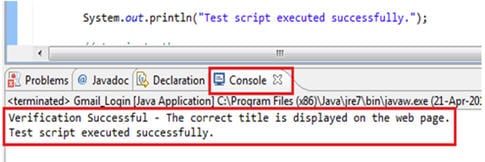
At the end of the execution cycle, the print statement “Test script executed successfully.” can be found in the console.
Locating Web Elements
Web elements in WebDriver can be located and inspected in the same way as we did in the previous tutorials of Selenium IDE. Selenium IDE and Firebug can inspect the web element on the GUI. We strongly recommend using Selenium IDE for finding the web elements.
Once the web element is successfully found, copy and paste the target value within the WebDriver code. The types of locators and the locating strategies are pretty much the same except for the syntax and their application.
In WebDriver, web elements are located with the help of the dynamic finders (findElement(By.locatorType(“locator value”))).
Sample Code:
driver.findElement(By.id(“Email”));
Locator Types and Their Syntax
| Locator Type | Syntax | Description |
|---|---|---|
| id | driver.findElement (By.id(“ID_of_Element”)) | Locate by value of the “id” attribute |
| className | driver.findElement (By.className (“Class_of_Element”)) | Locate by value of the “class” attribute |
| linkText | driver.findElement (By.linkText(“Text”)) | Locate by value of the text of the hyperlink |
| partialLinkText | driver.findElement (By.partialLinkText (“PartialText”)) | Locate by value of the sub-text of the hyperlink |
| name | driver.findElement (By.name (“Name_of_Element”)) | Locate by value of the “name” attribute |
| xpath | driver.findElement (By.xpath(“Xpath”)) | Locate by value of the xpath |
| cssSelector | driver.findElement (By.cssSelector (“CSS Selector”)) | Locate by value of the CSS selector |
| tagName | driver.findElement (By.tagName(“input”)) | Locate by value of its tag name |
Conclusion
In this tutorial, we developed an automation script using WebDriver and Java. We also discussed the various components that constitute a WebDriver script.
Here are the cruxes of this Selenium WebDriver Tutorial:
- Prior to the actual scripting, we need to import a few packages to create a WebDriver script.
- importopenqa.selenium.By;
- importopenqa.selenium.WebDriver;
- importopenqa.selenium.WebElement;
- importopenqa.selenium.firefox.FirefoxDriver;
- A get() method is used to launch a fresh web browser instance. The character sequence passed as a parameter into the get() method redirects the launched web browser instance to the application URL.
- The maximize() method is used to maximize the browser window.
- The clear() method is used to clear the value present in the textbox if any.
- The sendKeys() method is used to enter the specified value in the textbox.
- Click() method is used to click on the web element present on the web page.
- In WebDriver, web elements can be located using Dynamic finders.
- The following are the available locator types:
- id
- className
- name
- xpath
- cssSelector
- linkText
- partialLinkText
- tagName
Moving ahead, in the next tutorial, we will shift our focus towards a framework that aids Automation testing known as TestNG. We would have a detailed study of the various kinds of annotations provided by the framework.
Next tutorial #11: Before diving deep into Frameworks, we will see details about JUnit – an open-source unit testing tool. Most of the programmers use JUnit as it is easy and does not take much effort to test. This tutorial will give an insight into JUnit and its usage in selenium script.
A remark for the readers: While our next tutorial of the Selenium series is in processing mode, readers can start creating their own basic WebDriver scripts. For more advanced scripts and concepts, we will have various other Selenium WebDriver tutorials coming up in this series.
Feel free to leave a comment if you face any difficulties in creating or executing the WebDriver scripts.
Was this helpful?
Recommended Reading
-

Introduction to Selenium WebDriver: Earlier in this series, we published tutorials that focused more on Selenium IDE and its various aspects. We introduced the tool and discussed its features. We also constructed a few scripts using Selenium IDE and Firebug. From there, we moved on to different types of web…
-

In this tutorial, we have explained how to set up Selenium WebDrivers for the various browsers available in the market: Selenium only supports web-based applications and to open them we need a browser. It is able to support various browsers for test automation. In the current industry, there are only…
-
Cucumber Selenium WebDriver Java Integration with Example: In the last tutorial, we discussed the Cucumber tool, its usage, and different features. Moving ahead in our free Selenium online training series, we will discuss how to set up a cucumber project and will discuss the integration of Selenium WebDriver with Cucumber.…
-

In-Depth Tutorial On ChromeDriver for Running Selenium Webdriver Tests on Chrome Browser: Handling browser alerts while automating through Selenium will be discussed in this article. Moreover, we will elaborate on the set up of the Selenium script for the Google Chrome browser along with appropriate examples and pseudo-codes. Upon going…


Jennifer and subhash,
Add these lines to the code
System.setProperty(“webdriver.gecko.driver”, “”);
It should work
Really very nice articles. Appreciated. Thanks for knowledge sharing.
Hope more detail tutorials moving further.
Exception in thread “main” java.lang.IllegalStateException: The path to the driver executable must be set by the webdriver.gecko.driver system property; for more information, see https://github.com/mozilla/geckodriver. The latest version can be downloaded from https://github.com/mozilla/geckodriver/releases
at com.google.common.base.Preconditions.checkState(Preconditions.java:738)
at org.openqa.selenium.remote.service.DriverService.findExecutable(DriverService.java:124)
at org.openqa.selenium.firefox.GeckoDriverService.access$100(GeckoDriverService.java:41)
at org.openqa.selenium.firefox.GeckoDriverService$Builder.findDefaultExecutable(GeckoDriverService.java:115)
at org.openqa.selenium.remote.service.DriverService$Builder.build(DriverService.java:330)
at org.openqa.selenium.firefox.FirefoxDriver.toExecutor(FirefoxDriver.java:207)
at org.openqa.selenium.firefox.FirefoxDriver.(FirefoxDriver.java:108)
at org.openqa.selenium.firefox.FirefoxDriver.(FirefoxDriver.java:104)
at selenium.gmail_login.main(gmail_login.java:16)
When i run this script, then we got above exceptions. please provide me solution for this.
Thank You!
I have the following code:
import org.openqa.selenium.By;
import org.openqa.selenium.WebDriver;
import org.openqa.selenium.WebElement;
import org.openqa.selenium.firefox.FirefoxDriver;
public class Gmail_Login {
/**
* @param args
*/
public static void main(String[] args) {
// objects and variables instantiation
WebDriver driver = new FirefoxDriver();
String appUrl =”https://accounts.google.com”;
// launch the firefox browser and open
driver.get(appUrl);
// maximize the browser window
driver.manage().window().maximize();
// declare and initialize the variable to store the expected title of the webpage.
String expectedTitle = ” Sign in – Google Accounts “;
// fetch the title of the web page and save it into a string variable
String actualTitle = driver.getTitle();
// compare the expected title of the page with the actual title of the page and print the result
if (expectedTitle.equals(actualTitle))
{
System.out.println(“Verification Successful – The correct title is displayed on the web page.”);
}
else
{
System.out.println(“Verification Failed – An incorrect title is displayed on the web page.”);
}
// enter a valid username in the email textbox
WebElement username = driver.findElement(By.id(“Email”));
username.clear();
username.sendKeys(“TestSelenium”);
// enter a valid password in the password textbox
WebElement password = driver.findElement(By.id(“Passwd”));
password.clear();
password.sendKeys(“password123”);
// click on the Sign in button
WebElement SignInButton = driver.findElement(By.id(“signIn”));
SignInButton.click();
// close the web browser
driver.close();
System.out.println(“Test script executed successfully.”);
// terminate the program
System.exit(0);
}
}
BUT GETTING THE FOLLOWING ERROR. WHY?
Exception in thread “main” java.lang.NoClassDefFoundError: com/google/common/base/Function
at Gmail_Login.main(Gmail_Login.java:15)
Caused by: java.lang.ClassNotFoundException: com.google.common.base.Function
at java.net.URLClassLoader$1.run(Unknown Source)
at java.net.URLClassLoader$1.run(Unknown Source)
at java.security.AccessController.doPrivileged(Native Method)
at java.net.URLClassLoader.findClass(Unknown Source)
at java.lang.ClassLoader.loadClass(Unknown Source)
at sun.misc.Launcher$AppClassLoader.loadClass(Unknown Source)
at java.lang.ClassLoader.loadClass(Unknown Source)
… 1 more
i get the following error when i run
Exception in thread “main” java.lang.NoClassDefFoundError: com/google/common/base/Function
at com.gmail.GmailLogin2A.main(GmailLogin2A.java:13)
Caused by: java.lang.ClassNotFoundException: com.google.common.base.Function
at java.net.URLClassLoader$1.run(Unknown Source)
at java.net.URLClassLoader$1.run(Unknown Source)
at java.security.AccessController.doPrivileged(Native Method)
at java.net.URLClassLoader.findClass(Unknown Source)
at java.lang.ClassLoader.loadClass(Unknown Source)
at sun.misc.Launcher$AppClassLoader.loadClass(Unknown Source)
at java.lang.ClassLoader.loadClass(Unknown Source)
… 1 more
Hello,
Please refer to some code where I need not type the password in clear text in the java code. The password that has been used in this sample code is “password123”. SOme methods for encrypting and use that to string instead. I am also googling on this.
Hello,
As per many other comments I can see listed here by other users who are using this tutorial, I am also getting the following error:
“Exception in thread “main” java.lang.Error: Unresolved compilation problems:
WebDriver cannot be resolved to a type
FirefoxDriver cannot be resolved to a type
WebElement cannot be resolved to a type
By cannot be resolved
WebElement cannot be resolved to a type
By cannot be resolved
WebElement cannot be resolved to a type
By cannot be resolved
at First_WebDriverClass.main(First_WebDriverClass.java:18)
I have added the referenced libraries also, and followed all the steps as and when mentioned in this tutorial.
Kindly help in resolving this error.
Also I would like to add, a great job by all the people involved for making this a success.
Thanks a lot.
At first i have error like this :
Exception in thread “main” java.lang.NoClassDefFoundError: com/google/common/base/Function at Gmail_Login.main(Gmail_Login.java:14)
After some research, i found this link
http://stackoverflow.com/questions/5134953/noclassdeffounderror-in-java-com-google-common-base-function
Then i try to add the selenium-server-standalone-version.jar as another external jar, and it works! (although i still got some errors)
@Subrata
Thank you for your kind words.
@ Franck :
You need to install gecko driver and after add the line :
System.setProperty(“webdriver.gecko.driver”, “C:\\junit\\webdriver\\geckodriver.exe”);
at the begining of the main method with the good path for you for geckodriver.
So, something like that :
public static void main(String[] args) {
System.setProperty(“webdriver.gecko.driver”, “C:\\junit\\webdriver\\geckodriver.exe”);
// objects and variables instantiation
WebDriver driver = new FirefoxDriver();
…
}
I hope that help you.
Best regards,
Bruno
Hi Shruti, The script is executing well but the browser is not getting closed but still displaying the message “Test script executed successfully.”. Can you please let me know why browser doesnt close and is there any alternative to close.
Nice one…
I have a query:
I want to test the web application through webdriver which is created on .net technology.
Which programming language should I use for webdriver so that it will ease to identify web application elements?
Hope you got the question, please provide your valuable feedback on that.
Thanks,
Hitesh
THE INFORMATION PROVIDED HERE IS VERY DETAILED AND CLEAR. BUT THIS IS WITH JAVA. CAN WE HAVE INFORMATION AND TUTORIALS ON SELENIUM WEB DRIVER SUPPORT IN PYTHON?
Yes, we will be publishing the Python guide soon. Stay tuned!
Hi,
Where can I find the Python Guide?
Thanks!
Hi there,
Please help! I really enjoy your blog and I’ve just started learning selenium Webdriver but having problems running simple scripts like this on my laptop “Windows 10”:
import org.openqa.selenium.WebDriver;
import org.openqa.selenium.firefox.FirefoxDriver;
public class FireFox {
public static void main(String[] args) {
// TODO Auto-generated method stub
WebDriver driver=new FirefoxDriver();
driver.get(“http//www.google.com”);
}
}
Anytime i run this script, i get this error message in console:
Exception in thread “main” java.lang.IllegalStateException: The path to the driver executable must be set by the webdriver.gecko.driver system property; for more information, see https://github.com/mozilla/geckodriver. The latest version can be downloaded from https://github.com/mozilla/geckodriver/releases
at com.google.common.base.Preconditions.checkState(Preconditions.java:199)
at org.openqa.selenium.remote.service.DriverService.findExecutable(DriverService.java:109)
at org.openqa.selenium.firefox.GeckoDriverService.access$000(GeckoDriverService.java:37)
at org.openqa.selenium.firefox.GeckoDriverService$Builder.findDefaultExecutable(GeckoDriverService.java:95)
at org.openqa.selenium.remote.service.DriverService$Builder.build(DriverService.java:296)
at org.openqa.selenium.firefox.FirefoxDriver.createCommandExecutor(FirefoxDriver.java:277)
at org.openqa.selenium.firefox.FirefoxDriver.(FirefoxDriver.java:247)
at org.openqa.selenium.firefox.FirefoxDriver.(FirefoxDriver.java:242)
at org.openqa.selenium.firefox.FirefoxDriver.(FirefoxDriver.java:238)
at org.openqa.selenium.firefox.FirefoxDriver.(FirefoxDriver.java:127)
at FireFox.main(FireFox.java:9)
Please help I’m desperate!
I’m using
Windows 10
selenium 3.0.1
Firefox 50.0.1
Eclipse Neon.1
BIG THANKS
Thank you Shruti. Very nicely explained.
hi
thank you very much this tutorials helped me a lot
Exception in thread “main” java.lang.IllegalStateException: The path to the driver executable must be set by the webdriver.gecko.driver system property; for more information, see https://github.com/mozilla/geckodriver. The latest version can be downloaded from https://github.com/mozilla/geckodriver/releases
at com.google.common.base.Preconditions.checkState(Preconditions.java:754)
at org.openqa.selenium.remote.service.DriverService.findExecutable(DriverService.java:124)
at org.openqa.selenium.firefox.GeckoDriverService.access$100(GeckoDriverService.java:41)
at org.openqa.selenium.firefox.GeckoDriverService$Builder.findDefaultExecutable(GeckoDriverService.java:115)
at org.openqa.selenium.remote.service.DriverService$Builder.build(DriverService.java:329)
at org.openqa.selenium.firefox.FirefoxDriver.toExecutor(FirefoxDriver.java:207)
at org.openqa.selenium.firefox.FirefoxDriver.(FirefoxDriver.java:103)
at org.openqa.selenium.firefox.FirefoxDriver.(FirefoxDriver.java:99)
at pak0310.class0310.main(class0310.java:22)
I got these error.
the url in driver.get(url) displays the url application in mozilla browser twice . but no errors are there
nice article!!
The account login has “Next ” element after the username.You need to locate this element ,and provide an implicit wait,before entering your username!
Here is my code:
driver.manage().timeouts().implicitlyWait(20, TimeUnit.SECONDS);
// click next
WebElement Next = driver.findElement(By.name(“signIn”));
Next.click();
Hi I am working on selenium to validate some website. I have login scenario where 2 invalid attempts need to be done . How to invoke same method 2 times. I mean first time name , password n scenario will fail with error. again give name , password it must fail. Please suggest as I am beginner in this .
plz send me selenium webdriver versions supported browsers versions list
Nice Tutorial to Learn
When i pasted the program in eclipse after importing all the libraries, i am getting the error “The method sendKeys(CharSequence[]) in the type WebElement is not applicable for the arguments (String)” in the line”username.sendKeys(“TestSelenium”);”
Hi,
Wonderful chapter.
Having one issue.
Does anyone have a solution?
(Gmail updated so I had to add a “nxtbtn” string).
– I run the script
– Auto-fills ‘username’
– clicks ‘next’
– won’t auto-fill ‘password’
About the time I get to ‘password’, it won’t auto-fill the password.
I tried all the locator methods, but no luck.
Here’s the code I’m running:
WebElement username = driver.findElement(By.id(“Email”));
username.clear();
username.sendKeys(“TestSelenium”);
WebElement nxtbtn = driver.findElement(By.id(“next”));
nxtbtn.click();
WebElement password = driver.findElement(By.id(“Passwd”));
password.sendKeys(“password123”);
WebElement SignInButton = driver.findElement(By.id(“signIn”));
SignInButton.click();
driver.close();
System.out.println(“Test script executed successfully.”);
Error code I’m getting:
Exception in thread “main” org.openqa.selenium.NoSuchElementException: Unable to locate element: {“method”:”id”,”selector”:”Passwd”}
Fixed it, i didn’t add the selenium server to the lib
its working now and ran successfully
Thanks!
import java.util.concurrent.TimeUnit;
import org.openqa.selenium.By;
import org.openqa.selenium.Point;
import org.openqa.selenium.WebDriver;
import org.openqa.selenium.WebElement;
import org.openqa.selenium.firefox.FirefoxDriver;
import org.openqa.selenium.support.ui.Select;
//import org.openqa.selenium.support.ui.Select;
//import com.sun.javafx.scene.paint.GradientUtils.Point;
public class Testing {
public static void main(String[] args)
{
WebDriver driver = new FirefoxDriver();
driver.get(“https://www.amazon.com”);
driver.manage().timeouts().implicitlyWait(30, TimeUnit.SECONDS);
WebElement image1=driver.findElement(By.xpath(“//span[2]/a/span”));
image1.click();
driver.findElement(By.xpath(“//div[@id=’nav-search’]/form/div[2]/div/input”)).click();
WebElement username = driver.findElement(By.id(“ap_email”));
username.clear();
username.sendKeys(“sat.tes111@gmail.com”);
driver.close();
}
}
can any one help to below error i.e. sendkey is not working
error occurred in the line “username.sendKeys(“sat.tes111@gmail.com”); ”
java.lang.CharSequence cannot be resolved. It is indirectly referenced from required .class files” message?
thanks. this is a really helpful tutorial series.
Could you please provide example test scripts using TestNG as well (comparing JUnit)?
and Could you please describe the differences between JUnit and the TestNG scripts (keywords etc.)?
Hi
how can i import excel sheet with all possible scenarios to achive hign test coverage??
thanks for sharing the exact scripts as well
@Ramshankar
Thank you so much for pointing out.
I will update it soon..
Hi!
Very helpful tutorial, just one quick question… I get this error message on every single import:
“The import …. cannot be resolved”
I’ve added all the libraries in the past tutorial, can you please tell me what am I missing and/or doing wrong?
Hi Team,
I really appreciate your great work to make learners to reach their level 1 in Selenium so Quick.
and also have my Thank you for the your easy solutions at #42.
Cheers!!
Ashok
Hi Shruti, If I am running a script which has sendkeys then I get an error “The type java.lang.CharSequence cannot be resolved. It is indirectly refernced from required .class files.Can u please help me with this.
Also keep note that now gmail login page design changes and also name got change so please use “Sign in – Google Accounts” this as page name in above example in Original script you can find one blank space at left and right so remove both spaces.
Hi Shruti,
After copy-pasting the code, I got the following msg in the console:
Error: Main method not found in class Gmail_Login, please define the main method as:
public static void main(String[] args)
Could you help?
Hi ..
I have a query hence im new to the selenium environment.
in the above secnario you said that verify the title and print the result. So, please tell me how to print the result. For that i am getting an error message verification failed. Plz reply me with the solution as soon as possible.
Please please help me out resolving this issue:
I have tried all of the below ways for setting browser drivers:
– I set environment variables for chrome,firefox and IE browsers
– I tried using System.setProperty(“webdriver.chrome.driver”, “C:\\BrowserDrivers\\chromedriver.exe”);
Browser and selenium versions i have on my system are as below:
Selenium with Java 3.14
Chrome: 81.0.4 – 64 bit
driver – 81
Firefox: 75.0 – 64 bit
gecko – V0.26
But still I am getting below exception:
Exception in thread “main” java.lang.NoSuchMethodError: com.google.common.base.Preconditions.checkState(ZLjava/lang/String;Ljava/lang/Object;Ljava/lang/Object;Ljava/lang/Object;)V
at org.openqa.selenium.remote.service.DriverService.findExecutable(DriverService.java:134)
at org.openqa.selenium.chrome.ChromeDriverService.access$000(ChromeDriverService.java:35)
at org.openqa.selenium.chrome.ChromeDriverService$Builder.findDefaultExecutable(ChromeDriverService.java:159)
at org.openqa.selenium.remote.service.DriverService$Builder.build(DriverService.java:355)
at org.openqa.selenium.chrome.ChromeDriverService.createDefaultService(ChromeDriverService.java:94)
at org.openqa.selenium.chrome.ChromeDriver.(ChromeDriver.java:123)
at com.seleniumLearning_Practice.Sush_First_Gmail.main(Sush_First_Gmail.java:20)
Hi Sruthi,
When i run the above code in eclipse I am getting the below error.
Exception in thread “main” java.lang.Error: Unresolved compilation problems:
WebDriver cannot be resolved to a type
FirefoxDriver cannot be resolved to a type
WebElement cannot be resolved to a type
By cannot be resolved
WebElement cannot be resolved to a type
By cannot be resolved
WebElement cannot be resolved to a type
By cannot be resolved
at Gmail_Login.main(Gmail_Login.java:13)
I am new to selinium and trying to learn self. Please help me where the issue is .
Thank you
Thanks for the tutorial. Even for the first time user, it seems to be very clear to follow.
One issue that I have while trying to run the program is the following:
Exception in thread “main” java.lang.Error: Unresolved compilation problems:
WebDriver cannot be resolved to a type
FirefoxDriver cannot be resolved to a type
WebElement cannot be resolved to a type
By cannot be resolved
WebElement cannot be resolved to a type
By cannot be resolved
WebElement cannot be resolved to a type
By cannot be resolved
at Gmail_Login.main(Gmail_Login.java:13)
Have I missed something?
Hi Shruti,
While clicking on a hyperlink, a new window opens. When I try to automate any of the web elements in that new window, it is throwing NoSuchElementFoundException. I dont see any iframes as well.
Please suggest.
Thanks for such a wonderful material..
I Have some query
I am set up webdriver and create script and also run script , but my query how its working in practical environment .. Suppose i am working on a login page .
In that case how Automation work?
Please help me Asap
@Abhinav @Supriya
Thank you for the appreciation.
Keep Learning..
Thanks for the nice article. The script is executed before the page loads, hence I am getting “Verification Failed …………………..”. if there any way, we can wait to load the web page completely before start locating the web elements or performing any action on it.
Please suggest.
Very nice article for beginners like me. I got an element ID not found error.
sorry it should be
System.setProperty(“webdriver.gecko.driver”, “Path of gecko driver”);
System.setProperty(“webdriver.gecko.driver”, “Path of gecko driver”); -> What line do I have to add this line code? Pls help me. Thank you so much!
this has to be the first line in your main method
Hi I am getting this error while running the “Login_Gmail” code please help me out.
When i pasted the program in eclipse after importing all the libraries, i am getting the error “The method sendKeys(CharSequence[]) in the type WebElement is not applicable for the arguments (String)” in the line”username.sendKeys(“TestSelenium”);”
Thanks ,Shruti
Good work !!
Please guide
Getting below error while running the code:-
Exception in thread “main” java.lang.NoClassDefFoundError: com/google/common/collect/ImmutableMap
at org.openqa.selenium.remote.service.DriverService$Builder.(DriverService.java:249)
at org.openqa.selenium.firefox.GeckoDriverService$Builder.(GeckoDriverService.java:115)
at org.openqa.selenium.firefox.FirefoxDriver.toExecutor(FirefoxDriver.java:164)
at org.openqa.selenium.firefox.FirefoxDriver.(FirefoxDriver.java:125)
at org.openqa.selenium.firefox.FirefoxDriver.(FirefoxDriver.java:103)
at gmail_login.main(gmail_login.java:17)
Caused by: java.lang.ClassNotFoundException: com.google.common.collect.ImmutableMap
at java.net.URLClassLoader.findClass(Unknown Source)
at java.lang.ClassLoader.loadClass(Unknown Source)
at sun.misc.Launcher$AppClassLoader.loadClass(Unknown Source)
at java.lang.ClassLoader.loadClass(Unknown Source)
… 6 more
@ Shruti,
One correction needs to be done in dynamic class locator syntax- it should be as- driver.findElement(By.Class(” class name”))
Raj N,
How did you figure out to use these codes:
throws InterruptedException
System.out.printIn(“title:”+actualTitle);
Tread.sleep(1000);
I’d love to know if you could tell us 😉
Thanks again!!
when i run following script,then i have get following exceptions, please provide me solution for this.
Exception in thread “main” java.lang.IllegalStateException: The path to the driver executable must be set by the webdriver.gecko.driver system property; for more information, see https://github.com/mozilla/geckodriver. The latest version can be downloaded from https://github.com/mozilla/geckodriver/releases
at com.google.common.base.Preconditions.checkState(Preconditions.java:738)
at org.openqa.selenium.remote.service.DriverService.findExecutable(DriverService.java:124)
at org.openqa.selenium.firefox.GeckoDriverService.access$100(GeckoDriverService.java:41)
at org.openqa.selenium.firefox.GeckoDriverService$Builder.findDefaultExecutable(GeckoDriverService.java:115)
at org.openqa.selenium.remote.service.DriverService$Builder.build(DriverService.java:330)
at org.openqa.selenium.firefox.FirefoxDriver.toExecutor(FirefoxDriver.java:207)
at org.openqa.selenium.firefox.FirefoxDriver.(FirefoxDriver.java:108)
at org.openqa.selenium.firefox.FirefoxDriver.(FirefoxDriver.java:104)
at selenium.gmail_login.main(gmail_login.java:16)
Hi,
very compliment for the intresting article!
I’ve used WebDriver on a Win10 with Chrome browser, and now I’d like to manage a browser on Android.
So I’m working with Android Studio, but I’m not able to start Chrome on Android.
I’ve to install some package on Android?
Many thanks
I guess I made a bigger mess while trying to fix the issue.
Now initially getting the pop-up error
Error exist in required project(s):
Learning_Selenium
Proceed with launch?
If I do proceed, I get an additional error message:
Error: A JNI error has occurred, please check your installation and try again.
Any help???
Very simply explained…great way of teaching
@Raj,
Thanks Raj, your update of the code works great!!!
If anyone tries the new code posted from Raj and you have syntax errors, you’d have to retype the quotation marks only e.g. “” then the syntax errors will resolve and then you may run the code.
Thanks again Raj :))
Very worthy guide to have with us.
Very helpful to understand minutely.
Can be ignored few codes with actual value for locating an element, might be because of change in requirement with webpage!!!
Great effort, thanks a lot!!!
@Papak
There are several ways to wait fro the page to load.
You can use explicit or Implicit waits.
We have a tutorial coming up soon based on the same subject which would help you.
Hi Raji, Lee
I got the same your issue and I fixed it successfully. I bet you guys missed some jar files while adding to Java project.
Steps:
1. Download the Selenium Java Client Libraries at http://docs.seleniumhq.org/download/ (in previous tutorial)
2. Right click on Java Project –>Properties–>Java Build Path–>Add External Jar
3. Select all jar files in Lib folder (I only added two other files and ignored this folder before)
4. Click Ok
5. Refresh project and run again
Hope helpful
I am having everytime Exception-element not found if i find element by id, by name, by xpath why is it?
Very very helpful..Thanks
Exception in thread “main” org.openqa.selenium.WebDriverException: Cannot find firefox binary in PATH. Make sure firefox is installed. OS appears to be: VISTA , me getting this error pls help
Hi any one can help me about,when we are going to use locators(id,name,tag name..) while writing the scripts
Am getting an error “unable to locate an element.”
this is general clarification. Sorry to ask in this Chain.
I have a page which has few links on top,
if i click on any of the links,
respective page will open below to the links. But it will not refresh the entire page.
here i have used the by.id for the webelements but am getting an error.
Kindly do the needful.
Thanks in Advance
Hi, Thank you for this wonderful tutorial. Pardon me for asking questions. I tried to follow through the steps and run my script in eclipse. However, I got this error which I am not sure what to do. I am not a technical person but would like to learn the automation. Is there a chance that you could take a look at my concern? Thank you.
Here’s the error i got when I run it in eclipse:
Exception in thread “main” org.openqa.selenium.WebDriverException: Cannot find firefox binary in PATH. Make sure firefox is installed. OS appears to be: VISTA
Build info: version: ‘2.44.0’, revision: ’76d78cf’, time: ‘2014-10-23 20:03:00’
System info: host: ‘WS-PH-DEG’, ip: ‘10.163.91.23’, os.name: ‘Windows 7’, os.arch: ‘amd64’, os.version: ‘6.1’, java.version: ‘1.8.0_25’
Driver info: driver.version: FirefoxDriver
at org.openqa.selenium.firefox.internal.Executable.(Executable.java:72)
at org.openqa.selenium.firefox.FirefoxBinary.(FirefoxBinary.java:59)
at org.openqa.selenium.firefox.FirefoxBinary.(FirefoxBinary.java:55)
at org.openqa.selenium.firefox.FirefoxDriver.(FirefoxDriver.java:95)
at Gmail_Login.main(Gmail_Login.java:13)
Perhaps the ‘copy/paste’ would work better if line numbers where not included. Beats typing it all in, but deleting each line number is a pain. 🙂
Hi,
I have gone as far as getting to the second next button only for them to tell me the password is incorrect using the following code:
import org.openqa.selenium.By;
import org.openqa.selenium.WebDriver;
import org.openqa.selenium.WebElement;
import org.openqa.selenium.ie.InternetExplorerDriver;
import org.openqa.selenium.remote.CapabilityType;
import org.openqa.selenium.remote.DesiredCapabilities;
public class Gmail_Login
{
/**
* @param args
*
* @throws InterruptedException
*/
public static void main(String[]args) throws
InterruptedException {
// objects and variables instantiation
System.setProperty(“webdriver.chrome.driver”,”C:\\Users\\rdevu\\Documents\\selenium\\selenium\\chromedriver.exe”);
System.setProperty(“webdriver.ie.driver”,”C:\\Users\\rdevu\\Documents\\selenium\\selenium\\IEDriverServer.exe”);
DesiredCapabilities capabilities = DesiredCapabilities.internetExplorer();
capabilities.setCapability(CapabilityType.BROWSER_NAME, “IE”);
capabilities.setCapability(InternetExplorerDriver.INTRODUCE_FLAKINESS_BY_IGNORING_SECURITY_DOMAINS,true);
//it is used to initialize the IE driver
WebDriver driver = new InternetExplorerDriver(capabilities);
//WebDriver driver = new ChromeDriver();
String appUrl = “https://accounts.google.com”;
// launch the firefox browser and open the application url
driver.get(appUrl);
// maximize the browser window
driver.manage().window().maximize();
// declare and initialize the variable to store the expected title of the webpage.
String expectedTitle = ” Sign in – Google Accounts “;
// fetch the title of the web page and save it into a string variable
String actualTitle = driver.getTitle();
System.out.println(” “);
// compare the expected title of the page with the actual title of the page and print the result
if (expectedTitle.equals(actualTitle))
{
System.out.println(“Verification Successful – The correct title is displayed on the web page.”);
}
else
{
System.out.println(“Verification Failed – An incorrect title is displayed on the web page.”);
}
// enter a valid username in the email textbox
WebElement username = driver.findElement(By.id(“identifierId”));
username.clear();
username.sendKeys(“TestSelenium”);
//click on next button
WebElement nxtbtn = driver.findElement(By.id(“identifierNext”));
nxtbtn.click();
Thread.sleep(1000);
// enter a valid password in the password textbox
WebElement password = driver.findElement(By.name(“password”));
password.clear();
password.sendKeys(“password123”);
WebElement nextbtn = driver.findElement(By.id(“passwordNext”));
nextbtn.click();
Thread.sleep(1000);
// click on the Sign in button
WebElement SignInButton = driver.findElement(By.id(“signIn”));
SignInButton.click();
// close the web browser
driver.close();
System.out.println(“Test script executed successfully.”);
// terminate the program
System.exit(0);
}
}
I have used an IE driver as it seemed to work better than Firefox or Chrome, can anyone please tell me if the password is changed and if so, what to?
Thanks
5th of June 2015:
As the login for accounts has changed for email (it requires pressing a button after entering the login name) the script should also be updated to reflect this. Have adjusted it myself to go to the second page using a Click, but in the second window it will not enter the password, even though the element naming is correct.
I’m also wondering about starting Firefox in safe mode, can this be changed? When doing so it doesn’t pick up on my normal network settings, resulting in no pages being loaded. I now need to manually set it and go to the google account page before the script kicks off.
Am getting the below error message
Error: Unable to initialize main class Gmail_Login
Caused by: java.lang.NoClassDefFoundError: org/openqa/selenium/WebDriver
Nice tutorial.. thanks a lot. I got clear many things from this tutorial.
hey, great post very well done but i am having some issues
could you take a look
Error Codes:
Exception in thread “main” java.lang.IllegalStateException: The path to the driver executable must be set by the webdriver.gecko.driver system property; for more information, see https://github.com/mozilla/geckodriver. The latest version can be downloaded from https://github.com/mozilla/geckodriver/releases
at com.google.common.base.Preconditions.checkState(Preconditions.java:199)
at org.openqa.selenium.remote.service.DriverService.findExecutable(DriverService.java:109)
at org.openqa.selenium.firefox.GeckoDriverService.access$000(GeckoDriverService.java:37)
at org.openqa.selenium.firefox.GeckoDriverService$Builder.findDefaultExecutable(GeckoDriverService.java:95)
at org.openqa.selenium.remote.service.DriverService$Builder.build(DriverService.java:296)
at org.openqa.selenium.firefox.FirefoxDriver.createCommandExecutor(FirefoxDriver.java:265)
at org.openqa.selenium.firefox.FirefoxDriver.(FirefoxDriver.java:235)
at org.openqa.selenium.firefox.FirefoxDriver.(FirefoxDriver.java:230)
at org.openqa.selenium.firefox.FirefoxDriver.(FirefoxDriver.java:226)
at org.openqa.selenium.firefox.FirefoxDriver.(FirefoxDriver.java:124)
at Gmail_Login.main(Gmail_Login.java:9)
Hello,
I have created script for gmail login , Please check below:-
package sanityTest;
import java.util.concurrent.TimeUnit;
import org.openqa.selenium.By;
import org.openqa.selenium.WebDriver;
import org.openqa.selenium.firefox.FirefoxDriver;
public class Test2 {
public static void main(String[] args) {
WebDriver driver = new FirefoxDriver();
driver.manage().timeouts().implicitlyWait(5, TimeUnit.SECONDS);
driver.get(“https://mail.google.com/”);
driver.manage().window().maximize();
driver.findElement(By.id(“Email”)).sendKeys(“for exa xyz@gmail.com“);
driver.findElement(By.id(“next”)).click();
driver.manage().timeouts().implicitlyWait(5, TimeUnit.SECONDS);
driver.findElement(By.name(“Passwd”)).sendKeys(“for example 123456”);
driver.findElement(By.id (“signIn”)).click();
driver.close();
The above script is correct for gmail login but after run it takes email in email field, clicks on “next” button and redirect on next page but password is not entered on this page and also not clicks “SignIn” button. Please help.
Hi,
Thanks for the selenium tutorial series 🙂 It’s much appreciated!
I am trying to run the sample program given here, but I am also getting the same error as:
Exception in thread “main” java.lang.NoClassDefFoundError: com/google/common/base/Function
at Test001.main(Test001.java:20)
The line that seems to be giving the error is :
WebDriver driver = new FirefoxDriver();
I have added both the Selenium jars to the java project, but even then I am getting the error and hence I am unable to execute my script.
Any help would be much appreciated, tia!
i am getting this error while running abouve code..
Could not find or load main class net.sf.cglib.transform.hook.AsmClassLoaderPreProcessor
we use asserts statement,because asserts are used to check weather given condition is correct or not,if its corrects ,it executs the script otherwise ,it will drop the statement.
synatax:(TestNG–this statement is used for validation)
Asserts.assert(actualtitle,expectedtitle);
Hello,
After running the gmail login script, I see this error:
Error occurred during initialization of boot layer
java.lang.module.FindException: Error reading module: C:\Users\User\eclipse-workspace\Learning_Selenium\bin
Caused by: java.lang.module.InvalidModuleDescriptorException: First_WebdriverClass.class found in top-level directory (unnamed package not allowed in module)
Can someone please tell me what I am doing wrong?
Thank you.
Hi @Bharadwaj, @Jones Gold, @Kumar
Please follow this steps for the error
“The method sendKeys(CharSequence[]) in the type WebElement is not applicable for the arguments (String)” in the line”username.sendKeys(“TestSelenium”);”
It has a simple solution. Change your compiler compliance level from 1.4 to 1.7.
Follow these steps in your eclipse:
Right click on your java project and select Build Path -> Click on
Configure Build Path…
In project properties window, Click/select Java Compiler at the left
panel
At the right panel, change the Compiler compliance level from 1.4 to 1.7
(Select which is higher version in your eclipse)
Lastly Click on Apply and OK
Now check your code. it will never show the same error.
Hi,
Very good selenium tutorial content. Keep up the good work.
Do we need to download Firefox Driver for Selenium as I am getting error while running this code “Unable to connect to host 127.0.0.1 on port 7055 after 45000 ms.”?
Thanks!
@ Gene Dela Cruz
Make sure that firefox must install on ->(c:/program files/mozilla firefox ) If firefox is install some other place than selenium show those error. If you want to use firefox on any other place than use set capabilities similar we have done in case with Chrome and other respective browsers
Hi all, dear friends, Here is the new code with the new Google Signin page , it works fine, you can just copy and paste..
import org.openqa.selenium.By;
import org.openqa.selenium.WebDriver;
import org.openqa.selenium.WebElement;
import org.openqa.selenium.firefox.FirefoxDriver;
public class Gmail_Login {
/**
8
* @param args
9
* @throws InterruptedException
*/
public static void main(String[] args) throws InterruptedException {
// objects and variables instantiation
WebDriver driver = new FirefoxDriver();
String appUrl = “https://accounts.google.com”;
// launch the firefox browser and open the application url
driver.get(appUrl);
// maximize the browser window
driver.manage().window().maximize();
// declare and initialize the variable to store the expected title of the webpage.
String expectedTitle = “Sign in – Google Accounts”;
// fetch the title of the web page and save it into a string variable
String actualTitle = driver.getTitle();
System.out.println(“title:”+actualTitle);
// compare the expected title of the page with the actual title of the page and print the result
if (expectedTitle.equals(actualTitle))
{
System.out.println(“Verification Successful – The correct title is displayed on the web page.”);
}
else
{
System.out.println(“Verification Failed – An incorrect title is displayed on the web page.”);
}
// enter a valid username in the email textbox
WebElement username = driver.findElement(By.id(“Email”));
username.clear();
username.sendKeys(“TestSelenium”);
// Click on next button
WebElement nxtbtn = driver.findElement(By.id(“next”));
nxtbtn.click();
Thread.sleep(1000);
// enter a valid password in the password textbox
WebElement password = driver.findElement(By.id(“Passwd”));
password.clear();
password.sendKeys(“password123”);
// click on the Sign in button
WebElement SignInButton = driver.findElement(By.id(“signIn”));
SignInButton.click();
// close the web browser
driver.close();
System.out.println(“Test script executed successfully.”);
// terminate the program
System.exit(0);
}
}
you guys are really awesome ..thanks for help us ….great work ..this is the best site tutorial i have ever seen about testing…thank you so much
I have re-installed the eclipse and re-done everything again.
However came back to the same issue:
Exception in thread “main” java.lang.Error: Unresolved compilation problems:
WebDriver cannot be resolved to a type
FirefoxDriver cannot be resolved to a type
WebElement cannot be resolved to a type
By cannot be resolved
WebElement cannot be resolved to a type
By cannot be resolved
at Gmail_Login.main(Gmail_Login.java:13)
Can someone explain me what is missing or the cause of this issue?????
Hi, when I finally Ran the test, I got this in my console:
Exception in thread “main” java.lang.IllegalStateException: The path to the driver executable must be set by the webdriver.gecko.driver system property; for more information, see https://github.com/mozilla/geckodriver. The latest version can be downloaded from https://github.com/mozilla/geckodriver/releases
at com.google.common.base.Preconditions.checkState(Preconditions.java:738)
at org.openqa.selenium.remote.service.DriverService.findExecutable(DriverService.java:124)
at org.openqa.selenium.firefox.GeckoDriverService.access$100(GeckoDriverService.java:41)
at org.openqa.selenium.firefox.GeckoDriverService$Builder.findDefaultExecutable(GeckoDriverService.java:115)
at org.openqa.selenium.remote.service.DriverService$Builder.build(DriverService.java:330)
at org.openqa.selenium.firefox.FirefoxDriver.toExecutor(FirefoxDriver.java:207)
at org.openqa.selenium.firefox.FirefoxDriver.(FirefoxDriver.java:108)
at org.openqa.selenium.firefox.FirefoxDriver.(FirefoxDriver.java:104)
at Gmail_Login.main(Gmail_Login.java:13)
Please help, I don’t know what I did wrong. Thanks!
As firefox always holds compatible issue, ppl can check chrome-it works fine with Se webdriver.
Friends can try chrome browser if possible, but needs to install chrome driver in advance to local machine.
Thanks awesome explanation.
could you help me ?
I got an element not found error
Error occurred during initialization of boot layer
java.lang.module.FindException: Error reading module: C:\Users\RAVI\eclipse-workspace\RV\bin
Caused by: java.lang.module.InvalidModuleDescriptorException: login.class found in top-level directory (unnamed package not allowed in module)
Code:
package log;
import org.openqa.selenium.chrome.ChromeDriver;
public class log01 {
public static void main(String[] args) {
System.setProperty(“webdriver.Chrome.driver”,”C://Program Files//Java//jdk1.8.0_202//chromedriver.exe”);
ChromeDriver driver = new ChromeDriver();
driver.get(“http://www.google.com”);
}
}
Create Gmail Account –
package testcase1;
import java.util.concurrent.TimeUnit;
import org.openqa.selenium.By;
import org.openqa.selenium.WebDriver;
import org.openqa.selenium.WebElement;
import org.openqa.selenium.firefox.FirefoxDriver;
import org.openqa.selenium.support.ui.Select;
public class Test1 {
public static void main(String[] args) throws InterruptedException {
WebDriver driver = new FirefoxDriver();
driver.get(“https://www.google.co.in/?gfe_rd=cr&ei=d9qWWI7eO7HT8ge-h6DYBA&gws_rd=ssl”);
driver.findElement(By.linkText(“Gmail”)).click();
driver.findElement(By.linkText(“Create account”)).click();
driver.findElement(By.id(“FirstName”)).sendKeys(“Kavya”);
WebElement TxtBoxContent = driver.findElement(By.id(“errormsg_0_LastName”)); //Object creation of web element.
TxtBoxContent.getText();
driver.findElement(By.id(“LastName”)).sendKeys(“Jain”);
driver.findElement(By.id(“GmailAddress”)).sendKeys(“jainkavya706@gmail.com”);
driver.findElement(By.id(“Passwd”)).sendKeys(“admin@123”);
driver.findElement(By.id(“PasswdAgain”)).sendKeys(“admin@123”);
driver.findElement(By.xpath(“.//*[@id=’BirthMonth’]/div[1]”)).sendKeys(“March”); //Entering BirthMonth
driver.findElement(By.id(“BirthDay”)).sendKeys(“2”); //Entering BirthDay.
Thread.sleep(1000);
driver.findElement(By.id(“BirthYear”)).sendKeys(“2009”); //Entering Birth year.
Thread.sleep(1000);
driver.findElement(By.cssSelector(“#Gender > div.goog-inline-block.goog-flat-menu-button.jfk-select”)).sendKeys(“Female”); //Entering Gender.
Thread.sleep(1000);
driver.findElement(By.xpath(“.//*[@id=’RecoveryPhoneNumber’]”)).sendKeys(“1234568921”);
driver.findElement(By.xpath(“.//*[@id=’submitbutton’]”)).click();
Thread.sleep(1000);
driver.manage().window().maximize();
driver.findElement(By.id(“iagreebutton”)).click();
Thread.sleep(1000);
}
}
Hi Shruti,
For example: I have written a code to automate yahoomail “https://login.yahoo.com/config/login_verify2?&.src=ym&.intl=us”, then it does not recognize the objects which we had identified using Firebug in default mode. How to handle this issue when we are running a script.
Hi. I’m also getting the error unable to locate element: *[name=’Passwd’], but the password textbox has the name ‘Passwd’. I even tried changing this to say to look for ID=’Passwd’ with no luck. Any help on this is greatly appreciated.
Hey,
Good job. One small correction. WebElement is not a class. It is an interface.
Hi,
Iam getting the following warning
Exception in thread “main” org.openqa.selenium.remote.UnreachableBrowserException: Could not start a new session. Possible causes are invalid address of the remote server or browser start-up failure.
Build info: version: ‘2.53.0’, revision: ’35ae25b’, time: ‘2016-03-15 16:57:40’
System info: host: ‘Yogesh’, ip: ‘192.168.0.102’, os.name: ‘Windows 10’, os.arch: ‘amd64’, os.version: ‘10.0’, java.version: ‘1.8.0_91’
Driver info: driver.version: FirefoxDriver
at org.openqa.selenium.remote.RemoteWebDriver.execute(RemoteWebDriver.java:665)
at org.openqa.selenium.remote.RemoteWebDriver.startSession(RemoteWebDriver.java:249)
at org.openqa.selenium.remote.RemoteWebDriver.(RemoteWebDriver.java:131)
….
is it anything to do with the x32 bit x64 bit ???
thats what i have found on google as of now.
please help.
thanks in advance.
Hi All,
I have a query on my below program. Please help me to out.
Am directly passing the username and Password using SendKeys() command. I need to create a IF Else loop to validate this Username/password details.
For ex: If am giving invalid username/Password,I will give the message in Println statement.
Program:
public class bankingproject {
WebDriver driver;
@BeforeClass
public void open_webpage_for_banking_project()
{
System.setProperty(“webdriver.chrome.driver”, “D:\\chromedriver.exe”);
driver=new ChromeDriver();
driver.get(“http://www.demo.guru99.com/v4/”);
}
@Test
public void validate_login_details()
{
String user_name,password;
driver.findElement(By.cssSelector(“input[type=\”text\”]”)).sendKeys(“UserId”);
driver.findElement(By.cssSelector(“input[type=\”password\”]”)).sendKeys(“Password”);
driver.findElement(By.name(“btnLogin”)).click();
System.out.println(“Login Successful”);
}
@AfterClass
public void close_browser()
{
//driver.quit();
}
}
The original code of the test gets stuck because google have changed the log in form functionality, but when I tried Raj’s code I get lots of syntax errors, has anyone got the new code working?
Thanks.. Very Nice Tutorial
Thanks for such a wonderful material..
I Have some query
I am set up webdriver and create script and also run script , but my query is its working in practical environment .. Suppose i am working on a login page .
In that case how Automation work?
Please help me Asap
Hi Shruthi,
When I am trying using ‘SendKeys’ option it is displaying error please help on this
hi seniors !!!
when i was run my first selenium webdriver program i get this probem, and i already change the compatibility of java softwadre..
“Exception in thread “main” java.lang.NoClassDefFoundError: com/google/common/base/Function
at Webdriver.main(Webdriver.java:9)
Caused by: java.lang.ClassNotFoundException: com.google.common.base.Function
at java.net.URLClassLoader$1.run(URLClassLoader.java:299)
at java.net.URLClassLoader$1.run(URLClassLoader.java:288)
at java.security.AccessController.doPrivileged(Native Method)
at java.net.URLClassLoader.findClass(URLClassLoader.java:287)
at java.lang.ClassLoader.loadClass(ClassLoader.java:399)
at sun.misc.Launcher$AppClassLoader.loadClass(Launcher.java:325)
at java.lang.ClassLoader.loadClass(ClassLoader.java:332)
… 1 more
”
Description Resource Path Location Type
Build path specifies execution environment JavaSE-1.6. There are no JREs installed in the workspace that are strictly compatible with this environment. WebDriverDemo Build path JRE System Library Problem
Hi, I have this code and most of it seems to work but after I test the second next button it says incorrect password try again. Has the password changed? I am using this on Internet Explorer as this did not work on Firefox or Chrome drivers the first couple tries haha.
Thanks in advance if you can tell me about the change in password
import org.openqa.selenium.By;
import org.openqa.selenium.WebDriver;
import org.openqa.selenium.WebElement;
import org.openqa.selenium.ie.InternetExplorerDriver;
import org.openqa.selenium.remote.CapabilityType;
import org.openqa.selenium.remote.DesiredCapabilities;
public class Gmail_Login
{
/**
* @param args
*
* @throws InterruptedException
*/
public static void main(String[]args) throws
InterruptedException {
// objects and variables instantiation
System.setProperty(“webdriver.chrome.driver”,”C:\\Users\\rdevu\\Documents\\selenium\\selenium\\chromedriver.exe”);
System.setProperty(“webdriver.ie.driver”,”C:\\Users\\rdevu\\Documents\\selenium\\selenium\\IEDriverServer.exe”);
DesiredCapabilities capabilities = DesiredCapabilities.internetExplorer();
capabilities.setCapability(CapabilityType.BROWSER_NAME, “IE”);
capabilities.setCapability(InternetExplorerDriver.INTRODUCE_FLAKINESS_BY_IGNORING_SECURITY_DOMAINS,true);
//it is used to initialize the IE driver
WebDriver driver = new InternetExplorerDriver(capabilities);
//WebDriver driver = new ChromeDriver();
String appUrl = “https://accounts.google.com”;
// launch the firefox browser and open the application url
driver.get(appUrl);
// maximize the browser window
driver.manage().window().maximize();
// declare and initialize the variable to store the expected title of the webpage.
String expectedTitle = ” Sign in – Google Accounts “;
// fetch the title of the web page and save it into a string variable
String actualTitle = driver.getTitle();
System.out.println(” “);
// compare the expected title of the page with the actual title of the page and print the result
if (expectedTitle.equals(actualTitle))
{
System.out.println(“Verification Successful – The correct title is displayed on the web page.”);
}
else
{
System.out.println(“Verification Failed – An incorrect title is displayed on the web page.”);
}
// enter a valid username in the email textbox
WebElement username = driver.findElement(By.id(“identifierId”));
username.clear();
username.sendKeys(“TestSelenium”);
//click on next button
WebElement nxtbtn = driver.findElement(By.id(“identifierNext”));
nxtbtn.click();
Thread.sleep(1000);
// enter a valid password in the password textbox
WebElement password = driver.findElement(By.name(“password”));
password.clear();
password.sendKeys(“password123”);
WebElement nextbtn = driver.findElement(By.id(“passwordNext”));
nextbtn.click();
Thread.sleep(1000);
// click on the Sign in button
WebElement SignInButton = driver.findElement(By.id(“signIn”));
SignInButton.click();
// close the web browser
driver.close();
System.out.println(“Test script executed successfully.”);
// terminate the program
System.exit(0);
}
}
hi,
I’m using chrome driver for above programme.i’m getting error in password field.
Exception in thread “main” org.openqa.selenium.NoSuchElementException: no such element: Unable to locate element: {“method”:”id”,”selector”:”Passwd”}
we need to add delay, how we do that?
the browser comesup and vanishes immeditely
error is as follows
Exception in thread “main” org.openqa.selenium.WebDriverException: unknown error: Chrome version must be >= 42.0.2311.0
(Driver info: chromedriver=2.16.333243 (0bfa1d3575fc1044244f21ddb82bf870944ef961),platform=Windows NT 6.1 SP1 x86_64) (WARNING: The server did not provide any stacktrace information)
Command duration or timeout: 2.39 seconds
Build info: version: ‘2.30.0’, revision: ‘dc1ef9ceb805a672f56dc49198f9ffbd4ca345c7’, time: ‘2013-02-19 09:14:38’
System info: os.name: ‘Windows 7’, os.arch: ‘amd64’, os.version: ‘6.1’, java.version: ‘1.8.0_25’
Driver info: org.openqa.selenium.chrome.ChromeDriver
at sun.reflect.NativeConstructorAccessorImpl.newInstance0(Native Method)
Hi,
I’m using Firefox browser and getting following exception
Exception in thread “main” java.lang.Error: Unresolved compilation problems:
FirefoxDriver cannot be resolved to a type
The type java.lang.CharSequence cannot be resolved. It is indirectly referenced from required .class files
The method sendKeys(CharSequence[]) from the type WebElement refers to the missing type CharSequence
The method sendKeys(CharSequence[]) from the type WebElement refers to the missing type CharSequence
at Gmail_Login.main(Gmail_Login.java:13)
Very well Illustrated !! Even a layman can also understand this tutorial and become a Selenium Expert !!
Geeting below error message on running program:
Exception in thread “main” java.lang.NoClassDefFoundError:
Please help me out.
Need Help. I get an error when I run the following code:
package invokeff;
import java.util.List;
import org.openqa.selenium.By;
import org.openqa.selenium.WebDriver;
import org.openqa.selenium.WebElement;
import org.openqa.selenium.firefox.FirefoxDriver;
/**
*
* @author JayantDesktop
*/
public class InvokeFF {
/**
* @param args the command line arguments
*/
public static void main(String[] args) {
WebDriver driver = new FirefoxDriver();
// TODO code application logic here
}
}
Output —-
run:
Exception in thread “main” java.lang.NoClassDefFoundError: com/google/common/base/Function
at invokeff.InvokeFF.main(InvokeFF.java:23)
Caused by: java.lang.ClassNotFoundException: com.google.common.base.Function
at java.net.URLClassLoader$1.run(URLClassLoader.java:366)
at java.net.URLClassLoader$1.run(URLClassLoader.java:355)
at java.security.AccessController.doPrivileged(Native Method)
at java.net.URLClassLoader.findClass(URLClassLoader.java:354)
at java.lang.ClassLoader.loadClass(ClassLoader.java:425)
at sun.misc.Launcher$AppClassLoader.loadClass(Launcher.java:308)
at java.lang.ClassLoader.loadClass(ClassLoader.java:358)
… 1 more
Java Result: 1
BUILD SUCCESSFUL (total time: 0 seconds)
Hi Shruti,
When I run it, I got the following error. Can you please let me know what needs to be done to fix it.
Exception in thread “main” org.openqa.selenium.WebDriverException: Cannot find firefox binary in PATH. Make sure firefox is installed. OS appears to be: MAC
Build info: version: ‘2.46.0’, revision: ’87c69e2′, time: ‘2015-06-04 16:17:10’
System info: host: ‘Yadav’, ip: ‘192.168.0.102’, os.name: ‘Mac OS X’, os.arch: ‘x86_64’, os.version: ‘10.10.1’, java.version: ‘1.8.0_25’
Driver info: driver.version: FirefoxDriver
at org.openqa.selenium.firefox.internal.Executable.(Executable.java:74)
at org.openqa.selenium.firefox.FirefoxBinary.(FirefoxBinary.java:60)
at org.openqa.selenium.firefox.FirefoxBinary.(FirefoxBinary.java:56)
at org.openqa.selenium.firefox.FirefoxDriver.(FirefoxDriver.java:124)
at Gmail_Login.main(Gmail_Login.java:20)
Hi,
I am trying to locate one webElement for clickable button having same classname in the entire source.
Code snippet below :
button1 :
Buy For Rs.2,845
button 2 :
Not Available
How to manage the click on button 1.
Please help.
Hi thanks for best Tutorial
I have query
At line 39 its displaying error driver can not be resolved
please tell me HOW TO SOLVE THIS ISSUE
Thanks a lot! this tutorial is really very helpful and detailing is really nice.
Appreciate the work 🙂
I am new to selenium. I just want to know that the program will execute as written like opening gmail, logging in and out.
How will it show any error or bug at a particular point?
oops sorry…its correct..:)
Thanks! these Websites helps me to learn selenium
If anyone getting Error something like
/**——**/
Exception in thread “main” java.lang.NoClassDefFoundError: com/google/common/base/Function
….. /**——**/
& which is related with the below line,
/** WebDriver driver = new FirefoxDriver(); **/,
then please get selenium standalone server version (http://goo.gl/PJUZfa) from this page http://docs.seleniumhq.org/download/ & add this jar to your sample project (Build Path » Configure Build Path » Libraries » Add External JARs). Hope this’ll help resolving the issue..Cheers!!
WebElement password = driver.findElement(By.id(“Passwd”));
Following is the error i am getting for above code. Kindly tell me how to resolve this?
Exception in thread “main” org.openqa.selenium.NoSuchElementException: Unable to locate element: *[name=’Passwd’]
For documentation on this error, please visit: http://seleniumhq.org/exceptions/no_such_element.html
Hi,
How can i write the code to execute “Cltr + F9” like using shortcut keys ?
When i am running above program..i am receiving belwom mentioed error
java.lang.NoClassDefFoundError: Gmail_Login
Caused by: java.lang.ClassNotFoundException: Gmail_Login
at java.net.URLClassLoader$1.run(Unknown Source)
at java.security.AccessController.doPrivileged(Native Method)
at java.net.URLClassLoader.findClass(Unknown Source)
at java.lang.ClassLoader.loadClass(Unknown Source)
at sun.misc.Launcher$AppClassLoader.loadClass(Unknown Source)
at java.lang.ClassLoader.loadClass(Unknown Source)
FireFox browser does not show up, it just shown on tab for a second and then vanished. Any solution regarding this ?
@Hitesh
Thank you for your kind words.
WebDriver is independent of the language you have written your application in.
So you can use any programming language for WebDriver script creation but the best suited would be C#.
The script is executing well but the browser is not getting closed but still displaying the message “Test script executed successfully.”. Can you please let me know why browser doesnt close and is there any alternative to close.
Thank u for your wonderful material