


Create stunning presentations with our quick Google Slides Image Transparency guide. Follow these simple steps to make an image transparent in Google Slides and adjust opacity easily:
At the start of my career, I worked extra hard to make my presentations look very impressive. One way I accomplished this was by using images and then tweaking their transparency.
With Google Slides, doing so is as simple as a walk in the park. I also understand that some of you may find this aspect of Google Slides a bit tricky. This is where my insight and years of expertise come into play.
Google Slides Image Transparency: Step-by-Step Guide
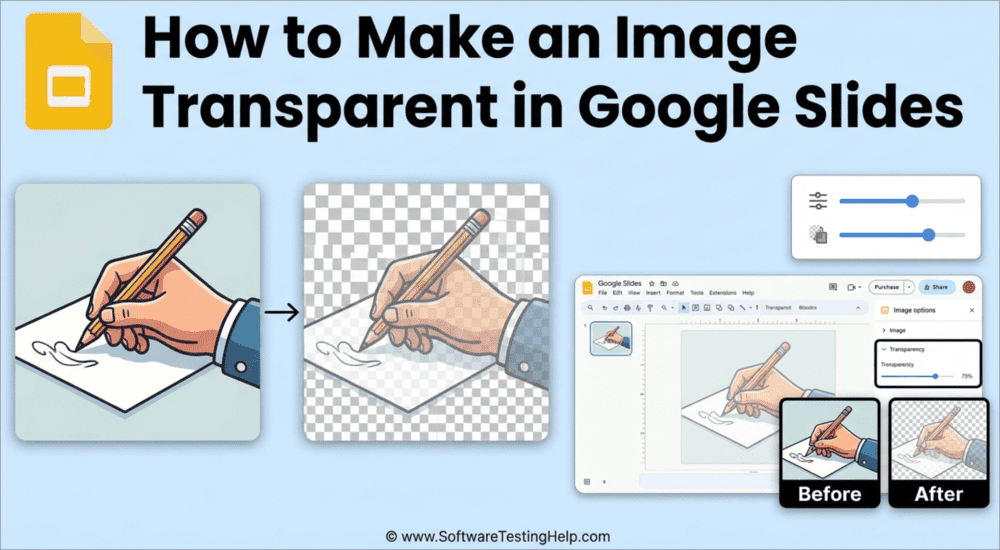
Consider this article your guide on how to make an image transparent in Google Slides.
Quick Steps to Make Image, Shape, and Text Transparent in Google Slides
| Element | Method | Quick Steps |
| Images | The Opacity Slider | Select Image > Format Options > Adjustments > Drag the Opacity Slider to a lower percentage. |
| Shapes | Fill Color (Bucket Icon) | Highlight Shape > Click on Fill Color > Click on (+) Custom > Drag the opacity slider |
| Text | Fill Color (Bucket Icon) | Insert text via Word Art > Highlight Text > Click on Fill Color > Click on (+) Custom > Drag the opacity slider |
| Borders | Border Color (Pencil) | Select Element > Click on Pencil menu > Click on (+) Custom > Drag the opacity slider |
Here are some important tips to help you design Google Slides like a pro:
How to Make An Image Transparent In Google Slides
For the sake of this article, I am using a template slide with an image already on it. Our focus will be on changing or adjusting that image’s transparency.
Here’s how you do it:
- With the Slide open, click on the image. A single click will suffice.
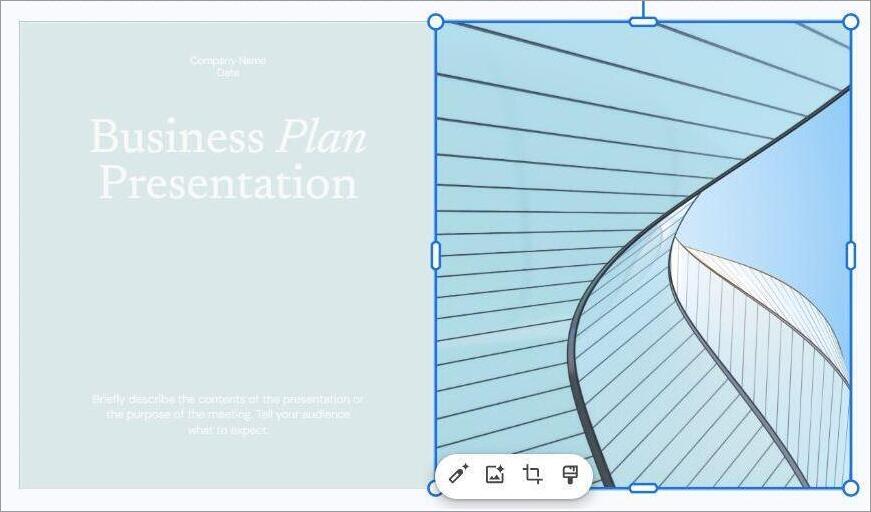
- Right-click on the image and select “Format Options” from the drop-down menu. Alternatively, you can select this option from the menu above: Format > Format Options.
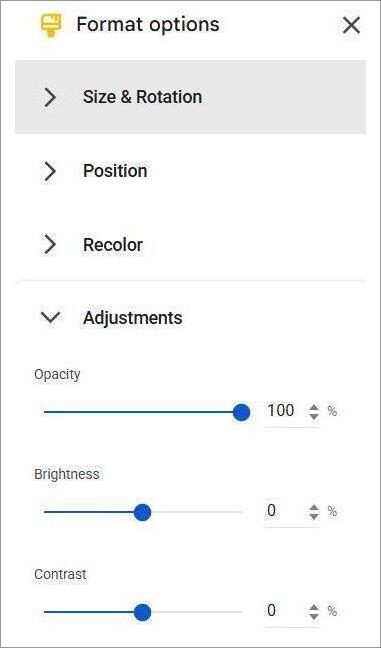
- You’ll now see a menu appear on the right side of your screen. Select “Adjustments”.
- You’ll see a slider for the option “Opacity”. Now, you’ll learn how to change Opacity in Google Slides.
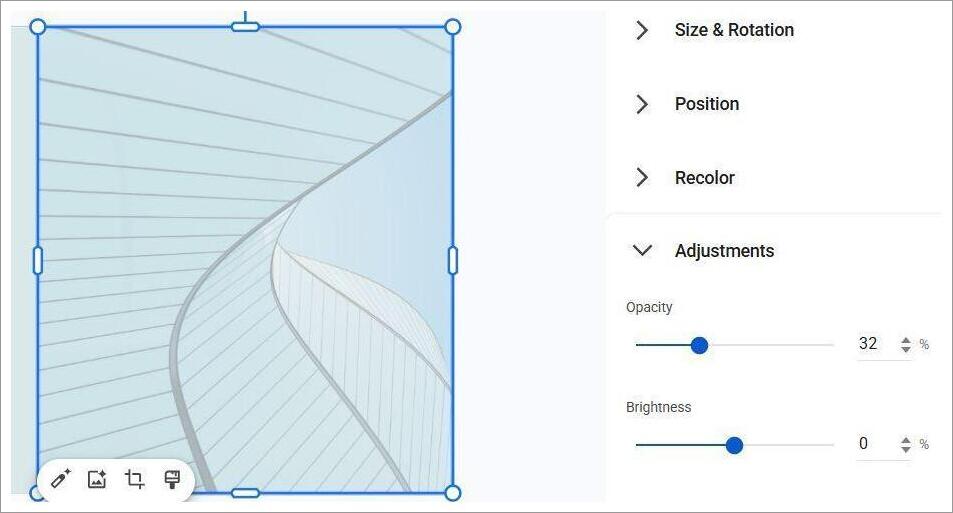
- The Opacity should be at 100%. You’ll need to drag it to lower the percentage. Lower the opacity to raise the image’s transparency. Around 20-30% is a good target. Any lower and the image won’t be visible.
How to Reset Image Transparency
If you aren’t satisfied with the result, you can always reset the image’s transparency levels with a single click.
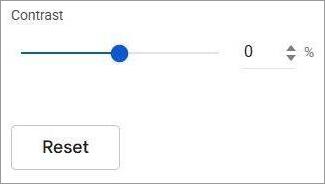
Within the Adjustment, you’ll see the Reset button at the very bottom. Simply click on it, and the image’s opacity will be back to its original state.
How to Make Part of Images Transparent (Gradient Method)
If you don’t want to turn the entire image transparent, but only a section of it, then that is possible.
Here’s how you do it:
- From the top menu, select “Insert” > “Shape”. Now select the Shape you want to draw within the image.
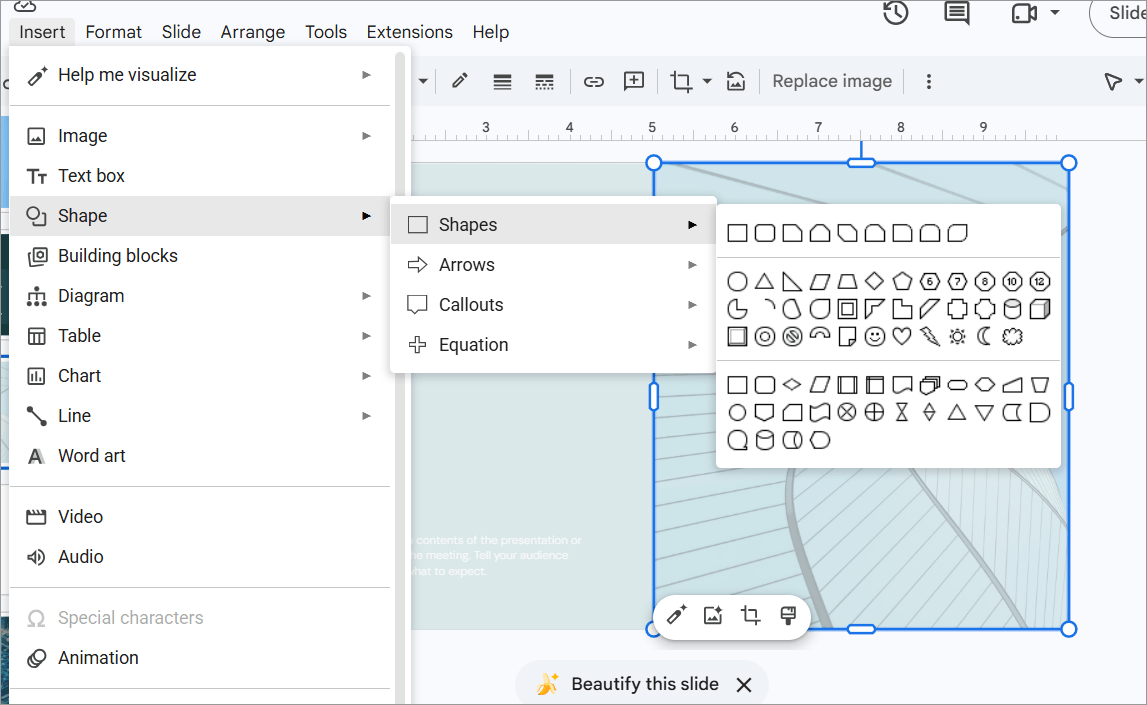
- Now, click on the “Border Color” icon at the top and select “Transparent”. This will turn the shape’s border lines transparent.
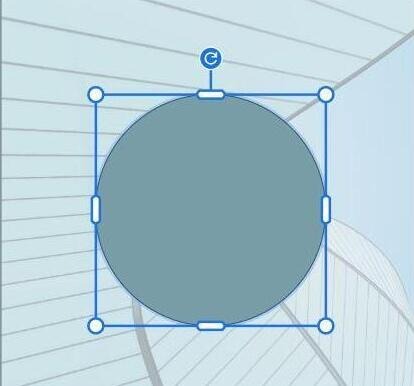
- Next, click on the “Fill Color” option. From the window that pops up, select “Gradient” and customize your shape by adding gradient stops, colors, and type.
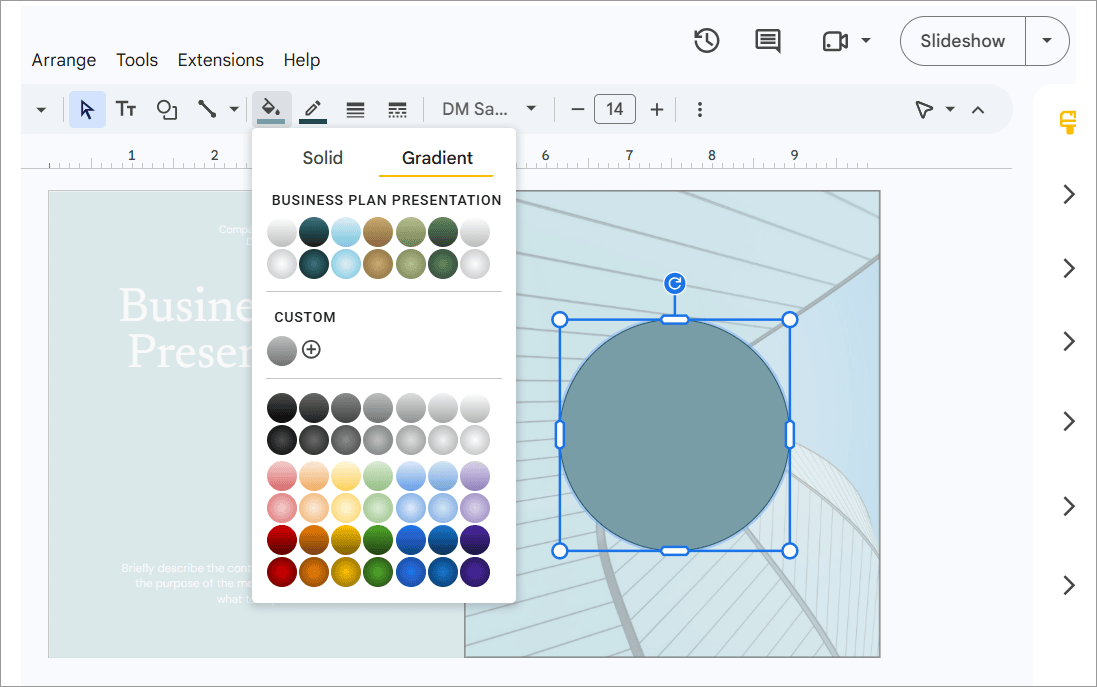
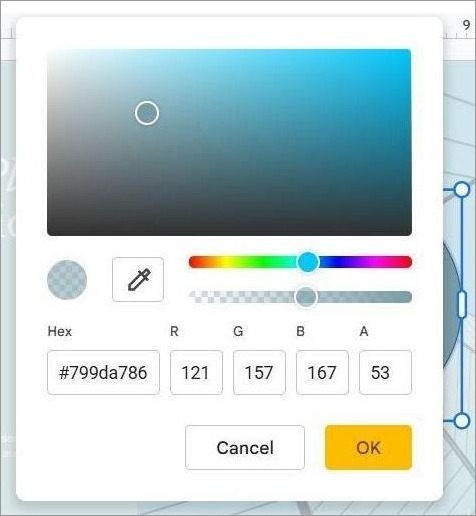
- After adding a Gradient Stop, go back to the Color Picker.
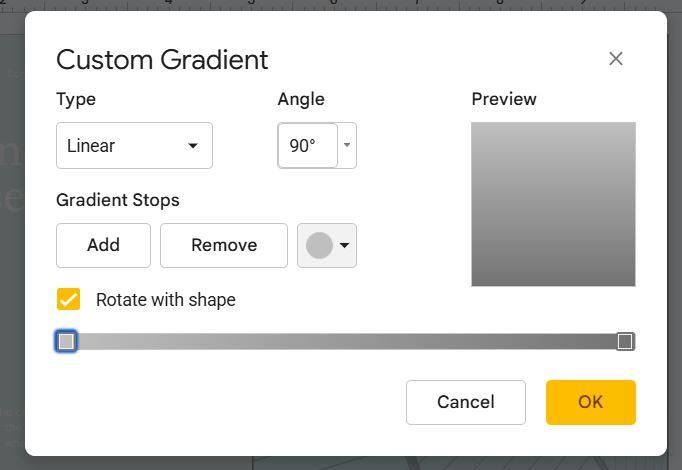
- Select Custom and drag the transparency slider until the gradient becomes see-through.
How to Use a Transparent Image as Slide’s Background
Now, we’ll set our image, which originally occupied part of the slide, as the slide’s main background.
Doing so means we’ll also need to adjust this image’s transparency to ensure the text on our slide is clearly visible. We don’t want our text or other elements on the slide to get washed out or overshadowed by the imposing visuals of our background image.
- First, click on the image and drag it until it covers the entire slide. Do not right-click and use the “set the image as background” option, as you won’t be able to adjust the image’s transparency this way.
- Now, right-click on the slide and select “Format Options”.

- Click on Adjustments and drag the opacity slider left. You don’t want the background image to completely disappear while also ensuring everything in the foreground is clearly visible. So, 20-30% opacity is perfect.
Alternatively, you can do the following:
- Click on the Slide, then click “Arrange”.
- Select “Order” > “Send Backward”
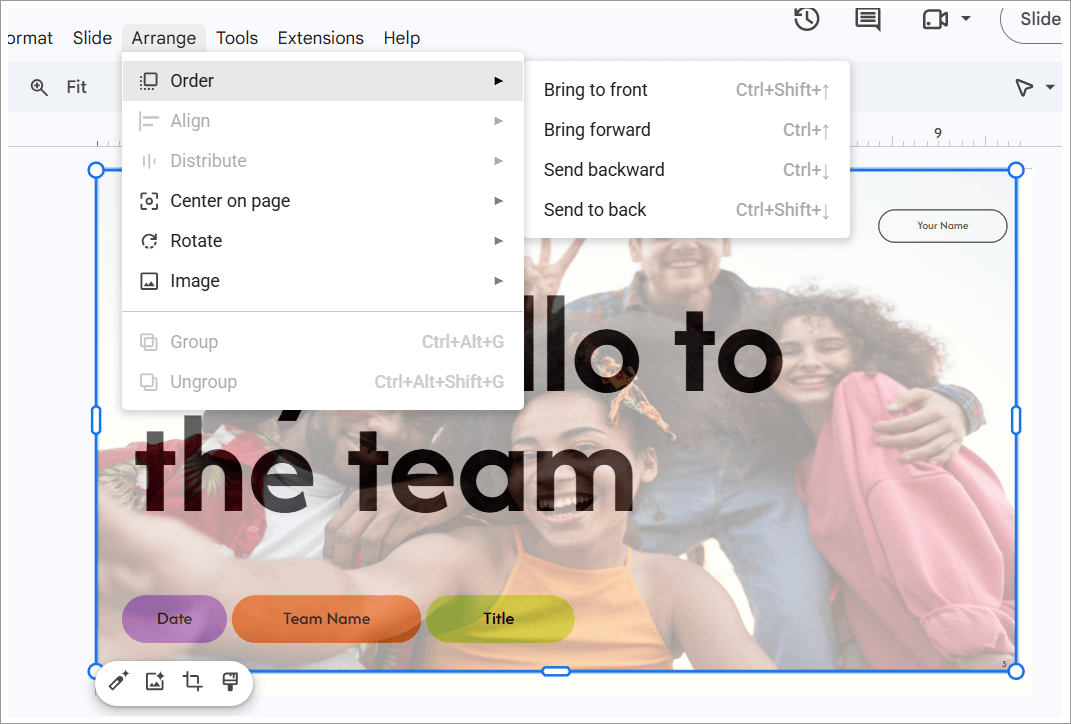
- Now, select Format Options and adjust the Opacity Slider under the Adjustments section.
Steps to Make a Shape Transparent in Google Slides
Making a Shape Transparent in Google Slides is very simple, and here’s how you do it:
- First, click on “Insert” > “Shape”.
- Select the Shape you want to draw on the slide. Use your cursor to draw the shape within the slide. You’ll be able to control the shape’s size with your cursor. I am choosing a Circle for this guide.
- Select the “Fill Color” icon, then click the “+” button within the window that pops up.
- You’ll see a slider below the color slider to adjust the shape’s transparency. Drag it right or left to adjust transparency.
- Click on “Ok” once you’re satisfied.
How to Make a Slide Background Transparent
You can make your Slide’s background transparent if it is an image.
- First, right-click on the slide and select “Detach image from background”.
- Drag the detached image until it covers the entire slide.
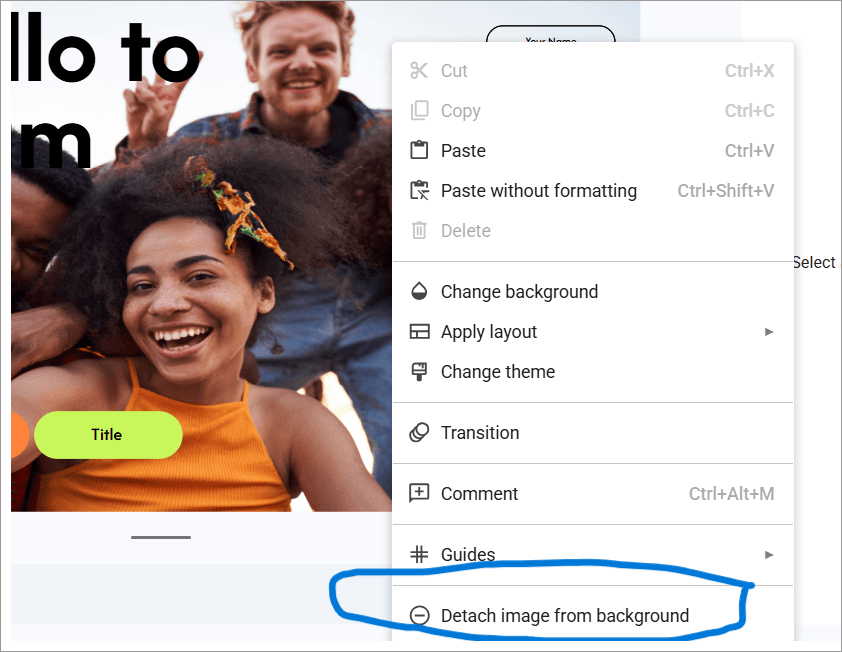
- Now right-click on the image and select “Format Options” > Adjustments > Adjust the Opacity Slider until it is transparent enough.
Steps to Change the Transparency of Multiple Images in a Slide
You can adjust the transparency of multiple images in a slide in one go by grouping all the images first.
Here’s how you do it:
- Drag the cursor across the images on your slide. Make sure the cursor covers all the images. You can rearrange their position or even crop them before you group them. I’ll leave that up to you.
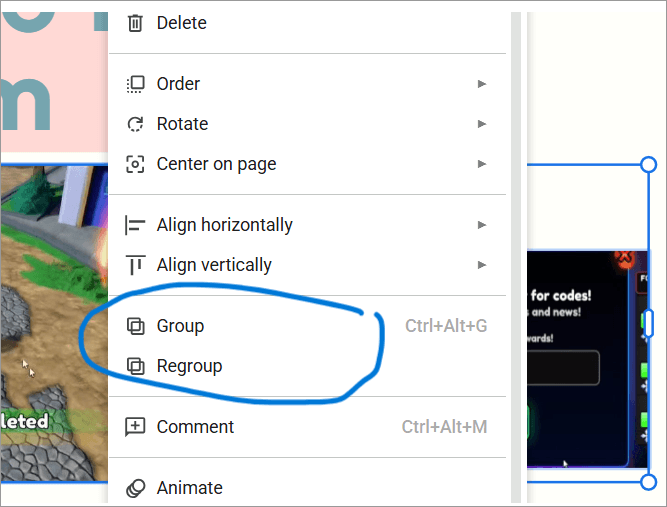
- Now, right click on the selection and select “Group” from the drop-down menu.
- With the images now grouped, right-click again and select Format Options > Adjustments > Adjust Opacity Slider.
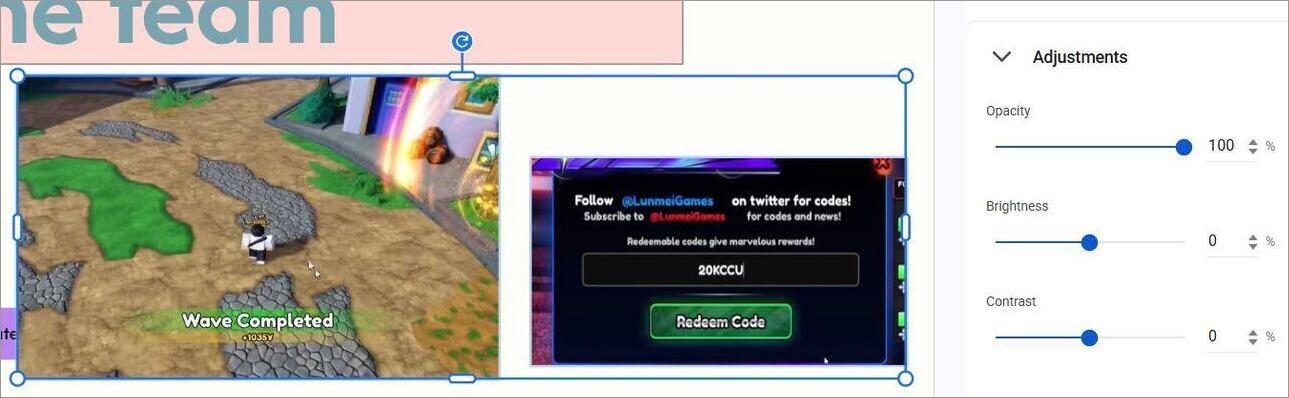
Before
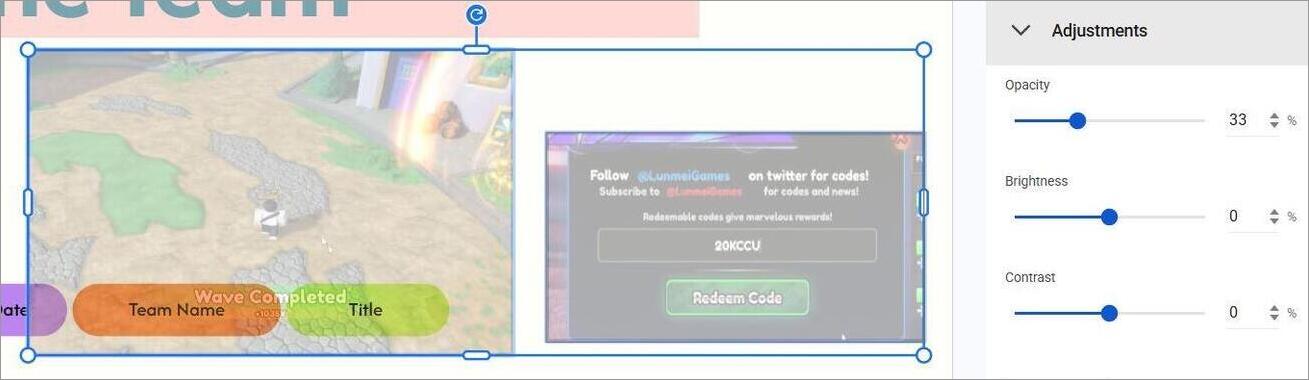
After
It is that simple.
How do I Make Text Transparent Over a Slide
Google Slides doesn’t feature a native opacity slider for text. However, there’s a workaround to this problem.
Here’s what you need to do:
- Insert text into your slide via Word Art: Click on Insert > Word Art
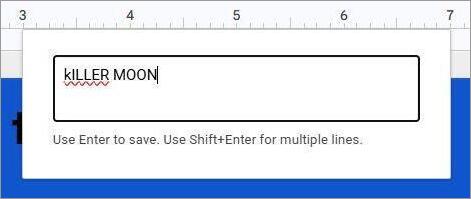
- Type the Text you wish to add and hit the Enter button.
- Now, click on the Bucket icon and change the Text’s color from the menu that opens.

- From the menu that opens when you click the Bucket icon, select Custom and drag the opacity slider to the left to reduce the text’s transparency.
- Hit “OK”.
Adjust Transparency in Google Slides (iOS and Android): Know How
Making an image transparent in Google Slides will always be simple, regardless of whether you’re using Slides on a browser or a smartphone.
Google Slides’ web interface differs from its iOS and Android counterparts. So of course, the process would be slightly different.
It is simple, nonetheless, and here’s how you do it:
- Open Google Slides on your Phone (iOS or Android).
- Open the Slide and tap on the image within, and select “Edit Slide”.
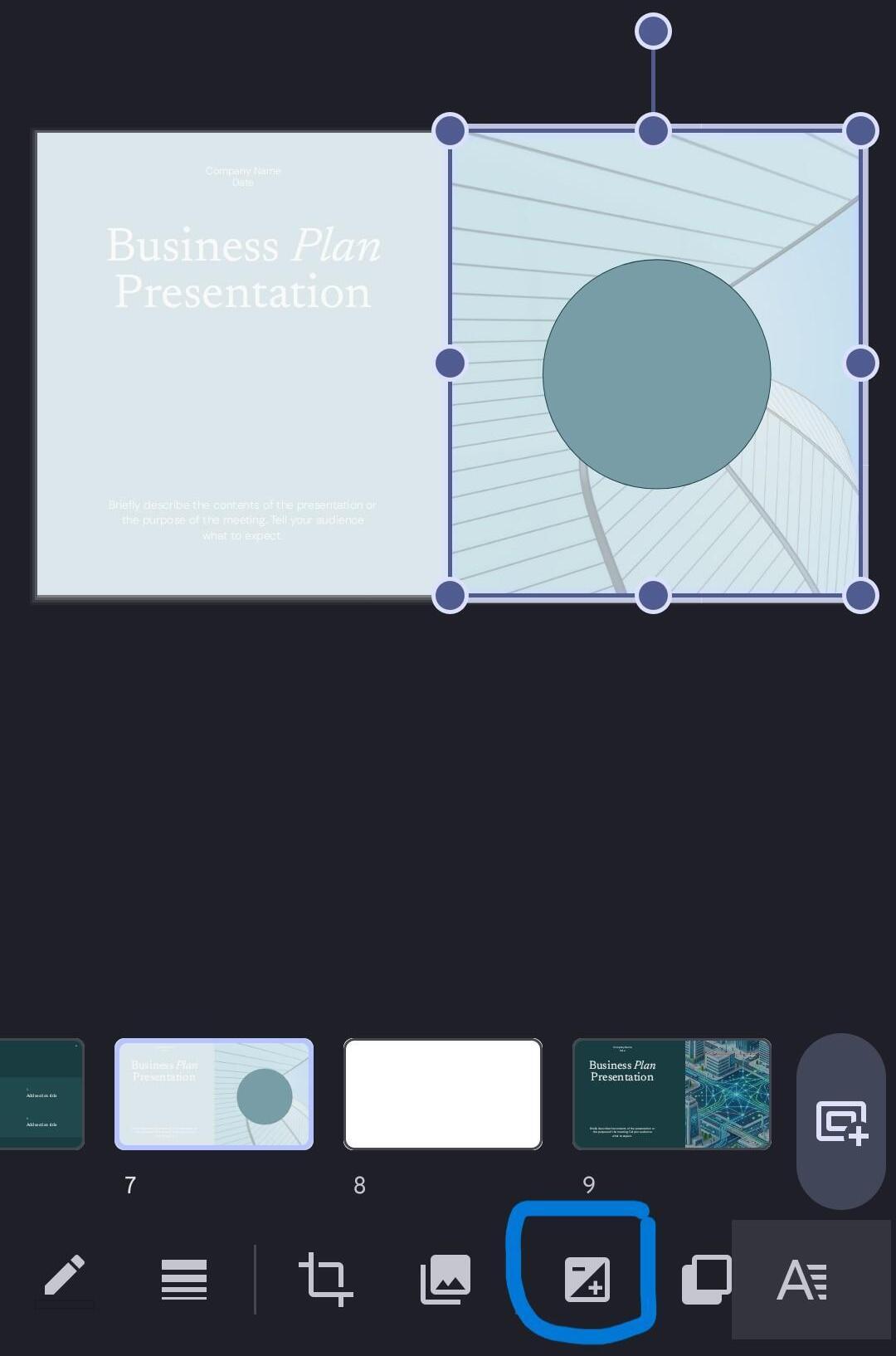
- You’ll see a +/- symbol at the bottom. Tap and find the slider to adjust “Opacity”.
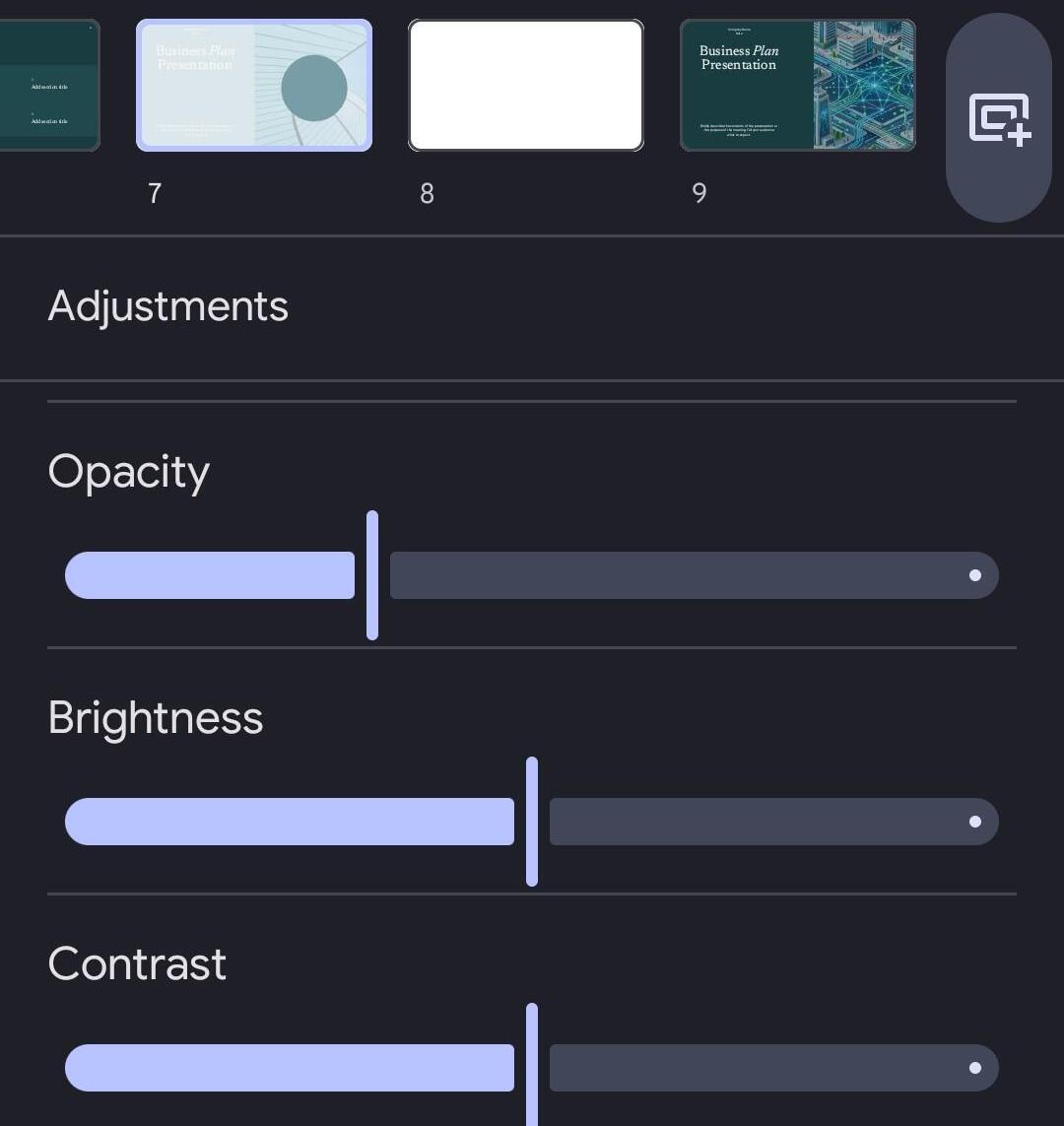
- Slowly drag this slider to the left to make the image transparent. Stop dragging once you are satisfied with the image’s transparency level.
Design Tips for Using Transparent Images
Our goal here with making images transparent is to enhance a Slide’s visual appeal. You are not going to always get that striking look just because you tweaked an image’s opacity by a certain degree.
You might even end up with a result that looks shoddy. So, I would suggest you adhere to the following design tips. They’ve worked for me in the past, and rest assured, they’ll work for you as well.
- Do not make the images too transparent. The goal is to reduce the image’s opacity, not to make it completely invisible. Keep the opacity at 20-30% for the desired effect.
- Only use high-resolution images, preferably above 1920 x 1080 pixels. Low-resolution images won’t look good, and their flaws will become more obvious once the opacity is reduced.
- There needs to be an appropriate contrast between the text and the image you are using as the slide’s background. You don’t want the background to wash out or overwhelm the text in the foreground. Make sure you use an appropriate font size and colors to highlight the text. Reduce the background image’s opacity to around 20% to get the desired effect.
- If your background image has text. I would avoid turning it transparent, especially if the text is supposed to be important. Remember, the visuals on your slide shouldn’t overshadow its contents. If the image is too bright, I suggest inserting a semi-transparent dark rectangular shape and typing the text in it.
- For logos, always go with PNGs instead of JPEGs. I say this because it’ll be easier to make the transparent edges look sharp with a PNG file.
- Apply transparency rules consistently across your entire presentation. If Slide one has an image with 20% Opacity, then Slide 3 should follow suit.
Troubleshooting Common Issues Users May Face
Using Google Slides isn’t always smooth sailing. You may face certain issues when attempting to make a picture transparent on the platform.
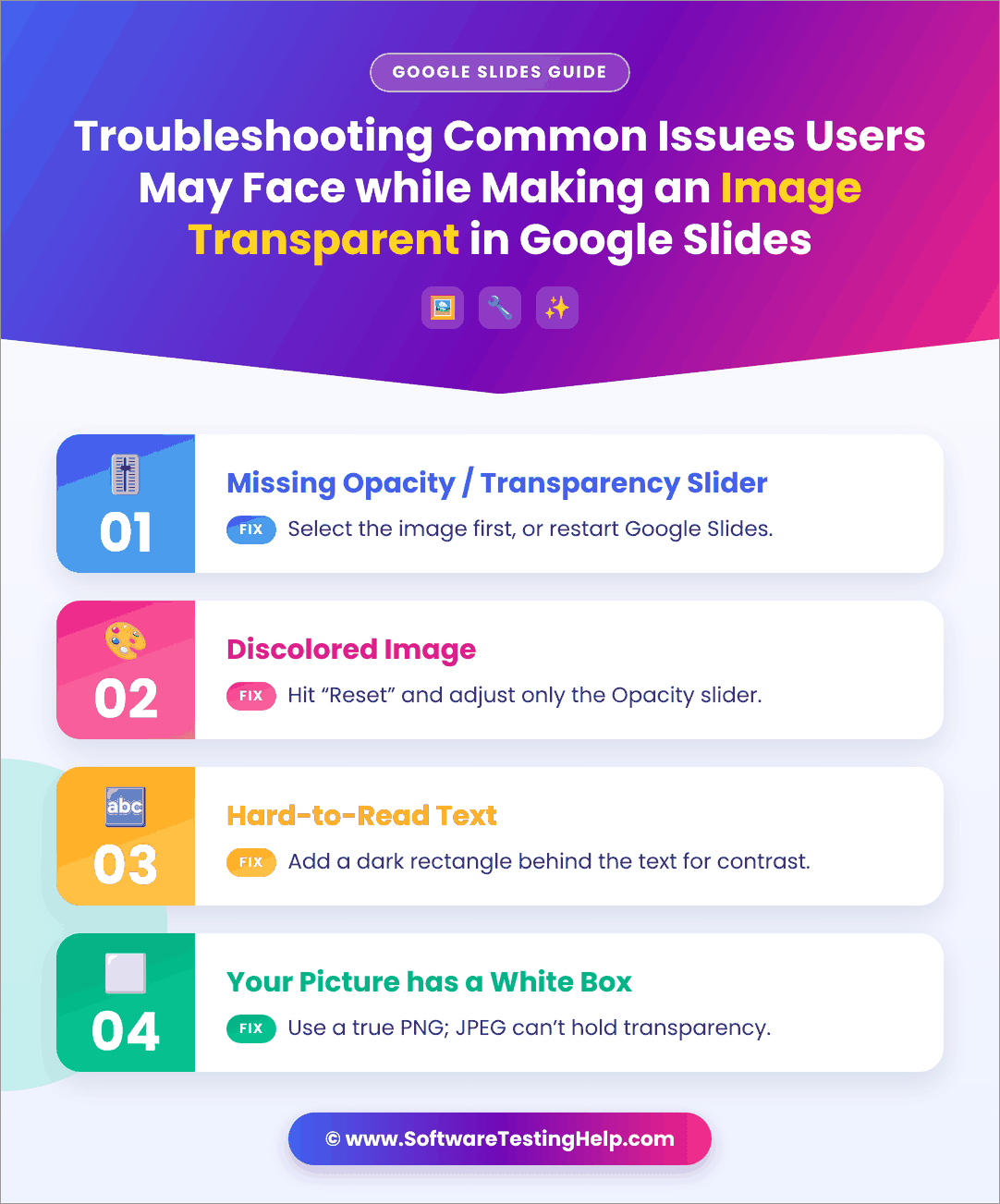
Here are a few issues to look out for and how you can troubleshoot them:
#1) Missing Opacity / Transparency Slider
You’ve followed all the steps but can’t find the transparency or opacity slider. A few things can explain this situation. Perhaps you have not tapped, clicked, or highlighted the image within the slide. Make sure you’ve clicked on the image and that a blue box appears around it before hitting the “Format Options” button.
I would also suggest closing Google Slides and opening it again to see if the issue was fixed.
#2) Discolored Image
Your image may look shoddy or even washed out if you accidentally tweaked the brightness and contrast slider alongside the opacity one. You can fix this easily by hitting the “Reset” button and pushing both settings back to 0. Make sure you only move the Opacity slider.
#3) Hard-to-Read Text
If the text becomes difficult to read, even after you’ve pushed the background image’s transparency below 30%, I suggest inserting a shape between the text and the background image. I would recommend using a dark-colored rectangle, as it will create the contrast needed to make the text readable over any image.
#4) Your Picture Has a White Box
This is mainly because you are using a JPEG file format. JPEG files only support three color channels. Unlike PNG files, they do not feature an additional alpha channel, which is required to make pixels see-through. JPEG files can’t hold transparency. So always use a true PNG image over JPEG to get the desired results.
Frequently Asked Questions
1. How to make an image more transparent?
You can control an image’s transparency level in Google Slides by doing the following:
• Click on the Image within the slide.
• Select Format > Format Options
• Go to Adjustments and drag the Opacity slider slowly to the left until you get the desired transparency effect.
The more you drag this slider to the left, the more transparent your image will become.
2. How to make a slide background transparent?
You can only make an image background transparent in Google Slides. There are no features within the Google Slides platform that let you make a slide’s default background transparent, as of now. You can, however, change or remove the slide’s background entirely.
3. How to do a transparent Gradient in Google Slides?
Here’s how you add a transparent Gradient in Google Slides:
• Click on your added Shape within the Slide
• Click on “Fill Color” > Gradient > Custom (+).
• Add a Gradient Stop.
• Now, go back to the Color Picker and select Custom.
• Drag the transparency slider until the gradient becomes see-through.
• Click on “Ok” once done.
4. Is it possible to make a PNG or JPEG transparent in Google Slides?
Yes, Google Slides has no restrictions when it comes to modifying a PNG or JPEG file’s opacity. You can use the method I’ve suggested above to adjust the transparency of an image, regardless of its format.
5. How do I remove a white background in Google Slides?
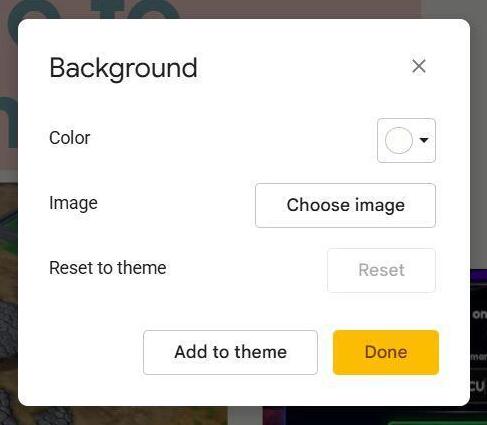
Google Slides comes with a built-in background removal feature that can help you with this task. Simply open the Slide with the white background and then right-click it. Select “Change Background” from the drop-down menu. Now, click on “Color” and select a color to replace the white background. Hit the “OK” button once you are done.
To completely remove the background, follow the same process but this time select “Reset” from the menu. This will erase the slide’s background.
Conclusion
So there you have it, a comprehensive guide on how to adjust transparency in Google Slides. As you can tell by now, it is remarkably simple. It will only take you a few easy steps to make any image on a Google Slide transparent. That said, know that you can only adjust an image’s transparency on Google Slides, not the slide itself.
You will not see a transparency slider to make a Slide’s background see-through. If you insist on modifying the slide to that extent, I suggest using an external tool like Canva.
I would also recommend using a high-resolution image and keeping the transparency level around 20-30% for the best results.
Research Process: The total time involved to complete and publish this article is approximately 41 hours. This content was created through a structured research approach to ensure accuracy and reliability.
For more-related guides, you can explore our range of tutorials below:
- How to do a Voiceover on Google Slides
- 10 Best Online Presentation Software & PowerPoint Alternatives
- How to Change Background Color on Google Docs
- How to Change Google Form Header Image Size
- Best Free Online Slideshow Maker Software
- Top SlidesGo Alternatives & Competitors
Was this helpful?
Recommended Reading
-

Planning to spice up your Zoom meetings to make them more interesting? Discover the top sites to find the best Zoom background images of your choice: Are you having the same feeling that most of the Zoom meetings are now getting boring? Professional Zoom backgrounds help a lot in replacing…
-

This tutorial will clearly show you how to draw a Radius on Google Maps using free tools. Need to measure distance within a specific area on Google Maps? While Google Maps doesn’t offer a built-in radius button, you can still draw and display a radius circle using simple tools and…
-
This tutorial explains How to Strikethrough on Google Docs. Also, learn various strikethrough shortcuts on Google Docs: In the initial days, Microsoft Office provided users with software that could ease creating and managing documents on the computer. Later on, the users looked for an online editor that can store all…
-
This tutorial explains how to do a Voiceover on Google Slides and why Google Slides is your best choice to create presentations: Presentation is considered an effective and efficient way to present data to the audience and make a complex topic easier. Earlier, it was a pretty cumbersome task to…


