


This is tutorial #7 in our Selenium Online Training Series. If you want to check all Selenium tutorials in this series, please check this page.
In the previous tutorial, we tried to shed light on various types of locators in Selenium and their locating mechanisms to build test scripts. The tutorial primarily briefly introduces different locator types like ID, Classes, Xpaths, Link texts, CSS Selectors, etc., and their identification.
Proceeding with our next tutorial, we will introduce you to an extension of locating strategies. Thus, in the next tutorial, we will study the mechanism of locating web elements on Google Chrome and Internet Explorer.
Table of Contents:
Building Selenium Scripts

As we all are well aware of the fact that there is rapid growth in the internet user base, thus stakeholders and programmers are building web applications that are likely to work on most browsers.
Thus, imagine a situation where your web application doesn’t support Firefox but works well for Chrome and Internet Explorer.
Now how are you going to automate such an application using Selenium? Or to be specific, how are you going to locate web elements in Chrome and Internet Explorer? Thus, the answer lies ahead in this tutorial.
Locating Web Elements in Google Chrome
Let us begin with understanding the locating strategies in Google Chrome.
Like Firebug in Firefox, Google Chrome has its developer tool that can identify and locate web elements on the web page. Unlike Firebug, a user is not required to download or install any separate plugin; the developer tool comes readily bundled with Google Chrome.
Follow the below steps to locate web elements using Chrome’s Developer tool:
Step #1: The primary step is to launch the Google Chrome’s Developer tool. Press F12 to launch the tool. The user could see something like the below screen.

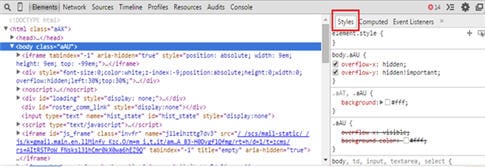
Take note that the “Element” tab is highlighted in the above screenshot. Thus, the element tab is the one that displays all the HTML properties belonging to the current web page. Navigate to the “Element” tab if it is not opened by default on the launch.
You can also launch the developer tool by right-clicking anywhere within the web page and by selecting “Inspect element” which is very similar to that of Firebug’s inspection.
Step #2: The next step is to locate the desired object within the web page. One way to do the same is to right-click on the desired web element and inspect it. The HTML property belonging to that web element would be highlighted in the developer tool.
Another way is to hover through the HTML properties and the matching web element would be highlighted. Thus, in this way, users can locate IDs, classes, links, etc.

Creating an Xpath in the Developer Tool
We have already discussed Xpaths in the last tutorial. We also discussed its creation strategy. Here we would base our discussion on checking the validity of the created XPath in Chrome’s Developer tool.
Step #1: For creating XPath in the Developer tool, open the console tab.
Step #2: Type the created Xpath and enclose it in $x(“//input[@id=’Email’]”)

Step #3: Press the enter key to see all the matching HTML elements with the specified Xpath. In our case, there is only one matching HTML element. Hover on that HTML element and the corresponding web element will be highlighted on the web page.

In this way, all the Xpaths can be created and checked for their validity within the console.
Information related to CSS corresponding to the web element can be found within Chrome’s Developer tool. Refer to the screenshot below:
Locating Web Elements in Internet Explorer
Like Google Chrome, Internet Explorer also has its own Developer Tool that can be used to identify web elements based on their properties within the web page. The user is not required to download or install any separate plugin, the developer tool comes readily bundled with Internet Explorer.
Follow the below steps to locate web elements using the IE Developer tool:
Step #1: The primary step is to launch the IE Developer tool. Press F12 to launch the tool. The user would be able to see something like the below screen.
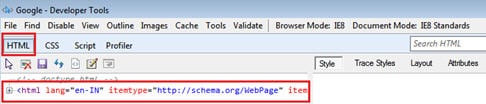
Take note that the “HTML” tab is highlighted in the above screenshot. Thus, the HTML tab is the one that displays all the HTML properties belonging to the current web page. Expand the HTML tab to view the properties of all the web elements belonging to the current web page.
Step #2: The next step is to locate the desired object within the web page. One way to do this is to select the HTML element and the matching web element would be highlighted. Thus, in this way, users can locate ids, classes, links, etc. Check out the below screenshot in which the Email Textbox will be highlighted as soon as we select the corresponding HTML property.

Another way to locate the web element is to click on the “Find” button present in the top menu and click on the desired web element within the web page. As a result, the corresponding HTML properties would be highlighted.
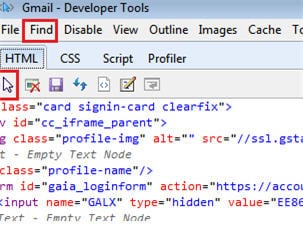
Thus, by using the developer tool, a user can find IDs, classes, and tag names and can create Xpaths to locate web elements.
Like Chrome’s Developer tool, IE developer tool has a separate section that displays CSS-related information. Check out the below screenshot.

Conclusion
In this tutorial, we shed light on the basic element locating strategies using Developer’s tool for Google Chrome and Internet Explorer.
Next Tutorial #8: Proceeding ahead with our next tutorial, we will take the pleasure of introducing you to a more advanced tool named WebDriver. WebDriver is one of the most compelling automation testing tools. So our next tutorial onwards, we would route and base our discussions around WebDriver and all its nitty-gritty.
Was this helpful?
Recommended Reading
-

In-Depth Tutorial On ChromeDriver for Running Selenium Webdriver Tests on Chrome Browser: Handling browser alerts while automating through Selenium will be discussed in this article. Moreover, we will elaborate on the set up of the Selenium script for the Google Chrome browser along with appropriate examples and pseudo-codes. Upon going…
-

In the last Selenium WebDriver tutorial, we learned various commonly and routinely used Selenium WebDriver commands, including important topics like handling iframe and exceptions in Selenium scripts. Moving ahead in our comprehensive series of tutorials on Selenium, we will discuss handling Web tables, iframe, and dynamic elements which are an…
-
In the previous tutorial, we studied the various types of assert statements available in Java-based unit testing framework and their applications with specimens. Re-iterating the fact that being an “Automation Test Engineer”, assertions play a very decisive and significant role in developing test scripts. Moving ahead with the few upcoming…
-
In our previous Selenium tutorial, we learned different types of locators. We also learned how to use: ID, ClassName, Name, Link Text, and XPath locators for identifying web elements on a web page. In continuation with that, today we will learn how to use CSS Selector as a Locator. This…


Paul Laguna – than you for your tip to type it out and not copy and paste. That worked for me.
Hi,
I want to use Keyboard events from my MAC OS X airbook.
Unable to use Robot class in Selenium Webdriver…
Please let me know what needs to be used such that i can use Keyboard events in MAC
Thanks
I am also unable to follow the same on IE , i reach there at HTML but unlilke firefox on IE unable to find xpath
@Aswin @Surmo @Hemant
Don’t copy and paste $x(“input[@id=’Email’]”)
Type it out. That happened to me before and since I typed it out, it works now.
sorry! you did not mention how to enter xpath in IE browser. I tried using same as you mentioned for chrome, but that did not work on IE. Could you please reply back letting me know the xpath for IE
exactly my question as well. I want to know how to search xpath on IE
HI,
I am try the below xpath in the console and getting error,
$x(“//input[contains(@name,’FirstName’)]/following:*”)
VM1342:1 Uncaught DOMException: Failed to execute ‘$x’ on ‘CommandLineAPI’: The string ‘//input[contains(@name,’FirstName’)]/following:*’ contains unresolvable namespaces.
at :1:1
Thank you very much for the nice post. But as you said, we can use Selenium IDE only for firefox, can we use these identification techniques in selenium IDE for chrome or IE?
I am not getting option to copy xpath in internet explorer 11 while inspecting, in chrome after inspecting we get an option of copy xpath but in IE I am not getting can somebody help.
Instead of putting: $x(“input[@id=’Email’]”)
Use: $x(‘input[@id=’Email’]’)
works for me. good luck.
Hi, Suppose if i want to write the scripts for both firefox and chrome , can i use the same scripts for all browsers? because xpath syntax are different for both firefox and chrome.If not what would be the solution to avoid redundant code for whole application.
What are the best locators for more faster?
@Surmo/Hemanth
You should not use ‘:’ in front. the correct is $x(“input[@id=’Email’]”) and you are using :$X
so ‘:’ before $ shoudl be avoided
@amol/Shylaja
It will be covered in Webdriver tutorials which are next
@subrata
Selenium IDE was designed only for firefox so it’s not available in IE and Chrome.
Could you please share 1 exmaple for IE. With IE11 I was not able to find the ‘find’ option and how to use it.
Hello ,
When I am trying to use the above mentioned xpath from you :$x(“//input[@id=’Email’]”) in the console and hitting the enter button.
I am getting below exception at chrome :
Uncaught SyntaxError: Unexpected token ILLEGAL
at Object.InjectedScript._evaluateOn (:895:140)
at Object.InjectedScript._evaluateAndWrap (:828:34)
at Object.InjectedScript.evaluate (:694:21)InjectedScript._evaluateOn @ VM1307:895InjectedScript._evaluateAndWrap @ VM1307:828InjectedScript.evaluate @ VM1307:694
I am using chrome version :Version 43.0.2357.81 m
Kindly suggest in this
Thanks,
Hemant
Can you help? how to get xpaths of element through java program
Here is the ChroPath extension for Chrome which have many advanced features compare to FirePath.
Download link of extension-
https://chrome.google.com/webstore/detail/chropath/ljngjbnaijcbncmcnjfhigebomdlkcjo
How to run selenium using javascript for running in appium? Please pr.ovide any helpful links or references
I’ve captured xpaths in Chrome how can i covert those xpaths to IE Is there any tool do that kind of converstion
how to check, the XPath we have created will work in IE?
it was explained for Chrome browser but not IE.
Hello,
Can you help? I want to write Xpath in IE & Chrome.
For same example “Email Text Box”,
Xpath in Chrome is = $x(“//input[@id=’Email’]”)
What is Xpath in IE11?
Hi Gaurav khurana
I have used the above syntax $x(“input[@id=’Email’]”)
I am getting like this
Uncaught SyntaxError: Unexpected token ILLEGAL(…)InjectedScript._evaluateOn @ VM809:875InjectedScript._evaluateAndWrap @ VM809:808InjectedScript.evaluate
i didn’t get the answer for IE , the one you have mentioned is not for IE its for chrome
Once we have identified the Xpaths, how to convert it to a program or code which will make to work on FF? I am new to this selenium and couldnt relate it. Please help
When I am trying to use the above mentioned xpath from you :$x(“//input[@id=’Email’]”) in the console and hitting the enter button.
I am getting below exception at chrome :
Uncaught SyntaxError: Unexpected token ILLEGAL
at Object.InjectedScript._evaluateOn (:895:140)
at Object.InjectedScript._evaluateAndWrap (:828:34)
at Object.InjectedScript.evaluate (:694:21)InjectedScript._evaluateOn @ VM1307:895InjectedScript._evaluateAndWrap @ VM1307:828InjectedScript.evaluate @ VM1307:694
I am struggling get element address where have below constraints on web page:
1. It supports only on Google chrome.
2. Right click is disable on the page.
3. Need to capture sub menu of hover menu.
Please help me anyone to come out from this.
Shitty post, you just didn’t go through how to get xpath in IE because you just don’t know how, you probably copy pasted this useless shit from another post.
The problem with the Xpath line for Chrome $x(“input[@id=’Email’]”) is that the quotes have been converted to directional ones.
Try this:
$x(“input[@id=’Email’]”)
I am using IE11 and stuck in this link page .
I want to open Customer information Link from using selenium , how can I do that.
I am trying
driver.findElement(By.linkText(“Customer Information”)).click(); but doesn’t open that link
Use the java script executor to click on the element.
((JavascriptExecutor) driver).executeScript(“arguments[0].click();”,driver.findElement(By.linkText(“Customer Information”));
Well, crud. The commenting engine rewrote them into directional ones, too. Use straight single and double quotes.
How to locate element in Chrome with IE browser ?
Here I would recommend to try SelectorsHub to write, generate and verify XPath, it will make your things much easier. SelectorsHub is very first smart editor for XPath & CSS Selector. It is the highly recommended by all trainers. It’s a free browser extension. Please give it a try and trust me you will love it.
Download link –
https://chrome.google.com/webstore/detail/selectorshub/ndgimibanhlabgdgjcpbbndiehljcpfh/
https://chrome.google.com/webstore/detail/chropath/ljngjbnaijcbncmcnjfhigebomdlkcjo
Is there any third party opensource tool available to find the Xpath in IE browsers?
Hi,
Thanks for such nice tutorial.
Is it really required to inspect element in each different browser separately(google chrome, i.e. , firefox) to test Web page in different browsers because e.g I can see the id is same i.e. email (for gmail.com) irrespective of any web browser I open so would it be sufficient if I inspect and locate element only in Firefox and use it for other browsers as well.