Keep your Minecraft server running at its best with our step-by-step guide. Discover the safest ways to update Minecraft Server to its latest version and keep your players connected without any downtime:
Minecraft is one of the best-selling games in history. It comes with exciting updates, a thriving modding community, and massive multiplayer servers. The players always have something new to discover. It’s a universe where imagination is the only limit.
We can play it in single-player mode and multiplayer mode, where you can play with many other people online. So, for the multiplayer mode, you need to have an updated Minecraft server to match the other players.
Table of Contents:
- Minecraft Server Update: Complete Guide
- What is a Minecraft Server: Best Practices to Follow
- Top Minecraft Servers in 2026
- Preparations For The Minecraft Server Update
- How to Update Minecraft Server
- Steps to Update Minecraft Server Through Popular Hosting Control Panels
- How to Migrate Between Server Types
- Troubleshooting Common Issues
- Benefits of Updating Minecraft Server
- Frequently Asked Questions
- Conclusion
Minecraft Server Update: Complete Guide
Minecraft server updates are crucial for accessing the latest content, features, security improvements, enhanced server performance, and improved compatibility. If you cannot update it properly, then it can lead to downtime, data corruption, or frustrated players.
[Via serversolutions]
In this article, we will walk step by step through the safe and reliable ways of updating a Minecraft server without losing world data, and how to update a Minecraft Bedrock server, how to update a Minecraft server to a new version, and so on.
Also covered were some related aspects like the need and benefits of an updated server, preparations for the update, post-update tasks, troubleshooting common issues, and so on.
What is a Minecraft Server: Best Practices to Follow
The Minecraft server is a system that enables players to connect and play together. Here, many players can join, build, explore, or play mini-games at the same time. They need to follow special rules as per the server.
Different servers have different rules. Some servers are about survival, some about teamwork, some about competition, and so on.
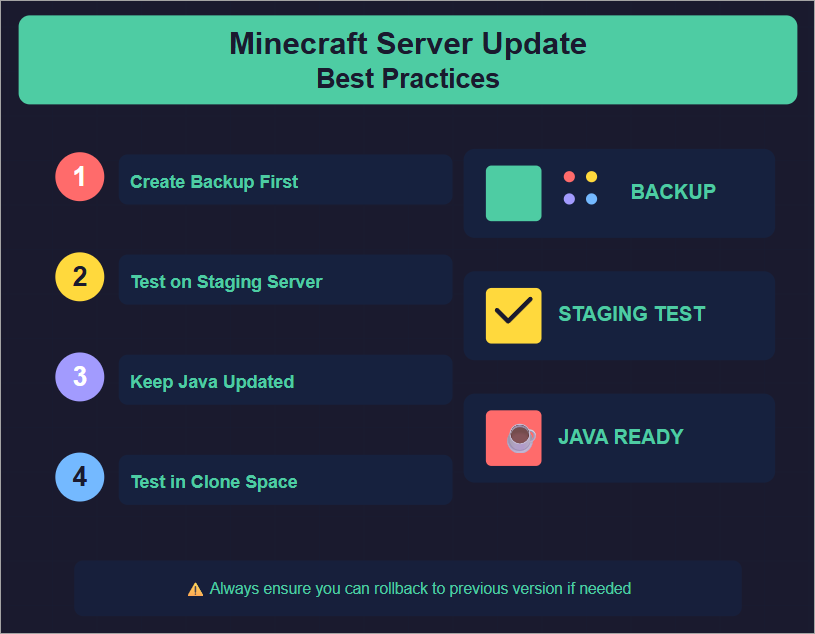
Best Practices to Follow While Updating a Minecraft Server
There are certain things that, if followed, can lead to a better experience. These are depicted in the image below.
Top Minecraft Servers in 2026
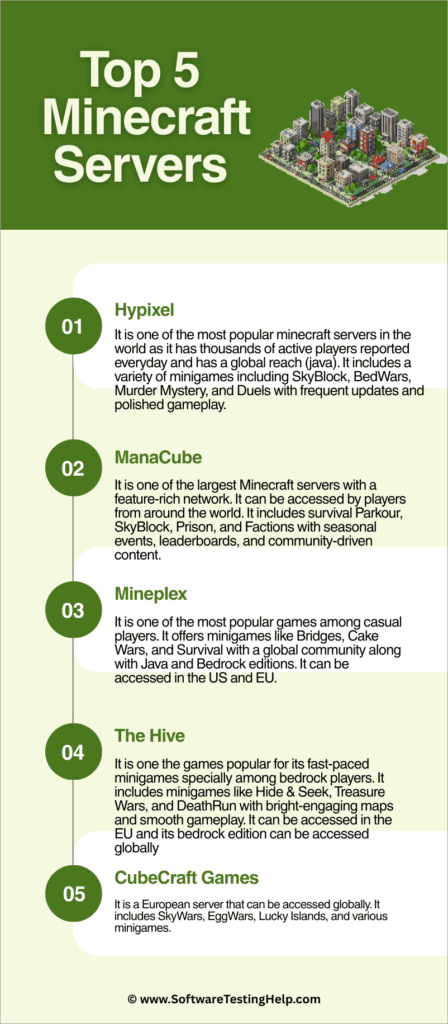
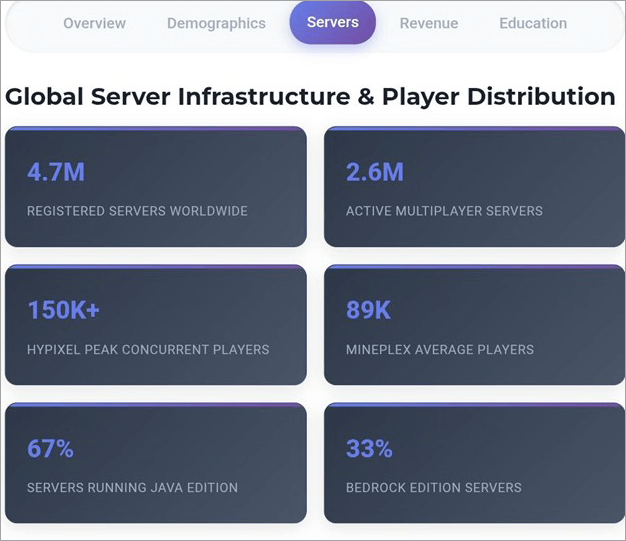
There are hundreds of thousands of Minecraft servers. To access the best functionalities, update to the latest version.
There are some of the top and latest servers, each with its own rules and functionalities, that you can go with.
#1) Hypixel
It is one of the most popular Minecraft servers in the world, as it has thousands of active players reported every day and has a global reach (Java). It includes a variety of minigames, including SkyBlock, BedWars, Murder Mystery, and Duels, with frequent updates and polished gameplay.
#2) ManaCube
It is one of the largest Minecraft servers with a feature-rich network. Players from around the world can access it. It includes Survival Parkour, SkyBlock, Prison, and Factions with seasonal events, leaderboards, and community-driven content.
#3) Mineplex
It is one of the most popular games among casual players. It offers minigames like Bridges, Cake Wars, and Survival with a global community, along with Java and Bedrock editions. It can be accessed in the US and the EU.
#4) The Hive
It is a game popular for its fast-paced minigames, especially among Bedrock players. It includes minigames like Hide & Seek, Treasure Wars, and DeathRun with bright-engaging maps and smooth gameplay. You can access it in the EU, and you can access its bedrock edition globally.
#5) Vanilla
It is the official, unmodified server software developed by Mojang. It is the basic server that the developers provided with no plugins, minimal settings, and no performance enhancements. It is recommended for players who want the classic, untouched Minecraft experience, or for small friend groups or casual survival worlds.
#6) Spigot
It is one of the most popular and widely used servers that provides optimization features with plugin support and extra features like economy, land claims, ranks, etc. Users can go to the Bukkit API for full plugin support.
#7) Paper
It is the next version after Spigot with additional performance improvements, bug fixes, configuration options, and better overall stability. It is recommended for players who want maximum performance.
CubeCraft Games
It is a European server that can be accessed globally. It includes SkyWars, EggWars, Lucky Islands, and various minigames.
Preparations For The Minecraft Server Update
You should check specific things before updating the Minecraft server.
They are:
- Current Version: Check the current version of your server before starting the update. You can find out the server information in your console output.
- New Update Notes: You should check the update features that would change your gameplay. You can find out the information on Mojang’s blog patch notes.
- Inform the Other Players: Inform the other players about the expected downtime or the time you cannot connect to update the server.
- Check the Requirements: You should check the system and hardware requirements, as the new update may require more storage or updated software.
- Back-up: Take a backup of your entire server in multiple locations before you proceed to the new server update.
- Document Current Settings: Save or document your current settings, as the new server comes with the default settings. So, if you documented your previous settings, you can easily apply them to the new version.
[Via BBC]
How to Update Minecraft Server
There are certain simple steps that you can follow to update your Minecraft server effectively.
These are:
Step 1: Current Version Check: Check the current version of your server in your server console or log files to know if it is outdated.
Step 2: Take Backup of Your Current Server: The first and foremost thing you should do is to take a backup of your current server to save your data and not lose your progress.
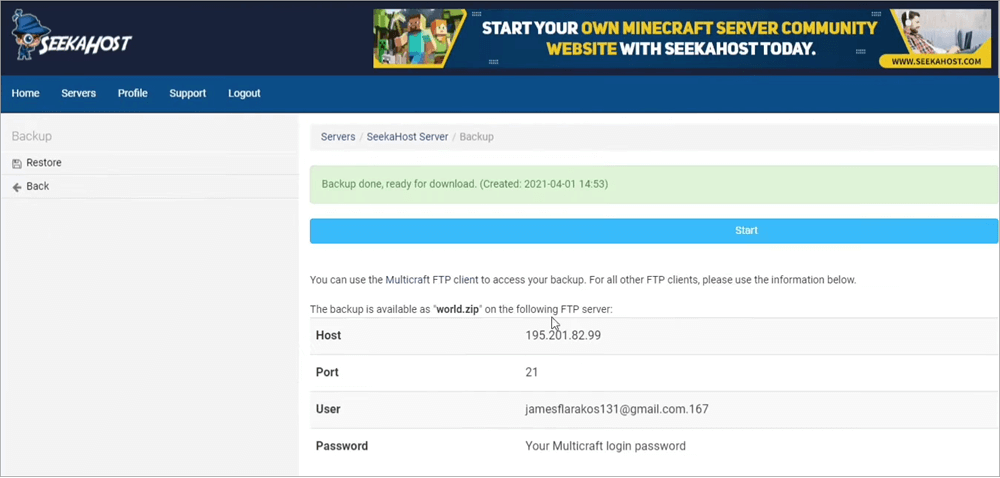
For this, you can copy your server files, including world files, plugins, and configuration files, manually on your computer or in the cloud at a safe place, or you can save them automatically through any hosting services like Pine Hosting.
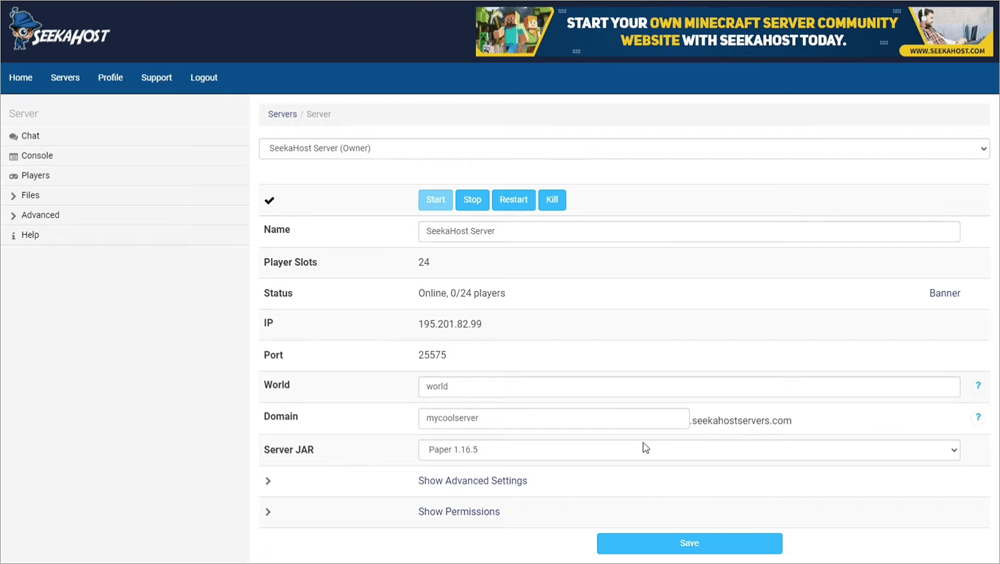
Given below is the image when backup is done.
Step 3: Download and install the latest version of the server available on Minecraft.net
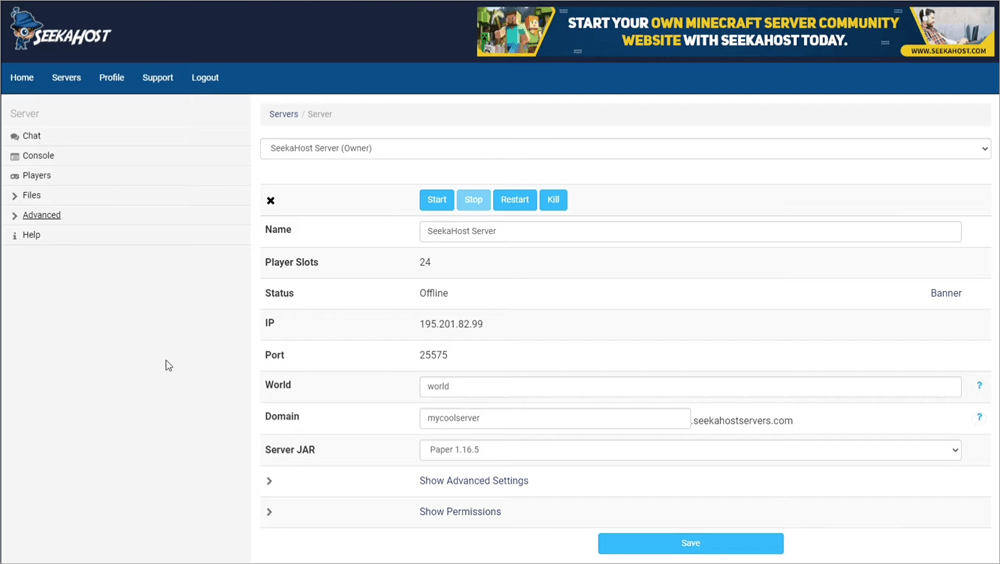
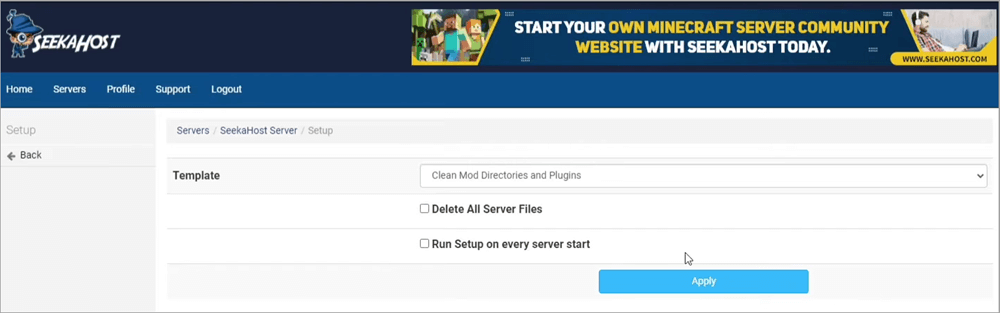
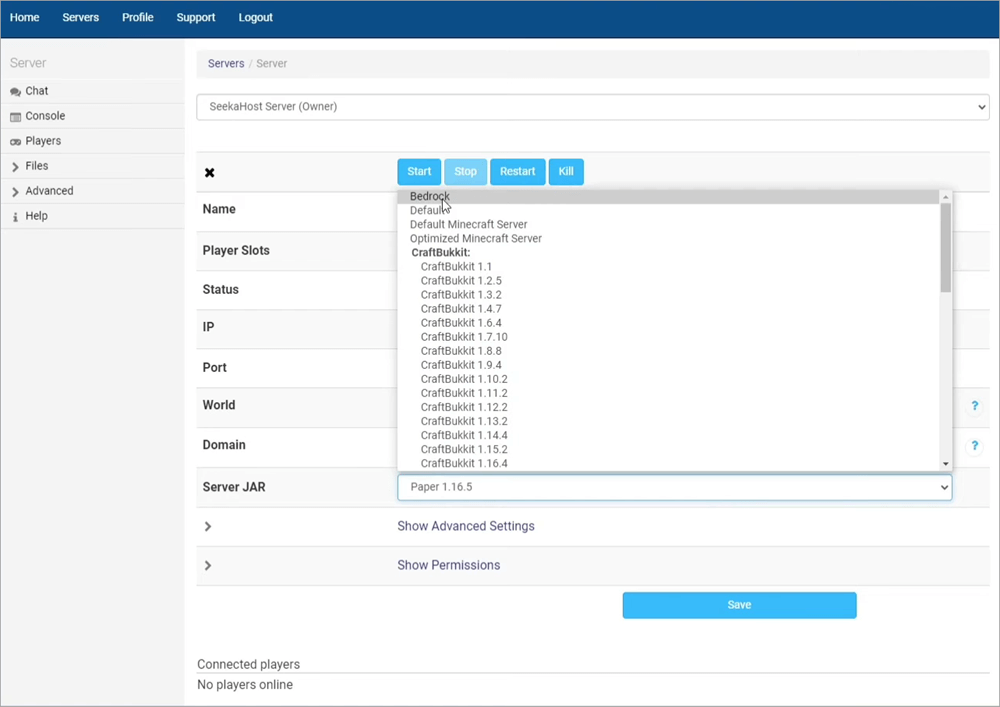
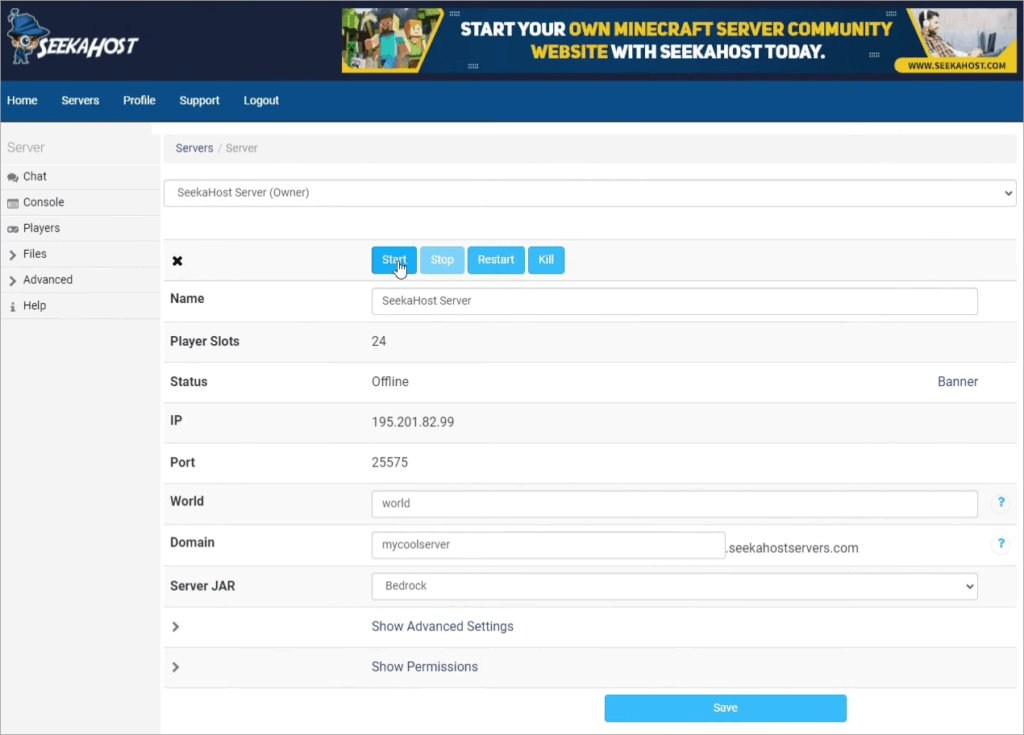
Step 4: Replacing the Old Server: Replace the old version with the newly downloaded version. For this, you need to stop as well as delete the old one (old server jar file, old configuration files, plugin configuration folders, incompatible plugins files, crash reports, logs, etc) and place the new one into the server folder.
The images below depict the step-by-step process of replacing the old server:
Step 5: Updating Plugins and Mods: Outdated plugins and mods create downtime or crashes, so it’s better to update them alongside. To update the plugins, you can check the developer pages for version updates, and you should update the mods that match the new server requirements.
You must ensure plugin compatibility before you update:
- You can go to the plugin page and check.
- Read the change log or update notes; here you can find your current version.
- Check on GitHub for the releases, commits, or issues.
- Look at the API version inside the plugin.yml
- Test on a local test server.
- Check the specific communities on Discord.
Step 6: Configuration Settings: Go through the configuration settings once the server is replaced to ensure you are not missing any settings.
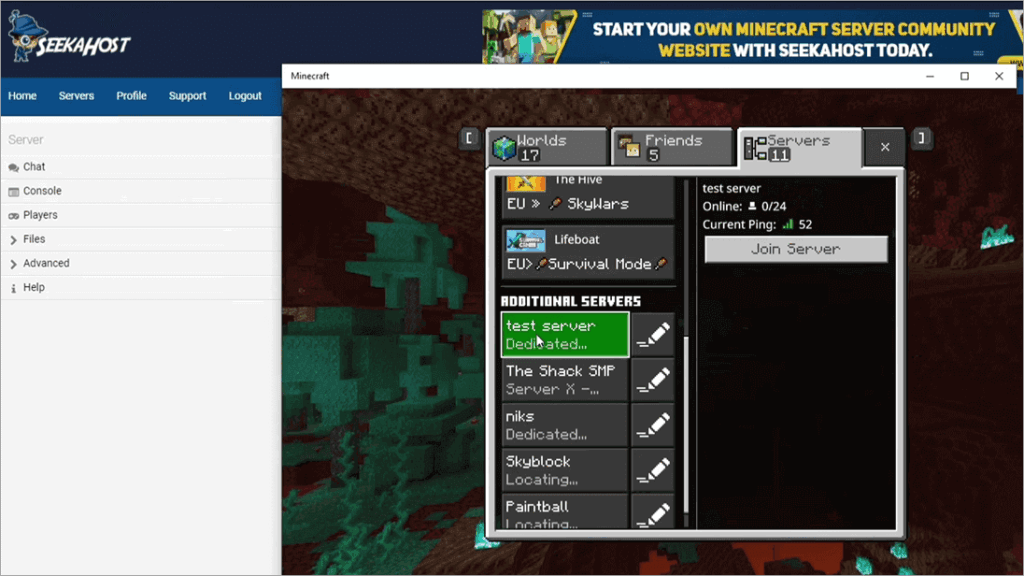
Step 7: Server Restart: Restart the server with the updated jar and test the gameplay to see whether the loading, commands, permissions, plugin/mods function properly or not. If you are satisfied, then you can go on, and if not, then you can go with your older version saved on your computer.
The image below depicts Server Restart:
Step 8: Announcements for the Other Players: After you are satisfied with the new version and ready to go with it, you can announce to your community about the new version update, or highlight new features to generate excitement.
Steps to Update Minecraft Server Through Popular Hosting Control Panels
There are certain steps to use a specific hosting control panel to update the Minecraft server. There are many hosting control panels; the most popular are Multicraft, Pterodactyl, AMP, etc.
Here’s how we’ll update the server via Multicraft:
- Stop the server by clicking the stop option in the Multicraft dashboard.
- Take a backup of the server.
- Replace the server jar by pressing serve type/JAR file/select the required version.
To update the server through Pterodactyl, you need to follow the given steps:
- Step the server by pressing the Stop option in the panel.
- Take a backup of the files in the backup section.
- Replace the server jar by deleting the old server from the files and uploading a new jar.
- Set the name of the new jar file.
- Now you can start the new server.
Post-update tasks:
There are certain aspects that you should consider after the server update.
These are:
- You need to announce the players of your new server update and let them know you are ready for the play with new exciting features.
- You should share the updated modpacks with the players.
- You need to monitor the gameplay for a few days onward to ensure there are no hidden issues with the new server update.
How to Update the Bedrock Edition
To update the bedrock version, you need to follow the given steps:
- Open the official Minecraft page. Here is the direct link for the Bedrock server.
- Download the latest Bedrock server version for your OS from the link given above.
- Replace the old server files (except the worlds folder and config files).
- Restart the server.
Java requirements for different Minecraft versions:
| Minecraft version | Java version requirement |
| 1.7 – 1.16.5 | Java 8 |
| 1.17 – 1.17.1 | Java 16 |
| 1.18 – 1.18.2 | Java 17 |
| 1.19 – 1.20.4 | Java 17 |
| 1.20.5 – 1.20.6 | Java 21 |
| 1.21+ (including 1.21.x/1.22 snapshots) | Java 21 |
How to Update the Java Edition
It is simple to update the Java server file.
You just need to follow the given steps:
- Open Minecraft.net and download the server jar page.
- Download the current server.jar file.
- Replace your old server.jar file with the new one.
- Update plugins/mods if using Spigot/Paper/Fabric.
- Now restart your server.
How to Migrate Between Server Types
To migrate between different servers, you need to remember the Server Migration Checklist:
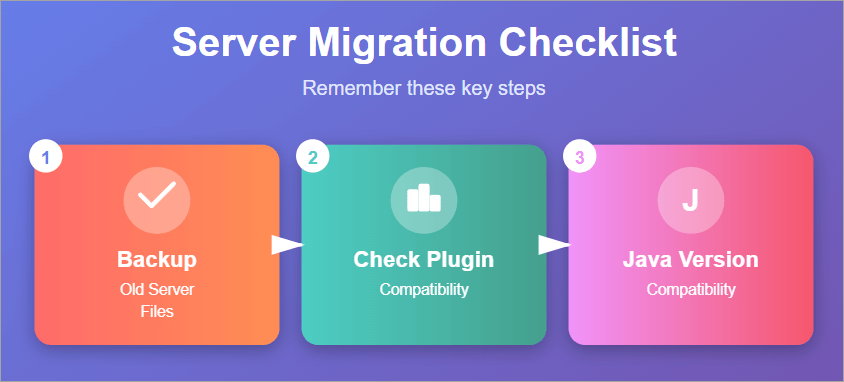
We can migrate between different servers, be it Paper-Spigot, Spigot-Paper, Vanilla- Paper/Spigot.
1. From Paper to Spigot: Follow the simple steps to migrate from Paper to Spigot:
- Stop the Paper server.
- Replace the Paper jar with a Spigot jar.
- Keep worlds, server.properties, and plugins.
- Delete Paper-specific files, including paper.yml, paper-global.yml, config/paper-world-defaults.yml
2. From Spigot to Paper: To migrate from Spigot to Paper, follow the given steps:
- Stop the current Spigot server.
- Download the Paper Jar.
- Replace the old Spigot server.jar with the new server.
- Keep the world files, server.properties, and plugins.
- Start the new server.
3. From Vanilla to Paper/Spigot: To migrate from Vanilla to Paper or Spigot, you need to follow the steps:
- Stop your current Vanilla server.
- Download the Paper or Spigot server jar.
- Replace the old server.jar with the new server.
- Keep the world folders so that Paper/Spigot will load Vanilla worlds perfectly.
- Now you are good to start the server.
4. From Spigot/Paper to Vanilla:
Follow the given steps:
- Stop the Paper or Spigot server.
- Replace the Spigot/Paper jar with the Mojang Vanilla jar.
- Keep essential files, including world, world nether and world the end as Vanilla supports the world files.
- Delete Paper or Spigot-specific files that would not work on Vanilla server, including plugins, paper.yml, spigot.yml, bukkit.yml.
Troubleshooting Common Issues
There are some common issues most players encounter when updating the server.
These are:
1. Game not Updating: This could be a problem related to the internet connection. So, for this, check your internet, restart the router, and try a wired connection.
2. Players Cannot Connect: When your server and other players’ servers do not match, this issue arises. You should make sure that the server is the same version as that of the players.
3. Update Stuck: Sometimes the update gets frozen and stuck at 0%. The possible cause for this issue could be a corrupted cache or temporary files. In this situation, clear the Minecraft Launcher’s cache and restart the device.
4. Error Code: Sometimes the update fails and shows an error code. This could be due to insufficient disk space. Here, free up to 2-4 GB of storage.
5. Update in Loop: When the server is downloading in a loop or repeatedly, the possible cause could be damaged installation files. Here, you can uninstall Minecraft and reinstall it.
6. Version Mismatch Error: In case this happens, then you should ensure that both server and client are on the same version.
7. Plugins Not Working: Sometimes the plugins get stuck and do not work. Here, you need to update the plugins to match the new server version.
Here is the video guide on how to update plugins on a Minecraft server
8. Crashed Server or Mods Preventing Update: When your server gets crashed due to outdated mods, you need to remove the outdated mods and update Forge/Fabric.
World behaves incorrectly after the server update. Just use the rollback process.
Here is the video guide on how to rollback the Minecraft world:
9. Server Not Starting Fully: Check whether you agreed to the EULA (End User License Agreement). The acceptance ensures that you legally run the server and agree not to break Minecraft’s terms of use.
EULA agreement can be found in the root directory of the server. After running your server for the first time, a file named eula.txt is automatically generated. Inside it, you will see: eula=false, now change it to eula=true. Now, save the file and then restart your server.
Benefits of Updating Minecraft Server
There are great benefits of updating the Minecraft server to the latest version, as it comes with new features, bug fixes, security, and so on.
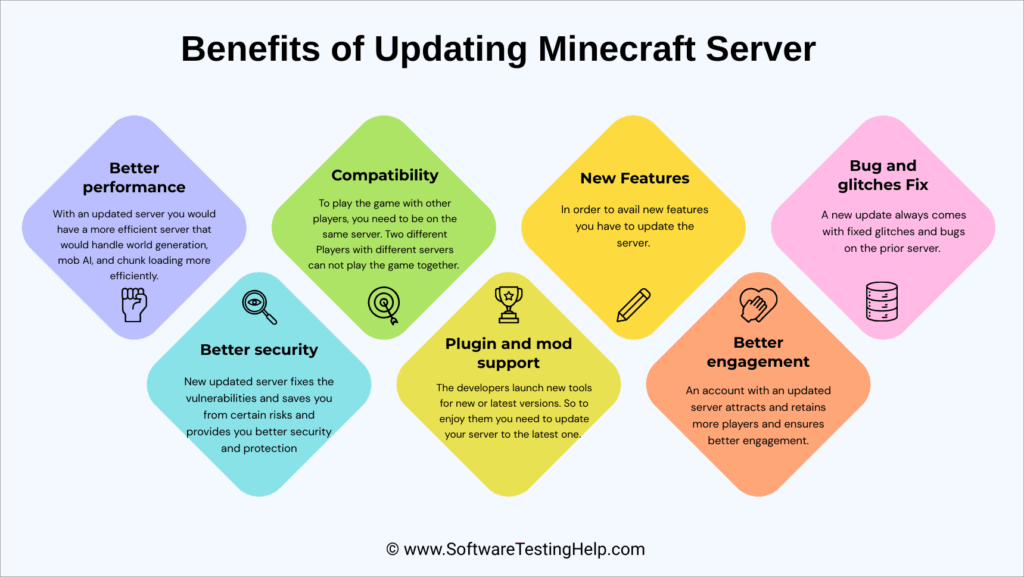
#1) Better Performance: With an updated server, you would have a more efficient server that would handle world generation, mob AI, and chunk loading more efficiently.
#2) Compatibility: To play the game with other players, you need to be on the same server. Two different players with different servers can not play the game together. So it’s better to update the server to the latest one.
#3) New Features: In order to avail new features, you have to update the server. New updates come with new blocks, mobs, and mechanics.
#4) Bug and Glitches Fix: A new update always comes with fixed glitches and bugs on the prior server. You would face fewer crashes, bugs, or glitches.
#5) Better Security: The New updated server fixes the vulnerabilities and saves you from certain risks, and provides you with better security and protection.
#6) Plugin and Mod Support: The developers launch new tools for new or the latest versions. So, to enjoy them, you need to update your server to the latest version.
#7) Better Engagement: An account with an updated server attracts and retains more players and ensures better engagement.
Frequently Asked Questions
1. How do I update the server if I use mods?
To update the server if you use mods, you need to update each mod you are using along with the server. To do this, create a new Minecraft server folder, add new versions of each mod, and delete the previous ones.
2. How do I update the server if I use plugins?
If you use plugins, then you need to update each plugin to the version of the new server. To do this, make a new Minecraft server folder, new files for each plugin, and remove the older ones.
3. How often should I update my Minecraft server?
We should update the Minecraft server at the major releases, as when minor patches are released, there would be issues in matching the mods and plugins versions.
4. Should I update immediately on release day?
We should wait for the developers to update the mods and plugins to match the current version update, and then we can update the Minecraft server.
5. How do I downgrade if players don’t like the new version?
At the time of updating the server, you must have taken a backup of the older files. Now you need to use the backup. For this, you need to delete the new server files and restore the older server jar from backup.
6. How do I update my Minecraft to the latest version?
You can update the Minecraft server to the latest version. Just follow the given steps:
• In the Minecraft launcher on the left side, select your Minecraft: Java Edition installation.
• Make sure “Latest Release” is selected as the version.
• Click Play
• The launcher will automatically download & install the newest version before launching the game.
7. How to update the Minecraft server to 1.21.6?
Follow the steps to update the Minecraft server to 1.21.6:
• Create a backup of your current server.
• Download the 1.21.6 server jar.
• Now replace the old server jar with the new 1.21.6 server jar.
• Delete the old version-specific files.
• Update plugins to support the 1.21.6 server.
• Accept the EULA agreement.
• Start the server
Conclusion
Updating the Minecraft server is simple, but you should back up the older version of the server, mods, and plugins to a file on your desktop or in the cloud in case of any mishaps. With careful preparation, proper backups, and attention to plugin/mod compatibility, we can keep the server secure & stable with smooth gameplay.
Research Process: Approximately 56 hours were spent on comprehensive research, evaluation, verification, and final preparation to ensure accurate and reliable information.
For more quick Minecraft-related guides, you can explore our range of Minecraft tutorials below:
- How to Setup Minecraft.Server Properties
- How to Download and Host Minecraft Server on Your PC
- Top Minecraft Earth Server List
- How to Find the Seed of a Minecraft Server
- Apex Hosting Review: Is it the Best Minecraft Server Hosting
- Cheapest Minecraft Server Hosting Providers
- Best Rust Server Hosting Providers
- How to Make Terracotta in Minecraft
Was this helpful?
Recommended Reading
-

This is a comprehensive review of Apex Hosting with features, pricing, pros, cons, and comparison with other Minecraft Hosting Platforms: In this article, we will take a thorough analysis of the many features provided by Apex Hosting, understand whether the pricing packages that the platform offers are reasonable. Read this…
-
An in-depth review of Aternos Minecraft Server with alternatives for lag-free gaming. Learn all about its safety, features, performance, security concerns, and limitations from this unbiased review: There is no shortage of free Minecraft servers today. A simple Google search will acquaint you with hundreds of options, all being flocked…
-

We have put together a list of the best, free, and cheapest Minecraft Server Hosting Provider companies in the world. Check out the detailed comparison and select a suitable vendor for you. Minecraft Server Hosting is a service provided by hosting companies to help individuals or organizations host their games…
-
Learn how to download and set up a Minecraft server in minutes. This guide covers systemrequirements, installation steps, server setup, and Port forwarding: If you want to play Minecraft on your PC or host your own Minecraft server for friends, the process is easier than it seems. In this guide,…