In this DroidKit review, you will learn how to resolve all your Android phone issues and how to recover lost data, along with the pros and cons.
DroidKit is a software-based kit for Android devices that helps to fix various technical issues easily without needing any technical skills.
The DroidKit app works on Windows and Mac devices, helps users unlock their phones if they forget passwords, PINs, or biometric locks, fix common Android system issues, recover data, and transfer files from damaged phones (such as devices with broken screens) to other phones, computers, or the cloud.
This DroidKit review aims to explore the various features, functionality, usability, and truly live up to what it promises of fixing or repairing Android devices.
Table of Contents:
DroidKit Review: All-in-One ToolKit for Android Devices

How Does DroidKit Compare with other Tools
[image source]
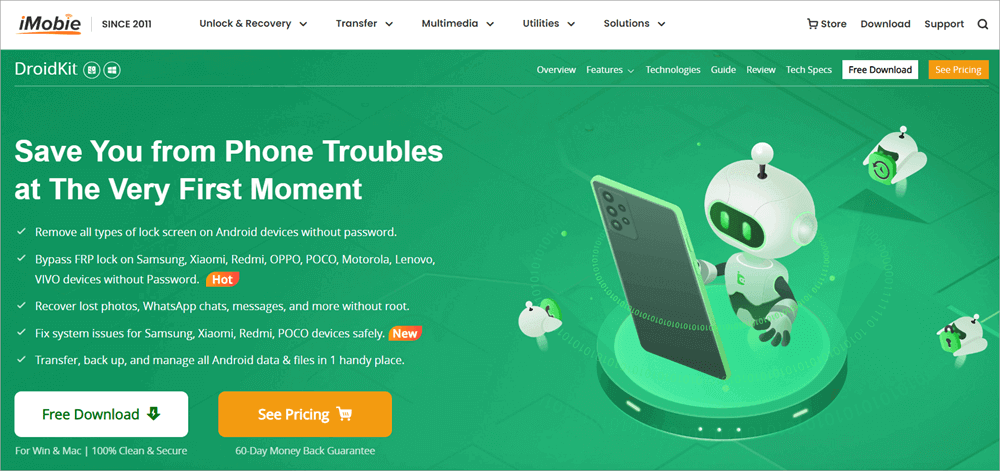
iMobie DroidKit is most suited for troubleshooting Android smartphone issues and offers more phone recovery scenarios than many competitor tools. It will also recover data from SD, SIM cards, and Google drives, including deep recovery, which is more thorough than the basic quick recovery option.
The latter is most suitable for rooted devices. The tool can also transfer data between Android and other Android iPhones or PCs. DroidKit is also more affordable.
Price-wise, DroidKit is more affordable, at $39.99 for a one-year license and $55.99 for a perpetual license. In comparison, Dr. Phone, a popular alternative, supports both iOS and Android devices. Dr. Phone also comprises extra tools, such as real-time root status, battery health, and hardware configuration management. Dr. Fone costs $99.95 per year and $115.95 for a perpetual license.
What are the main features of DroidKit
[image source]
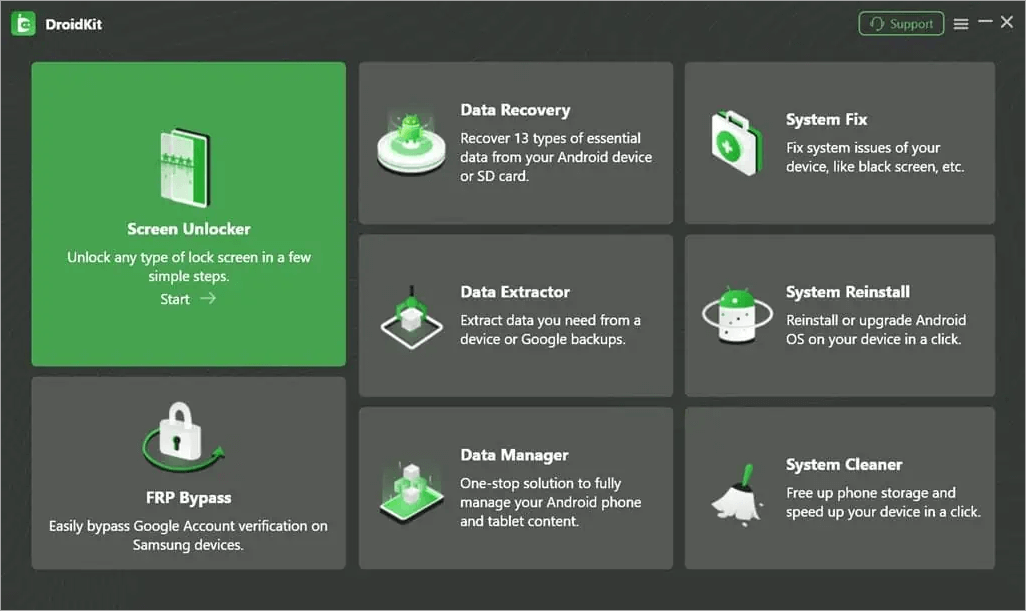
#1) Screen Unlocker: DroidKit can unlock screens on many Android devices in case the owner forgets the phone password, PINs, or pattern, or when the fingerprint, facial recognition, and other methods of unlocking do not work. According to the website, the unlocker can unlock over 2,000 Android smartphone models.
The DroidKit screen unlocker feature works similarly to hard resetting the phone, for instance, by using the power and volume buttons. It will wipe all your user data once done.
Although one can use the button-based hard resetting, which turns out easier than using the DroidKit, the latter may help where the button-based hard resetting procedure cannot work.
#2) FRP By-pass: Factory reset protection or FRP is implemented on phones as a second layer of security and privacy in case the phone is hard reset.
Users of Android 6 and later devices must sign in to their email accounts to complete setting up the phone after a hard reset. Without the email account password previously set up on the device, a user then would not easily access the device after a hard reset.
Further Reading => GSMNeo FRP Bypass Tool Review
Therefore, in many cases, for more modern smartphones, FRP pass is presented when you hard reset your phone, for instance, using the power + volume keys. In other cases, if the user didn’t create an FRP account, the FRP pass doesn’t appear, and therefore they wouldn’t need FRP Bypass tools like DroidKit.
DroidKit unlocks security and FRP lock on Samsung, Xiaomi, Redmi, Oppo, Vivo, Sony, Realme, Motorola, and other models. The user will set up a different email account.
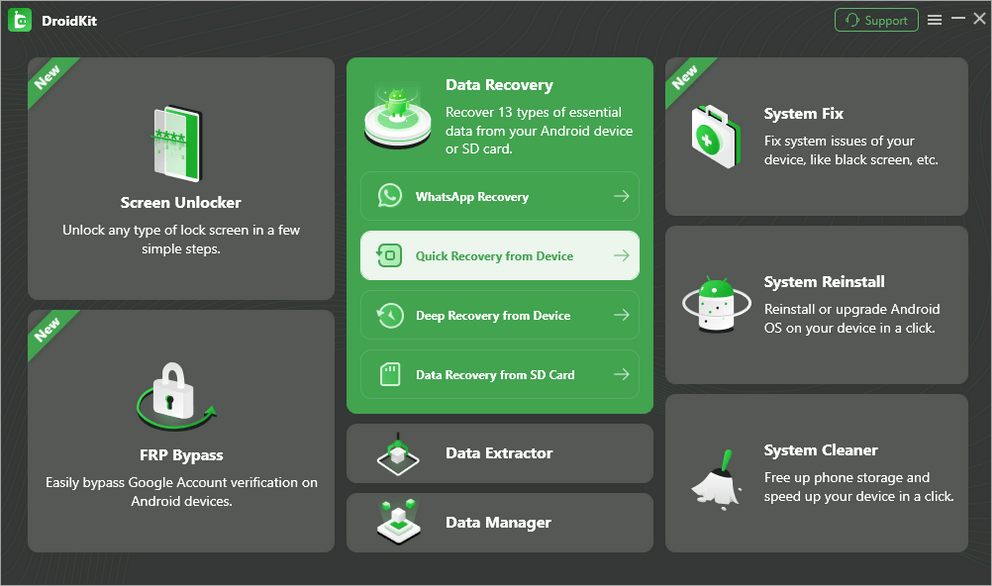
#3) Data Recovery: DroidKit is used to recover files on the device in case of deletion, for instance, files lost through a device hard reset or normal deletion operation. You can recover data from various scenarios, including those seen in the image below.
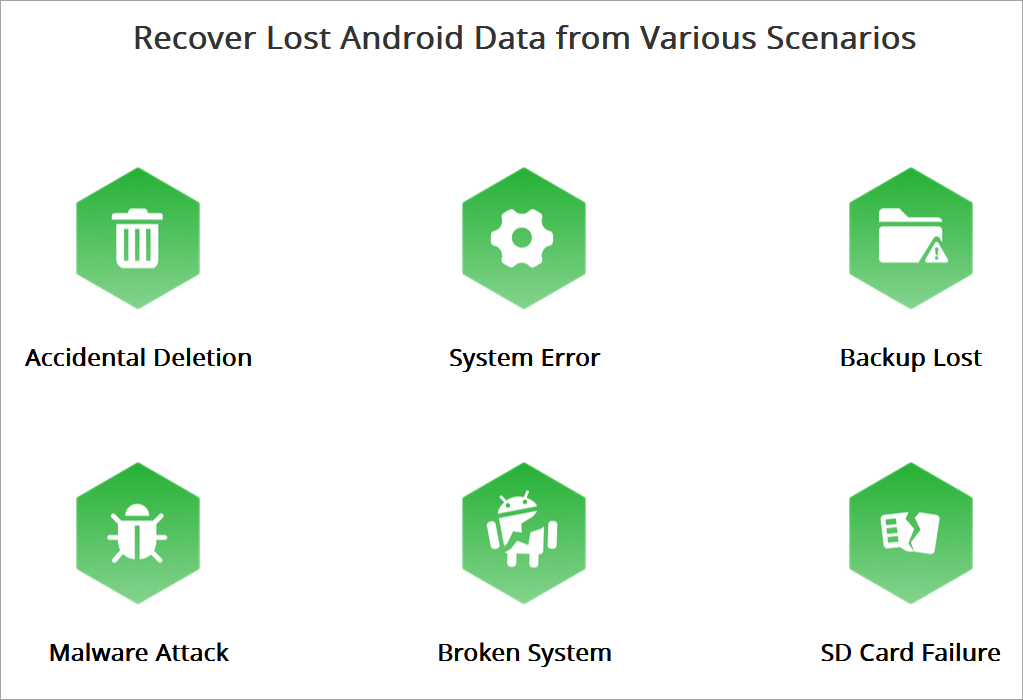
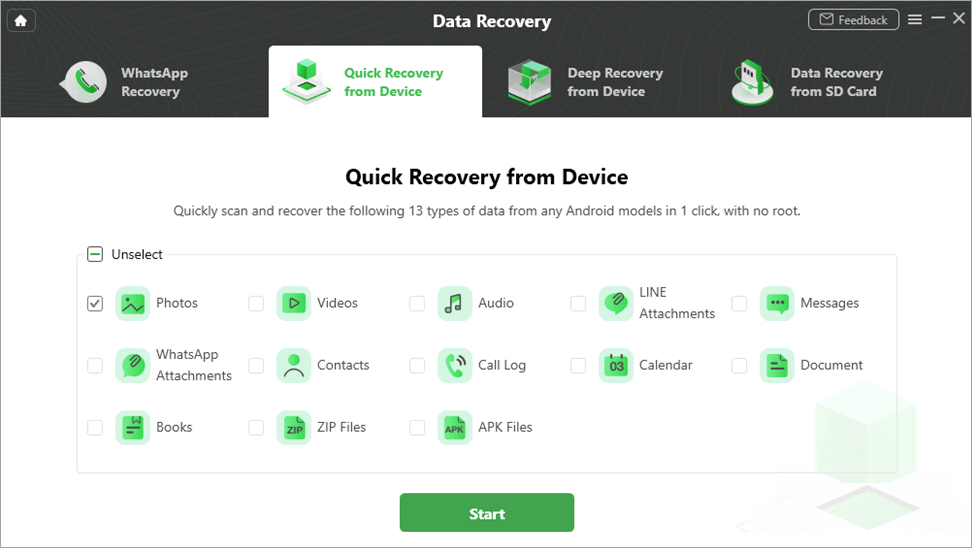
DroidKit types of data recovery are WhatsApp recovery, Quick recovery from the device, deep recovery from the device, and recovery from SD. The tool recovers 13 types of files, including photos, videos, documents, and messages.
Recommended reading => 11 Best iPhone Data Recovery Software
One must enable USB debugging from their device setting once connected to a computer via a USB cable.
#4) Data Extractor: You may require extracting data from a smartphone, for instance, before a hard reset. Examples include when the phone is stuck on the Samsung logo when starting up, when suffering a damaged screen, or when the phone is locked and you cannot remember the password. In such cases, you can extract data from the phone and save them on your computer.
The feature works on Samsung devices only. The tool will extract photos, videos, messages, attachments, zip files, call logs, and other types of information. To reset the device, the owner must provide the PDA code, a piece of information they should be aware of.
To extract data from Samsung devices: The feature allows you to extract data from damaged Samsung devices to save it to a hard drive or cloud service data storage. You must have the PDA code for your device, which can be impossible to find with a severely broken screen.
Also Read => SSD Vs HDD: Best Data Storage For Your Need
You can also retrieve from the device a copy of WhatsApp messages, call records, and Wi-Fi passwords, among others. You can also extract data from the Google Account on the device or the sim card.
#5) Data Manager: DroidKit is this way used to organize files to make them easy to access and transfer, for instance, to a computer or a new Android and iOS device. For instance, it can assist in the easy transfer of files from Android to iOS devices and vice versa.
DroidKit supports three types of data management: Device Manager, Android Mover, and WhatsApp Manager.
#6) System Fix: This feature is used to troubleshoot software issues but works only for Samsung devices.
Errors that can be fixed include system errors such as boot loops, app crashes, and error reports; freezing issues, e.g. when the phone is stuck in a certain mode or not responding to gestures; issues related to system repairs, such as failure to charge, camera failure, and black screens; and serious issues such as system crashes, viruses, black screens, and white screens.
#7) System Reinstall: This feature is used to reinstall Android software or upgrade to a new version. Currently, it works only for Samsung devices. On connecting the device, the system will match the right version to install.
#8) System Cleaner: The feature is for ridding the system of junk files and freeing up more space for the device. For instance, it can be useful if the user is experiencing a slow system response because there is little or no storage space on the device or a clog in the RAM.
Using the feature, a user can delete one file at a time or select to delete all the junk files at once.
Is DroidKit Safe to Use
DroidKit won’t infect your computer or phone with malware as there is no hidden malware in the software as verified by DroidKit reviewers who scanned the software with malware discovery tools such as VirusTotal.
When moving sensitive files e.g. from a Google account on Samsung devices using the Data Extractor, you enjoy SSL-256 data encryption.
How DroidKit Works
To use DroidKit, one must have a computer and USB phone connector to connect the phone to the computer through the USB port, and then install the software on the computer. It supports usage on both Windows (11, 10, 8, 7, Vista (both 32bit and 64bit)) and Mac (10.13 (High Sierra) and above).
All Android from all manufacturers are covered if running Android 5 and later. Some features are restricted to some device manufacturer types.
Step #1: Visit the website, download the app, and install it on your computer. Open the app and choose, on the homepage, the feature you want to use based on the type of service required for your device. The features are displayed on the default user interface.
Step #2: Connect the smartphone to the PC using the USB cable and make sure the relevant USB driver software is installed. Sometimes, it would install automatically on connecting the mobile via USB. In other cases, you need to search for and install manually the USB device drivers for a manufacturer or just use the Universal drivers from the Internet.
The Device Manager from your Windows computer, for instance, can also install a new device or update the USB device drivers.
The phone version and model are detected on the PC if the software is installed successfully. The software will also thus detect that the device is connected to the computer. It will display the phone type and model and show that it has connected successfully. The software will show it to you if the phone is not detected.
We present here an example of resetting FRP or using the FRP Bypass feature.
To reset FRP, follow the above procedure. The software will build configuration files for your device once it has been detected in case you choose FRP Bypass as the service option you want. Click or tap Start to continue when a pop-up with that option comes up. You will then need to put the phone into recovery mode.
For Samsung, use the power + volume key combinations to put it into recovery mode. The combinations differ per device. Once you are on the Recovery menu, choose Wipe Cache partition and select the option using the power button.
This will reset and wipe all data from the phone. The software again walks you to locate and identify your phone’s Android version, after which you need to click/tap the Download Now button on the computer. Ensure you connect the device to the PC. It will show the progress of the installation process.
Once complete, it will indicate the process as complete and you can disconnect the phone from the computer, boot it, and set it up.
Steps to Unlock Your Android Device Using DroidKit
Refer to this video:
Step #1: Download, install, and launch the DroidKit software on your PC. Also, find the Screen Unlocker feature.
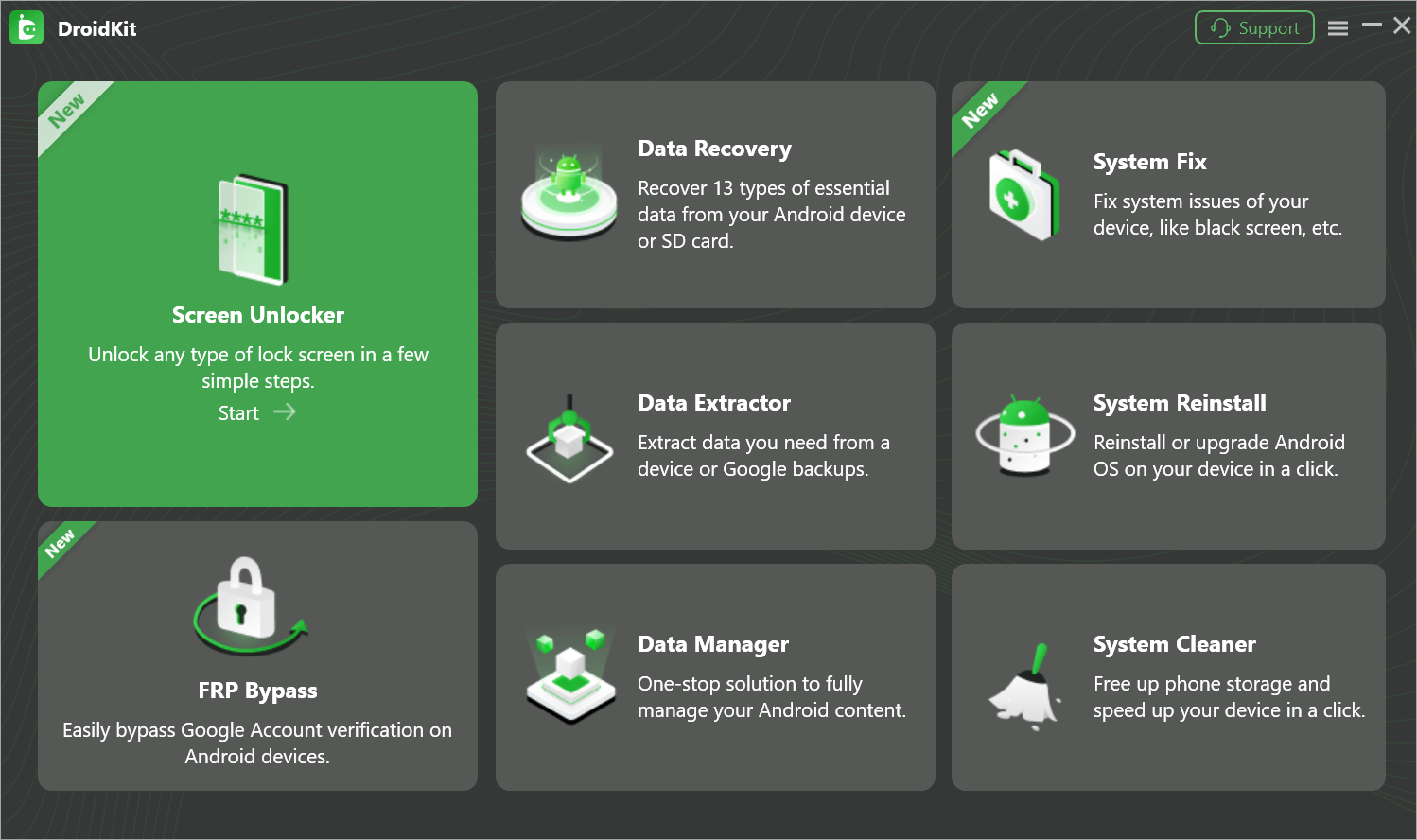
Step #2: Click the Start button on the next screen.
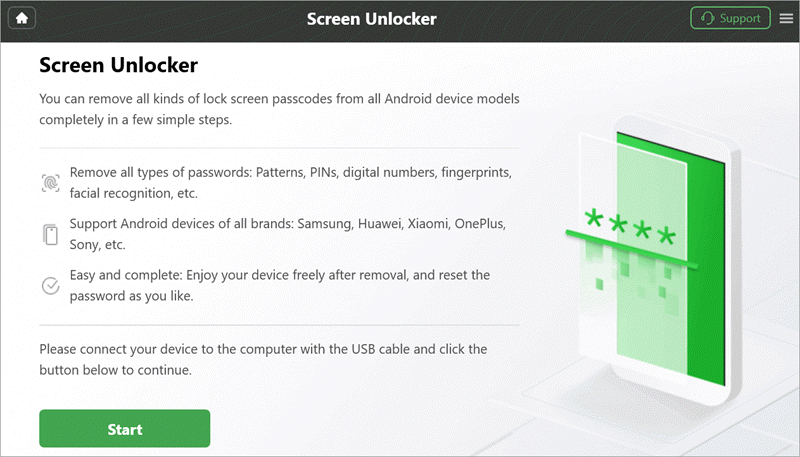
Connect the phone to the computer via the USB.

Click the Device Connected button. It will start preparing the configuration files for unlocking. Once created, click the Remove Now button.

Put your device in recovery mode.
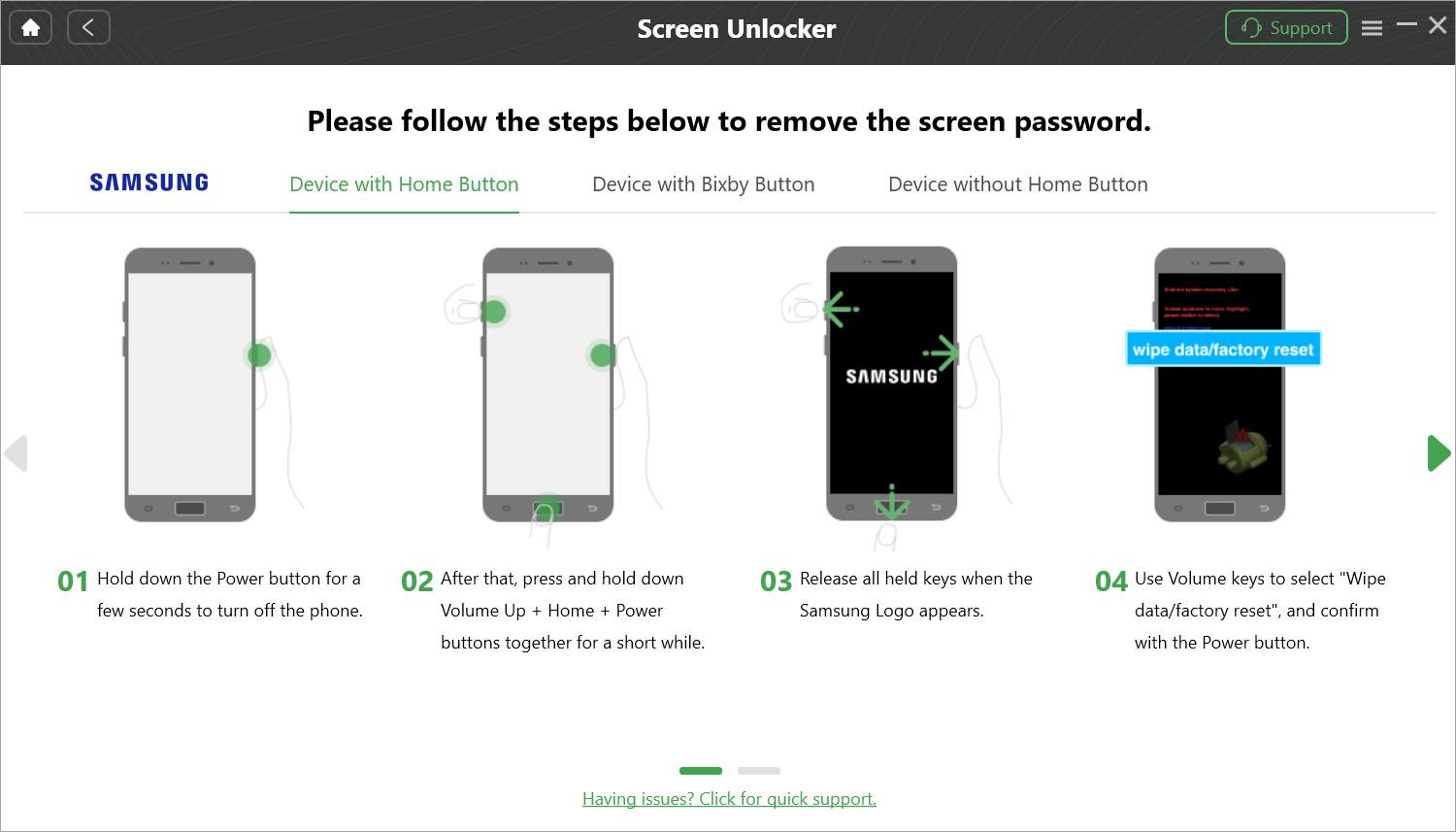
Step #3: Select the phone’s manufacturer brand from the list shown and click Next. Follow the onscreen steps to complete the process. It also provides screenshots of the steps to be followed when unlocking a phone.
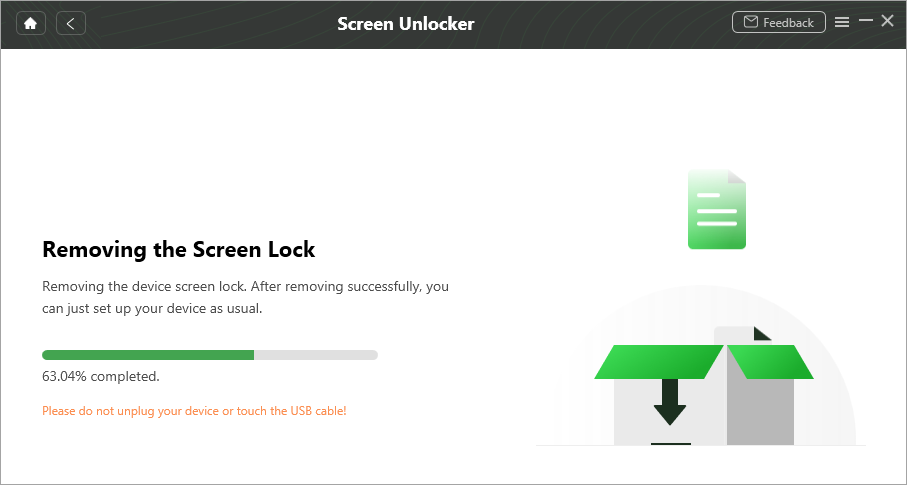
How to Recover Lost Data on Android using DroidKit
This feature does not need you to root your mobile phone. In case the phone is rooted, you access an even more detailed recovery process with DroidKit. Recovery of data from SD currently works only on Windows.
Step #1: Select the Data Recovery section -> Quick Recovery from Device. Select the data type and click Start. It will scan for the selected data types, and list all the found files, from where you can select the files you want to recover either To Device or To Pc.

To clean junk files, simply open the app, select the System Cleaner feature, and click Clean Now. It will find all the junk files. Select specific files to delete or wipe all of them at a go.
Customers can access technical support services and report any issues as well as manage the subscription from the homepage. The technical support staff can assist with any issue a customer has regarding usage.
DroidKit Pros and Cons
DroidKit Pros:
- One can purchase each feature at a time depending on needs. One does not need to purchase all the features at a costly go.
- Easy to use interface and it is straightforward to access and use all features. There are clear guides on how to accomplish actions.
- No need to root devices as would be needful on some similar tools.
DroidKit Cons:
- One drawback is that it is limited in terms of devices it covers for all or some of its features. For instance, it limits some features only for Samsung devices. Besides, it does not support devices running Android versions before Android 5 and later than version 11. It cannot unlock keypad phones.
- There is always a risk of data loss when performing some actions, such as unlocking PIN, and FRP Bypass among others.
DroidKit Pricing
Each DroidKit feature has a separate price: you can buy Screen Unlocker, FRP Bypass, Data Recovery, Data Extractor, and System Fix each for $35.99. Data Manager costs $25.99 while System Cleaner and Reinstall features each cost $15.99.
Access to all features costs usually costs $299.92 but currently it is $69.99/year on an offer – This applies to five devices and 1 PC.
iMobie offers a 60-day money-back guarantee and on-year free updates support. There is also a custom offer for those who need to manage more devices and on more than one PC. teachers and students also get a 30% offer.
DroidKit offers several subscription plans: you can buy features individually at a one-time fee or choose to subscribe to a given feature per year or three months.
How to Unlock Android Phone without Password | Without Losing Data
The following video shows how to unlock an Android phone without a password using DroidKit.
DroidKit FAQs
1. Can I use DroidKit for free?
The DroidKit app has a free version but with limited features. Users can unlock all the features with the paid version. DroidKit free download is available on the company’s website.
2. Is DroidKit safe and legit?
The only major risk is that of losing data on your Android device when using Android system recovery and security resetting functionalities. Otherwise, it is legit and safe to use. It encrypts sensitive data, the company promises never to leak information and data, and does not have hidden malware based on our DroidKit review above.
3. Can DroidKit unlock a phone?
DroidKit unlocks Android smartphones using Android version 5 and above through to Android 11. It can unlock screens suffering security locks with a PIN, passcode, pattern, fingerprint ID, and facial recognition protection.
4. Does DroidKit root your phone?
DroidKit will not in any way, root your phone. It is used for phone system recovery, error recovery, screen security unlocking, data recovery, and data extraction. While it can be used on rooted devices – which renders more benefits when recovering lost data through the Deep Recovery option – DroidKit is meant to be used on unrooted devices.
5. How to recover deleted photos from WhatsApp on Android without backup?
DroidKit is one of the software kits used to recover data from Android devices without the need to root the device. It also supports recovery of 13 WhatsApp file types, including photos, videos, and documents.
Step 1:
Download DroidKit from the official website, install it, and launch the program on your computer.
Step 2:
From the homepage, select the Data Manager option. Choose WhatsApp Manager, then click Restore WhatsApp and select Restore Now. The tool will load all available WhatsApp backups. Click View to preview a backup.
Step 3:
On your Android phone, open WhatsApp → Chats → Chat Backup, then tap Back up to Google Drive – Backup to create a fresh backup.
Step 4:
When a pop-up appears in DroidKit on your computer, follow the on-screen instructions to grant the required permissions. Click Continue, then tap OK on both the app and your phone.
Step 5:
Enter the password 1234 to back up WhatsApp data. Re-enter 1234 and tap Restore my data on your Android device.
Step 6:
DroidKit will begin restoring WhatsApp data to your phone. Once completed, check your device to confirm the data has been restored. Tap OK on your phone and click OK in DroidKit when the interface shows Restore Successful.
Alternative Method (Without Backup):
To recover data without a backup, select the Data Restore option. DroidKit will scan the device for lost files. You can restore individual items or select all files to restore them at once.
6. How to recover permanently deleted photos from the gallery without backup?
Step #1: Install DroidKit on your computer and connect the phone with a USB cable. This works for Android devices version 5 and later. Launch the DroidKit app.
Step #2: Select the Data Recovery option and either use Quick Recovery or Deep Recovery for rooted devices. It will scan all deleted files and you can select any or all to restore.
Conclusion
DroidKit is a fast and easy-to-use Android troubleshooting software and our review reveals it is reliable and delivers most user expectations except that it is limited for use with some Android versions, models, and types, including iPhone.
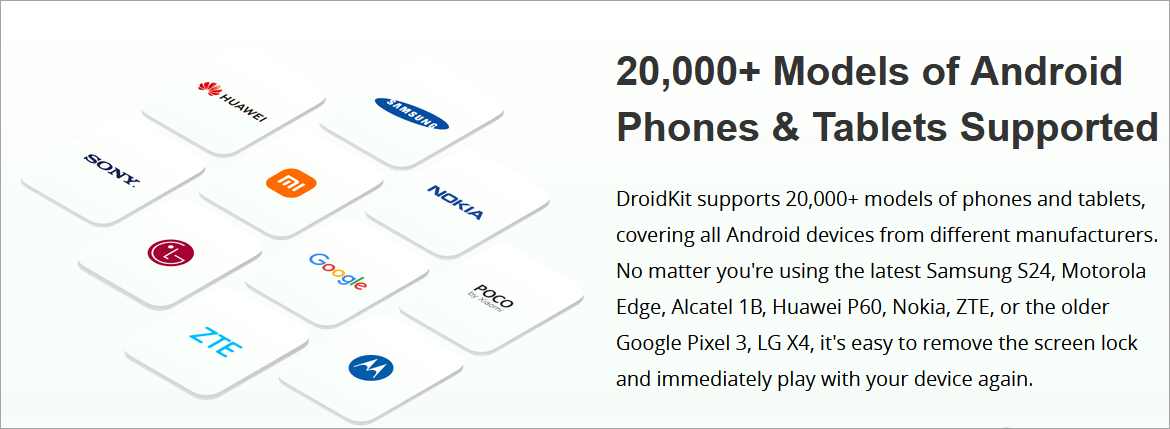
It supports a host of manufacturers such as SAMSUNG, Google, HTC, SONY, LG, MOTOROLA, HUAWEI, ZTE, Xiaomi, OPPO, SHARP, ViVo, LENOVO, MEIZU, OnePlus, TCL, Gionee, Meitu, Nubia, Smartisan, etc. A user will also lose their data on unlock and system recovery operations.
The most favorite usage would be in removing screen security locks, for instance, when the Android owner forgets security codes, passwords, PINs, fingerprints, and face IDs. All a user needs to do, like with most Android and phone troubleshooting software, is to install DroidKit on the computer, and connect the phone to the computer via USB. With the relevant USB drive and ADB software installed, DroidKit will automatically detect the device.
However, for iPhone unlocking, you will need to utilize other apps, such as ApowerUnlock and Dr. Fone. Some apps such as the 4uKey offer the option to keep data while unlocking the screen.
Review Process:
The total time spent on completing research and publishing this page is approx. 48 hours. This DroidKit review was prepared after evaluating the tool’s official documentation, feature set, and supported devices, along with analyzing real user reviews and common Android recovery scenarios.
Was this helpful?
Recommended Reading
-

Compare the top Parental Control Apps to discover the Best Parental Control apps for iPhone and Android most suited for your children: The rapid advancement of technology poses a risk to children. Various studies have shown negative physical and mental effects of smartphone usage at earlier ages. Parental control apps…
-

Are you confused about choosing from the widest list of Android Phone Cleaner Apps available today? Compare and select the best Android Cleaner Apps: Phone cleaning or junk cleaning refers to removing unused or unnecessary files from the phone. These files can include photos, videos, cache files, cookies, residual files,…
-
Select one of these top Cell Phone Signal Booster tools to boost the cellular signal at home: If you are paying a hefty sum for a subscription to a popular cellular network, then you deserve to have a strong signal on your phone always. Unfortunately, it is often the case…
-
Easily mirror your screen to a TV or any smart device with these top Mirroring Apps. Pick the best Screen Mirroring apps of your choice to enable fast, and seamless mirroring with great quality: Screen Mirroring is a modern-day technique that allows you to easily and quickly share a screen…
-
Looking for ways for Reverse Phone Number Lookup? Check out this guide that will help you do a free reverse phone number lookup with the 10 best sites quickly and safely. Have you ever wanted to look up information about an individual using their phone number? Reverse phone lookup tools…
-
In this tutorial, we will review and compare the top as well as free Virtual Phone Number providers you can use for your business: It can become very inconvenient to handle business phone calls from your contact number, and it takes away your privacy too. Additionally, it doesn’t scale when…
-
Here we will review the top Mobile Printers and compare their features and technical specifications to find the best phone printer: Are you planning to get a new printer to print pictures or documents instantly? Connecting it to your mobile phone could help you a lot. The best mobile printer…
-
Explore our list and comparison of the most popular Call Recorder Apps for Android and iPhone to select the best Phone Call Recording app: A call recording app is basically a mobile application that allows its users to record their outgoing and incoming calls. There are several valid reasons one…