In this guide, we will cover how to record Google Meet session on your desktop or Android, which features you can use on iPhone and iPad, how to record without paying for any plan, where Google Meet recordings are stored, and what to do if recording is not available.
Google Meet offers an opportunity for recording sessions; however, the ability may be limited to some account types, plans of meetings, roles of participants, administrative settings, and even devices. All these aspects will be addressed in this article.
In this tutorial, we will also compare recordings, transcripts, and meeting notes to help you choose the most appropriate one for your meeting.
Can You Record a Google Meet?
Google Meet Recording is possible, however, native recordings will need an eligible Google Workspace or Google One subscription and host rights. Participants who are not hosts can make native recordings only if they are made a co-host. They can be recorded using external software.
How to Record a Google Meet in 2026: Desktop, Android & iPhone
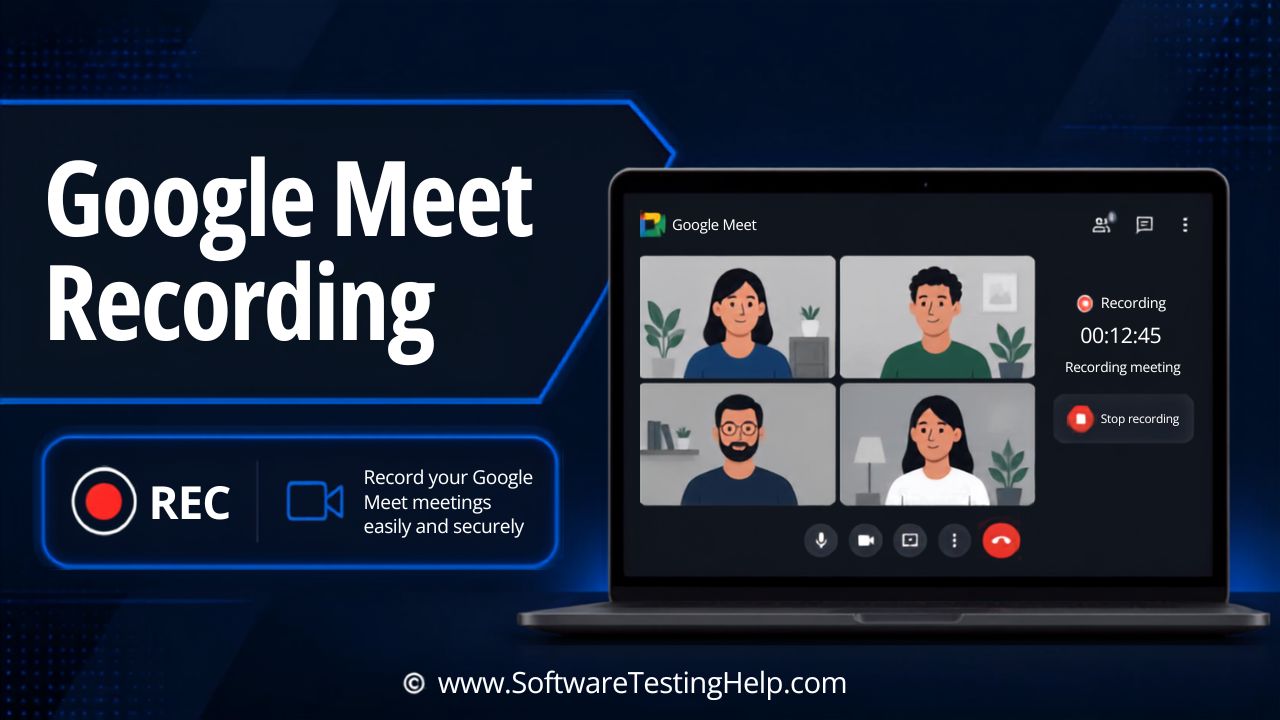
With many users relying on Google Meet for essential day-to-day work or virtual meetings, it is imperative to understand the “know-how” of this distinctive feature and make the most out of it efficiently.
Well, let’s delve deeper and explore various aspects of Google Meet, ranging from who can record and where the recording gets stored to how to record a Google Meet without any hassle.
Top Google Meet Features for Better Online Meetings
To make your day-to-day virtual meetings more productive and engaging, Google Meet offers a variety of features, some of which are mentioned below:
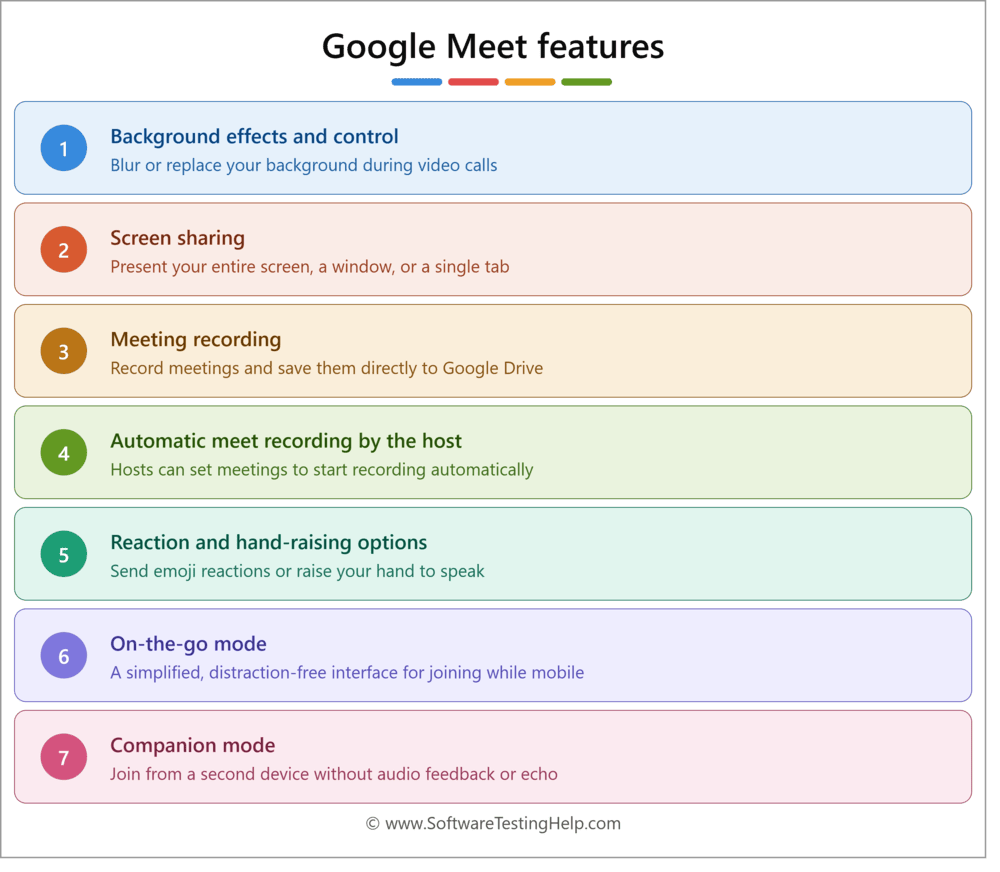
#1) Background Effects and Control: Google Meet recording enables the end-user to blur their background or replace it with an image, which helps minimize distractions and maintain privacy during ongoing meeting sessions.
#2) Screen Sharing: You can share the entire screen or a specific window of your choice during the ongoing meeting.
#3) Meeting Recording: The recording feature in Google Meet allows users to record important meetings or presentations and share them with those who could not attend.
#4) Automatic Meet Recording by Host: Google Meet further assists the host by enabling a setting wherein the recording starts automatically when the meeting begins. This does not require manual activation, whereby admins can set this option organization-wide by default.
#5) Reaction and Hand-raising Options: Google Meet allows participants to send their reactions to the ongoing conversation or even raise their hands to ask questions or draw the host’s attention.
#6) On-the-go Mode: The meetings can be attended even while driving or moving through on-the-go mode (which allows an audio-only experience).
#7) Companion Mode: Google Meet allows users to join meetings without audio feedback issues while simultaneously accessing features such as screen-sharing, chat, polls, and Q&A.
Who Can Record a Google Meet? Requirements & Permissions
When it comes to who can record a Google Meet, it is important to know that only if you’re the meeting host or have been designated as a co-host can you record the meeting. In addition, if you are within the host’s organization where host management is turned off, you can record the event.
| Situation | Can You Record? | What You Need |
| Meeting host | ✅ Yes | Eligible account + recording enabled |
| Eligible co-host | ✅ Yes | Required permissions |
| Participant | ⚠️ Depends | Host/organization permissions |
| Free Gmail user | ❌ Native recording unavailable | Use a screen recorder |
| Android user | ⚠️ Depends | Eligible Meet account |
| iPhone/iPad user | ❌ Native Meet recording | Use device screen recording |
Let us explore in depth who can record a Google Meet:
- Host: Any individual who is hosting the meeting, including those who are logged into the specified workspace account.
- Co-host: People from the host’s organization or an external guest of the organization who has been promoted to be a co-host.
- An Organization Member (Host Management Off): If, in the given meeting setting, host management is disabled, anyone belonging to the host organization can begin recording the meeting irrespective of who created the link.
- Google Classroom Members: Anyone in the Google Classroom, be it the teacher or the co-teacher in the meeting, can record the event.
In all this, it is pertinent to remember that even if someone holds the correct role, unless their account meets certain conditions such as qualifying subscriptions or admin permissions, native recording will not be available.
How to Record a Google Meet on Desktop
Enlisted below are the step-by-step instructions to record a Google Meet on Desktop or Mobile.
Google Meet recording requirements are simple. You can do the same on desktop if you have a paid workspace account, whereby you can utilize the built-in recording feature.
Follow these simple steps to get started with screen record Google Meet on your PC:
- On your web browser, start or join the Google Meet session.
- At the bottom of the screen, click on the Activities button once the meeting starts.
- From the menu, select the Record button.
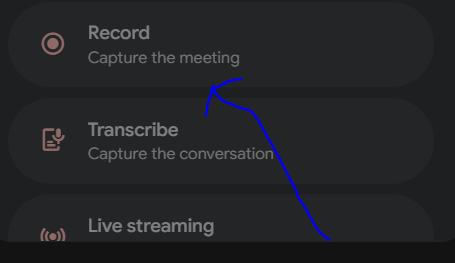
- When prompted, select your choice and start recording the session.
- Once this is done, each of the participants will be notified that the meeting is being recorded.
- After the session has ended, click on Activities > Recording > Stop Recording, or you can simply end the meeting.
- You can download Google Meet Application from Google Official Source
How to Record a Google Meet on Android
There are two methods to record Google meet on your Android Device
1. Google meet recording feature
2. Inbuilt screen recording feature of Android
- Google meet recording feature
- In your Android device, start the Meet app and then tap Start or Join.
- In the bottom right corner, tap More, tap Tools, and then tap Record.
(Alternatively – If you want to include additional information in the recording, you can choose Include captions, Also start transcribing, or Also start Take Notes with Gemini.)
- Tap Start.
- In the pop-up screen, tap Start.
- Wait for the recording to begin.
The below video is step by step process:
Every time the recording starts and stops, participants receive a notification.
To stop the recording tap Record and then Stop in Tools and also recording will automatically end when everybody leaves the meeting.
Note – A meeting can be recorded for maximum of 8 hours, after that recording ends automatically.
The recording is stored in Google Drive of the meeting organizer, in “Google Meet” folder.
2. Inbuilt screen recording feature of Android
Follow the steps below to use inbuilt screen recording feature of Android mobile:
- Using the Google Meet app, start or join the meeting.
- Go to your quick settings option.
- Click on the Screen recorder option present.
- If this option is not present, swipe down your screen and look for the screen recorder title.
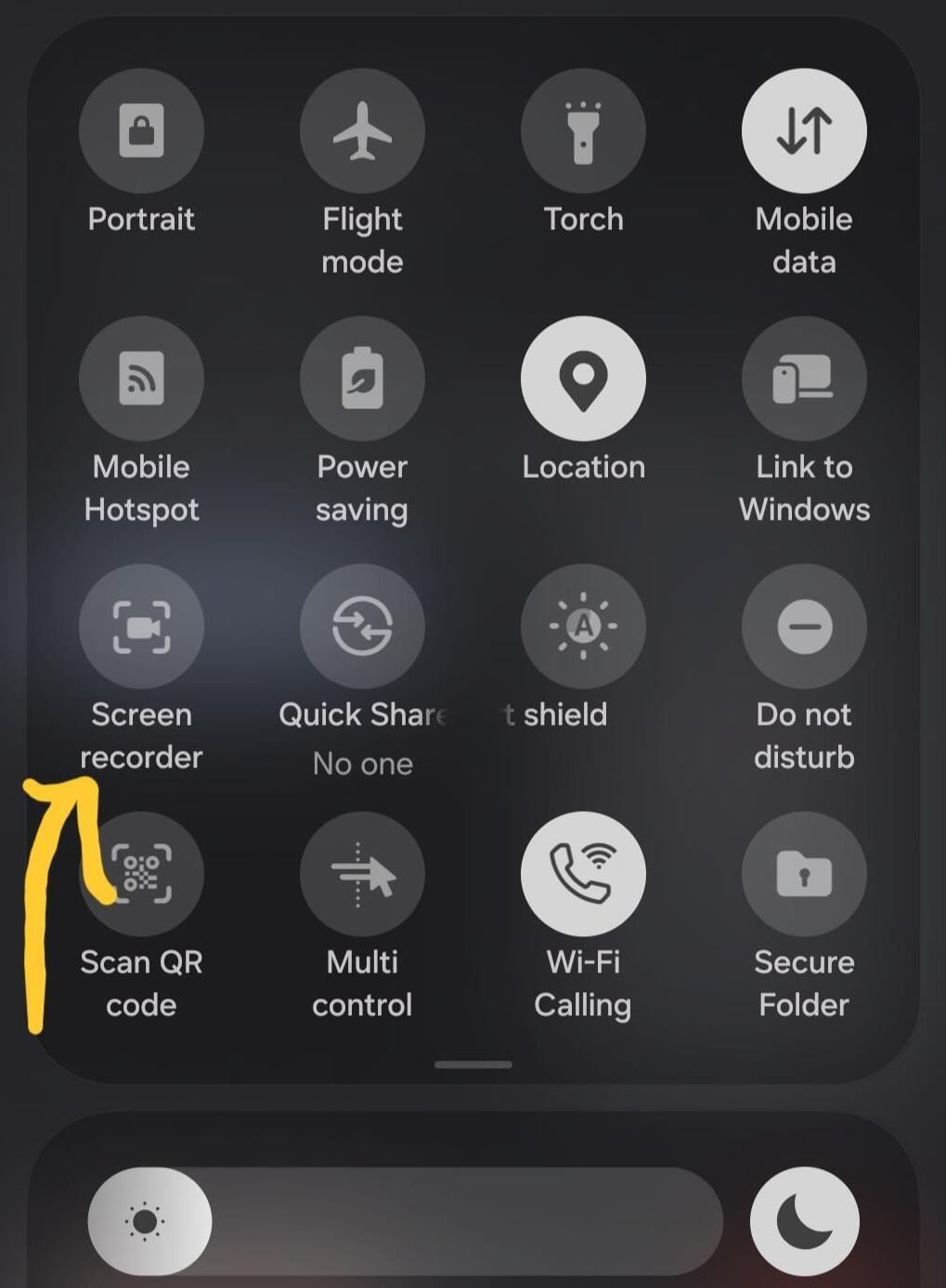
- Tap to start and continue with your meeting recording.
- Enable audio to capture the meeting audio. Google Meet will start recording the session.
- Once the meeting is over, stop the recording. You can do this from your notification bar or simply by opening your control center panel to stop the screen record Google Meet.
Refer to the video below to know How to Record Google Meet Session on Android:
Can You Record a Google Meet on iPhone or iPad?
Yes, but through workarounds. The Google Meet app on iPhones/iPads is not capable of recording natively. This applies to whatever plan you are using or whether you have access rights. To record, you will need to use other applications or features on your device.
Workarounds for Mobile Users
Native iOS Screen Recording: Slide down to reveal Control Center, tap and hold the Record button, allow for microphone use for capturing the call audio, then click the Start Recording button. Your meeting will be saved as a video to Photos app.
- In the app, start or join Google Meet.
- Based on your model, swipe up or down and go to your Control Panel.
- Click on the Screen Recorder Option present and wait for a 3-second countdown.
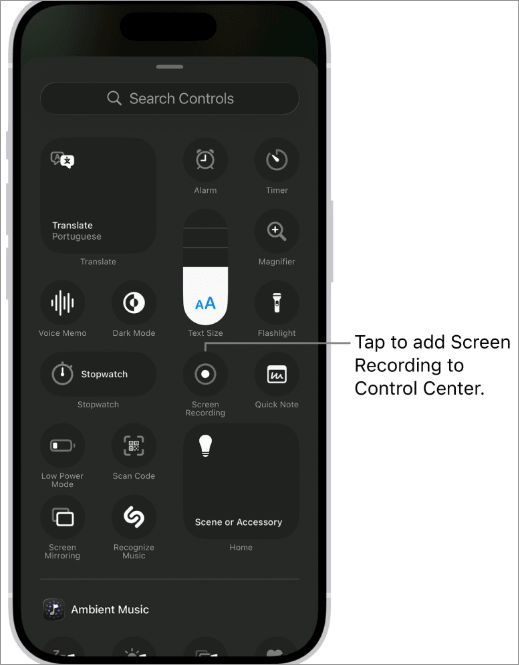
- Return to your meeting session and continue the event on your phone.
- Once you’re done with the meeting, stop the recording. You can do this by tapping on the red status bar and clicking on the stop button.
- Conversely, you can also go back to the control panel and click on the screen recording button once again to stop the Google Meet recording.
Meeting Assistant Bots: Invite an external bot (such as Otter.ai, Read AI, or Fireflies) to the meeting. They’ll join the meeting as participants, record, transcribe and process the call without having to access a computer.
Move to Desktop View: Launch Google Meet in Safari/Chrome browser of your iPad/iPhone, click the page setting menu button, then choose Request Desktop Website.
How to Record a Google Meet Without a Paid Plan or Host Permission
For you to avail Google Meet recording for free or without the host’s permission, you need to have external, third-party software.
In all this, it is essential to understand the two-party recording laws and legal consent that might be applicable in your present jurisdiction.
Here is what you can do:
Method 1: Make Use of a Browser Extension
- The best part about browser extensions is that they help record the meeting within your browser window, bypassing host alerts, while essentially capturing both audio and video simultaneously.
- Here, it is important to use trusted extensions and install them from the Chrome Web Store.
- After the installation, open Google Meet, tap on the extension icon, and select current tab mode (also known as browser tab).
- Make sure that the internal audio of the tab is enabled. Press the start button.
- When you use this method, it helps you capture the video and the audio without interfering or adding an automated bot in the call.
Method 2: Utilize Built-in OS Screen Recorders
In this Google Meet recording-free method, installation is not needed since these operating system tools are built-in on your PCs.
For Windows
- Once you have joined the Google Meet session, open the overlay menu by pressing the Windows key + G
- Tap on the capture icon, and select the record button.
- You can also enable the voice recording option in the Google Meet recording.
Method 3: Leverage Free AI Meeting Assistants
For automated summaries, notes, and transcripts, you can always go for a third-party AI assistant that is provided by certain platforms.
- To begin with, paste your Google Meet link into the given dashboard or connect the free AI software to the Google Calendar.
- In some cases, the AI tool will send a notetaker bot, which must be allowed into the meeting by the host.
Refer to this video below on how to record Google Meet for Free (100% legal!):
Why Can’t I Record On Google Meet?
Temporary technical issues, account limitations, or certain permission settings can lead to non-recording of the Google Meet Session.
Let’s explore in detail the reasons and how to fix these issues:
#1) Record Button Missing/Greyed Out
Recording may not be available for you if the Google Meet recording button is missing or greyed out.
This can happen due to the following reasons:
- You might be using the Google Meet mobile app.
- The Google Workspace edition that you have does not support recording.
- The setting may have been disabled by your Google Workspace administrator.
- You are not the host, co-host, or someone with permission to record.
Tips to Fix it:
- Instead of a mobile app, use your desktop browser to join the meeting.
- Ensure that your Google Workspace plan has the recording feature.
- Enable recording for your organization by contacting your Google Workspace administrator.
- Ask the organizer to start the recording or grant you the required permission.
#2) Recording Stuck in Processing
Another reason why you are not able to record the meeting is that the recording is stuck on “processing” which can happen due to several reasons.
- It can take several minutes or more for Google Meet to finish processing the recording.
- Temporary delays occurring on Google’s server can slow the processing.
- Service disruptions on Google Workspace can also affect recording.
Tips to Fix it:
- Check the Meet recording folder and refresh Google Drive.
- Once the processing is complete, look for the recording link in your email.
- If the recording is stuck for many hours, it is advisable to check Google Workspace. status dashboard to see if there are any ongoing service issues.
#3) No Audio in the File
If the Google Meet recording is not working, it might be the case that the audio in the file is not present.
This occurs due to the following:
- There was a wrong selection of the microphone during the meeting, or the microphone was muted.
- Your browser or the Google Meet you are using does not have permission to access the microphone.
- It might be that another application was making use of the microphone that may have prevented Google Meet from recording the session.
Tips to Fix it:
- In Google Meet’s audio settings, ensure that the correct microphone has been selected.
- Allow Google Meet to access your microphone by checking your browser settings.
- Make it a habit to check the audio before starting any important meetings.
#4) You’re Using an Outdated Chrome Browser
Using an outdated Chrome browser can further lead to non-recording of your Google Meet session.
The reasons can be the following:
- Performance issues can be caused by old browser versions.
- Compatibility issues or browser bugs can prevent the recording feature from functioning properly.
- Using an outdated version of Google Chrome may not be able to support the latest Google Meet recording feature.
Tips to Fix it:
- Ensure that you are using the latest version of Google Meet.
- After the update is installed, restart your computer.
- Make sure to clear your browser’s cache and cookies if the issue persists.
#5) How To Enable The Recording Feature?
To enable or fix the Google Meet recording feature, it is imperative that the administrator activates it from the platform’s admin console.
Below are the easy steps to do it:
- Using your administrator account, sign in to your Google admin console.
- There, look for Apps > Google Workspace > Google Meet available on the left-hand menu.
- Tap on Meet video settings.
- Choose the Organizational Unit or Group to which you wish to apply the settings.
- Select the recording option and allow the permission for people to record their meetings.
- If you want the participants to download and copy the recordings of the Google Meet, allow the “Let users download and copy Meet recordings” option.
- Tap on the save icon. It might take up to 24 hours for the changes to apply.
Where Are Google Meet Recordings Saved?
You must be wondering as to where to find Google Meet recordings of your meetings. Well, the best part is that the recordings are automatically saved to the Google Drive of the one conducting the event under the name “Meet Recordings”.
Apart from this, the link to the recorded meeting is also sent to the host, wherein it is attached to the related Google Calendar event.
To seamlessly find and manage your recordings, follow these simple steps:
#1) Google Drive
In most cases, the Google Meet recording will appear in the Google Drive of the host.
Here is what you can do to find it:
- Open your Google Drive.
- In the left sidebar, go to My Drive.
- There you’ll find the “Meet Recording” folder from where you can access the recorded session.
#2) Google Calendar
If the calendar has been used to schedule the meeting in advance, the link gets attached, wherein all the invitees can access the same seamlessly:
- You need to go to your Google Calendar.
- Choose the current meeting event.
- All you need to do now is to find the recording link available under meeting details or attachment options.
#3) Gmail
- To get the Google Meet recording location, as the meeting organizer, you can check your Gmail inbox.
- Look for an email from Google Meet.
- You’ll immediately find the email with the subject line “Meet Recording Available” and you’re good to go.
In all this, there is no Google Meet recording storage limit, wherein the total limit actually depends upon your Google Workspace edition or Google One Plan. However, it is important to remember that the meeting can be recorded for 8 hours, after which the recording stops automatically.
Is It Legal to Record a Google Meet?
Yes, in most cases, Google Meet recording is legal, given the condition that you follow the consent rules and laws of your jurisdiction.
For example, in regions where there is a need for “one-party consent”, only a single person is required to agree, whereas in “all-party consent’’ areas, everyone’s permission is necessary.
Tips to record legally and ethically:
- It is always ethically right to announce that the meeting is being recorded at the behest.
- Make the participants acknowledge the recording by providing a visual or audio prompt.
- Always respect the opinions of the participants who are averse to recording by stopping the recording or allowing them to turn off their cameras and mics.
Google Meet Workspace Plans – A Quick Comparison
To upgrade your Google Meet, you can choose from the paid workspace plans that are as follows:
| Google Workspace Plan | Best For | Key Google Meet Features | Storage |
|---|---|---|---|
| Google Workspace Individual | Freelancers or solo professionals. | Premium meet features like noise cancellation, breakout rooms, transcripts, hand raising and group meetings for 60 minutes or longer on desktop. | 1 TB |
| Google Workspace Business Plans | Small to medium-sized businesses and teams | Business plans include Business Starter (up to 100 participants), Business Standard (up to 150 participants + call recording), and Business Plus (up to 500 participants) | Varies by plan (pooled storage across users). |
| Google One Premium | Good for those who aren’t ready for a full business suite at the moment. | Offers premium Google Meet features. | 2 TB |
Google Meet Recording Types: Recording vs. Transcript vs. Notes
All meetings do not require video recordings. Based on what you need from the meeting, it could be that taking notes or getting a transcript is better.
- When Should You Record Your Google Meet?
You should record your Google Meet if you intend to go through your presentations, interviews, training, and webinars at a later date. The visual and audio information would be important in understanding all these processes.
2) When Is a Transcript Preferred Over Recording?
Transcripts are better than recording when you are interested in knowing what was talked about without any additional visual or sound effects. A transcript is much easier to read than viewing an entire video.
3) When Should You Take Meeting Notes/AI Summary?
You should write down meeting notes or create an AI summary when you are only interested in what was discussed at the meeting.
| Features | What it does | Output |
|---|---|---|
| Meeting Recording | Helps in recording the entire meeting, including audio, video, screen sharing, and presentations. | File saved in the host’s or organizer’s Google Drive |
| Meeting Transcripts | Assists by converting the spoken conversations of the meeting into text. | Gets saved as a Google Docs file independently of the recorded meeting. |
| Gemini Powered Meeting Notes | Takes help of Google Gemini AI to generate notes automatically, while summarizing key points and action items. | Meeting summary (AI-generated) along with notes and action items which can be shared with participants. |
Tips for Better Google Meeting Recordings
Screen record Google Meet tips can help you in better meeting recordings and enhance the overall experience. First and foremost, you should prioritize audio quality, make use of AI tools, and establish meeting record rules at the beginning.
Here are some of the tips for better Google Meet recording:
- Use an external USB mic or a headset instead of using the built-in microphones of laptops for better audio quality.
- If you’re capturing your face during a meeting, make sure you adjust your lighting while avoiding sitting in a place where the light directly comes on your face.
- Mute notifications or close the doors to remove background noise.
- Leverage modern AI tools that can help you summarize the long meeting content into concise items.
- Always announce that the meeting is being recorded before recording and get consent from the participants.
- Once done, send the meeting transcripts and the recording to those members who have not been able to attend the Google Meet.
- For enhanced video recording, you should record your videos in high quality at 1080p, which is the cap for video resolution. This is how you can do it seamlessly.
- Go to the menu in Google Admin Console. Go to Apps, Google Workspace, and then Google Meet. Select the same.
- Click on the Meet video settings available.
- If you wish to apply the setting only to select users, choose an organizational unit or configuration group.
- Tap on the recording quality while checking or unchecking the record at its highest resolution when conditions allow box available.
- Tap on the Save button.
Frequently Asked Questions
1. Can I record on Google Meet?
Yes, you can record on Google Meet easily. However, for native recording, you must have a qualifying paid Google Workspace or Google One plan. You must also be the host, co-host, or someone from the same organization. If you do not have host permission or have a free account, you can leverage third-party screen recorders.
2. Where can I find my Google Meet recordings?
The recording from Google Meet is automatically saved and can be found in the meeting organizer’s Google Drive. Usually it is called “Meet Recording”. In addition, a link to the current meeting is also sent to the host or the person who started the meeting, which is attached to the specific Google Calendar.
3. Is Google Meet always recording?
No, there is no automatic recording in Google Meet, and the session must be recorded manually. Nevertheless, settings can also be enabled by workspace administrators whereby scheduled meetings get saved automatically when the meetings start.
4. Why is my recording not showing up in Google Drive?
Usually, the recording can take up to 30 minutes to show in Google Drive or longer for meetings that are longer in duration. Make sure that you are checking the drive of the person who initiated the Google Meet.
5. Does Google Meet notify if someone is recording?
Yes, Google Meet gives a notification when the recording starts. For the host part, it is always important to get the consent of the participants before starting the recording while also informing them about the recording session at the beginning.
Conclusion
Google Meet recording is a great way to easily keep track of details being discussed in the meeting, training session, or online class and to share it with the counterparts who have not been able to attend the event.
However, it is always ethically right to take the consent of the participants and to rightfully record the meeting while following the local consent laws and rules of your jurisdiction.
By following the steps outlined in this blog, you can easily record a meeting, find the recorded session, and share it with the concerned people at your own will seamlessly.
Research Process: The total time involved to complete and publish this article is approximately 33 hours. This content was created through a structured research approach to ensure accuracy and reliability.
For more related guides, you can explore our range of tutorials below:
- Top 15 Best Online/Virtual Meeting Platforms Software
- How to Use Google Meet Breakout Rooms
- Top 10+ Video Conferencing Software (Best Rankings)
- Waveroom Review: How to Record Podcast, Interview & Meeting
- The 14+ Best Web Conferencing Software (TOP RANKINGS)
- The 10 Top Webinar Platforms | Webinar Software
Was this helpful?
Recommended Reading
-

Review and compare the list of the Best Chrome Extensions along with the features to select the must have Google Chrome Extensions: Google’s Chrome browser is one of the most popular web browsers around. Millions of users across the globe use this browser daily. This browser’s functionality can be enhanced…
-
Quickly explore how to change page color in Google Docs. This guide will walk you through the settings in the Google Docs editing platform to help you change Background Color on Google Docs in just a few steps: How do I change the background color on Google Docs? I’ve been…
-
Discover the simple ways to make a perfect Google Forms Header Image that matches your brand. Learn how to change Google Form Header Image Size and customize it as per your requirements: Like many other entrepreneurs today, I use Google Forms to create forms. It has been an invaluable tool…
-
This tutorial explains how to do a Voiceover on Google Slides and why Google Slides is your best choice to create presentations: Presentation is considered an effective and efficient way to present data to the audience and make a complex topic easier. Earlier, it was a pretty cumbersome task to…