


Quickly learn how to deactivate or turn off safe mode on Android, Windows, or any smart device from our step-by-step guide. Master simple tips and proven solutions from our experts to disable safe mode instantly:
Safe mode is used to troubleshoot issues with an Android phone, such as crashes, freezes, automatic restarts, or other abnormal behavior. By enabling Safe Mode, the widgets on the home screen are removed, and all third-party apps are stopped.
If the issues on your device are occurring due to a malicious or loaded app, then the issue will be solved by switching to Safe Mode.
Remove Safe Mode on Android or Any Smart Device: Simple Guide
This way, you know an app needs to be uninstalled from the device to fix it. But if the problem persists even after switching to Safe Mode, there might be other issues causing it.
Android users have repeatedly been spotted asking why Safe Mode turned on by itself. There’s a high chance it will be enabled accidentally during device startup.
Safe Mode may also activate because of other causes, such as:
- There may be malware on your device.
- Your phone may need a software update.
- Your phone’s cover may have pressed a key for a long time.
- There may be other software/hardware issues.
Now, when safe mode is enabled to troubleshoot an issue, you may face a new problem: How to disable safe mode afterwards? Sometimes safe mode may accidentally turn on, and the user may keep wondering how to exit it.
Quick Answer: How Do You Turn Off Safe Mode on Android?
You can quickly and easily disable Safe Mode by going to the notification panel, tapping on the ‘Safe mode is on’ notification, and then turning it off.
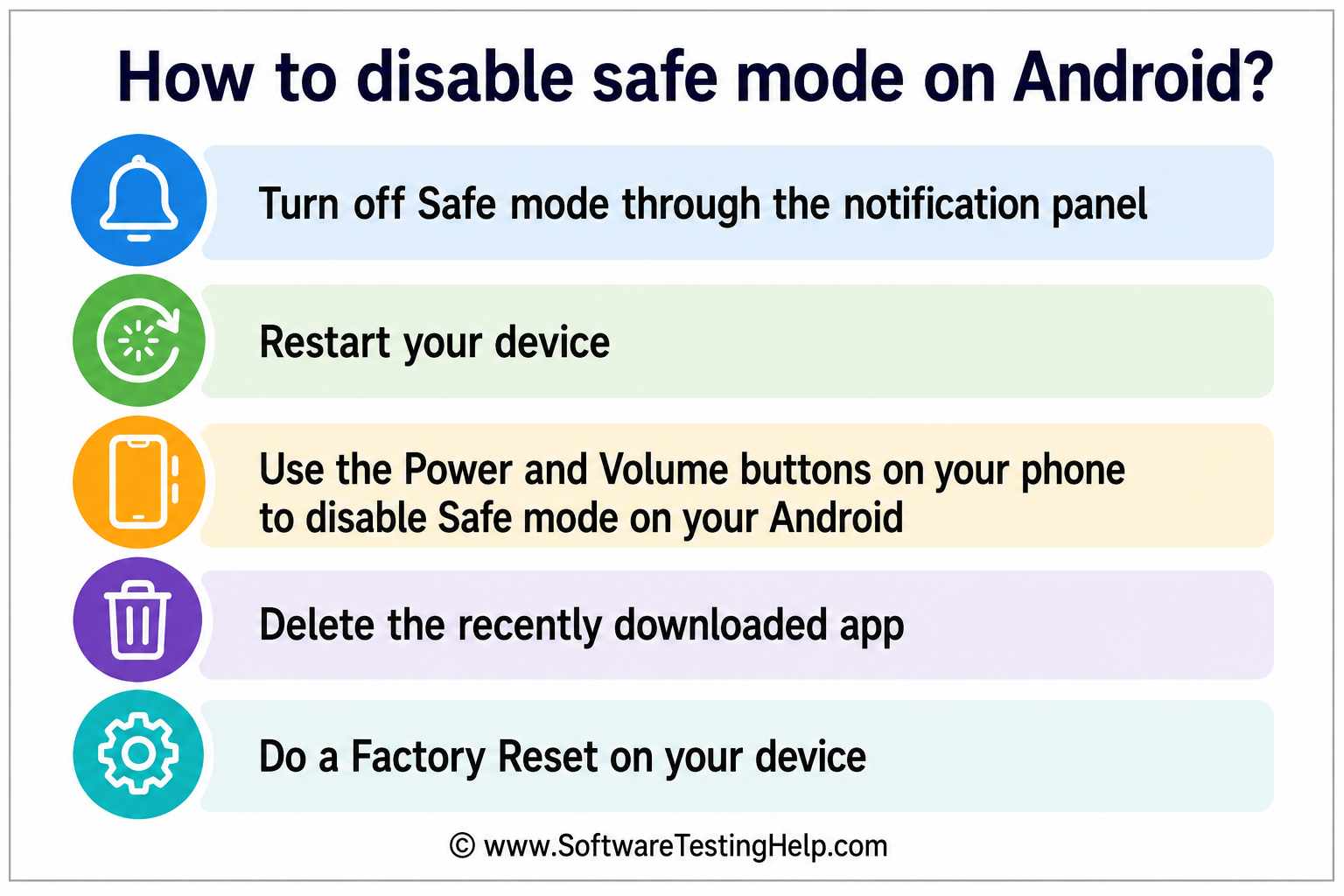
If you don’t see such a notification, then you can use other methods for this purpose, like restarting the phone, deleting suspicious apps, and more. Read the article further to get step-by-step instructions.
How to Disable Safe Mode on Android
There are different ways to disable Safe Mode on Android phones. We have stated them with step-by-step instructions here.
#1) Turn off Through Notification Panel
To disable Safe Mode, simply do this:
- Swipe down on your phone’s screen, and you will see a notification saying, Safe mode is turned ON.
- Tap on the notification and turn Safe Mode off.
If you can’t find the Safe Mode notification, then you can try one of the other methods to turn off Safe Mode.
#2) Restart Your Device
Restarting your device will also bring it back to normal mode. You can restart your phone by pressing the power button for 2-3 seconds and then selecting ‘Restart’ or ‘Reboot’.
If you don’t have the Restart option on your phone, you can select ‘Power off’ and then switch your phone back on by pressing the power button for 2-3 seconds. If Safe Mode is still running, then don’t worry; you still have other methods to turn it off.
#3) Power and Volume Buttons
Use the Power and Volume buttons on your phone to disable Safe Mode on your Android. This method is similar to the one used for turning Safe Mode on.
Follow these steps for disabling Safe Mode:
- Switch your phone off by pressing the power button for 2 seconds and then selecting Power off.
- Now Power on the device using the power button.
- Once you see the device logo, long-press the Volume Down button. The phone will move to recovery mode.
- Now select Restart.
- The device will then move to Normal mode.
#4) Delete Recently Downloaded App
A recently downloaded app may have malware and could cause the issue. If the device automatically went into safe mode after downloading an app, then try uninstalling that specific app to check whether the issue is because of that specific app.
Android users can delete an app using these simple steps:
1. Go to the Play Store.

2. Tap on your profile picture.

3. Now select the option “Manage apps and device”.
4. Go to the Manage tab.
5. Tick the app that you want to uninstall and then tap on the delete icon located in the upper right corner of your screen.

#5) Do a Factory Reset on Your Device
If nothing works, there may be some malware or other issues with your device. A factory reset would definitely fix the issue if there is no physical damage to the phone’s keys or other parts.
A factory reset can be done by following these steps:
- Go to Settings
- Tap on General or System
- Select Reset options
- Now choose Factory data reset (or Erase all data)
- Confirm.
Get Out of Safe Mode on Samsung Galaxy Phones
Since Samsung Galaxy phones run on Android, the methods stated above will work on your Samsung Galaxy phone as well.
Samsung Care states that restarting the phone will most probably return the phone to normal mode from safe mode. If not, there can be an issue with the power button or the volume keys.
Learn how to turn off Safe Mode on a Samsung Galaxy without the keys by watching this YouTube video.
Steps to Disable Safe Mode on Windows
If your Windows 11 PC has moved to Safe Mode accidentally, you can exit Safe Mode on Windows 11 just by restarting the PC, checking system configuration, or using the Command Prompt.
How to Restart a Windows 11 PC
Here is the step-by-step guide:
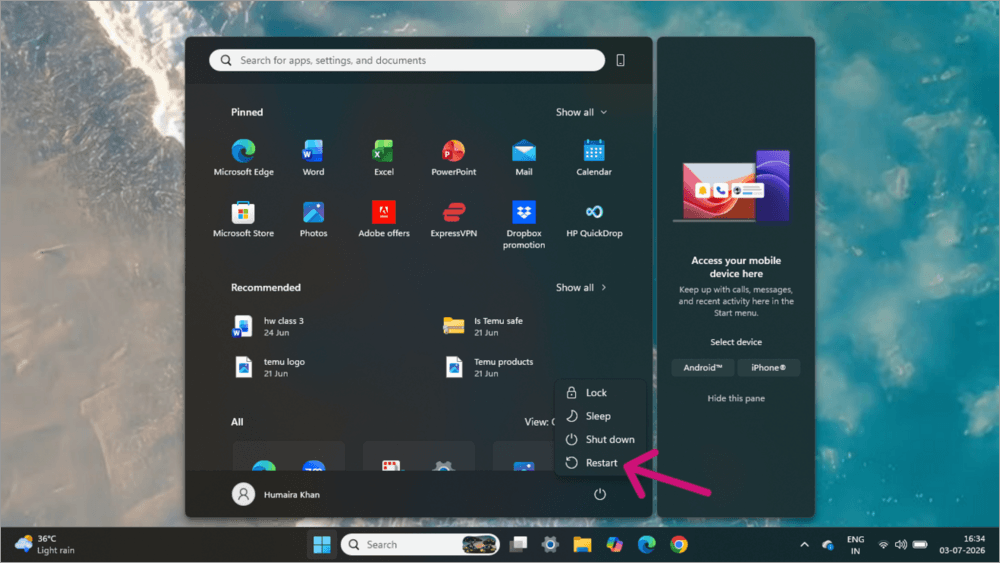
1. Click on the Windows icon.

2. Now select the Power icon.
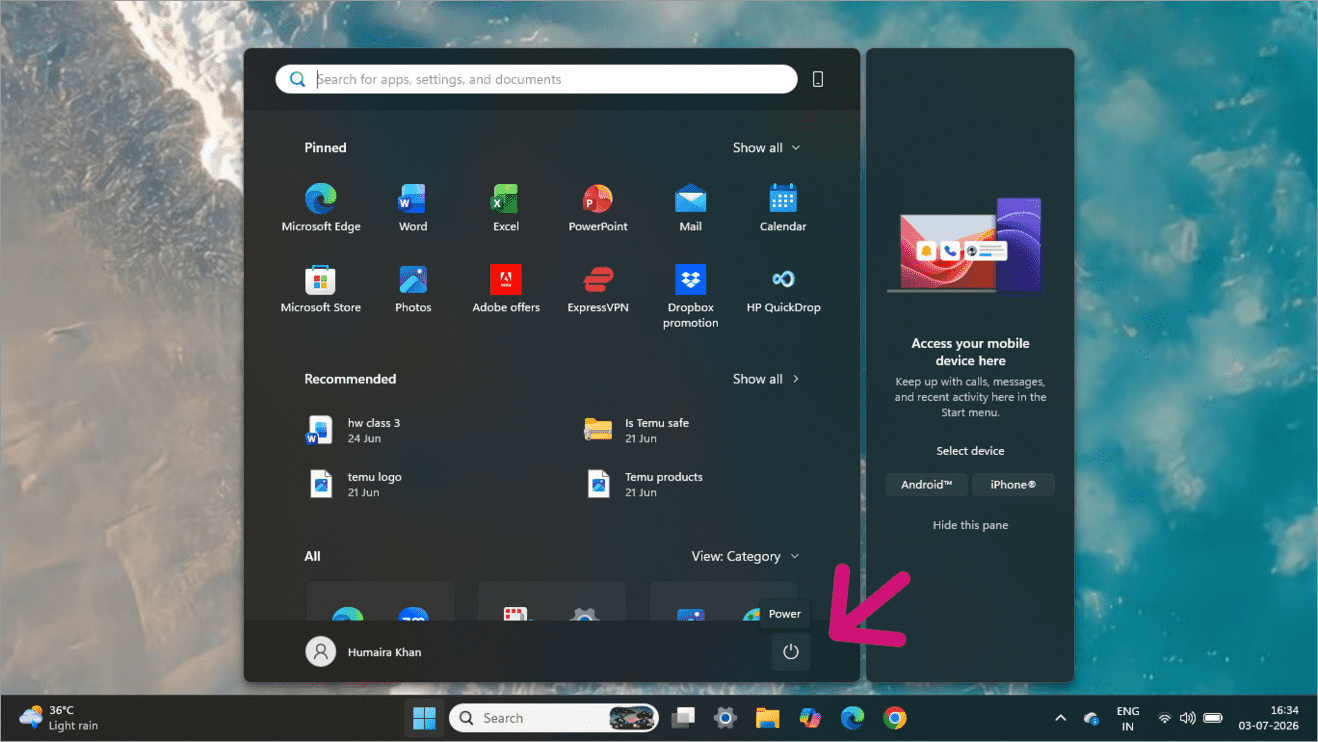
3. Click on Restart.
Check System Configuration: If your PC keeps restarting in Safe Mode, then you must check system configurations.
Follow these steps for doing so:
1. Press Windows key + R simultaneously. This will open the Run dialog box.

2. Now type msconfig in the space provided.

3. Hit Enter
4. Select the Boot tab.
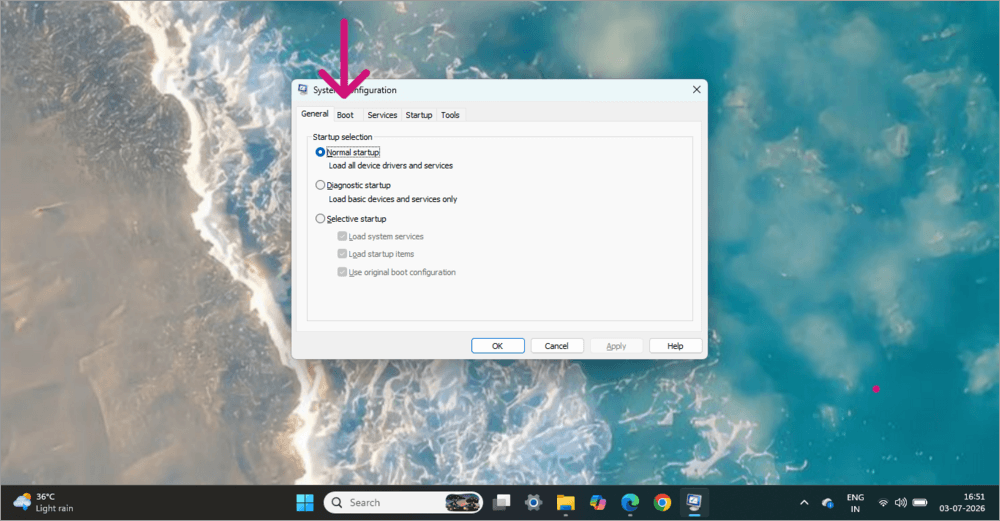
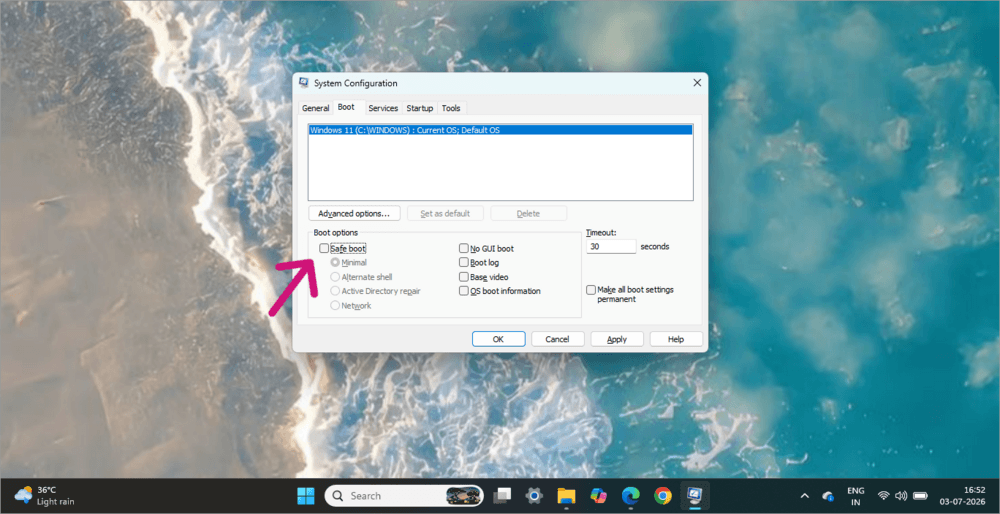
5. Now make sure that Safe Boot is not enabled.
6. Click Apply
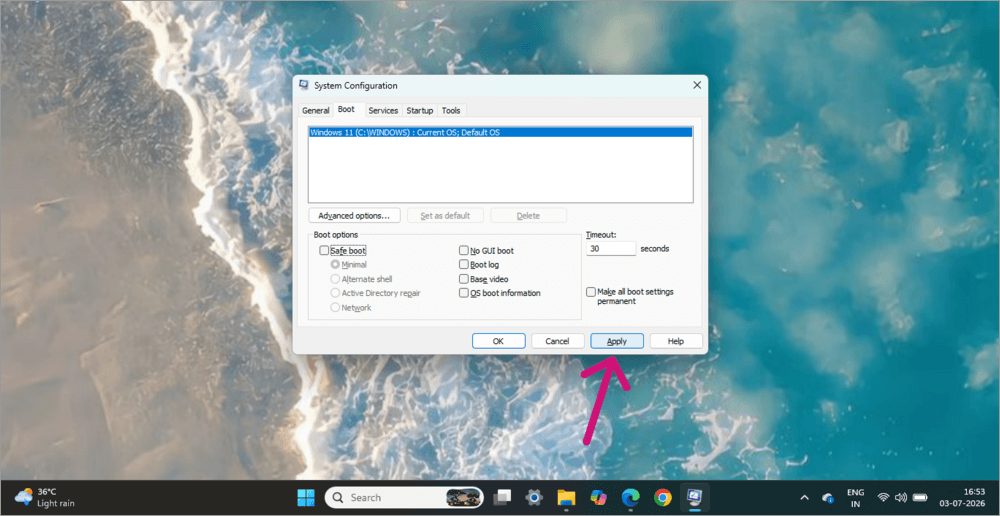
7. Now select OK.
8. Then select Restart. Your device will now restart to normal mode.
Use the Command Prompt in MS Configuration to fix the issue. If the previous method fails, or if you can’t access the desktop, try this method.
- Press the Windows key + R simultaneously.
- In the space provided, type cmd and press the Enter key.
- Now type bcdedit /deletevalue {current} safeboot, and then press the Enter key.
- Now type exit and press the Enter key
- Now Restart the PC.
How to Exit Safe Mode on Windows 10
If you are facing this issue on your Windows 10 PC, then here is a video to help you troubleshoot the problem.
How to Disable Safe Mode on Smart TV
If Safe mode has been accidentally (or intentionally) enabled on your Smart TV, you will either see a Safe mode watermark on your screen or a Safe mode badge on the bottom of your screen. Plus, the third-party apps downloaded on your TV won’t run.
In order to disable Safe mode on your Smart TV, you can restart the device, check the Remote for any pressed buttons, or uninstall recently downloaded, suspicious apps.
Turn Off Safe Mode on Android TV
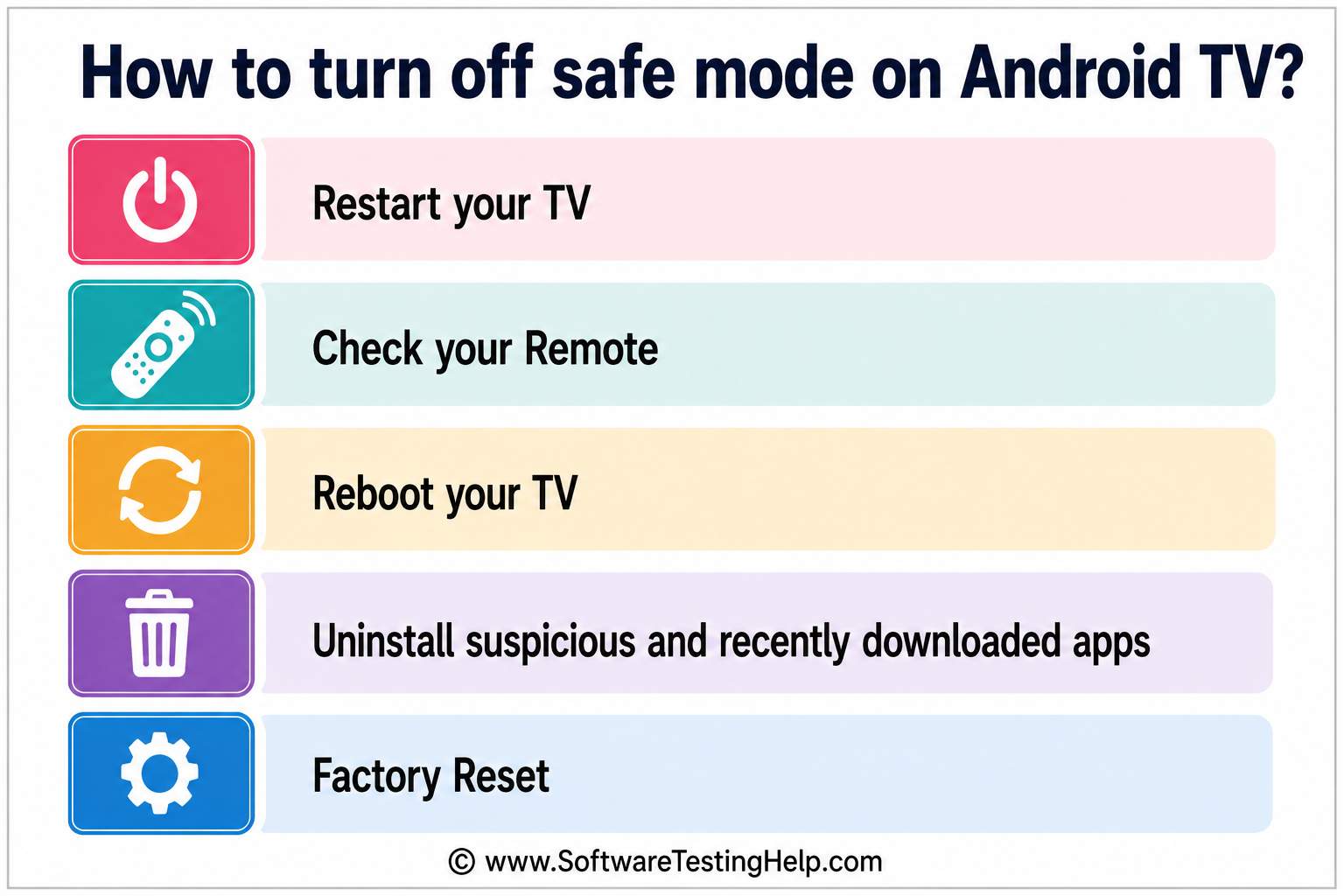
If the Android TV has moved to Safe mode, then you can use these methods to move to normal mode:
#1) Restart your TV: A simple restart usually fixes most issues. Just take out your TV’s plug for 10 seconds, and then reinsert it. Now, when the TV restarts, Safe Mode will be disabled.
#2) Check your Remote: If the previous method didn’t work, then check the keys of your remote and make sure they are not being pressed for a longer time due to being pressed down by another object/remote cover/etc.
If the volume button or the power button is pressed for a longer time, the TV can move to Safe mode.

If there is some physical damage to the remote’s keys, then change the remote to fix the issue. If you can’t get a new remote at the moment, you can install an Android app on your smartphone that turns your smartphone into a remote for your Android TV.
For this purpose, just go to the Play Store on your Android phone and search for Android TV Remote. You will get multiple options to choose from. Install the one with good ratings and number of downloads.
#3) Reboot your TV:
You can do a quick reboot on your Android TV by following these steps:
- Press the Volume Down and Power keys on your remote simultaneously for about 10 seconds
- A normal boot will start.
#4) Uninstall Suspicious and Recently Downloaded Apps: If the Smart TV automatically entered safe mode after you downloaded an app, then you must uninstall the app at once, because there is a good chance that the app is malicious and is causing the issue.
To uninstall the app, do as stated below:
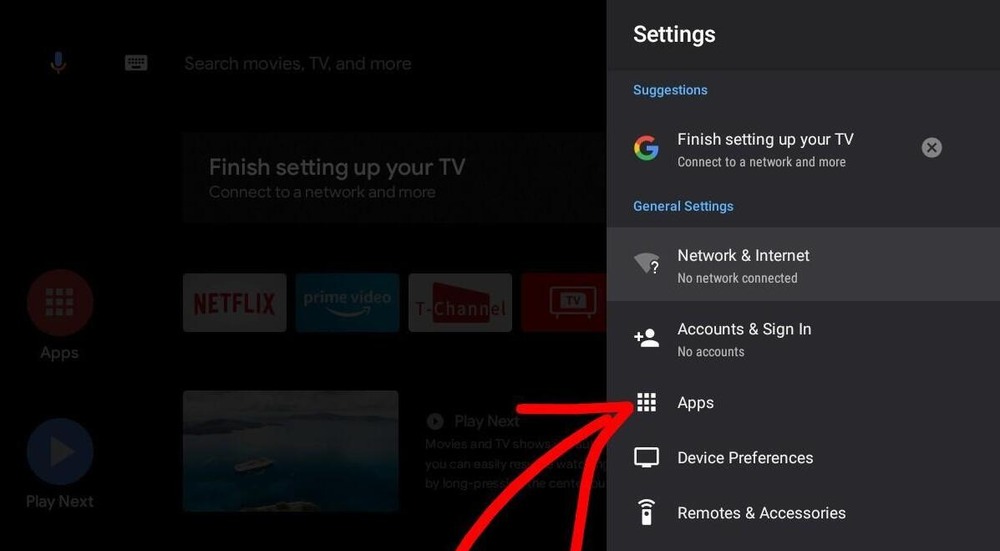
- Open Settings on your Android TV

- Choose the option: Apps
- Select the option – See all apps
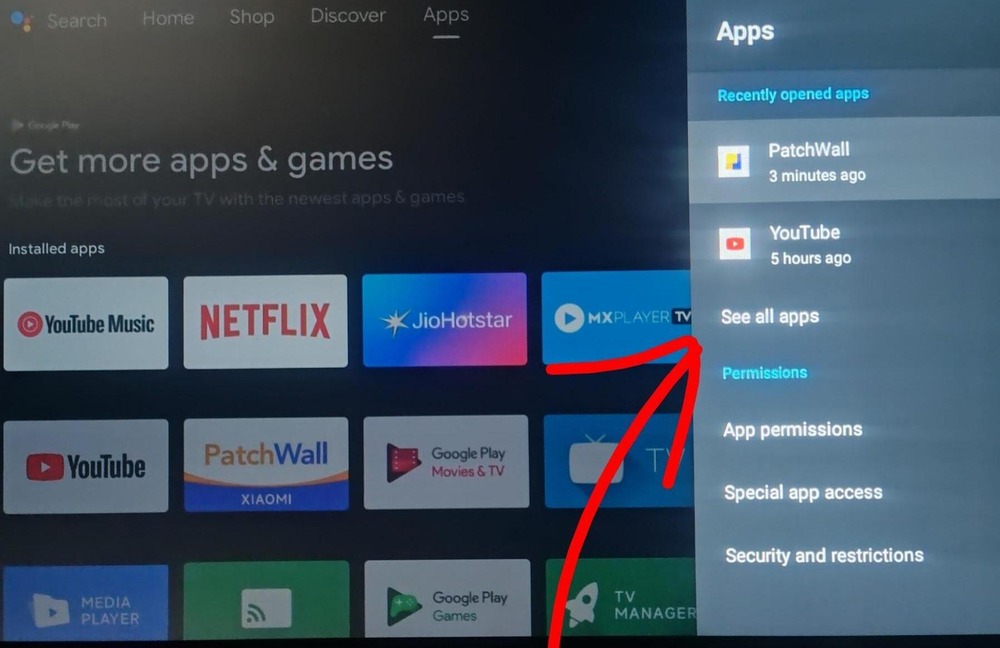
- Now select the app that you think is causing the issue.

- Select Uninstall and confirm.
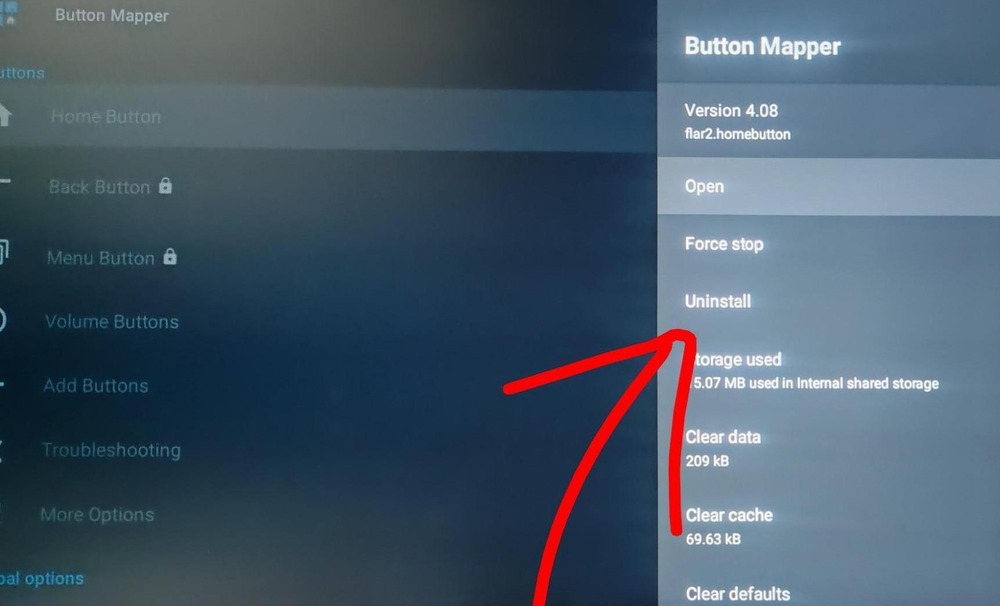
- Now Restart the TV once the app is uninstalled.
5. Factory Reset: If nothing works, there might be some malware on your device. A factory reset would most probably fix the issue.
This can be done by following these steps:
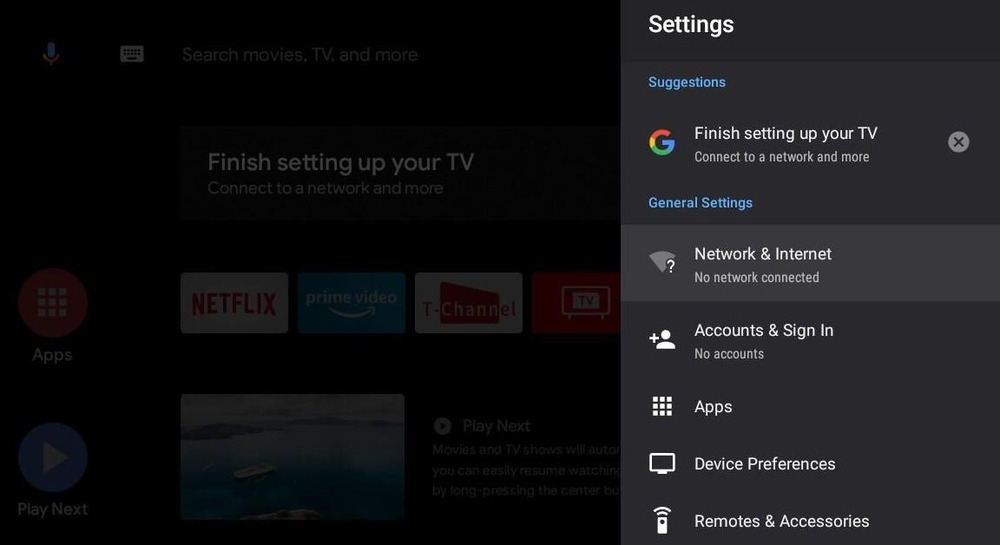
- Go to Settings on your Android TV. The Settings option would most probably be located in the upper right corner of your TV’s home screen.
- Now choose Device Preferences or System, or Storage & Reset.
- Select About

- Now go to Reset (or Factory Reset)
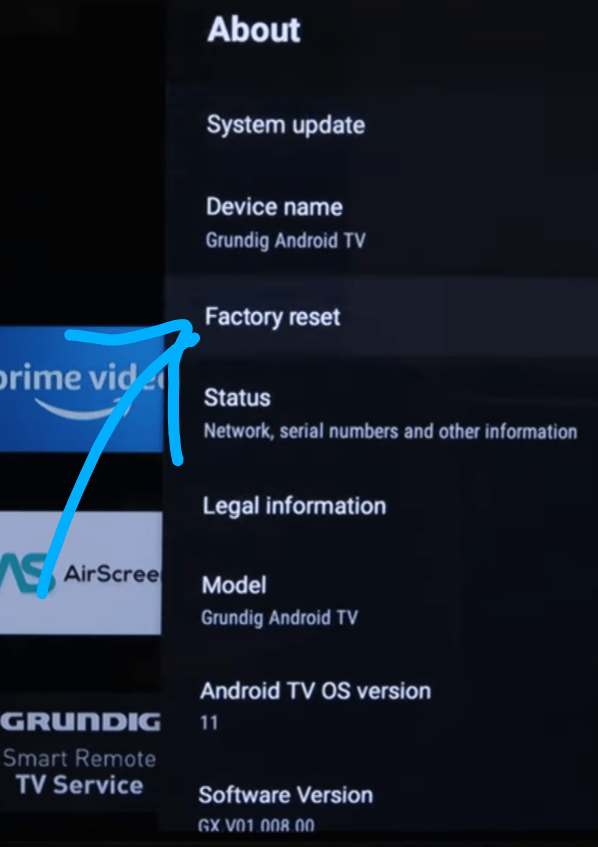
- Again, choose Factory Reset
- Enter your PIN if asked.
- Select OK (or Yes).
If you can’t access settings or if there is some other issue, then here is another method to do a factory reset on your Android TV:
- Unplug the TV’s wire
- Now find the power button on the TV. (You will most probably find it below the screen).
- Plug in the TV’s wire while pressing the power button on the TV. (You would need to press the Volume button along with the Power button on some Android TVs)
- Keep pressing the power button until you see the Recovery menu on your Android screen.
- Now select Factory Reset (or Wipe Data)
- Confirm your selection
- The TV will perform a factory reset. Once done, select Reboot system now.
If you are using a Google TV, here is a YouTube video illustrating how to turn off Safe mode on your Google TV.
Why Won’t My Safe Mode Turn Off?
If you have tried all methods and still can’t get your device out of Safe mode, here is a list of possible reasons causing the issue:
- You (or a kid) may be accidentally pressing the Volume and Power keys for long periods. This puts the device in Safe mode.
- There can be an issue with the Volume or Power button (of your phone/ TV/ remote). Go to a service centre to get your device checked.
- Your device may need a software update. A pending software update can cause several issues with the device.
- A corrupt file can also cause the issue. Delete recently downloaded files from the device.
- The device may have malware. A fishy app may have brought it to the device. Uninstalling suspicious apps or doing a factory reset would fix this issue.
How do I Exit Safe Mode if My Power Button is Broken
If the power button of your phone is damaged, then you can exit safe mode with the help of these methods:
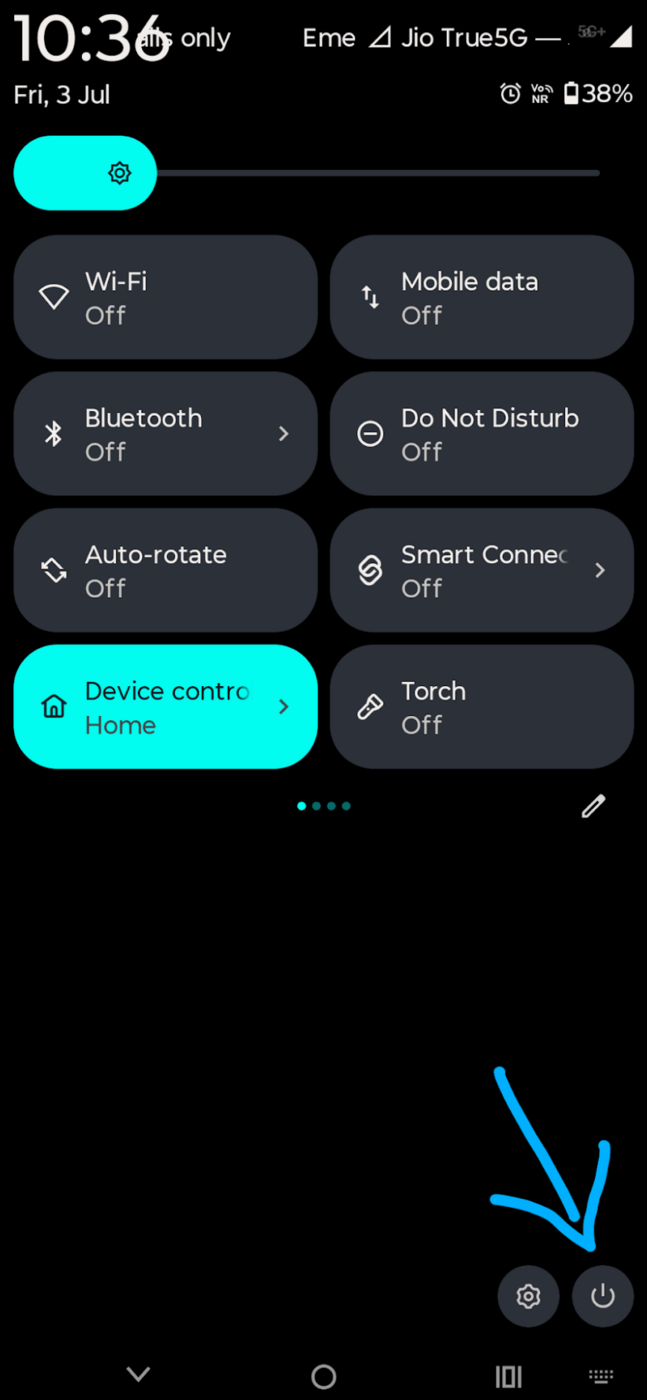
- Swipe down on your phone’s screen. If you see a notification saying, ‘Safe mode is turned on,’ then tap on it and disable safe mode.
- If the Power key is not working, then you can still restart the phone using the Power icon below the notification panel.
- If you recently downloaded an app on your Android phone from a source other than Google Play, there is a good chance that it would cause the issue. Uninstall the recently downloaded apps or files and then restart your device to see if it works. To delete an app, follow these steps:
- Go to the Play Store
- Tap on your profile picture
- Now select the option: Manage apps and device
- Go to the Manage tab
- Tick the app that you want to uninstall and then tap on the delete icon located in the upper right corner of your screen.
- If none of the above-stated methods work, then go for a factory reset. This can be done by following these steps:
- Go to Settings
- Tap on System
- Now choose Reset options
- Select Erase all data and confirm.
How to Turn On Safe Mode on Android
Android users can enable safe mode on their devices for security reasons like disabling third-party apps, combating battery drain, and troubleshooting other issues. The method for enabling or disabling safe mode may differ with different Android models.
Here is the method for turning Safe mode on on an Android phone:
- Long-press the power button of your Android device.
- Then select Power Off or Restart.
- You will be asked whether you want to reboot to Safe mode.
- If you select OK, your phone will then reboot and will restart in Safe mode.
If this method does not work on your device, then we have another method for this purpose:
- Power off your Android device.
- Now long-press the Power button to switch the device ON again.
- While the device restarts and you see the device logo, long-press the Volume Down button until you see the Safe mode enabled notification on your screen.
Watch this YouTube video showing how to turn Safe mode on in your device.
Frequently Asked Questions
1. Why does my phone keep going back into safe mode after I restart it?
If your phone keeps going back into Safe mode even after restarting, it may be because of one of the following reasons:
– The Volume or Power key may be constantly pressed due to physical damage to the phone’s cover.
– Your phone may need a software update.
– Your phone may have malware.
– You may have downloaded a corrupt file or application.
2. Is safe mode the same as recovery mode?
No. They are different things. Safe mode is used when your phone behaves abnormally, for example when it freezes frequently. Safe mode stops all the third-party apps from functioning.
On the other hand, recovery mode is used when the device is not switching on, or when it is continuously rebooting, etc. Recovery mode can be used to do a factory reset, or clear the cache, and more.
3. Is it ok to turn off Safe mode?
Yes, Safe mode needs to be disabled in order to use all the available third-party apps on the device. Safe mode is only helpful when you want to prevent rapid battery loss, or when you fear malware in your device or a fishy application.
4. Will Safe mode delete everything?
No. Safe mode does not delete anything from the device. It just stops the functioning of third-party apps in order to safeguard the device against malicious apps, as well as to stop rapid battery drainage.
5. How long will safe mode last?
Safe mode does not turn off on its own.
If you want to disable safe mode, you have to use one of the following methods:
– Disable safe mode from the notification panel
– Restart your device
– Delete malicious apps
– Make sure that the Power and Volume keys are not getting pressed accidentally for too long.
– If there is some issue with the phone’s buttons, contact a service centre to troubleshoot the issue.
6. Can a virus cause safe mode to activate?
Yes. Any malicious app, file, or virus can cause issues with your device – for example, the device can keep on restarting, rebooting, freezing, going to safe mode, etc.
If that’s the case with you, try deleting recently downloaded apps and files. If that doesn’t work, do a factory reset – it cleanses such threats from the device.
Conclusion
Safe mode is a useful feature to identify malicious apps present in the device. But users may get troubled if it gets turned on automatically or when they are unable to disable it, because it prohibits the use of all third-party apps.
So, in this article, we focused on methods to disable safe mode on Android phones, Smart TVs, and Windows PC. Usually, safe mode would get disabled with a simple restart. But if not, then there must be some issue either with the Power or Volume keys, or some malicious apps would be causing the issue.
If you have tried all the above-stated methods, including a factory reset, then you must go to a service center to get your phone checked.
Research Process: The total time involved to complete and publish this article is approximately 38 hours. This content was created through a structured research approach to ensure accuracy and reliability.
For more related guides, you can explore our range of tutorials below:
- How To Remove Malware From Android Phone (7 Easy Methods)
- How to Turn Off Incognito Mode on iPhone, Chrome, Android
- How to Stop Your Phone From Listening to You
- Android System Key Identifier Explained: Complete Guide
- How to Disable or Turn Off Windows Defender on Windows 10/11
- How to Boot into Windows 10 Safe Mode (9 Different Methods)
Was this helpful?
Recommended Reading
-
![How to Open Recently Closed Tabs in Chrome[Quick Fix] (1)](data:image/svg+xml,%3Csvg%20xmlns='http://www.w3.org/2000/svg'%20viewBox='0%200%20240%20135'%3E%3C/svg%3E)
Here we will explore multiple effective methods to understand How to Open Recently Closed Tabs in Chrome on various devices: Have you ever accidentally closed a tab or a window while working on multiple ones? Happens to me all the time. And trust me, it can be horrifying to lose…
-
Explore different methods to understand How to Open Clipboard in Windows 10 or Android: Windows clipboard allows you to see all the items you have copied in one place. You can copy or cut and paste multiple items from the Clipboard. In this article, we are going to introduce you…
-

10 BEST Strategies For Dealing With Suppliers And Customers were explained in our previous tutorial. This Tutorial Discusses Some Difficult Situations You May Have To Face at Work And Teaches You Some Handy Practical Tips Which You Can Use to Manage Them: Everyone can get into unexpected tough situations at…
-
This tutorial is a complete step-by-step guide that explains the top 3 useful methods to find ways on how to Unlock a Disabled iPhone: Security is the best part of having an iPhone. No one can unlock your phone and access your data unless they know the password. As much…
![How to Open Recently Closed Tabs in Chrome[Quick Fix] (1)](https://www.softwaretestinghelp.com/wp-content/qa/uploads/2021/10/How-to-Open-Recently-Closed-Tabs-in-ChromeQuick-Fix-1.png)


