Get your Mac running smoothly with our step-by-step guide. Learn how to force quit an app on Mac instantly with just a few taps and bid goodbye to unresponsive or frozen apps:
I don’t need to stress about just how frustrating it can be to deal with an unresponsive app on your laptop or desktop.
Everybody knows how to deal with this issue on a Windows system. You simply resort to the shortcut Control+Alt+Delete command to force-shut an app that’s giving you grief.
Force Quit Any App on Mac in Seconds
However, I was left flabbergasted when I started facing the same issue on a Mac. It was my first time using a Mac system, and I did not know how to deal with a problem I’ve dealt with many times before on my old Windows laptop.
[Via Apple]
It was only after some research and trials that I found out just how convenient it is to force-quit an app on Mac.
If you are someone who is also dealing with an unresponsive app, consider this article a concise yet comprehensive guide for your reference.
Not only will I discuss how to force quit an app on Mac, but also share tips on how to prevent an app from freezing in the first place.
Check the video below for 10 useful and most important Mac tips & tricks!
So, with little further ado, let’s dive in.
What is Force-Quit
Force-Quit, in the context of this article, refers to the act of shutting down an app through a forced action on your system. Force-quitting an app is necessary if the app misbehaves or doesn’t respond to your commands. When that happens, the only option left at your disposal is to close the app somehow.
This is when Force-Quit becomes the most obvious solution. All operating systems, including Windows and Mac, offer the option to force-quit an app. Although it is useful and sometimes essential, this method can cause irreparable damage to your app or system.
For instance, force-quitting an app can cause any data or work-in-progress on the app to be deleted, especially if that data hasn’t been stored on your system’s hard drive. Furthermore, shutting down an app in the middle of a file update could result in that file becoming corrupted.
Regularly force-shutting down an app could also affect your system’s battery life and performance. As such, I always recommend force-quitting an app as a last resort.
Enlisted below are a few signs that justify a Force Quit:
- The app does not respond to clicks or commands.
- Your app is frozen, with a spinning wheel or an hourglass displayed on the screen.
- Your system lags or becomes sluggish.
- The app can’t be closed normally and shows up on the App-Switcher and Dock.
- The app fails to update, glitches, or gets stuck on the loading screen.
Now that you know what a Force-Quit entails and why it becomes necessary, let’s discuss how to force-quit on a Mac.
Quick Guide on How to Force Quit an App on Mac
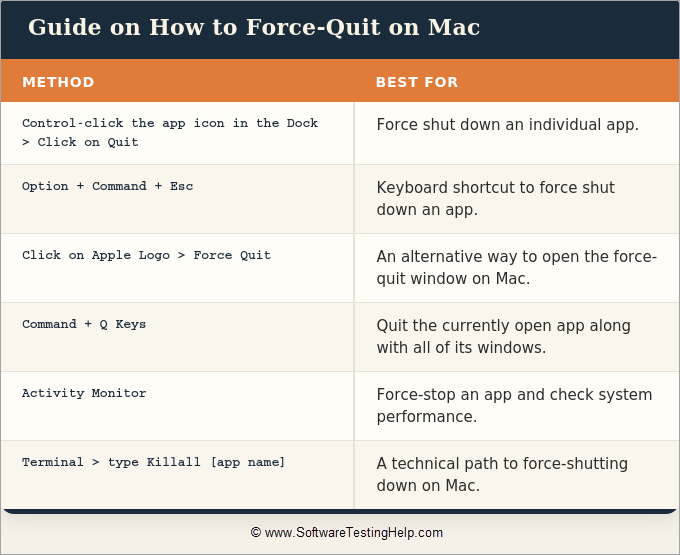
I’ll now share detailed methods to force quit an app on Mac. If you wish to save time, though, simply refer to the quick summary table below instead.
| Method to Force Quit on Mac | Best For |
| Control-click the app icon shown in the Dock > Click on Quit | Force shut down an individual app. |
| Option + Command + Esc | Keyboard Shortcut to force shut-down an app. |
| Click on the Apple Logo > Force Quit | An alternative way to open the force-quit window on Mac |
| Command + Q Keys | Quit the currently open app along with all of its windows. |
| Activity Monitor | Force-stop an app and check system performance. |
| Terminal > type Killall followed by the app’s name you wish to shut down. | A technical path to force-shutting on Mac. |
#1) Use the Apple Dock
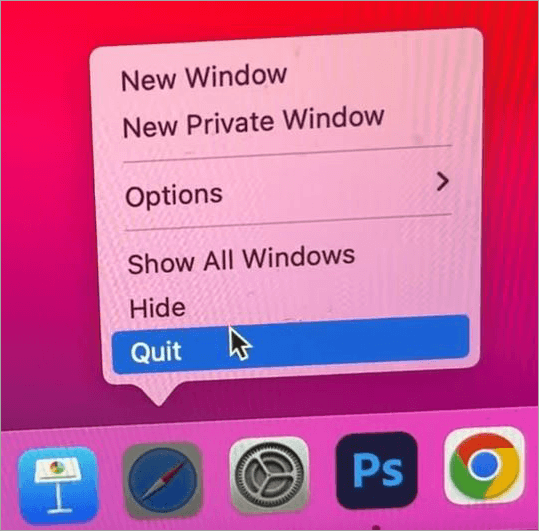
Let’s start with perhaps the quickest way to force-quit an app. This is a tip that’ll come in handy if you wish to learn how to force quit an app on Mac when it’s frozen. All you need to do is pay attention to the Dock, which is basically the bottom menu on your screen.
[Via Guide-Realm]
Find the app icon on this menu and Control-click on it. This will lead to a small menu opening up. Select “Quit” from the menu. Hopefully, you’ll have closed the app successfully via this method.
#2) Force-Quit on Mac Keyboard
Like Windows, Mac also lets you force quit an app on Mac through a simple keyboard command. Simply press the Option+Command+Esc keys together to open the Force Quit Application Window.
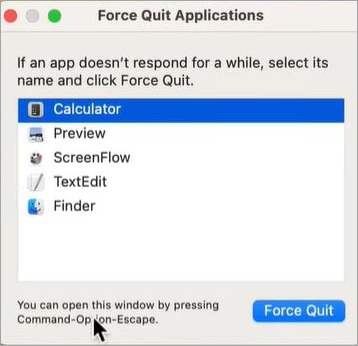
[Via macmostvideo]
Alternatively, you can navigate to this window by doing:
- Navigate to Apple
- Select Force Quit from the menu bar.
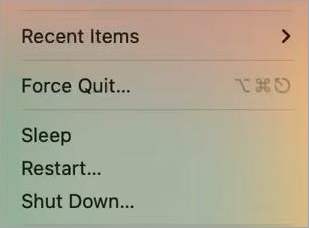
When the Force-Quit Application Window opens, you’ll see a list of active programs in it. Select the app you wish to close and click on Force-Quit.
#3) Use Mac’s Activity Monitor
Activity Monitor does a lot more than help you shut down an app. It can help you check the memory, CPU status, and energy usage of your system. For the sake of this article, though, let’s concentrate on how to manually force-quit on a Mac using Activity Monitor.
1. Go to Finder
2. Open Applications
3. Select Utilities > Activity Monitor.

4. Find the app you wish to quit and select it.
5. Click on the Stop (x) button. You’ll find it at the top of the window.
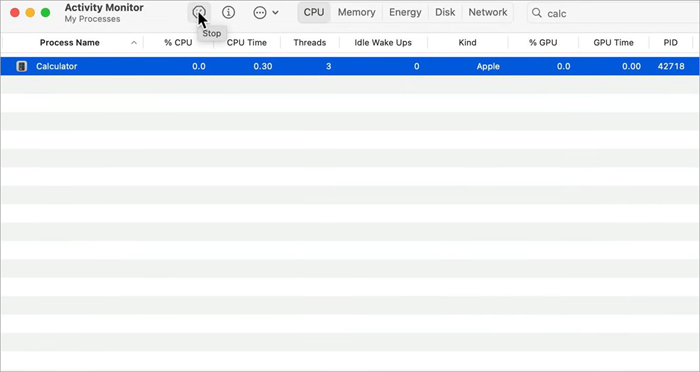
6. Finally, select the Force Quit option, displayed next to the application.
#4) Use the Terminal
If all the above methods fail, it is time to get a little technical with your approach. This involves typing in a code. This may sound daunting to folks who aren’t tech-savvy. That said, you don’t need to be one.
Follow the steps as I’ve mentioned them below:
1. Go to Launchpad
2. Click on Other > Open Terminal.

3. In the Terminal window, enter the command line code killall followed by the app’s name. For instance, if you wanted to shut down Safari, you’d type – killall Safari.
#5) Command + Q
Technically, this is a simple command shortcut that lets you shut down an app. Although one doesn’t use it when an app is frozen, you can still give it a shot.
Pressing Command + Q might just help you force-close an unresponsive app. It isn’t the most effective method on this list. It is still something you should try before proceeding to the other troubleshooting tactics.
Comparing All Methods to Quit an App on Mac
| Method | Is it Safe? | Suitable For |
| Force Quit Window | Very Safe. Does not affect saved data | When a single app becomes unresponsive. |
| CMD + Q | Highly safe | Quickly shut down a currently open app. |
| Dock | Highly safe | Quickly shut down an open app. |
| Activity Monitor | Highly Safe. Also, let’s you inspect the app. | When CPU usage is presumed to be high |
| Terminal | Relatively low safety, as there is a risk of terminating the wrong process. | When everything else fails. |
What to do When Force Quit Fails
So, none of the above-mentioned methods helped you. Do not give up just yet.
Instead, just do the following:
#1) Use a Different Keyboard Combination
Command+Option+Escape isn’t the only shortcut that lets you Force-Quit an app on Mac. There’s yet another trick that I suggest you employ if the usual ones don’t work.
Simply hold the Command+Option+Shift+Escape buttons together for at least three seconds. There’s a good chance that this will force-shut any active app.
#2) Try Rebooting Your Mac
Rebooting your system is instinctual to us all by now whenever something is wrong with our computers. Well, I suggest you trust your instincts when dealing with a stubborn app on Mac, as well. Click on Apple and select Restart to reboot your system.
Once your system is back on, test the Force-Quit command again. If your computer is frozen completely, hold the Power button until you’ve forced the system to shut down. Press this button again to restart the Mac.
#3) Your MacOS Needs an Update
A quick update can fix almost any issue plaguing your device, and that’s true for a Mac system as well. Updating macOS is simple.
Just follow the steps below:
1. Click on the Apple menu
2. Go to System Settings
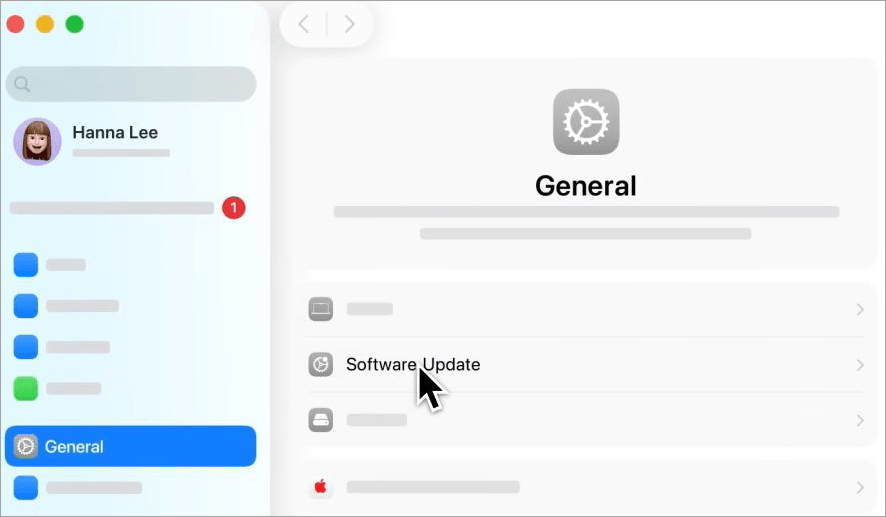
3. Select General > Software Update.

4. Click on Update Now if you see an available update for your system.
#4) Start the System in Safe Mode
We are going a bit technical again. You should only opt for this option when you’ve exhausted every possible solution to your problem.
Here’s how you start a Mac in Safe Mode:
- First, shut down your Mac and wait for 10 seconds before you turn it back on.
- When turning it on, immediately press and hold the Shift key.
- Release the Shift button when the login window appears.
Now try force-quitting the app in this mode. If it works, the issue is probably with an additional app or add-on that you’ll need to uninstall. If you are unable to force-quit in safe mode, then the issue has something to do with your hardware. Only a technician can help you if that turns out to be the case.
Tips to Prevent an App From Crashing
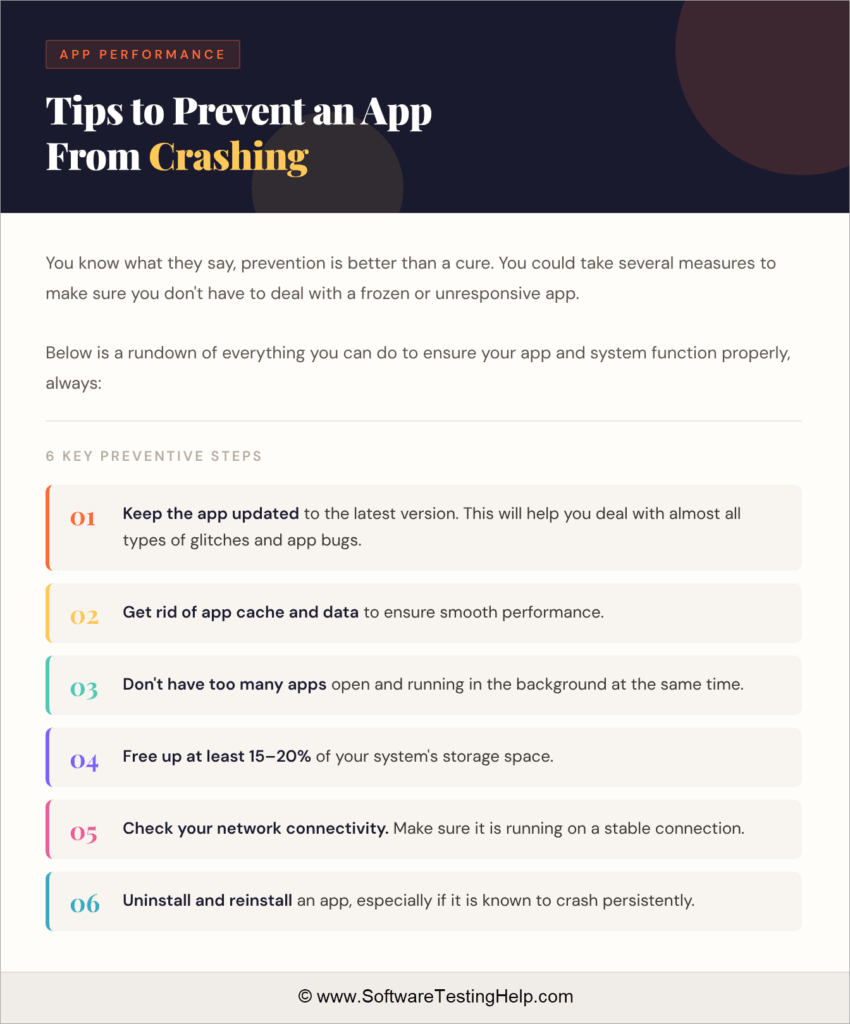
You know what they say, prevention is better than a cure. You could take several measures to ensure you don’t have to deal with a frozen or unresponsive app.
Below is a rundown of everything you can do to ensure your app and system function properly:
- Keep the app updated to the latest version. This will help you deal with almost all types of glitches and app bugs.
- Get rid of app cache and data to ensure smooth performance.
- Don’t have too many apps open and running in the background at the same time.
- Free up at least 15-20% of your system’s storage space.
- Check your system’s network connectivity. Make sure it is running on a stable connection.
- Uninstall and install an app, especially if it is known to crash persistently.
Frequently Asked Questions
1. How to quit an app on Mac that won’t force quit?
The best way to quit an app that won’t force-quit through the usual method is to use the Activity Monitor. The Activity Monitor lets you manually pinpoint the app that’s not functioning properly and shut it down in a single click. You’ll find the method to use the Activity Monitor above.
2. How to force a shutdown of a Mac?
Sometimes an unresponsive app will result in your entire screen freezing. Your only option to fix this issue is to force-shut down your Mac, which can be done by pressing and holding the Power Button until the system shuts down.
3. How to unfreeze a Mac without restarting?
An unresponsive app is usually behind a frozen Mac. You’ll need to shut this app down to unfreeze the Mac without restarting. The best way to do this is by typing in the keyboard shortcut – Command + Option + Escape. This will open the force-quit application window. You force-quit the problematic app from there.
4. Why is my Mac frozen, and I can’t click anything?
There could be many reasons behind the state of your Mac.
Some of the most prominent reasons are as follows:
• Your processor is overloaded
• There are too many apps open at the same time.
• Your Mac has been affected by a virus or malware
• Your Mac is running on an outdated OS.
• An app glitch is crashing your system.
5. What do you do if force-quit doesn’t work?
If force-quit doesn’t work, try to reboot your Mac. Furthermore, make sure it is up-to-date, and the app that’s causing the crash is up-to-date as well. You could also try restarting your Mac in safe mode and trying to force-quit again. If none of these options work, I suggest contacting the Mac support team or visiting a nearby service station.
Conclusion
As somebody who has faced my fair share of frozen screens before, I know just how frustrating it can be. Nobody wants to waste their time staring at the spinning wheel of death, waiting for their computer to respond. The methods I’ve discussed above let you take matters into your hands to make sure your app or Mac is working properly again.
I suggest you try the methods in the sequence I’ve mentioned above, moving to the next method only if the one you’ve tried has failed. Force quitting an app on Mac isn’t rocket science. Hopefully, with the above tips, you can have your Mac running smoothly, as it should.
Research Process: The total time involved to complete and publish this article is approximately 42 hours. This content was created through a structured research approach to ensure accuracy and reliability.
For more Troubleshooting-related guides, check our range of tutorials below:
- How to Completely Uninstall or Delete Apps on Mac (5 Ways)
- Fix Microsoft OneDrive Not Syncing Problems
- How to fix Find My iPhone Not Updating Location
- How to Fix iPhone App Store Icon Missing
- How To Fix Fitbit Won’t Turn On (11 Simple Fixes)
- How to Unhide Hidden Apps on iPhone
- How to Fix Memory Leak in Android Apps Using DDMS Tool
- Ways To Fix YouTube Audio Renderer Error (With Screenshots)
Was this helpful?
Recommended Reading
-

Explore the top effective methods and learn How to Post on Instagram From Your PC through this tutorial: Sometimes, it can be annoying to look for your phone to make an Instagram post when you have your PC at hand. Also, it can be a tiring and irritating process to…
-
Explore different methods to understand How to Open Clipboard in Windows 10 or Android: Windows clipboard allows you to see all the items you have copied in one place. You can copy or cut and paste multiple items from the Clipboard. In this article, we are going to introduce you…
-
This tutorial is a complete step-by-step guide that explains the top 3 useful methods to find ways on how to Unlock a Disabled iPhone: Security is the best part of having an iPhone. No one can unlock your phone and access your data unless they know the password. As much…
-
This tutorial explains what is a 7z file extension. Also learn how to create and open .7z file in Windows, Mac, and online: In this tutorial, we will provide you with an understanding of this file format in detail. We will also learn to create and open files in 7z…