Can’t find the Facebook video that you watched? Find your recently watched Facebook Videos History on any device. Retrieve Facebook video watch history and revisit any lost video instantly:
Let’s say you came across a hilarious video on Facebook yesterday. You can’t wait to watch it again right away. Alas! This is easier said than done, as the chances of you stumbling upon that video again on your feed are little to none.
So, what do you do? Is there a better, easier way for you to find the video you so desperately want to watch again on Facebook?
Lost Your Video? Step-by-Step Guide to See Facebook Video Watch History

Well, yes, there is. All you have to do is browse through your video history on Facebook. I realized just recently that many people, even those who’ve spent years on the platform, seem oblivious to this essential feature on Facebook.
[Via Meta]
If you are one of those folks, consider this article the only guide you’ll need to learn how to see video history on Facebook.
So, without much further ado, let’s dive in.
Facebook Videos History: What is it & Why Check it?
Facebook has evolved considerably since its launch almost two decades ago. What was once a platform where people shared their thoughts and pictures is now a go-to hub for some of the most viral videos. As soon as I log in to Facebook today, I am greeted by a feed littered with videos of all kinds.
You could spend hours doom-scrolling through these videos, and it still would not satiate your appetite for them. That’s how addictive the videos on Facebook can be. That said, it’s difficult to find a particular video that you watched recently from the dozen videos being showcased on your feed.
This is where Facebook’s Video History feature can come to your aid. Facebook keeps a log of your activity on the platform. This essentially means that you can access this log to go through your activity on the platform in the recent past.
Your Facebook history will feature:
- A log of all the videos you’ve watched until this moment.
- All the videos that you’ve manually saved to watch later.
- All the videos that you’ve engaged with through “Likes” and “Shares”.
So, when you access your Facebook Videos History, you are essentially taking a trip down a long list of videos that you’ve watched or engaged with recently. This will help you find the video you’ve been looking for. No need to spend hours on end scrolling through your feed or trying to remember the actual title of each video you come across.
Now that you know what Facebook Videos History entails, it is time we delve into the guide.
How to Find Videos You Watched on Facebook
Via Desktop
Accessing your Facebook videos history via your desktop browser is straightforward.
Follow my step-by-step instructions as dictated below, and it’ll be a breeze:
#1) Open Facebook in your browser and log in.
#2) Click on your profile picture to open your main Facebook profile as shown below.
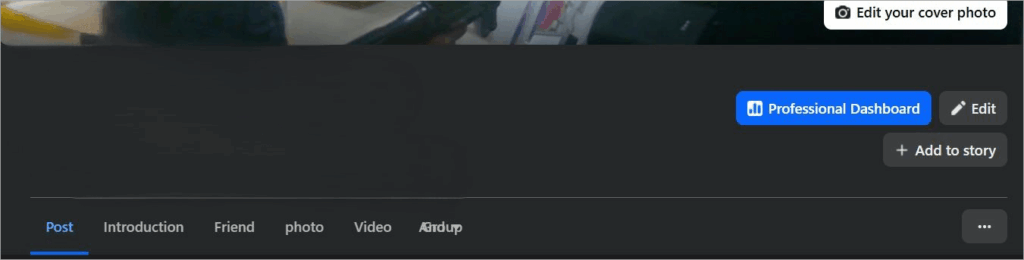
#3) Find the “three dots”, which will be displayed to the right of your profile picture.
#4) From the drop-down menu, click on the “Activity Log” button as depicted below.
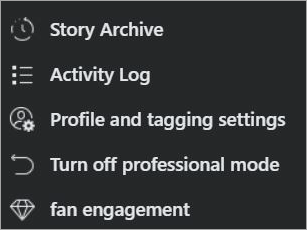
#5) Now, click on “Videos You’ve Watched” option as shown in the image below.
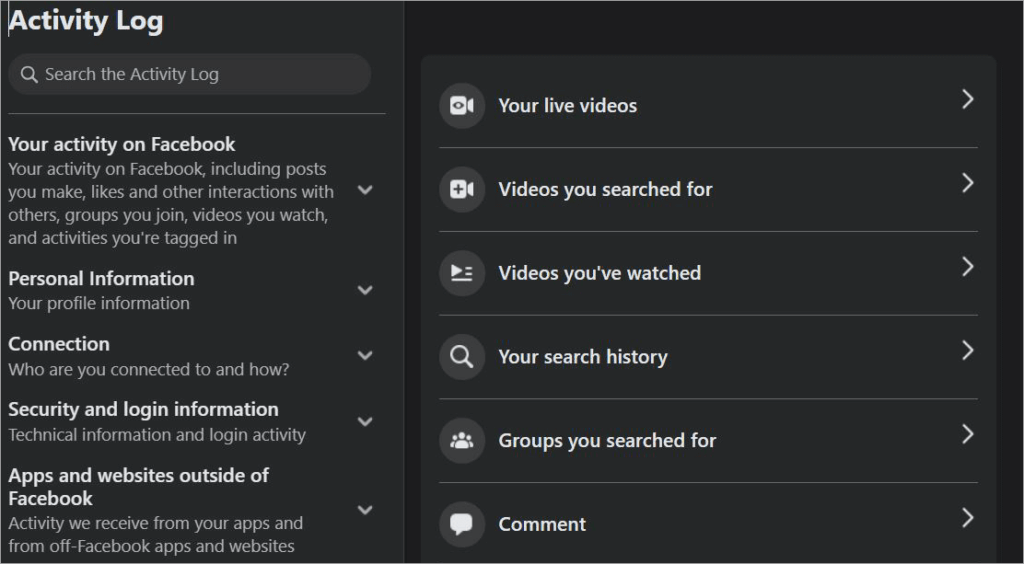
#6) This will redirect you to a page listing all the videos you’ve watched recently.
Using Filters to Narrow Down Your Search
Right beside the list of your recently watched videos, you’ll find advanced filters that could help you narrow down your search. You can use the filters to look for a video by date, likes, comments, and shares.
The image below depicts the Filter option in Facebook:
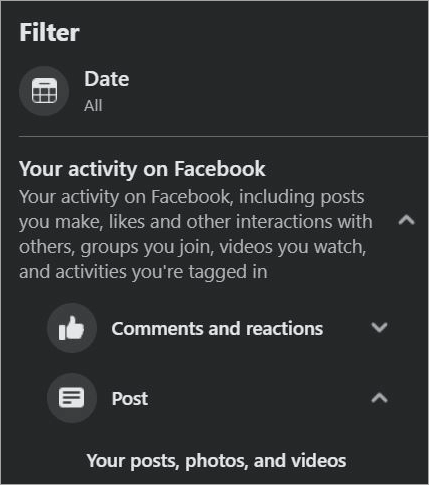
For instance, choosing a specific month and year will result in only the videos you’ve watched during that time period being displayed.
Via the Facebook App (iOS and Android)
Accessing your Facebook videos history on your iOS or Android app is just as simple. All you have to do is follow my instructions, as I’ve laid them out for you below:
#1) Launch the Facebook app on your phone.
#2) Click on the three vertical lines. This will be at the bottom of your iOS app and in the top-right corner of your Android app, as shown below.

#3) In the resulting page, click on the “Gear” icon, which will take you to the settings page.
#4) Scroll down until you arrive at the “Your Activity” section as shown below. In this section, find and click on “Activity Log”.
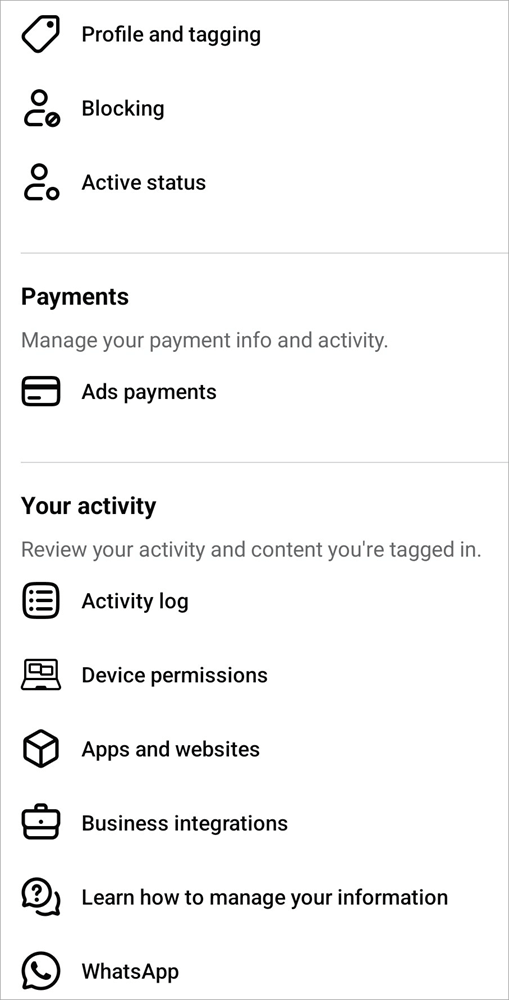
#5) Select “Videos Watched” as in the image below.
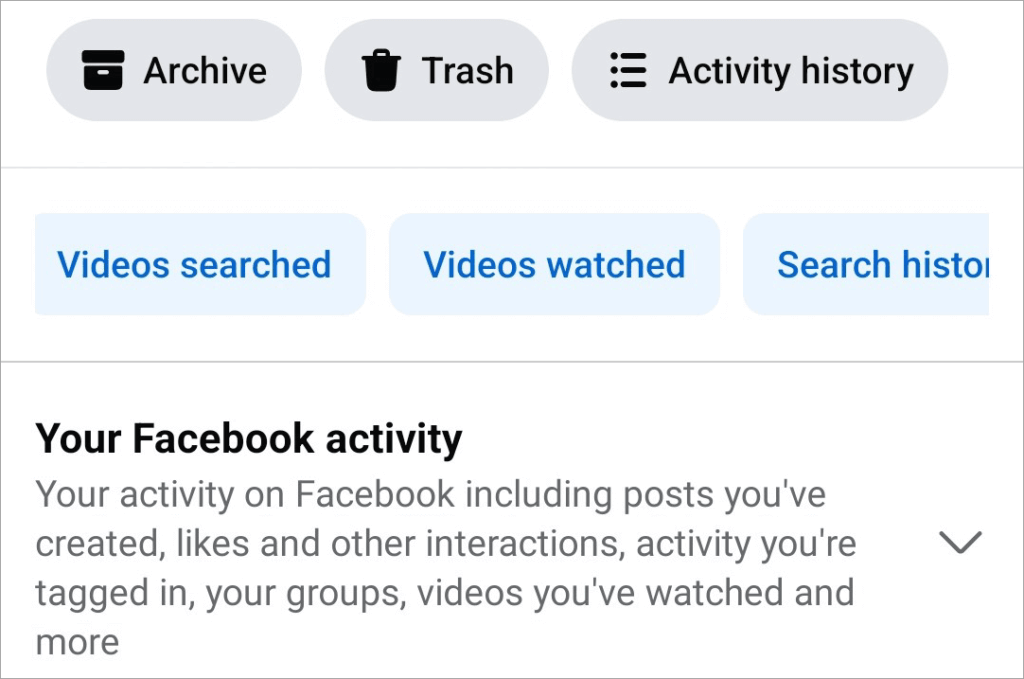
#6) You’ll now be taken to a page listing all the videos you’ve watched in the past. The list will be in chronological order, with the most recently watched video at the very top.
Using Filters to Narrow Down Your Search
You can narrow down your search for the video by using Facebook’s advanced filters. These filters are displayed above the video list on the app. You can use filters to search for a video by date and various categories.
The filters on your mobile are far more advanced than the ones on your desktop, as you can set a start and end date to find a video that falls within that set time period.
Via the Dedicated Video Section of iOS or Android App
Besides the above two methods, there is yet another way to access your recently watched reels or videos. Some might say that this is a far more efficient way to access one’s video history.
Know that this feature works best on your iOS or Android phone, as through a desktop, you may only access the videos you’ve saved to watch later.
Regardless of how you may feel about it, here’s how to find video history on Facebook through its dedicated video section:
#1) Launch your Facebook app.
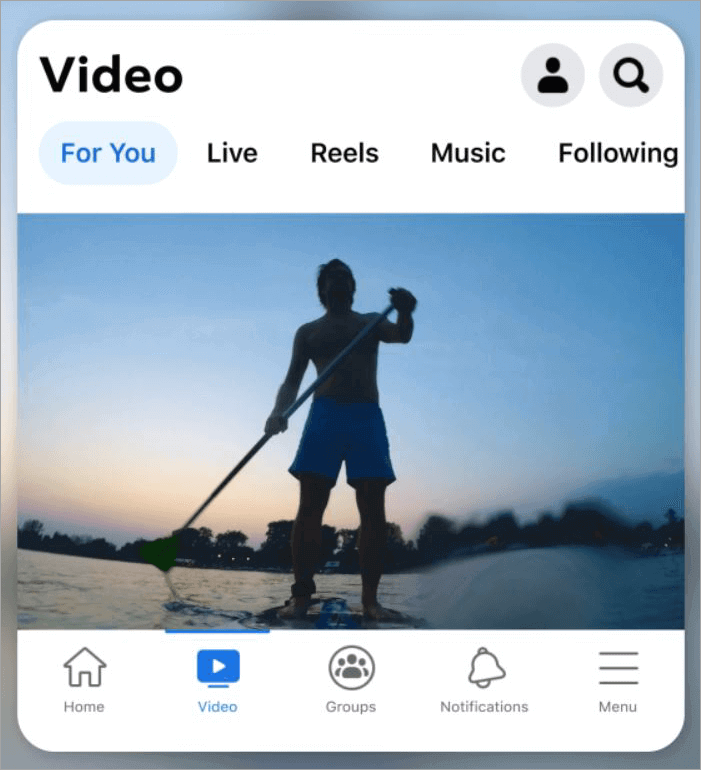
#2) Click on the “Reels” or “Video symbol” to open the video section, as shown in the image below. On the Android app, this feature will be at the top, whereas on the iOS app, you’ll find it at the bottom.

#3) On the next page, click on the profile icon at the top-right side of your screen.
#4) From the ensuing page, select “History” as shown below.
#5) You’ll now be greeted with a list of all the videos you’ve watched recently.
#6) It is that simple to access your Facebook video watch history.
How to Save a Facebook Video to Watch Later
As you can see, it is very simple to access one’s Facebook videos history. However, you don’t have to go through this process in the first place if you know how to save a video to watch later. Browsing through your entire Facebook Reels history can be cumbersome. So why not save the video instead?
Let’s say you come across a video that catches your interest. You like it so much that you’d like to watch it later. Well, Facebook offers the privilege of doing just that.
- First, tap the three dots you see on the top-right corner of your video.
- This will result in a drop-down menu opening up.
- From this menu, select “Save Video”.
- This video will now be saved to your library.
Further Reading => How to See TikTok Watch History
You can access it through the following process.
On Phone (iOS and Android)
#1) Click on the three horizontal lines on your profile page.
#2) On the next page, click on the option “Saved” as depicted in the image below.
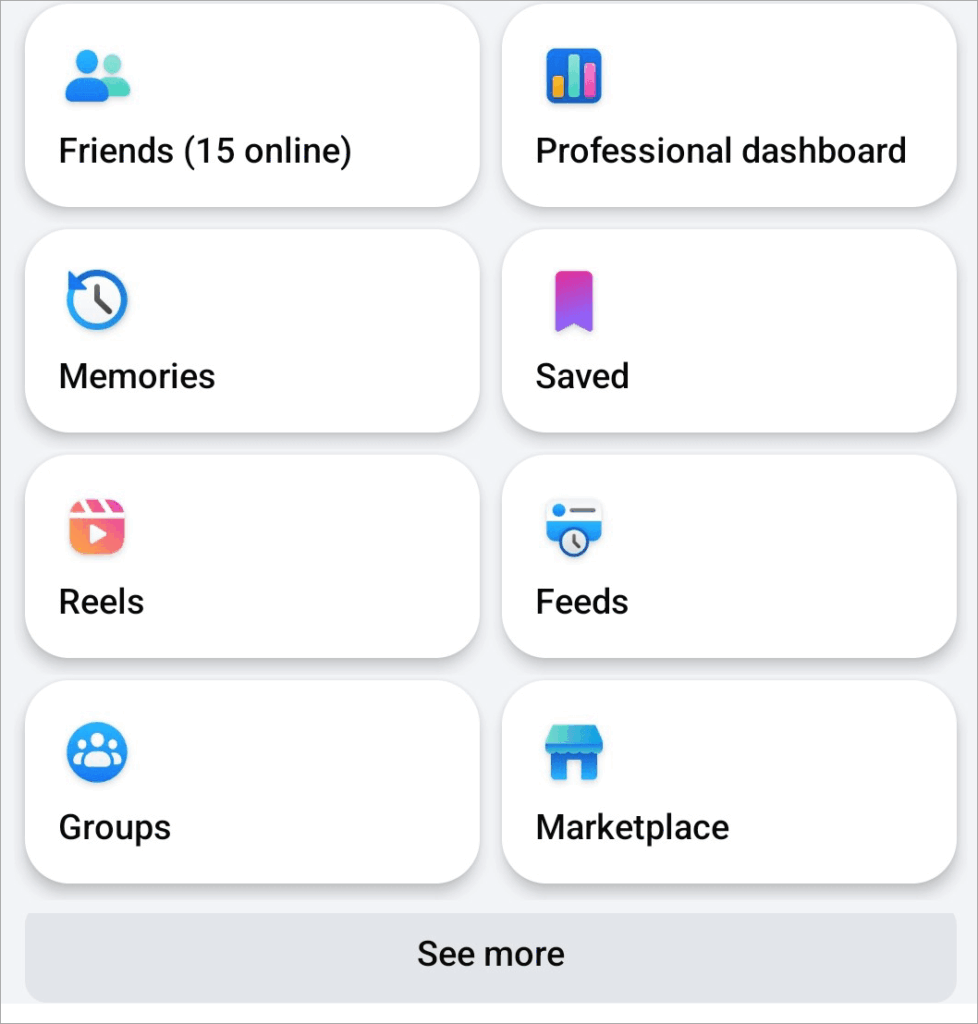
#3) This will take you to your library, where you’ll find all the posts, videos, or otherwise, saved for later viewing.
On Desktop
#1) Navigate to your main Facebook page and click on the “Reels” icon at the top.
The image below depicts the Reels icon:
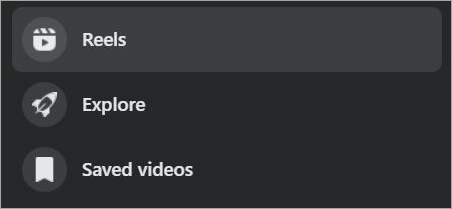
#2) You’ll be taken to the video section. Here, navigate to the left-hand side of your screen. You’ll find access to “Saved Videos” at the bottom of your left-hand menu.
How to Delete Facebook Video History
You could have many different reasons to delete your Facebook videos history. Maybe you feel like your Facebook account is compromised and don’t want anyone checking your activity history, or perhaps you just want to clean up your history to have a more organized list.
Whatever your reasons, know that it is possible to clear up one’s Facebook videos history. Here’s how to delete video history on Facebook:
#1) Deleting a Single Facebook Video
1. Follow the guide above to access your Facebook videos history.
2. Click on the three dots next to the video you wish to delete, as shown below.
3. Click “Delete”
That video will no longer show up on your list next time you access your logs.
#2) Deleting Entire Video History
1. Follow the guide above to access your Facebook Video history.
2. At the top of your list, you’ll see a prompt – clear video watch history as shown below.
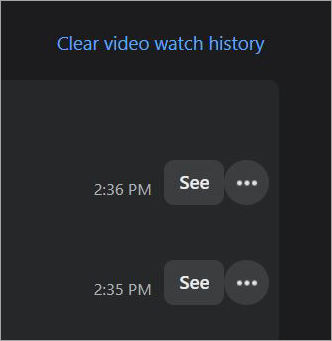
3. Hit “Confirm” to clear your entire history.
Know that clearing your history won’t delete the videos you’ve saved manually. You should also know that deleting your video history may affect how Facebook’s algorithm recommends videos to you in the future.
Security & Privacy Concerns to View Video History on Facebook
Have you ever felt like you are being incessantly recommended videos similar to the videos you just liked or shared? Well, that’s because Facebook relies on your activity log to lend you curated video recommendations.
This means Facebook is tracking your activity on the platform. Now, I understand that this may be concerning for folks who value their privacy online.
You could try clearing your watch history. While this will reset the recommendations you’ve been receiving, it won’t stop Facebook from tracking your activity.
If you are serious about your security or privacy on the platform, you could try to reduce the number of videos being watched daily. Alternatively, you could try watching the videos through another account.
What to Do If You Can’t Find Facebook Video History
You may run into a few issues while trying to access Facebook video history.
Some common issues you may encounter are:
- An empty watch history.
- Missing “Video” or Watch” tab.
- Videos you watched are missing from your activity log.
- Videos in your watch history are not playing.
Further Reading => Does Facebook Notify of Screenshots of Stories
Troubleshooting Steps
I suggest following the below troubleshooting tips to find Facebook Video History if you can’t seem to find it:
- Make sure that both your desktop browser and mobile app are up-to-date. You need to use the latest version of Facebook for success.
- You could also try clearing the cache of your Facebook app or browser. Once cleared, try to access the app or website again.
- A simple app forced shutdown and restart can also do the trick.
- If you are still having trouble with your Facebook Video History, I suggest reaching out to Facebook’s official support.
Best Tips for Managing FB Videos You Like
While following the above guide will help you find the video you like, you could also be more vigilant and avoid the tedious hassle of finding a video you want to watch.

Follow the tips below to find and manage the videos you like on Facebook:
#1) Save the Video
If you like a video and would like to watch it again, refrain from scrolling down. What you want to do immediately is click on the three dots presented to you at the top-right corner of your screen and hit the “Save Video” option. This will save the video and make it accessible to you whenever you wish to watch it later down the line.
#2) Use Your Browser’s Bookmark
Another thing you can do to make accessing a particular video easy is to use your browser’s bookmark feature. Of course, this method will only work if you are using Facebook on your web browser. This will save the video to your browser, and you can access it later on through your browser’s bookmark list.
#3) Follow Pages With Content You Like
If you have a creator or page whose videos you gravitate towards occasionally, it makes sense for you to follow them immediately. This will make it easier to find any video posted by that page or creator. You’ll also be notified anytime that page or creator posts a video.
FAQ’s on FB Video History
1. Does Facebook keep track of the videos you watch?
Yes, Facebook keeps track of all the videos you’ve watched or engaged with. This tracking also helps you find a video you want to watch again by accessing the platform’s watch history section.
2. How do I see my video history on Facebook?
Accessing your video history on Facebook is quite simple.
If you are using Facebook on a Desktop, do the following:
1. Open Facebook in your browser and log in.
2. Click on your profile picture to open your main Facebook profile.
3. Find the “three dots”, which will be displayed to the right of your profile picture.
4. From the drop-down menu, click on “Activity Log.”
5. Now, click on “Videos You’ve Watched”.
6. This will redirect you to a page listing all the videos you’ve watched recently.
If you are using Facebook on mobile, do the following:
1. Launch the Facebook app on your phone.
2. Click on the three vertical lines. This will be at the bottom of your iOS app and in the top-right corner of your Android app.
3. In the resulting page, click on the “Gear” icon, which will take you to the settings page.
4. Scroll down until you arrive at the “Your Activity” section. In this section, find and click on “Activity Log.”
5. Select “Videos Watched.”
6. You’ll now be taken to a page listing all the videos you’ve watched in the past. The list will be in chronological order, with the most recently watched video at the very top.
3. How do I delete video history on Facebook?
Facebook grants you the option of cleaning your video history. You’ll have the option to delete a single video or clean up the entire video history. For a detailed guide, refer to the guide I’ve already provided in the article above.
4. Are Facebook videos safe to watch?
Yes, Facebook videos are safe to watch. The platform is one of the most popular social media platforms out there. It is properly moderated and has strict privacy and security measures in place to ensure complete user safety.
If you do come across a problematic or distressing video, you can report it. Facebook will immediately investigate the video and take appropriate action.
5. Is Facebook Video History Visible to the Public?
No, your Facebook Video History will only be visible to you and you alone. The videos logged in your history, however, will be visible to the public, as their visibility depends on the page or creator who uploaded it to the platform.
Check the video below to know how to find recently watched videos on Facebook:
Conclusion
So, there you have it. Accessing one’s Facebook video history isn’t rocket science. It is quite simple, provided you follow the guide as I’ve outlined above. Your historical logs can come in handy any day you’d like to go back in time and watch a video you recently had the pleasure of watching.
Alternatively, I would highly recommend hitting the “Save Video” option anytime you come across an interesting video. This will save you the hassle and time of browsing your video watch history.
For more quick Facebook-related guides, you can explore our range of Facebook tutorials below:
Why Does Facebook Keep Logging Me Out? Quick Fixes
Top Facebook Lead Ads Integrations with Your CRM
Best Facebook Video Downloader Software (Top Rankings)
How to Fix Facebook Dating Not Showing Up Issue
Download Facebook Reels Videos Online for Free
Top-Rated Social Media Marketing Tools
Was this helpful?
Recommended Reading
-

Quickly download your favorite Facebook reels video on your device in HD format. Pick the best Facebook Reels downloader to save and share your beloved reel with your friends: Whenever I am on Facebook, coasting from one reel to another, I come across a short video that’s just too good…
-
List and comparison of the top Facebook Video Downloader with features and pricing. Select the FB Video Downloader software from this list per your requirements: You have to be living under a rock to not know what Facebook is. It is after all a behemoth amongst social media platforms. From…
-
Read, review, compare, and select among the list of top platforms available in the market today for Facebook Lead Ads Integrations with your CRM: Introduced in 2015, Facebook Lead Ads is a tool invented to help marketers generate leads while keeping the cost of lead acquisition at bay. This is…
-
Do you getting logged out of Facebook every now and then? Then this updated 2026 guide will help you Find out the most common causes of this issue as well as simple ways to fix it on Android, iPhones, Google Chrome, and any other web browser. If you are getting…