Are you looking for ways to disable WhatsApp Auto-Download? Learn how to stop WhatsApp from saving photos to your gallery from this step-by-step guide and free up storage space:
WhatsApp Messenger and Business will automatically, without you having to do anything, save photos and videos received in your phone’s gallery or camera roll. You can always turn this feature on or off at any time.
It works on iOS & Android, but not Windows and WhatsApp Web. Although this is a convenient feature regarding memoirs, it is hazardous to privacy.
Turn Off WhatsApp Auto-Download: Quick Guide
Here are the benefits of disabling WhatsApp photo download:
- Turning off auto-download and auto-save of photos and videos prevents the accumulation of unnecessary media, which helps free up storage space on the phone.
- Reducing media saved automatically helps in keeping backups (cloud or local) smaller and faster.
- Less media means less work for the phone’s file system & gallery apps scanning for new content, which can reduce CPU/I/O usage. While direct studies are few, anecdotal evidence suggests reduced storage overhead correlates with smoother performance.
- On battery life – fewer auto-downloads implies less network activity (especially on mobile data), fewer write operations to storage, and fewer display/gallery scanning tasks, which can cumulatively help prolong battery life.
By leaving the auto-save option on, you risk spilling sensitive pictures to cloud backups, shared albums, or apps with photo access, some of which so happen to automatically run on your device.
So, the easiest high-impact security enhancement, which could help to avoid the tragic situation, is to switch it off or have WhatsApp not save photos to the gallery automatically.
Disable WhatsApp From Saving Photos: 30-second Summary
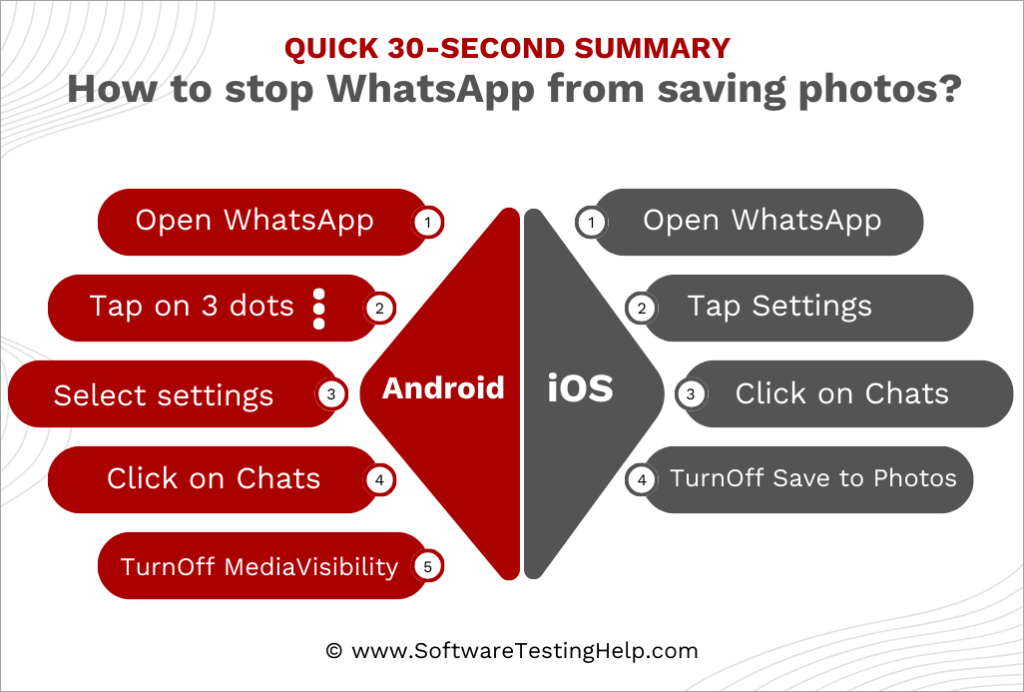
How to stop WhatsApp from saving photos on Android?
Open WhatsApp >Tap on 3 dots  > Settings > Chats > Turn off Media visibility
How to stop WhatsApp from saving photos on iOS?
Open WhatsApp => Tap Settings => Chats => Turn off Save to Photos
Image Auto-Saving Feature on WhatsApp: How it Works
WhatsApp Media visibility on Android allows you to choose whether a newly downloaded media file shall be visible in your Android phone’s Gallery.
As indicated in the introduction, this feature is default-mounted; that is, any media objects you get on your WhatsApp Messenger and Business are saved in WhatsApp media folders, which also implies that Gallery and other apps can search and grab.
Switching this option off prevents WhatsApp media from appearing in your gallery. On the Android side, gallery applications will detect public media folders such as Pictures, DCIM, and sub-folders created by the apps, through the system media scanner.
But you can remove them by putting a special file called .nomedia into a folder, which will tell Android not to scan that folder and leave those pictures out of the gallery applications. Media visibility on WhatsApp for Android uses this Android behavior.
Comparatively, the Media Visibility toggle is not available on iPhones for those looking to save to the camera roll on WhatsApp iPhone. With iPhone users, however, WhatsApp also has Save to Camera Roll functionality, both in the global and per-chat context.
When turned on, all the photos/videos you get are duplicated in the Photos app. However, when they are disabled, the media will remain in your WhatsApp until you save it manually, with saving to camera roll on WhatsApp iPhone. iOS will then apply its standard Photos permissions and iCloud Photos policies to anything in your Camera Roll.
Independent of saving to your gallery, WhatsApp also regulates media auto-downloading when media files are downloaded to your device through Wi-Fi/cellular.
Auto-download affects both bandwidth and storage, but does not push content into your gallery on iPhone or make your media show up if you have it on Android, and is turned off under the settings, storage, and data media auto-download on both platforms.
Why would you have an auto-save at all? It is therefore convenient. It lets family photos immediately show up in your gallery, makes them easier to edit/share in other apps, and it means they appear in the photo-library backups of iCloud Photos or the Google Photos Backup device folders.
That convenience must be balanced with privacy and clutter, so the best-practice advice is shown below.
Auto-Saving Security/Privacy
[Via WhatsApp]
What you need to understand is that when WhatsApp stores pictures in your gallery (when they arrive), any other application with Photos (iOS) or media-library (Android) access can access them, broadening your visibility once a nosy or malicious app is granted more access than it requires.
Modern Android uses scoped storage to restrict the access of whole files, but shared media collections can still be read with the proper permission.
Media that are auto-stored can also be auto-synced to the cloud. In both iPhone and Android, by turning on iCloud Photos and Google Photos, respectively, you can automatically save your camera roll, including WhatsApp-synced items, to iCloud or your WhatsApp Images device folder, respectively.
This may inadvertently copy sensitive pictures on multiple accounts/computers.
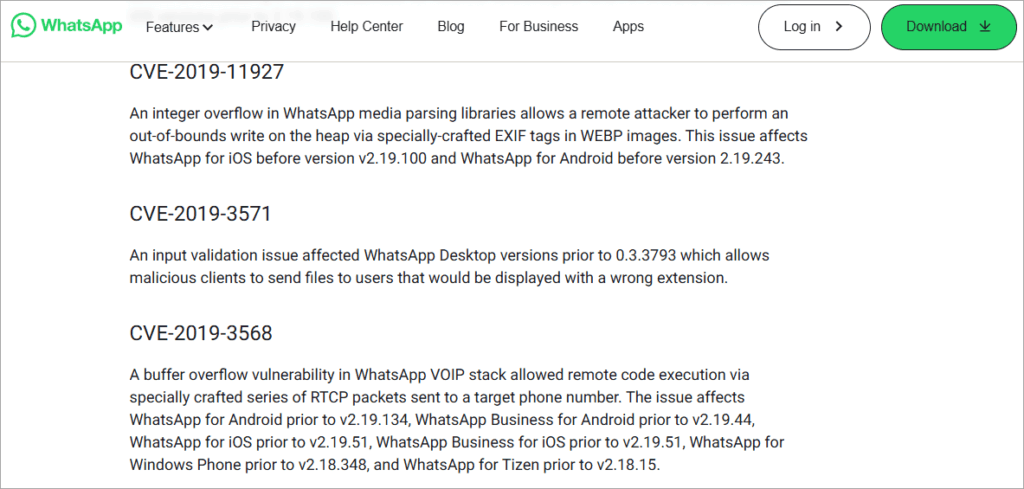
Attack surface: Whilst this is limited, bugs in the past demonstrated image parsing can be a payload; such as a 2019 Android bug in GIF decoding in WhatsApp could be activated when sending a preview. By keeping auto-downloads/saves to a minimum and keeping your app updated, you minimize the risks associated with such classes of bugs.
Last, metadata and context are important. Image content, faces, or some services and apps to structure and surface photos can use locations. After an image is in your general photo library, features may process it if you have enabled them. You can control that flow by managing the location of WhatsApp media.
How to Stop WhatsApp From Saving Photos
Android and iPhone guides can be found in full below, in addition to global switches, per-chat settings, one-off saving, and two-step verification.
How to Stop WhatsApp From Saving Photos on Android
#1) Stop WhatsApp from saving photos to your Gallery from every chat
1. Open WhatsApp – [?] (More) – Settings as shown below.
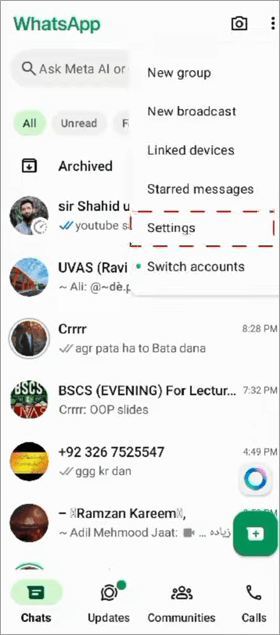
2. Tap Chats option as depicted below.
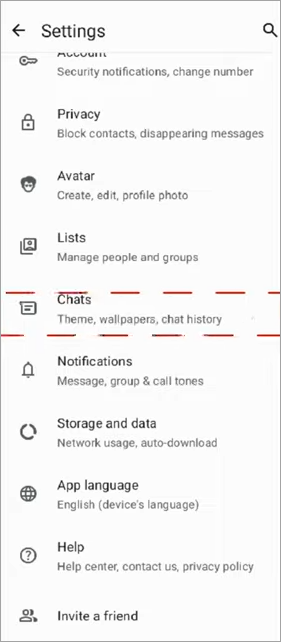
3. Turn off Media visibility as shown in the image below.
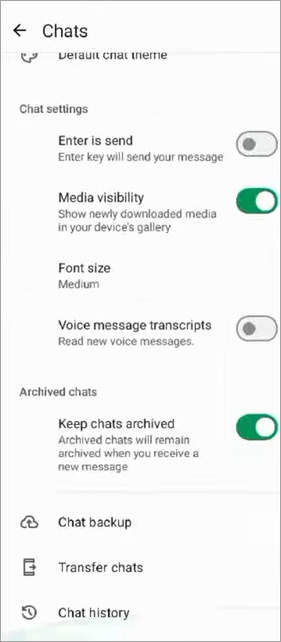
Fix: Recent media downloaded in any chat will not appear in your Gallery (it can still be accessed in WhatsApp).
#2) Stop WhatsApp from saving pictures in selected chats or groups
- Open the chat or group.
- Tap the name at the top to open Group Info or Contact Info.
- Visibility Tap Media – select No – OK.
#3) (Optional) How to disable the gallery display of existing WhatsApp images by using .nomedia.
If you have already started seeing some of these pictures in your Gallery, then you can conceal the folder:
- Install a reliable file manager from the Play Store.
- Go to Internal storage – WhatsApp – Media – WhatsApp Images.
- Make a file called .nomedia (put a dot in front of it).
- Reopen your Gallery, the folder must be hidden. Then delete .nomedia to reveal it again.
Why this works: the media scanner used by Android does not scan folders that contain a file named .nomedia.
#4) How to control auto download of media
- General – Storage and data – media auto-download.
- When on mobile data / Wi-Fi / Roaming, turn off Photos/Videos/Audio/Documents as you wish.
#5) Save one trusted image with global saving disabled
- Open the photo in WhatsApp.
- Tap [?] (More) – Save and will only export that image.
Alternate: Save – Press the photo thumbnail and long-press. WhatsApp Help Center
#6) (Strongly advised) How to PIN protect your chats and settings through two-step verification?
- Settings – Account – Two-step verification.
- Tap Turn on, create a 6-digit PIN, and introduce an email to recover.
Verification: This will also PIN-protect your chats and settings, preventing SIM-swap/social-engineering attacks on your number.
How to Stop Pictures From Automatically Saving on iPhone From Messages
#1) Toggle off auto-saving to Photos in all chats
- Open WhatsApp – Settings (gear).
- Tap Chats.
- Swipe off Save to Camera Roll.
Outcome: The incoming media will also remain within WhatsApp unless you save it deliberately.
#2) Discontinue saving media of a certain group or chat
- Tap the name on top – open the chat.
- Tap Save to Camera Roll (or Save to Photos on some versions).
- Select Never to block saving on that chat, Always to allow it, or Default to use the global option.
#3) Auto-download Control Media (bandwidth/storage)
- Storage and Data – Settings – Media auto-download.
- Set Photos/Videos/Audio/Documents to Never or limit to Wi-Fi.
#4) Store one image of trust with global saving off
- Tap the photo to open it.
- Tap Share (square with up arrow)- Save Image.
You can also choose several items in Media, Links, and Docs in a chat and save/share them simultaneously.
#5) (Recommended) Activate Two-Step Verification
- Settings – Account – Two-step Verification.
- Enable Tap, enter the 6-digit PIN, and create an email to recover.
This prevents re-registration of your number by an unauthorized person and secures your WhatsApp identity.
How to Unsubscribe from certain Chats or Groups of Saving Media (Quick Reference)
Android: Chat – tap name – Media visibility – No – OK (overrides global setting).
iPhone: Chat – tap name – Save to Camera Roll /Save to Photos – Never (or Always/Default as needed).
What is .nomedia File: Uses & Importance
What is it: A zero-byte file called .nomedia that, when dropped into a folder on Android, tells the media scanner to ignore that folder and leaves its images and videos out of Gallery apps.
Why is this important to WhatsApp?
WhatsApp stores were marked with images in the WhatsApp Images folder. When that folder has .nomedia, gallery apps will not show the contents, even when the files are physically present on storage. This is precisely the way the media system on Android is expected to act.
How to use it (Android):
- Install file manager -> visit WhatsApp -> Media -> WhatsApp Images
- Create .nomedia.
- Reopen Gallery; WhatsApp pictures are removed.
- Zap the file to display them again. Note: It is an official option in the help provided by WhatsApp.
How to Uninstall All WhatsApp Photos on Your Smartphone
You can probably already have hundreds of WhatsApp photos and videos cluttering your phone, even though you have auto-saving disabled going forward.
Cleaning them up allows more storage, less clutter in your gallery, and less risk of privacy in case yo ur phone is misplaced or lent out. Android and iPhone step-by-step procedures are discussed below.
Steps to Delete WhatsApp Photos on Android
1. From the Gallery/Photos App
- Open your default Gallery or Google Photos app.
- Go to Albums – find WhatsApp (or WhatsApp Images/WhatsApp Video).
- Deselect things you do not want – tap Delete.
- Delete to relocate them to the Trash (Google Photos retains them 30 days unless they are deleted by hand).
- Open a File Manager (inbuilt or Play Store).
- Go to Internal storage -> WhatsApp -> Media.
- Open WhatsApp Pictures (and WhatsApp Video when necessary).
- Select and delete the files you do not need.
- This deletes them permanently and goes around the Trash folder.
3. The WhatsApp Storage Management
Find the Open WhatsApp option, then go to the Settings, and to storage data, Manage storage.
- WhatsApp displays media by chat and size.
- Tap chat – delete items.
- Benefit: It will delete files in WhatsApp and the phone, all at the same time.
Ways to Delete WhatsApp Pictures on iPhone
1. From Photos App
- Open the Photos app.
- Scroll to Albums – scroll to WhatsApp album.
- Tap Select, tap images/videos, and tap Delete.
- Items get sent to Recently Deleted (stored 30 days unless deleted).
2. From WhatsApp itself
- Open WhatsApp – Settings – Storage and Data – Manage storage.
- Review videos/images/videos through chat.
- Select files and tap Delete.
This removes them not only on WhatsApp, but also in your Photos library.
Extra Cleanup Tips
- Clean up Recently deleted / Trash (iPhone and Google Photos) to actually free up space.
- Flush app cache: In Android, you can visit Settings – Apps – WhatsApp – Storage – Clear cache (this does not delete any media but only temp files).
Copy the important photos to a cloud or a computer before mass deletion, i.e., Google Drive, iCloud, etc.
Tips to Secure Phone from Image Hacks or Vulnerabilities
There are other alternatives to securing your phone against image hacks or vulnerabilities.
A good start is ensuring that WhatsApp does not save media automatically on its own, yet ensuring that your phone is generally secure is equally important to defend against image-based threats and other larger threats to your privacy. The following are other items to harden your device:
Keep Your Operating System & Apps Updated
Malicious media files are very useful to attackers who use outdated software. It is important to update your phone regularly to either iOS or Android OS to make sure that you are not using an older version that has security holes that are still open.
Allowing automatic options in settings helps ensure that fixes are released as soon as possible.
Strong Device Authentication
Any security at the app level is undercut by a weak screen lock. Always set up biometrics (Face ID, fingerprint) or a strong password instead of easy patterns.
Face ID is hardware-isolated in the Secure Enclave on the iPhone, and on newer Androids with the support of the Trusted Execution Environment (TEE), both of which reduce spoofing risks.
Control Permissions of Apps
Most apps seek permission to access Photos, Storage, or Camera without the need to do so. On iPhone, under Photos, in Settings – Privacy and Security, you can toggle on Selected Photos, rather than All. Android Check App Permissions in Settings, and turn off gallery access to apps that do not need it. Permission control minimizes the attack surface.
Install a Reputable Security or Antivirus Software
Trustworthy security software can scan any incoming files to find malware, identify suspicious activity, and prevent exploit attempts. You don’t expect these to be an all-purpose solution, but at least they act as a safety net against infected pictures or downloads outside WhatsApp.
Select apps that are reviewed well by Google Play Protect-certified developers or from the official App Store to ensure that there is no new risk introduced.
Encrypt Local Storage and Backups
Photos on your phone backups can be targeted when they are not encrypted. In WhatsApp, you can switch on end-to-end encrypted backups, which safeguard your photo history in your chat.
On top of that, when locked, iPhone Data Protection will automatically encrypt your files, whereas Android has either Full-Disk Encryption (FDE) or File-Based Encryption (FBE). Make sure to verify those settings so that stolen devices do not show your gallery.
Use Safe Sharing Practice
It is better not to download any images of strangers or groups of people who are not known, because bad files can masquerade as innocent pictures. You can use WhatsApp View Once when sharing, or you can use temporary messages that disappear after the exchange.
It is important to remember that attackers can attempt social engineering tricks, and so unusual images should be treated with suspicion even when they seem to be shared by a familiar person.
How to Stop WhatsApp Business From Saving Photos
WhatsApp Business, by default, may automatically save incoming media (photos, videos) to your phone’s storage or gallery, depending on settings.
For many users, this can lead to clutter in the photo library and unexpected use of storage space. Turning off automatic saving or auto-download of media helps you have more control over what media is stored.
Step-by-Step Guide to Stop Auto-Saving Photos
Here’s how to disable automatic saving of photos and media in WhatsApp / WhatsApp Business (Android & iOS):
| Step | Android | iOS |
|---|---|---|
| 1 | Open WhatsApp / WhatsApp Business > tap the three-dots menu (More options) and go to Settings. | Open WhatsApp Business, tap Settings (gear icon) at bottom. |
| 2 | Go to Chats settings. | Also go to Chats settings. |
| 3 | Toggle off Media Visibility (this prevents new media from appearing in gallery) or disable “Save to Photos / Save to Camera Roll”. | Toggle off Save to Photos / Save to Camera Roll under Chats. |
| 4 | For auto-download: Go to Settings → Storage and Data (or Data and Storage Usage) then under Media Auto-Download disable auto-downloads for Photos / Videos / Documents under Mobile Data, WiFi, Roaming as needed. | Same: via Storage & Data / Media Auto-Download disable relevant media types / condition (mobile, WiFi, roaming). |
| 5 | (Optional, Android) Use a file manager and in WhatsApp-Images folder create a file named .nomedia so that media in that folder does not show in gallery. | iOS doesn’t support .nomedia the same way; rely on Save to Photos toggle and auto-download settings |
Privacy Concerns
- By letting WhatsApp automatically save photos, you may unintentionally expose sensitive or private images to people who have access to your device or gallery.
- Having media saved automatically may increase the risk of backup exposure: e.g., if your gallery is backed up to cloud storage or a shared device, those images may be copied without explicit consent.
- Disabling auto-saves or visibility helps maintain minimal data exposure and supports privacy best practices for businesses handling client or customer media.
Multiple Device/Business Account Management
- On WhatsApp Business, you can link up to four devices, plus your main phone, to the same account so multiple team members (on linked devices) can access the account.
- When using linked (or multiple) devices, the settings for media visibility or auto-download should propagate, but sometimes linked devices may behave differently or lag until the settings are updated. (This arises especially when some devices use older app versions.)
- For large businesses, beyond device linking, using the WhatsApp Business API (or Premium / Meta-Verified offerings) allows more devices/users, shared inboxes, and team-based workflows, which makes uniform settings more manageable.
Does WhatsApp Auto-Save images on WhatsApp Web and Desktop?
WhatsApp treats media on Web and Desktop far differently than on the mobile apps, particularly regarding the behavior of auto-saving.
No Auto Save to folder on the computer
In contrast to the WhatsApp mobile application, which has an automatic ability to insert the pictures you receive into your Gallery (Android) or Camera Roll (iPhone), the Web and Desktop apps do not save the media automatically.
It will not store files unless you choose to do so manually by clicking the Download button, which will save the files to your computer’s Downloads folder or the default downloads location of your system/browser. This implies that no silent or background media saving is taking place on desktop clients.
Storage To View
On WhatsApp Web, the photo you see is temporarily saved in the browser to allow you to view it on the screen, but it does not remain in your computer’s photo albums or folders unless you specifically download it.
The desktop Electron-based app is also similar: the media is shown, but it is not automatically saved in the system directories. After the chat closes or the cache has been cleared, each of those is no longer available locally.
Control by the human hand on downloads
There is a Download icon on each image on both the Web and Desktop. By clicking on it, the file is saved in your local machine. This provides users with a greater level of control over it as opposed to the mobile platform, where photos can silently pop up in your photo album unless you change the settings.
This will make the desktop ecosystem safer by default against auto-save clutter or a privacy leak, because only deliberate actions can generate local copies of media on the device.
Secondary Risk via Syncing
Although one lacks an auto-save option, any downloaded images could be deleted into cloud storage solutions, such as iCloud Drive, Google Drive for Desktop, or OneDrive, in case the Downloads folder is backed up.
This may reflect an equivalent privacy concern as mobile auto-save, but on the desktop/cloud side. The best idea is to divert downloads to a non-synced personal folder and simply save reliable pictures.
Are There the Same Vulnerabilities on WhatsApp Web or WhatsApp Desktop?
WhatsApp Web or WhatsApp Desktop replicates your phone calls and allows you to download or see pictures and videos, although there are new attack surfaces that are not present with mobile applications.
Media Handling on Web/Desktop
When you open an image in WhatsApp Web (browser) or WhatsApp Desktop (standalone app) the file is saved temporarily on your computer. There is no automatic save to system galleries, as in phones, and the option to save automatically is to download, so there is less chance of an accidental bulk save.
But downloaded files end up in your Downloads folder and can be indexed by other programs or synchronized with cloud services, such as OneDrive or iCloud Drive.
Risks of Malicious Media
Corrupted media files may also be used to compromise desktop operating systems. It has been demonstrated in past studies that image parsers can be vulnerable to specially made images or GIFs, on both Windows and macOS, as they can be on Android or iOS.
Because WhatsApp Desktop is built on Electron (Chromium-based), it inherits any security vulnerability from that underlying browser engine, and WhatsApp Web is subject to the security situation of your browser.
Session Hijacking Risks
WhatsApp Web is connected with a QR-code authentication. When you leave your computer without logging out, someone might read your chats, even media files, and even download files.
Likewise, when you scan a maliciously altered QR code or become a victim of phishing, attackers can steal your session. It is another type of vulnerability than auto-saving, and just as serious.
Web/Desktop Prevention
Always leave WhatsApp Web/Desktop when using, particularly on a shared or work computer. On cell phone: WhatsApp -> Settings -> Linked Devices -> Log out of all devices.
Also, be sure to update your browser or desktop program regularly, as the majority of security patches are released through Chromium or operating system patches.
Limit downloads: you should only click Download on trusted images. Store downloaded files in encrypted or private folders instead of the default Downloads folder.
Apply endpoint protection: Virus protection and anti-malware software in desktop computers may scan downloaded media and identify threats that are missed. Check our tutorial on free Malware Removal Software to pick the right tool of your choice.
Always use personal computers: You should never log into WhatsApp Web on a computer that you do not own. Cookies would be left even when you are away.
Last Word on Desktop vs Mobile Risks
Auto-save vulnerabilities are primarily a mobile concern, but such vulnerabilities do not exist in desktop clients, which have browser-based vulnerabilities, session vulnerabilities, and file sync vulnerabilities.
In either scenario, good security hygiene, such as saving by hand, device encryption, maintaining effective logout discipline, and routine updates, reduces the majority of risks.
Common WhatsApp Issues & Troubleshooting Steps
| Issue | What Happens | Potential Cause(s) | How to Solve |
|---|---|---|---|
| Settings not saving | You turn off Media Visibility or auto-save toggles, but after restarting app or device the setting reverts or doesn’t seem to apply. | Might be using an older app version, or settings stored in cache; if linked devices / multiple devices haven’t synchronised; OS permission limitations. | Update WhatsApp / WhatsApp Business to latest version; clear cache or reinstall if needed; ensure app has needed permissions (e.g. storage/gallery access) and linked devices have the same version. |
| Photos still appearing after changes | Even after turning off auto-save or Media Visibility, old photos or newly received ones still show up in gallery. | Existing media already saved will stay; in some cases gallery indexes may not immediately update; .nomedia file may not be correctly placed; some chats’ individual settings (media visibility per chat) may override global settings. | Manually delete old media; force-stop or restart gallery or media scanner; place .nomedia file in correct folder (on Android in the WhatsApp Images folder) if using that method; also check per-chat or group media visibility settings. |
| Different WhatsApp / WhatsApp Business versions | Some devices or OS versions have different menu names, toggles in different places, or missing options. | Android vs iOS differences; Business vs non-Business app; older version of WhatsApp; beta features not available universally; region-restricted features. | Check whether you are using WhatsApp Business latest version; look up the latest help documentation; if feature missing, update the app or OS; if still missing, wait for rollout or use alternative methods (per-chat settings, manual save only). |
Key Points to Remember While Sharing on WhatsApp
Here are the most important things you should know when sending and sharing photos on WhatsApp
- View once can be used with very sensitive photos: Recipients have only one viewing, and it is not recorded in the history of the chat (screen captures or cameras are still a threat).
- Use manual saving instead of the gallery: Auto-save should be turned off, and only particular images uploaded to Photos/Gallery or the cloud library that you really want.
- Turn on Two-Step Verification and lock your chats: Two-step PINs secure your account when swapping a SIM; Chat Lock (another feature of WhatsApp) can place selected threads behind Face ID/biometrics.
- Add to Routine sharing that does not require a lasting record: See Disappearing messages; add to View Once the most personal. Note, recipients are not yet deprived of the ability to copy or capture content.
- Keep Backups Private: Enable end-to-end encrypted backups to ensure that media saved in your WhatsApp backup is backed up with a password or 64-digit key.
- Limit Group Exposure: Set who can add me to groups or My Contacts, or My Contacts Except, to limit unsolicited media inflow.
- Audit App Permissions: On iPhone, periodically review Settings -> Privacy and Security -> Photos; on Android, review the permissions of apps, particularly gallery and cloud apps. Turn off the app “All Photos” or media access that you do not require.
Frequently Asked Questions
1. If I turn off auto-save, can I still download or share individual images?
Yes. Open the image – Save (Android: [?] – Save; iPhone: Share – Save Image). You also save nothing before sending or exporting to your gallery.
2. What’s the difference between Media auto-download and Gallery/Camera-Roll saving?
Auto-download when files are downloaded (e.g., only over Wi-Fi). Gallery/Camera-Roll save settings appear where they are (Photos/Gallery). Manage both for best results.
3. How do I stop saving media for just one noisy group?
Open group – tap its name – Media visibility (Android) to No, or Save to Camera Roll (iPhone) to Never.
4. Why do WhatsApp pictures appear in my cloud photo library?
When saved to Camera Roll / Gallery, they can be uploaded using iCloud Photos (iPhone) or Google Photos “Backup device folders” (Android). Change your cloud-backup preferences or leave WhatsApp out of the library.
5. Does hiding with .nomedia delete my photos?
No. It will merely conceal the folder under the eyes of media scanners; the files will still be on the storage and visible in WhatsApp or a file manager. To see them again, delete .nomedia.
6. Is there a real security risk in leaving auto-save on?
Media that is automatically saved is made available to photo/media authorised apps. Although platform controls can curb abuse, exposure, and side effects of indexing/sharing can be minimised by keeping sensitive items out of the general library.
History has taught us about the importance of limiting unnecessary downloading as a result of image parsing bugs.
7. What else should I enable for better WhatsApp privacy?
Enable Two-Step Verification, think about end-to-end encrypted backups, where suitable use Disappearing messages, and manage Group privacy to decide who can add you.
Here is the device-specific video guide on how to stop WhatsApp from saving photos on Android and iOS. You can consider this as a guide for Samsung Galaxy phones, Google Pixel phones, OnePlus phones, Xiaomi/MIUI phones.
Check the video below to learn how to hide files in Android using the .nomedia file:
Take a look at the video below to learn how to delete all Chats & Media on Android:
Conclusion
WhatsApp defaults are conveniently optimized, like saving the pictures you get in a place where you can find them and use them in other apps, but that convenience makes your library look messier and your privacy attack surface larger.
The good news: a couple of minutes with Media visibility (Android) or Save to Camera Roll (iPhone) and some clever per-chat overrides have you back in control. To clean up further, your Gallery may hide historic folders with the help of the Android .nomedia file, without actually deleting anything.
These controls, combined with Two-Step Verification, end-to-end encrypted backup, and reasonable permission reviews, will significantly lower the risk of sensitive pictures floating into the wrong places, and that could be a cloud library, a shared album, or any other application on your phone.
Time: 1 day
For more quick WhatsApp-related guides, you can explore our range of WhatsApp tutorials below:
- How to See WhatsApp Deleted Messages Without the App
- Selective WhatsApp Status Quotes
- Best WhatsApp About Lines for WhatsApp Bio
- Best Free Proxy for WhatsApp to Unblock It Anywhere
- Top WhatsApp Spy Apps For Android
- How to Hack WhatsApp with the Best WhatsApp Hack Apps
Was this helpful?
Recommended Reading
-

Hunting for the best WhatsApp About Lines to define your personal tagline to the world? Scroll down and pick the right WhatsApp bio to briefly summarize all about you and express who you are. The About or Bio section on WhatsApp is one of my favorite things about the app.…
-

Are you scratching your head over what your WhatsApp Status should be? If yes, then consider this article that is perfectly tailor-made for you: WhatsApp is perhaps the most prominent application being used for conversations and messages today among the global populace. Unless you’ve been hiding under a rock, everyone…
-
In this guide, we have reviewed best WhatsApp hacking tools and Step by step method to track and monitor whatsapp activity. All of these “WhatsApp hack applications” offer an instant access to chats, but things are not that easy. The problem is that it’s hard to hack into WhatsApp chats…
-
Do you think it is really possible to see deleted messages on WhatsApp? Discover the expert ways to see WhatsApp deleted messages without using any third-party apps on Android & iPhone: WhatsApp has come a long way since its inception way back in 2009. Today, it is a household name…