YouTube not working on Firefox? Delve deep to analyze why YouTube videos not playing in Firefox and explore the quick fixes for black screen & buffering issues on all Firefox versions:
YouTube is showing an error message instead of playing the video on Firefox. In some cases, Firefox users are greeted with a blank or black video player and an error message instead of the video content.
Often, the message says, “An error occurred. Please try again later,” which indicates a playback failure. This issue is surprisingly common; many Firefox users have reported that YouTube fails to work in Firefox, while it works fine in other browsers.
YouTube Video Not Showing Firefox: Complete Troubleshooting Guide

The good news is that these problems are usually not serious and can be resolved with some simple troubleshooting. In this guide, we’ll explore why YouTube videos might not play in Firefox and walk through how to fix each of the common issues in a conversational yet professional tone.
Further Reading => How to Disable Restricted Mode on YouTube
Why YouTube Won’t Play in Firefox: Common Reasons
There isn’t a single reason for YouTube facing playback issues in Firefox. In fact, there are several potential culprits, which mainly start from browser data glitches to problems related to connectivity. Identifying the cause can help you apply the right solution.
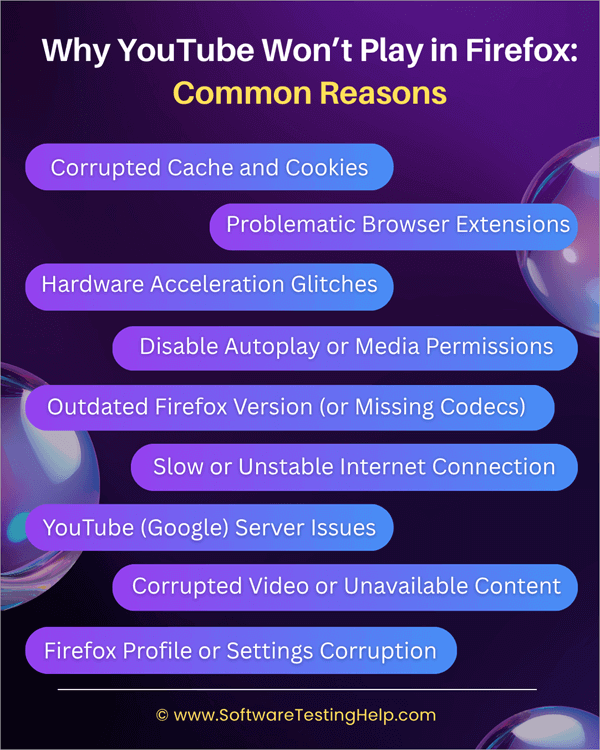
Here are some of the most general reasons behind this problem:
- Corrupted Cache and Cookies: Over time, accumulated cache files or cookies in Firefox can become outdated or corrupted. Old data piled up in the browser may interfere with performance, along with the videos that prevent them from playing properly.
- Problematic Browser Extensions: Running too many add-ons or a particular faulty extension can interfere with YouTube. Extensions (like certain ad blockers or privacy blockers) might block scripts or content that YouTube needs to play videos.
- Hardware Acceleration Glitches: Firefox’s hardware acceleration feature offloads video decoding to your GPU for smoother playback. However, this can sometimes backfire, especially if your graphics drivers are outdated or incompatible. A driver or rendering issue might result in YouTube videos not playing (you might hear audio with no video, or just see freezing). In such cases, Firefox’s hardware acceleration may actually hinder the video playback. Also Read => How to Fix YouTube Audio Renderer Error
- Disable Autoplay or Media Permissions: Firefox allows users to block videos from playing automatically. If you or an extension blocks audio/video autoplay or sets strict content permissions, it can prevent YouTube videos from starting at all. For instance, Firefox’s Enhanced Tracking Protection or a manual setting could stop the video until permission is granted. This is a security feature, but it may need adjustment for sites like YouTube.
- Outdated Firefox Version (or Missing Codecs): Using an out-of-date browser can lead to unexpected bugs or incompatibilities, including video playback issues. YouTube continuously updates its platform, and Firefox updates often include fixes for such issues.
- Slow or Unstable Internet Connection: It might sound obvious, but a poor internet connection can be the reason YouTube isn’t playing in Firefox. If your network is very slow or dropping out, videos could buffer indefinitely or not load at all. Firefox might then display errors or a blank player when it can’t fetch the video data quickly enough. Always rule out connectivity issues by checking your internet speed and stability.
- YouTube (Google) Server Issues: Sometimes the problem isn’t on your end at all. YouTube’s servers or services could be down or experiencing issues in your region. When this happens, no browser can play the videos. It’s rare, but outages do occur. If you suspect this, try accessing YouTube in another browser or device, or check online resources (like “Is YouTube down?” status pages). If it’s a widespread outage, you’ll have to wait for Google to fix it – there’s nothing wrong with your Firefox in this case.
- Corrupted Video or Unavailable Content: Occasionally, a specific video might be unavailable or corrupted on YouTube’s side. For example, if you click a video and get “This video is unavailable” or a similar error, the video might have been removed or has an issue on YouTube. This isn’t really Firefox’s fault – the video wouldn’t play anywhere. Always test with multiple videos; if only one or a few videos fail while others play, those particular videos could be the issue.
- Firefox Profile or Settings Corruption: Over long periods of use, your Firefox profile (settings data) might become cluttered or corrupted, leading to odd behavior like videos not playing. This could be because of a combination of settings, installed extensions, and other factors.
Suggested Read => Methods to Clear Cache in Chrome & Firefox
Causes & Quick Fix for Firexfox YouTube Video Issue
| Possible Cause | How to Fix It (Solution) |
| Corrupted Cache or Cookies: Outdated/corrupted browser data is interfering with YouTube. | Clear Firefox’s cache and cookies to remove old data, then restart the browser. |
| Problematic Extensions/Add-ons: For example, ad-blockers or other plugins block content. | Disable extensions (test in Private Mode or Firefox’s Troubleshoot Mode). Remove or update any add-on that was causing the playback to fail. |
| Hardware Acceleration Issues: Graphics driver conflicts or rendering bugs. | Turn off hardware acceleration in Firefox settings and restart Firefox. Also consider updating your GPU drivers to the latest version. |
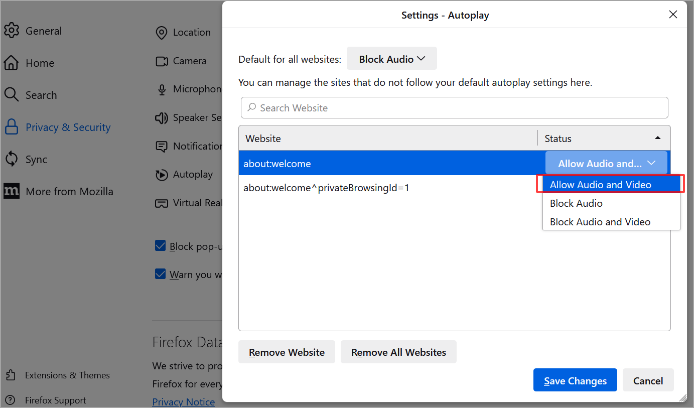
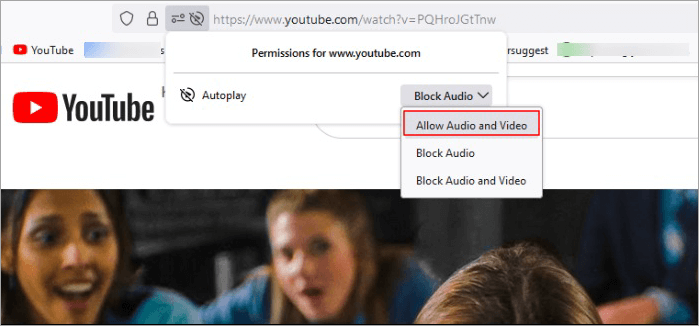
| Autoplay/Permissions Blocked: Media autoplay disallowed or strict content blocking. | Allow audio/video for YouTube: click the padlock icon in the address bar and set Autoplay to “Allow Audio and Video”. Ensure Firefox’s Content Blocking isn’t stopping media. |
| Update Firefox to the latest version (this ensures you have the newest fixes). Also, check Settings > General > DRM Content to enable Widevine, and install missing media packs if on Windows N or Linux. | Update Firefox to the latest version (this ensures you have the newest fixes). Also check Settings > General > DRM Content to enable Widevine, and install missing media packs if on Windows N or Linux. |
| Slow Internet Connection: Low bandwidth or high latency network. | Pause the video and let it buffer, or switch to a lower quality. Better, troubleshoot your network: test your internet speed, reset your router (power cycle), or try a different network if possible. |
| YouTube Server Outage: Issue on YouTube/Google’s side. | Verify by accessing YouTube from another device or browser. If others have the same problem, wait until YouTube fixes it. You can also check a service-status site for YouTube. |
| Firefox Profile Corruption: Browser configuration broken by some setting. | Use Firefox’s Refresh feature to reset to default settings (or create a new Firefox profile). This often clears any hidden issues causing YouTube playback failure. |
| Firefox Profile Corruption: Browser configuration is broken by some setting. | Try other videos. If only certain videos show errors (e.g. “video unavailable” or specific error codes), the problem lies with those videos. You may need to find an alternate source or just skip those. |
As you can see, most of these causes are within your control (browser settings, data, or system issues), and each has a corresponding fix. Next, we’ll go through step-by-step solutions to get your YouTube videos playing in Firefox again. Troubleshoot by following these steps until the issue is fixed.
Here is the video tutorial for your reference on YouTube not working in Firefox Browser:
How to Fix YouTube Videos Not Playing in Firefox

If YouTube videos aren’t playing in Firefox, try these fixes – most issues are easy to resolve with a few quick steps:
1. Refresh and Restart Firefox: Reload the YouTube page (press F5). If that doesn’t help, close and reopen Firefox completely. This clears minor glitches. Use Task Manager to ensure all Firefox processes are closed before restarting.
2. Check your Internet Connection: A slow or unstable internet connection can cause buffering or loading issues. Run a speed test, restart your router, or switch networks if needed.
3. Check if YouTube is Down: Visit YouTube in another browser or device. If it doesn’t work there either, check https://downdetector.com for YouTube outages and wait it out.
Also Read => Easy Fix to Solve ‘YouTube Not Working’ Issues
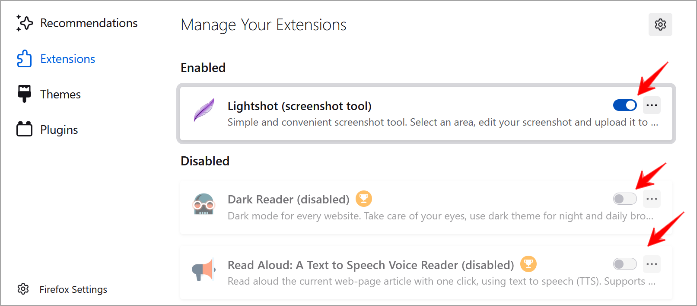
4. Use Private Mode: Open a Private Window (Ctrl+Shift+P) and try playing a video. If it works, the extension may block playback. Disable add-ons one by one under Menu > Add-ons > Extensions or use Help > Troubleshoot Mode.
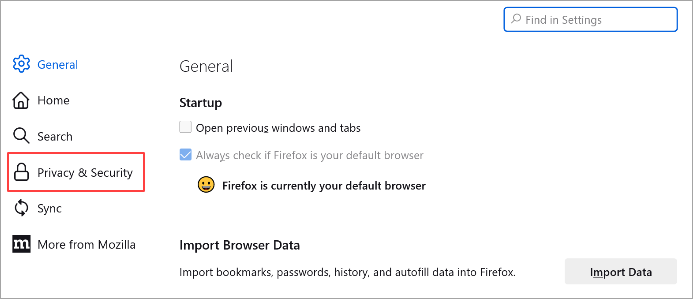
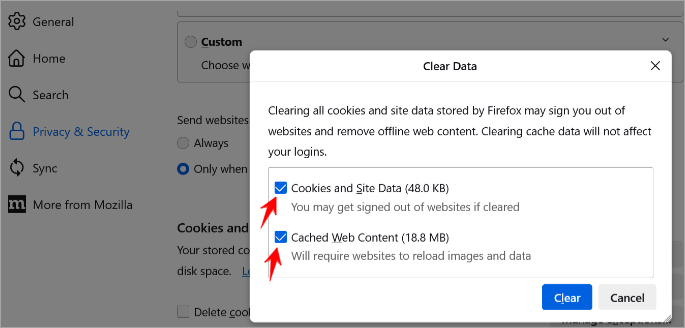
5. Clear Cache and Cookies: Go to Menu > History > Clear Recent History. Choose “Everything” check “Cookies” and “Cache.” Or, go to Settings > Privacy & Security > Cookies and Site Data > “Clear Data.”
6. Disable Hardware Acceleration: Go to Settings > General > Performance. Uncheck “Use hardware acceleration when available,” then restart Firefox. Re-enable later after updating your graphics driver if needed.
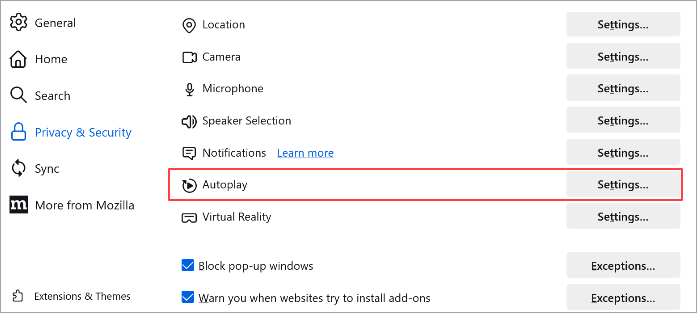
7. Allow Autoplay on YouTube: Click the padlock icon on YouTube’s address bar > Permissions > Autoplay > “Allow Audio and Video.” This ensures videos aren’t blocked from starting.
8. Update Firefox and Plugins: Go to Help > About Firefox to update. Also, ensure Widevine (used for protected content) is enabled under Plugins. Keep your OS updated too, for media compatibility.

9. Refresh Firefox: If nothing works, go to Help > More Troubleshooting Info > “Refresh Firefox.” This resets settings and removes extensions while keeping your data.
10. Reinstall Firefox (Last Resort): Uninstall and reinstall Firefox from the official site https://www.mozilla.org. Backup your profile or sync via a Firefox account to retain data.
By following the above steps, you’ve likely resolved the YouTube playback problem in Firefox.
Suggested Reading => How to Delete a YouTube Account
FAQs on YouTube not Working on Firefox
1. Why do YouTube videos work in Chrome but not in Firefox?
It’s likely because of Firefox settings or add-ons. Try disabling extensions, clearing the cache, or updating Firefox.
2. How do I fix a black screen when playing YouTube videos in Firefox?
Disable hardware acceleration in the Firefox settings and restart the browser. Update your graphics drivers if needed.
3. Can Firefox extensions stop YouTube from working?
Yes. Ad-blockers or privacy add-ons can block video playback. Use Private Mode for testing, then disable extensions one by one.
4. Why does Firefox not autoplay YouTube videos?
Firefox may block autoplay by default. To fix this, click the padlock icon on YouTube’s address bar and set Autoplay to “Allow Audio and Video.”
Suggested Reading => Top YouTube Video Editors to Look For
5. How to fix YouTube not playing any videos?
Start by refreshing Firefox, clearing cache and cookies, disabling add-ons, updating the browser, and checking your internet connection.
Also Read => How to Watch a Blocked YouTube Video
Conclusion
It can be frustrating when YouTube videos refuse to play, but the causes are usually straightforward and solvable. From clearing out old cache data to updating your browser, a bit of maintenance often does the trick. After trying the fixes above, you should be able to enjoy YouTube videos in Firefox without further issues.
If you’re still encountering problems even after attempting all these steps, you might consider reaching out on the Mozilla Support Forum, where many Firefox users and experts can offer guidance. There could be an uncommon issue at play.
In conclusion, a typical problem with well-known fixes is that YouTube does not play in Firefox. You can typically figure out what’s wrong and repair it by methodically analyzing the potential reasons, which include your internet connection, browser settings, and add-ons. With Firefox installed.
If everything goes as planned, you’ll be able to stream your favorite videos without any issues. Have fun exploring and using Firefox to watch YouTube!
Was this helpful?
Recommended Reading
-

Review of Top YouTube Video Downloader Apps with Features, Pricing & Comparison. Select the Best Free Online YouTube Ripper for PCs to Download YouTube Videos: YouTube is the most-watched video streaming website. Launched in 2005, the online video platform features a wide variety of content, including TV clips, educational videos,…
-

Here is the Step-by-step simple guide to get YouTube videos for free through the best YouTube downloaders. Having evaluated 40+ tools through 150+ hours of testing, we have identified only those tools that are fast and completely secure and are working in 2026. This guide highlights what are the safe…
-
Here you will find easy methods to Watch Blocked YouTube Videos in your country and learn to unblock Youtube videos: Today, YouTube has become a massively popular site where you can watch almost everything. News, videos, movies, it has an array of content for catering to its audiences. It is…
-
Are you anxious about effortlessly downloading a YouTube video? Compare and select a tool of your choice from this list of the top YouTube video Downloaders for Mac: We are living in an era where consumption of digital content is at an all-time high. One platform that’s fueling this trend…