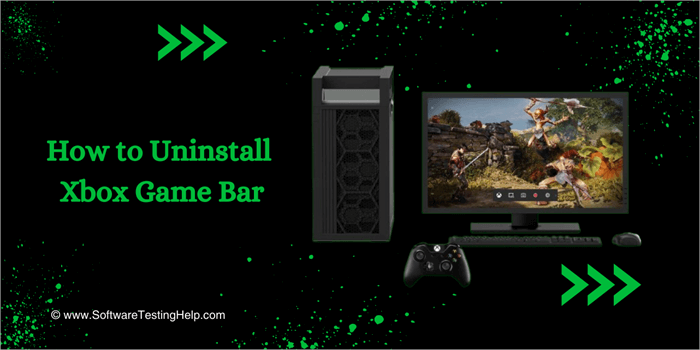
Discover the multiple methods on how to remove the Xbox Game Bar. Find out how to uninstall Xbox game bar from your Windows PC with simple step-by-step instructions:
Microsoft’s Xbox is a video gaming console released in North America on November 15th, 2001. Compared to Sony’s PlayStation 2, the Xbox is a mighty console with a strong processor and more space for storage.
It has five home video game consoles, including gaming applications, Cloud gaming streaming services, and online services like Xbox network and Game Pass.
Microsoft’s Windows 10 comes with a pre-installed Xbox suite of features – users can connect with Xbox One and play, save with backups over the cloud games, allows you to select from over 1300 games from the digital library and Xbox 360 from marketplace.xbox.com for the age group starting from 3 years to 18 years.
Xbox Game Bar: Simple Steps to Remove
Gaming DVR is used for recording, and taking screenshots of clips of gameplay, and streaming Xbox One games.
Windows 10-based computers come with a pre-installed Xbox gaming console. Users can bring up the Xbox game bar by pressing the Windows icon + G to quickly access Microsoft’s Xbox gaming features.
Further Reading => Quick Fixes for Xbox Mic Not Working
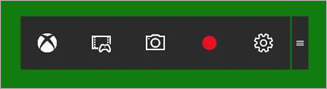
The Xbox game bar comprises five buttons in the following order:
- Shortcut to access the Xbox application.
- 30 seconds of previous recording when background recording (Windows icon + Alt + G) is enabled.
- Capturing screenshot (Windows icon + Alt + PrtScn).
- Toggle the key to Start and Stop recording (Windows icon + Alt + R).
- Setting for Gaming DVR.
Suggested Read =>> Xbox One Controller Keeps Disconnecting [QUICK SOLUTIONS]
Reason for Uninstalling Xbox Game Bar
With the Xbox application already installed for Windows-installed computers, clicking the Windows icon + G will open Game Bar, Under Game Bar, click on the Settings icon. Once you click on Sign in, you can sign in to Xbox games. You can connect to your friends with Xbox Social, play games, or chat with friends. Xbox games are very costly.
Children in their teens may become addicted to games as these games are powerful and depict real-life scenarios of being with their favorite superhero from Avengers acting as Xbox avatars with players.
Further, it is found that some Xbox features affect the performance of your computer and require frequent replacement of hardware like audio drivers, graphics cards, and video cards. Xbox Game bar occupies memory.
Further Reading => Can you Game Share on Xbox: Explore the Steps
How to Uninstall Xbox Game Bar
#1) Uninstall Xbox Game Bar by Stopping Installed Applications
Xbox Game Bar is a system component that comes prebuilt with Microsoft Windows 10 installation and cannot be uninstalled. Asking queries on Microsoft Community have come up with a resolution for uninstalling Xbox Game Bar as per the following steps:
- Press the Windows icon + G, Xbox Game Bar will open
- Click on the Setting (gear-shaped) icon – first from the right side, Click on the first from the left side – The shortcut icon
- Using the Xbox button, uncheck the open game bar
- Go on selecting and clicking on menu/submenus in the following order
- Selecting Settings –> Apps –> Installed Apps
- Search for ‘Game Bar’
- select System Components
- Click on three dots and select Advanced
- Under Advanced settings, select the Background Apps permissions section
- Click the dropdown menu and choose from the dropdown – Never
- Scroll down to the section labeled Terminate
- Click the Stop button to stop the application.
- You will have to Restart the computer for the above changes to apply
- You will find that Xbox Game Bar has been removed/uninstalled
Further Reading => How to Fix Xbox Controller Blinking Issue
#2) Uninstall Xbox Game Bar Through the DISM/PowerShell Command
The Deployment Image Servicing and Management (DISM) tool is used to scan your computer to detect missing and corrupted system files. It is a command line scan with run as administrator privilege.
CheckHealth, ScanHealth, and RestoreHealth are three commands that are essentially executed to create, modify, and resolve system images at the Setup, Recovery, and Windows PE environments.
1. Press the Windows icon + X
2. Press A
3. This will open the Windows PowerShell (Admin) command window
4. Type the following command
dism /Online /Get-ProvisionedAppxPackages | Select-String PackageName | Select-String Xbox
It will scan Xbox packages as shown in the figure under the box labeled as PowerShell command
- Using the DISM command option
Next, run the DISM command to remove the preinstalled Xbox package from your computer
dism /Online /Get-ProvisionedAppxPackages | `
Select-String PackageName | `
Select-String xbox | `
ForEach-Object {$_.Line.Split(':')[1].Trim()} | `
ForEach-Object { dism /Online /Remove-ProvisionedAppxPackage /PackageName:$_}

- Using the PowerShell command option
Alternatively, we can run the PowerShell command
Get-ProvisionedAppxPackage -Online | `
Where-Object { $_.PackageName -match "xbox" } | `
ForEach-Object { Remove-ProvisionedAppxPackage -Online -PackageName $_.PackageName }
Run the following command to remove Xbox packages for other users
Get-ProvisionedAppxPackage -Online | `
Where-Object { $_.PackageName -match "xbox" } | `
ForEach-Object { Remove-ProvisionedAppxPackage -Online -AllUsers -PackageName $_.PackageName }
After running the above commands, and restarting the computer.
#3) Disable the Xbox Game Bar Using the Registry Editor
System administrators use a registry editor to configure access permissions, changes in software or hardware-level settings, and administrative and root-level updates.
Using the Windows registry editor interface, system administrators can
1. Change entries that malfunction,
2. Changes required to update automatic start-up desktop or display settings as preferred by the user,
3. Clean and scan configuration files to remove broken or invalid entries,
4. Fix hierarchical structure to remove error-causing events.
DISM or PowerShell commands are not straightforward instead you can disable the Xbox Game Bar with a registry editor, by following the steps
5. Press the Windows icon + R. This will open the Run window
6. Enter regedit.exe in text field
7. Click the OK button to open the Registry Editor Interface
8. Navigate by clicking the tree structure under the computer as below
HKEY_Current_User->SOFTWARE->Microsoft->Windows->CurrentVersion->GameDVR
9. Select GameDVR on the left panel and right-click on GameDVR
10. You will find AppCaptureEnabled on the right panel,
11. Double-click on AppCaptureEnabled
12. A window will open, under the Value data field enter 0 and press the OK button.
13. Restart the computer to apply the changes
You will find Xbox Game Bar has been disabled successfully.
#4) Uninstall Xbox Game Bar Through the PowerShell Command
For Current User
Click on the Start button and search for Windows PowerShell. Type below command
Get-AppxPackage -PackageTypeFilter Bundle -Name "*Microsoft.XboxGamingOverlay*" | Remove-AppxPackage
Press Enter
For All Users
Click on the Start button and search for Windows PowerShell. Type below command
Get-AppxPackage -AllUsers -PackageTypeFilter Bundle -Name "*Microsoft.XboxGamingOverlay*" | Remove-AppxPackage –AllUsers
#5) Steps to Uninstall Xbox Game Bar From Windows Settings or Start Menu
- Press the Windows key from your keyboard OR click on the Windows icon at the left bottom corner
- Type Xbox Game Bar in the Search text field until you find the menu
- Right on the Xbox Game Bar label from the menus
- Select App Settings to open the Xbox Game Bar Settings interface
- Look for the Uninstall section
- Click on the Uninstall button
- The alert button may appear to confirm your decision
- Select Yes to uninstall the XBar Game Bar application and its settings from your computer
#6) Steps to Disable the Xbox Game Bar
- Press the Windows key from your keyboard OR click on the Windows icon at the left bottom corner
- Type Xbox Game Bar in the Search text field until you find it on the menu
- Right Click on the Xbox Game Bar label from the menus
- Select App Settings to open the Xbox Game Bar Settings interface
- Under Settings Go to Gaming
- Select Toggle to disable the Xbox Game Bar
Frequently Asked Questions
1. What is displayed in the Xbox game bar and what each icon is used for?
The Xbox game bar consists of five buttons in the following order:
Shortcut to access the Xbox application
30 seconds of previous recording when background recording
(Windows icon + Alt + G) is enabled
Capturing screenshot (Windows icon + Alt + PrtScn)
Toggle key to Start as well as Stop recording (Windows icon + Alt + R)
Setting for Gaming DVR
2. What are Video card encoders?
Video Card Encoder translates video input into a compatible digital format.
3. What are the different formats video encoders have?
Video encoders have different formats such as Intel Quick Sync H.264, Nvidia NVENC, or AMD VCE encoders.
4. List keyboard shortcuts for the Xbar Game Bar.
Following are keyboard shortcuts for the Xbar Game Bar
Windows icon + G – to open Xbox Game Bar
Windows icon + Alt + PrtScn – to take a screenshot
Windows icon + Alt + G – Record
Windows icon + Alt + R – Start/Stop Recording
Further Reading => List of the BEST Gaming Monitors of the Year
Conclusion
Xbox games are pre-installed with Microsoft Windows 10.
Unlike every other application, the Xbox game bar, which opens with a shortcut Windows icon + G, has an uninstall button disabled. There are workarounds explained to uninstall the Xbox game bar.
Was this helpful?
Recommended Reading
-

To protect your eyes from digital screens while enjoying games, explore the best Gaming Glasses with technical specifications listed in this review: Worried about your eyes as you stay in front of your PC for hours? Keeping your eyes off while gaming is never possible, and staring at it for…
-
List and comparison of internal and external Hard Drive for gaming to help you select the best gaming hard drive: Are you willing to play more games but facing problems storing them? Storage can be a bigger concern when it comes to keeping your favorite games on your PC or…
-
Is it hectic to operate your mouse and keyboard on the same hand while playing games? Read this review to compare the top and best One Handed Keyboards for Gaming: Focusing on the action keys and working on the mouse can really get difficult. It is best to switch over…
-
This article lists and compares the top RAM for Gaming along with features, specifications, etc to help you select the best RAM for Gaming: Are you looking forward to upgrading your PC? If you have a fascination for playing games, you'll require better specifications. Having a higher RAM will be…
-
Here's a comprehensive review of the best Cheap Gaming Headset, including the technical specifications offered by the best budget gaming headset: Do you want to improve your gaming skills? Is communication with your teammates becoming difficult? Good audio support, along with improved graphics, makes this an amazing ambiance for you…
-
Review and comparison of the top Gaming Headphones. Select the best PC gaming headset from our list for an improved gaming experience: Want to improve your Gaming Audio? Having a powerful gaming headset can drastically improve your gaming experience and make it an immersive experience. Even if you have a…
-
Are you facing continuous lags while playing games because of high resolution? Read this review to compare and select among the best Gaming Monitors available in the market: Is your current gaming monitor not able to run games with more than 60 Hz refresh rate and aging all the time?…
-
This article reviews and compares the top Gaming Earbuds with technical specifications to guide you to select the best earbuds for gaming: Are you facing difficulties talking with your teammates while playing games? Is the background noise becoming too difficult to overcome? With the best Gaming Earbuds, you'll be able…