Is Facebook’s random and Automatic log-out problem annoying you always? This simple guide includes some of the quick fixes for the issue – “Why does Facebook keep logging me out”:
There are many causes of this error, such as Facebook automatically logging out of a user account without their intent. This error can be very frustrating for users who want to keep up with what is happening, for instance, through Facebook newsfeeds, and who want to keep chatting with friends.
That’s because one needs to keep entering email and login details and access codes if he or she has not set up auto login from the browser or app.
Table of Contents:
Why Facebook Keeps Logging You Out (Quick Fixes That Work)

There is more than one solution to this nature of the problem. This tutorial discusses the causes and solutions to this problem.
[image source]
Suggested Read =>> Comparison of the top Facebook Video Downloader
Common Reasons Why Facebook Keep Logging Me Out
Why is Facebook Logging me out? Below are several issues that might cause this type of error:
#1) Bugs: The first cause of the Facebook logging out problem is there being a bug in the app installed by the user. Bugs, either discovered or undiscovered in the previous versions, can cause this issue. Bugs may also happen because of malware problems caused by code injection in other methods.
Facebook also does auto-log-out users in case there are hack vulnerabilities, configuration changes, software security issues on their end, or the normal timed-out logged-in sessions. Here, the problem may be temporal.
There is a list of known bugs on a platform on this link, but bugs may also happen on the user’s device.
#2) App version and Device compatibility issues: The automatic Facebook logout error can also happen when a Facebook app version is incompatible with a user’s device.
#3) Account inactivity: Facebook can automatically log out of an inactive account due to security reasons. This will prevent the possibility of unauthorized access to the account by a person who is not the owner of the account, for instance, if the device is no longer being used by the owner.
#4) Clearing out of cache and cookies: An automatic logging out of the account also occurs on Facebook if a user’s device is set to clear cookies and cache automatically, as happens when the user’s browser cache clears automatically after the browser is closed.
Clearing the app cache and cookies via device settings or other means will automatically log a user out of the Facebook app.
#5) Network issues: Network connectivity issues can cause an automatic logging out. For instance, the app may not communicate with the server, causing this issue.
#6) Facebook server down: Facebook servers can also be down, lose network connectivity, or be interfered with and hence this problem is witnessed.
#7) Facebook account hacking: In case your Facebook account is breached, you may be logged out of your account without your intent.
You can contact Facebook in such a case and they will email you a temporary link to log back in but there is also the possibility that you will be stuck in endless loops where Facebook keeps on sending the link to you but without successfully logging in or resetting the password.
Determining whether someone hacked your Facebook account is a completely different issue. You can, however, suspect so in case there are misnomers such as failure to receive.
In case the hackers have changed your password and email, you can add your Instagram account as a Facebook logging-in service and log into your Facebook later with the Instagram information. If already added, you can try logging into Facebook with your IG user data.
Further Reading => Why Does Instagram Keep Logging Me Out
To add Instagram as above, open the browser on which your Facebook account is logged in, go to your Profile -> Settings and Privacy -> Settings and you will see Meta Accounts under the left-hand bar. Go to See More in Accounts Center -> Connected Experiences on the left bar->Sharing accounts/Logging in with Accounts. Add the IG account and save.
You can then login and go to Security Settings on Facebook, delete the email added in by the hacker, reset the password, and add a 2FA phone verification procedure to the account.
In the past, 2FA services have also been compromised or DDOS attacked such that users get logged out and are unable to log back in. Here, logging out of all services or clearing your browser and app cache/cookies can help.
The Session Expired error also logs out users automatically. In this case, refreshing the page on a web browser can help. Also, try clearing the cache and cookies or checking whether it is the Facebook service that is down. For the latter case, use third-party services that can help you see if Facebook service is online or down.
Further Reading => Fix Facebook Dating Not Showing Up Issue
Facebook App Logged You Out? Try These Fixes First
Here are the common ways to end the Facebook auto logout problem. There are as many solutions to the Facebook automatic log-out error as there are causes. Below are some of them.
#1) Update your Facebook app: Updating the version of the app can fix most of the problems related to the version that you are using on your device.
Head over to the Appstore (Apple or Android) app on your device, open it, and search for Facebook. Tap Update to update the app and, once finished, launch the app. If the auto-log-out is happening on the Facebook web app, you will need to update the browser or explore other solutions to fix this problem.
#2) Clear cache and cookies: Cache files which, are temporal app usage files (user and app files), help the app run faster and efficiently. Cache storage contains user files such as images, videos, and login credentials.
Clearing corrupted cache files and re-logging in can solve the Facebook automatic log-out errors, though not in all cases.
Here is the video tutorial:
To clear the Facebook cache on iOS devices
Open Settings->General->iPhone storage and search for the Facebook app on the list that appears. Tap on the app and then tap Offload app to clear the cache.
To clear the Facebook cache on Android devices
- On Android, long-press the Facebook app to clear the cache.
- Tap on I button, scroll to Storage usage, tap on it, and then choose the Clear Cache option.
For some Android devices, go to Settings->Apps->All Apps find Facebook from the list, and tap on it. Choose Storage and Cache and tap on Clear Storage or Clear Cache.
[image source]
To clear the cache on web browsers
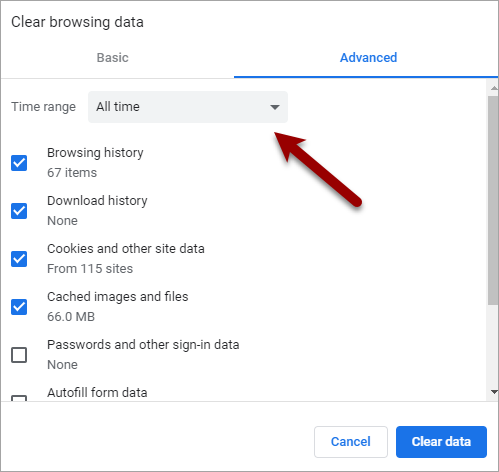
- Press the CTRL+Shift+Delete keys to bring up the Clear browsing data on Edge or Chrome browsers. The same can be accessed through the Settings menu of the browsers.
- Go to Settings->Privacy and Security tick all or the relevant options and click/tap the Clear data button.
Also on Mozilla, tap the three dots on the top right corner, then Settings->Delete browsing data, and tap on the Delete browsing data button if using Mozilla on Android.
#3) Restart the Smartphone: Restarting the phone can cause temporary issues to be solved, for instance, temporary bugs and software glitches from the developer or hosting end.
#4) Uninstall and reinstall Facebook: Uninstalling is done from the settings for most devices. For instance, on Android, go to Settings -> Apps -> All Apps, find Facebook from the list, and tap on it. Tap on Uninstall from the options listed.
Uninstalling can also be done by finding the app on the screen, long-pressing it, and selecting Delete or Uninstall option.
You can reinstall the app in the above case via the Android or iOS app store. Launch the app store search for Facebook, and tap Install.
Further Reading => Does Facebook Notify of Screenshots of Photos
#5) Check Internet connectivity: Confirm that your Wi-Fi or data connection is working by launching another app such as your phone browser. Try on browsing. If it is not working, then it might be an issue with your internet connectivity.
That said, if you are using a system-level VPN or a VPN app, check if the VPN has an Internet connection. You can also try disabling the VPN and re-launching the Facebook app, as some services will block traffic from VPNs.
#6) Remove multiple logged-in sessions on your account: Go to Settings -> Security and login -> Where you’re logged in. Delete the other sessions where it shows you are logged in apart from the current session.
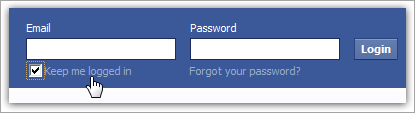
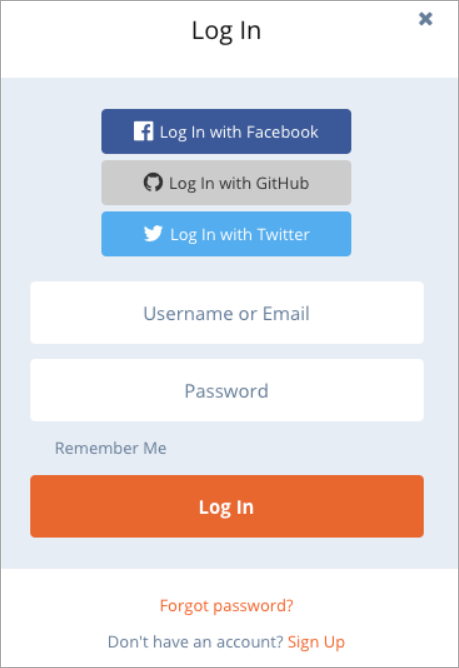
#7) Use the “Keep me logged in” option when you sign in: Facebook has a time limit that makes you log out if you stay for that given time while a logged-in session is inactive. Tap to tick the box against the words “Remember me” or “Keep me logged in” when next logging in. This will remove the time limit.
[image source]
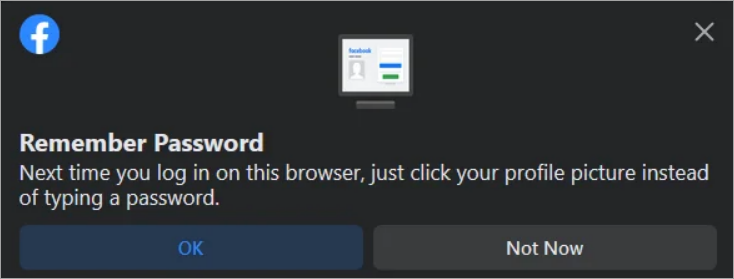
#8) Utilize the Facebook Auto Login Feature: This is activated when logging in to your account. In put the password then click or tap to tick the box against Remember Password when logging in to your account. The device presents the option after you input the password and tap/click Sign In.
[image source]
This means you will not need to type in the password next time you log in even if you are automatically logged out of Facebook. However, this will not solve the problem of you automatically getting logged out, but it is a temporary solution.
Further Reading => Explore the TOP CRM Facebook Integrations in the Market
Still Getting Logged Out? Advanced Fixes to Stay Signed In
#1) Change Facebook Password: Logging in to Facebook on multiple devices can cause automatic logout scenarios on one device if something happens to a different device. An example is if a person using the other devices logs out or clears the cache.
Step 1: Check Logged-In Devices
- The first thing is to confirm the list of devices logged in to a Facebook account.
- Go to: Settings -> Security and Login
Facebook allows removing unwanted devices from this list.
Step 2: Change the Account Password
Second, you can also change the account password on the current device to prevent a scenario of an automatic logout when the Facebook account is logged out from an app on a different device.
The solution also can solve a problem where the account is logging out automatically from the Facebook web if you had logged in on multiple browsers on different devices.
Steps to Change Password in the Facebook App
To change your password on the Facebook app on your current device:
- Open the Facebook app.
- Tap on your profile picture in the upper right corner.
- Scroll down.
- Tap on the Settings and Privacy tab.
- Select Settings.
Scroll to: Security section -> Security and Login -> Change password
Enter the current Facebook password in the first text box. Tap Forgot Password under the Cancel button and enter the security code, then create a new password. Enter a new password and update it.
Further Reading => Top Password Strength Testers of the Year
#2) Remove Third-party Services Used to Log into Your Facebook App:
Third-party services, especially those used to log into Facebook accounts, can misuse your account information and cause technical issues that can lead to the automatic log-out error on your Facebook account. You can try disabling these apps and services in your Facebook account and check if the error will disappear.
Steps to Remove Third-Party Apps and Services
To do the above:
- Open the Facebook app on your smartphone.
- Tap the hamburger menu in the upper right corner.
- Scroll to:
Settings & Privacy -> Settings -> Security -> Apps and Websites - Click on Logged in with Facebook option.
All the apps and services logged into the Facebook account will appear there. They include GitHub, Twitter, and Google sign-in.
To remove access:
- Tap on any item.
- Select Remove.
You can also try disabling outdated or corrupted or malware browser extensions on the browser, as they might also cause this error.
#3) Move the Facebook App to Internal Storage:
If the app is on an external storage device, an automatic logout can occur if the space is exhausted. Hence, moving it to the internal storage can help.
That also means that the solution for a case in which the problem is being experienced on a device with full internal storage is to create more space by deleting some data or apps.
Steps to Move the App to Internal Storage
To move an app from external to internal storage:
- Go to: Settings -> Apps & Notifications -> App info
- Tap on the app.
A Change or Move to Internal Storage button will appear if the app supports changing from external to internal storage.
Tap Move /move to external storage.
#4) Disable Ad Blocker and Other Extensions:
Incompatible ad blockers can cause the Session Expired issue. Hence try disabling the ad blocker or try logging in incognito mode. Type and browse chrome://extensions for Chrome browser, edge://extensions on Edge, or about add-ons on Firefox to find out the extensions that you have recently installed. You can try deactivating them and see if the problem disappears.
#5) Contact Facebook Support
Log into the Facebook app or via the web, tap/click on your profile photo, and scroll down to the Help & Support option to contact the support staff.
#6) Install Antivirus Software:
Such software can deal with malware problems. They can alert when the Facebook app or browser is infected with malware and even delete the malware. This helps in case your device is being interconnected with others, for instance, via the Internet.
Frequently Asked Questions
1. Why is Facebook logging me out? Why do I keep getting logged out of Facebook?
This error can occur if the app’s cache files are corrupt but the most common cause is when the app is not being updated. In the latter case, updating the app can help. In the former, clearing the cache on the Facebook app or browser can help to resolve the issue. The frequent automatic log-out error can occur if you are logged in many sessions on the same or different devices.
2. How to stop Facebook from logging out? Why is my Facebook logging me out?
Try updating the app through the Android or iOS app store app wherein you can search Facebook app, tap on it, and tap on the update button. Clearing the Facebook app cache and cookies by going to Settings -> Apps -> All Apps then search for the Facebook app, tap on it, and find the Storage and Cache, tap on it, then find the Clear Cache option and tap on it.
If using a browser, go to the relevant browser’s settings and find the Clear Cache option.
You also can disable the VPN app or VPN settings. Uninstalling and then reinstalling the Facebook app can also solve the issue.
3. My Facebook keeps logging me out. How to fix Facebook logging problems?
If Facebook is automatically logging out when using a browser or app, there are multiple ways to resolve the issue depending on the cause. The first is to update the app via the App Store. Search the Facebook app on the Android or iOS app store and update it.
Additionally, clearing the cache on the Facebook app or the web browser can help resolve the issue. Turning off the VPN can resolve the issue as can deleting and reinstalling the Facebook app. Resetting or changing the password can resolve an issue where the account has been breached.
4. The Facebook app keeps logging me out. Why does Facebook keep logging me out if I reset my password?
Resetting your Facebook password is one of the ways to resolve this issue. Another way is to disable third-party services used to log into your Facebook app e.g. Google account.
To do so log into your account, and tap the hamburger menu in the upper right corner.
Scroll to Settings & Privacy -> Settings -> Security -> Apps and Websites and click on Logged in with Facebook option.
Review all the apps and services logged into the Facebook account as they will all appear there. Tap on any and select Remove to remove access.
Also deleting and reinstalling the Facebook app can solve the issue. Additionally, try disabling the VPN app and contacting the Facebook support staff.
5. The Facebook app logged me out. Why does Facebook log me out randomly?
If logging in from the browser or an app, it could be a hacking attempt, issues with the browser including issues with the plugins/extensions, issues with the app, or a cache/cookies problem.
Try updating the app, uninstalling and reinstalling the app, clearing the cache/cookies from the settings on the device or browser, and changing the password. If using third-party services such as Google account sign-in to access Facebook, try disabling them from your Facebook account security settings.
Additionally, find out if you are actively logged in to multiple sessions and Android devices and log on to other devices on the Facebook account security settings.
Conclusion
Automatic logouts on Facebook can be frustrating to users who need to keep typing in the password and codes to log back in. This tutorial explained several reasons this can happen.
The most common of all is outdated app versions, in which case, an update can help, and temporal cache/cookies and security issues, which can be solved by clearing the browser and app cache and cookies and logging in.
Time taken to review: 1 day
Was this helpful?
Recommended Reading
-

List and comparison of the top Facebook Video Downloader with features and pricing. Select the FB Video Downloader software from this list per your requirements: You have to be living under a rock to not know what Facebook is. It is after all a behemoth amongst social media platforms. From…
-
Read, review, compare, and select among the list of top platforms available in the market today for Facebook Lead Ads Integrations with your CRM: Introduced in 2015, Facebook Lead Ads is a tool invented to help marketers generate leads while keeping the cost of lead acquisition at bay. This is…
-
List of The Top Social Media Marketing Tools with Features and Comparison. Select the Best Social Media Tool To Harness The Power of Social Media Platforms: When the concept of Social Media Platforms first came to light in the late 2000s, everybody jumped to get a taste of their new…
-
Review and compare top Social Media Content Calendar Tools & Templates with features and pricing to select the best social media calendar per your requirements: Social media websites have become a digital home for several people. Billions of people all over the world have active profiles on at least one…
-
Comprehensive List & Comparison of Top Hootsuite Alternatives With Description, Features, and Pricing to Help you Select the Best Hootsuite Competitor: Hootsuite is an outstanding tool to manage multiple social networking sites and it also helps develop a connection with the customers. Hootsuite is the best way to promote a brand…
-
List & Comparison of the Top Social Media Marketing Companies. Select the Best Agency for Branding Your Products & Increase Inbound Traffic And Visibility: Social media is an essential part of digital marketing for industries of all profiles, sizes, and businesses. This article provides a list of the Top Social…
-
Comprehensive Review & Comparison of Top Social Media Management Tools. Select the Best Social Media Management Software as per your Requirements: Do you want to boost your brand awareness, or substantiate your brand power? Do you dream of heavy traffic on your website? Do you wish for a more loyal…
-

Unlock the key to effective Social Media Management and elevate your digital strategies with the top Social Media Scheduling tools. Make a wise decision to streamline and optimize content timing in one place: In an era where digital visibility is important, how do you ensure your social media updates reach…